input MITSUBISHI OUTLANDER 2014 3.G MMCS Manual
[x] Cancel search | Manufacturer: MITSUBISHI, Model Year: 2014, Model line: OUTLANDER, Model: MITSUBISHI OUTLANDER 2014 3.GPages: 226, PDF Size: 31.21 MB
Page 2 of 226
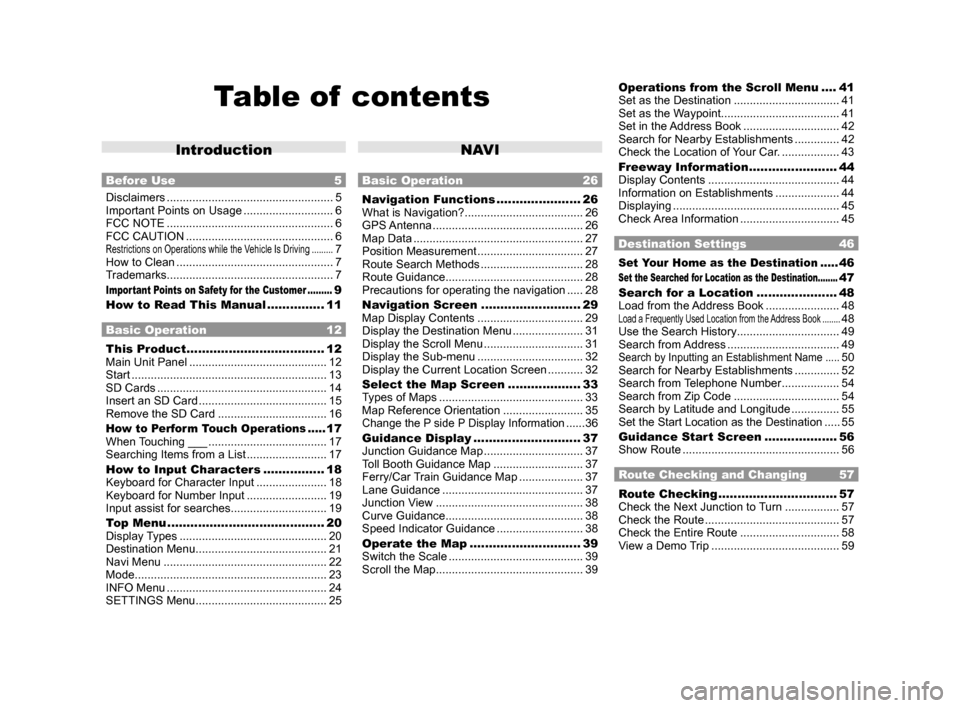
Table of contents
Introduction
Before Use 5
Disclaimers .................................................... 5
Important Points on Usage ............................ 6
FCC NOTE .................................................... 6
FCC CAUTION .............................................. 6
Restrictions on Operations while the Vehicle Is Driving .........7
How to Clean ................................................. 7
Trademarks .................................................... 7
Important Points on Safety for the Customer .........9
How to Read This Manual ............... 11
Basic Operation 12
This Product .................................... 12
Main Unit Panel ........................................... 12
Start ............................................................. 13
SD Cards ..................................................... 14
Insert an SD Card ........................................ 15
Remove the SD Card .................................. 16
How to Perform Touch Operations .....17
When Touching ___ ..................................... 17
Searching Items from a List ......................... 17
How to Input Characters ................ 18
Keyboard for Character Input ...................... 18
Keyboard for Number Input ......................... 19
Input assist for searches .............................. 19
Top Menu ......................................... 20
Display Types .............................................. 20
Destination Menu ......................................... 21
Navi Menu ................................................... 22
Mode ............................................................ 23
INFO Menu .................................................. 24
SETTINGS Menu ......................................... 25
NAV I
Basic Operation 26
Navigation Functions ......................26
What is Navigation? ..................................... 26
GPS Antenna ............................................... 26
Map Data ..................................................... 27
Position Measurement ................................. 27
Route Search Methods ................................ 28
Route Guidance ........................................... 28
Precautions for operating the navigation ..... 28
Navigation Screen .......................... 29
Map Display Contents ................................. 29
Display the Destination Menu ...................... 31
Display the Scroll Menu ............................... 31
Display the Sub-menu ................................. 32
Display the Current Location Screen ...........32
Select the Map Screen ................... 33
Types of Maps ............................................. 33
Map Reference Orientation ......................... 35
Change the P side P Display Information ......36
Guidance Display ............................ 37
Junction Guidance Map ............................... 37
Toll Booth Guidance Map ............................ 37
Ferry/Car Train Guidance Map .................... 37
Lane Guidance ............................................ 37
Junction View .............................................. 38
Curve Guidance ........................................... 38
Speed Indicator Guidance ...........................38
Operate the Map ............................. 39
Switch the Scale .......................................... 39
Scroll the Map .............................................. 39
Operations from the Scroll Menu ....41
Set as the Destination ................................. 41
Set as the Waypoint ..................................... 41
Set in the Address Book .............................. 42
Search for Nearby Establishments ..............42
Check the Location of Your Car. ..................43
Freeway Information ....................... 44
Display Contents ......................................... 44
Information on Establishments ....................44
Displaying .................................................... 45
Check Area Information ............................... 45
Destination Settings 46
Set Your Home as the Destination .....46
Set the Searched for Location as the Destination ........47
Search for a Location ..................... 48
Load from the Address Book ....................... 48
Load a Frequently Used Location from the Address Book ........48
Use the Search History ................................ 49
Search from Address ................................... 49
Search by Inputting an Establishment Name .....50
Search for Nearby Establishments ..............52
Search from Telephone Number .................. 54
Search from Zip Code ................................. 54
Search by Latitude and Longitude ............... 55
Set the Start Location as the Destination .....55
Guidance Start Screen ...................56
Show Route ................................................. 56
Route Checking and Changing 57
Route Checking ............................... 57
Check the Next Junction to Turn ................. 57
Check the Route .......................................... 57
Check the Entire Route ............................... 58
View a Demo Trip ........................................ 59
Page 3 of 226
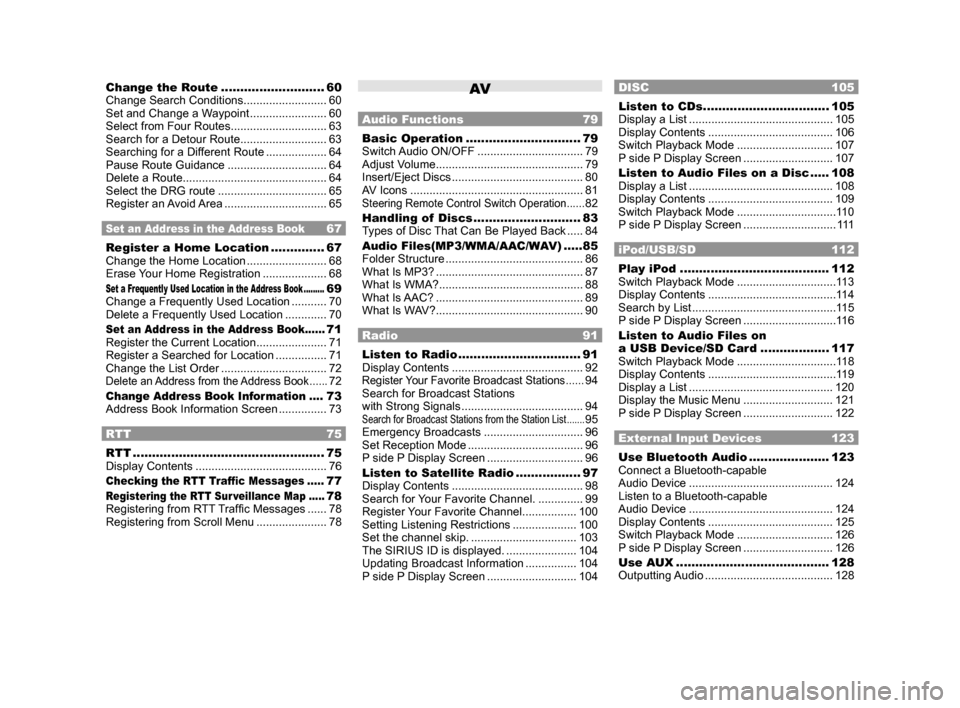
Change the Route ...........................60
Change Search Conditions .......................... 60
Set and Change a Waypoint ........................ 60
Select from Four Routes .............................. 63
Search for a Detour Route ........................... 63
Searching for a Different Route ...................64
Pause Route Guidance ...............................64
Delete a Route ............................................. 64
Select the DRG route .................................. 65
Register an Avoid Area ................................ 65
Set an Address in the Address Book 67
Register a Home Location ..............67
Change the Home Location ......................... 68
Erase Your Home Registration .................... 68
Set a Frequently Used Location in the Address Book .........69
Change a Frequently Used Location ........... 70
Delete a Frequently Used Location ............. 70
Set an Address in the Address Book ......71
Register the Current Location ...................... 71
Register a Searched for Location ................71
Change the List Order ................................. 72
Delete an Address from the Address Book ......72
Change Address Book Information ....73
Address Book Information Screen ............... 73
RTT 75
RTT .................................................. 75
Display Contents ......................................... 76
Checking the RTT Traffic Messages .....77
Registering the RTT Sur veillance Map .....78
Registering from RTT Traffic Messages ...... 78
Registering from Scroll Menu ......................78
AV
Audio Functions 79
Basic Operation .............................. 79
Switch Audio ON/OFF ................................. 79
Adjust Volume .............................................. 79
Insert/Eject Discs ......................................... 80
AV Icons ...................................................... 81
Steering Remote Control Switch Operation ......82
Handling of Discs ............................ 83
Types of Disc That Can Be Played Back ..... 84
Audio Files(MP3/WMA/AAC/WAV) .....85
Folder Structure ........................................... 86
What Is MP3? .............................................. 87
What Is WMA? ............................................. 88
What Is AAC? .............................................. 89
What Is WAV? .............................................. 90
Radio 91
Listen to Radio ................................ 91
Display Contents ......................................... 92
Register Your Favorite Broadcast Stations ......94
Search for Broadcast Stations
with Strong Signals ...................................... 94
Search for Broadcast Stations from the Station List .......95
Emergency Broadcasts ............................... 96
Set Reception Mode .................................... 96
P side P Display Screen ..............................96
Listen to Satellite Radio .................97
Display Contents ......................................... 98
Search for Your Favorite Channel. ..............99
Register Your Favorite Channel ................. 100
Setting Listening Restrictions .................... 100
Set the channel skip. ................................. 103
The SIRIUS ID is displayed. ...................... 104
Updating Broadcast Information ................ 104
P side P Display Screen ............................104
DISC 105
Listen to CDs ................................. 105
Display a List ............................................. 105
Display Contents ....................................... 106
Switch Playback Mode .............................. 107
P side P Display Screen ............................107
Listen to Audio Files on a Disc ..... 108
Display a List ............................................. 108
Display Contents ....................................... 109
Switch Playback Mode ............................... 11 0
P side P Display Screen .............................111
iPod/USB/SD 112
Play iPod ....................................... 112
Switch Playback Mode ............................... 11 3
Display Contents ........................................ 11 4
Search by List ............................................. 11 5
P side P Display Screen .............................11 6
Listen to Audio Files on
a USB Device/SD Card ..................117
Switch Playback Mode ............................... 11 8
Display Contents ........................................ 11 9
Display a List ............................................. 120
Display the Music Menu ............................ 121
P side P Display Screen ............................122
External Input Devices 123
Use Bluetooth Audio .....................123
Connect a Bluetooth-capable
Audio Device ............................................. 124
Listen to a Bluetooth-capable
Audio Device ............................................. 124
Display Contents ....................................... 125
Switch Playback Mode .............................. 126
P side P Display Screen ............................126
Use AUX ........................................ 128
Outputting Audio ........................................ 128
Page 5 of 226
5
IntroductionBefore UseIntroduction
The followings are what you need to know before using this product.
Before Use
Disclaimers
• Mitsubishi Motors will in no way be held
responsible for losses resulting from fire,
earthquake, tsunami, flood, or other natural
disasters; from actions of third parties; from
other accidents; or from inappropriate or
abnormal usage conditions utilized by the
customer, be said conditions deliberate or
unintentional.
• There will be no indemnification for alteration
or loss of any information stored upon
this product (address book etc.) by the
customer or a third party resulting from
improper use of this product, the influence
of static electricity or electric noise, or at
the time of malfunction or repair or similar
circumstances. We recommend that you
create backups of important information as a
precautionary measure.
• Some personal information (addresses in
address book, telephone numbers etc.) input
into this product may remain in memory even
if this product is removed. The customer
is responsible for proper handling and
management (including deleting) of personal
information to protect privacy when handing
this product over to anyone else or disposing
of it. Mitsubishi Motors will in no way be held
responsible. •
Mitsubishi Motors will in no way be held
responsible for any collateral losses (loss
of business profits, alteration or loss of
recorded data) resulting from the usage or
inability to use this product.
• Please be aware that the map displayed
is from when the data was prepared, so it
may differ from current conditions. Also,
Mitsubishi Motors will in no way be held
responsible for any losses resulting from
map data inadequacies.
• This product contains data on traffic
regulations, but due to changes in traffic
rules, this data may differ from the actual
traffic rules. Always obey the actual traffic
regulations. Also, Mitsubishi Motors will in
no way be held responsible for any losses
resulting from traffic accidents or traffic
rule violations due to traffic regulation data
inadequacies.
• Returns, refunds, exchange, or conversion
for reasons of map data inadequacy or the
like are not possible. There may be times
when the map data does not match the
specific objective of the user. The contents of
the map data are subject to change without
notice. The map data may contain wrong or
missing characters, incorrect locations etc. •
The rule guidance and audio guidance,
for example when to turn, may sometimes
differ from the actual traffic signs or traffic
regulations. Always obey the actual traffic
signs and actual traffic regulations.
• For the purpose of product improvement,
specifications and external appearance may
be subject to change without advance notice.
Accordingly, while the contents of the User
Manual may differ, please be aware that
returns, refunds, exchange, or conversion
are not possible.
• This User Manual explains details for
multiple vehicle models together. Depending
on the vehicle model, there may be functions
that may be described but not available,
or requirements for separately purchased-
products. Thank you for your understanding.
• Images and illustrations used in the
User Manual are either those used in
development, or used for explanations.
Please be aware that these may differ from
the actual images and illustrations used in
the product.
• Please be aware that Mitsubishi Motors,
including after-sales service departments,
will in no way be held responsible for any
losses or detriment resulting from alteration
or loss of any information stored in this
product, including customer registration
information.
Page 18 of 226
18 How to Input Characters
How to Input Characters
This section explains the menu items for the character input keyboard.
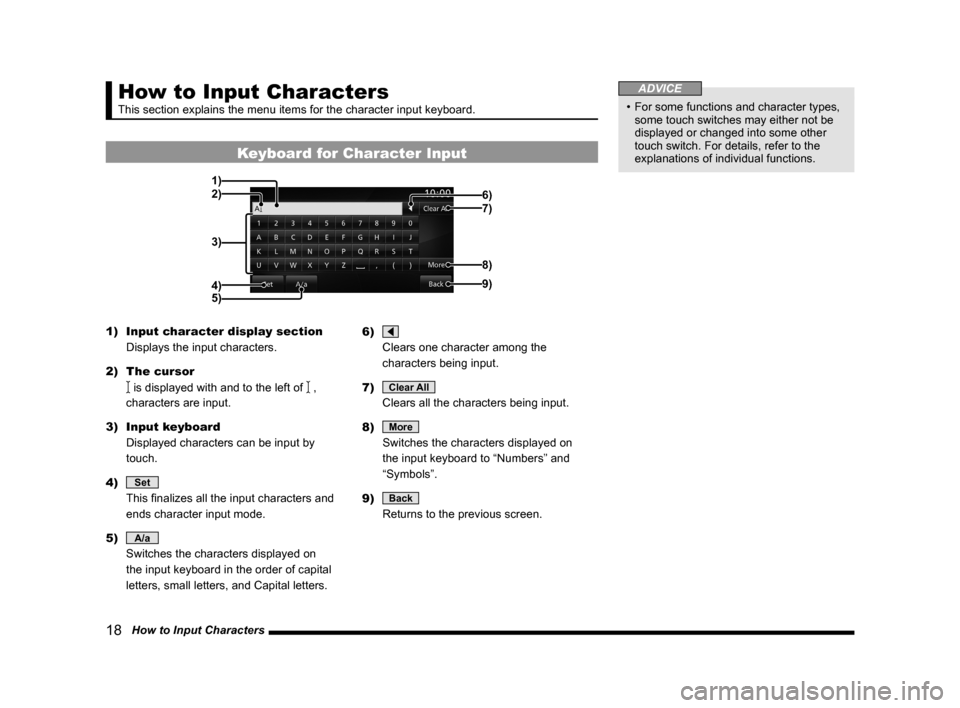
Keyboard for Character Input
6)
2)
3)
4) 1)
7)
9)
8)
5)
1) Input character display section
Displays the input characters.
2) The cursor
is displayed with and to the left of ,
characters are input.
3) Input keyboard
Displayed characters can be input by
touch.
4)
Set
This finalizes all the input characters and
ends character input mode.
5)
A/a
Switches the characters displayed on
the input keyboard in the order of capital
letters, small letters, and Capital letters. 6)
Clears one character among the
characters being input.
7)
Clear All
Clears all the characters being input.
8)
More
Switches the characters displayed on
the input keyboard to “Numbers” and
“Symbols”.
9)
Back
Returns to the previous screen.
ADVICE
• For some functions and character types,
some touch switches may either not be
displayed or changed into some other
touch switch. For details, refer to the
explanations of individual functions.
Page 19 of 226
How to Input Characters 19
IntroductionBasic Operation
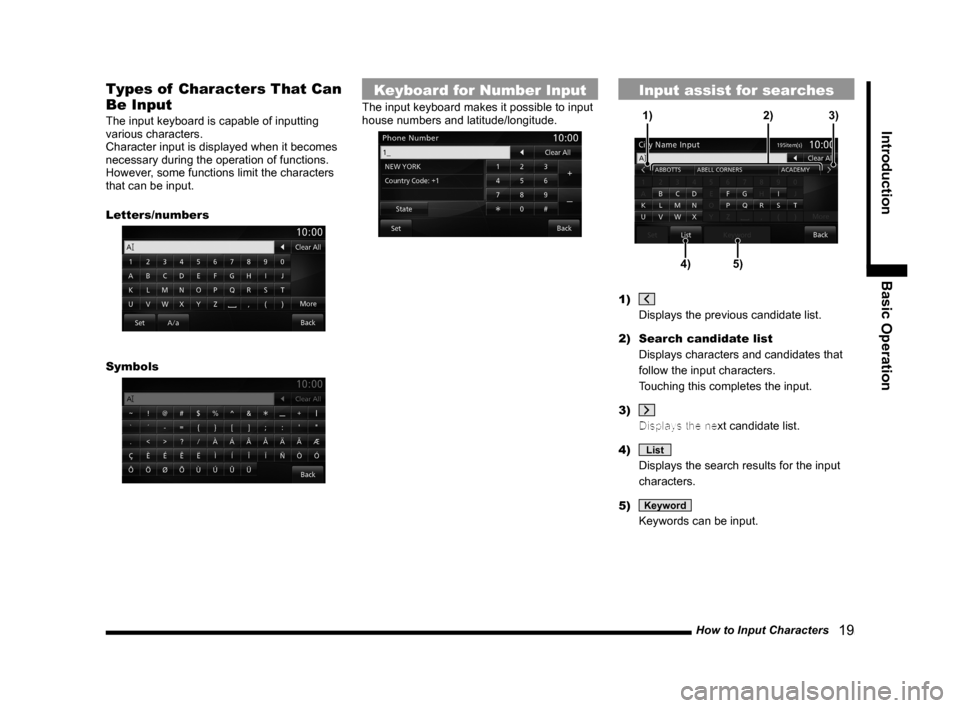
Types of Characters That Can
Be Input
The input keyboard is capable of inputting
various characters.
Character input is displayed when it becomes
necessary during the operation of functions.
However, some functions limit the characters
that can be input.
Letters/numbers
Symbols
Keyboard for Number Input
The input keyboard makes it possible to input
house numbers and latitude/longitude.
Input assist for searches
4)5)
1)
3)
2)
1)
Displays the previous candidate list.
2) Search candidate list
Displays characters and candidates that
follow the input characters.
Touching this completes the input.
3)
Displays the next candidate list.
4)
List
Displays the search results for the input
characters.
5)
Keyword
Keywords can be input.
Page 21 of 226
3)
4)
5)6) 1)
14) 8)
9)10)11)
12)13)
7)
1) Display switch")
Top Menu 21
Introduction Basic Operation
Destination Menu
This section explains the destination menu displayed when you press the \
key.
2)3)
4)
5)6) 1)
14) 8)
9)10)11)
12)13)
7)
1) Display switch menu (P20)
Allows you to switch the menu display
type.
2)
Go Home
Allows you to register a home location.
(P67) Also allows you to set your
registered home as the destination.
(P46)
3) Address/Intersection (P49)
Allows you to search for a location from
an address.
4)
Point of Interest (P50)
Allows you to input the name of
an establishment to search for the
establishment.
5)
Zip Code (P93)
Allows you to input the zip code to search
for its location. 6)
Phone Number
(P54)
Allows you to input the telephone number
to search for its location.
7)
▲
Displays the numbers for frequently used
locations
(P48).
8) Clock
Displays the current time using 12- or 24-
hour time.
9)
Latitude/Longitude (P55)
Allows you to input the latitude and
longitude to search for its location.
10)
Return Trip (P55)
Sets the start location as the destination.
11)
Previous 50 (P49)
Allows you to select a location for which
a map of the surroundings has been
displayed by using the search function. 12)
Address Book
(P48)
Allows you to select a location from the
address book.
13)
Advanced Search (P52)
Allows you to search for an establishment
around the current location or destination,
along the route, etc.
14)
Delete Route (P64)
Deletes the set route.
Page 23 of 226
Top Menu 23
Introduction Basic Operation
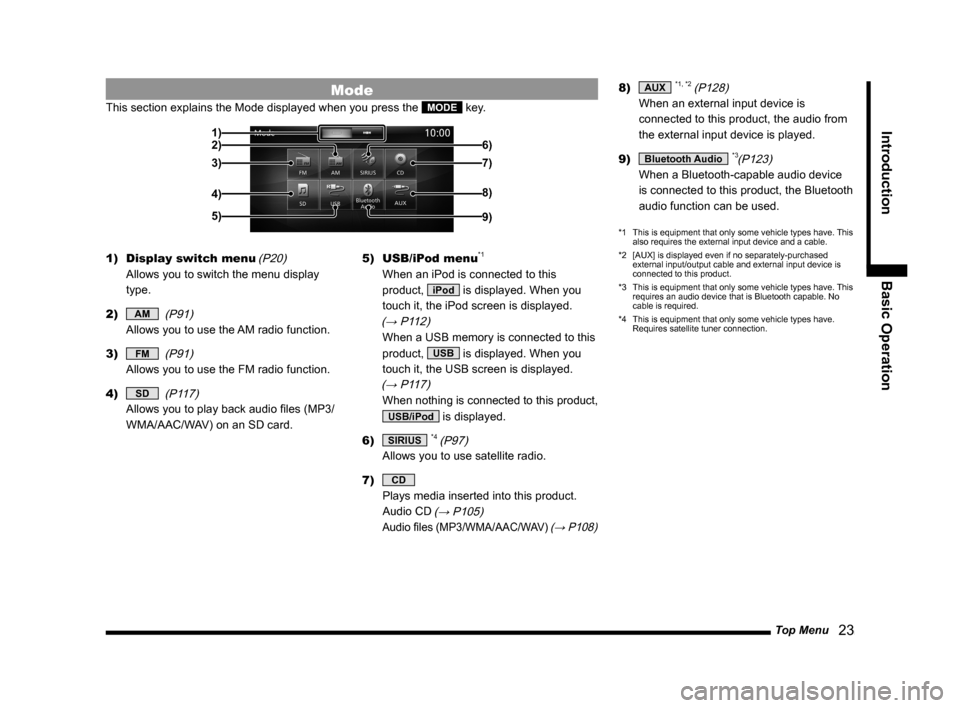
Mode
This section explains the Mode displayed when you press the MODE key.
2)
3)
4)
5) 1)
6)
7)
8)
9)
1) Display switch menu (P20)
Allows you to switch the menu display
type.
2)
AM (P91)
Allows you to use the AM radio function.
3)
FM (P91)
Allows you to use the FM radio function.
4)
SD (P117)
Allows you to play back audio files (MP3/
WMA/AAC/WAV) on an SD card. 5)
USB/iPod menu
*1
When an iPod is connected to this
product,
iPod is displayed. When you
touch it, the iPod screen is displayed.
(→ P112)
When a USB memory is connected to this
product,
USB is displayed. When you
touch it, the USB screen is displayed.
(→ P117)
When nothing is connected to this product,
USB/iPod is displayed.
6)
SIRIUS *4 (P97)
Allows you to use satellite radio.
7)
CD
Plays media inserted into this product.
Audio CD
(→ P105)
Audio files (MP3/WMA/AAC/WAV) (→ P108)
8) AUX *1, *2 (P128)
When an external input device is
connected to this product, the audio from
the external input device is played.
9)
Bluetooth Audio *3(P123)
When a Bluetooth-capable audio device
is connected to this product, the Bluetooth
audio function can be used.
*1 This is equipment that only some vehicle types have. This
also requires the external input device and a cable.
*2 [AUX] is displayed even if no separately-purchased
external input/output cable and external input device is
connected to this product.
*3 This is equipment that only some vehicle types have. This
requires an audio device that is Bluetooth capable. No
cable is required.
*4 This is equipment that only some vehicle types have.
Requires satellite tuner connection.
Page 28 of 226
28 Navigation Functions
Route Search Methods
• The route displayed in the route guidance
is a reference route to the destination. It
is not necessarily the shortest route. This
route guidance also does not take traffic
congestion information into account.
• Not all roads are used in route guidance.
• Routes using ferries are set to be less
recommended than normal roads. Therefore,
even when a ferry provides a quicker route
to the destination, a route not using the ferry
may be displayed.
• When a toll road interchange, parking area,
or service area is set as the destination or
as a waypoint, select from an establishment
search or from a freeway simplified map and
set without scrolling the map.
• Sometimes, the route is not the same as the
one prepared previously even though the
same locations were set as the destination
and waypoints.
• Sometimes routes are displayed that include
pedestrian ways, stairs, etc. that are not
passable by vehicle.
• If there is no road to the destination or only
narrow roads, a route may be displayed
that goes to some place apart from the
destination.
• Because searches are carried out passing
alongside establishments, depending on the
road configuration, roundabout routes may
be displayed.
• Sometimes routes are searched that take
traffic rule information into account.
• Sometimes, some temporary rules are not
taken into account or the time for which
they are applied differs from when they are
actually in effect.
Route Guidance
• When your car is driving on the searched
route, this displays the distance until the
destination or the next waypoint.
• When your car is driving off the searched
route, this displays the distance from the
point where you left the route until the
destination or the next waypoint.
• The display of the estimated time of arrival
at the destination is calculated based on the
remaining time data in the map data and
learning trip information.
• Sometimes even though you need to turn
at a junction, the junction name is not in the
guidance and the junction is not covered in
the audio guidance.
• Sometimes left and right turn guidance
differs from the actual road configuration.
• When you go off the route, for example by
turning one junction too early, sometimes the
audio guidance continues for the route you
had been on.
• Sometimes the distance in the guidance is
slightly too high or too low.
Precautions for operating the
navigation
• During route guidance, always obey the
actual traffic regulations. Failure to do so
may cause a traffic accident.
• The route is searched using the map data on
the map card. Sometimes it may differ from
actual restrictions for construction, one-way
rules, and other traffic rules. Always obey
the actual traffic regulations.
• Traffic rules that depend on the time of
day reflect the time at which the route was
searched. When driving the route, always
obey the actual traffic regulations.
• The distance your car has traveled is
measured with the speed sensor (and this
speed is proportional to the rotation rate of
the tires).When the tires are new, if you have
non-standard tires, or if the tire air pressure
is not correct, error inputs the distance
measurement more easily and the location
of your car may not be displayed correctly.
• The route is a reference route to around the
destination. It is not the shortest route or the
route most free of traffic congestion.
• While you are driving, the amount of road
information displayed is restricted and some
roads may not be displayed.(For example,
narrow streets)
• If the distance to the destination is extremely
short or extremely long, route search may be
impossible.
• Even if you travel off the route, the route is
automatically recalculated.
• The estimated time of arrival varies with the
road conditions and how you drive.
Page 49 of 226
Search for a Location 49
NAVIDestination Settings
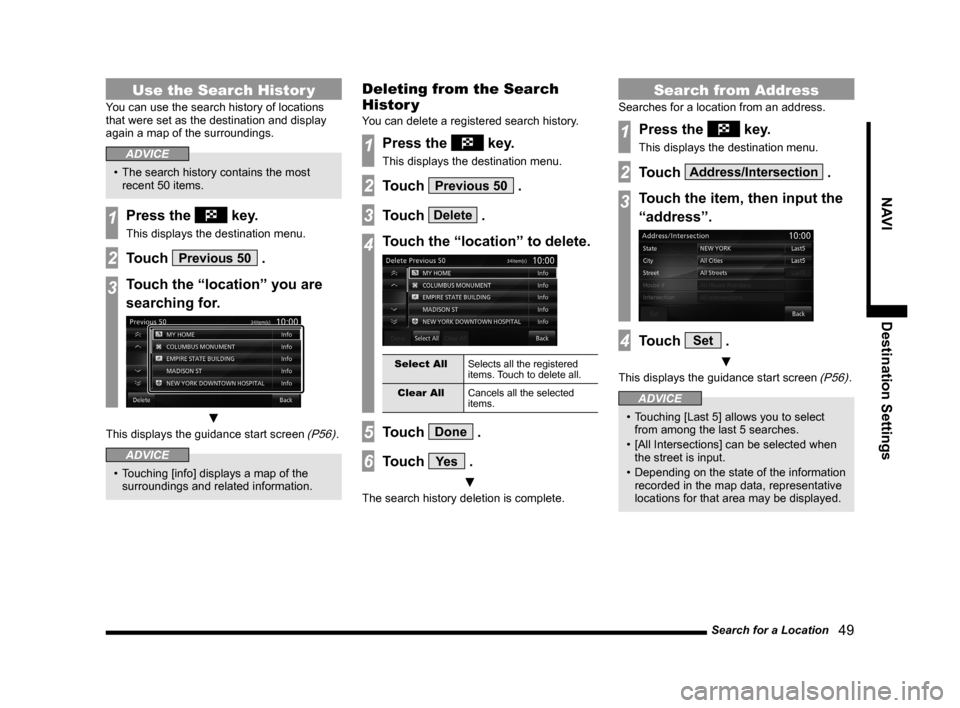
Use the Search Histor y
You can use the search history of locations
that were set as the destination and display
again a map of the surroundings.
ADVICE
• The search history contains the most
recent 50 items.
1Press the key.
This displays the destination menu.
2Touch Previous 50 .
3Touch the “location” you are
searching for.
▼
This displays the guidance start screen (P56).
ADVICE
• Touching [info] displays a map of the
surroundings and related information.
Deleting from the Search
Histor y
You can delete a registered search history.
1Press the key.
This displays the destination menu.
2Touch Previous 50 .
3Touch Delete .
4Touch the “location” to delete.
Select All Selects all the registered
items. Touch to delete all.
Clear All Cancels all the selected
items.
5Touch Done .
6Touch Ye s .
▼
The search history deletion is complete.
Search from Address
Searches for a location from an address.
1Press the key.
This displays the destination menu.
2Touch Address/Intersection .
3Touch the item, then input the
“address”.
4Touch Set .
▼
This displays the guidance start screen (P56).
ADVICE
• Touching [Last 5] allows you to select
from among the last 5 searches.
• [All Intersections] can be selected when
the street is input.
• Depending on the state of the information
recorded in the map data, representative
locations for that area may be displayed.
Page 50 of 226
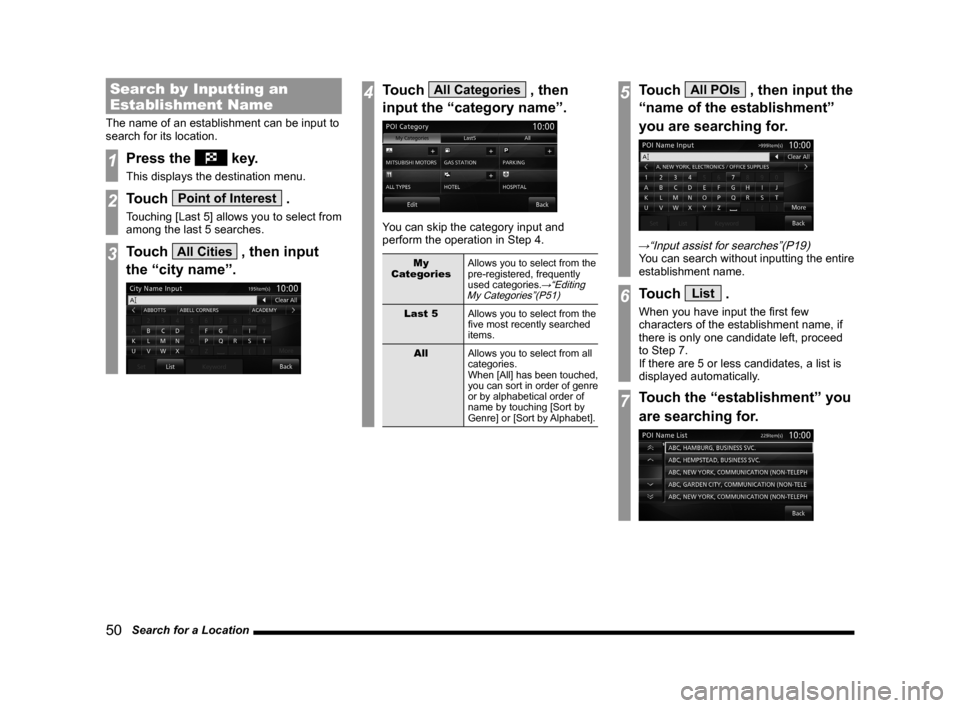
50 Search for a Location
Search by Inputting an
Establishment Name
The name of an establishment can be input to
search for its location.
1Press the key.
This displays the destination menu.
2Touch Point of Interest .
Touching [Last 5] allows you to select from
among the last 5 searches.
3Touch All Cities , then input
the “city name”.
4Touch All Categories , then
input the “category name”.
You can skip the category input and
perform the operation in Step 4.
My
Categories Allows you to select from the
pre-registered, frequently
used categories.
→“Editing
My Categories”(P51)
Last 5 Allows you to select from the
five most recently searched
items.
All Allows you to select from all
categories.
When [All] has been touched,
you can sort in order of genre
or by alphabetical order of
name by touching [Sort by
Genre] or [Sort by Alphabet].
5Touch All POIs , then input the
“name of the establishment”
you are searching for.
→“Input assist for searches”(P19)You can search without inputting the entire
establishment name.
6Touch List .
When you have input the first few
characters of the establishment name, if
there is only one candidate left, proceed
to Step 7.
If there are 5 or less candidates, a list is
displayed automatically.
7Touch the “establishment” you
are searching for.