USB MITSUBISHI OUTLANDER 2014 3.G Owners Manual
[x] Cancel search | Manufacturer: MITSUBISHI, Model Year: 2014, Model line: OUTLANDER, Model: MITSUBISHI OUTLANDER 2014 3.GPages: 451, PDF Size: 49.08 MB
Page 4 of 451
Instruments and controls
Overview 1-2
1
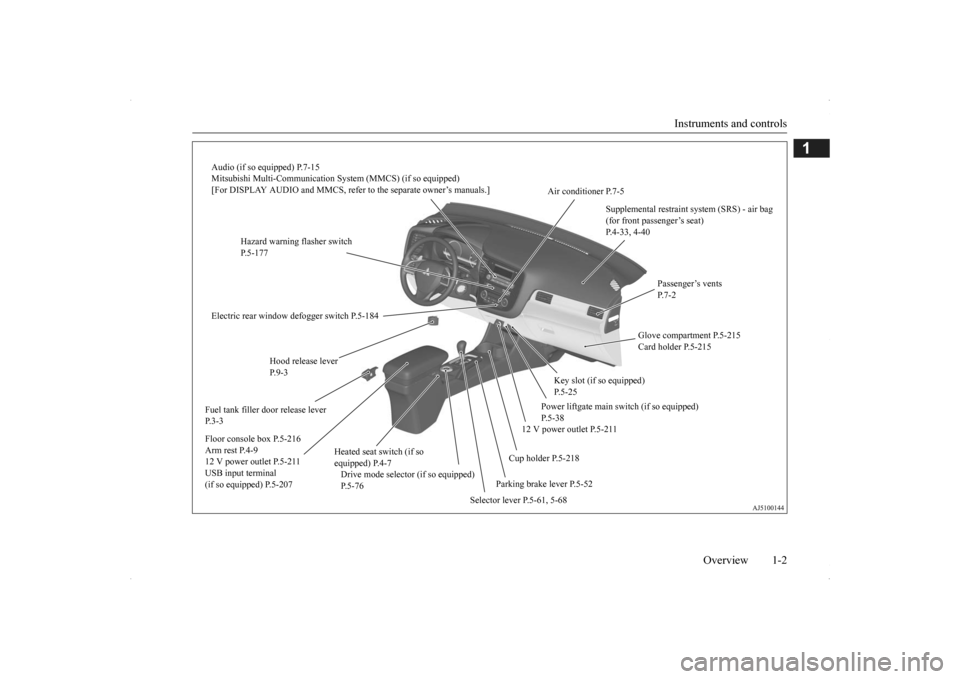
Audio (if so equipped) P.7-15 Mitsubishi Multi-Communication Syst
em (MMCS) (if so equipped)
[For DISPLAY AUDIO and MMCS, refer to the separate owner’s manuals.]
Hazard warning flasher switch P.5-177
Electric rear window defogger switch P.5-184 Fuel tank filler door release lever P. 3 - 3
Drive mode selector (if so equipped) P.5-76
Selector lever P.5-61, 5-68
Parking brake lever P.5-52
Supplemental restraint system (SRS) - air bag (for front passenger’s seat) P.4-33, 4-40
Air conditioner P.7-5
Hood release lever P. 9 - 3
Floor console box P.5-216 Arm rest P.4-912 V power outlet P.5-211 USB input terminal (if so equipped) P.5-207
Heated seat switch (if so equipped) P.4-7
Cup holder P.5-218
12 V power outlet P.5-211
Power liftgate main sw
itch (if so equipped)
P.5-38
Key slot (if so equipped) P.5-25
Glove compartment P.5-215 Card holder P.5-215
Passenger’s vents P. 7 - 2
BK0200500US.book 2 ページ 2013年2月12日 火曜日 午前9時46分
Page 80 of 451
5
Features and controlsECO mode switch......................................................................... 5-178 Front fog light switch (if so equipped) ......................................... 5-178 Wiper and washer switch ............................................................ 5-179Electric rear window def
ogger switch.........
...........
.........
............. 5-184
Horn switch .................................................................................. 5-184 Link System (if so equipped) ....................................................... 5-185 Bluetooth
® 2.0 interface (if so equipped) .................................... 5-185
USB input terminal (if so equipped) ............................................ 5-207 Sun visors ..................................................................................... 5-21012 V power outlets ....................................................................... 5-211 Interior lights ................................................................................ 5-212 Storage spaces .............................................................................. 5-215Cup holders .................................................................................. 5-218 Bottle holders ............................................................................... 5-219 Cargo area cover (if so equipped) ................................................ 5-219Assist grips ................................................................................... 5-221 Coat hooks .................................................................................... 5-222 Luggage hooks ............................................................................. 5-222BK0200500US.book 2 ページ 2013年2月12日 火曜日 午前9時46分
Page 263 of 451
Link System (if so equipped) Features and controls 5-185
5
N00563701066
The Link System takes control of the devices connected via the USB i
nput terminal or the
Bluetooth
® 2.0 interface; the system allows
the connected device to be operated by using the switches in the vehicle or voice com- mands.See the following section for details on how to operate. Refer to “Bluetooth
® 2.0 interface” on page
5-185.Refer to “USB input terminal” on page 5-207. Bluetooth
® is a registered trademark of
BLUETOOTH SIG, INC.
N00563801025
You have acquired a device
that includes soft-
ware licensed to Mitsubishi Motors Corpora-tion from JOHNSON CONTROLS Inc (the automotive experience business unit), and their subsequent 3rd party suppliers. For acomplete list of these
3rd party products and
their end user license agreements, please go to the following website. http://www.jciblueconn
ect.com/faq/fulldis-
closure.pdf
N00563901198
The Bluetooth
® 2.0 interface allows for mak-
ing/receiving hands-free
calls in the vehicle
using a Bluetooth
® compatible cellular
phone. It also allows the user to play music, saved in a Bluetooth
® music player, from the
vehicle’s speakers. The system is equipped
with a voice recogni-
tion function, which allows you to make hands-free calls by simple switch operations and voice command operations using adefined voice tree.
The Bluetooth
® 2.0 interface can be used
when the ignition switch or the operationmode is in ON or ACC. Before you can use the Bluetooth
® 2.0 inter-
face, you must pair the Bluetooth
® device
and Bluetooth
® 2.0 interface. Refer to “Con-
necting the Bluetooth
® 2.0 interface and
Bluetooth
® device” on page 5-192.
Bluetooth
® is a registered trademark of
BLUETOOTH SIG, INC.
Link System
(if so equipped)
Link System End User License Agreement
Bluetooth
® 2.0 interface
(if so
equipped)
WA R N I N G Although the Bluetooth
® 2.0 interface
allows you to make hands-free calls, if youchoose to use the cellular phone while driving, you must not allow yourself to be distracted from the sa
fe operation of your
vehicle. Anything, including cellularphone usage, that distracts you from the safe operation of you
r vehicle increases
your risk of an accident. Refer to and comply
with all state and
local laws in your area regarding cellularphone usage while driving.
BK0200500US.book 185 ページ 2013年2月12日 火曜日 午前9時46分
Page 285 of 451
USB input terminal (if so equipped)
Features and controls 5-207
5
N00566701041
You can connect your USB memory device or iPod
* to play music files stored in the USB
memory device or iPod. The following explains
how to connect and
remove a USB memory device or iPod. * : “iPod” is a registered trademark of Apple Inc. in the United States and other countries.
N00566801114
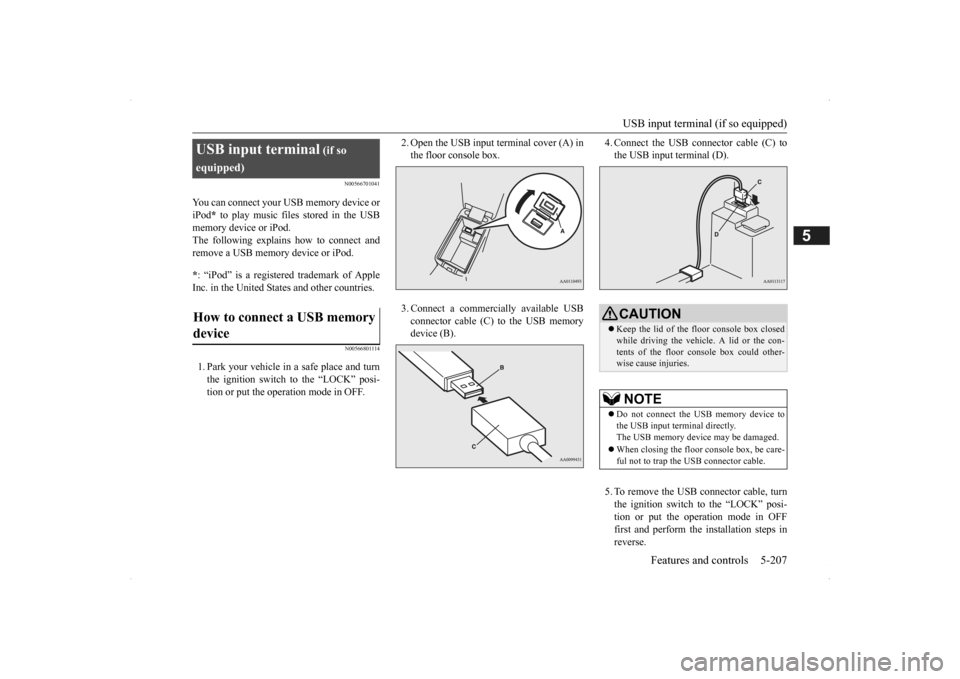
1. Park your vehicle in
a safe place and turn
the ignition switch to the “LOCK” posi- tion or put the opera
tion mode in OFF.
2. Open the USB input terminal cover (A) in the floor console box. 3. Connect a commercially available USB connector cable (C) to the USB memory device (B).
4. Connect the USB connector cable (C) to the USB input terminal (D). 5. To remove the USB connector cable, turn the ignition switch to the “LOCK” posi- tion or put the operation mode in OFFfirst and perform the installation steps in reverse.
USB input terminal
(if so
equipped)How to connect a USB memory device
CAUTION Keep the lid of the floor console box closed while driving the vehicle. A lid or the con- tents of the floor c
onsole box could other-
wise cause injuries.NOTE
Do not connect the USB memory device to the USB input term
inal directly.
The USB memory devi
ce may be damaged.
When closing the floor console box, be care- ful not to trap the USB connector cable.
BK0200500US.book 207 ページ 2013年2月12日 火曜日 午前9時46分
Page 286 of 451
USB input terminal (if so equipped) 5-208 Features and controls
5
N00566901102
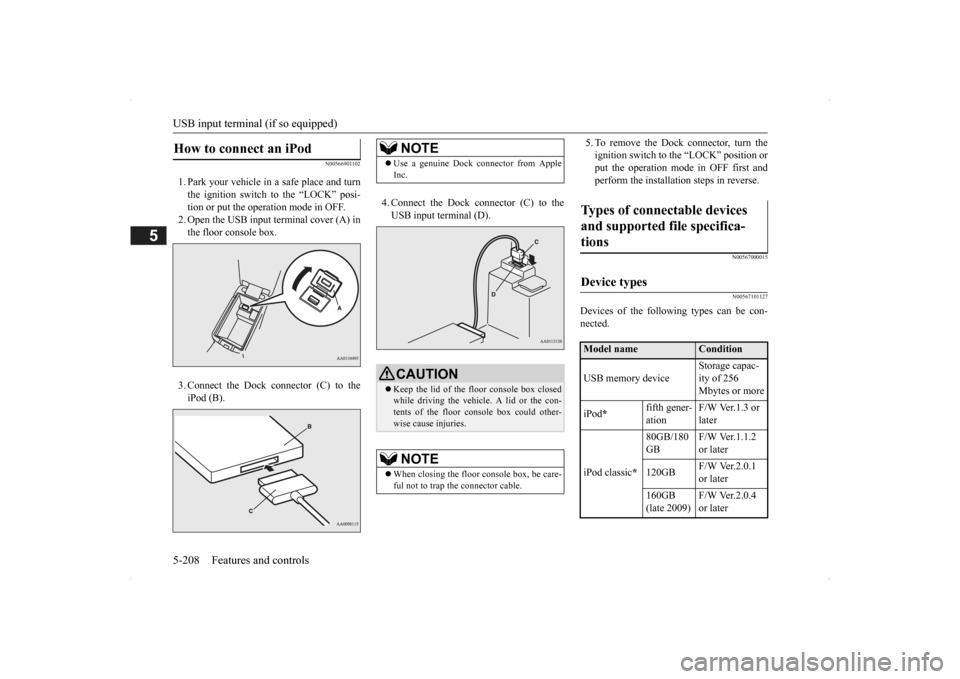
1. Park your vehicle in a safe place and turn the ignition switch to the “LOCK” posi-tion or put the operation mode in OFF. 2. Open the USB input terminal cover (A) in the floor console box. 3. Connect the Dock connector (C) to the iPod (B).
4. Connect the Dock connector (C) to the USB input terminal (D).
5. To remove the Dock connector, turn the ignition switch to the “LOCK” position orput the operation mode in OFF first and perform the installation steps in reverse.
N00567000015 N00567101127
Devices of the follow
ing types can be con-
nected.
How to connect an iPod
NOTE
Use a genuine Dock connector from Apple Inc.CAUTION Keep the lid of the floor console box closed while driving the vehicl
e. A lid or the con-
tents of the floor console box could other-wise cause injuries.NOTE
When closing the floor
console box, be care-
ful not to trap the connector cable.
Types of connectable devices and supported file specifica-tions
Device types
Model name
Condition
USB memory device
Storage capac- ity of 256 Mbytes or more
iPod
*
fifth gener- ation
F/W Ver.1.3 or later
iPod classic
*
80GB/180 GB
F/W Ver.1.1.2 or later
120GB
F/W Ver.2.0.1 or later
160GB (late 2009)
F/W Ver.2.0.4 or later
BK0200500US.book 208 ページ 2013年2月12日 火曜日 午前9時46分
Page 287 of 451
USB input terminal (if so equipped)
Features and controls 5-209
5
* : “iPod,” “iPod classic,” “iPod nano,” “iPod touch,” and “iPhone”
are registered trade-
marks of Apple Inc. in the United States and other countries.
N00567201030
You can play music files of the followingspecifications that are saved in a USB mem- ory device or other
device supporting mass
storage class. When
you connect your iPod,
playable file specif
ications depend on the
connected iPod.
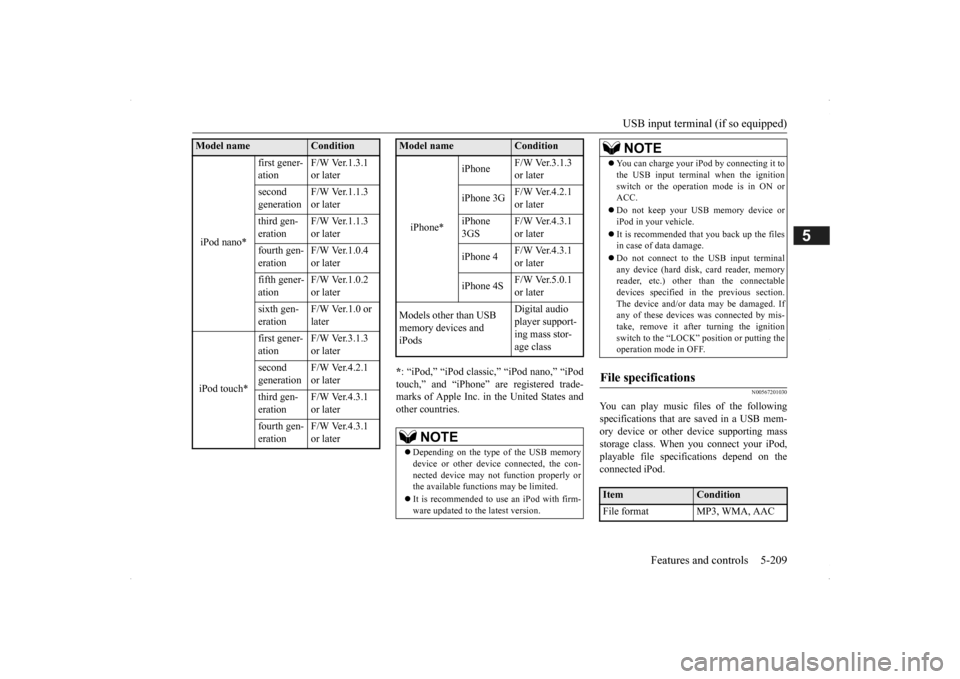
iPod nano*
first gener- ation
F/W Ver.1.3.1 or later
second generation
F/W Ver.1.1.3 or later
third gen- eration
F/W Ver.1.1.3 or later
fourth gen- eration
F/W Ver.1.0.4 or later
fifth gener- ation
F/W Ver.1.0.2 or later
sixth gen- eration
F/W Ver.1.0 or later
iPod touch*
first gener- ation
F/W Ver.3.1.3 or later
second generation
F/W Ver.4.2.1 or later
third gen- eration
F/W Ver.4.3.1 or later
fourth gen- eration
F/W Ver.4.3.1 or later
Model name
Condition
iPhone*
iPhone
F/W Ver.3.1.3 or later
iPhone 3G
F/W Ver.4.2.1 or later
iPhone 3GS
F/W Ver.4.3.1 or later
iPhone 4
F/W Ver.4.3.1 or later
iPhone 4S
F/W Ver.5.0.1 or later
Models other than USB memory devices and iPods
Digital audio player support-ing mass stor- age class
NOTE
Depending on the type of the USB memory device or other devi
ce connected, the con-
nected device may not
function properly or
the available functi
ons may be limited.
It is recommended to use an iPod with firm- ware updated to th
e latest version.
Model name
Condition
You can charge your iP
od by connecting it to
the USB input terminal
when the ignition
switch or the operation mode is in ON orACC. Do not keep your USB memory device or iPod in your vehicle. It is recommended that you back up the files in case of data damage. Do not connect to the USB input terminal any device (hard disk
, card reader, memory
reader, etc.) other
than the connectable
devices specified in the previous section.The device and/or data
may be damaged. If
any of these devices
was connected by mis-
take, remove it after turning the ignitionswitch to the “LOCK” position or putting the operation mode in OFF.
File specifications
Item
Condition
File format MP3, WMA, AAC
NOTE
BK0200500US.book 209 ページ 2013年2月12日 火曜日 午前9時46分
Page 294 of 451
Storage spaces 5-216 Features and controls
5
There is a card holder on the inside of the glove compartment.
N00551601244
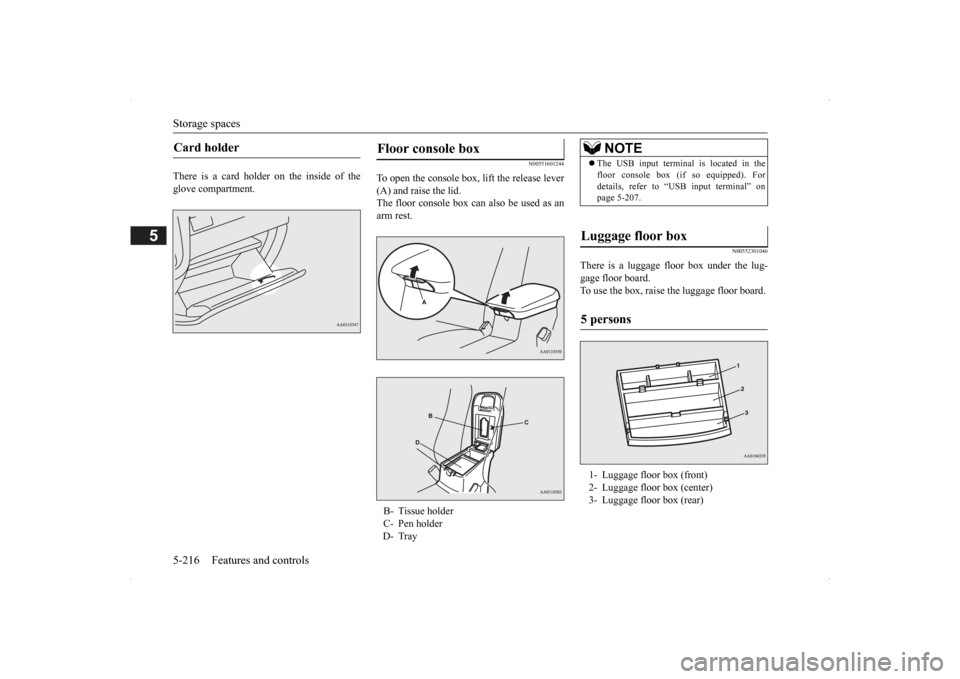
To open the console box, lift the release lever(A) and raise the lid. The floor console box can also be used as anarm rest.
N00552301046
There is a luggage floor box under the lug-gage floor board. To use the box, raise the luggage floor board.
Card holder
Floor console box B- Tissue holder C- Pen holderD- Tray
NOTE
The USB input terminal is located in the floor console box (if
so equipped). For
details, refer to “U
SB input terminal” on
page 5-207.
Luggage floor box 5 persons 1- Luggage floor box (front) 2- Luggage floor box (center) 3- Luggage floor box (rear)
BK0200500US.book 216 ページ 2013年2月12日 火曜日 午前9時46分
Page 317 of 451
7
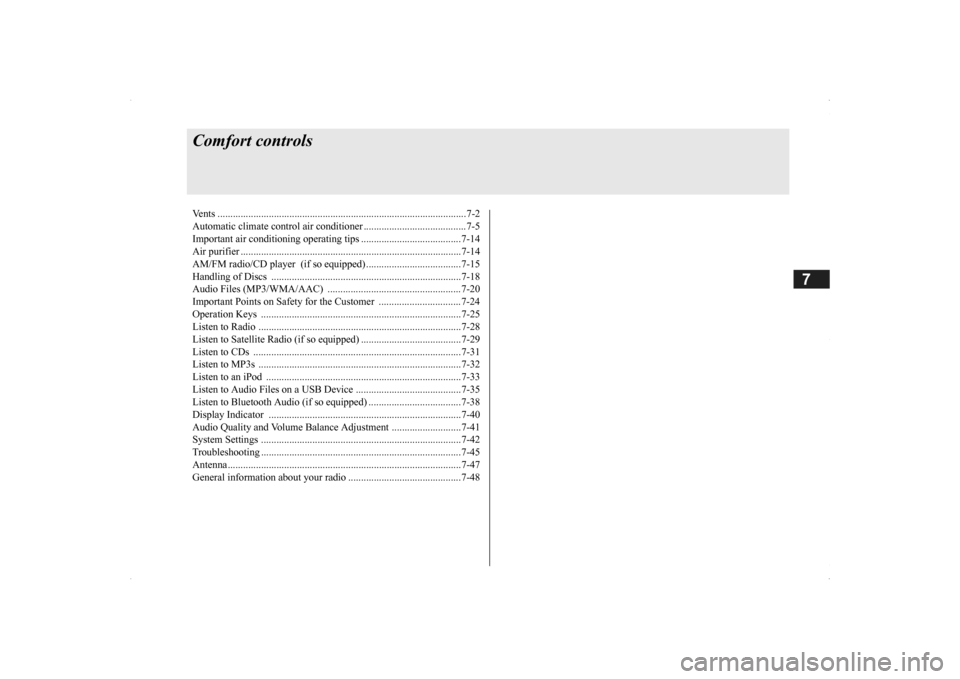
Comfort controlsVents .................................................................................................7-2 Automatic climate control air conditioner .
..............
...........
.........
.....7-5
Important air conditioning operating tips ...
...........
...........
.........
.....7-14
Air purifier ......................................................................................7-14 AM/FM radio/CD player (if so equipped) .....................................7-15 Handling of Discs ..........................................................................7-18Audio Files (MP3/WMA/AAC) ....................................................7-20 Important Points on Safety for the Customer ................................7-24 Operation Keys ..............................................................................7-25Listen to Radio ...............................................................................7-28 Listen to Satellite Radio (if so equipped) .......................................7-29 Listen to CDs .................................................................................7-31Listen to MP3s ...............................................................................7-32 Listen to an iPod ............................................................................7-33 Listen to Audio Files on a USB Device .........................................7-35Listen to Bluetooth Audio (if so equipped) ....................................7-38 Display Indicator ...........................................................................7-40 Audio Quality and Volume Balance Adjustment ...........................7-41System Settings ..............................................................................7-42 Troubleshooting ...........
...........
...........
...........
...........
.........
.........
.....7-45
Antenna ...........................................................................................7-47General information about your radio ......
...........
...........
...........
.....7-48
BK0200500US.book 1 ページ 2013年2月12日 火曜日 午前9時46分
Page 336 of 451
Audio Files (MP3/WMA/AAC) 7-20 Comfort controls
7
Discs that have not
been finalized cannot
be played back. Even if recorded using the correct format on a recorder or computer, application software settings and environments; discpeculiarities, damage,
or marking; or dirt
or condensation on the lens inside the product may render the disc unplayable. Depending on the disc
, some functions
may not be used, or the disc may not play back. Do not use discs with cracks or warps. If the disc has sticke
rs affixed, remains
from removed stickers, or affixed adhe- sive, then do not use the disc. Discs that have decora
tive labels or stick-
ers may not be used.
This product will play
back audio CDs, how-
ever please be aware of the following points regarding CD standards. Ensure that you use discs with on the label surface. Playback of other than standard CDs is not guaranteed. Even
if the audio can be
played back, the audio quality cannot beguaranteed. When playing back other than standard CDs, the following may occur.
• There may be noise during playback. • There may be jumping in the audio.• The disc may not be recognized. • The first track may not be played back. • It may take longer than usual until startof playback of tracks. • Playback may start from within the track.• Some parts may not be played back. • Tracks may freeze during playback. • Tracks may be displayed erroneously.
N00715600027
This product can play back MP3/WMA/AACformat audio files recorded on CD-ROM, CD-R/RW, and USB devices. There are limitations on the files and media that can be used, therefore read the followingprior to recording MP3/WMA/AAC format audio files on discs or USB devices. Additionally, ensure y
ou read the user manu-
als for your CD-R/RW drive and the writing software, and ensure these are used correctly. If the MP3/WMA/AAC
format audio files
includes title informati
on or other data, then
this can be displayed.
Nonstandard CDs
Audio Files (MP3/WMA/AAC)
CAUTION CD-ROM and CD-R/RW media can only play back MP3 fo
rmat audio files.
Actions such as copying audio CDs or files and either distributing these to others for free or for charge, or uploading files via the Inter-net or other means to servers is an infringe- ment of the law. Do not append the file
extensions “.mp3”,
“.wma”, or “.m4a”, to other than MP3/WMA/AAC format
files. Playing back
discs with these types of files recorded upon them may cause the files to be incorrectly identified for playback, which may lead toloud noise, resulting in speaker damage or accident.NOTE
Depending on the condition of the disc recorder or recording software used, correctplayback may not be po
ssible. In these cases,
refer to the user manual for your product or software. Depending on your computer’s operating system, version, softwa
re, or settings, files
may not have a file
extension appended. In
these cases, append
the file extensions
“.mp3”, “.wma”, or “.m4a” when copying the files. Files larger than 2GB in size cannot be played back.
BK0200500US.book 20 ページ 2013年2月12日 火曜日 午前9時46分
Page 337 of 451
Audio Files (MP3/WMA/AAC)
Comfort controls 7-21
7
N00715700028
Data formats that can be played on discs (CD-ROM, CD-R/RW) and USB devices dif-fer.
N00715800029
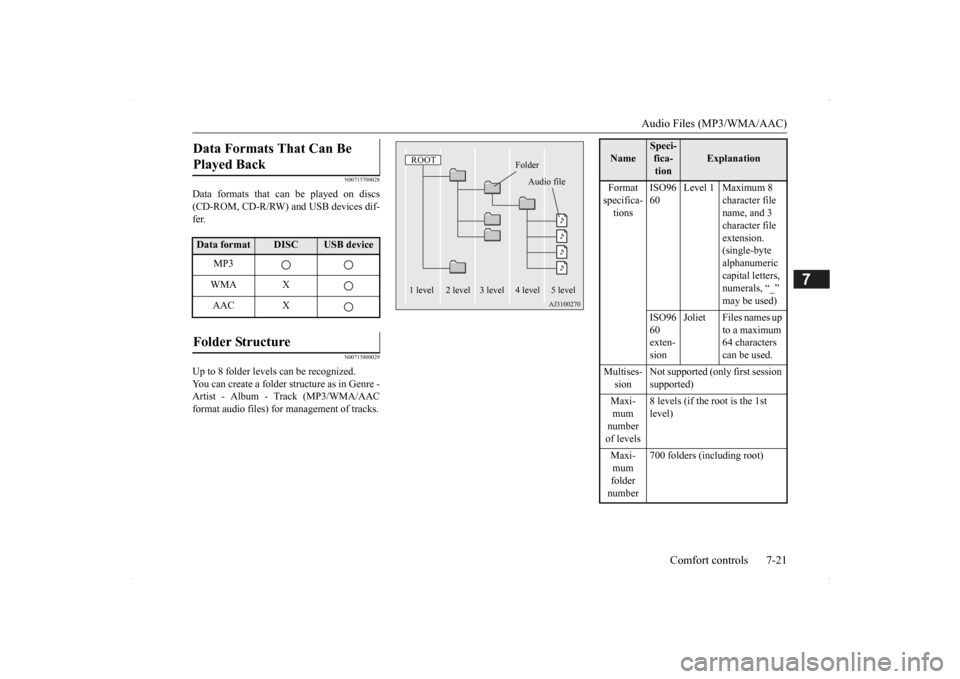
Up to 8 folder levels can be recognized.You can create a folder structure as in Genre -Artist - Album - Track (MP3/WMA/AAC format audio files) for
management of tracks.
Data Formats That Can Be Played Back Data format
DISC
USB device
MP3 WMA XAAC X
Folder Structure
ROOT
Folder
Audio file
1 level 2 level 3 level 4 level 5 level
Name
Speci- fica- tion
Explanation
Format specifica- tions
ISO96 60
Level 1 Maximum 8
character file name, and 3 character file extension. (single-byte alphanumeric capital letters, numerals, “_” may be used)
ISO96 60 exten- sion
Joliet Files names up
to a maximum 64 characters can be used.
Multises- sion
Not supported (only first session supported)
Maxi- mum number of levels
8 levels (if the root is the 1st level)
Maxi- mum folder number
700 folders (including root)
BK0200500US.book 21 ページ 2013年2月12日 火曜日 午前9時46分