USB port MITSUBISHI OUTLANDER SPORT 2014 3.G Owners Manual
[x] Cancel search | Manufacturer: MITSUBISHI, Model Year: 2014, Model line: OUTLANDER SPORT, Model: MITSUBISHI OUTLANDER SPORT 2014 3.GPages: 384, PDF Size: 46.94 MB
Page 218 of 384
USB input terminal (if so equipped)
Features and controls 5-155
5
6. When the transfer is complete, the voice guide will say “Import complete” and then the system will return to the main menu.
N00566301076
MODEL: MMC FCC ID: CB2MDGMY10IC: 279B-MDGMY10 Your Bluetooth
® 2.0 interface operates on a
radio frequency subject to Federal Communi- cations Commission (FCC) Rules (For vehi- cles sold in U.S.A.) and Industry CanadaRules (For vehicles sold in Canada). This device complies with Part 15 of the FCC Rules and RSS-210 of the Industry CanadaRules. Operation is subject to the following two conditions: This device may not cause harmful inter- ference. This device must accept any interference received, including interference that may cause undesired operation.
The term “IC:” before the radio certification number only signifies that Industry Canada technical specifications were met. The antenna used for this transmitter must notbe co-located or operating in conjunction with any other antenna or transmitter. End- users and installers must be provided withinstallation instructio
ns and transmitter oper-
ating conditions for satisfying RF exposure compliance.
N00566401107 N00566701067
You can connect your USB memory device or iPod
* to play music files stored in the USB
memory device or iPod.
The following explains how to connect and remove a USB memory device or iPod. Refer to the following sections for details on how to play music files:Refer to “Listen to Audio Files on a USB Device” on page 7-46. * : “iPod” is a registered trademark of Apple Inc. in the United States and other countries.
N00566800090
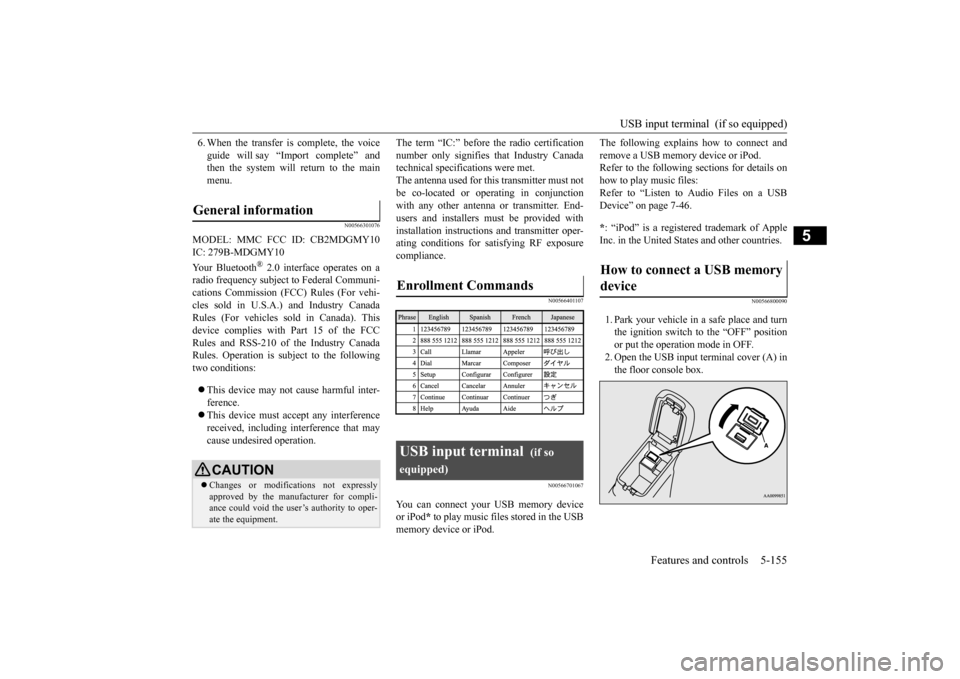
1. Park your vehicle in a safe place and turnthe ignition switch to the “OFF” position or put the operation mode in OFF. 2. Open the USB input terminal cover (A) inthe floor console box.
General information
CAUTION Changes or modifications not expressly approved by the manufacturer for compli-ance could void the user’s authority to oper- ate the equipment.
Enrollment Commands USB input terminal
(if so
equipped)
How to connect a USB memory device
BK0202700US.book
155 ページ 2013年3月28日 木曜日 午前11時54分
Page 220 of 384
USB input terminal (if so equipped)
Features and controls 5-157
5
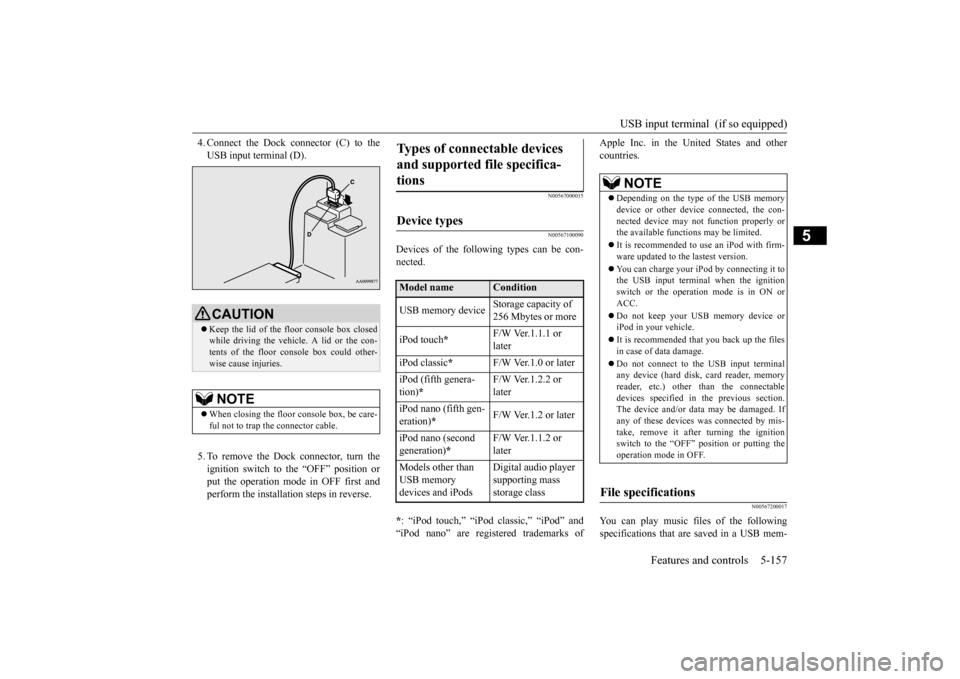
4. Connect the Dock connector (C) to the USB input terminal (D). 5. To remove the Dock connector, turn the ignition switch to the “OFF” position or put the operation mode in OFF first and perform the installation steps in reverse.
N00567000015 N00567100090
Devices of the following types can be con- nected. * : “iPod touch,” “iPod classic,” “iPod” and “iPod nano” are registered trademarks of
Apple Inc. in the United States and other countries.
N00567200017
You can play music files of the followingspecifications that are saved in a USB mem-
CAUTION Keep the lid of the floor console box closed while driving the vehicle. A lid or the con-tents of the floor console box could other- wise cause injuries.NOTE
When closing the floor console box, be care- ful not to trap the connector cable.
Types of connectable devices and supported file specifica- tions
Device types
Model name
Condition
USB memory device
Storage capacity of 256 Mbytes or more
iPod touch
*
F/W Ver.1.1.1 or later
iPod classic
*
F/W Ver.1.0 or later
iPod (fifth genera- tion)
*
F/W Ver.1.2.2 or later
iPod nano (fifth gen- eration)
*
F/W Ver.1.2 or later
iPod nano (second generation)
*
F/W Ver.1.1.2 or later
Models other than USB memory devices and iPods
Digital audio player supporting mass storage class
NOTE
Depending on the type of the USB memory device or other device connected, the con- nected device may not function properly orthe available functions may be limited. It is recommended to us
e an iPod with firm-
ware updated to the lastest version. You can charge your iPod by connecting it to the USB input terminal when the ignition switch or the operation mode is in ON or ACC. Do not keep your USB memory device or iPod in your vehicle. It is recommended that
you back up the files
in case of data damage. Do not connect to the USB input terminal any device (hard disk, card reader, memoryreader, etc.) other than the connectable devices specified in
the previous section.
The device and/or data may be damaged. Ifany of these devices was connected by mis- take, remove it after turning the ignition switch to the “OFF”
position or putting the
operation mode in OFF.
File specifications
BK0202700US.book
157 ページ 2013年3月28日 木曜日 午前11時54分
Page 246 of 384
7
Comfort controlsVents ..........................................
.......................................................7-2
Manual air conditioning-Type 1
(if so equipped) ............................7-4
Manual air conditioning-Type 2
(if so equipped) ............................7-9
Automatic air conditioning-Type1 (if so equipped) ......................7-14Automatic air conditioning-Type2 (if so equipped) ......................7-20 Important air conditioning op
erating tips .......................................7-25
Air purifier .......................
...............................................................7-25
AM/FM radio/CD player (if so equipped) .....................................7-26 Handling of Discs .
.................................................
........................7-29
Audio Files (MP3/WMA/
AAC) ....................................................7-31
Important Points on Safety fo
r the Customer ................................7-35
Operation Keys ...............
...............................................................7-36
Listen to Radio ......
.................................................
........................7-38
Listen to Satellite Radio (if so equipped) .......................................7-40 Listen to CDs ..................
...............................................................7-42
Listen to MP3s ......
.................................................
........................7-43
Listen to an iPod ...
.................................................
........................7-44
Listen to Audio Files on
a USB Device .........................................7-46
Listen to Bluetooth Audio (i
f so equipped) ....................................7-49
Display Indicator ..
.................................................
........................7-51
Audio Quality and Volume Balance Adjustment ...........................7-52 System Settings .....
.................................................
........................7-53
Troubleshooting ...............
...............................................................7-56
Antenna ................................................
...........................................7-58
General information about
your radio ............................................7-59
BK0202700US.bo
ok 1 ページ 2013年3月28日 木曜日 午前11時54分
Page 277 of 384
Audio Files (MP3/WMA/AAC) 7-32 Comfort controls
7
N00715700031
Data formats that can be played on discs (CD-ROM, CD-R/RW) and USB devices dif- fer.
N00715800032
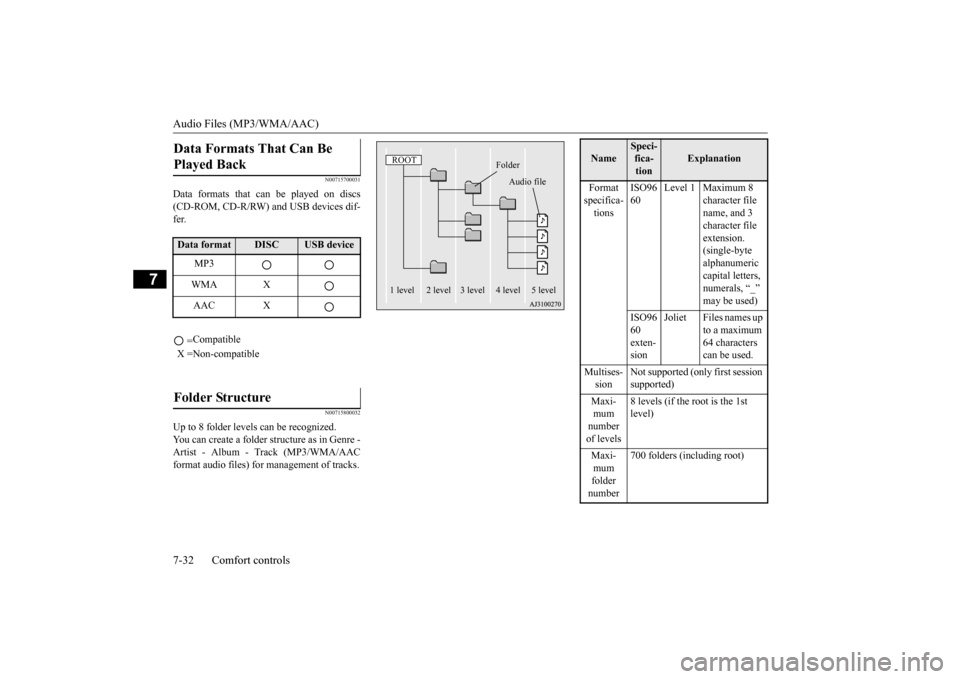
Up to 8 folder levels can be recognized. You can create a folder structure as in Genre - Artist - Album - Track (MP3/WMA/AAC format audio files) for management of tracks.Data Formats That Can Be Played Back Data format
DISC
USB device
MP3 WMA XAAC X = Compatible
X =Non-compatibleFolder Structure
ROOT
Folder
Audio file
1 level 2 level 3 level 4 level 5 level
Name
Speci- fica- tion
Explanation
Format specifica- tions
ISO96 60
Level 1 Maximum 8
character file name, and 3 character file extension. (single-byte alphanumeric capital letters, numerals, “_” may be used)
ISO96 60 exten- sion
Joliet Files names up
to a maximum 64 characters can be used.
Multises- sion
Not supported (only first session supported)
Maxi- mum number of levels
8 levels (if the root is the 1st level)
Maxi- mum folder number
700 folders (including root)
BK0202700US.bo
ok 32 ページ 2013年3月28日 木曜日 午前11時54分
Page 278 of 384
Audio Files (MP3/WMA/AAC)
Comfort controls 7-33
7
N00715900033
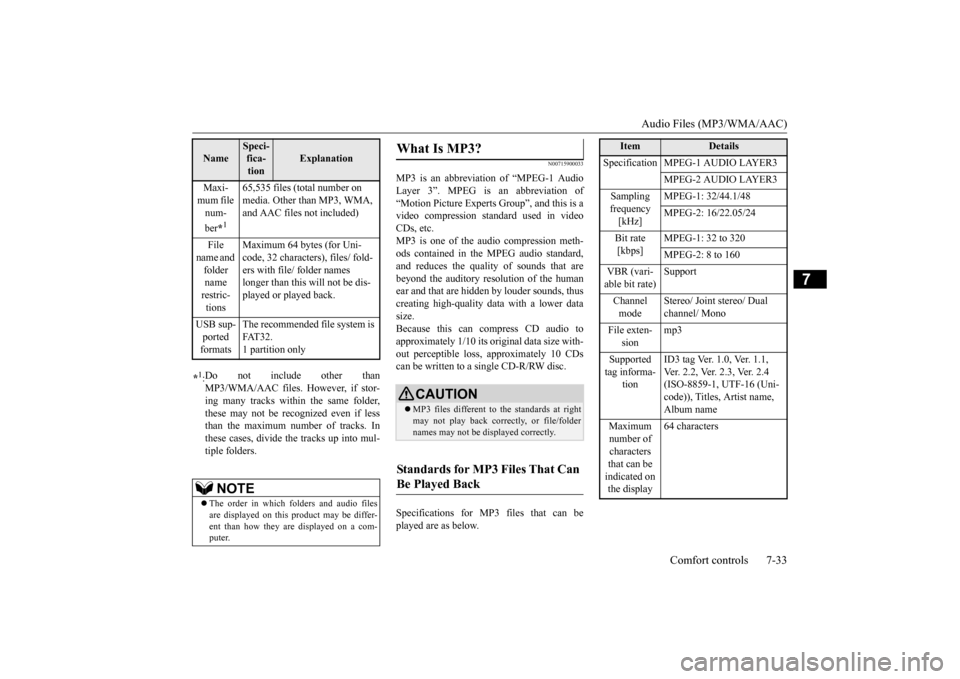
MP3 is an abbreviation of “MPEG-1 Audio Layer 3”. MPEG is an abbreviation of“Motion Picture Experts Group”, and this is a video compression stan
dard used in video
CDs, etc.MP3 is one of the audio compression meth- ods contained in the MPEG audio standard, and reduces the quality of sounds that arebeyond the auditory resolution of the humanear and that are hidden by louder sounds, thus creating high-quality data with a lower data size.Because this can compress CD audio to approximately 1/10 its original data size with- out perceptible loss, approximately 10 CDscan be written to a single CD-R/RW disc. Specifications for MP3 files that can be played are as below.
Maxi- mum file num- ber
*1
65,535 files (total number on media. Other than MP3, WMA, and AAC files not included)
File
name and folder name restric- tions
Maximum 64 bytes (for Uni- code, 32 characters), files/ fold- ers with file/ folder names longer than this will not be dis-played or played back.
USB sup- ported formats
The recommended file system is FAT32.1 partition only
*1: Do not include other than MP3/WMA/AAC files. However, if stor- ing many tracks within the same folder, these may not be recognized even if lessthan the maximum number of tracks. In these cases, divide the tracks up into mul- tiple folders.
NOTE
The order in which folders and audio files are displayed on this product may be differ-ent than how they are displayed on a com- puter.Name
Speci- fica- tion
Explanation
What Is MP3?
CAUTION MP3 files different to the standards at right may not play back correctly, or file/folder names may not be displayed correctly.
Standards for MP3 Files That Can Be Played Back
Item
Details
Specification MPEG-1 AUDIO LAYER3
MPEG-2 AUDIO LAYER3
Sampling frequency [kHz]
MPEG-1: 32/44.1/48 MPEG-2: 16/22.05/24
Bit rate [kbps]
MPEG-1: 32 to 320 MPEG-2: 8 to 160
VBR (vari- able bit rate)
Support
Channel mode
Stereo/ Joint stereo/ Dual channel/ Mono
File exten-
sion
mp3
Supported tag informa-
tion
ID3 tag Ver. 1.0, Ver. 1.1, Ver. 2.2, Ver. 2.3, Ver. 2.4 (ISO-8859-1, UTF-16 (Uni- code)), Titles, Artist name, Album name
Maximum number of characters that can be indicated on the display
64 characters
BK0202700US.bo
ok 33 ページ 2013年3月28日 木曜日 午前11時54分
Page 291 of 384
Listen to Audio Files on a USB Device 7-46 Comfort controls
7
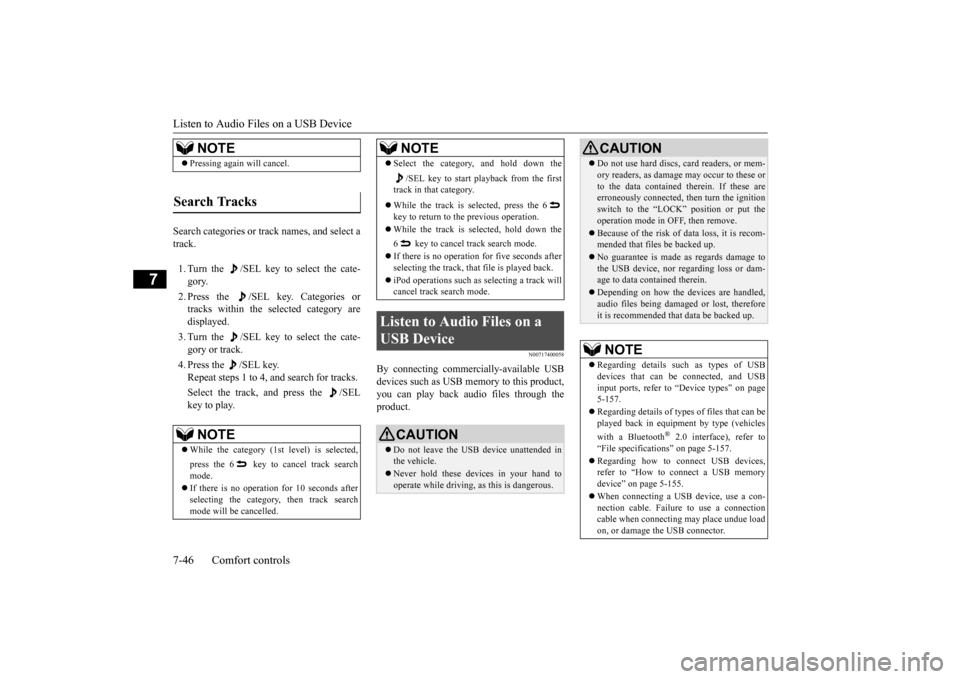
Search categories or track names, and select a track. 1. Turn the /SEL key to select the cate- gory. 2. Press the /SEL key. Categories or tracks within the selected category are displayed. 3. Turn the /SEL key to select the cate- gory or track. 4. Press the /SEL key. Repeat steps 1 to 4, and search for tracks. Select the track, and press the /SEL key to play.
N00717400058
By connecting commercially-available USBdevices such as USB memory to this product,you can play back audio files through theproduct.
NOTE
Pressing again will cancel.
Search Tracks
NOTE
While the category (1st level) is selected, press the 6 key to cancel track search mode. If there is no operation for 10 seconds after selecting the category, then track search mode will be cancelled.
Select the category, and hold down the
/SEL key to start playback from the first
track in that category. While the track is selected, press the 6 key to return to the previous operation. While the track is selected, hold down the 6 key to cancel track search mode. If there is no operation for five seconds after selecting the track, that file is played back. iPod operations such as selecting a track will cancel track search mode.
Listen to Audio Files on a USB Device
CAUTION Do not leave the USB device unattended in the vehicle. Never hold these devices in your hand to operate while driving, as this is dangerous.NOTE
Do not use hard discs, card readers, or mem- ory readers, as damage may occur to these or to the data contained therein. If these are erroneously connected, then turn the ignition switch to the “LOCK” position or put theoperation mode in OFF, then remove. Because of the risk of data loss, it is recom- mended that files be backed up. No guarantee is made as regards damage to the USB device, nor regarding loss or dam- age to data contained therein. Depending on how the devices are handled, audio files being damaged or lost, therefore it is recommended that data be backed up.NOTE
Regarding details such as types of USB devices that can be connected, and USB input ports, refer to “Device types” on page 5-157. Regarding details of types of files that can be played back in equipment by type (vehicles with a Bluetooth
® 2.0 interface), refer to
“File specifications” on page 5-157. Regarding how to connect USB devices, refer to “How to connect a USB memorydevice” on page 5-155. When connecting a USB device, use a con- nection cable. Failure to use a connection cable when connecting may place undue load on, or damage the USB connector.CAUTION
BK0202700US.bo
ok 46 ページ 2013年3月28日 木曜日 午前11時54分
Page 292 of 384

Listen to Audio Files on a USB Device
Comfort controls 7-47
7
Press the MEDIA key to set USB as the source. The selected source is indicated on the dis- play. Press the key or key to select the track. This enables selection of the next or previous track. Hold down the 3 key or the 4 key. Fast forward/rewind is possible.
Repeat playback, random playback, and scan playback are possible. Press the 1RPT key. Repeat playback of th
e track currently being
played. Hold down the 1RPT key. Repeat playback of the tracks within the folder currently being played.
Set up the device in order that no unsafe actions, such as plugging in the connection cable are taken while driving. When inserting and removing the USB device, for safety’s sake first stop the vehi- cle. Do not insert non audio devices into the USB port. Damage to the device or equipment may result. Depending on the status of the USB device, it may take some time until the device is rec-ognized, or playback starts. Depending on USB devices, buttons on the product will not operate while the USB device is connected. USB device specifications and settings may mean that connection is not possible, or result in differences in operation or display. Depending on the audio data in the USB device, track information may not be dis-played correctly. Depending on the status of the vehicle and device, the iPod/iPhone may not play back after starting the engine. Data containing copyright information may not play back. This product can play back MP3, WMA, and AAC format audio files. Depending on the type of USB device, usage may not be possible, or functions that can beused may be restricted. The recommended file system for USB memory is FAT32.NOTE
The maximum supported capacity for USB memory is 32GB. Operate the USB device containing recorded audio files while connected to this product.
Play Back of Audio Files on a USB Device Select the Track (File) Fast Forward or Rewind
NOTE
Switch Playback Mode Repeat Playback (RPT)
NOTE
Pressing again will cancel. Selecting a file will cancel this. However, it will not be cancelled in vehicles with a Bluetooth
® 2.0 interface.
Folder Repeat Playback
NOTE
Pressing again will cancel. Selecting a folder will cancel this.
BK0202700US.bo
ok 47 ページ 2013年3月28日 木曜日 午前11時54分
Page 302 of 384

Troubleshooting
Comfort controls 7-57
7
Mode
Message
Cause
Response
CD CHECK DISC The disc is inserted upsi
de down. Insert with the label side up.
The disc has condensation on it. Wait a while before inserting again.
DISC ERROR The disc is damaged. Clean the read surface of the disc.
The disc is dirty.
INTERNAL E The drive has malfunctioned for some reason. Check that there is no problem with the disc, and
insert the disc again. If the problem persists, con-sult an authorized Mitsubishi Motors dealer or a repair facility of your choice.
HEAT ERROR The temperature inside the product is high.
Remove the disc, and wait for the internal tempera- ture to return to normal.
USB FILE ERROR Files that cannot be played are
selected. Select files that can be played.
“Audio Files (MP3/WMA/AAC)” (P.7-31)
USB BUS PWR There is high or low electrical current or
voltage. Turn the power OFF and wait a short while. If the
problem persists, consult an authorized Mitsubishi Motors dealer or a repair facility of your choice.
LSI ERROR There is an internal malfunction for some reason. UNSUPPORTED
FORMAT
Unsupported audio files have been played
. Confirm audio files that can be played.
“Audio Files (MP3/WMA/AAC)” (P.7-31)
UNSUPPORTED
DEVICE
An unsupported USB device has been connect
ed. Please connect a USB memory device.
iPod NO SONG An iPod/iPhone not containing any tracks has been
connected.
Connect an iPod/iPhone containing tracks.
VER ERROR This iPod/iPhone software version is not supported. Please change to a supported software version.
Other ERROR DC An abnormal direct voltage has been sent to the
speakers.
Turn the power OFF and wait a short while. If the problem persists, consult an authorized Mitsubishi Motors dealer or a repair facility of your choice.
BK0202700US.bo
ok 57 ページ 2013年3月28日 木曜日 午前11時54分