lock MITSUBISHI PAJERO IV 2011 Owners Manual
[x] Cancel search | Manufacturer: MITSUBISHI, Model Year: 2011, Model line: PAJERO IV, Model: MITSUBISHI PAJERO IV 2011Pages: 377, PDF Size: 29.43 MB
Page 194 of 377
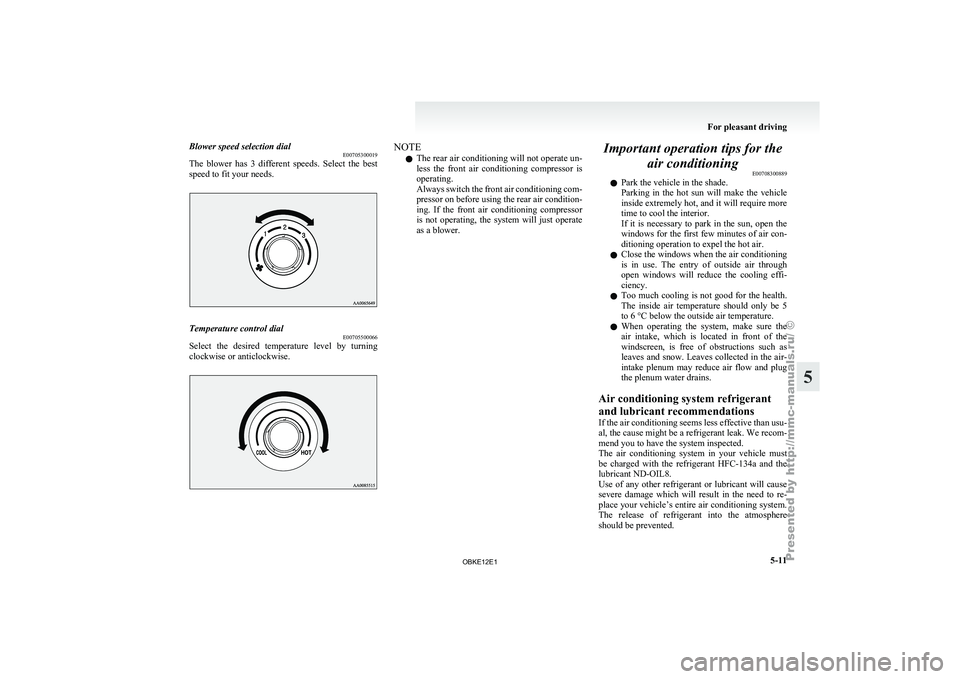
Blower speed selection dial
E00705300019
The blower has
3 different speeds. Select the best
speed to fit your needs. Temperature control dial
E00705500066
Select the desired temperature level by turning
clockwise or anticlockwise. NOTE
l The
rear air
conditioning will not operate un-
less the front air conditioning compressor is
operating.
Always switch the front air conditioning com-
pressor on before using the rear air condition-
ing. If the front air conditioning compressor
is not operating, the system will just operate
as a blower. Important operation tips for the
air conditioning E00708300889
l Park the vehicle in the shade.
Parking
in
the
hot sun will make the vehicle
inside extremely hot, and it will require more
time to cool the interior.
If it is necessary to park in the sun, open the
windows for the first few minutes of air con-
ditioning operation to expel the hot air.
l Close the windows when the air conditioning
is in use. The entry of outside air through
open windows will reduce the cooling effi-
ciency.
l Too much cooling is not good for the health.
The inside air temperature should only be 5
to 6 °C below the outside air temperature.
l When operating the system, make sure the
air intake, which is located in front of the
windscreen, is free of obstructions such as
leaves and snow. Leaves collected in the air-
intake plenum may reduce air flow and plug
the plenum water drains.
Air conditioning system refrigerant
and lubricant recommendations
If the air conditioning seems less effective than usu-
al, the cause might be a refrigerant leak. We recom-
mend you to have the system inspected.
The air conditioning system in your vehicle must
be charged with the refrigerant HFC-134a and the
lubricant ND-OIL8.
Use of any other refrigerant or lubricant will cause
severe damage which will result in the need to re-
place your vehicle’s entire air conditioning system.
The release of refrigerant into the atmosphere
should be prevented. For pleasant driving
5-11 5
OBKE12E1
Page 200 of 377
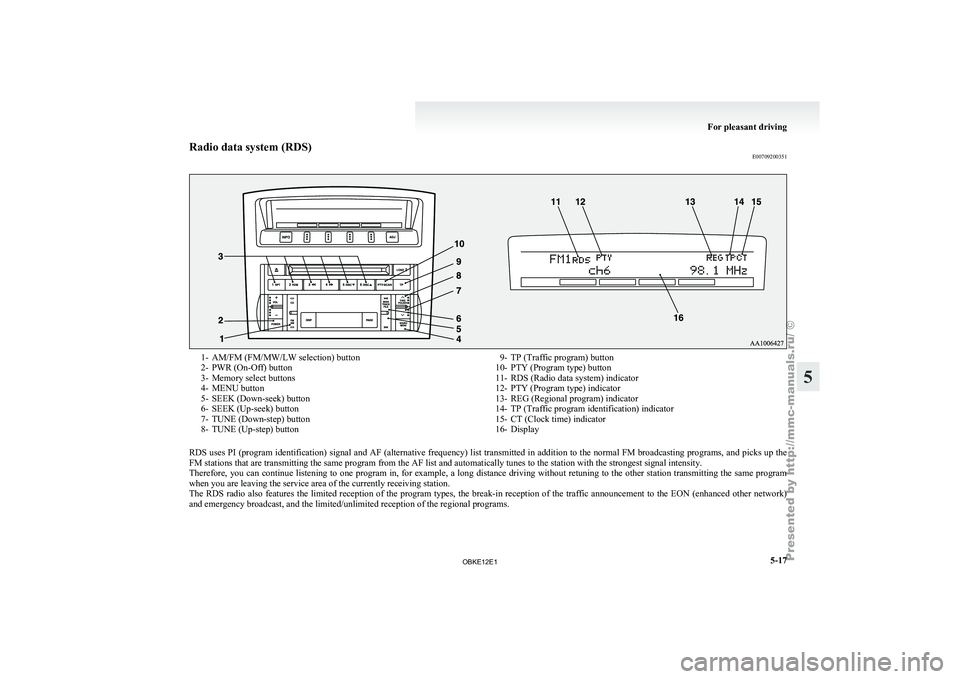
Radio data system (RDS)
E007092003511- AM/FM (FM/MW/LW selection) button
2- PWR (On-Off) button
3-
Memory select buttons
4-
MENU button
5- SEEK (Down-seek) button
6- SEEK (Up-seek) button
7- TUNE (Down-step) button
8- TUNE (Up-step) button 9- TP (Traffic program) button
10- PTY (Program type) button
11- RDS (Radio data system) indicator
12-
PTY (Program type) indicator
13- REG (Regional program) indicator
14- TP (Traffic program identification) indicator
15- CT (Clock time) indicator
16- Display
RDS uses PI (program identification) signal and AF (alternative frequency) list transmitted in addition to the normal FM broadcasting programs, and picks up the
FM stations that are transmitting the same program from the AF list and automatically tunes to the station with the strongest signal intensity.
Therefore, you can
continue listening to one program in, for example, a long distance driving without retuning to the other station transmitting the same program
when you are leaving the service area of the currently receiving station.
The RDS radio also features the limited reception of the program types, the break-in reception of the traffic announcement to the EON (enhanced other network)
and emergency broadcast, and the limited/unlimited reception of the regional programs. For pleasant driving
5-17 5
OBKE12E1
Page 201 of 377
AF (Alternative Frequencies) function
E00720900090
The AF function
finds a station broadcasting the
same program and selects the station with the stron-
gest signal of AF lists.
The AF function is turned on at all times unless
you manually switch it off.
The AF function can be turned ON and OFF.
Refer to “Adjusting the time” on page 3-13.
CT (Clock Time) function E00721000085
The clock can be set automatically by using the sig-
nal from the
local RDS stations. Refer to “Adjust-
ing the time” on page 3-13.
REG (Regional) function E00721100028
REG function limits to receive the stations broad-
casting regional programs.
Regional programming and
regional networks are
organized differently depending on the country or
area (they may be changed according to the hour,
state, or broadcast area), so if you don’t want to re-
ceive the regional programs automatically, you can
set up REG ON not to receive regional programs.
The REG function can be turned ON and OFF. Re-
fer to “Function setup mode” on page 5-20.
PI (Program Identification) search function E00721200247
When travelling long distance and the recalled pre-
set station is
weak, the radio searches another fre-
quency broadcasting the same programming with
the same PI code in AF list. If there are no frequencies broadcasting the same
programming, the
radio
searches a frequency broad-
casting the regional programming. The radio suc-
ceeds in searching the regional programming, then
the display shows the REG indicator (13).
If the radio does not succeed in searching the re-
gional programming, the radio returns to the recal-
led preset station.
The PI function can be turned ON and OFF.
Refer to “Function setup mode” on page 5-35.
NOTE
l While searching, the audio system is muted.
The display shows “WAIT” or “SEARCH”.
PTY (Program type) E00721300277
RDS broadcasts are classified according to pro-
gram type (PTY)
as follows. Use the TUNE button
(7 or 8) to select your desired PTY. 1. NEWS
2. AFFAIRS (Current affairs)
3. INFO (Information)
4. SPORT
5. EDUCATE (Education)
6. DRAMA
7. CULTURE
8. SCIENCE
9. VARIED
10. POP M (Pop music)
11. ROCK M (Rock music)
12. EASY M (Easy music)
13. LIGHT M (Light classics)
14. CLASSICS
15. OTHER M (Other music)
16. WEATHER (Weather information)
17. FINANCE
18. CHILDREN 19. SOCIAL
20. RELIGION
21.
PHONE IN
22.
TRAVEL
23. LEISURE
24. JAZZ
25. COUNTRY
26. NATION M (National music)
27. OLDIES
28. FOLK M (Folk music)
29. DOCUMENT
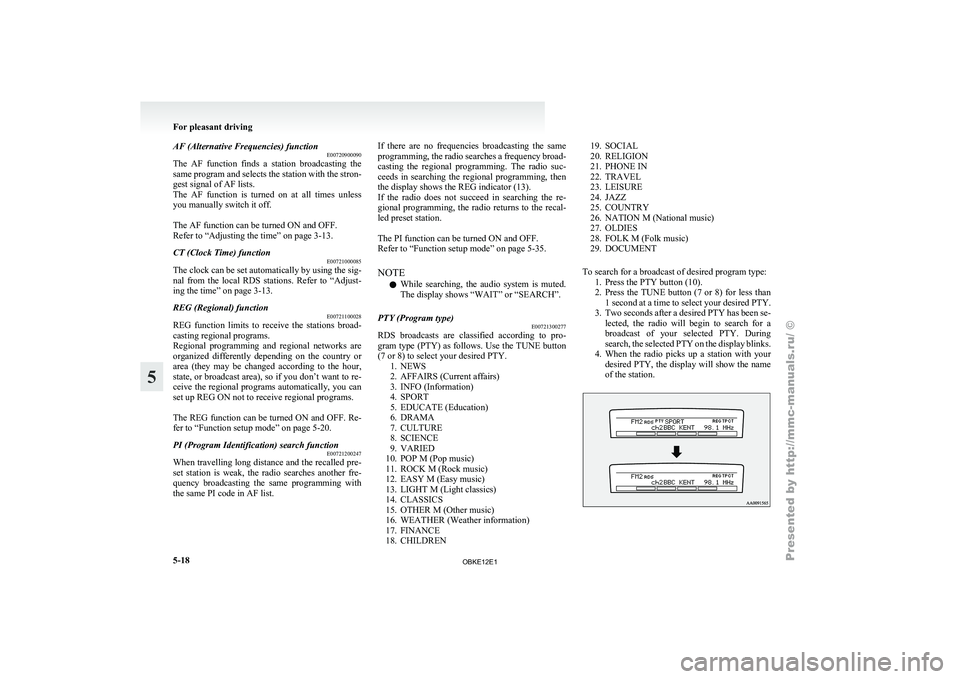
To search for a broadcast of desired program type: 1. Press the PTY button (10).
2. Press the TUNE button (7 or 8) for less than1 second at a time to select your desired PTY.
3. Two seconds after a desired PTY has been se- lected, the radio will begin to search for a
broadcast of your selected PTY. During
search, the selected PTY on the display blinks.
4. When the radio picks up a station with your desired PTY, the display will show the name
of the station. For pleasant driving
5-18
5
OBKE12E1
Page 215 of 377

Radio data system (RDS)
E007092003641- AM/FM (FM/MW/LW selection) button
2- PWR (On-Off) button
3-
Memory select buttons
4-
MENU button
5- SEEK (Down-seek) button
6- SEEK (Up-seek) button
7- TUNE (Down-step) button
8- TUNE (Up-step) button 9- TP (Traffic program) button
10- PTY (Program type) button
11- RDS (Radio data system) indicator
12-
PTY (Program type) indicator
13- REG (Regional program) indicator
14- TP (Traffic program identification) indicator
15- CT (Clock time) indicator
16- Display
RDS uses PI (program identification) signal and AF (alternative frequency) list transmitted in addition to the normal FM broadcasting programs, and picks up the
FM stations that are transmitting the same program from the AF list and automatically tunes to the station with the strongest signal intensity.
Therefore, you can
continue listening to one program in, for example, a long distance driving without retuning to the other station transmitting the same program
when you are leaving the service area of the currently receiving station.
The RDS radio also features the limited reception of the program types, the break-in reception of the traffic announcement to the EON (enhanced other network)
and emergency broadcast, and the limited/unlimited reception of the regional programs. For pleasant driving
5-32
5
OBKE12E1
Page 216 of 377

AF (Alternative Frequencies) function
E00720900104
The AF function
finds a station broadcasting the
same program and selects the station with the stron-
gest signal of AF lists.
The AF function is turned on at all times unless
you manually switch it off.
The AF function can be turned ON and OFF. Refer
to “Function setup mode” on page 5-20.
CT (Clock Time) function E00721000098
The clock can be set automatically by using the sig-
nal from the
local RDS stations. Refer to “Adjust-
ing the time” on page 3-13.
REG (Regional) function E00721100015
REG function limits to receive the stations broad-
casting regional programs.
Regional programming and
regional networks are
organized differently depending on the country or
area (they may be changed according to the hour,
state, or broadcast area), so if you don’t want to re-
ceive the regional programs automatically, you can
set up REG ON not to receive regional programs.
The REG function can be turned ON and OFF. Re-
fer to “Function setup mode” on page 5-20.
PI (Program Identification) search function E00721200234
When travelling long distance and the recalled pre-
set station is
weak, the radio searches another fre-
quency broadcasting the same programming with
the same PI code in AF list. If there are no frequencies broadcasting the same
programming, the
radio
searches a frequency broad-
casting the regional programming. The radio suc-
ceeds in searching the regional programming, then
the display shows the REG indicator (13). If the ra-
dio does not succeed in searching the regional pro-
gramming, the radio returns to the recalled preset
station.
The PI function can be turned ON and OFF.
Refer to “Function setup mode” on page 5-20.
NOTE
l While searching, the audio system is muted.
The display shows “WAIT” or “SEARCH”.
PTY (Program type) E00721300280
RDS broadcasts are classified according to pro-
gram type (PTY)
as follows. Use the TUNE button
(7 or 8) to select your desired PTY. 1. NEWS
2. AFFAIRS (Current affairs)
3. INFO (Information)
4. SPORT
5. EDUCATE (Education)
6. DRAMA
7. CULTURE
8. SCIENCE
9. VARIED
10. POP M (Pop music)
11. ROCK M (Rock music)
12. EASY M (Easy music)
13. LIGHT M (Light classics)
14. CLASSICS
15. OTHER M (Other music)
16. WEATHER (Weather information)
17. FINANCE
18. CHILDREN 19. SOCIAL
20. RELIGION
21. PHONE IN
22.
TRAVEL
23. LEISURE
24. JAZZ
25. COUNTRY
26. NATION M (National music)
27. OLDIES
28. FOLK M (Folk music)
29. DOCUMENT
To search for a broadcast of desired program type: 1. Press the PTY button (10).
2. Press the TUNE button (7 or 8) for less than1 second at a time to select your desired PTY.
3. Two seconds after a desired PTY has been se- lected, the radio will begin to search for a
broadcast of your selected PTY. During
search, the selected PTY on the display blinks.
4. When the radio picks up a station with your desired PTY, the display will show the name
of the station. For pleasant driving
5-33 5
OBKE12E1
Page 253 of 377
NOTE
l Password
will be
required to access the sys-
tem after the next ignition cycle.
l It is required for a little time after engine
stop that the entered password is actually re-
corded in the system.
If the ignition switch is made to “ACC” or
“ON” or the engine is started immediately af-
ter engine stop, there is a case when the en-
tered password is not recorded in the system.
At this time, please try to enter the password
again.
Entering the password
If a password has been set and the security function
is enabled, the voice guide will say “Hands-free sys-
tem is locked. State the password to continue”
when the SPEECH button is pressed to enter voice
recognition mode. Say the 4-digit password num-
ber to enter the password.
If the entered password is wrong, the voice guide
will say “<4- digit password>, Incorrect password.
Please try again”. Enter the correct password.
NOTE l You can re-enter the password as many times
as you want.
l If you have forgotten your password, say
“Cancel” to quit the voice input mode and
then check with a MITSUBISHI MOTORS
Authorized Service Point.
Disabling the password
Use the following procedure to turn off the security
function by disabling the password. NOTE
l System
must be
unlocked to disable the pass-
word.
1. Press the SPEECH button.
2. Say “Setup”.
3. Say “Password.”
4. The voice guide will say “Password is ena- bled. Would you like to disable it?” Answer
“Yes.”
Answer “No” to cancel the disabling of the
password and return to the main menu.
5. When the disabling of the password is com- pleted, the voice guide will say “Password is
disabled” and the system will return to the
main menu.
Speaker enrollment function E00727400209
The Bluetooth ®
2.0 interface
can use the speaker en-
rollment function to create a voice model for one
person per language.
This makes it easier for the Bluetooth ®
2.0 inter-
face to recognise voice commands said by you.
You can turn a voice model registered with the
speaker enrollment function on and off whenever
you want.
Speaker enrollment E00727500196
It takes about 2 to 3 minutes to complete the speak-
er enrollment process.
To ensure the
best results, run through the process
while in the driver’s seat, in an environment that is
as quiet as possible (when there is no rain or strong
winds and the vehicle windows are closed). Please
turn off your phone while in speaker enrollment to
prevent interruption of the process.
Use the following procedure for speaker enrollment. 1. Stop your vehicle in a safe area, put the gear-
shift lever
in the “N” (Neutral) position
(M/T), or the selector lever in the “P”
(PARK) position (A/T), and pull the parking
brake lever.
NOTE l Speaker enrollment is not possible unless the
vehicle is parked. Make sure you park the ve-
hicle in a safe area before attempting speaker
enrollment.
2. Press the SPEECH button.
3. Say “Voice training”.
4. The voice guide will say “This operation must be performed in a quiet environment
while the vehicle is stopped. See the owner’s
manual for the list of required training phra-
ses. Press and release the SPEECH button
when you are ready to begin. Press the HANG-
UP button to cancel at any time”.
Press the SPEECH button to start the speaker
enrollment process.
NOTE l If you do not start the speaker enrollment proc-
ess within 3 minutes of pressing the
SPEECH button, the speaker enrollment func-
tion will time out.
The voice guide will say “Speaker Enroll-
ment has timed out”. The system will then
beep and the voice recognition mode will be
deactivated.
5. The voice guide will prompt for phrase 1. Re- peat the corresponding phrase listed in table
“Enrollment commands” on page 5-81. For pleasant driving
5-70
5
OBKE12E1
Page 265 of 377

USB input terminal*
E00761900015
You can connect
your USB memory device or
iPod* to play music files stored in the USB memo-
ry device or iPod.
The following explains how to connect and remove
a USB memory device or iPod.
Refer to the following sections for details on how
to play music files:
Refer to “To play tracks from USB device” on
page 5-43.
*: “iPod” is a registered trademark of Apple Inc. in
the United States and other countries.
How to connect a USB memory device E00762000273
1. Park your vehicle in a safe place and turn the
ignition switch to the “LOCK” position.
2. Open
the USB input terminal cover (A) in
the glove box. 3. Connect the connector cable (C) to the USB
memory device (B). 4. Connect the connector cable (C) to the USB
input terminal (D). CAUTION
l
Keep the lid
of the glove box closed while
driving the vehicle. A lid or the contents
of the glove box could otherwise cause in-
juries.
NOTE l Do
not connect
the USB memory device to
the USB input terminal directly.
The USB memory device may be damaged.
l When closing the glove box, be careful not
to trap the connector cable.
5. To remove the connector cable, turn the igni- tion switch to the “LOCK” position first and
perform the installation steps in reverse.
How to connect an iPod E00762100014
1. Park your vehicle in a safe place and turn the
ignition switch to the “LOCK” position.
2. Open
the USB input terminal cover (A) in
the glove box. For pleasant driving
5-82
5
OBKE12E1
Page 266 of 377
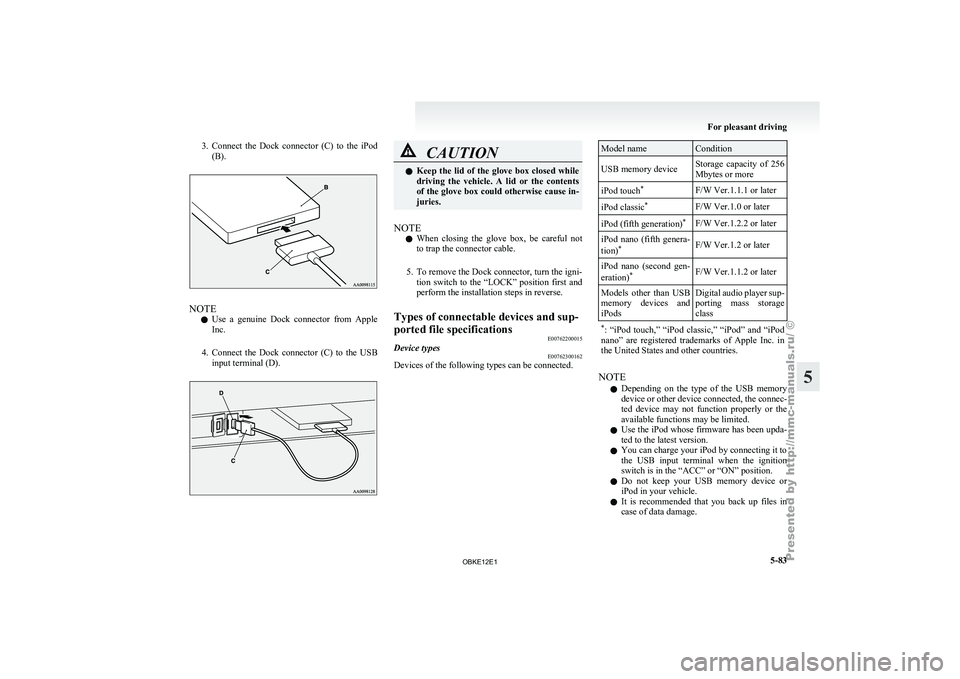
3. Connect the Dock connector (C) to the iPod
(B). NOTE
l Use
a genuine
Dock connector from Apple
Inc.
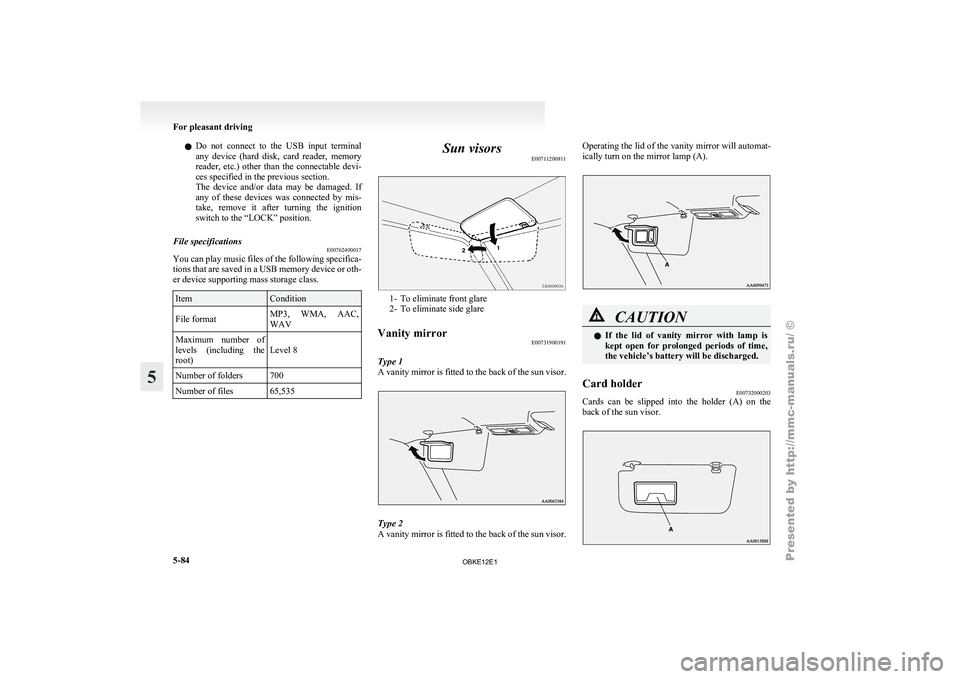
4. Connect the Dock connector (C) to the USB input terminal (D). CAUTION
l
Keep the lid
of the glove box closed while
driving the vehicle. A lid or the contents
of the glove box could otherwise cause in-
juries.
NOTE l When
closing the
glove box, be careful not
to trap the connector cable.
5. To remove the Dock connector, turn the igni- tion switch to the “LOCK” position first and
perform the installation steps in reverse.
Types of connectable devices and sup-
ported file specifications E00762200015
Device types E00762300162
Devices of the following types can be connected. Model name Condition
USB memory device Storage capacity of 256
Mbytes or more
iPod touch *
F/W Ver.1.1.1 or later
iPod classic *
F/W Ver.1.0 or later
iPod (fifth generation) *
F/W Ver.1.2.2 or later
iPod nano (fifth genera-
tion) *
F/W Ver.1.2 or later
iPod nano (second gen-
eration) *
F/W Ver.1.1.2 or later
Models other than USB
memory devices
and
iPods Digital
audio player sup-
porting mass storage
class
* : “iPod touch,”
“iPod classic,” “iPod” and “iPod
nano” are registered trademarks of Apple Inc. in
the United States and other countries. NOTE
l Depending
on the
type of the USB memory
device or other device connected, the connec-
ted device may not function properly or the
available functions may be limited.
l Use the iPod whose firmware has been upda-
ted to the latest version.
l You can charge your iPod by connecting it to
the USB input terminal when the ignition
switch is in the “ACC” or “ON” position.
l Do not keep your USB memory device or
iPod in your vehicle.
l It is recommended that you back up files in
case of data damage. For pleasant driving
5-83 5
OBKE12E1
Page 267 of 377
l
Do not
connect to the USB input terminal
any device (hard disk, card reader, memory
reader, etc.) other than the connectable devi-
ces specified in the previous section.
The device and/or data may be damaged. If
any of these devices was connected by mis-
take, remove it after turning the ignition
switch to the “LOCK” position.
File specifications E00762400017
You can play music files of the following specifica-
tions that are
saved in a USB memory device or oth-
er device supporting mass storage class. Item Condition
File format MP3, WMA, AAC,
WAV
Maximum number of
levels (including the
root) Level 8
Number of folders
700
Number of files 65,535 Sun visors
E00711200811 1- To eliminate front glare
2- To eliminate side glare
Vanity mirror E00731900191
Type 1
A vanity mirror
is fitted to the back of the sun visor. Type 2
A vanity
mirror
is fitted to the back of the sun visor. Operating the lid of the vanity mirror will automat-
ically turn on the mirror lamp (A).
CAUTION
l
If the lid
of vanity mirror with lamp is
kept open for prolonged periods of time,
the vehicle’s battery will be discharged.
Card holder E00732000203
Cards can be slipped into the holder (A) on the
back of the sun visor. For pleasant driving
5-84
5
OBKE12E1
Page 268 of 377
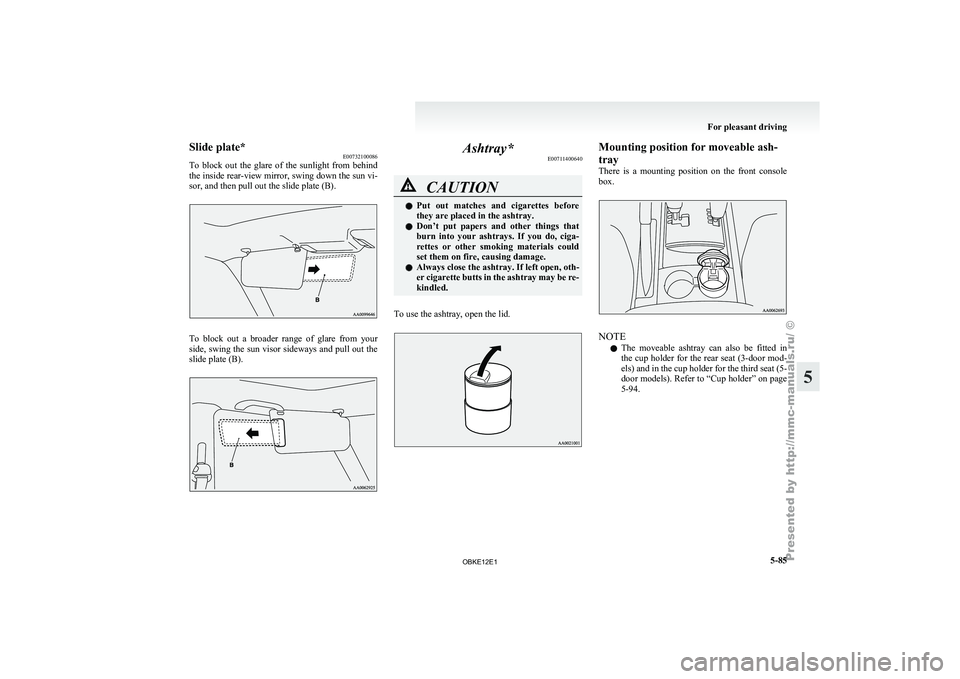
Slide plate*
E00732100086
To block out
the glare of the sunlight from behind
the inside rear-view mirror, swing down the sun vi-
sor, and then pull out the slide plate (B). To block out a broader range of glare from your
side, swing
the
sun visor sideways and pull out the
slide plate (B). Ashtray*
E00711400640 CAUTION
l
Put out
matches
and cigarettes before
they are placed in the ashtray.
l Don’t put papers and other things that
burn into your ashtrays. If you do, ciga-
rettes or other smoking materials could
set them on fire, causing damage.
l Always close the ashtray. If left open, oth-
er cigarette butts in the ashtray may be re-
kindled.
To use the ashtray, open the lid. Mounting position for moveable ash-
tray
There is
a
mounting position on the front console
box. NOTE
l The
moveable ashtray
can also be fitted in
the cup holder for the rear seat (3-door mod-
els) and in the cup holder for the third seat (5-
door models). Refer to “Cup holder” on page
5-94. For pleasant driving
5-85 5
OBKE12E1