display MITSUBISHI PAJERO IV 2011 Owner's Manual
[x] Cancel search | Manufacturer: MITSUBISHI, Model Year: 2011, Model line: PAJERO IV, Model: MITSUBISHI PAJERO IV 2011Pages: 377, PDF Size: 29.43 MB
Page 105 of 377
NOTE
l The
“Completed the
calibration”. message
may be displayed even if you terminate the
turn before it is complete and return to the ve-
hicle’s original direction. The compass may
not be properly calibrated in this case, so you
must turn the vehicle through at least
360 degrees.
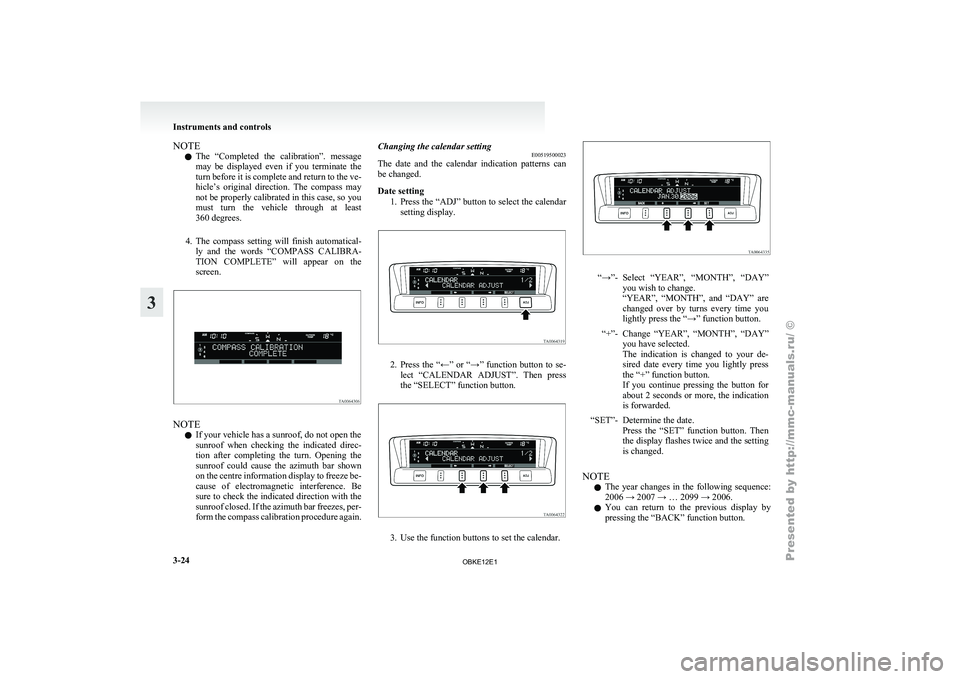
4. The compass setting will finish automatical- ly and the words “COMPASS CALIBRA-
TION COMPLETE” will appear on the
screen. NOTE
l If your vehicle has a sunroof, do not open the
sunroof
when checking
the indicated direc-
tion after completing the turn. Opening the
sunroof could cause the azimuth bar shown
on the centre information display to freeze be-
cause of electromagnetic interference. Be
sure to check the indicated direction with the
sunroof closed. If the azimuth bar freezes, per-
form the compass calibration procedure again. Changing the calendar setting
E00519500023
The date and
the calendar indication patterns can
be changed.
Date setting
1. Press the “ADJ” button to select the calendarsetting display. 2. Press
the “←” or “→” function button to se-
lect “CALENDAR
ADJUST”. Then press
the “SELECT” function button. 3. Use the function buttons to set the calendar. “→”- Select “YEAR”, “MONTH”, “DAY”
you wish to change.
“YEAR”, “MONTH”, and
“DAY” are
changed over by turns every time you
lightly press the “→” function button.
“+”- Change “YEAR”, “MONTH”, “DAY” you have selected.
The indication is
changed to your de-
sired date every time you lightly press
the “+” function button.
If you continue pressing the button for
about 2 seconds or more, the indication
is forwarded.
“SET”- Determine the date. Press the “SET”
function button. Then
the display flashes twice and the setting
is changed.
NOTE l The
year changes
in the following sequence:
2006 → 2007 → … 2099 → 2006.
l You can return to the previous display by
pressing the “BACK” function button. Instruments and controls
3-24
3
OBKE12E1
Page 106 of 377
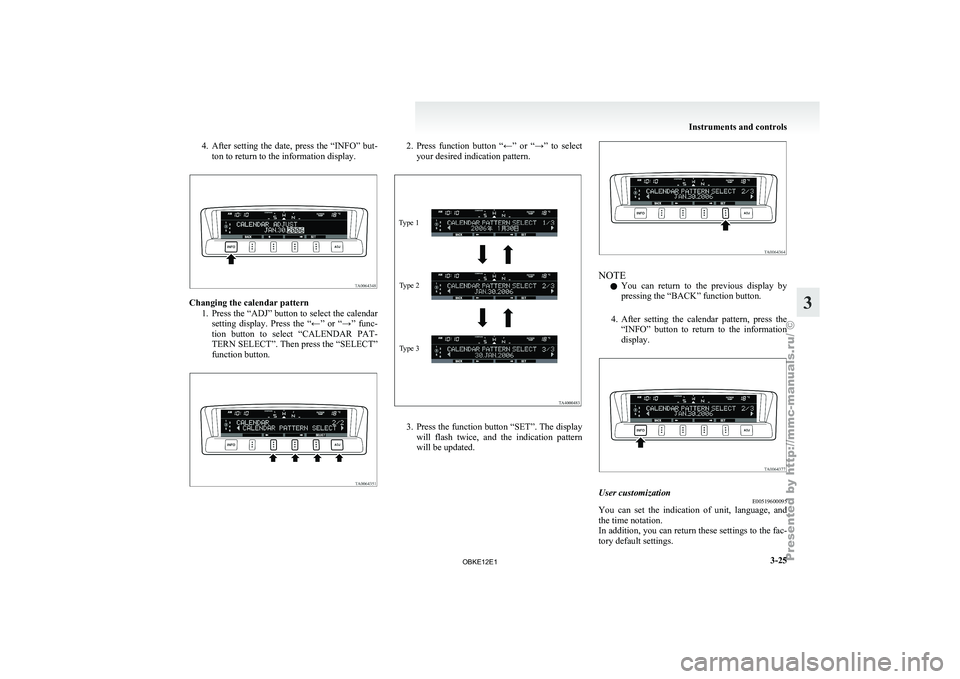
4. After setting the date, press the “INFO” but-
ton to return to the information display. Changing the calendar pattern
1. Press the “ADJ” button to select the calendar
setting display. Press the “←” or “→” func-
tion button to select “CALENDAR PAT-
TERN SELECT”. Then press the “SELECT”
function button. 2. Press function button “←” or “→” to select
your desired indication pattern.
Type 1
Type 2
Type 3 3. Press the function button “SET”. The display
will flash
twice, and the indication pattern
will be updated. NOTE
l You
can return
to the previous display by
pressing the “BACK” function button.
4. After setting the calendar pattern, press the “INFO” button to return to the information
display. User customization
E00519600095
You can set the indication of unit, language, and
the time notation.
In addition, you
can return these settings to the fac-
tory default settings. Instruments and controls
3-25 3
OBKE12E1
Page 107 of 377
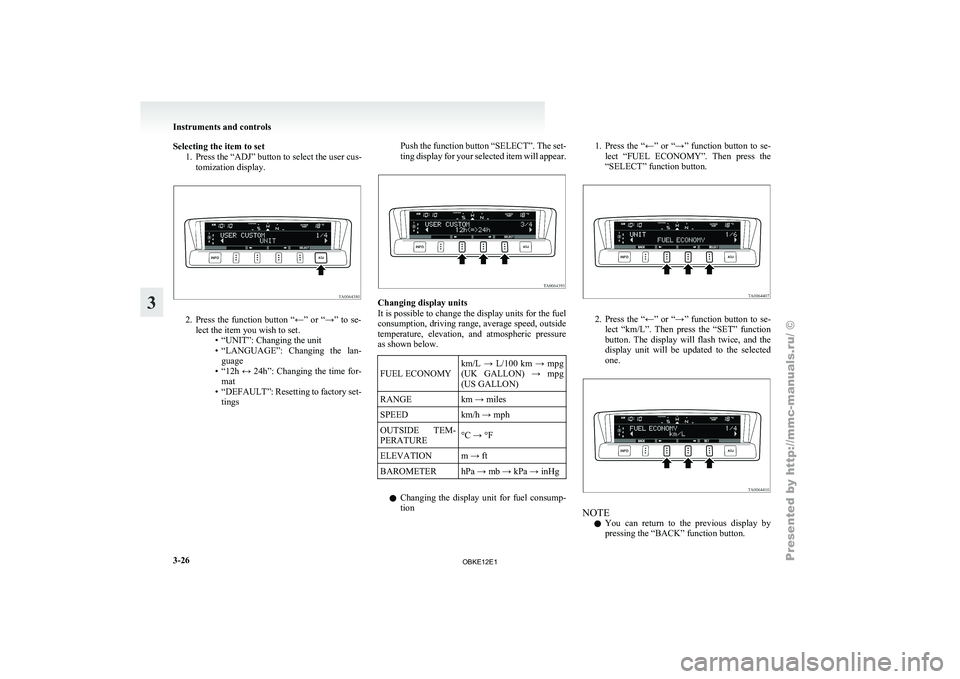
Selecting the item to set
1. Press the “ADJ” button to select the user cus-tomization display. 2. Press the function button “←” or “→” to se-
lect the item you wish to set. •“UNIT”: Changing the unit
•
“LANGUAGE”: Changing the lan-guage
• “12h ↔ 24h”: Changing the time for- mat
• “DEFAULT”: Resetting to factory set- tings Push the function button “SELECT”. The set-
ting display
for
your selected item will appear. Changing display units
It is possible to change the display units for the fuel
consumption, driving range,
average speed, outside
temperature, elevation, and atmospheric pressure
as shown below.
FUEL ECONOMY km/L → L/100 km → mpg
(UK GALLON)
→
mpg
(US GALLON)
RANGE km → miles
SPEED km/h → mph
OUTSIDE TEM-
PERATURE °C → °F
ELEVATION m → ft
BAROMETER hPa → mb → kPa → inHg
l Changing the
display
unit for fuel consump-
tion 1. Press the “←” or “→” function button to se-
lect “FUEL
ECONOMY”. Then press the
“SELECT” function button. 2. Press the “←” or “→” function button to se-
lect “km/L”.
Then press the “SET” function
button. The display will flash twice, and the
display unit will be updated to the selected
one. NOTE
l You
can return
to the previous display by
pressing the “BACK” function button. Instruments and controls
3-26
3
OBKE12E1
Page 108 of 377
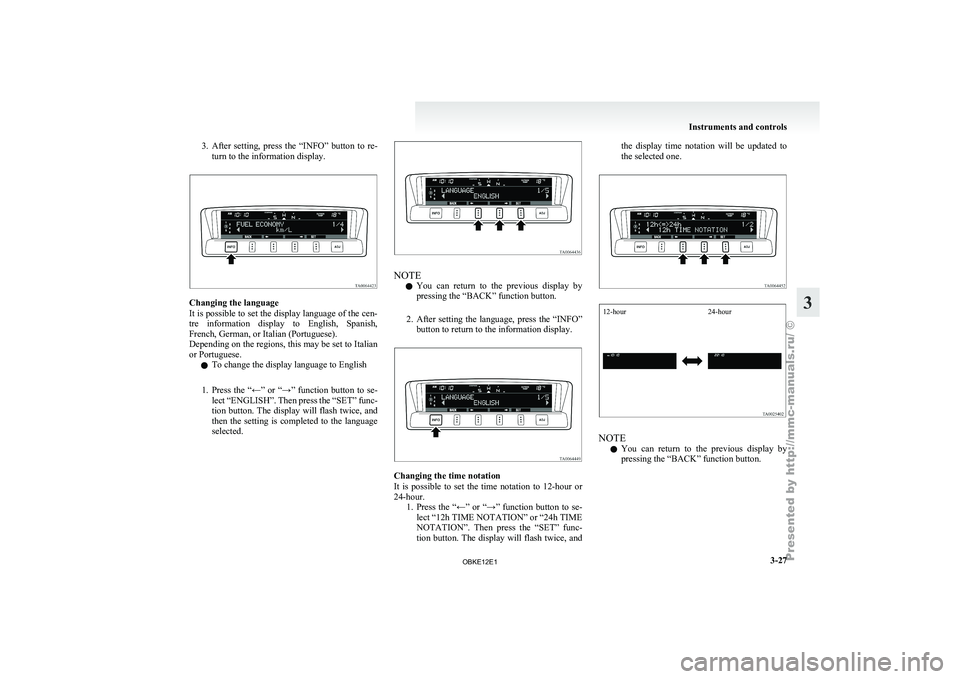
3. After setting, press the “INFO” button to re-
turn to the information display. Changing the language
It is possible
to set the display language of the cen-
tre information display to English, Spanish,
French, German, or Italian (Portuguese).
Depending on the regions, this may be set to Italian
or Portuguese.
l To change the display language to English
1. Press the “←” or “→” function button to se- lect “ENGLISH”. Then press the “SET” func-
tion button. The display will flash twice, and
then the setting is completed to the language
selected. NOTE
l You
can return
to the previous display by
pressing the “BACK” function button.
2. After setting the language, press the “INFO” button to return to the information display. Changing the time notation
It is
possible
to set the time notation to 12-hour or
24-hour. 1. Press the “←” or “→” function button to se-lect “12h TIME NOTATION” or “24h TIME
NOTATION”. Then press the “SET” func-
tion button. The display will flash twice, and the display time notation will be updated to
the selected one.
12-hour
24-hour NOTE
l You
can return
to the previous display by
pressing the “BACK” function button. Instruments and controls
3-27 3
OBKE12E1
Page 109 of 377
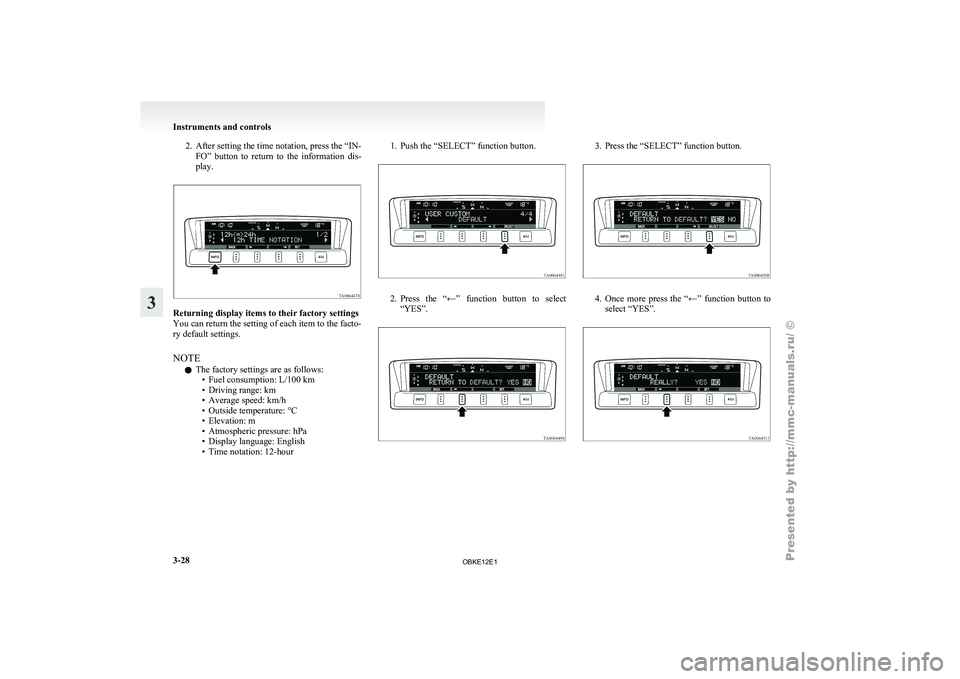
2. After setting the time notation, press the “IN-
FO” button to return to the information dis-
play. Returning display items to their factory settings
You can return the setting of each item to the facto-
ry default settings.
NOTE
l The factory settings are as follows:
•Fuel consumption: L/100 km
• Driving range: km •
Average speed: km/h
• Outside temperature: °C
• Elevation: m
• Atmospheric pressure: hPa
• Display language: English
• Time notation: 12-hour 1. Push the “SELECT” function button.
2. Press the “←” function button to select
“YES”. 3. Press the “SELECT” function button.
4. Once more press the “←” function button to
select “YES”. Instruments and controls
3-28
3
OBKE12E1
Page 110 of 377
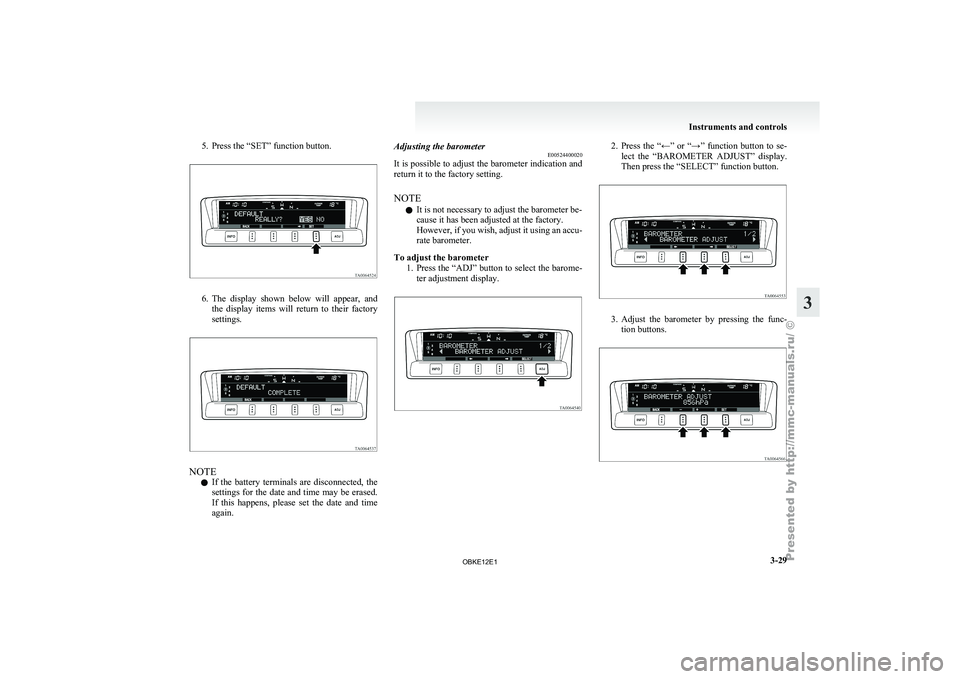
5. Press the “SET” function button.
6. The display shown below will appear, and
the display
items will return to their factory
settings. NOTE
l If
the battery
terminals are disconnected, the
settings for the date and time may be erased.
If this happens, please set the date and time
again. Adjusting the barometer
E00524400020
It is
possible
to adjust the barometer indication and
return it to the factory setting.
NOTE
l It is not necessary to adjust the barometer be-
cause it has been adjusted at the factory.
However, if you wish, adjust it using an accu-
rate barometer.
To adjust the barometer 1. Press the “ADJ” button to select the barome-ter adjustment display. 2. Press the “←” or “→” function button to se-
lect the “BAROMETER ADJUST” display.
Then press the “SELECT” function button. 3. Adjust the barometer by pressing the func-
tion buttons. Instruments and controls
3-29 3
OBKE12E1
Page 111 of 377
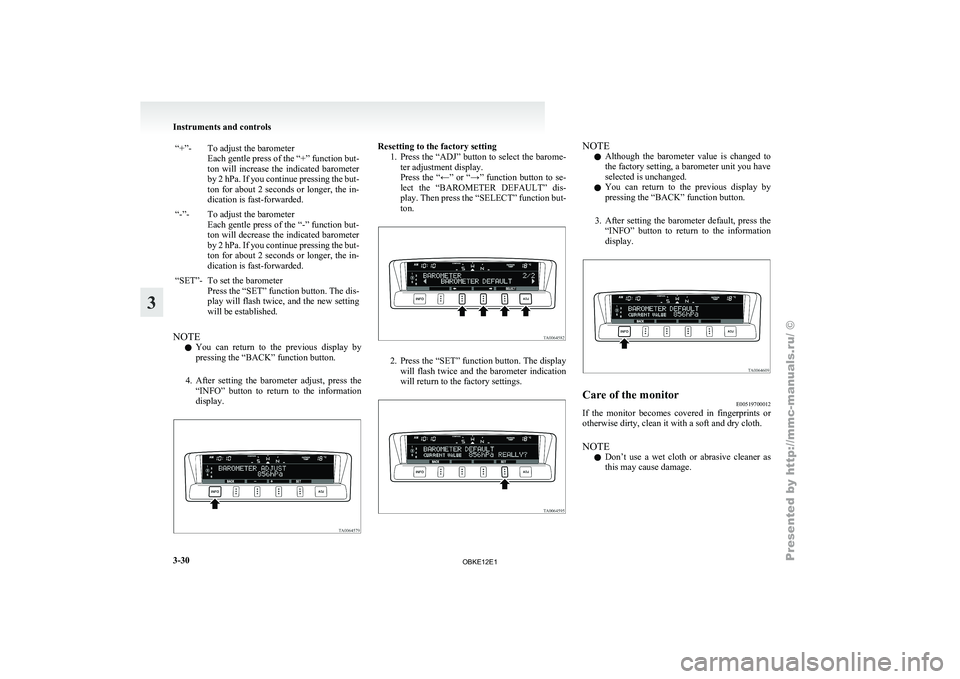
“+”- To adjust the barometer
Each gentle press of the “+” function but-
ton will increase the indicated barometer
by 2 hPa. If you continue pressing the but-
ton for about 2 seconds or longer, the in-
dication is fast-forwarded.
“-”- To adjust the barometer Each gentle press
of the “-” function but-
ton will decrease the indicated barometer
by 2 hPa. If you continue pressing the but-
ton for about 2 seconds or longer, the in-
dication is fast-forwarded.
“SET”- To set the barometer Press the “SET”
function button. The dis-
play will flash twice, and the new setting
will be established.
NOTE l You
can return
to the previous display by
pressing the “BACK” function button.
4. After setting the barometer adjust, press the “INFO” button to return to the information
display. Resetting to the factory setting
1. Press the “ADJ”
button to select the barome-
ter adjustment display.
Press the “←” or “→” function button to se-
lect the “BAROMETER DEFAULT” dis-
play. Then press the “SELECT” function but-
ton. 2. Press the “SET” function button. The display
will flash
twice and the barometer indication
will return to the factory settings. NOTE
l Although
the barometer
value is changed to
the factory setting, a barometer unit you have
selected is unchanged.
l You can return to the previous display by
pressing the “BACK” function button.
3. After setting the barometer default, press the “INFO” button to return to the information
display. Care of the monitor
E00519700012
If the monitor becomes covered in fingerprints or
otherwise dirty, clean it with a soft and dry cloth.
NOTE
l Don’t
use a
wet cloth or abrasive cleaner as
this may cause damage. Instruments and controls
3-30
3
OBKE12E1
Page 179 of 377
• Do not subject the camera to physical
shock.
• Do not apply wax to the camera.
•
Do not splash the camera with boiling wa-ter.
• Do not disassemble the camera.
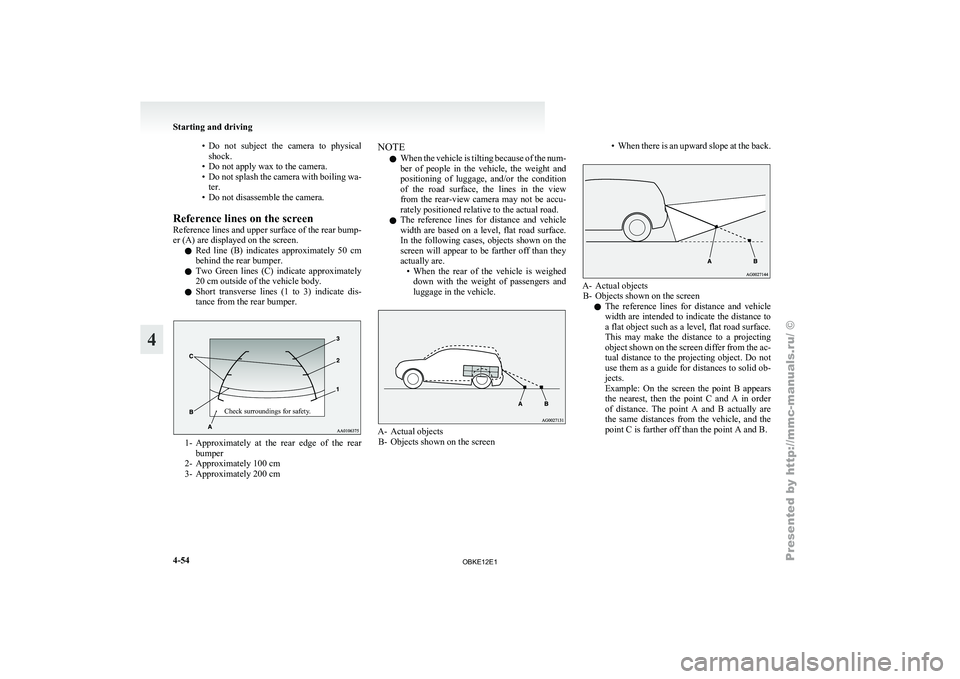
Reference lines on the screen
Reference lines and upper surface of the rear bump-
er (A) are displayed on the screen. l Red line (B) indicates approximately 50 cm
behind the rear bumper.
l Two Green lines (C) indicate approximately
20 cm outside of the vehicle body.
l Short transverse lines (1 to 3) indicate dis-
tance from the rear bumper.
Check surroundings for safety. 1- Approximately at
the
rear edge of the rear
bumper
2- Approximately 100 cm
3- Approximately 200 cm NOTE
l When
the vehicle
is tilting because of the num-
ber of people in the vehicle, the weight and
positioning of luggage, and/or the condition
of the road surface, the lines in the view
from the rear-view camera may not be accu-
rately positioned relative to the actual road.
l The reference lines for distance and vehicle
width are based on a level, flat road surface.
In the following cases, objects shown on the
screen will appear to be farther off than they
actually are.
• When the rear of the vehicle is weigheddown with the weight of passengers and
luggage in the vehicle. A- Actual objects
B- Objects shown on the screen •
When there
is an upward slope at the back. A- Actual objects
B- Objects shown on the screen
l The
reference
lines for distance and vehicle
width are intended to indicate the distance to
a flat object such as a level, flat road surface.
This may make the distance to a projecting
object shown on the screen differ from the ac-
tual distance to the projecting object. Do not
use them as a guide for distances to solid ob-
jects.
Example: On the screen the point B appears
the nearest, then the point C and A in order
of distance. The point A and B actually are
the same distances from the vehicle, and the
point C is farther off than the point A and B. Starting and driving
4-54
4
OBKE12E1
Page 180 of 377
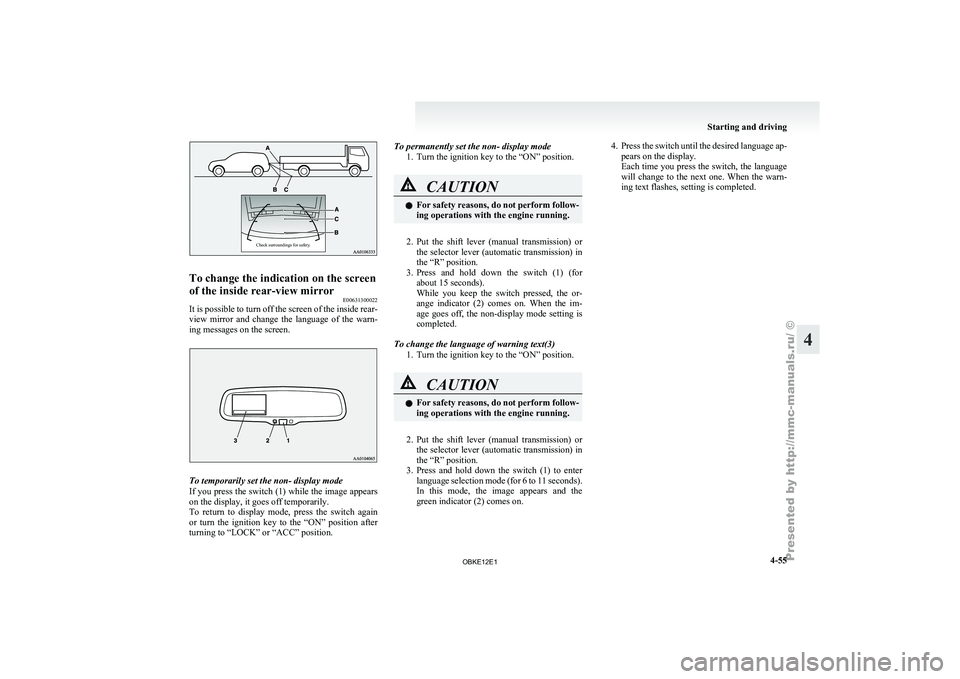
Check surroundings for safety.To change the indication on the screen
of the inside rear-view mirror
E00631300022
It is possible to turn off the screen of the inside rear-
view mirror and
change the language of the warn-
ing messages on the screen. To temporarily set the non- display mode
If you
press
the switch (1) while the image appears
on the display, it goes off temporarily.
To return to display mode, press the switch again
or turn the ignition key to the “ON” position after
turning to “LOCK” or “ACC” position. To permanently set the non- display mode
1. Turn the ignition key to the “ON” position. CAUTION
l
For safety
reasons,
do not perform follow-
ing operations with the engine running.
2. Put the shift lever (manual transmission) or
the selector
lever (automatic transmission) in
the “R” position.
3. Press and hold down the switch (1) (for about 15 seconds).
While you keep the switch pressed, the or-
ange indicator (2) comes on. When the im-
age goes off, the non-display mode setting is
completed.
To change the language of warning text(3) 1. Turn the ignition key to the “ON” position. CAUTION
l
For safety
reasons,
do not perform follow-
ing operations with the engine running.
2. Put the shift lever (manual transmission) or
the selector
lever (automatic transmission) in
the “R” position.
3. Press and hold down the switch (1) to enter language selection mode (for 6 to 11 seconds).
In this mode, the image appears and the
green indicator (2) comes on. 4. Press the switch until the desired language ap-
pears on the display.
Each time
you press the switch, the language
will change to the next one. When the warn-
ing text flashes, setting is completed. Starting and driving
4-55 4
OBKE12E1
Page 184 of 377
Ventilators
.................................................................................... 5-02
Front automatic air conditioning ..................................................5-03
Rear air conditioning* .................................................................. 5-10
Important operation tips for the air conditioning.......................... 5-11
Air purifier (with deodorizing function) .......................................5-12
LW/MW/FM electronic tuning radio with CD player* ................5-12
LW/MW/FM electronic tuning radio with CD autoch- anger*
....................................................................................... 5-26
To play tracks from USB device* ................................................5-43
To play tracks from a Bluetooth ®
device (vehicles with
Bluetooth ®
2.0 interface).......................................................... 5-53
To use the external audio input function* ....................................5-56
To listen to a disc in the rear-seat display (vehicles with rear-seat display) .............................................................. 5-57
Steering wheel remote control switch* ........................................5-57
Error codes.................................................................................... 5-59
Error codes (iPod)......................................................................... 5-61
Error codes (USB memory device) ..............................................5-63
Handling of compact discs ........................................................... 5-65
Antenna......................................................................................... 5-66
Link System* ................................................................................ 5-67
Bluetooth ®
2.0 interface* ............................................................. 5-67
USB input terminal* ..................................................................... 5-82
Sun visors..................................................................................... 5-84
Ashtray*........................................................................................ 5-85
Cigarette lighter* .......................................................................... 5-86
Accessory socket.......................................................................... 5-86
Interior lamps ................................................................................5-87
Storage spaces............................................................................... 5-91
Cup holder.................................................................................... 5-94 Rear shelf (3-door models)*
......................................................... 5-95
Cargo area cover (5-door models)* ..............................................5-96
Convenient hooks (5-door models)* ............................................5-96
Luggage hooks.............................................................................. 5-97
Coat hooks.................................................................................... 5-97
Installation position for warning triangle .....................................5-98For pleasant driving
5
OBKE12E1