ECU MITSUBISHI PAJERO IV 2011 Owner's Guide
[x] Cancel search | Manufacturer: MITSUBISHI, Model Year: 2011, Model line: PAJERO IV, Model: MITSUBISHI PAJERO IV 2011Pages: 377, PDF Size: 29.43 MB
Page 252 of 377
l
For best
performance and further reduction
of ambient noise, the vehicle windows
should be closed while engaging the voice rec-
ognition function.
l Depending on the selected language, some
functions may not be available.
Selecting the Language 1. Press the SPEECH button.
2. Say “Setup”.
3. Say “Language.”
4. The voice guide will say “Select a language:English, French, Spanish, Italian, German,
Dutch, Portuguese or Russian” Say the de-
sired language. (Example: Say “English.”)
5. The voice guide will say “English (French, Spanish, Italian, German, Dutch, Portuguese
or Russian) selected. Is this correct?” Say
“Yes.”
Answer “No” to return to Step 4.
NOTE l The voice guide will repeat the same mes-
sage twice. The first message is in the cur-
rent language, and the second message is in
the selected language.
l If many entries are registered in the vehicle
phone book, changing the language will take
longer.
l Changing the language deletes the mobile
phone book imported to the Bluetooth ®
2.0
interface. If you wish to use it, you will have
to import it again.
6. When the voice guide says “English (French, Spanish, Italian, German, Dutch, Portuguese
or Russian) selected,” the language change
process will be completed and the system
will return to the main menu. Useful voice commands
E00760000019
Help function E00760100010
The Bluetooth ®
2.0 interface
is equipped with a
help function. If you say “Help” when the system
is waiting for a voice command input, the system
will tell you a list of the commands that can be
used under the circumstances.
Cancelling E00760200011
There are two cancel functions.
If you are
at the main menu, say “Cancel” to exit
from the Bluetooth ®
2.0 interface.
If you are anywhere else within the system, say
“Cancel” to return to the main menu.
Confirmation function setting E00760400013
The Bluetooth ®
2.0 interface
is equipped with a con-
firmation function.
With the confirmation function activated, you are
given more opportunities than normal to confirm a
command when making various settings to the Blue-
tooth ®
2.0 interface. This allows you to decrease
the possibility that a setting is accidentally changed.
The confirmation function can be turned on or off
by following the steps below. 1. Press the SPEECH button.
2. Say “Setup”.
3. Say “Confirmation prompts”.
4. The voice guide will say “Confirmationprompts are
confirmation prompts
Answer “Yes” to change the setting or an-
swer “No” to keep the current setting.
5. The voice guide will say “Confirmation prompts are
will return to the main menu. Security function
E00760500131
It is
possible
to use a password as a security func-
tion by setting a password of your choice for the
Bluetooth ®
2.0 interface.
When the security function is turned on, it is neces-
sary to make a voice input of a 4-digit password in
order to use all functions of the Bluetooth ®
2.0 in-
terface, except for reception.
Setting the password
Use the following procedure to turn on the security
function by setting a password. 1. Press the SPEECH button.
2. Say “Setup”.
3. Say “Password.”
4. The voice guide will say “Password is disa-bled. Would you like to enable it?” Answer
“Yes.”
Answer “No” to cancel the setting of the pass-
word and return to the main menu.
5. The voice guide will say “Please say a 4-dig- it password. Remember this password. It will
be required to use this system”.
Say a 4-digit number which you want to set
as a password.
6. For confirmation purposes, the voice guide will say “Password <4-digit password>. Is
this correct?” Answer “Yes.”
Answer “No” to return to the password input
in Step 5.
7. When the registration of the password is com- pleted, the voice guide will say “Password is
enabled” and the system will return to the
main menu. For pleasant driving
5-69 5
OBKE12E1
Page 253 of 377
NOTE
l Password
will be
required to access the sys-
tem after the next ignition cycle.
l It is required for a little time after engine
stop that the entered password is actually re-
corded in the system.
If the ignition switch is made to “ACC” or
“ON” or the engine is started immediately af-
ter engine stop, there is a case when the en-
tered password is not recorded in the system.
At this time, please try to enter the password
again.
Entering the password
If a password has been set and the security function
is enabled, the voice guide will say “Hands-free sys-
tem is locked. State the password to continue”
when the SPEECH button is pressed to enter voice
recognition mode. Say the 4-digit password num-
ber to enter the password.
If the entered password is wrong, the voice guide
will say “<4- digit password>, Incorrect password.
Please try again”. Enter the correct password.
NOTE l You can re-enter the password as many times
as you want.
l If you have forgotten your password, say
“Cancel” to quit the voice input mode and
then check with a MITSUBISHI MOTORS
Authorized Service Point.
Disabling the password
Use the following procedure to turn off the security
function by disabling the password. NOTE
l System
must be
unlocked to disable the pass-
word.
1. Press the SPEECH button.
2. Say “Setup”.
3. Say “Password.”
4. The voice guide will say “Password is ena- bled. Would you like to disable it?” Answer
“Yes.”
Answer “No” to cancel the disabling of the
password and return to the main menu.
5. When the disabling of the password is com- pleted, the voice guide will say “Password is
disabled” and the system will return to the
main menu.
Speaker enrollment function E00727400209
The Bluetooth ®
2.0 interface
can use the speaker en-
rollment function to create a voice model for one
person per language.
This makes it easier for the Bluetooth ®
2.0 inter-
face to recognise voice commands said by you.
You can turn a voice model registered with the
speaker enrollment function on and off whenever
you want.
Speaker enrollment E00727500196
It takes about 2 to 3 minutes to complete the speak-
er enrollment process.
To ensure the
best results, run through the process
while in the driver’s seat, in an environment that is
as quiet as possible (when there is no rain or strong
winds and the vehicle windows are closed). Please
turn off your phone while in speaker enrollment to
prevent interruption of the process.
Use the following procedure for speaker enrollment. 1. Stop your vehicle in a safe area, put the gear-
shift lever
in the “N” (Neutral) position
(M/T), or the selector lever in the “P”
(PARK) position (A/T), and pull the parking
brake lever.
NOTE l Speaker enrollment is not possible unless the
vehicle is parked. Make sure you park the ve-
hicle in a safe area before attempting speaker
enrollment.
2. Press the SPEECH button.
3. Say “Voice training”.
4. The voice guide will say “This operation must be performed in a quiet environment
while the vehicle is stopped. See the owner’s
manual for the list of required training phra-
ses. Press and release the SPEECH button
when you are ready to begin. Press the HANG-
UP button to cancel at any time”.
Press the SPEECH button to start the speaker
enrollment process.
NOTE l If you do not start the speaker enrollment proc-
ess within 3 minutes of pressing the
SPEECH button, the speaker enrollment func-
tion will time out.
The voice guide will say “Speaker Enroll-
ment has timed out”. The system will then
beep and the voice recognition mode will be
deactivated.
5. The voice guide will prompt for phrase 1. Re- peat the corresponding phrase listed in table
“Enrollment commands” on page 5-81. For pleasant driving
5-70
5
OBKE12E1
Page 262 of 377
2. Say “Phone book.”
3. The voice guide
will say “Select one of the
following: new entry, edit number, edit
name, list names, delete, erase all, or import
contact.” Say “List names.”
4. Bluetooth ®
2.0 interface will read out the en-
tries in the phone book in order.
5. When the voice guide is done reading the list, it will say “End of list, would you like to
start from the beginning?”
When you want to check the list again from
the beginning, answer “Yes.”
When you are done, answer “No” to return to
the previous or main menu.
NOTE l You can call, edit or delete a name that is be-
ing read out.
Press the SPEECH button and say “Call” to
call the name, “Edit name” to edit it, or “De-
lete” to delete it.
The system will beep and then execute your
command.
l If you press the SPEECH button and say “Con-
tinue” or “Previous” while the list is being
read, the system will advance or rewind the
list. Say “Continue” to proceed to the next en-
try or “Previous” to return to the previous en-
try.
[Deleting a telephone number] 1. Press the SPEECH button.
2. Say “Phone book.”
3. The voice guide will say “Select one of thefollowing: new entry, edit number, edit
name, list names, delete, erase all, or import
contact.” Say “Delete.” 4. The voice guide will say “Please say the
name of the entry you would like to delete,
or say list names.” Say the name of the
phone book entry in which the telephone num-
ber you want to delete is registered.
NOTE l Say “List names,” and the names registered
in the phone book will be read out in order.
Refer to “Listening to the list of registered
names” on page 5-78.
5. If only one telephone number is registered in the selected phone book entry, the voice
guide will say “Deleting
If multiple telephone numbers are registered
in the selected phone book entry, the voice
guide will say “Would you like to delete
[home], [work], [mobile], [other], or all?”
Select the location to delete, and the voice
guide will say “Deleting
NOTE l To delete the telephone numbers from all lo-
cations, say “All.”
6. The system will ask if you really want to de- lete the selected telephone number(s) to go
ahead with the deletion, answer “Yes.”
Answer “No,” the system will cancel delet-
ing the telephone number(s) and then return
to Step 4. 7. When the deletion of the telephone number
is completed, the voice guide will say
“
system will return to the main menu.
If all locations are deleted, the system will
say “
the name will be removed from the phone
book. If numbers still remain under the en-
try, the name will retain the other associated
numbers.
Erasing the phone book
You can delete all registered information from the
vehicle phone book. 1. Press the SPEECH button.
2. Say “Phone book.”
3. The voice guide will say “Select one of thefollowing: new entry, edit number, edit
name, list names, delete, erase all, or import
contact.” Say “Erase all.”
4. For confirmation purposes, the voice guide will ask “Are you sure you want to erase ev-
erything from your handsfree system phone
book?” Answer “Yes.”
Answer “No” to cancel the deletion of all reg-
istered information in the phone book and re-
turn to the main menu.
5. The voice guide will say “You are about to delete everything from your hands-free sys-
tem phone book. Do you want to continue?”
Answer “Yes” to continue.
Answer “No” to cancel the deletion of all reg-
istered information in the phone book and re-
turn to the main menu. For pleasant driving
5-79 5
OBKE12E1
Page 278 of 377
For the rear seat/second seat
E00716900321
3-door models
To use the
cup holder, press the button (A) at the
top of the armrest and allow the armrest to drop
down. 5-door models
1. Lift the head
restraint (B) and tilt the armrest. 2. Open the lid (C) while holding the side face
of the lid with your hand. For the third seat*
E00719000075
The cup holder is located at the left side of the
third seat.
The cup holder
is designed for holding cups or drink-
cans securely in its holes. Rear shelf (3-door models)*
E00722800064
The rear shelf
divides the passenger compartment
and luggage area.
NOTE
l Do not place luggage or other items on the
rear shelf.
Remove the rear shelf when loading large items of
luggage.
To remove
Raise the rear shelf, then pull it upward to remove
it from the groove (A) on each side of the luggage
area. To refit
Refit the rear
shelf by performing the removal
steps in reverse. For pleasant driving
5-95 5
OBKE12E1
Page 279 of 377
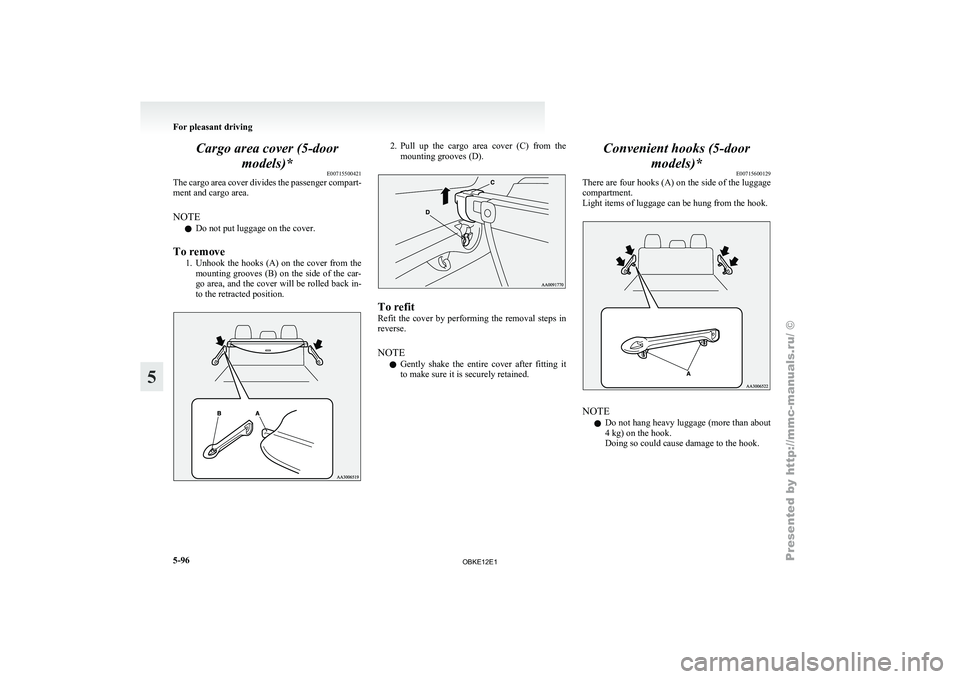
Cargo area cover (5-door
models)* E00715500421
The cargo area
cover divides the passenger compart-
ment and cargo area.
NOTE
l Do not put luggage on the cover.
To remove 1. Unhook the hooks (A) on the cover from themounting grooves (B) on the side of the car-
go area, and the cover will be rolled back in-
to the retracted position. 2. Pull up the cargo area cover (C) from the
mounting grooves (D). To refit
Refit the cover
by performing the removal steps in
reverse.
NOTE
l Gently shake the entire cover after fitting it
to make sure it is securely retained. Convenient hooks (5-door
models)* E00715600129
There are four
hooks (A) on the side of the luggage
compartment.
Light items of luggage can be hung from the hook. NOTE
l Do
not hang
heavy luggage (more than about
4 kg) on the hook.
Doing so could cause damage to the hook. For pleasant driving
5-96
5
OBKE12E1
Page 280 of 377
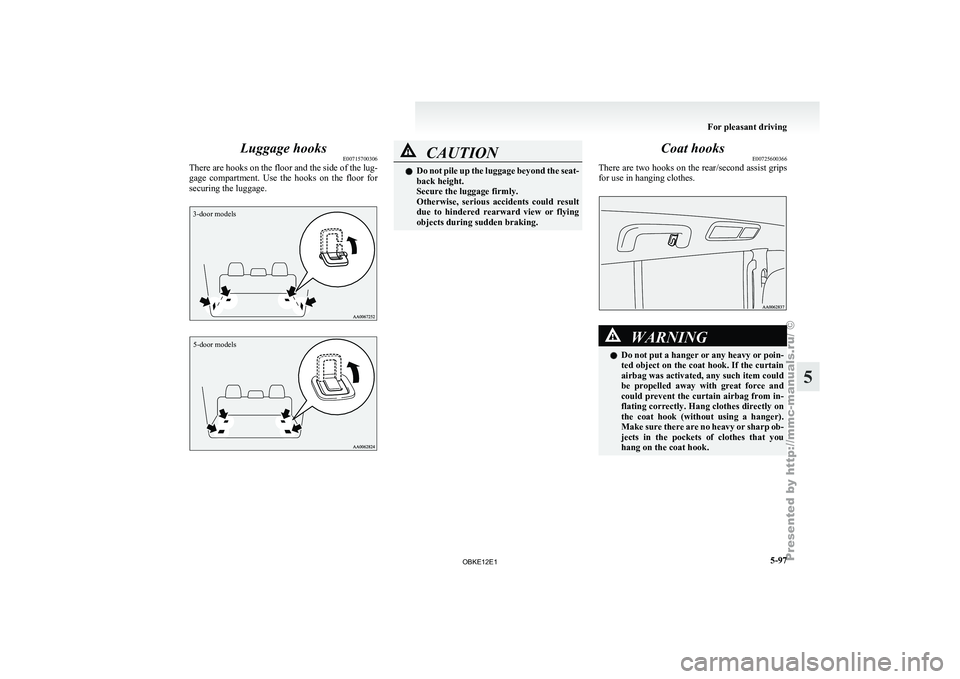
Luggage hooks
E00715700306
There are hooks
on the floor and the side of the lug-
gage compartment. Use the hooks on the floor for
securing the luggage.
3-door models
5-door models CAUTION
l
Do not pile
up the luggage beyond the seat-
back height.
Secure the luggage firmly.
Otherwise, serious accidents could result
due to hindered rearward view or flying
objects during sudden braking. Coat hooks
E00725600366
There are two
hooks on the rear/second assist grips
for use in hanging clothes. WARNING
l Do not
put
a hanger or any heavy or poin-
ted object on the coat hook. If the curtain
airbag was activated, any such item could
be propelled away with great force and
could prevent the curtain airbag from in-
flating correctly. Hang clothes directly on
the coat hook (without using a hanger).
Make sure there are no heavy or sharp ob-
jects in the pockets of clothes that you
hang on the coat hook. For pleasant driving
5-97 5
OBKE12E1
Page 281 of 377
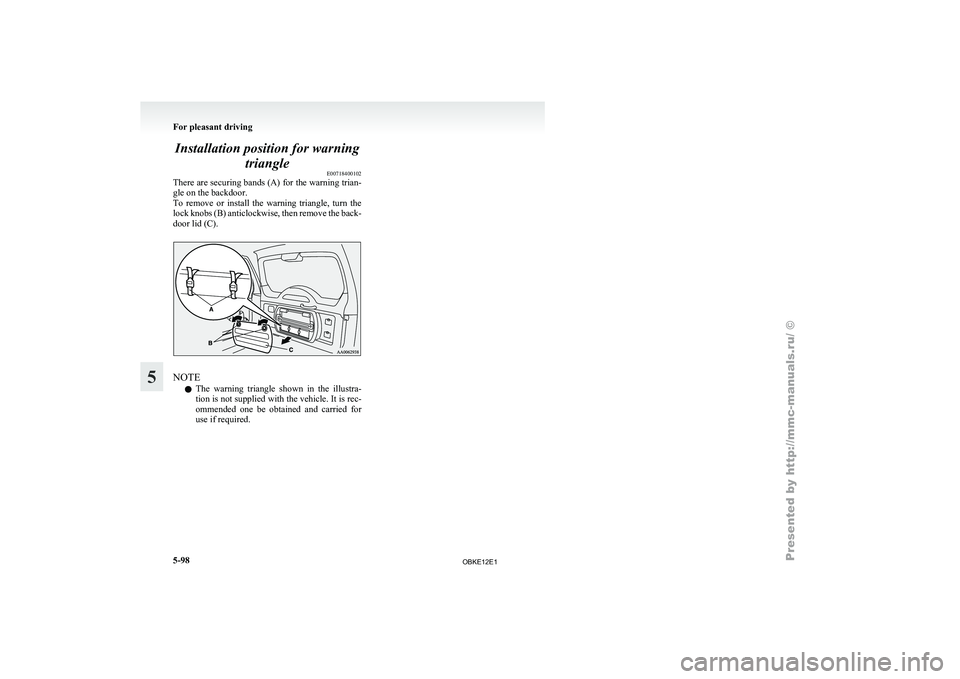
Installation position for warning
triangle E00718400102
There are securing
bands (A) for the warning trian-
gle on the backdoor.
To remove or install the warning triangle, turn the
lock knobs (B) anticlockwise, then remove the back-
door lid (C). NOTE
l The
warning triangle
shown in the illustra-
tion is not supplied with the vehicle. It is rec-
ommended one be obtained and carried for
use if required. For pleasant driving
5-98
5
OBKE12E1
Page 288 of 377

Tool, jack and jack handle
E00800900659
Storage
The storage location
of the tool, jack and jack han-
dle should be remembered in case of an emergency.
3-door models A- Jack handle
B- Tool (wheel nut wrench)
C- Jack 5-door models D- Jack
E- Jack handle
F- Tool (wheel nut wrench)
Tool E00801900483 1- Wheel nut wrenchRemoving and storing the tool, jack
and jack handle
E00802300178
3-door models
Tool, jack and
jack handle are in the storage com-
partment at the rear of the vehicle, on the right side. 1. Loose the knob (A), and remove the lid (B). 2. Remove the securing bolt (C), and then take
out the jack. For emergencies
6-07 6
OBKE12E1
Page 289 of 377

3. Remove the tool and the jack handle from
the holder (D), and take it out. 4. Reverse the removing procedure when stor-
ing the tool, jack and jack handle. CAUTION
l
When removing
and storing the items in
the storage compartment, be careful not
to injure your hands or fingers.
5-door models
Tool, jack and
jack handle are located in the lug-
gage floor box. 1. When the third seat is folded into the lug-gage floor box, raise the seat forward and re-
turn it to the original position.
Refer to “Storage of the third seat” on page
2-14. 2. Remove the lid.
3. Remove the tool and the jack handle from
the holder (A), and take it out. 4. Pull the lid to remove it.
5. Remove the securing bolt (B), and then take
out the jack. 6. Reverse the removing procedure when stor-
ing the tool, jack and jack handle. For emergencies
6-08
6
OBKE12E1
Page 295 of 377
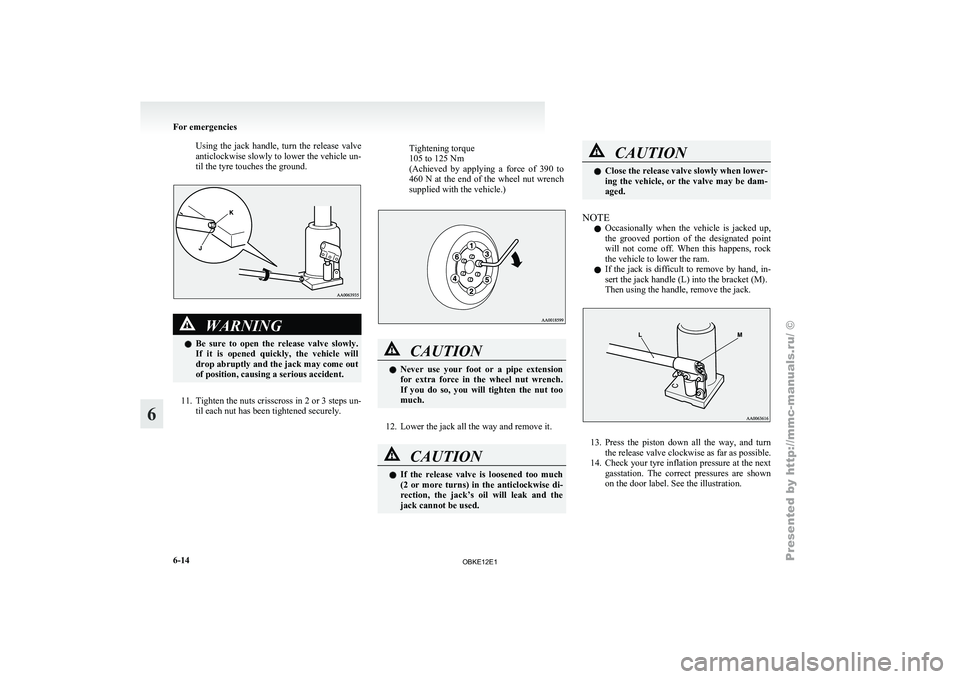
Using the jack handle, turn the release valve
anticlockwise slowly to lower the vehicle un-
til the tyre touches the ground.
WARNING
l Be sure
to open the release valve slowly.
If it is opened quickly, the vehicle will
drop abruptly and the jack may come out
of position, causing a serious accident.
11. Tighten the nuts crisscross in 2 or 3 steps un-
til each nut has been tightened securely.
Tightening torque
105 to 125 Nm
(Achieved by
applying
a force of 390 to
460 N at the end of the wheel nut wrench
supplied with the vehicle.) CAUTION
l
Never use
your
foot or a pipe extension
for extra force in the wheel nut wrench.
If you do so, you will tighten the nut too
much.
12. Lower the jack all the way and remove it. CAUTION
l
If the
release
valve is loosened too much
(2 or more turns) in the anticlockwise di-
rection, the jack’s oil will leak and the
jack cannot be used. CAUTION
l
Close the release
valve slowly when lower-
ing the vehicle, or the valve may be dam-
aged.
NOTE l Occasionally
when the
vehicle is jacked up,
the grooved portion of the designated point
will not come off. When this happens, rock
the vehicle to lower the ram.
l If the jack is difficult to remove by hand, in-
sert the jack handle (L) into the bracket (M).
Then using the handle, remove the jack. 13. Press the piston down all the way, and turn
the release valve clockwise as far as possible.
14. Check
your tyre inflation pressure at the next
gasstation. The correct pressures are shown
on the door label. See the illustration. For emergencies
6-14
6
OBKE12E1