ECO mode MITSUBISHI PAJERO IV 2011 Service Manual
[x] Cancel search | Manufacturer: MITSUBISHI, Model Year: 2011, Model line: PAJERO IV, Model: MITSUBISHI PAJERO IV 2011Pages: 377, PDF Size: 29.43 MB
Page 183 of 377
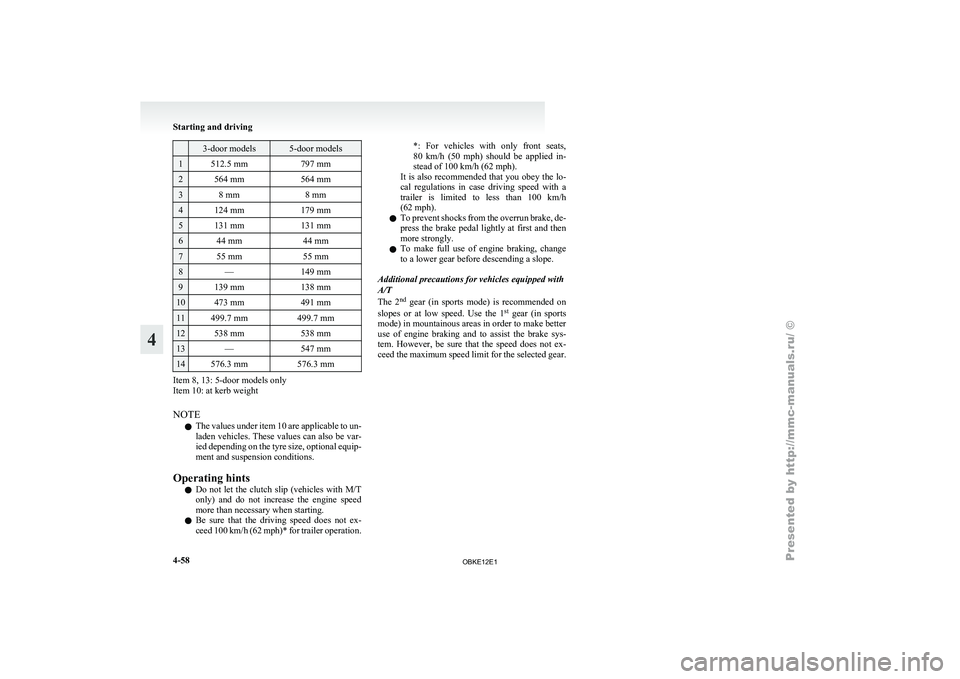
3-door models 5-door models
1 512.5 mm
797 mm2 564 mm
564 mm3 8 mm
8 mm4 124 mm
179 mm5 131 mm
131 mm6 44 mm
44 mm7 55 mm
55 mm8 —
149 mm9 139 mm
138 mm10 473 mm
491 mm11 499.7 mm
499.7 mm12 538 mm
538 mm13 —
547 mm14 576.3 mm
576.3 mmItem 8, 13: 5-door models only
Item 10: at kerb weight
NOTE
l The
values under
item 10 are applicable to un-
laden vehicles. These values can also be var-
ied depending on the tyre size, optional equip-
ment and suspension conditions.
Operating hints l Do not let the clutch slip (vehicles with M/T
only) and do not increase the engine speed
more than necessary when starting.
l Be sure that the driving speed does not ex-
ceed 100 km/h (62 mph)* for trailer operation. *: For vehicles with only front seats,
80
km/h
(50
mph) should be applied in-
stead of 100 km/h (62 mph).
It is also recommended that you obey the lo-
cal regulations in case driving speed with a
trailer is limited to less than 100 km/h
(62 mph).
l To prevent shocks from the overrun brake, de-
press the brake pedal lightly at first and then
more strongly.
l To make full use of engine braking, change
to a lower gear before descending a slope.
Additional precautions for vehicles equipped with
A/T
The 2 nd
gear (in sports mode) is recommended on
slopes or at low speed. Use the 1 st
gear (in sports
mode) in mountainous areas in order to make better
use of engine braking and to assist the brake sys-
tem. However, be sure that the speed does not ex-
ceed the maximum speed limit for the selected gear. Starting and driving
4-58
4
OBKE12E1
Page 185 of 377
Ventilators
E00700100373
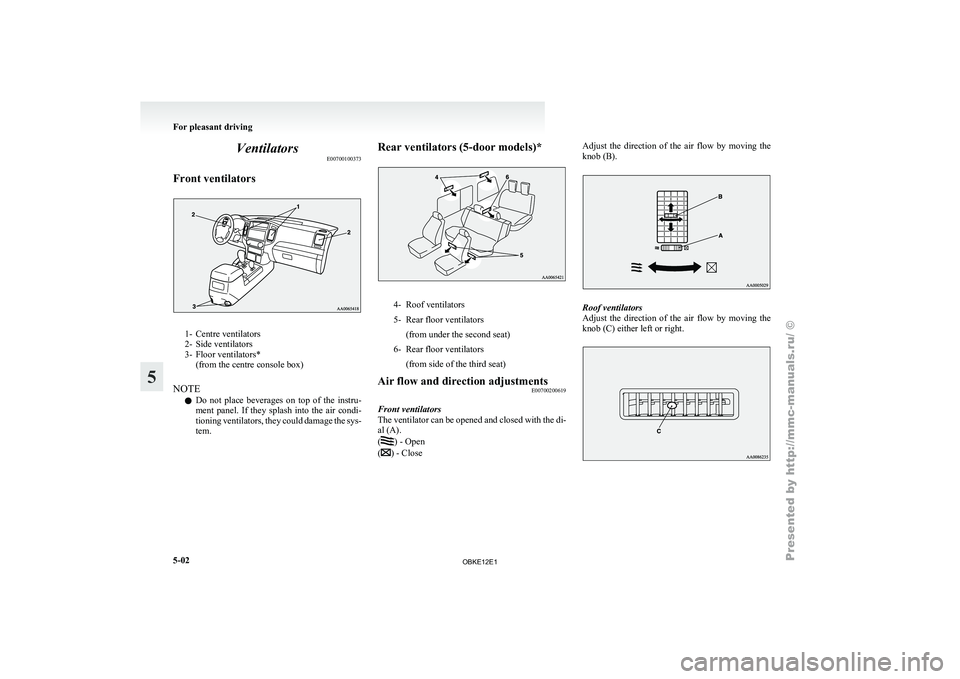
Front ventilators 1- Centre ventilators
2- Side ventilators
3-
Floor ventilators*
(from the centre console box)
NOTE l Do
not place beverages on top of the instru-
ment panel. If they splash into the air condi-
tioning ventilators, they could damage the sys-
tem. Rear ventilators (5-door models)*
4- Roof ventilators
5- Rear floor ventilators
(from under the second seat)
6- Rear floor ventilators (from side of the third seat)
Air flow and direction adjustments E00700200619
Front ventilators
The ventilator can
be opened and closed with the di-
al (A).
( ) - Open
( ) - CloseAdjust the direction of the air flow by moving the
knob (B).
Roof ventilators
Adjust the
direction
of the air flow by moving the
knob (C) either left or right. For pleasant driving
5-02
5
OBKE12E1
Page 189 of 377
CAUTION
l
Normally, use the outside position to keep
the windscreen and
side windows clear
and quickly remove fog or frost from the
windscreen.
If high cooling performance is desired, or
if the outside air is dusty or otherwise con-
taminated use the recirculation position.
Switch to the outside position periodically
to increase ventilation so that the win-
dows do not become fogged up.
l Use of the recirculation position for exten-
ded time may cause the windows to fog up.
NOTE l If
you press
the AUTO switch to select auto-
matic control after manually switching be-
tween outside air and recirculated air, the air
selection will also be automatically controlled. AUTO switch
E00702600011
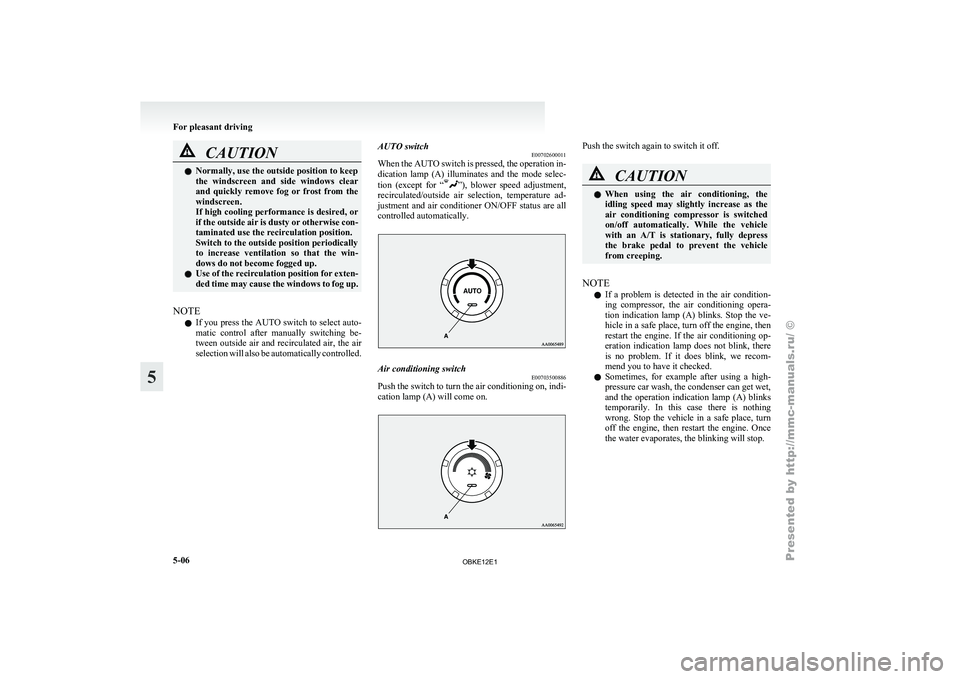
When the
AUTO
switch is pressed, the operation in-
dication lamp (A) illuminates and the mode selec-
tion (except for “ ”), blower speed adjustment,
recirculated/outside air
selection, temperature ad-
justment and air conditioner ON/OFF status are all
controlled automatically. Air conditioning switch
E00703500886
Push the switch to turn the air conditioning on, indi-
cation lamp (A) will come on. Push the switch again to switch it off.
CAUTION
l
When using
the air conditioning, the
idling speed may slightly increase as the
air conditioning compressor is switched
on/off automatically. While the vehicle
with an A/T is stationary, fully depress
the brake pedal to prevent the vehicle
from creeping.
NOTE l If
a problem
is detected in the air condition-
ing compressor, the air conditioning opera-
tion indication lamp (A) blinks. Stop the ve-
hicle in a safe place, turn off the engine, then
restart the engine. If the air conditioning op-
eration indication lamp does not blink, there
is no problem. If it does blink, we recom-
mend you to have it checked.
l Sometimes, for example after using a high-
pressure car wash, the condenser can get wet,
and the operation indication lamp (A) blinks
temporarily. In this case there is nothing
wrong. Stop the vehicle in a safe place, turn
off the engine, then restart the engine. Once
the water evaporates, the blinking will stop. For pleasant driving
5-06
5
OBKE12E1
Page 196 of 377
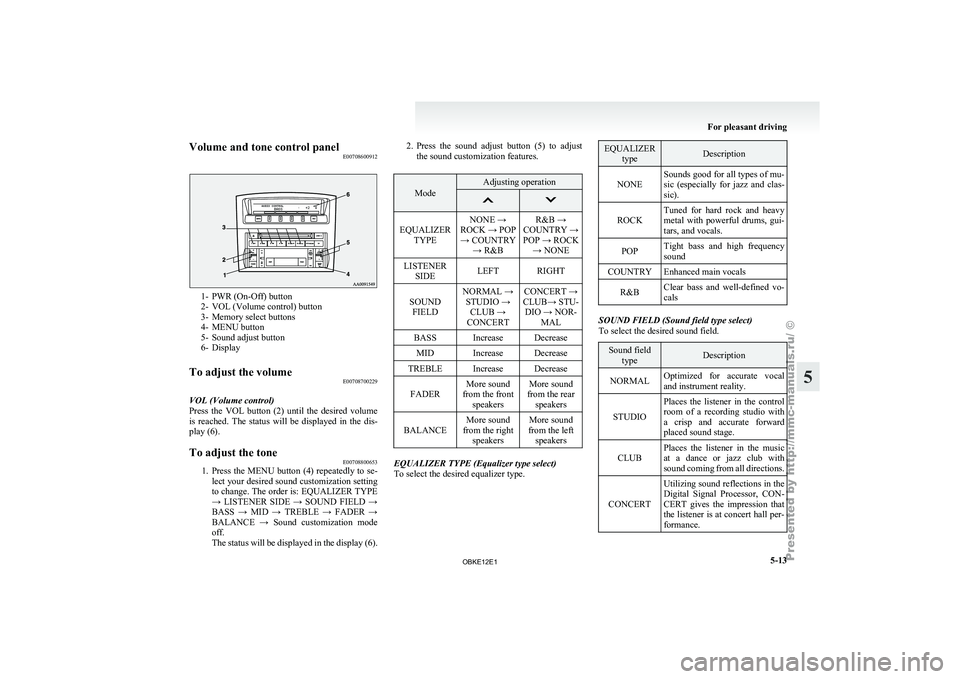
Volume and tone control panel
E007086009121- PWR (On-Off) button
2- VOL (Volume control) button
3-
Memory select buttons
4-
MENU button
5- Sound adjust button
6- Display
To adjust the volume E00708700229
VOL (Volume control)
Press the VOL
button (2) until the desired volume
is reached. The status will be displayed in the dis-
play (6).
To adjust the tone E00708800653
1. Press the MENU button (4) repeatedly to se-
lect your
desired sound customization setting
to change. The order is: EQUALIZER TYPE
→ LISTENER SIDE → SOUND FIELD →
BASS → MID → TREBLE → FADER →
BALANCE → Sound customization mode
off.
The status will be displayed in the display (6). 2. Press
the sound adjust button (5) to adjust
the sound customization features. Mode Adjusting operation
EQUALIZER
TYPE NONE →
ROCK → POP → COUNTRY → R&B R&B →
COUNTRY →
POP → ROCK → NONE
LISTENER SIDE LEFT RIGHT
SOUND FIELD NORMAL →
STUDIO → CLUB →
CONCERT CONCERT →
CLUB→ STU- DIO → NOR- MAL
BASS Increase Decrease MID Increase Decrease
TREBLE Increase Decrease
FADER More sound
from the front speakers More sound
from the rear speakers
BALANCE More sound
from the right speakers More sound
from the left speakers EQUALIZER TYPE (Equalizer type select)
To select the desired equalizer type. EQUALIZER
type Description
NONE Sounds good for all types of mu-
sic (especially for
jazz and clas-
sic).
ROCK Tuned for hard rock and heavy
metal with powerful
drums, gui-
tars, and vocals.
POP Tight bass and high frequency
sound
COUNTRY Enhanced main vocals
R&B Clear bass and well-defined vo-
cals SOUND FIELD (Sound field type select)
To select the desired sound field.
Sound field
type Description
NORMAL Optimized for accurate vocal
and instrument reality.
STUDIO Places the listener in the control
room of
a
recording studio with
a crisp and accurate forward
placed sound stage.
CLUB Places the listener in the music
at a dance
or jazz club with
sound coming from all directions.
CONCERT Utilizing sound reflections in the
Digital Signal Processor,
CON-
CERT gives the impression that
the listener is at concert hall per-
formance. For pleasant driving
5-13 5
OBKE12E1
Page 197 of 377
BASS (Bass tone control)
To select the desired bass level.
MID (Midrange tone control)
To select the desired midrange level.
TREBLE (Treble tone control)
To select the desired treble level.
FADER (Front/Rear balance control)
To balance the
volume from the F (front) and the R
(rear) speakers.
BALANCE (Left/Right balance control)
To balance the volume from the L (left) and the R
(right) speakers.
Speed Compensated Volume function E00726800277
Speed Compensated Volume function is a feature
that automatically adjusts
the VOL, BASS, MID,
and TREBLE settings in accordance with the vehi-
cle speed. It is possible to turn this function ON-
OFF using the following method: 1. If you are presently pushing the MENU but-ton (4) and making a tone adjustment, finish
making the tone adjustment.
2. Push the MENU button (4) for at least about 2 seconds. The system will switch to MENU
mode. Press the MENU button (4) repeatedly
until “SCV SETTING” appears on the dis-
play. Refer to “Function setup mode” on
page 5-20.
3. Press the sound adjust button (5) to turn the “SCV SETTING” ON and OFF.
4. To exit the menu mode, press the MENU but- ton for 2 seconds or longer. NOTE
l The
MENU mode
will automatically shut off
when either the radio or CD is selected or the
user does not operate any of the switches for
10 seconds. For pleasant driving
5-14
5
OBKE12E1
Page 199 of 377
To listen to the radio
E00709000388
1. Press the PWR
button (2) to turn the audio
system on and off.
2. Press the AM/FM button (1) to select the de- sired band.
3. Press the TUNE button (6 or 7) or SEEK but- ton (4 or 5) to tune to a station, or press one
of the memory select button (3) to recall a sta-
tion memorised for that button.
To tune the radio E00709100318
Automatic tuning
After pressing
the
SEEK button (4 or 5), the selec-
ted station reception will start.
Manual tuning
The frequency changes every time the TUNE but-
ton (6 or 7) is pressed. The frequency changes con-
tinuously if you keep pushing the button. Press the
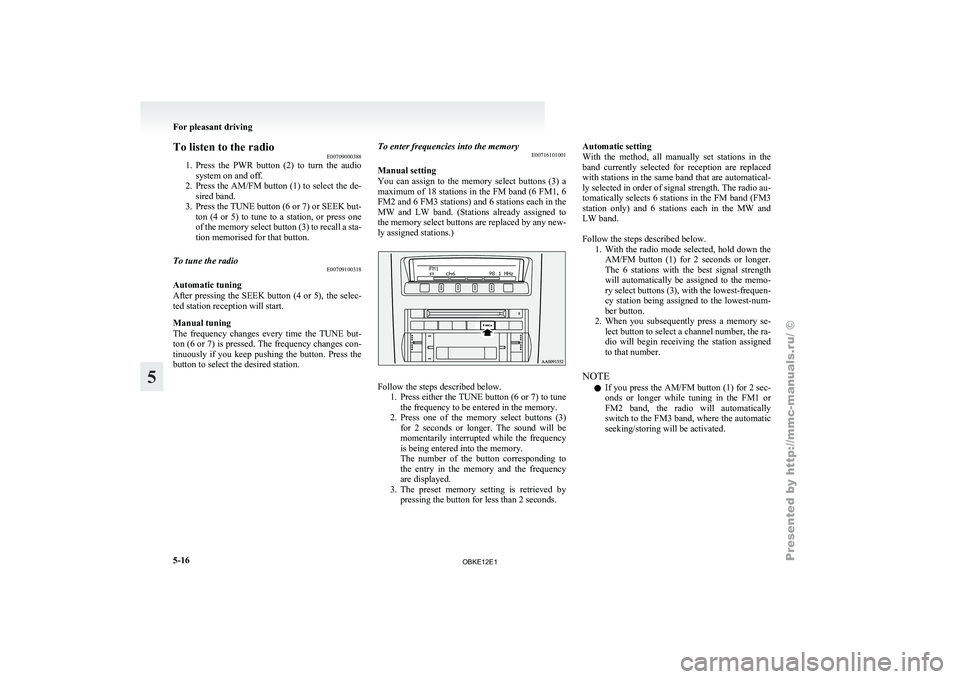
button to select the desired station. To enter frequencies into the memory
E00716101001
Manual setting
You can
assign
to the memory select buttons (3) a
maximum of 18 stations in the FM band (6 FM1, 6
FM2 and 6 FM3 stations) and 6 stations each in the
MW and LW band. (Stations already assigned to
the memory select buttons are replaced by any new-
ly assigned stations.) Follow the steps described below.
1. Press either the
TUNE button (6 or 7) to tune
the frequency to be entered in the memory.
2. Press one of the memory select buttons (3) for 2 seconds or longer. The sound will be
momentarily interrupted while the frequency
is being entered into the memory.
The number of the button corresponding to
the entry in the memory and the frequency
are displayed.
3. The preset memory setting is retrieved by pressing the button for less than 2 seconds. Automatic setting
With the
method,
all manually set stations in the
band currently selected for reception are replaced
with stations in the same band that are automatical-
ly selected in order of signal strength. The radio au-
tomatically selects 6 stations in the FM band (FM3
station only) and 6 stations each in the MW and
LW band.
Follow the steps described below. 1. With the radio mode selected, hold down theAM/FM button (1) for 2 seconds or longer.
The 6 stations with the best signal strength
will automatically be assigned to the memo-
ry select buttons (3), with the lowest-frequen-
cy station being assigned to the lowest-num-
ber button.
2. When you subsequently press a memory se- lect button to select a channel number, the ra-
dio will begin receiving the station assigned
to that number.
NOTE l If you press the AM/FM button (1) for 2 sec-
onds or longer while tuning in the FM1 or
FM2 band, the radio will automatically
switch to the FM3 band, where the automatic
seeking/storing will be activated. For pleasant driving
5-16
5
OBKE12E1
Page 201 of 377
AF (Alternative Frequencies) function
E00720900090
The AF function
finds a station broadcasting the
same program and selects the station with the stron-
gest signal of AF lists.
The AF function is turned on at all times unless
you manually switch it off.
The AF function can be turned ON and OFF.
Refer to “Adjusting the time” on page 3-13.
CT (Clock Time) function E00721000085
The clock can be set automatically by using the sig-
nal from the
local RDS stations. Refer to “Adjust-
ing the time” on page 3-13.
REG (Regional) function E00721100028
REG function limits to receive the stations broad-
casting regional programs.
Regional programming and
regional networks are
organized differently depending on the country or
area (they may be changed according to the hour,
state, or broadcast area), so if you don’t want to re-
ceive the regional programs automatically, you can
set up REG ON not to receive regional programs.
The REG function can be turned ON and OFF. Re-
fer to “Function setup mode” on page 5-20.
PI (Program Identification) search function E00721200247
When travelling long distance and the recalled pre-
set station is
weak, the radio searches another fre-
quency broadcasting the same programming with
the same PI code in AF list. If there are no frequencies broadcasting the same
programming, the
radio
searches a frequency broad-
casting the regional programming. The radio suc-
ceeds in searching the regional programming, then
the display shows the REG indicator (13).
If the radio does not succeed in searching the re-
gional programming, the radio returns to the recal-
led preset station.
The PI function can be turned ON and OFF.
Refer to “Function setup mode” on page 5-35.
NOTE
l While searching, the audio system is muted.
The display shows “WAIT” or “SEARCH”.
PTY (Program type) E00721300277
RDS broadcasts are classified according to pro-
gram type (PTY)
as follows. Use the TUNE button
(7 or 8) to select your desired PTY. 1. NEWS
2. AFFAIRS (Current affairs)
3. INFO (Information)
4. SPORT
5. EDUCATE (Education)
6. DRAMA
7. CULTURE
8. SCIENCE
9. VARIED
10. POP M (Pop music)
11. ROCK M (Rock music)
12. EASY M (Easy music)
13. LIGHT M (Light classics)
14. CLASSICS
15. OTHER M (Other music)
16. WEATHER (Weather information)
17. FINANCE
18. CHILDREN 19. SOCIAL
20. RELIGION
21.
PHONE IN
22.
TRAVEL
23. LEISURE
24. JAZZ
25. COUNTRY
26. NATION M (National music)
27. OLDIES
28. FOLK M (Folk music)
29. DOCUMENT
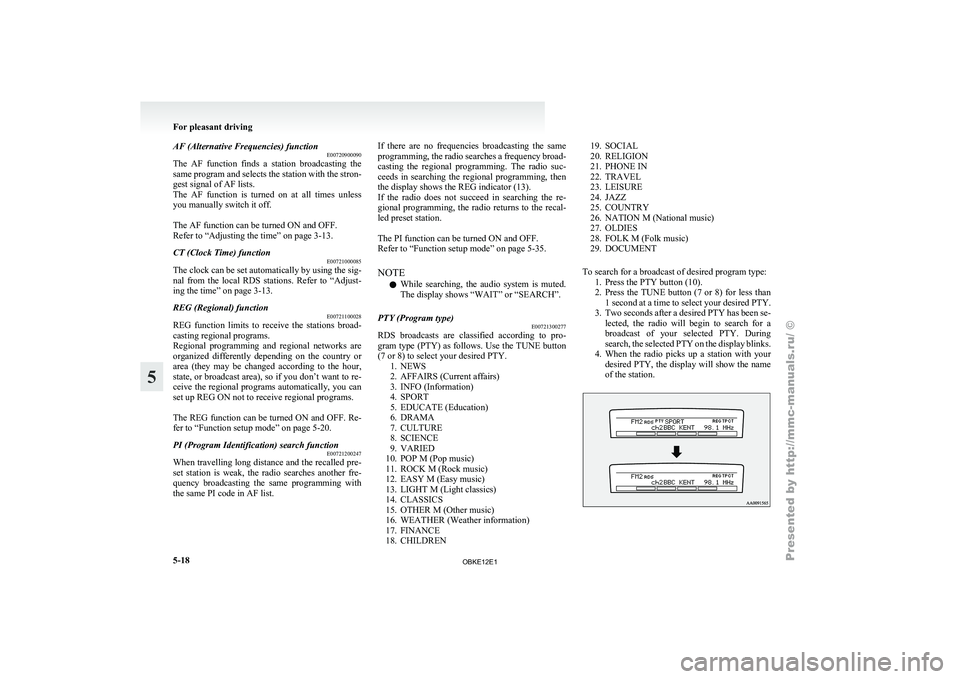
To search for a broadcast of desired program type: 1. Press the PTY button (10).
2. Press the TUNE button (7 or 8) for less than1 second at a time to select your desired PTY.
3. Two seconds after a desired PTY has been se- lected, the radio will begin to search for a
broadcast of your selected PTY. During
search, the selected PTY on the display blinks.
4. When the radio picks up a station with your desired PTY, the display will show the name
of the station. For pleasant driving
5-18
5
OBKE12E1
Page 203 of 377
Emergency broadcasts
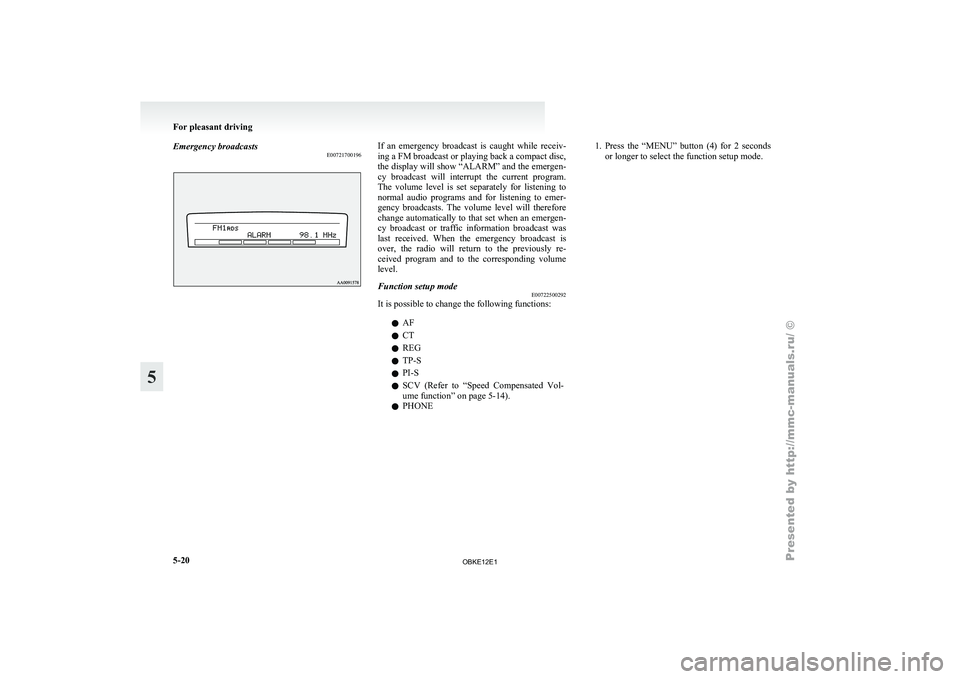
E00721700196 If an emergency broadcast is caught while receiv-
ing a FM broadcast or playing back a compact disc,
the display will
show “ALARM” and the emergen-
cy broadcast will interrupt the current program.
The volume level is set separately for listening to
normal audio programs and for listening to emer-
gency broadcasts. The volume level will therefore
change automatically to that set when an emergen-
cy broadcast or traffic information broadcast was
last received. When the emergency broadcast is
over, the radio will return to the previously re-
ceived program and to the corresponding volume
level.
Function setup mode E00722500292
It is possible to change the following functions:
lAF
l CT
l REG
l TP-S
l PI-S
l SCV (Refer
to
“Speed Compensated Vol-
ume function” on page 5-14).
l PHONE 1. Press
the “MENU” button (4) for 2 seconds
or longer to select the function setup mode. For pleasant driving
5-20
5
OBKE12E1
Page 204 of 377
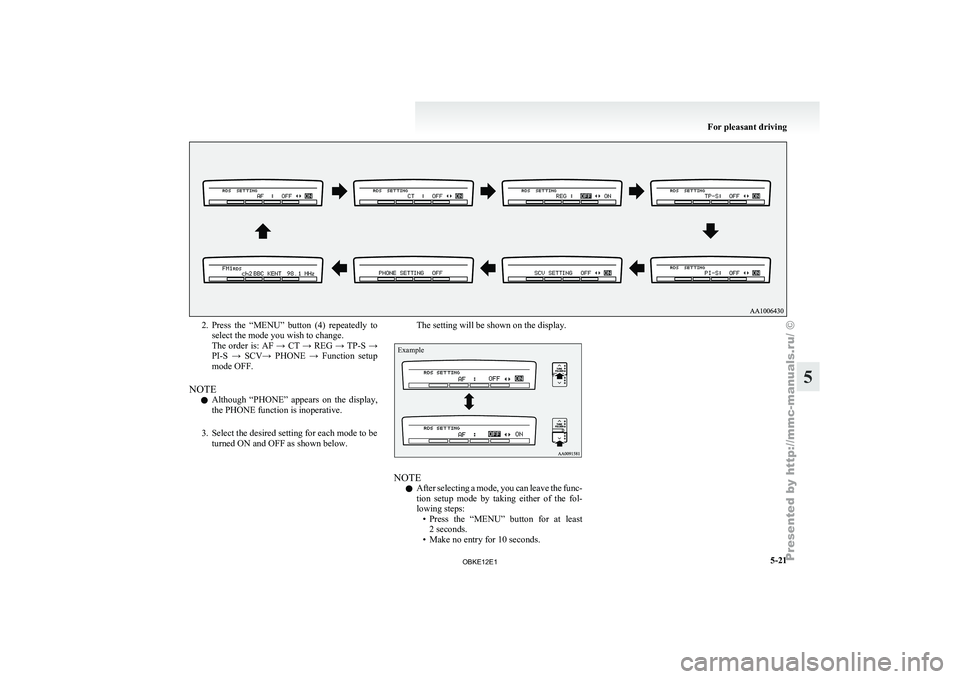
2. Press the “MENU” button (4) repeatedly to
select the mode you wish to change.
The order
is: AF → CT → REG → TP-S →
PI-S → SCV→ PHONE → Function setup
mode OFF.
NOTE l Although “PHONE” appears on the display,
the PHONE function is inoperative.
3. Select the desired setting for each mode to be turned ON and OFF as shown below. The setting will be shown on the display.
Example
NOTE
l After
selecting a
mode, you can leave the func-
tion setup mode by taking either of the fol-
lowing steps: • Press the “MENU” button for at least2 seconds.
• Make no entry for 10 seconds. For pleasant driving
5-21 5
OBKE12E1
Page 206 of 377
To listen to a CD
E00709601958
1. Insert a disc
with the label facing up, and the
CD player will begin playing even if the ra-
dio is being used. The CD indicator (16), the
track number and the playing time will ap-
pear on the display. The CD player will also
start playback when the CD button (4) is press-
ed with a disc in the player.
2. To stop the CD, turn off the power by press- ing the PWR button (2) or change over to ra-
dio mode by pressing the AM/FM button (1),
or eject the disc by pressing the eject button
(7).
NOTE l To adjust the volume and tone, refer to “To
adjust the volume” on page 5-13 and “To ad-
just the tone” on page 5-13.
l For information concerning the handling of
compact discs, refer to “Handling of compact
discs” on page 5-65. To listen to an MP3 CD
This
CD player
allows you to play MP3 (MPEG Au-
dio Layer- 3) files recorded on CD-ROMs, CD-Rs
(recordable CDs), and CD-RWs (rewritable CDs)
in ISO9660 Level 1/Level 2, Joliet, and Romeo for-
mats. Each disc may have a maximum of 16 trees,
100 folders, and 255 files per disc. During MP3
playback, the unit can display ID3 tag information.
For information concerning ID3 tag, refer to “CD
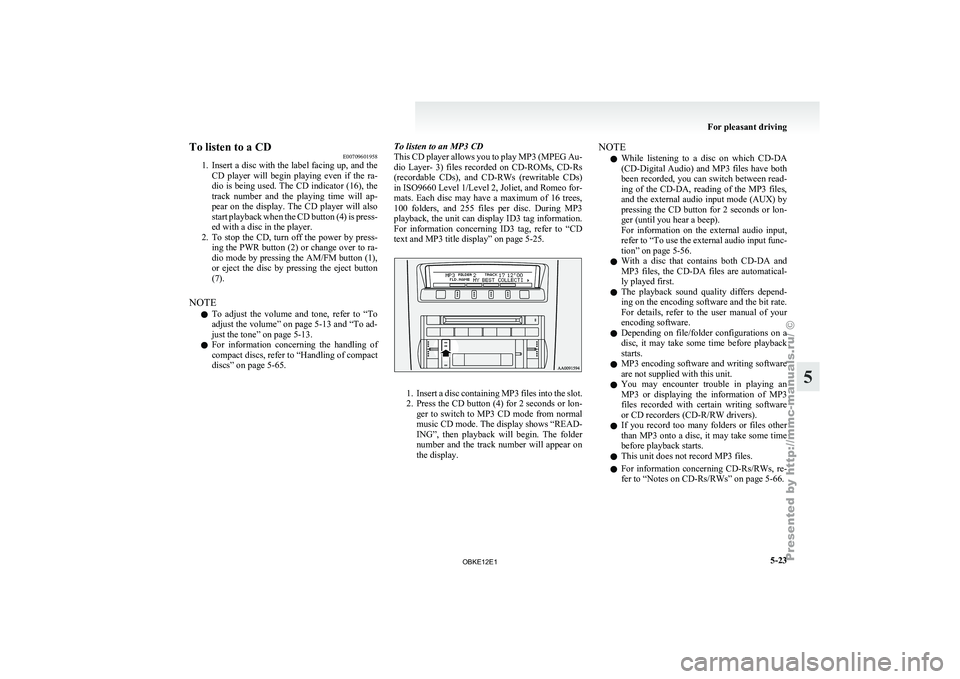
text and MP3 title display” on page 5-25. 1. Insert
a disc containing MP3 files into the slot.
2. Press
the CD button (4) for 2 seconds or lon-
ger to switch to MP3 CD mode from normal
music CD mode. The display shows “READ-
ING”, then playback will begin. The folder
number and the track number will appear on
the display. NOTE
l While
listening to
a disc on which CD-DA
(CD-Digital Audio) and MP3 files have both
been recorded, you can switch between read-
ing of the CD-DA, reading of the MP3 files,
and the external audio input mode (AUX) by
pressing the CD button for 2 seconds or lon-
ger (until you hear a beep).
For information on the external audio input,
refer to “To use the external audio input func-
tion” on page 5-56.
l With a disc that contains both CD-DA and
MP3 files, the CD-DA files are automatical-
ly played first.
l The playback sound quality differs depend-
ing on the encoding software and the bit rate.
For details, refer to the user manual of your
encoding software.
l Depending on file/folder configurations on a
disc, it may take some time before playback
starts.
l MP3 encoding software and writing software
are not supplied with this unit.
l You may encounter trouble in playing an
MP3 or displaying the information of MP3
files recorded with certain writing software
or CD recorders (CD-R/RW drivers).
l If you record too many folders or files other
than MP3 onto a disc, it may take some time
before playback starts.
l This unit does not record MP3 files.
l For information concerning CD-Rs/RWs, re-
fer to “Notes on CD-Rs/RWs” on page 5-66. For pleasant driving
5-23 5
OBKE12E1