ECO mode MITSUBISHI PAJERO IV 2011 Repair Manual
[x] Cancel search | Manufacturer: MITSUBISHI, Model Year: 2011, Model line: PAJERO IV, Model: MITSUBISHI PAJERO IV 2011Pages: 377, PDF Size: 29.43 MB
Page 223 of 377

NOTE
l While
listening to
a disc on which CD-DA
(CD-Digital Audio) and MP3 files have both
been recorded, you can switch between read-
ing of the CD-DA, reading of the MP3 files,
and the external audio input mode (AUX) by
pressing the CD button for 2 seconds or lon-
ger (until you hear a beep).
For information on the external audio input,
refer to “To use the external audio input func-
tion” on page 5-56.
l With a disc that contains both CD-DA and
MP3 files, the CD-DA files are automatical-
ly played first.
l The playback sound quality differs depend-
ing on the encoding software and the bit rate.
For details, refer to the user manual of your
encoding software.
l Depending on file/folder configurations on a
disc, it may take some time before playback
starts.
l MP3 encoding software and writing software
are not supplied with this unit.
l You may encounter trouble in playing an
MP3 or displaying the information of MP3
files recorded with certain writing software
or CD recorders (CD-R/RW drivers).
l If you record too many folders or files other
than MP3 onto a disc, it may take some time
before playback starts.
l This unit does not record MP3 files.
l For information concerning CD-Rs/RWs, re-
fer to “Notes on CD-Rs/RWs” on page 5-66. CAUTION
l
Attempting to play
a file not in the MP3
format which has a “.mp3” file name may
produce noise from the speakers and
speaker damage, and can damage your
hearing.
Folder selection order/MP3 file playback order
(Example)
Root folder (root directory)
Tree 1 Tree 2 Tree 3 Tree 4 Folder selection
In the order File selection
In the order
To fast-forward/fast-reverse the disc
To fast-forward
or
fast-reverse the disc, press the
fast-forward /fast-reverse button (9).
Fast-forward
You can fast-forward the disc by pressing the side of the fast-forward button. While the button is
kept pressed, the disc will be fast-forwarded.
Fast-reverse
You can
fast-reverse
the disc by pressing the side of the fast-reverse button. While the button is
kept pressed, the disc will be fast-reversed.
NOTE
l When
you have
fast-forwarded/fast-reversed
the disc, the playing-time may be shown
with deviation. For pleasant driving
5-40
5
OBKE12E1
Page 224 of 377
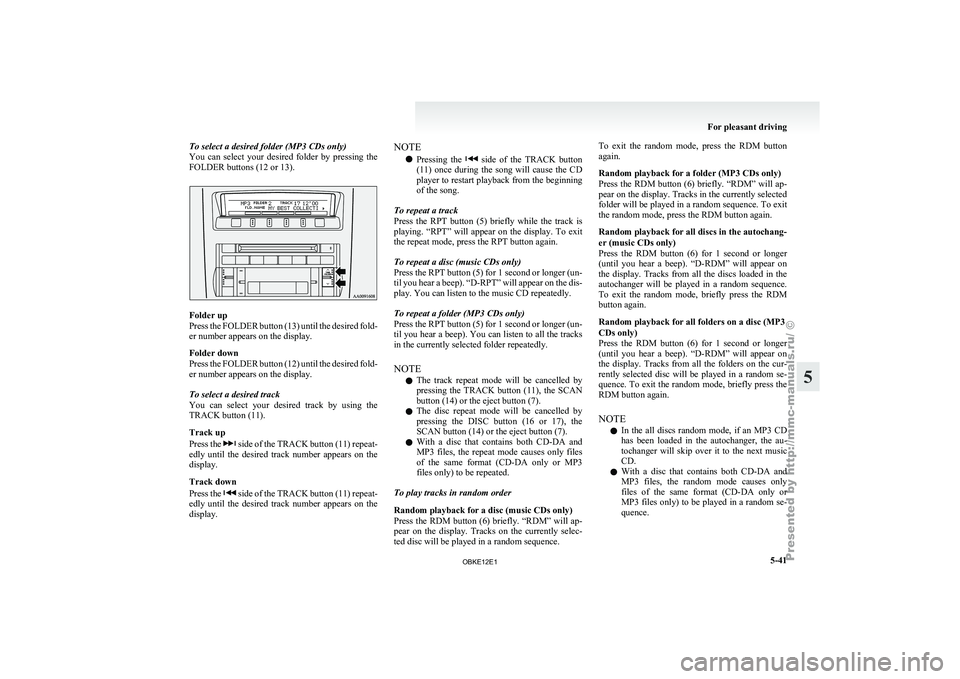
To select a desired folder (MP3 CDs only)
You can select
your desired folder by pressing the
FOLDER buttons (12 or 13). Folder up
Press the
FOLDER
button (13) until the desired fold-
er number appears on the display.
Folder down
Press the FOLDER button (12) until the desired fold-
er number appears on the display.
To select a desired track
You can select your desired track by using the
TRACK button (11).
Track up
Press the side of the TRACK button (11) repeat-
edly until the
desired track number appears on the
display.
Track down
Press the side of the TRACK button (11) repeat-
edly until the
desired track number appears on the
display. NOTE
l Pressing
the side of the TRACK button
(11) once during
the song will cause the CD
player to restart playback from the beginning
of the song.
To repeat a track
Press the RPT button (5) briefly while the track is
playing. “RPT” will appear on the display. To exit
the repeat mode, press the RPT button again.
To repeat a disc (music CDs only)
Press the RPT button (5) for 1 second or longer (un-
til you hear a beep). “D-RPT” will appear on the dis-
play. You can listen to the music CD repeatedly.
To repeat a folder (MP3 CDs only)
Press the RPT button (5) for 1 second or longer (un-
til you hear a beep). You can listen to all the tracks
in the currently selected folder repeatedly.
NOTE l The track repeat mode will be cancelled by
pressing the TRACK button (11), the SCAN
button (14) or the eject button (7).
l The disc repeat mode will be cancelled by
pressing the DISC button (16 or 17), the
SCAN button (14) or the eject button (7).
l With a disc that contains both CD-DA and
MP3 files, the repeat mode causes only files
of the same format (CD-DA only or MP3
files only) to be repeated.
To play tracks in random order
Random playback for a disc (music CDs only)
Press the RDM button (6) briefly. “RDM” will ap-
pear on the display. Tracks on the currently selec-
ted disc will be played in a random sequence. To exit the random mode, press the RDM button
again.
Random playback for a folder (MP3 CDs only)
Press
the RDM
button (6) briefly. “RDM” will ap-
pear on the display. Tracks in the currently selected
folder will be played in a random sequence. To exit
the random mode, press the RDM button again.
Random playback for all discs in the autochang-
er (music CDs only)
Press the RDM button (6) for 1 second or longer
(until you hear a beep). “D-RDM” will appear on
the display. Tracks from all the discs loaded in the
autochanger will be played in a random sequence.
To exit the random mode, briefly press the RDM
button again.
Random playback for all folders on a disc (MP3
CDs only)
Press the RDM button (6) for 1 second or longer
(until you hear a beep). “D-RDM” will appear on
the display. Tracks from all the folders on the cur-
rently selected disc will be played in a random se-
quence. To exit the random mode, briefly press the
RDM button again.
NOTE
l In the all discs random mode, if an MP3 CD
has been loaded in the autochanger, the au-
tochanger will skip over it to the next music
CD.
l With a disc that contains both CD-DA and
MP3 files, the random mode causes only
files of the same format (CD-DA only or
MP3 files only) to be played in a random se-
quence. For pleasant driving
5-41 5
OBKE12E1
Page 225 of 377

To find the start of each track on a disc for playback
Press the SCAN
button (14). “SCAN” will appear
on the display and the autochanger will play back
the first 10 seconds of each track on the selected disc.
The track number will blink while the scan mode is
selected. To exit the scan mode, press the SCAN
button again.
NOTE
l Once all tracks on the disc have been scan-
ned, playback of the disc will restart from the
beginning of the track that was playing when
scanning started.
l The scan mode will be cancelled when radio
or CD operation is selected.
l With a disc that contains both CD-DA and
MP3 files, the scan mode causes only files of
the same format (CD-DA only or MP3 files
only) to be played.
CD text and MP3 title display E00725000520
This autochanger can display CD text and MP3 ti-
tles including ID3 tag information. CD text
The autochanger can
display disc and track titles
for discs with converted disc and track title informa-
tion. Press the DISP button (3) repeatedly to make
selections in the following sequence: disc name →
track name → normal display mode.
Example
Disc
name
Track
name NOTE
l The
display can
show up to 16 characters. If
a disc name or track name has more than 16
characters, press the PAGE button (10) to
view the next 16 characters.
l When there is no title information to be dis-
played, the display shows “NO TITLE”.
l Characters that the autochanger cannot dis-
play are shown as “ ”. MP3 titles
The
autochanger
can
display folder and track titles
for discs with converted folder and track informa-
tion. Press the DISP button (7) repeatedly to make
selections in the following sequence: folder name
→ track name → normal display mode.
Track
name Folder
name Example ID3 tag information
The autochanger can
display ID3 tag information
for files that have been recorded with ID3 tag infor-
mation. 1. Press the DISP button (3) for 2 seconds or lon-ger to switch to the ID3 tag information. The
“TAG” indicator will appear on the display.
2. Then press the DISP button for less than 1 second repeatedly to make selections in the
following sequence: album name → track
name → artist name → normal display mode.
NOTE l To return from ID3 tag information to the
folder name, press the DISP button (3) again
for 2 seconds or longer.
l When there is no title information to be dis-
played, the display shows “NO TITLE”. For pleasant driving
5-42
5
OBKE12E1
Page 228 of 377

To play from an iPod
E00756300226
1. Press the PWR
button (2) to turn on the au-
dio system. The system turns on in the last
mode used.
2. Connect your iPod to the USB input termi- nal. Refer to “How to connect an iPod” on
page 5-82.
3. Press the CD button (4) several times to switch to the iPod mode. The input mode
changes every time the CD button is pressed.
CD mode → iPod mode → Bluetooth ®
mode* → Rear-seat display mode*
NOTE l If your vehicle is equipped with audio/video
input RCA terminals, pressing and holding
the CD button for 2 seconds or more
switches the system to the AUX mode.
4. Once the device is selected, playback starts and “iPod” appears on the display.
NOTE l Depending on the condition of your iPod, it
may take a longer time before the playback
starts.
5. To stop the playback, press the AM/FM but- ton (1) or CD button (4) to switch to a differ-
ent mode.
NOTE l Buttons on the iPod are disabled while the
iPod is connected to the audio system. l
To
adjust the volume and tone, refer to “To
adjust the volume” on pages 5-13, 5-27 and
“To adjust the tone” on pages 5-13, 5-27.
To fast-forward/reverse the track E00756400012
To fast-forward/reverse the current track, press the
fast-forward (8) or fast-reverse (7) button.
Fast-forward
To fast-forward the current track, press the fast-for-
ward (8) button.
While the button is pressed, the
track will be fast-forwarded.
Fast-reverse
To fast-reverse the current track, press the fast-re-
verse (7) button. While the button is pressed, the
track will be fast-reversed.
To select a desired track E00756500013
Press the TRACK button (11) to select the desired
track number.
Press : The track number increases by
one.
Press : The track number decreases by
one.
Press for a
long period (ap- prox. 2 seconds
or more) :
The track number increases con-
tinuously while the button is
pressed.
Press for a
long period (ap-
prox. 2 seconds
or more) :
The track number decreases con-
tinuouslywhile the button is
pressed. If the side of the button is pressed once while a
track is playing,
playback returns to the start of that
track.
NOTE
l Every time the track selection button is press-
ed, the track number in the display changes.
To find a track from the iPod menu E00756600014
You can select desired tracks from the “Playlists”,
“Artists”, “Albums”, “Songs”
or “Genre” (vehicles
with Bluetooth ®
2.0 interface) menus on your iPod.
Press the following buttons to select desired tracks.
The selected menu or category or track is shown in
the display.
FOLDER but-
ton (12 or 13) : To show the menu or category
or track.
MENU button
(10) : To select the menu or category
or track.
NOTE l To
cancel the
selection, press the DISC but-
ton (14) to return to the previous step.
l If no operation is performed for 10 seconds
or more or other button is operated after the
FOLDER button has been pressed, searching
of the desired tracks is cancelled.
l If no operation is performed for 5 seconds or
more after the track is displayed, playback
starts.
To play the same track repeatedly E00756700015
Press the RPT button (5) during playback to show
“RPT” in the display. For pleasant driving
5-45 5
OBKE12E1
Page 229 of 377
To exit this mode, press the button again.
To play tracks in random order
E00756900017
Press the RDM button (6) to show “SHUFFLE” in
the display.
The iPod randomly
selects tracks from the current
category and plays the selected tracks.
To exit this mode, press the button again.
To play tracks in each album in random order E00757000015
Press and hold the RDM button (6) until you hear a
beep to show “A-SHUFFLE” in the display.
The iPod randomly
selects tracks in the album
from the current category and play the selected
tracks.
To exit this mode, press the button again.
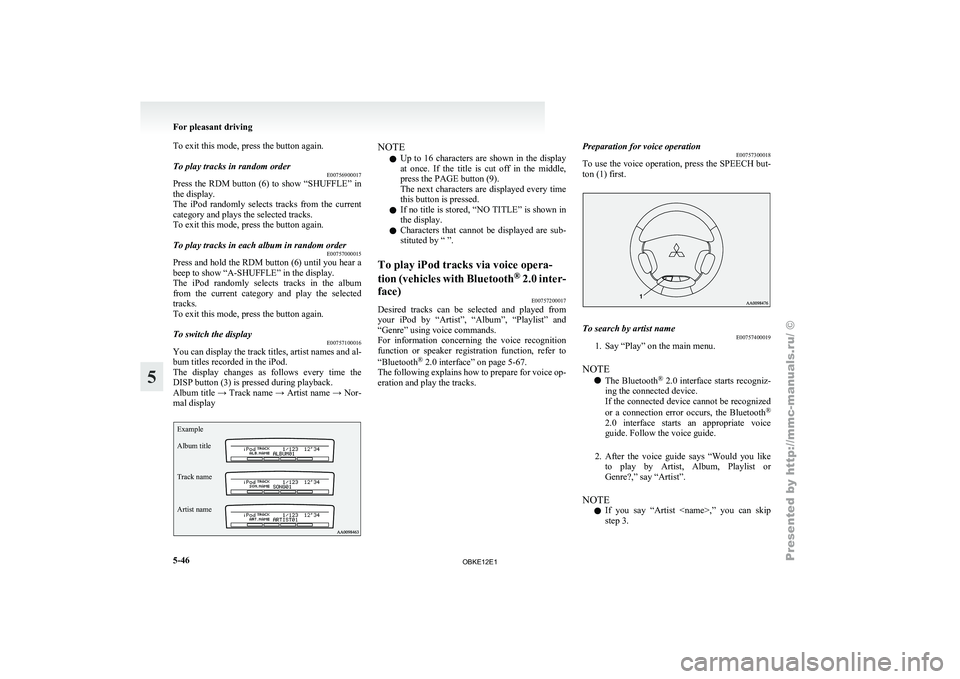
To switch the display E00757100016
You can display the track titles, artist names and al-
bum titles recorded in the iPod.
The display changes
as follows every time the
DISP button (3) is pressed during playback.
Album title → Track name → Artist name → Nor-
mal display
Example
Album title
Track name
Artist name NOTE
l Up
to 16
characters are shown in the display
at once. If the title is cut off in the middle,
press the PAGE button (9).
The next characters are displayed every time
this button is pressed.
l If no title is stored, “NO TITLE” is shown in
the display.
l Characters that cannot be displayed are sub-
stituted by “ ”.
To play iPod tracks via voice opera-
tion (vehicles with
Bluetooth®
2.0 inter-
face) E00757200017
Desired tracks can be selected and played from
your iPod by
“Artist”, “Album”, “Playlist” and
“Genre” using voice commands.
For information concerning the voice recognition
function or speaker registration function, refer to
“Bluetooth ®
2.0 interface” on page 5-67.
The following explains how to prepare for voice op-
eration and play the tracks. Preparation for voice operation
E00757300018
To use
the
voice operation, press the SPEECH but-
ton (1) first. To search by artist name
E00757400019
1. Say “Play” on the main menu.
NOTE l The Bluetooth ®
2.0
interface starts recogniz-
ing the connected device.
If the connected device cannot be recognized
or a connection error occurs, the Bluetooth ®
2.0 interface starts an appropriate voice
guide. Follow the voice guide.
2. After the voice guide says “Would you like to play by Artist, Album, Playlist or
Genre?,” say “Artist”.
NOTE l If you say “Artist
step 3. For pleasant driving
5-46
5
OBKE12E1
Page 230 of 377

3. After the voice guide says “What Artist
would you like to play?,” say the artist name.
4. If
there is only one match, the system pro-
ceeds to step 6.
5. If there are two or more matches, the voice guide will say “More than one match was
found, would you like to play
ceeds to step 6.
If you say “No,” the next matching artist is
uttered by the system.
NOTE l If you say “No” to three or all artist names ut-
tered by the system, the voice guide will say
“Artist not found, please try again” and the
system returns to step 2.
l Search time is dependant on the number of
songs on your connected device. Devices con-
taining a large number of songs may take lon-
ger to return search results.
6. After the voice guide says “Playing
for the artist.
NOTE l If the confirmation function is active, the
voice guide confirms if the artist name is cor-
rect. If the artist name is correct, say “Yes”.
If not, say “No”. After the voice guide says
“Artist not found, please try again,” the sys-
tem returns to step 2.
7. The system exits the voice recognition mode and starts playback. To search by album title
E00757500010
1. Say “Play” on the main menu.
NOTE l The Bluetooth ®
2.0 interface starts recogniz-
ing the connected device.
If the connected device cannot be recognized
or a connection error occurs, the Bluetooth ®
2.0 interface starts an appropriate voice
guide. Follow the voice guide.
2. After the voice guide says “Would you like to play by Artist, Album, Playlist or
Genre?,” say “Album”.
NOTE l If you say “Album