ignition MITSUBISHI PAJERO IV 2011 Repair Manual
[x] Cancel search | Manufacturer: MITSUBISHI, Model Year: 2011, Model line: PAJERO IV, Model: MITSUBISHI PAJERO IV 2011Pages: 377, PDF Size: 29.43 MB
Page 171 of 377
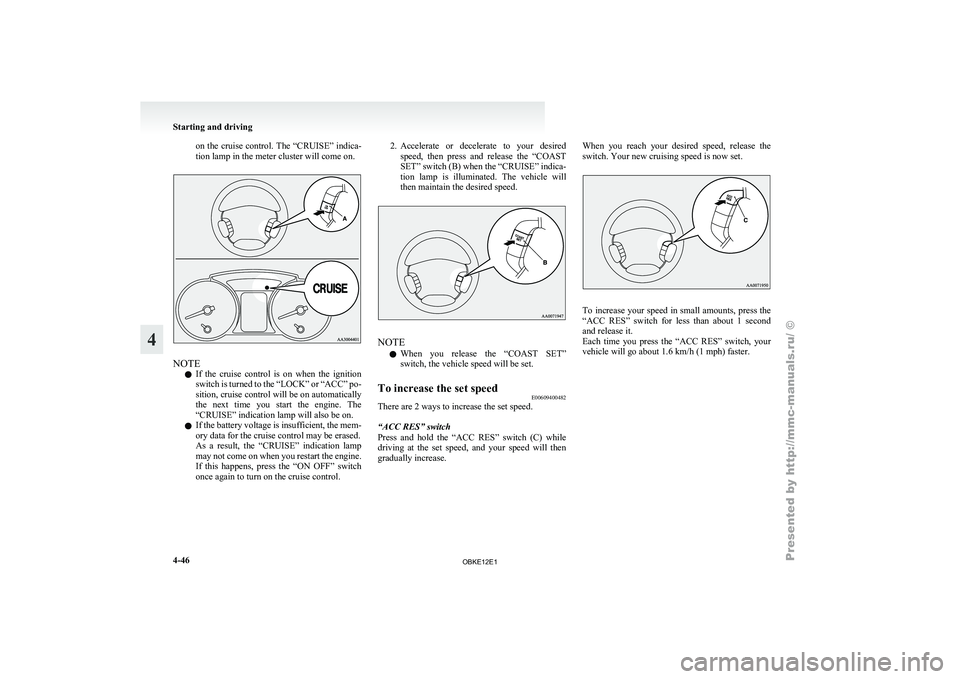
on the cruise control. The “CRUISE” indica-
tion lamp in the meter cluster will come on.
NOTE
l If
the cruise
control is on when the ignition
switch is turned to the “LOCK” or “ACC” po-
sition, cruise control will be on automatically
the next time you start the engine. The
“CRUISE” indication lamp will also be on.
l If the battery voltage is insufficient, the mem-
ory data for the cruise control may be erased.
As a result, the “CRUISE” indication lamp
may not come on when you restart the engine.
If this happens, press the “ON OFF” switch
once again to turn on the cruise control. 2. Accelerate or
decelerate
to your desired
speed, then press and release the “COAST
SET” switch (B) when the “CRUISE” indica-
tion lamp is illuminated. The vehicle will
then maintain the desired speed. NOTE
l When
you release
the “COAST SET”
switch, the vehicle speed will be set.
To increase the set speed E00609400482
There are 2 ways to increase the set speed.
“ACC RES” switch
Press and hold
the “ACC RES” switch (C) while
driving at the set speed, and your speed will then
gradually increase. When you reach your desired speed, release the
switch. Your new cruising speed is now set.
To increase your speed in small amounts, press the
“ACC RES”
switch
for less than about 1 second
and release it.
Each time you press the “ACC RES” switch, your
vehicle will go about 1.6 km/h (1 mph) faster. Starting and driving
4-46
4
OBKE12E1
Page 174 of 377
To resume the set speed
E00609800460
If the set
speed driving is deactivated by the condi-
tion described in “To deactivate” on page 4-48,
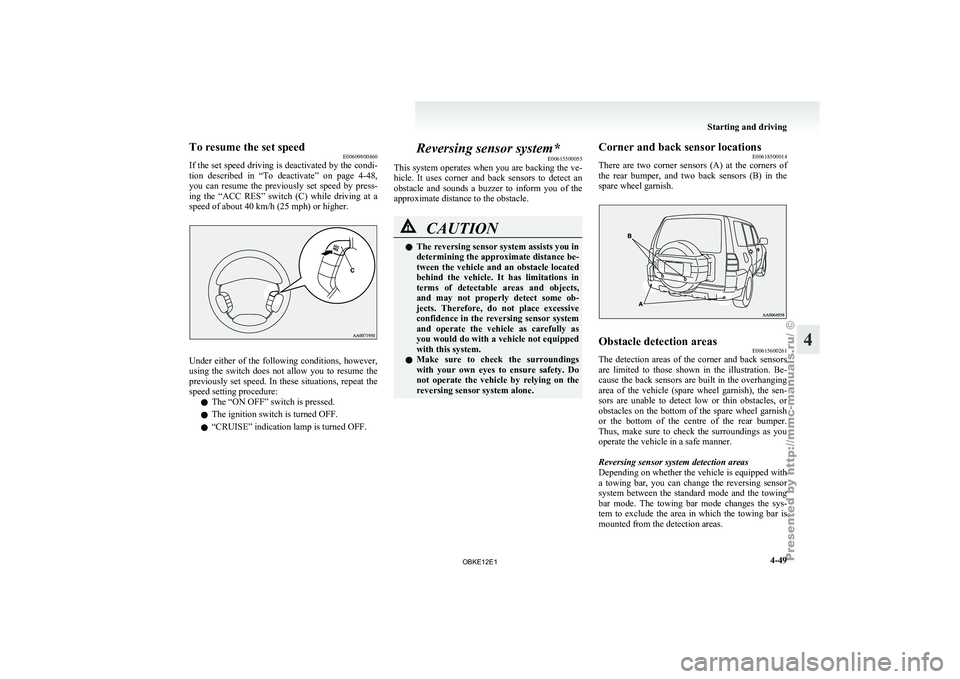
you can resume the previously set speed by press-
ing the “ACC RES” switch (C) while driving at a
speed of about 40 km/h (25 mph) or higher. Under either of the following conditions, however,
using the
switch
does not allow you to resume the
previously set speed. In these situations, repeat the
speed setting procedure:
l The “ON OFF” switch is pressed.
l The ignition switch is turned OFF.
l “CRUISE” indication lamp is turned OFF. Reversing sensor system*
E00615500055
This system operates
when you are backing the ve-
hicle. It uses corner and back sensors to detect an
obstacle and sounds a buzzer to inform you of the
approximate distance to the obstacle. CAUTION
l
The reversing sensor system assists you in
determining the approximate distance be-
tween the
vehicle
and an obstacle located
behind the vehicle. It has limitations in
terms of detectable areas and objects,
and may not properly detect some ob-
jects. Therefore, do not place excessive
confidence in the reversing sensor system
and operate the vehicle as carefully as
you would do with a vehicle not equipped
with this system.
l Make sure to check the surroundings
with your own eyes to ensure safety. Do
not operate the vehicle by relying on the
reversing sensor system alone. Corner and back sensor locations
E00618500014
There are two
corner sensors (A) at the corners of
the rear bumper, and two back sensors (B) in the
spare wheel garnish. Obstacle detection areas
E00615600261
The detection areas of the corner and back sensors
are limited to
those shown in the illustration. Be-
cause the back sensors are built in the overhanging
area of the vehicle (spare wheel garnish), the sen-
sors are unable to detect low or thin obstacles, or
obstacles on the bottom of the spare wheel garnish
or the bottom of the centre of the rear bumper.
Thus, make sure to check the surroundings as you
operate the vehicle in a safe manner.
Reversing sensor system detection areas
Depending on whether the vehicle is equipped with
a towing bar, you can change the reversing sensor
system between the standard mode and the towing
bar mode. The towing bar mode changes the sys-
tem to exclude the area in which the towing bar is
mounted from the detection areas. Starting and driving
4-49 4
OBKE12E1
Page 176 of 377
To operate
E00615700581
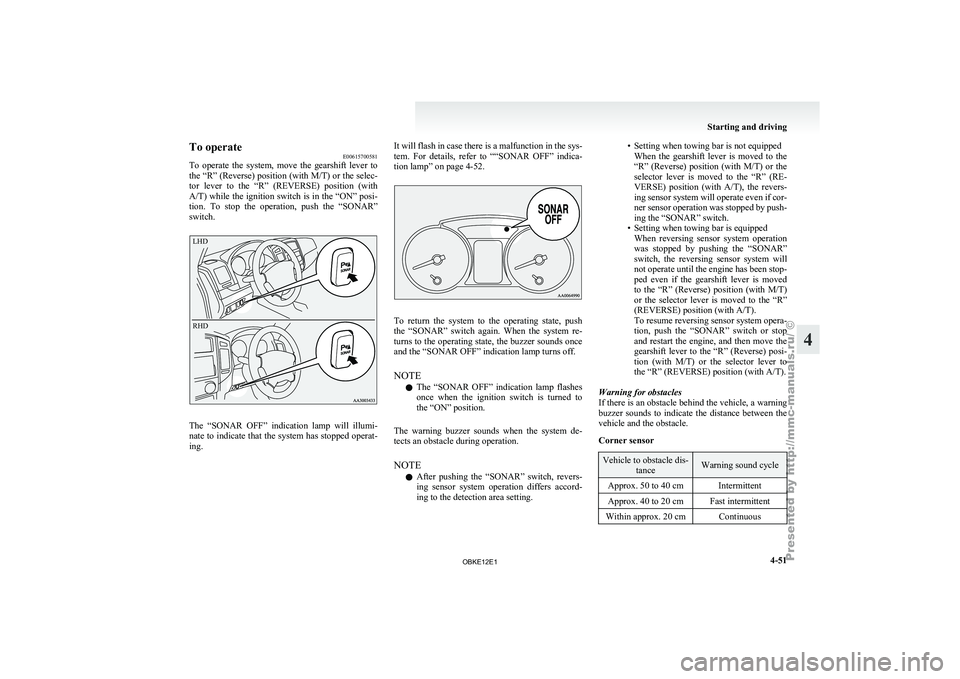
To operate the
system, move the gearshift lever to
the “R” (Reverse) position (with M/T) or the selec-
tor lever to the “R” (REVERSE) position (with
A/T) while the ignition switch is in the “ON” posi-
tion. To stop the operation, push the “SONAR”
switch.
LHD
RHD The “SONAR OFF” indication lamp will illumi-
nate to
indicate
that the system has stopped operat-
ing. It will flash in case there is a malfunction in the sys-
tem. For
details,
refer to ““SONAR OFF” indica-
tion lamp” on page 4-52. To return the system to the operating state, push
the “SONAR” switch
again. When the system re-
turns to the operating state, the buzzer sounds once
and the “SONAR OFF” indication lamp turns off.
NOTE
l The “SONAR OFF” indication lamp flashes
once when the ignition switch is turned to
the “ON” position.
The warning buzzer sounds when the system de-
tects an obstacle during operation.
NOTE l After pushing the “SONAR” switch, revers-
ing sensor system operation differs accord-
ing to the detection area setting. • Setting when towing bar is not equipped
When the gearshift
lever is moved to the
“R” (Reverse) position (with M/T) or the
selector lever is moved to the “R” (RE-
VERSE) position (with A/T), the revers-
ing sensor system will operate even if cor-
ner sensor operation was stopped by push-
ing the “SONAR” switch.
• Setting when towing bar is equipped When reversing sensor system operation
was stopped by pushing the “SONAR”
switch, the reversing sensor system will
not operate until the engine has been stop-
ped even if the gearshift lever is moved
to the “R” (Reverse) position (with M/T)
or the selector lever is moved to the “R”
(REVERSE) position (with A/T).
To resume reversing sensor system opera-
tion, push the “SONAR” switch or stop
and restart the engine, and then move the
gearshift lever to the “R” (Reverse) posi-
tion (with M/T) or the selector lever to
the “R” (REVERSE) position (with A/T).
Warning for obstacles
If there is an obstacle behind the vehicle, a warning
buzzer sounds to indicate the distance between the
vehicle and the obstacle.
Corner sensor Vehicle to obstacle dis-
tance Warning sound cycle
Approx. 50 to 40 cm Intermittent
Approx. 40 to 20 cm Fast intermittent
Within approx. 20 cm Continuous Starting and driving
4-51 4
OBKE12E1
Page 178 of 377
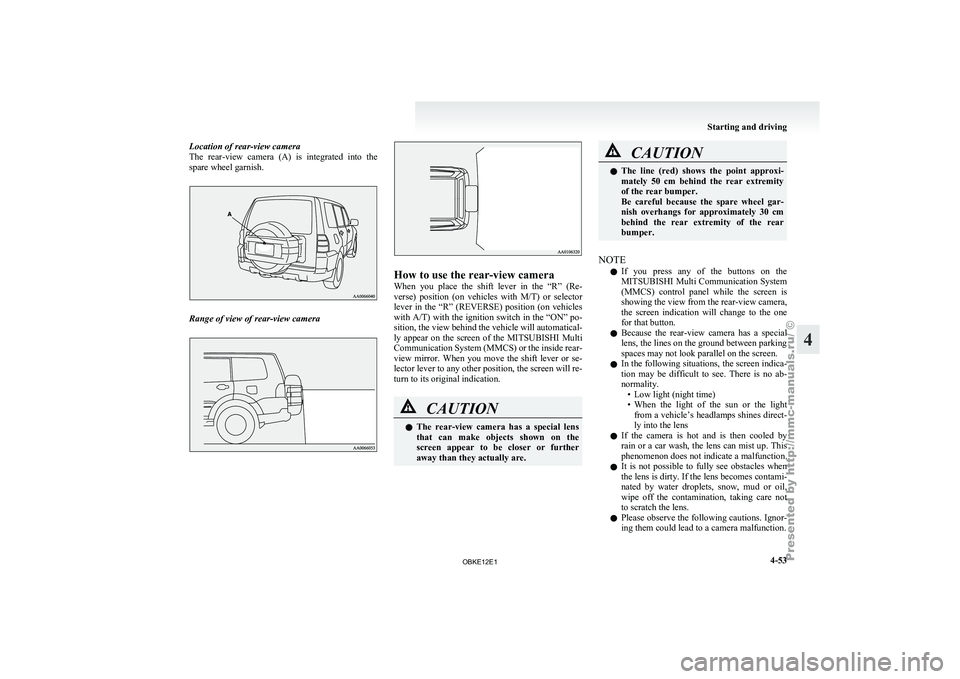
Location of rear-view camera
The rear-view camera
(A) is integrated into the
spare wheel garnish. Range of view of rear-view camera How to use the rear-view camera
When you
place
the shift lever in the “R” (Re-
verse) position (on vehicles with M/T) or selector
lever in the “R” (REVERSE) position (on vehicles
with A/T) with the ignition switch in the “ON” po-
sition, the view behind the vehicle will automatical-
ly appear on the screen of the MITSUBISHI Multi
Communication System (MMCS) or the inside rear-
view mirror. When you move the shift lever or se-
lector lever to any other position, the screen will re-
turn to its original indication. CAUTION
l
The rear-view
camera
has a special lens
that can make objects shown on the
screen appear to be closer or further
away than they actually are. CAUTION
l
The line (red)
shows the point approxi-
mately 50 cm behind the rear extremity
of the rear bumper.
Be careful because the spare wheel gar-
nish overhangs for approximately 30 cm
behind the rear extremity of the rear
bumper.
NOTE l If
you press
any of the buttons on the
MITSUBISHI Multi Communication System
(MMCS) control panel while the screen is
showing the view from the rear-view camera,
the screen indication will change to the one
for that button.
l Because the rear-view camera has a special
lens, the lines on the ground between parking
spaces may not look parallel on the screen.
l In the following situations, the screen indica-
tion may be difficult to see. There is no ab-
normality.
• Low light (night time)
• When the light of the sun or the lightfrom a vehicle’s headlamps shines direct-
ly into the lens
l If the camera is hot and is then cooled by
rain or a car wash, the lens can mist up. This
phenomenon does not indicate a malfunction.
l It is not possible to fully see obstacles when
the lens is dirty. If the lens becomes contami-
nated by water droplets, snow, mud or oil,
wipe off the contamination, taking care not
to scratch the lens.
l Please observe the following cautions. Ignor-
ing them could lead to a camera malfunction. Starting and driving
4-53 4
OBKE12E1
Page 180 of 377
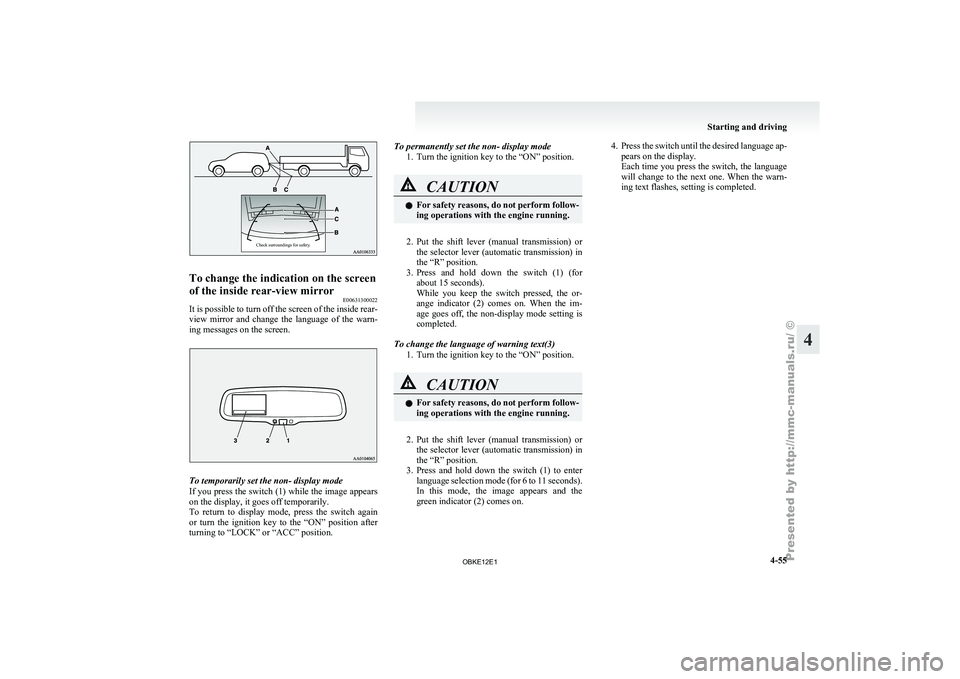
Check surroundings for safety.To change the indication on the screen
of the inside rear-view mirror
E00631300022
It is possible to turn off the screen of the inside rear-
view mirror and
change the language of the warn-
ing messages on the screen. To temporarily set the non- display mode
If you
press
the switch (1) while the image appears
on the display, it goes off temporarily.
To return to display mode, press the switch again
or turn the ignition key to the “ON” position after
turning to “LOCK” or “ACC” position. To permanently set the non- display mode
1. Turn the ignition key to the “ON” position. CAUTION
l
For safety
reasons,
do not perform follow-
ing operations with the engine running.
2. Put the shift lever (manual transmission) or
the selector
lever (automatic transmission) in
the “R” position.
3. Press and hold down the switch (1) (for about 15 seconds).
While you keep the switch pressed, the or-
ange indicator (2) comes on. When the im-
age goes off, the non-display mode setting is
completed.
To change the language of warning text(3) 1. Turn the ignition key to the “ON” position. CAUTION
l
For safety
reasons,
do not perform follow-
ing operations with the engine running.
2. Put the shift lever (manual transmission) or
the selector
lever (automatic transmission) in
the “R” position.
3. Press and hold down the switch (1) to enter language selection mode (for 6 to 11 seconds).
In this mode, the image appears and the
green indicator (2) comes on. 4. Press the switch until the desired language ap-
pears on the display.
Each time
you press the switch, the language
will change to the next one. When the warn-
ing text flashes, setting is completed. Starting and driving
4-55 4
OBKE12E1
Page 195 of 377
The new refrigerant HFC-134a in your
vehicle will
not harm the ozone layer.
It is recommended that the refrigerant be recovered
and recycled for further use.
During a long period of disuse
The air conditioning should be operated for at least
five minutes each week, even in cold weather. This
is to prevent the compressor from seizing and to
maintain the air conditioning in the best operating
condition. Air purifier
(with deodorizing function) E00708400183
An air filter
is incorporated into the air condition-
ing system to remove pollen, dust, tobacco smells
and exhaust smells.
The air filter’s ability to collect pollen and dirt is re-
duced as it becomes dirty, so replace it periodical-
ly. For the maintenance interval, refer to the “SERV-
ICE BOOKLET”.
NOTE
l Operation in certain conditions such as driv-
ing on a dusty road and frequent use of the
air conditioning can lead to reduction of serv-
ice life of the filter. When the air flow rate
suddenly drops or when the windscreen or
windows start to fog up easily, the air filter
requires replacement. We recommend you to
have it checked. LW/MW/FM electronic tuning
radio with CD player* E00708501934
The audio system
can be used when the ignition
switch is in the “ON” or “ACC” position.
NOTE
l To listen to the audio system while the en-
gine is stopped, turn the ignition switch to
the “ACC” position.
l If a cellular phone is used inside the vehicle,
it may create noise from the audio equip-
ment. This does not mean that anything is
wrong with your audio equipment. In such a
case, use the cellular phone at a place as far
away as possible from the audio equipment.
l If foreign objects or water get into the audio
equipment, or if smoke or a strange odour
comes from it, immediately turn off the au-
dio system. We recommend you to have it
checked. Never try to repair it by yourself.
Avoid continuous usage without inspection
by a qualified person. For pleasant driving
5-12
5
OBKE12E1
Page 209 of 377
NOTE
l The
display can
show up to 16 characters. If
a disc name or track name has more than 16
characters, press the PAGE button (10) to
view the next 16 characters.
l When there is no title information to be dis-
played, the display shows “NO TITLE”.
l Characters that the CD player cannot display
are shown as “ ”.
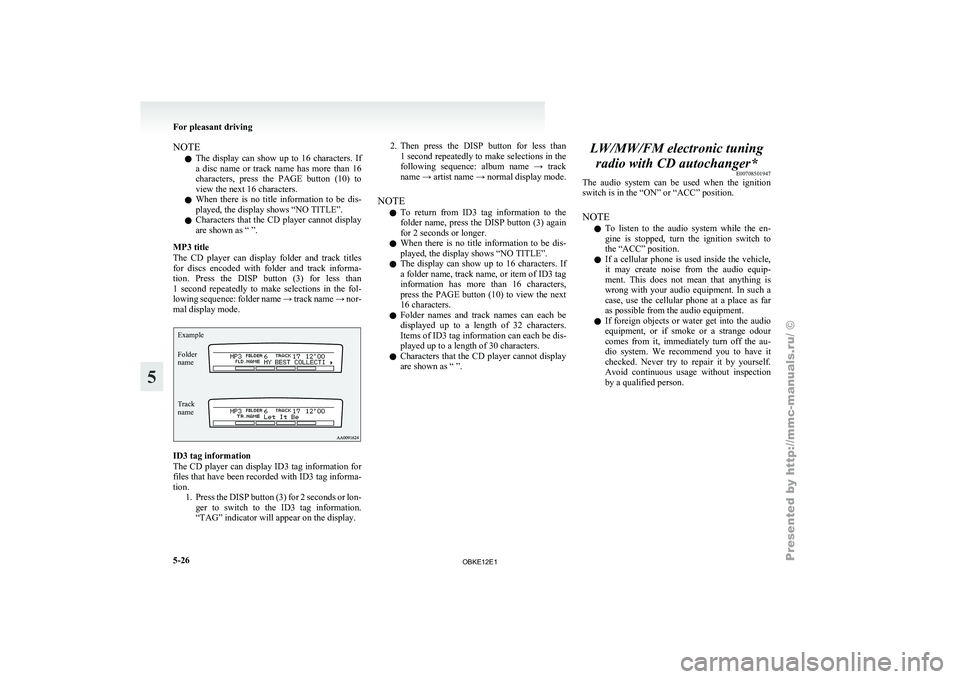
MP3 title
The CD player can display folder and track titles
for discs encoded with folder and track informa-
tion. Press the DISP button (3) for less than
1 second repeatedly to make selections in the fol-
lowing sequence: folder name → track name → nor-
mal display mode.
Track
name Folder
name Example ID3 tag information
The CD
player
can display ID3 tag information for
files that have been recorded with ID3 tag informa-
tion. 1. Press the DISP button (3) for 2 seconds or lon-ger to switch to the ID3 tag information.
“TAG” indicator will appear on the display. 2. Then press the DISP button for less than
1 second
repeatedly to make selections in the
following sequence: album name → track
name → artist name → normal display mode.
NOTE l To return from ID3 tag information to the
folder name, press the DISP button (3) again
for 2 seconds or longer.
l When there is no title information to be dis-
played, the display shows “NO TITLE”.
l The display can show up to 16 characters. If
a folder name, track name, or item of ID3 tag
information has more than 16 characters,
press the PAGE button (10) to view the next
16 characters.
l Folder names and track names can each be
displayed up to a length of 32 characters.
Items of ID3 tag information can each be dis-
played up to a length of 30 characters.
l Characters that the CD player cannot display
are shown as “ ”. LW/MW/FM electronic tuning
radio with CD autochanger* E00708501947
The audio system
can be used when the ignition
switch is in the “ON” or “ACC” position.
NOTE
l To listen to the audio system while the en-
gine is stopped, turn the ignition switch to
the “ACC” position.
l If a cellular phone is used inside the vehicle,
it may create noise from the audio equip-
ment. This does not mean that anything is
wrong with your audio equipment. In such a
case, use the cellular phone at a place as far
as possible from the audio equipment.
l If foreign objects or water get into the audio
equipment, or if smoke or a strange odour
comes from it, immediately turn off the au-
dio system. We recommend you to have it
checked. Never try to repair it by yourself.
Avoid continuous usage without inspection
by a qualified person. For pleasant driving
5-26
5
OBKE12E1
Page 240 of 377

CAUTION
l
Do not operate the connected audio equip-
ment while driving.
This could distract you and an accident
might occur.
NOTE l The
connected audio
equipment cannot be op-
erated with the vehicle’s audio system.
l Depending on the connected audio equip-
ment, it may produce noise from the speakers.
l Use the connected audio equipment’s own
power source, such as its battery.
Noise may be produced from the speakers if
the connected audio equipment is used while
charging it using the accessory socket of the
vehicle.
l Do not activate the external audio input
mode when no audio equipment is connected.
Otherwise, noise may be produced from the
speakers.
l Connect audio equipment when the external
audio input mode is deactivated or lower the
vehicle’s speaker volume before connecting it.
Noise may be produced from the speakers if
audio equipment is connected after the exter-
nal audio input mode is activated.
l For information on how to connect and oper-
ate the audio equipment, refer to the owner’s
manual for the equipment. To listen to a disc in the rear-seat
display (vehicles with rear-seat display) E00755100096
It is possible
to listen to the audio from the rear-
seat display using the vehicle’s speakers.
Press the CD button to select the rear-seat display
mode. The word “REAR” will appear at the top-
left of the display.
Each push of the CD button changes the mode to
the next one in the following sequence: CD mode
→ Rear-seat display mode → CD mode.
The following operation of the rear-seat display is
possible from the audio system. Source Operation
CD Track selection
MP3/WMA Folder/Track selection Video CD Track/Scene selection
DVD video Title/Chapter selection
DVD audio Group/Track selection To make your desired selection, use the TRACK
button or the FOLDER button on the audio system.Steering wheel remote control
switch* E00710000665
The remote control
switches are located on the left
side of the steering wheel.
These switches can be used when the ignition
switch is in the “ON” or “ACC” position. 1- Volume up button
2- Volume down button
3-
PWR (ON-OFF)/Mode change button
4-
Seek up/Track up/File up/Fast-forward button
5- Seek down/Track down/File down/Fast-re- verse button
NOTE l Do not push two or more of the steering
wheel remote control switches at the same
time.
To turn on the power
PWR (ON-OFF) button - 3
When the power is off, press this button to turn the
power on. To turn the power off, press this button
for 2 seconds or longer. For pleasant driving
5-57 5
OBKE12E1
Page 250 of 377

Link System*
E00764500012
The Link System
takes overall control of the devi-
ces connected via the USB input terminal or the
Bluetooth ®
2.0 interface allowing the connected de-
vices to be operated by using the switches in the ve-
hicle or voice commands.
See the following section for details on how to op-
erate.
Refer to “Bluetooth ®
2.0 interface” on page 5-67.
Refer to “USB input terminal” on page 5-82.
Refer to “To play tracks from USB device” on
page 5-43.
Refer to “To play tracks from a Bluetooth ®
device”
on page 5-53.
Refer to “To use the external audio input function”
on page 5-56.
Bluetooth ®
is a registered trademark of BLUE-
TOOTH SIG, INC.
Link System End User Licence Agree-
ment E00764600013
You have acquired a device that includes software
licensed by MITSUBISHI
MOTORS CORPORA-
TION from JOHNSON CONTROLS Inc (the auto-
motive experience business unit), and their subse-
quent 3 rd
party suppliers. For a complete list of
these 3 rd
party products and their end user licence
agreements, please go to the following website.
http://www.jciblueconnect.com/faq/fulldisclo-
sure.pdf Bluetooth
®
2.0 interface*
E00726000572
The Bluetooth ®
2.0 interface
allows for making/re-
ceiving hands-free calls in the vehicle using a Blue-
tooth ®
compatible cellular phone based on the wire-
less communication technology commonly known
as Bluetooth ®
. It also allows the user to play mu-
sic, saved in a Bluetooth ®
music player, from the
vehicle’s speakers.
The system is equipped with a voice recognition
function, which allows you to make hands-free
calls by simple switch operations and voice com-
mand operations using a defined voice tree.
The Bluetooth ®
2.0 interface can be used when the
ignition switch is in the “ON” or “ACC” position.
Before you can use the Bluetooth ®
2.0 interface,
you must pair the Bluetooth ®
device and Blue-
tooth ®
2.0 interface. Refer to “Connecting the Blue-
tooth® 2.0 interface and Bluetooth® device” on
page 5-71.
Bluetooth ®
is a registered trademark of BLUE-
TOOTH SIG, INC. WARNING
l Although the
Bluetooth®
2.0 interface al-
lows you to make hands-free calls, if you
choose to use the cellular phone while driv-
ing, you must not allow yourself to be dis-
tracted from the safe operation of your ve-
hicle. Anything, including cellular phone
usage, that distracts you from the safe op-
eration of your vehicle increases your
risk of an accident. WARNING
l Refer to and
comply with all state and lo-
cal laws in your area regarding cellular
phone usage while driving.
NOTE l The Bluetooth ®
2.0
interface cannot be used
if the Bluetooth ®
device has a flat battery or
the device power is turned off.
l Hands-free calls will not be possible if your
phone does not have service available.
l If you place the Bluetooth ®
device in the ve-
hicle’s third seat or luggage compartment,
you may not be able to use the Bluetooth ®
2.0 interface.
l Some Bluetooth ®
devices are not compatible
with the Bluetooth ®
2.0 interface.
l For details on the Bluetooth ®
2.0 interface,
you can see them by accessing the
MITSUBISHI MOTORS website.
Please read and agree on the “Warning about
Links to the Web Sites of Other Companies”
because it connects to other than
MITSUBISHI MOTORS website.
http://www.mitsubishi-motors.com/en/prod-
ucts/index.html
Steering control switch ® p. 5-68
Voice recognition function ® p. 5-68
Useful voice commands ® p. 5-69
Speaker enrollment function ® p. 5-70
Connecting the Bluetooth® 2.0 interface and Blue-
tooth® device ® p. 5-71
Operating a music player connected via Blue-
tooth® ® p. 5-74 For pleasant driving
5-67 5
OBKE12E1
Page 253 of 377
NOTE
l Password
will be
required to access the sys-
tem after the next ignition cycle.
l It is required for a little time after engine
stop that the entered password is actually re-
corded in the system.
If the ignition switch is made to “ACC” or
“ON” or the engine is started immediately af-
ter engine stop, there is a case when the en-
tered password is not recorded in the system.
At this time, please try to enter the password
again.
Entering the password
If a password has been set and the security function
is enabled, the voice guide will say “Hands-free sys-
tem is locked. State the password to continue”
when the SPEECH button is pressed to enter voice
recognition mode. Say the 4-digit password num-
ber to enter the password.
If the entered password is wrong, the voice guide
will say “<4- digit password>, Incorrect password.
Please try again”. Enter the correct password.
NOTE l You can re-enter the password as many times
as you want.
l If you have forgotten your password, say
“Cancel” to quit the voice input mode and
then check with a MITSUBISHI MOTORS
Authorized Service Point.
Disabling the password
Use the following procedure to turn off the security
function by disabling the password. NOTE
l System
must be
unlocked to disable the pass-
word.
1. Press the SPEECH button.
2. Say “Setup”.
3. Say “Password.”
4. The voice guide will say “Password is ena- bled. Would you like to disable it?” Answer
“Yes.”
Answer “No” to cancel the disabling of the
password and return to the main menu.
5. When the disabling of the password is com- pleted, the voice guide will say “Password is
disabled” and the system will return to the
main menu.
Speaker enrollment function E00727400209
The Bluetooth ®
2.0 interface
can use the speaker en-
rollment function to create a voice model for one
person per language.
This makes it easier for the Bluetooth ®
2.0 inter-
face to recognise voice commands said by you.
You can turn a voice model registered with the
speaker enrollment function on and off whenever
you want.
Speaker enrollment E00727500196
It takes about 2 to 3 minutes to complete the speak-
er enrollment process.
To ensure the
best results, run through the process
while in the driver’s seat, in an environment that is
as quiet as possible (when there is no rain or strong
winds and the vehicle windows are closed). Please
turn off your phone while in speaker enrollment to
prevent interruption of the process.
Use the following procedure for speaker enrollment. 1. Stop your vehicle in a safe area, put the gear-
shift lever
in the “N” (Neutral) position
(M/T), or the selector lever in the “P”
(PARK) position (A/T), and pull the parking
brake lever.
NOTE l Speaker enrollment is not possible unless the
vehicle is parked. Make sure you park the ve-
hicle in a safe area before attempting speaker
enrollment.
2. Press the SPEECH button.
3. Say “Voice training”.
4. The voice guide will say “This operation must be performed in a quiet environment
while the vehicle is stopped. See the owner’s
manual for the list of required training phra-
ses. Press and release the SPEECH button
when you are ready to begin. Press the HANG-
UP button to cancel at any time”.
Press the SPEECH button to start the speaker
enrollment process.
NOTE l If you do not start the speaker enrollment proc-
ess within 3 minutes of pressing the
SPEECH button, the speaker enrollment func-
tion will time out.
The voice guide will say “Speaker Enroll-
ment has timed out”. The system will then
beep and the voice recognition mode will be
deactivated.
5. The voice guide will prompt for phrase 1. Re- peat the corresponding phrase listed in table
“Enrollment commands” on page 5-81. For pleasant driving
5-70
5
OBKE12E1