audio MITSUBISHI TRITON 2011 Owner's Manual
[x] Cancel search | Manufacturer: MITSUBISHI, Model Year: 2011, Model line: TRITON, Model: MITSUBISHI TRITON 2011Pages: 369, PDF Size: 26.15 MB
Page 203 of 369
NOTE
l If
the TUNE/SEEK button (3
or 4) is pressed
for more than 1 second, the radio will try to
find out another broadcast of the same pro-
gram type as currently selected.
l If no station is found with your desired PTY,
the display will show “EMPTY” for about
5 seconds and the radio will return to the pre-
vious station.
How to enter PTYs in the memory E00721400135
As many as 6 PTYs can be entered in the memory.
Follow the steps described below.
1. Press either the TUNE/SEEK
button
(3 or 4)
to tune the PTY to be entered in the memory.
2. Press one of the memory select buttons (2) for 2 seconds or longer. The number of the
button corresponding to the entry into the
memory and the PTY are displayed.
3. The preset memory setting is retrieved by pressing the button and then releasing it with-
in about 2 seconds.
Traffic information E00721600254
The radio will automatically tune in to traffic infor-
mation broadcasts while receiving FM
broadcasts
or playing compact discs etc.
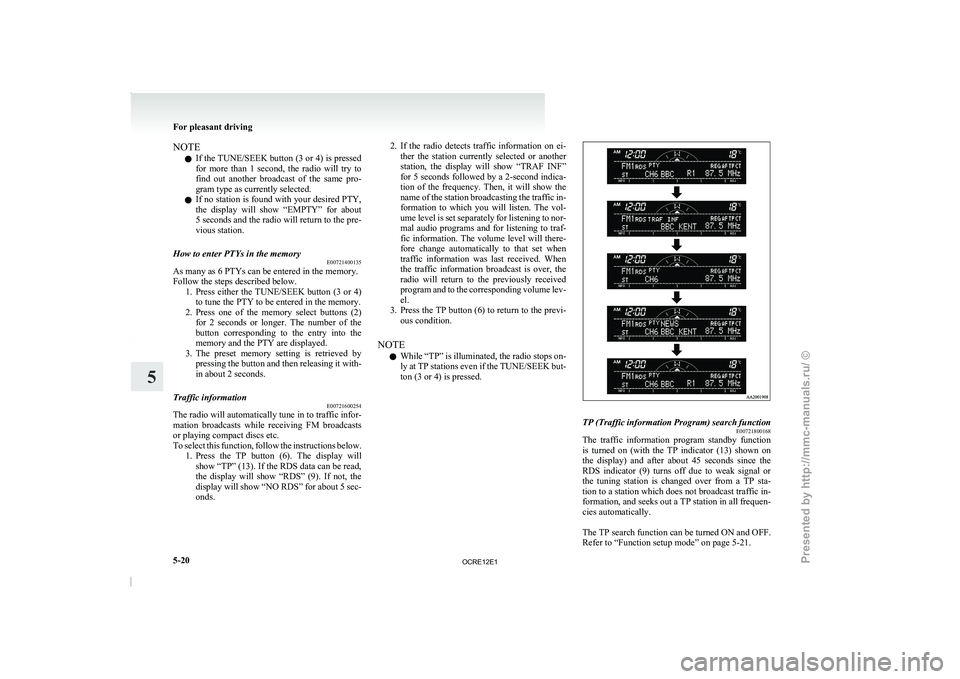
To select this function, follow the instructions below. 1. Press the TP button (6). The display willshow “TP” (13). If the RDS data can be read,
the display will show “RDS” (9). If not, the
display will show “NO RDS” for about 5 sec-
onds. 2. If the radio detects traffic information on ei-
ther the station currently
selected or another
station, the display will show “TRAF INF”
for 5 seconds followed by a 2-second indica-
tion of the frequency. Then, it will show the
name of the station broadcasting the traffic in-
formation to which you will listen. The vol-
ume level is set separately for listening to nor-
mal audio programs and for listening to traf-
fic information. The volume level will there-
fore change automatically to that set when
traffic information was last received. When
the traffic information broadcast is over, the
radio will return to the previously received
program and to the corresponding volume lev-
el.
3. Press the TP button (6) to return to the previ- ous condition.
NOTE l While “TP” is illuminated, the radio stops on-
ly at TP stations even if the TUNE/SEEK but-
ton (3 or 4) is pressed. TP (Traffic information Program) search function
E00721800168
The traffic information program standby function
is turned
on (with
the
TP indicator (13) shown on
the display) and after about 45 seconds since the
RDS indicator (9) turns off due to weak signal or
the tuning station is changed over from a TP sta-
tion to a station which does not broadcast traffic in-
formation, and seeks out a TP station in all frequen-
cies automatically.
The TP search function can be turned ON and OFF.
Refer to “Function setup mode” on page 5-21. For pleasant driving
5-20
5
OCRE12E1
Presented by http://mmc-manuals.ru/ \251
Page 204 of 369
Emergency broadcasts
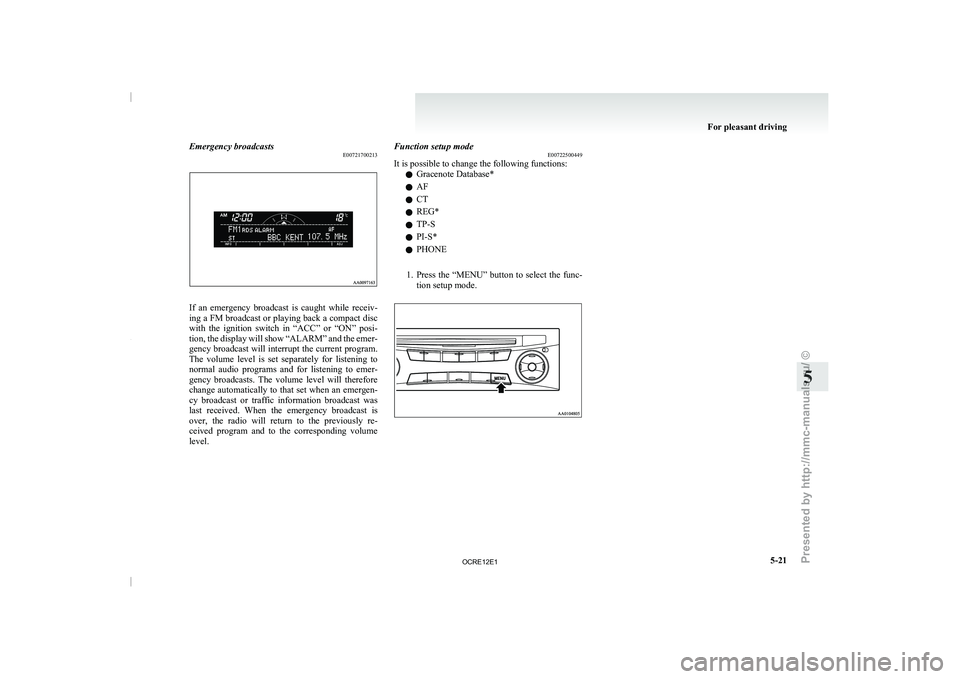
E00721700213If an emergency broadcast is caught while receiv-
ing a FM broadcast or
playing back a compact disc
with the ignition switch in “ACC” or “ON” posi-
tion, the display will show “ALARM” and the emer-
gency broadcast will interrupt the current program.
The volume level is set separately for listening to
normal audio programs and for listening to emer-
gency broadcasts. The volume level will therefore
change automatically to that set when an emergen-
cy broadcast or traffic information broadcast was
last received. When the emergency broadcast is
over, the radio will return to the previously re-
ceived program and to the corresponding volume
level. Function setup mode
E00722500449
It is possible to change the following functions:
l Gracenote Database*
l AF
l CT
l REG*
l TP-S
l PI-S*
l PHONE
1. Press the “MENU” button to
select the func-
tion setup mode. For pleasant driving
5-21 5
OCRE12E1
Presented by http://mmc-manuals.ru/ \251
Page 207 of 369
To listen to a CD
E00709602290
1. Insert a disc with the
label facing up, and the
CD player will begin playing even if another
mode is being used. The CD indicator (18),
the track number (16), the playing time (17)
will appear on the display.
2. When the CD mode is selected by pressing the CD (12) button several times with the
disc in the player, the CD player will start
playback.
3. To stop the CD, turn off the power by press- ing the PWR switch (11) or change over to
the another mode by pressing the RADIO but-
ton or CD button, or eject the disc by press-
ing the eject button (1).
NOTE l To adjust the volume and tone, refer to “To
adjust the volume” on page 5-15 and “To ad-
just the tone” on page 5-15.
l An 8 cm compact disc cannot be played on
this CD player.
l For information concerning the handling of
compact discs, refer to “Handling of compact
discs” on page 5-48.
To fast-forward/fast-reverse the disc
Fast-forward
You can fast-forward the disc by pressing the button (9). While the button is kept pressed, the
disc will be fast-forwarded.
Fast-reverse
You can fast-reverse the
disc
by pressing the but-
ton (10). While the button
is kept pressed, the disc
will be fast-reversed. NOTE
l When
you have fast-forwarded/fast-reversed
the disc,
the playing-time may be shown
with deviation.
To listen to an MP3 CD
This CD player allows you to play MP3 (MPEG Au-
dio Layer-3) files recorded on CD-ROMs, CD-Rs
(recordable CDs), and CD-RWs (rewritable CDs)
in ISO9660 Level 1/Level 2, Joliet, and Romeo for-
mats. Each disc may have a maximum of 16 trees,
100 folders, and 255 files per disc. During MP3
playback, the unit can display ID3 tag information.
For information concerning ID3 tag, refer to “CD
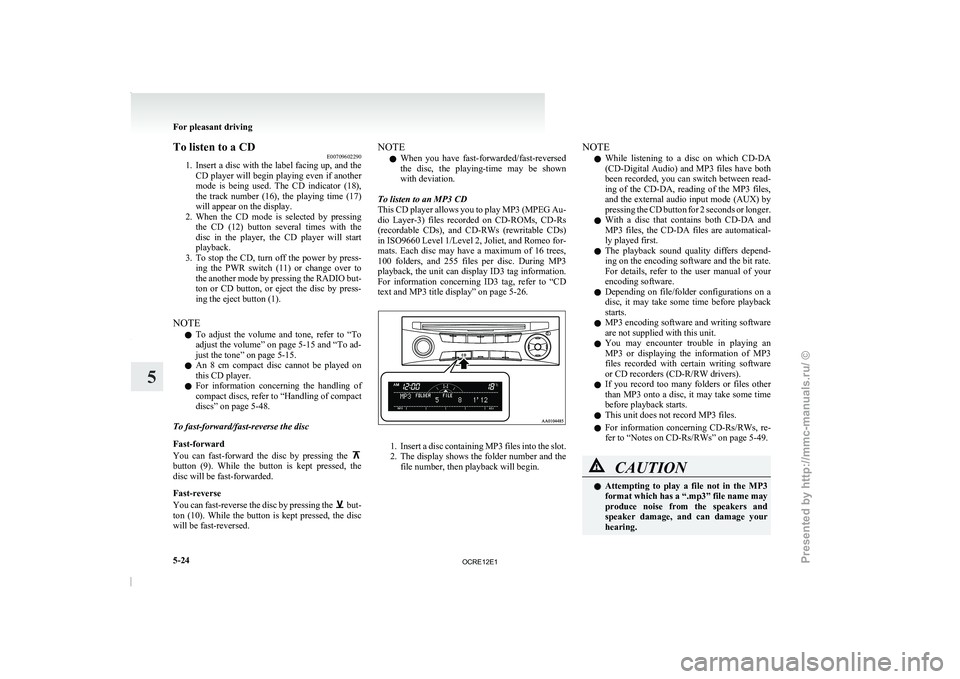
text and MP3 title display” on page 5-26. 1. Insert a disc containing MP3 files into the slot.
2. The display
shows
the folder number and the
file number, then playback will begin. NOTE
l While
listening to
a disc
on which CD-DA
(CD-Digital Audio) and MP3 files have both
been recorded, you can switch between read-
ing of the CD-DA, reading of the MP3 files,
and the external audio input mode (AUX) by
pressing the CD button for 2 seconds or longer.
l With a disc that contains both CD-DA and
MP3 files, the CD-DA files are automatical-
ly played first.
l The playback sound quality differs depend-
ing on the encoding software and the bit rate.
For details, refer to the user manual of your
encoding software.
l Depending on file/folder configurations on a
disc, it may take some time before playback
starts.
l MP3 encoding software and writing software
are not supplied with this unit.
l You may encounter trouble in playing an
MP3 or displaying the information of MP3
files recorded with certain writing software
or CD recorders (CD-R/RW drivers).
l If you record too many folders or files other
than MP3 onto a disc, it may take some time
before playback starts.
l This unit does not record MP3 files.
l For information concerning CD-Rs/RWs, re-
fer to “Notes on CD-Rs/RWs” on page 5-49. CAUTION
l
Attempting to play a
file
not in the MP3
format which has a “.mp3” file name may
produce noise from the speakers and
speaker damage, and can damage your
hearing. For pleasant driving
5-24
5
OCRE12E1
Presented by http://mmc-manuals.ru/ \251
Page 212 of 369
To play from an iPod
E00756300372
1. Press the PWR button (1)
to turn on the au-
dio system. The system turns on in the last
mode used.
2. Connect your iPod to the USB input terminal. Refer to “How to connect an iPod” on page
5-67.
3. Press the CD button (11) several times to switch to the iPod mode. The mode changes
every time the CD button is pressed.
CD mode → iPod mode → Bluetooth ®
mode*
NOTE l If your vehicle is equipped with Auxiliary Au-
dio connector (RCA), pressing and holding
the CD button for 2 seconds or more
switches the system to the AUX mode.
4. Once the device is selected, playback starts and “iPod” appears on the display.
NOTE l Depending on the condition of your iPod, it
may take a longer time before the playback
starts.
5. To stop the playback, change over to a differ- ent mode.
NOTE l Buttons on the iPod are disabled while the
iPod is connected to the audio system.
l To adjust the volume and tone, refer to “To
adjust the volume” and “To adjust the tone”. To fast-forward/reverse the track
E00756400113
Fast-forward
To fast-forward the current track,
press the but-
ton (8). While the button
is pressed, the track will
be fast-forwarded.
Fast-reverse
To fast-reverse the current track, press the but-
ton (9). While the button
is pressed, the track will
be fast-reversed.
To select a desired track E00756500097
Track up
Press the button (8) repeatedly until the desired
track number appears on the display.
Track down
Press the button (9) repeatedly until the desired
track number appears on the display.
NOTE
l Pressing
the button (9) once during the
song will cause the audio
system to restart
playback from the beginning of the song.
To find a track from the iPod menu E00756600186
You can select desired tracks from the “Playlists”,
“Artists”,“Albums”, “Songs” or “Genre” (vehicles
with Bluetooth ®
2.0 interface) menus on your iPod.
Press the following buttons to select desired tracks.
The
selected menu or category or track is shown in
the display. button (12)
: To start this mode or cancel the
selection. button (8)
or button (9)
: To show the menu or category
or track. button (13)
: To select the menu or category
or track.
NOTE l If
no operation is performed
for 10 seconds
or more or another button is operated after
the button or button has been pressed,
searching of the desired tracks is cancelled.
l If no operation is
performed
for 5 seconds or
more after the track is displayed, playback
starts.
To play the same track repeatedly E00756700099
Press the RPT button (6) during playback to show
“RPT” in the display.
To exit this mode, press the button again.
To play tracks in random order E00756900091
Press the RDM button (7) to show “SHUFFLE” in
the display.The iPod randomly selects
tracks from
the current category and plays the selected tracks.
To exit this mode, press the button again.
To play tracks in each album in random order E00757000099
Press and hold the RDM button (7) until you hear a
beep to show “A-SHUFFLE” in the display.
The iPod randomly selects tracks
in the album
from the current category and play the selected
tracks.
To exit this mode, press the button again. For pleasant driving
5-29 5
OCRE12E1
Presented by http://mmc-manuals.ru/ \251
Page 217 of 369
To play from a USB memory device
E00762500366
1. Press the PWR button (1)
to turn on the au-
dio system. The system turns on in the last
mode used.
2. Connect your USB memory device to the USB input terminal.
Refer to “How to connect a USB memory de-
vice” on page 5-67.
3. Press the CD button (11) several times to switch to the USB mode. The mode changes
as follows every time the CD button is pressed.
CD mode → USB mode → Bluetooth ®
mode*
NOTE l If your vehicle is equipped with Auxiliary Au-
dio connector (RCA), pressing and holding
the CD button for 2 seconds or more
switches the system to the AUX mode.
4. Once the device is selected, playback starts and “USB” appears on the display.
NOTE l Depending on the condition of your USB de-
vice, it may take a longer time before the play-
back starts.
5. To stop the playback, change over to a differ- ent mode.
NOTE l To adjust the volume and tone, refer to “To
adjust the volume” and “To adjust the tone”. Supported compressed music files
E00758300305
This audio can play MP3,
WMA, AAC and WAV
files recorded in a USB memory device. This audio
supports up to 65,535 files in 700 folders on 8 levels.
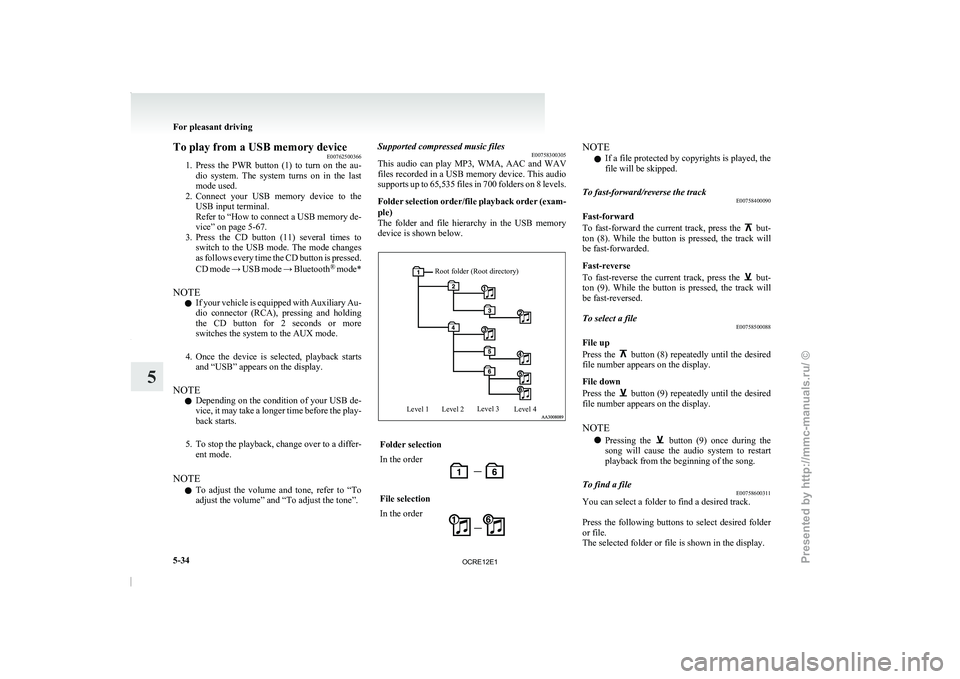
Folder selection order/file playback order (exam-
ple)
The folder and file hierarchy in the USB memory
device is shown below.
Root folder (Root directory)
Level 1 Level 2 Level 3
Level 4 Folder selection
In the order
File selection
In the order NOTE
l If a file protected by copyrights is played, the
file will be skipped.
To fast-forward/reverse the track E00758400090
Fast-forward
To fast-forward the current track,
press the but-
ton (8). While the button
is pressed, the track will
be fast-forwarded.
Fast-reverse
To fast-reverse the current track, press the but-
ton (9). While the button
is pressed, the track will
be fast-reversed.
To select a file E00758500088
File up
Press the button (8) repeatedly until the desired
file number appears on the display.
File down
Press the button (9) repeatedly until the desired
file number appears on the display.
NOTE
l Pressing
the button (9) once during the
song will cause the audio
system to restart
playback from the beginning of the song.
To find a file E00758600311
You can select a folder to find a desired track.
Press the following buttons to
select desired folder
or file.
The selected folder or file is shown in the display. For pleasant driving
5-34
5
OCRE12E1
Presented by http://mmc-manuals.ru/ \251
Page 218 of 369
button (12)
:To start this mode or cancel
the selection. button (8)
or button (9)
: To show the folder or file. button (13)
: To select the folder or file.
NOTE l If
no operation is performed
for 10 seconds
or more or another button is operated after
the button or button has been pressed,
searching of the desired file is cancelled.
l If no operation is
performed
for 5 seconds or
more after the file is displayed, playback
starts.
To play the same file repeatedly E00758700093
Press the RPT button (6) to show “RPT” in the dis-
play.
To exit this mode, press the button again.
To play the files in the same folder repeatedly E00758800094
Press and hold the RPT button (6) until you hear a
beep to show “F-RPT” in the display.
All files in the current folder are played repeatedly.
To exit this mode, press the button again.
To play a folder in random order E00758900095
Press the RDM button (7) to show “F-RDM” in the
display.
The audio randomly selects files
from the current
folder and plays the selected files.
To exit this mode, press the button again. To play all folders in random order
E00759000093
Press and hold the RDM
button (7) until you hear a
beep to show “RDM” in the display.
The audio randomly selects files from all folders
and plays the selected files.
To exit this mode, press the button again.
To switch the display E00759300155
The display changes as follows every time the
TEXT button (4) is pressed during playback.
Folder title → File title → Normal display
ID3 tag information
1. Press and hold the TEXT button (4) until youhear a beep to show “TAG” in the display.
2. The display changes
as follows every time
the TEXT button (4) is pressed briefly.
Album title → Track title → Artist name →
Genre (vehicles with Bluetooth ®
2.0 inter-
face) → Normal display
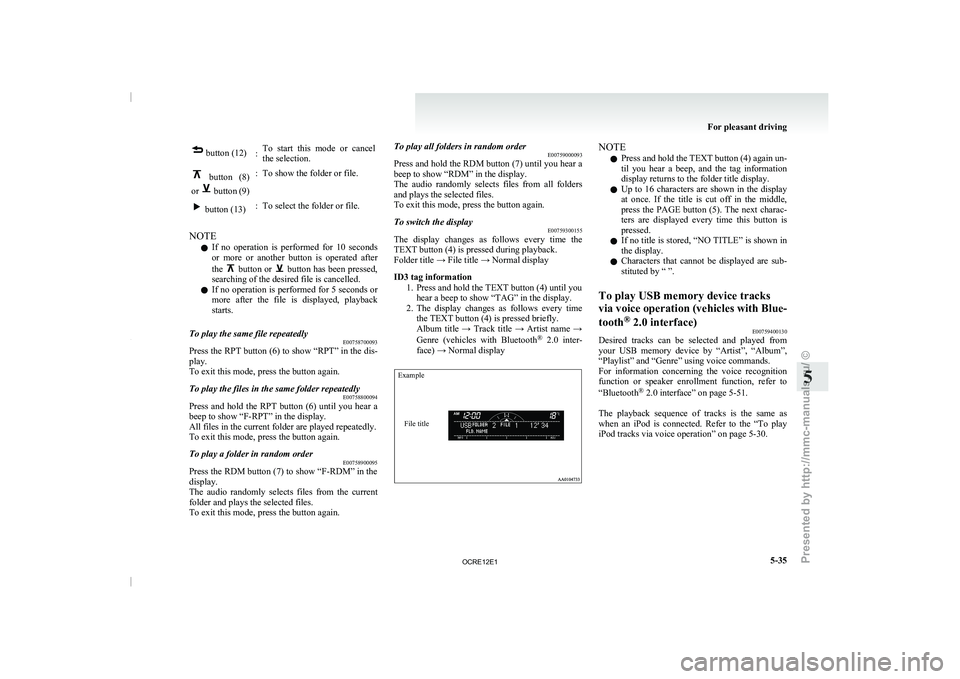
Example
File title NOTE
l Press
and hold the TEXT
button (4) again un-
til you hear a beep, and the tag information
display returns to the folder title display.
l Up to 16 characters are shown in the display
at once. If the title is cut off in the middle,
press the PAGE button (5). The next charac-
ters are displayed every time this button is
pressed.
l If no title is stored, “NO TITLE” is shown in
the display.
l Characters that cannot be displayed are sub-
stituted by “ ”.
To play USB memory device tracks
via voice operation (vehicles with
Blue-
tooth ®
2.0 interface)
E00759400130
Desired tracks can be selected and played from
your USB memory device by
“Artist”, “Album”,
“Playlist” and “Genre” using voice commands.
For information concerning the voice recognition
function or speaker enrollment function, refer to
“Bluetooth ®
2.0 interface” on page 5-51.
The playback sequence of tracks is the same as
when an iPod is connected. Refer to the “To play
iPod tracks via voice operation” on page 5-30. For pleasant driving
5-35 5
OCRE12E1
Presented by http://mmc-manuals.ru/ \251
Page 219 of 369
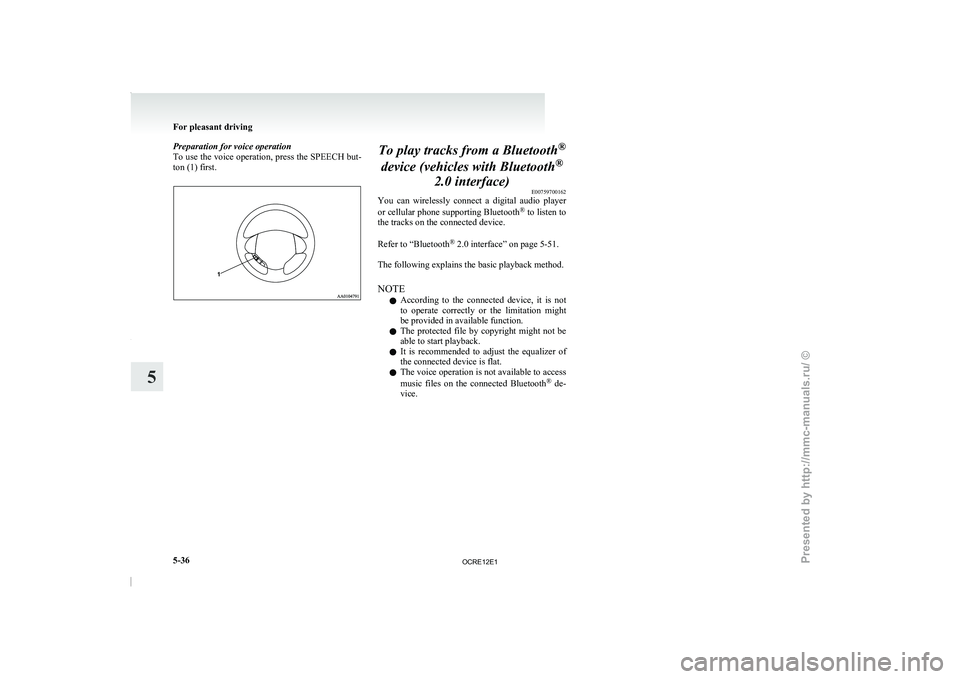
Preparation for voice operation
To use the voice operation,
press the SPEECH but-
ton (1) first. To play tracks from a Bluetooth
®
device (vehicles with Bluetooth ®
2.0 interface) E00759700162
You can wirelessly connect a
digital audio player
or cellular phone supporting Bluetooth ®
to listen to
the tracks on the connected device.
Refer to “Bluetooth ®
2.0 interface” on page 5-51.
The following explains the basic playback method.
NOTE
l According to the connected device, it is not
to operate correctly or the limitation might
be provided in available function.
l The protected file by copyright might not be
able to start playback.
l It is recommended to adjust the equalizer of
the connected device is flat.
l The voice operation is not available to access
music files on the connected Bluetooth ®
de-
vice. For pleasant driving
5-36
5
OCRE12E1
Presented by http://mmc-manuals.ru/ \251
Page 221 of 369
To listen to tracks from a device con-
nected via Bluetooth
®
E00762700225
1. Press the PWR button (1)
to turn on the au-
dio system. The system turns on in the last
mode used.
2. Press the CD button (8) several times to
switch to the BT-A (Bluetooth ®
) mode. The
mode changes as follows every time the CD
button is pressed.
CD mode → USB (iPod) mode → Blue-
tooth ®
mode
NOTE l For vehicles equipped with Auxiliary Audio
connector (RCA), pressing and holding the
CD button for 2 seconds or more switches
the system to the AUX mode.
3. Connect your Bluetooth ®
device.
Refer to “Connecting the Bluetooth® 2.0 in-
terface and Bluetooth® device” on page
5-55.
4. Playback starts automatically.
NOTE l Depending on the connected device, the play-
back may not start automatically.
In this case, operate the connected device to
start the playback.
To stop the playback (if supported by the device) E00762800079
To stop the playback, press and hold the button
(9) until you hear a beep.
To restart the playback, press the button (10).To pause the playback (if supported by the device)
E00762900083
To pause the playback, press the button (9).
To restart the playback, press the button (10).
To fast-forward/reverse the track (if supported by
the device) E00765600010
Fast-forward
To fast-forward the current
track,
press the but-
ton (6). While the button
is pressed, the track will
be fast-forwarded.
Fast-reverse
To fast-reverse the current track, press the but-
ton (7). While the button
is pressed, the track will
be fast-reversed.
To select a track (if supported by the device) E00763000094
Track up
Press the button (6) repeatedly until the desired
track number appears on the display.
Track down
Press the button (7) repeatedly until the desired
track number appears on the display.
NOTE
l Pressing
the button (7) once during the
song will cause the audio
system to restart
playback from the beginning of the song.
To play the same track or all tracks repeatedly (if
supported by the device) E00763100079
Press the RPT button (4) several times to show
“1-RPT” (same track repeat mode)
or “A-RPT” (all
tracks repeat mode) in the display. The mode changes as follows every time the RPT
button is pressed.
1-RPT mode → A-RPT mode → mode off
To exit these mode,
press
the RPT button several
times until the 1-RPT indicator or the A-RPT indi-
cator goes off.
To play tracks in random order (if supported by
the device) E00763200070
Press the RDM button (5) to show “RDM” in the
display.
The system randomly selects and
plays tracks from
all tracks in the Bluetooth ®
device.
To exit this mode, press the button again.
To switch the display (if supported by the device) E00763400072
The display changes as follows every time the
TEXT button (2) is pressed briefly.
Album title → Title name
→ Artist name → Genre
→ Normal display
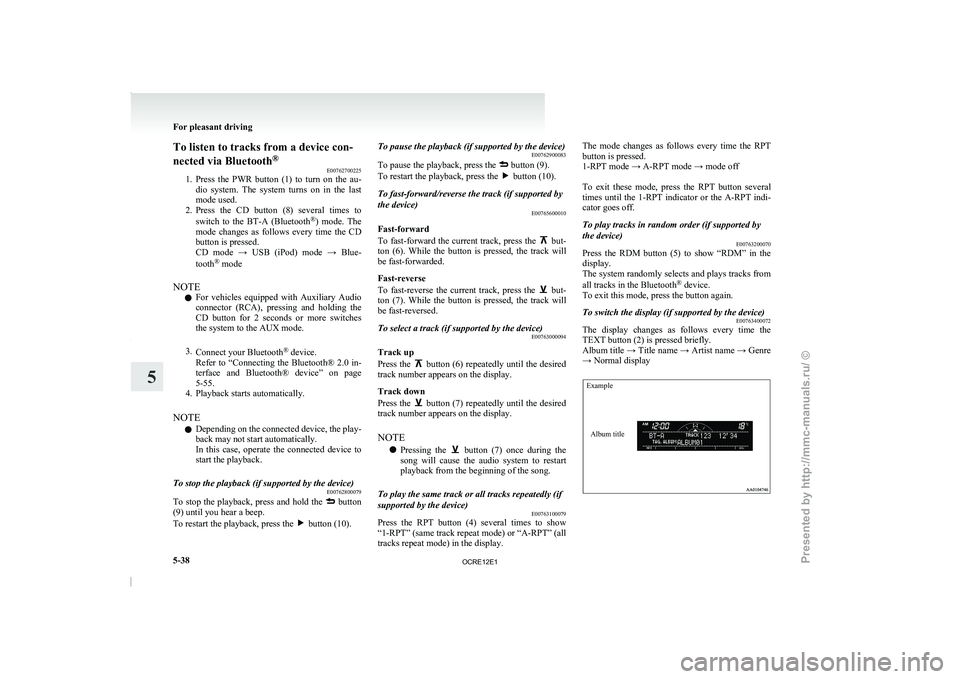
Example
Album title For pleasant driving
5-38
5
OCRE12E1
Presented by http://mmc-manuals.ru/ \251
Page 222 of 369
NOTE
l Press
and hold the TEXT
button (2) again un-
til you hear a beep, and the tag information
disappears.
l Up to 16 characters are shown in the display
at once. If the title is cut off in the middle,
press the PAGE button (3). The next charac-
ters are displayed every time this button is
pressed.
l If no title is stored, “NO TITLE” is shown in
the display.
l Characters that cannot be displayed are sub-
stituted by “ ”. To use the external audio input
function* E00732200843
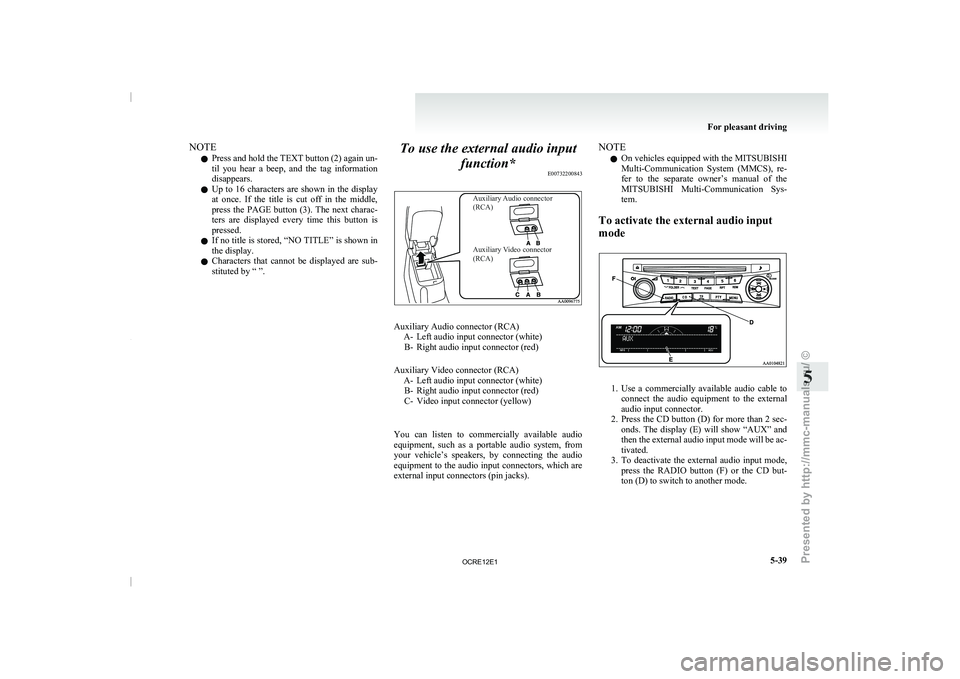
Auxiliary Audio connector
(RCA)
Auxiliary Video connector
(RCA) Auxiliary Audio connector (RCA)
A- Left audio input connector (white)B- Right audio input connector (red)
Auxiliary Video connector (RCA) A- Left audio input connector (white)B- Right audio input connector (red)
C-
Video input connector (yellow)
You can listen to commercially available audio
equipment, such as a portable audio system, from
your vehicle’s speakers, by connecting the audio
equipment to the audio input connectors, which are
external input connectors (pin jacks). NOTE
l On
vehicles equipped
with the
MITSUBISHI
Multi-Communication System (MMCS), re-
fer to the separate owner’s manual of the
MITSUBISHI Multi-Communication Sys-
tem.
To activate the external audio input
mode 1. Use a commercially available audio cable to
connect the audio equipment
to the external
audio input connector.
2. Press the CD button (D) for more than 2 sec- onds. The display (E) will show “AUX” and
then the external audio input mode will be ac-
tivated.
3. To deactivate the external audio input mode, press the RADIO button (F) or the CD but-
ton (D) to switch to another mode. For pleasant driving
5-39 5
OCRE12E1
Presented by http://mmc-manuals.ru/ \251
Page 223 of 369
CAUTION
l
Do not operate the connected audio equip-
ment while driving.
This could distract you and an accident
might occur.
NOTE l The
connected audio equipment cannot
be op-
erated with the vehicle’s audio system.
l Depending on the connected audio equip-
ment, it may produce noise from the speakers.
l Use the connected audio equipment’s own
power source, such as its battery.
Noise may be produced from the speakers if
the connected audio equipment is used while
charging it using the accessory socket of the
vehicle.
l Do not activate the external audio input
mode when no audio equipment is connected.
Otherwise, noise may be produced from the
speakers.
l Connect audio equipment when the external
audio input mode is deactivated or lower the
vehicle’s speaker volume before connecting it.
Noise may be produced from the speakers if
audio equipment is connected after the exter-
nal audio input mode is activated.
l For information on how to connect and oper-
ate the audio equipment, refer to the owner’s
manual for the equipment. Steering wheel remote control
switch* E00710000955
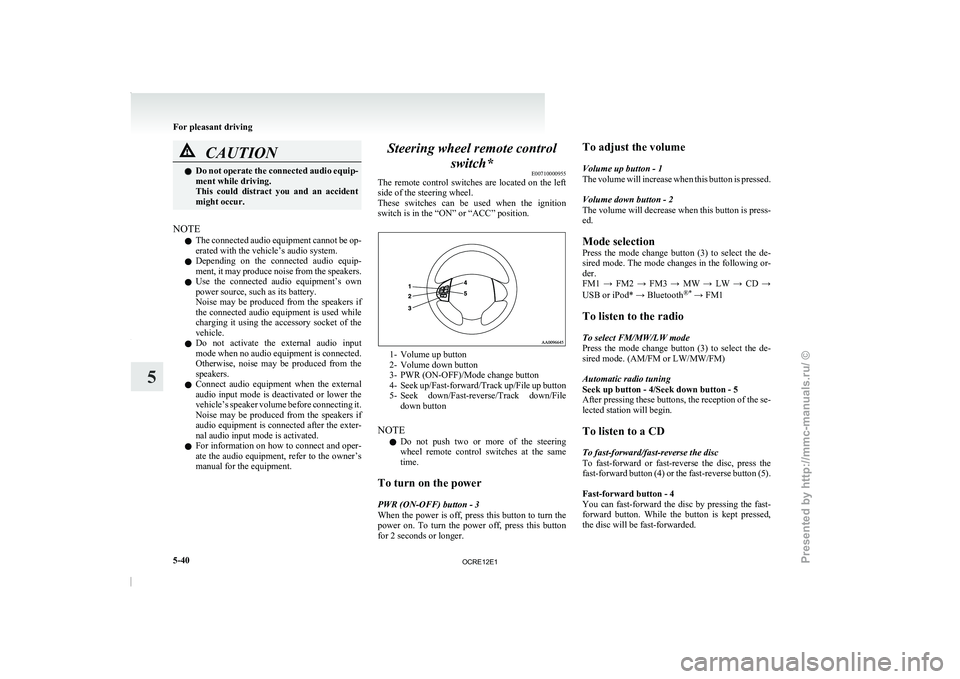
The remote control switches are
located on the left
side of the steering wheel.
These switches can be used when the ignition
switch is in the “ON” or “ACC” position. 1- Volume up button
2-
Volume down button
3- PWR (ON-OFF)/Mode change button
4- Seek up/Fast-forward/Track
up/File up button
5- Seek down/Fast-reverse/Track down/File down button
NOTE l Do not push two or more of the steering
wheel remote control switches at the same
time.
To turn on the power
PWR (ON-OFF) button - 3
When the power is off, press this button to turn the
power on. To turn the power off, press this button
for 2 seconds or longer. To adjust the volume
Volume up button - 1
The volume will increase
when
this button is pressed.
Volume down button - 2
The volume will decrease when this button is press-
ed.
Mode selection
Press the mode change button (3) to select the de-
sired mode. The mode changes in the following or-
der.
FM1 → FM2 → FM3 → MW → LW → CD →
USB or iPod* → Bluetooth ®*
→ FM1
To listen to the radio
To select FM/MW/LW mode
Press the mode change button (3) to select the de-
sired mode. (AM/FM or LW/MW/FM)
Automatic radio tuning
Seek up button - 4/Seek down button - 5
After pressing these buttons, the reception of the se-
lected station will begin.
To listen to a CD
To fast-forward/fast-reverse the disc
To fast-forward or fast-reverse the disc, press the
fast-forward button (4) or the fast-reverse button (5).
Fast-forward button - 4
You can fast-forward the disc by pressing the fast-
forward button. While the button is kept pressed,
the disc will be fast-forwarded.
For pleasant driving
5-40
5
OCRE12E1
Presented by http://mmc-manuals.ru/ \251