ECO mode NISSAN 370Z 2019 Owner´s Manual
[x] Cancel search | Manufacturer: NISSAN, Model Year: 2019, Model line: 370Z, Model: NISSAN 370Z 2019Pages: 460, PDF Size: 2.26 MB
Page 255 of 460
.Hold Call
Put an incoming call on hold.
. Reject Call
Reject an incoming call.
To finish the call, perform one of the
following procedures listed below.
1. Select the “Hang up” key.
2. Push the PHONE button on the instru- ment panel.
3. Push the
button on the steering
wheel.
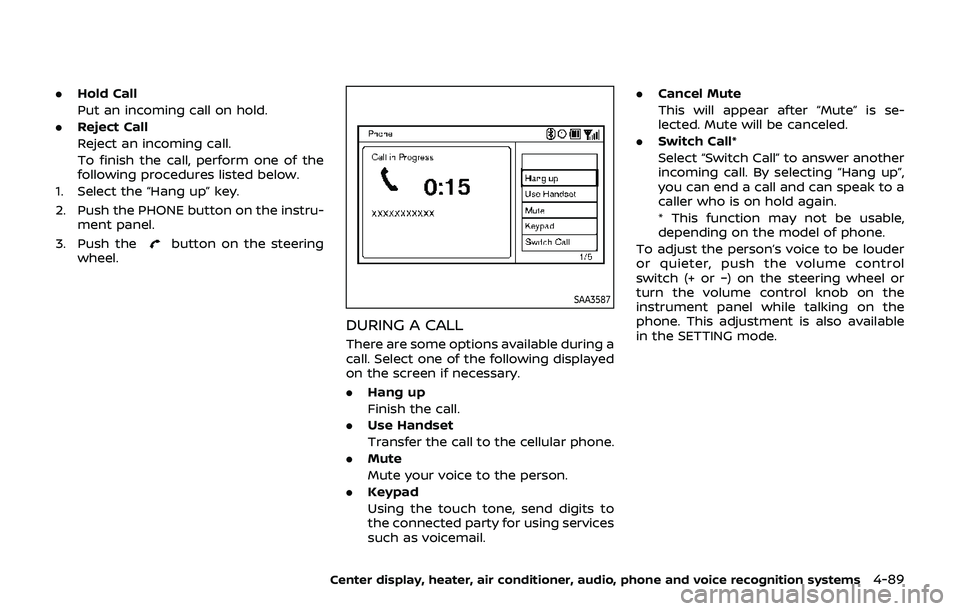
SAA3587
DURING A CALL
There are some options available during a
call. Select one of the following displayed
on the screen if necessary.
. Hang up
Finish the call.
. Use Handset
Transfer the call to the cellular phone.
. Mute
Mute your voice to the person.
. Keypad
Using the touch tone, send digits to
the connected party for using services
such as voicemail. .
Cancel Mute
This will appear after “Mute” is se-
lected. Mute will be canceled.
. Switch Call*
Select “Switch Call” to answer another
incoming call. By selecting “Hang up”,
you can end a call and can speak to a
caller who is on hold again.
* This function may not be usable,
depending on the model of phone.
To adjust the person’s voice to be louder
or quieter, push the volume control
switch (+ or −) on the steering wheel or
turn the volume control knob on the
instrument panel while talking on the
phone. This adjustment is also available
in the SETTING mode.
Center display, heater, air conditioner, audio, phone and voice recognition systems4-89
Page 257 of 460
TROUBLESHOOTING GUIDE
The system should respond correctly to all voice commands without difficulty. If problems are encountered, try the following
solutions.
Where the solutions are listed by number, try each solution in turn, starting with number 1, until the problem is resolved.
SymptomSolution
The system fails to interpret the
command correctly. 1. Ensure that the command is valid. (See “NISSAN Voice Recognition System (models with navigation system)”
(P.4-105).)
2. Ensure that the command is spoken after the tone.
3. Speak clearly without pausing between words and at a level appropriate to the ambient noise level in the
vehicle.
4. Ensure that the ambient noise level is not excessive (for example, windows open or defroster on). NOTE: If it is
too noisy to use the phone, it is likely that the voice commands will not be recognized.
5. If more than one command was said at a time, try saying the commands separately.
The system consistently selects the
wrong voicetag. 1. Ensure that the voicetag requested matches what was originally stored. (See “Quick Dial” (P.4-85).)
2. Replace one of the names being confused with a new name.
The system cannot be operated. Close the soft top (for Roadster models).
Center display, heater, air conditioner, audio, phone and voice recognition systems4-91
Page 258 of 460
4-92Center display, heater, air conditioner, audio, phone and voice recognition systems
WARNING
.Use a phone after stopping your
vehicle in a safe location. If you
have to use a phone while driving,
exercise extreme caution at all
times so full attention may be
given to vehicle operation.
. If you find yourself unable to
devote full attention to vehicle
operation while talking on the
phone, pull off the road to a safe
location and stop your vehicle
before doing so.
CAUTION
To avoid draining the vehicle battery,
use a phone after starting the en-
gine.
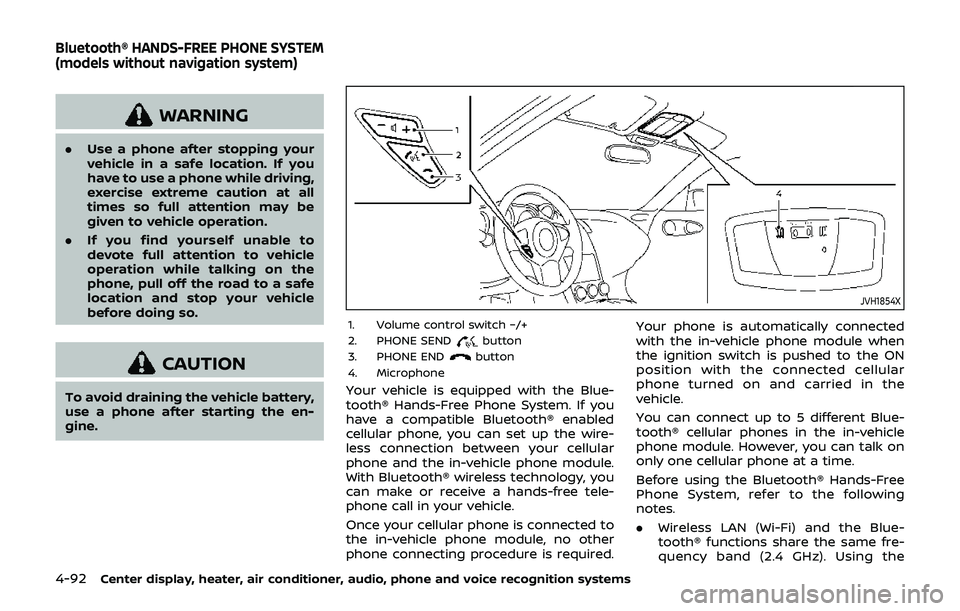
JVH1854X
1. Volume control switch −/+
2. PHONE SENDbutton
3. PHONE ENDbutton
4. Microphone
Your vehicle is equipped with the Blue-
tooth® Hands-Free Phone System. If you
have a compatible Bluetooth® enabled
cellular phone, you can set up the wire-
less connection between your cellular
phone and the in-vehicle phone module.
With Bluetooth® wireless technology, you
can make or receive a hands-free tele-
phone call in your vehicle.
Once your cellular phone is connected to
the in-vehicle phone module, no other
phone connecting procedure is required. Your phone is automatically connected
with the in-vehicle phone module when
the ignition switch is pushed to the ON
position with the connected cellular
phone turned on and carried in the
vehicle.
You can connect up to 5 different Blue-
tooth® cellular phones in the in-vehicle
phone module. However, you can talk on
only one cellular phone at a time.
Before using the Bluetooth® Hands-Free
Phone System, refer to the following
notes.
.
Wireless LAN (Wi-Fi) and the Blue-
tooth® functions share the same fre-
quency band (2.4 GHz). Using the
Bluetooth® HANDS-FREE PHONE SYSTEM
(models without navigation system)
Page 262 of 460
4-96Center display, heater, air conditioner, audio, phone and voice recognition systems
.When you speak numbers, you can
speak both “zero” or “oh” for “0”.
Manual command selection
Commands can be selected manually.
While the commands are displayed on
the audio screen, select a command by
operating the audio tuning switch, and
then push the
button. Once a com-
mand is manually selected, the voice
command function is cancelled. To return
to voice command mode, push the
button to cancel the current operation,
and then perform the first procedure of
voice command.
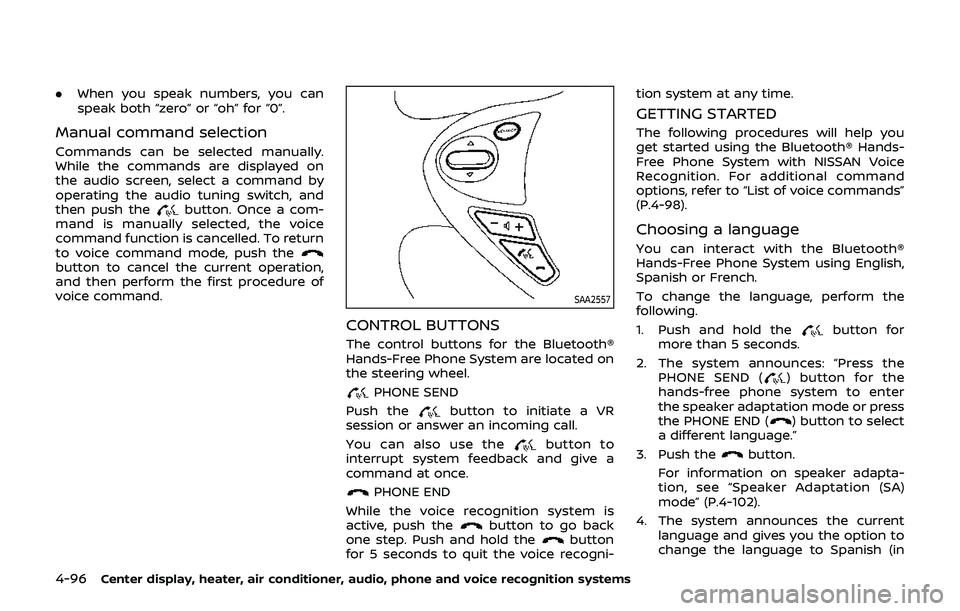
SAA2557
CONTROL BUTTONS
The control buttons for the Bluetooth®
Hands-Free Phone System are located on
the steering wheel.
PHONE SEND
Push the
button to initiate a VR
session or answer an incoming call.
You can also use the
button to
interrupt system feedback and give a
command at once.
PHONE END
While the voice recognition system is
active, push the
button to go back
one step. Push and hold thebutton
for 5 seconds to quit the voice recogni- tion system at any time.
GETTING STARTED
The following procedures will help you
get started using the Bluetooth® Hands-
Free Phone System with NISSAN Voice
Recognition. For additional command
options, refer to “List of voice commands”
(P.4-98).
Choosing a language
You can interact with the Bluetooth®
Hands-Free Phone System using English,
Spanish or French.
To change the language, perform the
following.
1. Push and hold the
button for
more than 5 seconds.
2. The system announces: “Press the PHONE SEND (
) button for the
hands-free phone system to enter
the speaker adaptation mode or press
the PHONE END (
) button to select
a different language.”
3. Push the
button.
For information on speaker adapta-
tion, see “Speaker Adaptation (SA)
mode” (P.4-102).
4. The system announces the current language and gives you the option to
change the language to Spanish (in
Page 263 of 460
Spanish) or French (in French). Use the
following chart to select the language.
NOTE:
You must push the
button or thebutton within 5 seconds to
change the language.
Current lan-
guage Push(TALK/PHONE
SEND) to select Push(MODE/
PHONE END) to select
English Spanish French
Spanish English French
French English Spanish
5. If you decide not to change the
language, do not push either button.
After 5 seconds, the VR session will
end, and the language will not be
changed.
Connecting procedure
NOTE:
The connecting procedure must be
performed when the vehicle is station-
ary. If the vehicle starts moving during
the procedure, the procedure will be
cancelled.
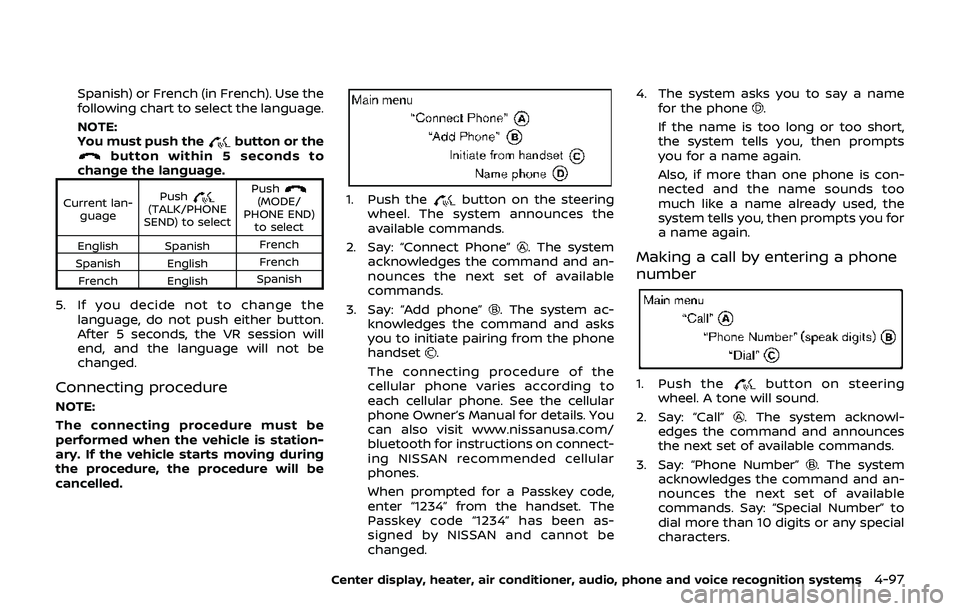
1. Push thebutton on the steering
wheel. The system announces the
available commands.
2. Say: “Connect Phone”
. The system
acknowledges the command and an-
nounces the next set of available
commands.
3. Say: “Add phone”
. The system ac-
knowledges the command and asks
you to initiate pairing from the phone
handset
.
The connecting procedure of the
cellular phone varies according to
each cellular phone. See the cellular
phone Owner’s Manual for details. You
can also visit www.nissanusa.com/
bluetooth for instructions on connect-
ing NISSAN recommended cellular
phones.
When prompted for a Passkey code,
enter “1234” from the handset. The
Passkey code “1234” has been as-
signed by NISSAN and cannot be
changed. 4. The system asks you to say a name
for the phone
.
If the name is too long or too short,
the system tells you, then prompts
you for a name again.
Also, if more than one phone is con-
nected and the name sounds too
much like a name already used, the
system tells you, then prompts you for
a name again.
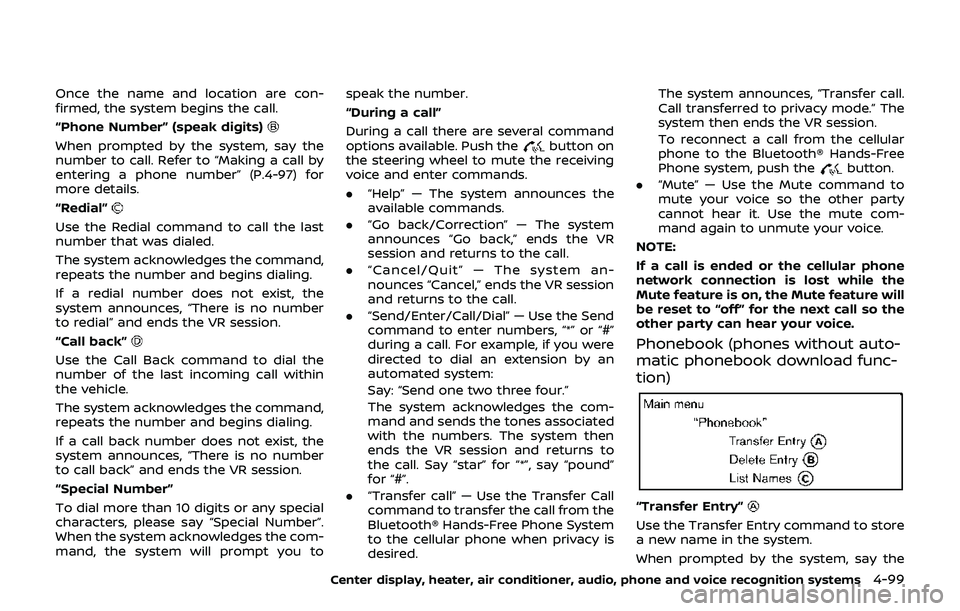
Making a call by entering a phone
number
1. Push thebutton on steering
wheel. A tone will sound.
2. Say: “Call”
. The system acknowl-
edges the command and announces
the next set of available commands.
3. Say: “Phone Number”
. The system
acknowledges the command and an-
nounces the next set of available
commands. Say: “Special Number” to
dial more than 10 digits or any special
characters.
Center display, heater, air conditioner, audio, phone and voice recognition systems4-97
Page 265 of 460
Once the name and location are con-
firmed, the system begins the call.
“Phone Number” (speak digits)
When prompted by the system, say the
number to call. Refer to “Making a call by
entering a phone number” (P.4-97) for
more details.
“Redial”
Use the Redial command to call the last
number that was dialed.
The system acknowledges the command,
repeats the number and begins dialing.
If a redial number does not exist, the
system announces, “There is no number
to redial” and ends the VR session.
“Call back”
Use the Call Back command to dial the
number of the last incoming call within
the vehicle.
The system acknowledges the command,
repeats the number and begins dialing.
If a call back number does not exist, the
system announces, “There is no number
to call back” and ends the VR session.
“Special Number”
To dial more than 10 digits or any special
characters, please say “Special Number”.
When the system acknowledges the com-
mand, the system will prompt you tospeak the number.
“During a call”
During a call there are several command
options available. Push the
button on
the steering wheel to mute the receiving
voice and enter commands.
. “Help” — The system announces the
available commands.
. “Go back/Correction” — The system
announces “Go back,” ends the VR
session and returns to the call.
. “Cancel/Quit” — The system an-
nounces “Cancel,” ends the VR session
and returns to the call.
. “Send/Enter/Call/Dial” — Use the Send
command to enter numbers, “*” or “#”
during a call. For example, if you were
directed to dial an extension by an
automated system:
Say: “Send one two three four.”
The system acknowledges the com-
mand and sends the tones associated
with the numbers. The system then
ends the VR session and returns to
the call. Say “star” for “*”, say “pound”
for “#”.
. “Transfer call” — Use the Transfer Call
command to transfer the call from the
Bluetooth® Hands-Free Phone System
to the cellular phone when privacy is
desired. The system announces, “Transfer call.
Call transferred to privacy mode.” The
system then ends the VR session.
To reconnect a call from the cellular
phone to the Bluetooth® Hands-Free
Phone system, push the
button.
. “Mute” — Use the Mute command to
mute your voice so the other party
cannot hear it. Use the mute com-
mand again to unmute your voice.
NOTE:
If a call is ended or the cellular phone
network connection is lost while the
Mute feature is on, the Mute feature will
be reset to “off” for the next call so the
other party can hear your voice.
Phonebook (phones without auto-
matic phonebook download func-
tion)
“Transfer Entry”
Use the Transfer Entry command to store
a new name in the system.
When prompted by the system, say the
Center display, heater, air conditioner, audio, phone and voice recognition systems4-99
Page 268 of 460
4-102Center display, heater, air conditioner, audio, phone and voice recognition systems
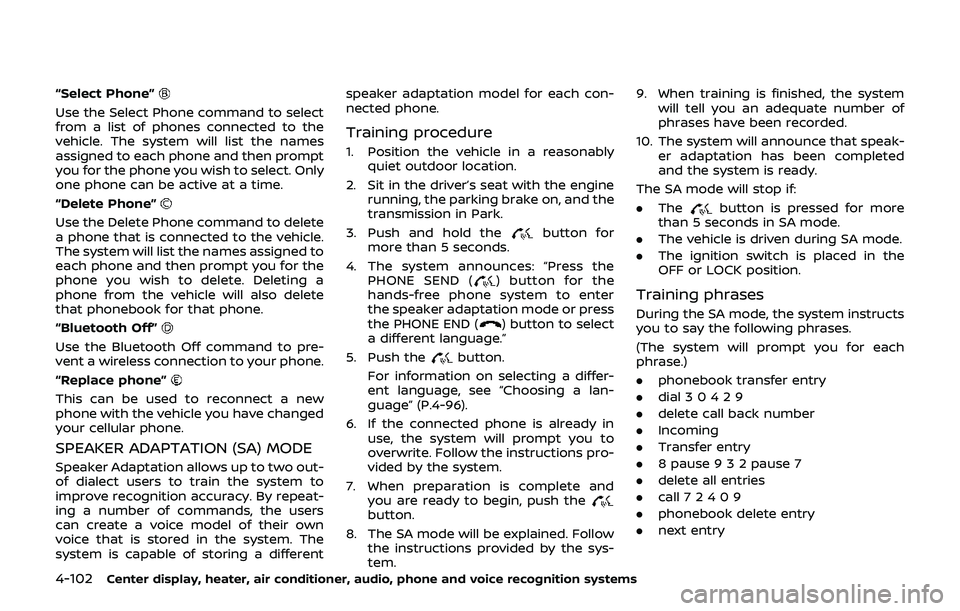
“Select Phone”
Use the Select Phone command to select
from a list of phones connected to the
vehicle. The system will list the names
assigned to each phone and then prompt
you for the phone you wish to select. Only
one phone can be active at a time.
“Delete Phone”
Use the Delete Phone command to delete
a phone that is connected to the vehicle.
The system will list the names assigned to
each phone and then prompt you for the
phone you wish to delete. Deleting a
phone from the vehicle will also delete
that phonebook for that phone.
“Bluetooth Off”
Use the Bluetooth Off command to pre-
vent a wireless connection to your phone.
“Replace phone”
This can be used to reconnect a new
phone with the vehicle you have changed
your cellular phone.
SPEAKER ADAPTATION (SA) MODE
Speaker Adaptation allows up to two out-
of dialect users to train the system to
improve recognition accuracy. By repeat-
ing a number of commands, the users
can create a voice model of their own
voice that is stored in the system. The
system is capable of storing a differentspeaker adaptation model for each con-
nected phone.
Training procedure
1. Position the vehicle in a reasonably
quiet outdoor location.
2. Sit in the driver’s seat with the engine running, the parking brake on, and the
transmission in Park.
3. Push and hold the
button for
more than 5 seconds.
4. The system announces: “Press the PHONE SEND (
) button for the
hands-free phone system to enter
the speaker adaptation mode or press
the PHONE END (
) button to select
a different language.”
5. Push the
button.
For information on selecting a differ-
ent language, see “Choosing a lan-
guage” (P.4-96).
6. If the connected phone is already in use, the system will prompt you to
overwrite. Follow the instructions pro-
vided by the system.
7. When preparation is complete and you are ready to begin, push the
button.
8. The SA mode will be explained. Follow the instructions provided by the sys-
tem. 9. When training is finished, the system
will tell you an adequate number of
phrases have been recorded.
10. The system will announce that speak- er adaptation has been completed
and the system is ready.
The SA mode will stop if:
. The
button is pressed for more
than 5 seconds in SA mode.
. The vehicle is driven during SA mode.
. The ignition switch is placed in the
OFF or LOCK position.
Training phrases
During the SA mode, the system instructs
you to say the following phrases.
(The system will prompt you for each
phrase.)
.phonebook transfer entry
. dial 3 0 4 2 9
. delete call back number
. Incoming
. Transfer entry
. 8 pause 9 3 2 pause 7
. delete all entries
. call 7 2 4 0 9
. phonebook delete entry
. next entry
Page 270 of 460
4-104Center display, heater, air conditioner, audio, phone and voice recognition systems
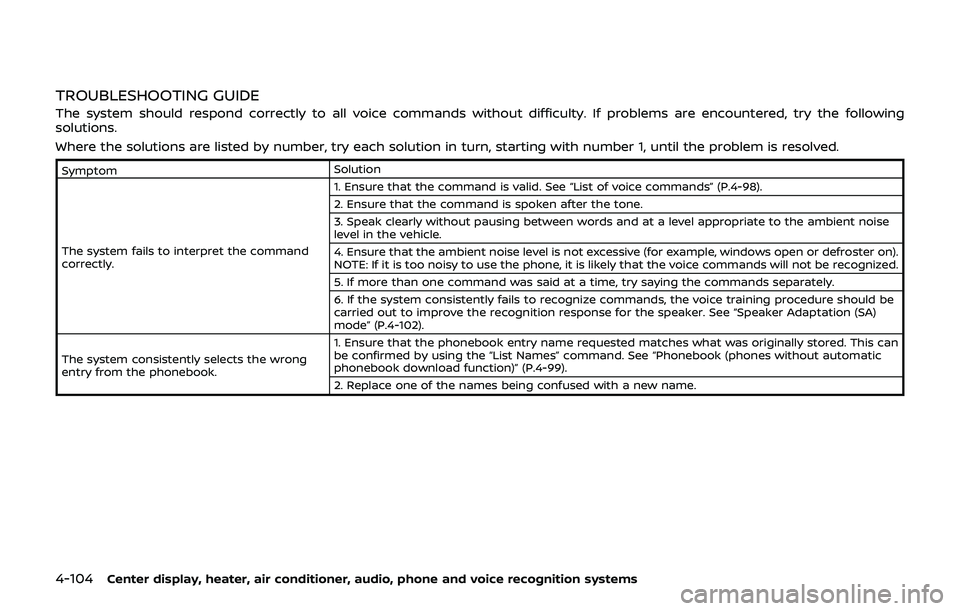
TROUBLESHOOTING GUIDE
The system should respond correctly to all voice commands without difficulty. If problems are encountered, try the following
solutions.
Where the solutions are listed by number, try each solution in turn, starting with number 1, until the problem is resolved.
SymptomSolution
The system fails to interpret the command
correctly. 1. Ensure that the command is valid. See “List of voice commands” (P.4-98).
2. Ensure that the command is spoken after the tone.
3. Speak clearly without pausing between words and at a level appropriate to the ambient noise
level in the vehicle.
4. Ensure that the ambient noise level is not excessive (for example, windows open or defroster on).
NOTE: If it is too noisy to use the phone, it is likely that the voice commands will not be recognized.
5. If more than one command was said at a time, try saying the commands separately.
6. If the system consistently fails to recognize commands, the voice training procedure should be
carried out to improve the recognition response for the speaker. See “Speaker Adaptation (SA)
mode” (P.4-102).
The system consistently selects the wrong
entry from the phonebook. 1. Ensure that the phonebook entry name requested matches what was originally stored. This can
be confirmed by using the “List Names” command. See “Phonebook (phones without automatic
phonebook download function)” (P.4-99).
2. Replace one of the names being confused with a new name.
Page 271 of 460
NISSAN Voice Recognition allows hands-
free operation of the Phone, Navigation,
Information and Audio systems in one of
two modes, Standard Mode or Alternate
Command Mode.
In Standard Mode, commands that are
available are always shown on the display
and announced by the system. You can
complete your desired operation by sim-
ply following the prompts given by the
system. (See “NISSAN voice recognition
Standard Mode” (P.4-105) for details.)
For advanced operation, you can use the
Alternate Command Mode. (See “NISSAN
voice recognition Alternate Command
Mode” (P.4-116) for details.) When this
mode is active, an expanded list of
commands can be spoken after pushing
the TALK
switch, and the voice
command menu prompts are turned off.
Review the expanded command list,
which is available when this mode is
active. Note that in this mode the recog-
nition success rate may be affected as
the number of available commands and
the ways of speaking each command are
increased.
To switch one mode to another, see each
mode description later in this section.
To improve the recognition success rate
when Alternate Command Mode is active,
try using the Speaker Adaptation Func- tion available in that mode. Otherwise, it
is recommended that Alternate Com-
mand Mode be turned off and Standard
Mode be used for the best recognition
performance.
For the voice commands for the naviga-
tion system, refer to the Navigation Sys-
tem Owner’s Manual of your vehicle.
For Roadster models:
The voice recognition system cannot be
operated when the soft top is not closed.
NISSAN VOICE RECOGNITION
STANDARD MODE
The following section is applicable when
the Standard Mode is activated.
The Standard Mode enables you to com-
plete the desired operation by simply
following the prompts that appear on
the display and also are announced by
the system.SAA2529
Activating Standard Mode
When the Alternate Command Mode is
active, perform the following steps to
switch to the Standard Mode.
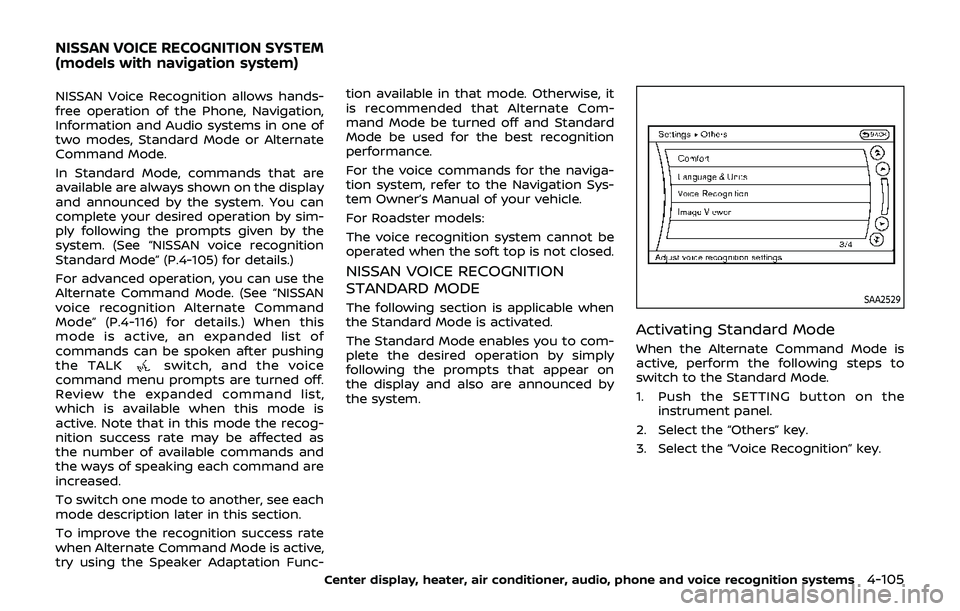
1. Push the SETTING button on the
instrument panel.
2. Select the “Others” key.
3. Select the “Voice Recognition” key.
Center display, heater, air conditioner, audio, phone and voice recognition systems4-105
NISSAN VOICE RECOGNITION SYSTEM
(models with navigation system)
Page 272 of 460
4-106Center display, heater, air conditioner, audio, phone and voice recognition systems
SAA2530
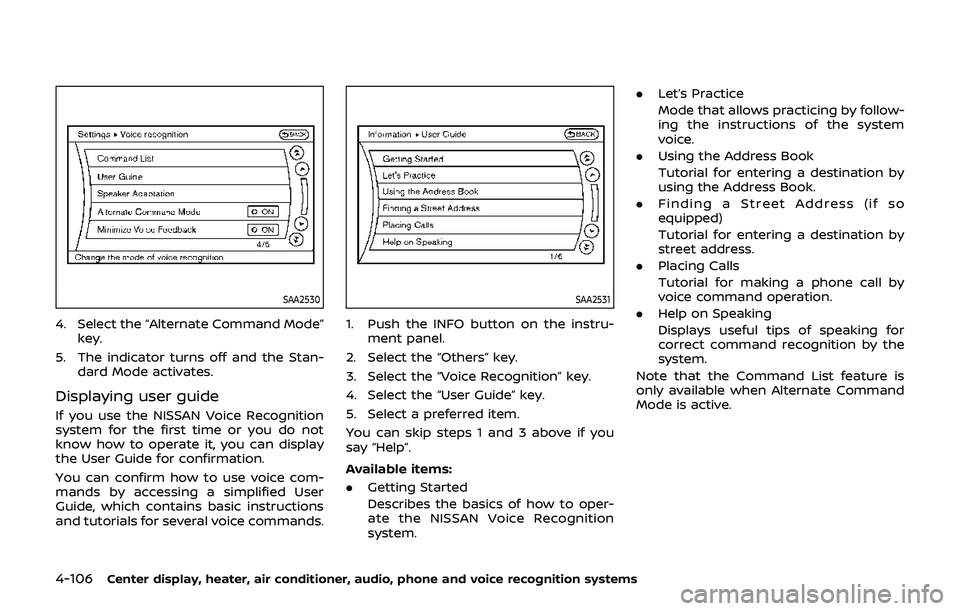
4. Select the “Alternate Command Mode”key.
5. The indicator turns off and the Stan- dard Mode activates.
Displaying user guide
If you use the NISSAN Voice Recognition
system for the first time or you do not
know how to operate it, you can display
the User Guide for confirmation.
You can confirm how to use voice com-
mands by accessing a simplified User
Guide, which contains basic instructions
and tutorials for several voice commands.
SAA2531
1. Push the INFO button on the instru-
ment panel.
2. Select the “Others” key.
3. Select the “Voice Recognition” key.
4. Select the “User Guide” key.
5. Select a preferred item.
You can skip steps 1 and 3 above if you
say “Help”.
Available items:
. Getting Started
Describes the basics of how to oper-
ate the NISSAN Voice Recognition
system. .
Let’s Practice
Mode that allows practicing by follow-
ing the instructions of the system
voice.
. Using the Address Book
Tutorial for entering a destination by
using the Address Book.
. Finding a Street Address (if so
equipped)
Tutorial for entering a destination by
street address.
. Placing Calls
Tutorial for making a phone call by
voice command operation.
. Help on Speaking
Displays useful tips of speaking for
correct command recognition by the
system.
Note that the Command List feature is
only available when Alternate Command
Mode is active.