start NISSAN 370Z COUPE 2018 Owner's Guide
[x] Cancel search | Manufacturer: NISSAN, Model Year: 2018, Model line: 370Z COUPE, Model: NISSAN 370Z COUPE 2018Pages: 453, PDF Size: 2.23 MB
Page 223 of 453
PLAY:
When the DISC·AUX (CD play) button is
pushed with the system off and the CD
loaded, the system will turn on and the
CD will start to play.
When the DISC·AUX button is pushed with
the CD loaded and the radio playing, the
radio will automatically be turned off and
the CD will start to play.
Menu:
When the “Menu” key on the display is
selected while the CD is being played, the
menu screen will be displayed. The fol-
lowing menu options are available.
. Folder List (for CD with compressed
audio files)
Displays the folder list.
. Track List
Displays the track list.
. Play Mode
Select a play mode from the following
items.
— Normal
— 1 Folder Repeat (for CD with com-
pressed audio files)
— 1 Track Repeat
— 1 Disc Random
— 1 Folder Random (for CD with com- pressed audio files)Next/Previous Track and
Fast Forward/Rewind:
When the
orbutton is pushed for
more than 1.5 seconds while the CD is
being played, the CD will play while fast
forwarding or rewinding. When the but-
ton is released, the CD will return to
normal play speed.
When the
orbutton is pushed for
less than 1.5 seconds while the CD is being
played, the next track or the beginning of
the current track on the CD will be played.
When the rewind button is pushed for less
than 1.5 seconds within 3 seconds after
the current track starts playing, the pre-
vious track will be played. Push the button
several times to skip through the tracks.
REPEAT (RPT), RANDOM (RDM):
When the RPT button is pushed while the
CD is played, the play pattern can be
changed as follows:
(CD)
(CD with compressed audio files)
CD EJECT:
When the CD EJECT button is pushed with
the CD loaded, the CD will be ejected.
If the CD comes out and is not removed,
it will be pulled back into the slot to
protect it.
DVD (Digital Versatile Disc) PLAYER
OPERATION (models with naviga-
tion system)
Precautions
Start the engine when using the DVD
entertainment system.
Movies will not be shown on the front
display while the vehicle is in any drive
position to reduce driver distraction.
Audio is available when a movie is played.
To view movies in the front display, stop
the vehicle in a safe location, move the
shift lever to the P (Park) position and
apply the parking brake.
Center display, heater, air conditioner, audio, phone and voice recognition systems4-55
Page 225 of 453
on again, push the DISC·AUX button
again.
DVD operation keys:
When the DVD is playing without the
operation screen being shown, you may
use the touch screen to select items from
the displayed video. You may also use the
multifunction controller to select an item
from the displayed video. When the op-
eration screen is being shown, use the
multifunction controller or touch screen
to select an item from the displayed
menus.
PAUSE:
Select the “
” key to pause the DVD. To
resume playing the DVD, use the “PLAY”
key.
PLAY:
Select the “
” key to start playing the
DVD, for example, after pausing the DVD.
STOP:
Select the “
” key to stop playing the
DVD.
/Next/Previous Chapter:
Select the “
”or“” key to skip the
chapter(s) of the disc forward/backward. The chapters will advance/go back the
number of times this key is selected.
/Commercial Skip:
This function is only for DVD-VIDEO, DVD-
VR. Select the “
”or“” key to skip
forward or backwards by the set amount
as defined in the DVD Settings menu.
Top Menu:
When the “Top Menu” key is selected in
the screen while a DVD is being played,
the top menu specific to each disc will be
displayed. For details, see the instructions
on the disc.
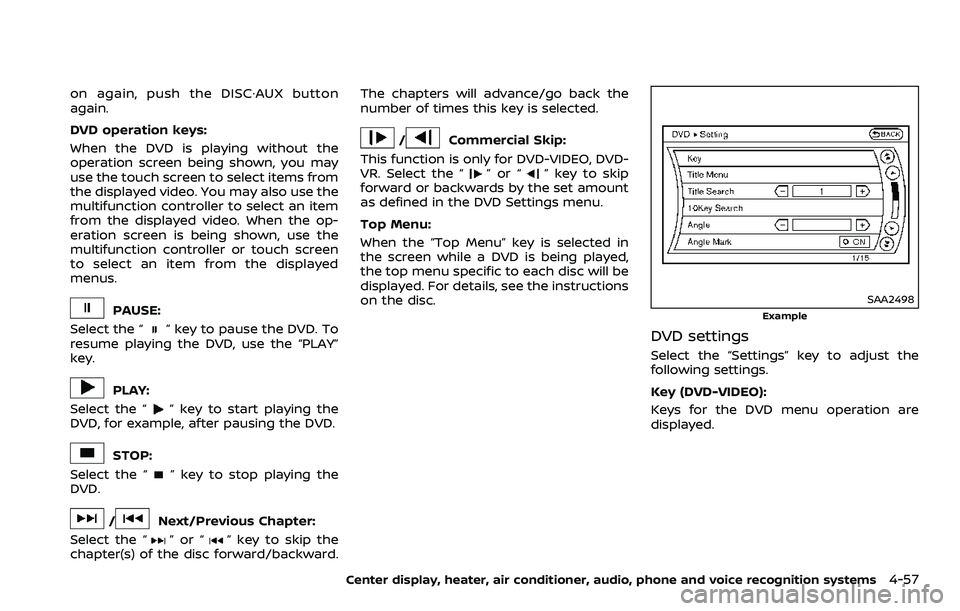
SAA2498
Example
DVD settings
Select the “Settings” key to adjust the
following settings.
Key (DVD-VIDEO):
Keys for the DVD menu operation are
displayed.
Center display, heater, air conditioner, audio, phone and voice recognition systems4-57
Page 227 of 453
USB (Universal Serial Bus) CON-
NECTION PORT (models with navi-
gation system)
Audio main operation
WARNING
Do not connect, disconnect or oper-
ate the USB device while driving.
Doing so can be a distraction. If
distracted you could lose control of
your vehicle and cause an accident
or serious injury.
CAUTION
.Do not force the USB device into
the USB connection port. Insert-
ing the USB device tilted or up-
side-down into the port may da-
mage the port. Make sure that
the USB device is connected cor-
rectly into the USB connection
port.
. Do not grab the USB connection
port cover (if so equipped) when
pulling the USB device out of the
port. This could damage the port and the cover.
. Do not leave the USB cable in a
place where it can be pulled
unintentionally. Pulling the cable
may damage the port.
Refer to your device manufacturer’s own-
er information regarding the proper use
and care of the device.
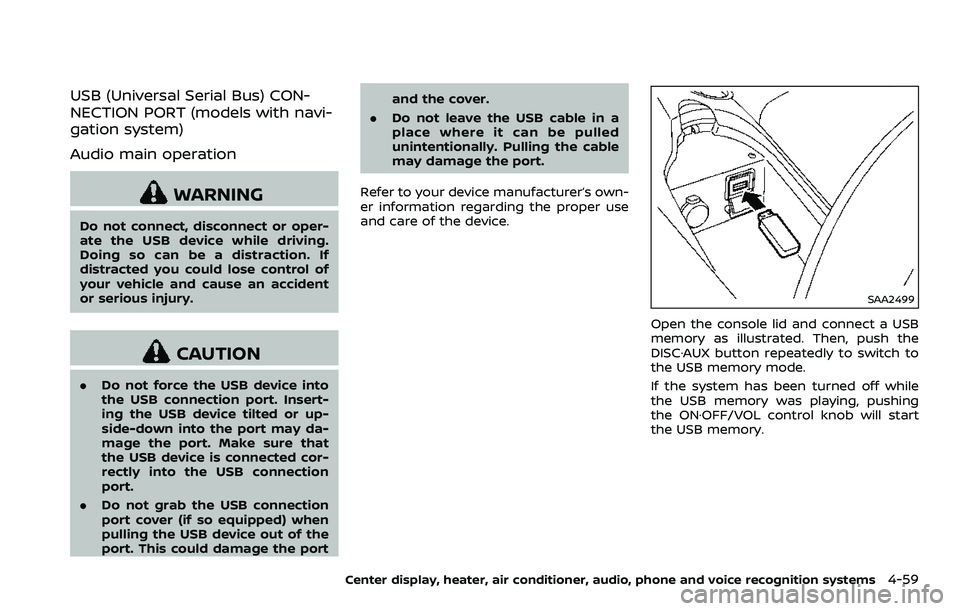
SAA2499
Open the console lid and connect a USB
memory as illustrated. Then, push the
DISC·AUX button repeatedly to switch to
the USB memory mode.
If the system has been turned off while
the USB memory was playing, pushing
the ON·OFF/VOL control knob will start
the USB memory.
Center display, heater, air conditioner, audio, phone and voice recognition systems4-59
Page 228 of 453
4-60Center display, heater, air conditioner, audio, phone and voice recognition systems
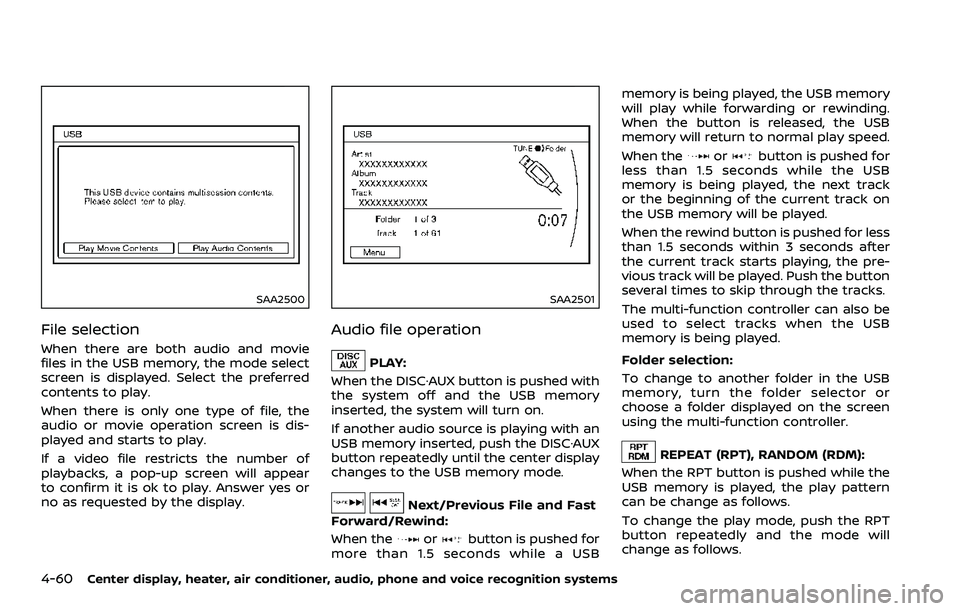
SAA2500
File selection
When there are both audio and movie
files in the USB memory, the mode select
screen is displayed. Select the preferred
contents to play.
When there is only one type of file, the
audio or movie operation screen is dis-
played and starts to play.
If a video file restricts the number of
playbacks, a pop-up screen will appear
to confirm it is ok to play. Answer yes or
no as requested by the display.
SAA2501
Audio file operation
PLAY:
When the DISC·AUX button is pushed with
the system off and the USB memory
inserted, the system will turn on.
If another audio source is playing with an
USB memory inserted, push the DISC·AUX
button repeatedly until the center display
changes to the USB memory mode.
Next/Previous File and Fast
Forward/Rewind:
When the
orbutton is pushed for
more than 1.5 seconds while a USB memory is being played, the USB memory
will play while forwarding or rewinding.
When the button is released, the USB
memory will return to normal play speed.
When the
orbutton is pushed for
less than 1.5 seconds while the USB
memory is being played, the next track
or the beginning of the current track on
the USB memory will be played.
When the rewind button is pushed for less
than 1.5 seconds within 3 seconds after
the current track starts playing, the pre-
vious track will be played. Push the button
several times to skip through the tracks.
The multi-function controller can also be
used to select tracks when the USB
memory is being played.
Folder selection:
To change to another folder in the USB
memory, turn the folder selector or
choose a folder displayed on the screen
using the multi-function controller.
REPEAT (RPT), RANDOM (RDM):
When the RPT button is pushed while the
USB memory is played, the play pattern
can be change as follows.
To change the play mode, push the RPT
button repeatedly and the mode will
change as follows.
Page 230 of 453
4-62Center display, heater, air conditioner, audio, phone and voice recognition systems
SAA2503
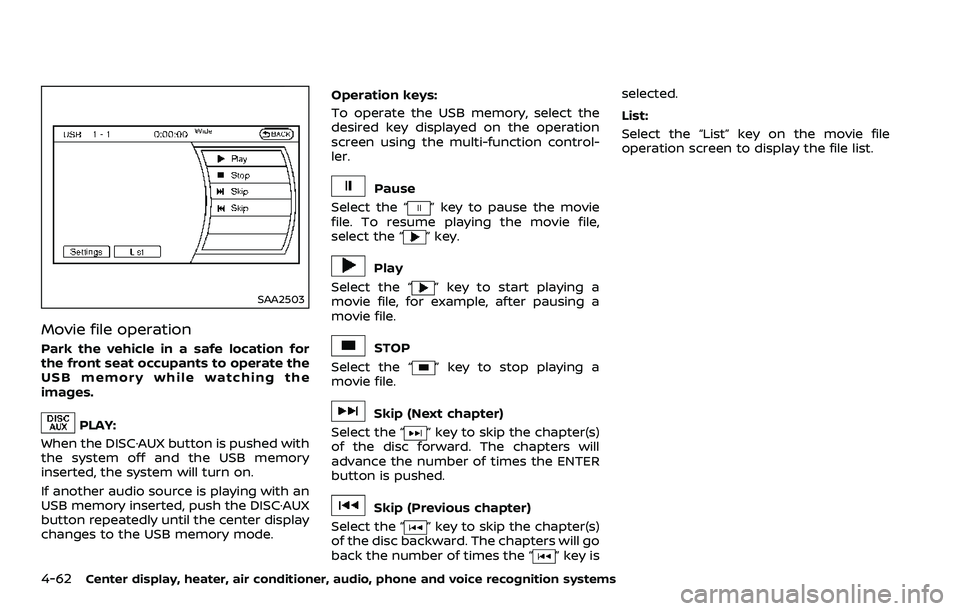
Movie file operation
Park the vehicle in a safe location for
the front seat occupants to operate the
USB memory while watching the
images.
PLAY:
When the DISC·AUX button is pushed with
the system off and the USB memory
inserted, the system will turn on.
If another audio source is playing with an
USB memory inserted, push the DISC·AUX
button repeatedly until the center display
changes to the USB memory mode. Operation keys:
To operate the USB memory, select the
desired key displayed on the operation
screen using the multi-function control-
ler.
Pause
Select the “
” key to pause the movie
file. To resume playing the movie file,
select the “
” key.
Play
Select the “
” key to start playing a
movie file, for example, after pausing a
movie file.
STOP
Select the “
” key to stop playing a
movie file.
Skip (Next chapter)
Select the “
” key to skip the chapter(s)
of the disc forward. The chapters will
advance the number of times the ENTER
button is pushed.
Skip (Previous chapter)
Select the “
” key to skip the chapter(s)
of the disc backward. The chapters will go
back the number of times the “
” key is selected.
List:
Select the “List” key on the movie file
operation screen to display the file list.
Page 234 of 453
4-66Center display, heater, air conditioner, audio, phone and voice recognition systems
SAA3006
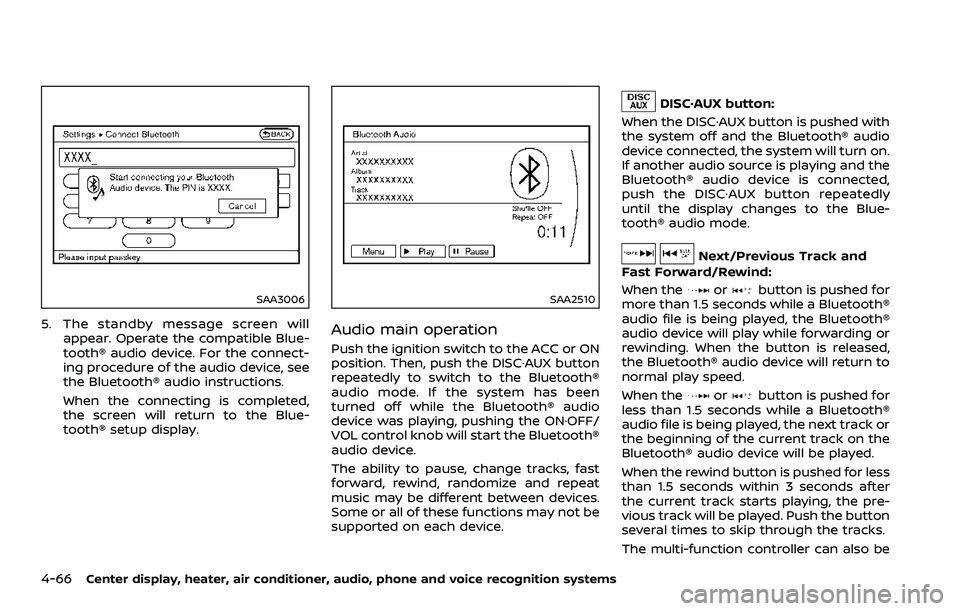
5. The standby message screen willappear. Operate the compatible Blue-
tooth® audio device. For the connect-
ing procedure of the audio device, see
the Bluetooth® audio instructions.
When the connecting is completed,
the screen will return to the Blue-
tooth® setup display.
SAA2510
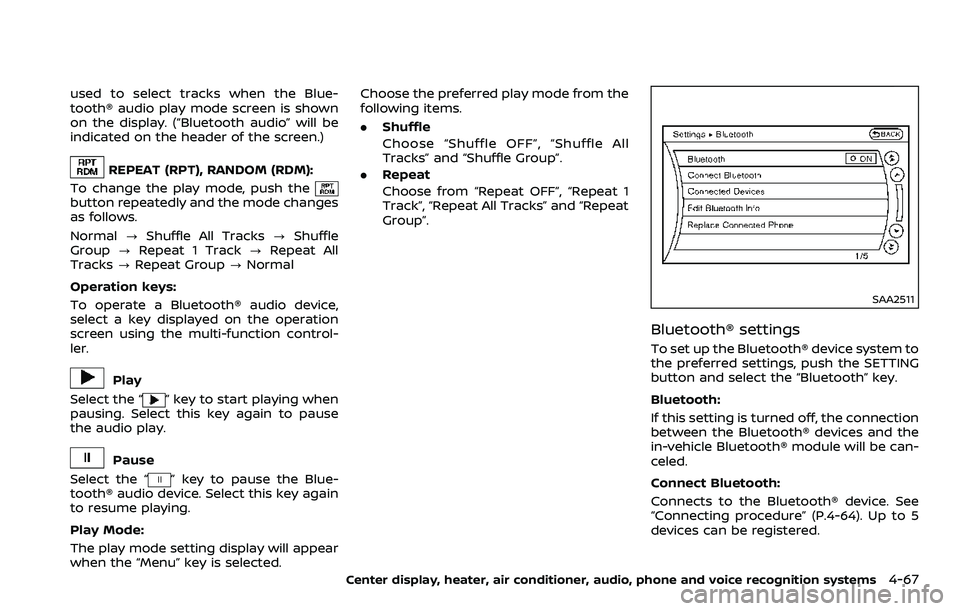
Audio main operation
Push the ignition switch to the ACC or ON
position. Then, push the DISC·AUX button
repeatedly to switch to the Bluetooth®
audio mode. If the system has been
turned off while the Bluetooth® audio
device was playing, pushing the ON·OFF/
VOL control knob will start the Bluetooth®
audio device.
The ability to pause, change tracks, fast
forward, rewind, randomize and repeat
music may be different between devices.
Some or all of these functions may not be
supported on each device.
DISC·AUX button:
When the DISC·AUX button is pushed with
the system off and the Bluetooth® audio
device connected, the system will turn on.
If another audio source is playing and the
Bluetooth® audio device is connected,
push the DISC·AUX button repeatedly
until the display changes to the Blue-
tooth® audio mode.
Next/Previous Track and
Fast Forward/Rewind:
When the
orbutton is pushed for
more than 1.5 seconds while a Bluetooth®
audio file is being played, the Bluetooth®
audio device will play while forwarding or
rewinding. When the button is released,
the Bluetooth® audio device will return to
normal play speed.
When the
orbutton is pushed for
less than 1.5 seconds while a Bluetooth®
audio file is being played, the next track or
the beginning of the current track on the
Bluetooth® audio device will be played.
When the rewind button is pushed for less
than 1.5 seconds within 3 seconds after
the current track starts playing, the pre-
vious track will be played. Push the button
several times to skip through the tracks.
The multi-function controller can also be
Page 235 of 453
used to select tracks when the Blue-
tooth® audio play mode screen is shown
on the display. (“Bluetooth audio” will be
indicated on the header of the screen.)
REPEAT (RPT), RANDOM (RDM):
To change the play mode, push the
button repeatedly and the mode changes
as follows.
Normal ?Shuffle All Tracks ?Shuffle
Group ?Repeat 1 Track ?Repeat All
Tracks ?Repeat Group ?Normal
Operation keys:
To operate a Bluetooth® audio device,
select a key displayed on the operation
screen using the multi-function control-
ler.
Play
Select the “
” key to start playing when
pausing. Select this key again to pause
the audio play.
Pause
Select the “
” key to pause the Blue-
tooth® audio device. Select this key again
to resume playing.
Play Mode:
The play mode setting display will appear
when the “Menu” key is selected. Choose the preferred play mode from the
following items.
.
Shuffle
Choose “Shuffle OFF”, “Shuffle All
Tracks” and “Shuffle Group”.
. Repeat
Choose from “Repeat OFF”, “Repeat 1
Track”, “Repeat All Tracks” and “Repeat
Group”.
SAA2511
Bluetooth® settings
To set up the Bluetooth® device system to
the preferred settings, push the SETTING
button and select the “Bluetooth” key.
Bluetooth:
If this setting is turned off, the connection
between the Bluetooth® devices and the
in-vehicle Bluetooth® module will be can-
celed.
Connect Bluetooth:
Connects to the Bluetooth® device. See
“Connecting procedure” (P.4-64). Up to 5
devices can be registered.
Center display, heater, air conditioner, audio, phone and voice recognition systems4-67
Page 237 of 453
SAA2512
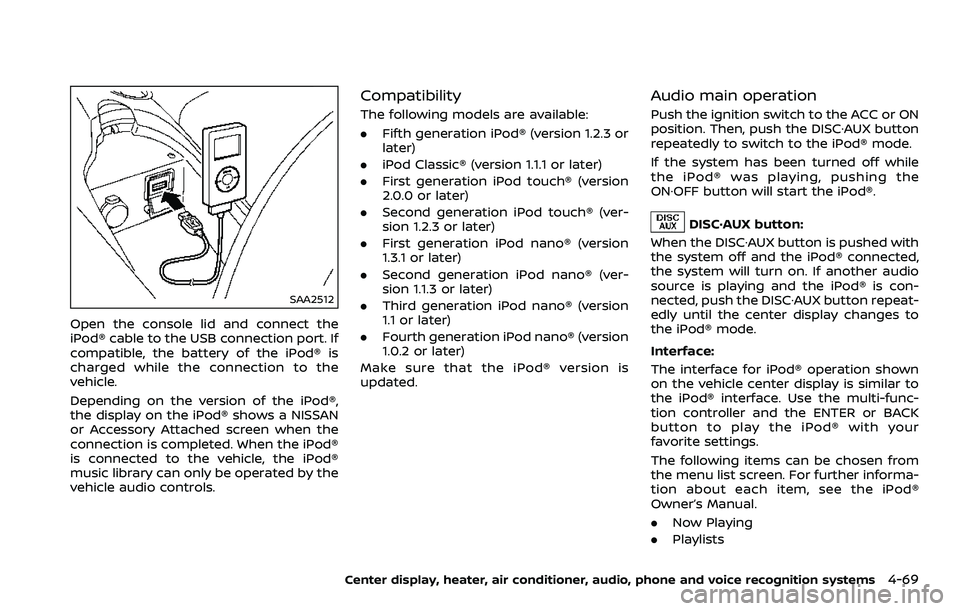
Open the console lid and connect the
iPod® cable to the USB connection port. If
compatible, the battery of the iPod® is
charged while the connection to the
vehicle.
Depending on the version of the iPod®,
the display on the iPod® shows a NISSAN
or Accessory Attached screen when the
connection is completed. When the iPod®
is connected to the vehicle, the iPod®
music library can only be operated by the
vehicle audio controls.
Compatibility
The following models are available:
.Fifth generation iPod® (version 1.2.3 or
later)
. iPod Classic® (version 1.1.1 or later)
. First generation iPod touch® (version
2.0.0 or later)
. Second generation iPod touch® (ver-
sion 1.2.3 or later)
. First generation iPod nano® (version
1.3.1 or later)
. Second generation iPod nano® (ver-
sion 1.1.3 or later)
. Third generation iPod nano® (version
1.1 or later)
. Fourth generation iPod nano® (version
1.0.2 or later)
Make sure that the iPod® version is
updated.
Audio main operation
Push the ignition switch to the ACC or ON
position. Then, push the DISC·AUX button
repeatedly to switch to the iPod® mode.
If the system has been turned off while
the iPod® was playing, pushing the
ON·OFF button will start the iPod®.
DISC·AUX button:
When the DISC·AUX button is pushed with
the system off and the iPod® connected,
the system will turn on. If another audio
source is playing and the iPod® is con-
nected, push the DISC·AUX button repeat-
edly until the center display changes to
the iPod® mode.
Interface:
The interface for iPod® operation shown
on the vehicle center display is similar to
the iPod® interface. Use the multi-func-
tion controller and the ENTER or BACK
button to play the iPod® with your
favorite settings.
The following items can be chosen from
the menu list screen. For further informa-
tion about each item, see the iPod®
Owner’s Manual.
. Now Playing
. Playlists
Center display, heater, air conditioner, audio, phone and voice recognition systems4-69
Page 238 of 453
4-70Center display, heater, air conditioner, audio, phone and voice recognition systems
.Artists
. Albums
. Songs
. Podcasts
. Genres
. Composers
. Audiobooks
. Shuffle Songs
. Play mode
The following touch-panel buttons
shown on the screen are also available:
.
: returns to the previous screen.
.
: plays/pauses the music selected.
Next/Previous Track and
Fast Forward/Rewind:
When the
orbutton is pushed for
more than 1.5 seconds while the iPod® is
playing, the iPod® will play while fast
forwarding or rewinding. When the but-
ton is released, the iPod® will return to the
normal play speed.
When the
orbutton is pushed for
less than 1.5 seconds while the iPod® is
playing, the next track or the beginning of
the current track on the iPod® will be
played.
When the rewind button is pushed for less
than 1.5 seconds within 3 seconds after
the current track starts playing, the pre- vious track will be played.
The multi-function controller can also be
used to select tracks when the iPod® is
playing.
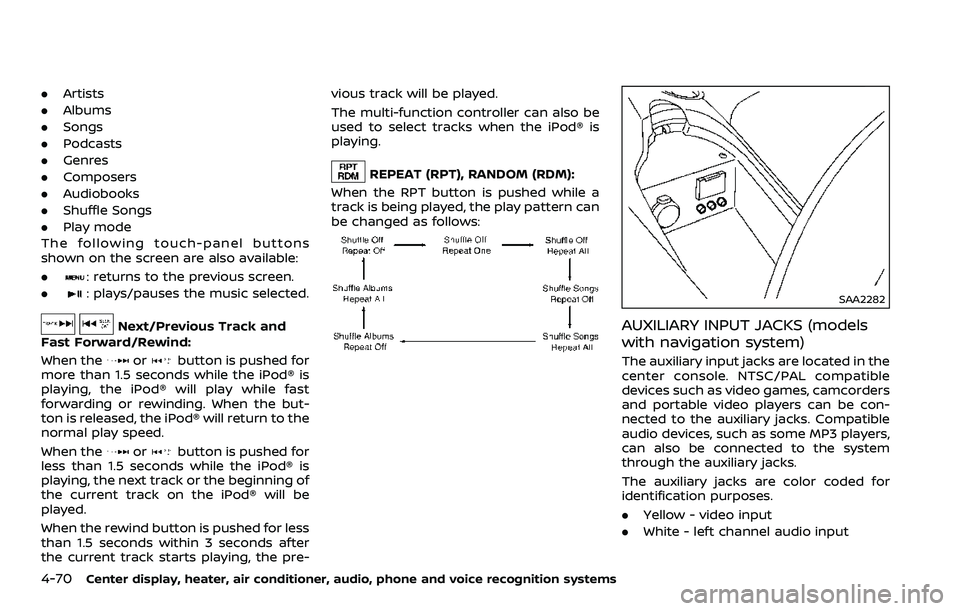
REPEAT (RPT), RANDOM (RDM):
When the RPT button is pushed while a
track is being played, the play pattern can
be changed as follows:
SAA2282
AUXILIARY INPUT JACKS (models
with navigation system)
The auxiliary input jacks are located in the
center console. NTSC/PAL compatible
devices such as video games, camcorders
and portable video players can be con-
nected to the auxiliary jacks. Compatible
audio devices, such as some MP3 players,
can also be connected to the system
through the auxiliary jacks.
The auxiliary jacks are color coded for
identification purposes.
. Yellow - video input
. White - left channel audio input
Page 244 of 453
4-76Center display, heater, air conditioner, audio, phone and voice recognition systems
WARNING
.Use a phone after stopping your
vehicle in a safe location. If you
have to use a phone while driving,
exercise extreme caution at all
times so full attention may be
given to vehicle operation.
. If you find yourself unable to
devote full attention to vehicle
operation while talking on the
phone, pull off the road to a safe
location and stop your vehicle
before doing so.
CAUTION
To avoid draining the vehicle battery,
use a phone after starting the en-
gine.
Your vehicle is equipped with Bluetooth®
Hands-Free Phone System. If you are an
owner of a compatible Bluetooth® en-
abled cellular phone, you can set up the
wireless connection between your cellu-
lar phone and the in-vehicle phone mod-
ule. With Bluetooth® wireless technology,
you can make or receive a telephone call with your cellular phone in your pocket.
Once a cellular phone is connected to the
in-vehicle phone module, no phone con-
necting procedure is required anymore.
Your phone is automatically connected
with the in-vehicle phone module when
the ignition switch is pushed to the ON
position with the registered cellular
phone turned on and carried in the
vehicle.
You can register up to 5 different Blue-
tooth® cellular phones in the in-vehicle
phone module. However, you can talk on
only one cellular phone at a time.
The NISSAN Voice Recognition system
supports the phone commands, so dial-
ing a phone number using your voice is
possible. For more details, see “NISSAN
Voice Recognition System (models with
navigation system)” (P.4-99).
Before using the Bluetooth® Hands-Free
Phone System, refer to the following
notes.
.
Wireless LAN (Wi-Fi) and the Blue-
tooth® functions share the same fre-
quency band (2.4 GHz). Using the
Bluetooth® and the wireless LAN func-
tions at the same time may slow down
or disconnect the communication and
cause undesired noise. It is recom-
mended that you turn off the wireless LAN (Wi-Fi) when using the Bluetooth®
functions.
. Set up the wireless connection be-
tween a compatible cellular phone
and the in-vehicle phone module be-
fore using the Bluetooth® Hands-Free
Phone System.
. Some Bluetooth® enabled cellular
phones may not be recognized by
the in-vehicle phone module. Please
visit
www.nissanusa.com/bluetooth for a
recommended phone list.
. You will not be able to use a hands-
free phone under the following condi-
tions:
— Your vehicle is outside of the tele-
phone service area.
— Your vehicle is in an area where it is difficult to receive radio waves;
such as in a tunnel, in an under-
ground parking garage, behind a
tall building or in a mountainous
area.
— Your cellular phone is locked in order not to be dialed.
. When the radio wave condition is not
ideal or ambient sound is too loud, it
may be difficult to hear the other
person’s voice during a call.
Bluetooth® HANDS-FREE PHONE SYSTEM
(models with navigation system)