start NISSAN 370Z COUPE 2018 Service Manual
[x] Cancel search | Manufacturer: NISSAN, Model Year: 2018, Model line: 370Z COUPE, Model: NISSAN 370Z COUPE 2018Pages: 453, PDF Size: 2.23 MB
Page 253 of 453
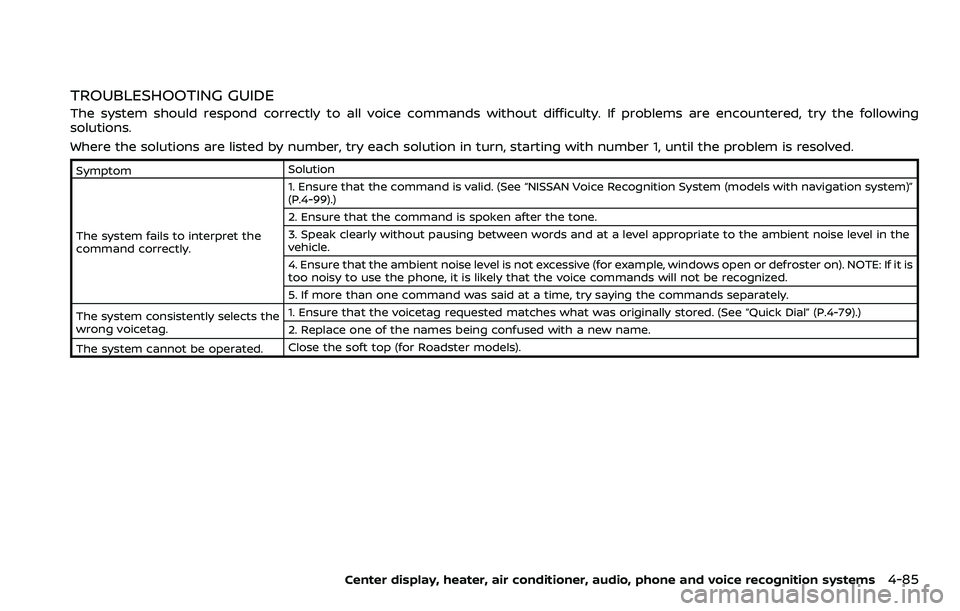
TROUBLESHOOTING GUIDE
The system should respond correctly to all voice commands without difficulty. If problems are encountered, try the following
solutions.
Where the solutions are listed by number, try each solution in turn, starting with number 1, until the problem is resolved.
SymptomSolution
The system fails to interpret the
command correctly. 1. Ensure that the command is valid. (See “NISSAN Voice Recognition System (models with navigation system)”
(P.4-99).)
2. Ensure that the command is spoken after the tone.
3. Speak clearly without pausing between words and at a level appropriate to the ambient noise level in the
vehicle.
4. Ensure that the ambient noise level is not excessive (for example, windows open or defroster on). NOTE: If it is
too noisy to use the phone, it is likely that the voice commands will not be recognized.
5. If more than one command was said at a time, try saying the commands separately.
The system consistently selects the
wrong voicetag. 1. Ensure that the voicetag requested matches what was originally stored. (See “Quick Dial” (P.4-79).)
2. Replace one of the names being confused with a new name.
The system cannot be operated. Close the soft top (for Roadster models).
Center display, heater, air conditioner, audio, phone and voice recognition systems4-85
Page 254 of 453
4-86Center display, heater, air conditioner, audio, phone and voice recognition systems
WARNING
.Use a phone after stopping your
vehicle in a safe location. If you
have to use a phone while driving,
exercise extreme caution at all
times so full attention may be
given to vehicle operation.
. If you find yourself unable to
devote full attention to vehicle
operation while talking on the
phone, pull off the road to a safe
location and stop your vehicle
before doing so.
CAUTION
To avoid draining the vehicle battery,
use a phone after starting the en-
gine.
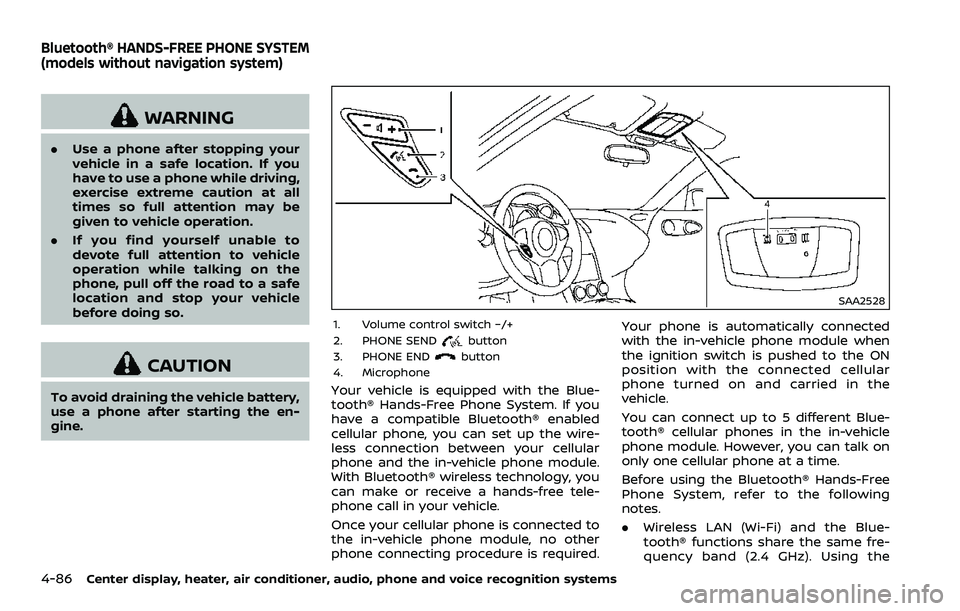
SAA2528
1. Volume control switch −/+
2. PHONE SENDbutton
3. PHONE ENDbutton
4. Microphone
Your vehicle is equipped with the Blue-
tooth® Hands-Free Phone System. If you
have a compatible Bluetooth® enabled
cellular phone, you can set up the wire-
less connection between your cellular
phone and the in-vehicle phone module.
With Bluetooth® wireless technology, you
can make or receive a hands-free tele-
phone call in your vehicle.
Once your cellular phone is connected to
the in-vehicle phone module, no other
phone connecting procedure is required. Your phone is automatically connected
with the in-vehicle phone module when
the ignition switch is pushed to the ON
position with the connected cellular
phone turned on and carried in the
vehicle.
You can connect up to 5 different Blue-
tooth® cellular phones in the in-vehicle
phone module. However, you can talk on
only one cellular phone at a time.
Before using the Bluetooth® Hands-Free
Phone System, refer to the following
notes.
.
Wireless LAN (Wi-Fi) and the Blue-
tooth® functions share the same fre-
quency band (2.4 GHz). Using the
Bluetooth® HANDS-FREE PHONE SYSTEM
(models without navigation system)
Page 256 of 453
4-88Center display, heater, air conditioner, audio, phone and voice recognition systems
IC Regulatory information
.Operation is subject to the following
two conditions: (1) this device may not
cause interference, and (2) this device
must accept any interference, includ-
ing interference that may cause un-
desired operation of the device.
. This Class B digital apparatus meets
all requirements of the Canadian In-
terference-Causing Equipment Regu-
lations.
Bluetooth® trademark
Bluetooth® is a trademark
owned by Bluetooth SIG,
Inc., and licensed to Visteon
Corporation.
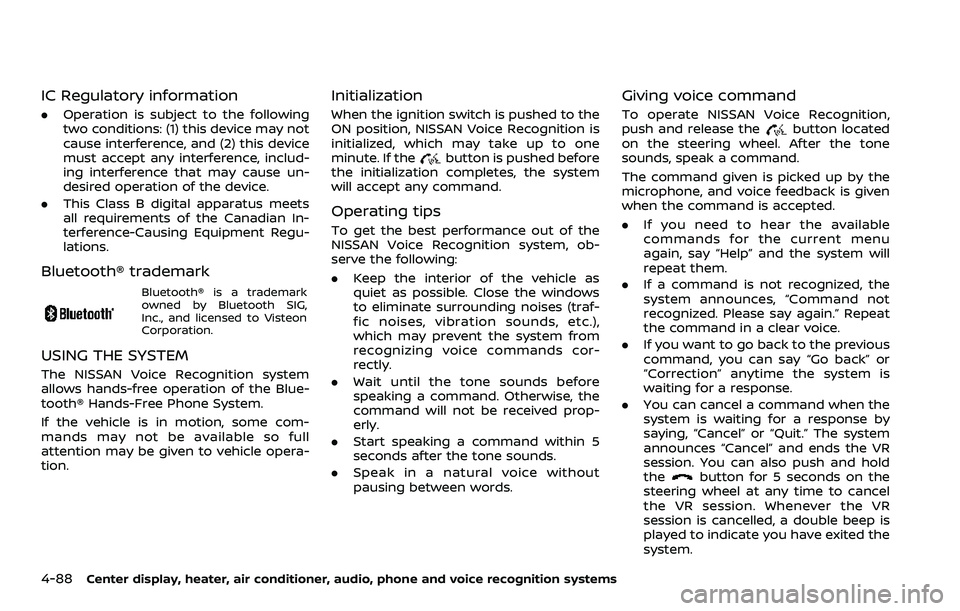
USING THE SYSTEM
The NISSAN Voice Recognition system
allows hands-free operation of the Blue-
tooth® Hands-Free Phone System.
If the vehicle is in motion, some com-
mands may not be available so full
attention may be given to vehicle opera-
tion.
Initialization
When the ignition switch is pushed to the
ON position, NISSAN Voice Recognition is
initialized, which may take up to one
minute. If the
button is pushed before
the initialization completes, the system
will accept any command.
Operating tips
To get the best performance out of the
NISSAN Voice Recognition system, ob-
serve the following:
. Keep the interior of the vehicle as
quiet as possible. Close the windows
to eliminate surrounding noises (traf-
fic noises, vibration sounds, etc.),
which may prevent the system from
recognizing voice commands cor-
rectly.
. Wait until the tone sounds before
speaking a command. Otherwise, the
command will not be received prop-
erly.
. Start speaking a command within 5
seconds after the tone sounds.
. Speak in a natural voice without
pausing between words.
Giving voice command
To operate NISSAN Voice Recognition,
push and release thebutton located
on the steering wheel. After the tone
sounds, speak a command.
The command given is picked up by the
microphone, and voice feedback is given
when the command is accepted.
. If you need to hear the available
commands for the current menu
again, say “Help” and the system will
repeat them.
. If a command is not recognized, the
system announces, “Command not
recognized. Please say again.” Repeat
the command in a clear voice.
. If you want to go back to the previous
command, you can say “Go back” or
“Correction” anytime the system is
waiting for a response.
. You can cancel a command when the
system is waiting for a response by
saying, “Cancel” or “Quit.” The system
announces “Cancel” and ends the VR
session. You can also push and hold
the
button for 5 seconds on the
steering wheel at any time to cancel
the VR session. Whenever the VR
session is cancelled, a double beep is
played to indicate you have exited the
system.
Page 258 of 453
4-90Center display, heater, air conditioner, audio, phone and voice recognition systems
.When you speak numbers, you can
speak both “zero” or “oh” for “0”.
Manual command selection
Commands can be selected manually.
While the commands are displayed on
the audio screen, select a command by
operating the audio tuning switch, and
then push the
button. Once a com-
mand is manually selected, the voice
command function is cancelled. To return
to voice command mode, push the
button to cancel the current operation,
and then perform the first procedure of
voice command.
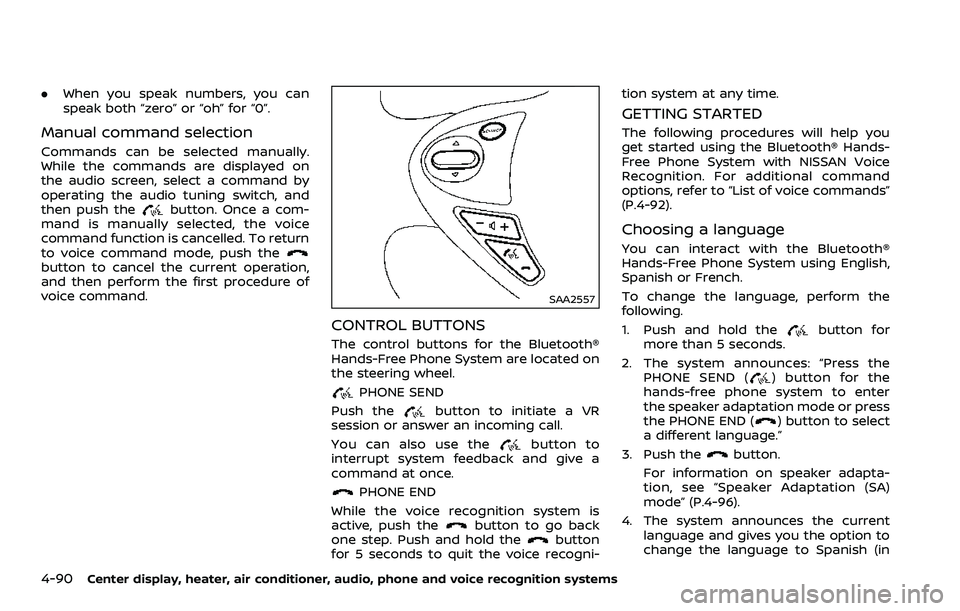
SAA2557
CONTROL BUTTONS
The control buttons for the Bluetooth®
Hands-Free Phone System are located on
the steering wheel.
PHONE SEND
Push the
button to initiate a VR
session or answer an incoming call.
You can also use the
button to
interrupt system feedback and give a
command at once.
PHONE END
While the voice recognition system is
active, push the
button to go back
one step. Push and hold thebutton
for 5 seconds to quit the voice recogni- tion system at any time.
GETTING STARTED
The following procedures will help you
get started using the Bluetooth® Hands-
Free Phone System with NISSAN Voice
Recognition. For additional command
options, refer to “List of voice commands”
(P.4-92).
Choosing a language
You can interact with the Bluetooth®
Hands-Free Phone System using English,
Spanish or French.
To change the language, perform the
following.
1. Push and hold the
button for
more than 5 seconds.
2. The system announces: “Press the PHONE SEND (
) button for the
hands-free phone system to enter
the speaker adaptation mode or press
the PHONE END (
) button to select
a different language.”
3. Push the
button.
For information on speaker adapta-
tion, see “Speaker Adaptation (SA)
mode” (P.4-96).
4. The system announces the current language and gives you the option to
change the language to Spanish (in
Page 259 of 453
Spanish) or French (in French). Use the
following chart to select the language.
NOTE:
You must push the
button or thebutton within 5 seconds to
change the language.
Current lan-
guage Push(TALK/PHONE
SEND) to select Push(MODE/
PHONE END) to select
English Spanish French
Spanish English French
French English Spanish
5. If you decide not to change the
language, do not push either button.
After 5 seconds, the VR session will
end, and the language will not be
changed.
Connecting procedure
NOTE:
The connecting procedure must be
performed when the vehicle is station-
ary. If the vehicle starts moving during
the procedure, the procedure will be
cancelled.
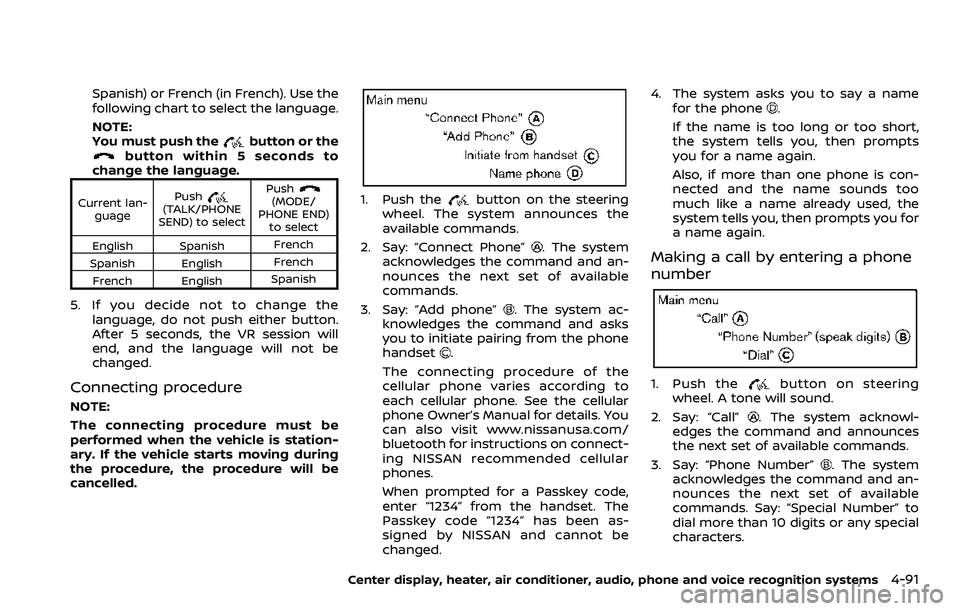
1. Push thebutton on the steering
wheel. The system announces the
available commands.
2. Say: “Connect Phone”
. The system
acknowledges the command and an-
nounces the next set of available
commands.
3. Say: “Add phone”
. The system ac-
knowledges the command and asks
you to initiate pairing from the phone
handset
.
The connecting procedure of the
cellular phone varies according to
each cellular phone. See the cellular
phone Owner’s Manual for details. You
can also visit www.nissanusa.com/
bluetooth for instructions on connect-
ing NISSAN recommended cellular
phones.
When prompted for a Passkey code,
enter “1234” from the handset. The
Passkey code “1234” has been as-
signed by NISSAN and cannot be
changed. 4. The system asks you to say a name
for the phone
.
If the name is too long or too short,
the system tells you, then prompts
you for a name again.
Also, if more than one phone is con-
nected and the name sounds too
much like a name already used, the
system tells you, then prompts you for
a name again.
Making a call by entering a phone
number
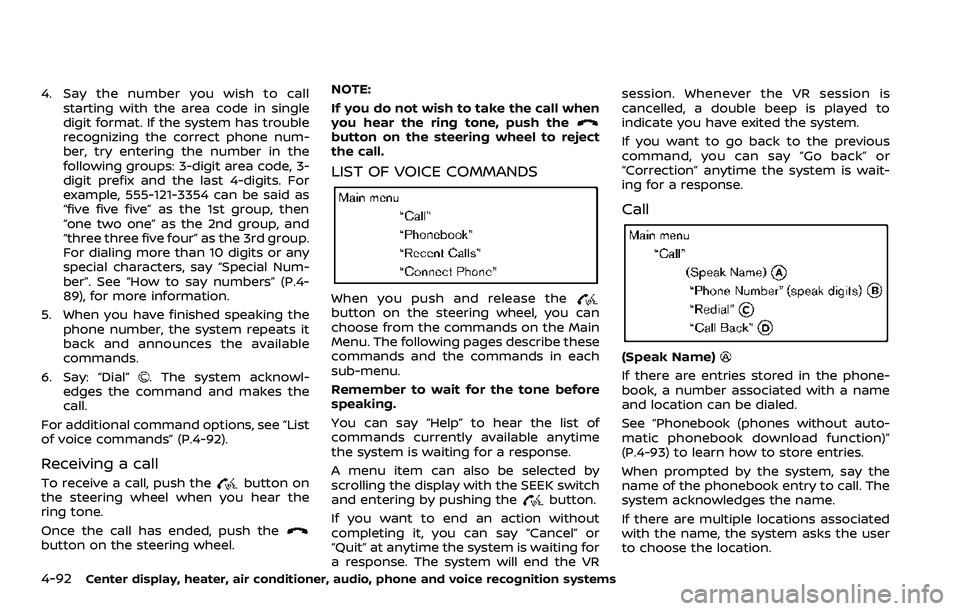
1. Push thebutton on steering
wheel. A tone will sound.
2. Say: “Call”
. The system acknowl-
edges the command and announces
the next set of available commands.
3. Say: “Phone Number”
. The system
acknowledges the command and an-
nounces the next set of available
commands. Say: “Special Number” to
dial more than 10 digits or any special
characters.
Center display, heater, air conditioner, audio, phone and voice recognition systems4-91
Page 260 of 453
4-92Center display, heater, air conditioner, audio, phone and voice recognition systems
4. Say the number you wish to callstarting with the area code in single
digit format. If the system has trouble
recognizing the correct phone num-
ber, try entering the number in the
following groups: 3-digit area code, 3-
digit prefix and the last 4-digits. For
example, 555-121-3354 can be said as
“five five five” as the 1st group, then
“one two one” as the 2nd group, and
“three three five four” as the 3rd group.
For dialing more than 10 digits or any
special characters, say “Special Num-
ber”. See “How to say numbers” (P.4-
89), for more information.
5. When you have finished speaking the phone number, the system repeats it
back and announces the available
commands.
6. Say: “Dial”
. The system acknowl-
edges the command and makes the
call.
For additional command options, see “List
of voice commands” (P.4-92).
Receiving a call
To receive a call, push thebutton on
the steering wheel when you hear the
ring tone.
Once the call has ended, push the
button on the steering wheel. NOTE:
If you do not wish to take the call when
you hear the ring tone, push the
button on the steering wheel to reject
the call.
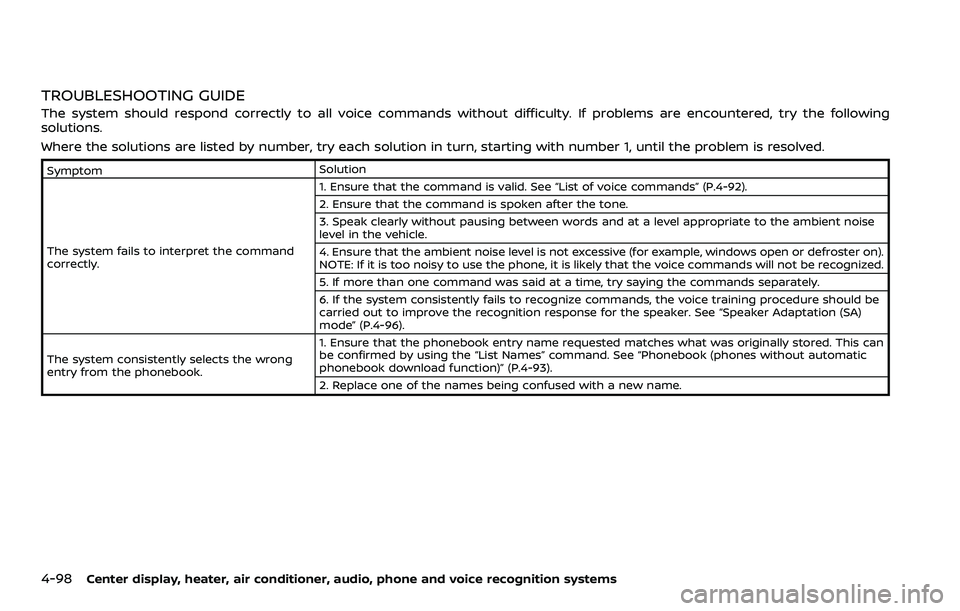
LIST OF VOICE COMMANDS
When you push and release thebutton on the steering wheel, you can
choose from the commands on the Main
Menu. The following pages describe these
commands and the commands in each
sub-menu.
Remember to wait for the tone before
speaking.
You can say “Help” to hear the list of
commands currently available anytime
the system is waiting for a response.
A menu item can also be selected by
scrolling the display with the SEEK switch
and entering by pushing the
button.
If you want to end an action without
completing it, you can say “Cancel” or
“Quit” at anytime the system is waiting for
a response. The system will end the VR session. Whenever the VR session is
cancelled, a double beep is played to
indicate you have exited the system.
If you want to go back to the previous
command, you can say “Go back” or
“Correction” anytime the system is wait-
ing for a response.
Call
(Speak Name)
If there are entries stored in the phone-
book, a number associated with a name
and location can be dialed.
See “Phonebook (phones without auto-
matic phonebook download function)”
(P.4-93) to learn how to store entries.
When prompted by the system, say the
name of the phonebook entry to call. The
system acknowledges the name.
If there are multiple locations associated
with the name, the system asks the user
to choose the location.
Page 266 of 453
4-98Center display, heater, air conditioner, audio, phone and voice recognition systems
TROUBLESHOOTING GUIDE
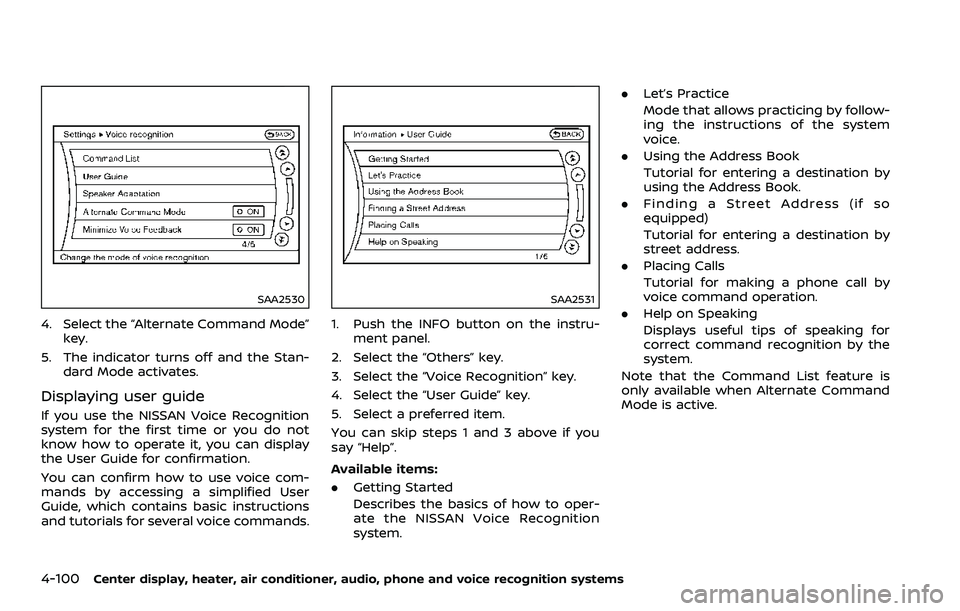
The system should respond correctly to all voice commands without difficulty. If problems are encountered, try the following
solutions.
Where the solutions are listed by number, try each solution in turn, starting with number 1, until the problem is resolved.
SymptomSolution
The system fails to interpret the command
correctly. 1. Ensure that the command is valid. See “List of voice commands” (P.4-92).
2. Ensure that the command is spoken after the tone.
3. Speak clearly without pausing between words and at a level appropriate to the ambient noise
level in the vehicle.
4. Ensure that the ambient noise level is not excessive (for example, windows open or defroster on).
NOTE: If it is too noisy to use the phone, it is likely that the voice commands will not be recognized.
5. If more than one command was said at a time, try saying the commands separately.
6. If the system consistently fails to recognize commands, the voice training procedure should be
carried out to improve the recognition response for the speaker. See “Speaker Adaptation (SA)
mode” (P.4-96).
The system consistently selects the wrong
entry from the phonebook. 1. Ensure that the phonebook entry name requested matches what was originally stored. This can
be confirmed by using the “List Names” command. See “Phonebook (phones without automatic
phonebook download function)” (P.4-93).
2. Replace one of the names being confused with a new name.
Page 268 of 453
4-100Center display, heater, air conditioner, audio, phone and voice recognition systems
SAA2530
4. Select the “Alternate Command Mode”key.
5. The indicator turns off and the Stan- dard Mode activates.
Displaying user guide
If you use the NISSAN Voice Recognition
system for the first time or you do not
know how to operate it, you can display
the User Guide for confirmation.
You can confirm how to use voice com-
mands by accessing a simplified User
Guide, which contains basic instructions
and tutorials for several voice commands.
SAA2531
1. Push the INFO button on the instru-
ment panel.
2. Select the “Others” key.
3. Select the “Voice Recognition” key.
4. Select the “User Guide” key.
5. Select a preferred item.
You can skip steps 1 and 3 above if you
say “Help”.
Available items:
. Getting Started
Describes the basics of how to oper-
ate the NISSAN Voice Recognition
system. .
Let’s Practice
Mode that allows practicing by follow-
ing the instructions of the system
voice.
. Using the Address Book
Tutorial for entering a destination by
using the Address Book.
. Finding a Street Address (if so
equipped)
Tutorial for entering a destination by
street address.
. Placing Calls
Tutorial for making a phone call by
voice command operation.
. Help on Speaking
Displays useful tips of speaking for
correct command recognition by the
system.
Note that the Command List feature is
only available when Alternate Command
Mode is active.
Page 269 of 453
SAA2532
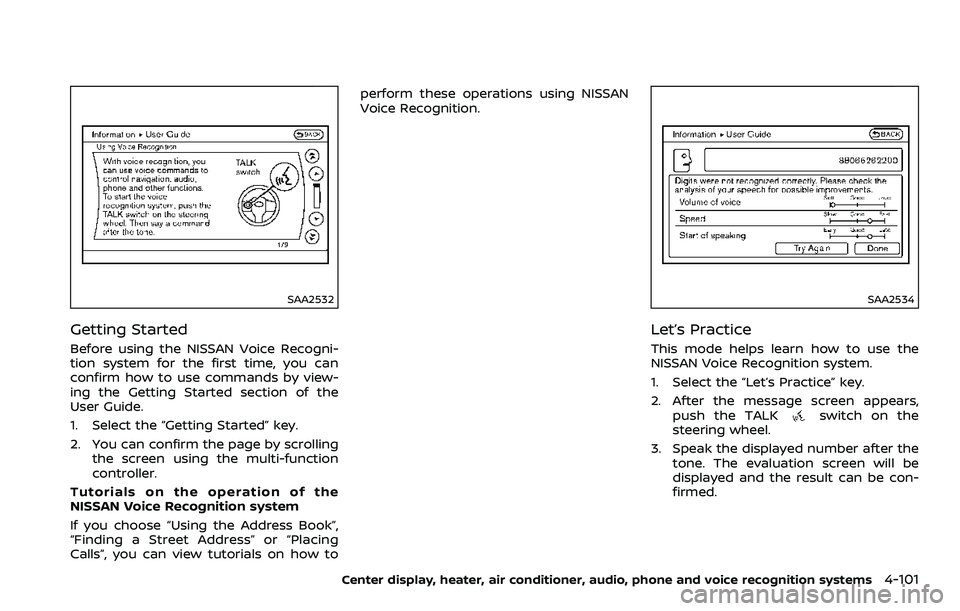
Getting Started
Before using the NISSAN Voice Recogni-
tion system for the first time, you can
confirm how to use commands by view-
ing the Getting Started section of the
User Guide.
1. Select the “Getting Started” key.
2. You can confirm the page by scrollingthe screen using the multi-function
controller.
Tutorials on the operation of the
NISSAN Voice Recognition system
If you choose “Using the Address Book”,
“Finding a Street Address” or “Placing
Calls”, you can view tutorials on how to perform these operations using NISSAN
Voice Recognition.
SAA2534
Let’s Practice
This mode helps learn how to use the
NISSAN Voice Recognition system.
1. Select the “Let’s Practice” key.
2. After the message screen appears,
push the TALK
switch on the
steering wheel.
3. Speak the displayed number after the tone. The evaluation screen will be
displayed and the result can be con-
firmed.
Center display, heater, air conditioner, audio, phone and voice recognition systems4-101
Page 270 of 453
4-102Center display, heater, air conditioner, audio, phone and voice recognition systems
SAA2533
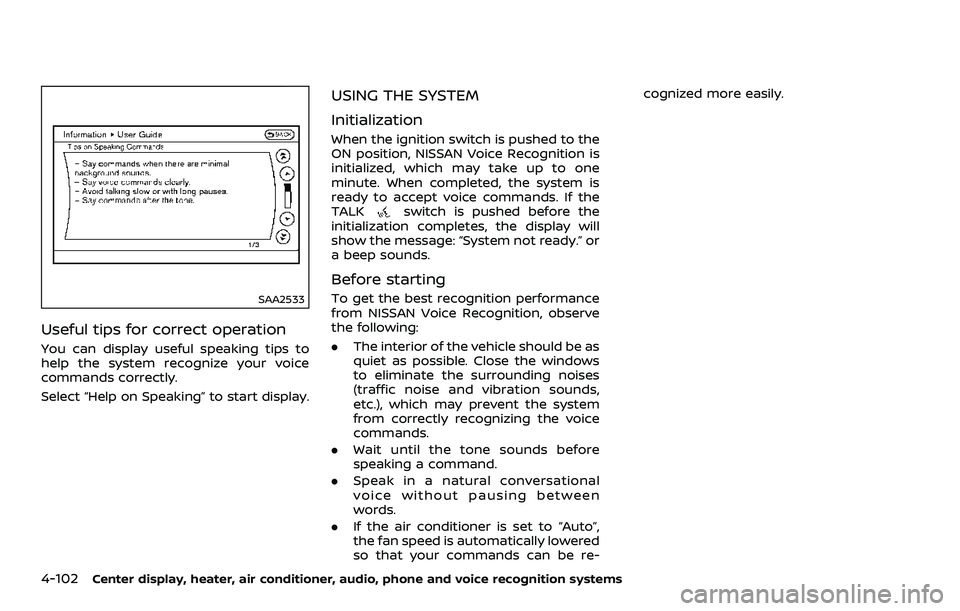
Useful tips for correct operation
You can display useful speaking tips to
help the system recognize your voice
commands correctly.
Select “Help on Speaking” to start display.
USING THE SYSTEM
Initialization
When the ignition switch is pushed to the
ON position, NISSAN Voice Recognition is
initialized, which may take up to one
minute. When completed, the system is
ready to accept voice commands. If the
TALK
switch is pushed before the
initialization completes, the display will
show the message: “System not ready.” or
a beep sounds.
Before starting
To get the best recognition performance
from NISSAN Voice Recognition, observe
the following:
. The interior of the vehicle should be as
quiet as possible. Close the windows
to eliminate the surrounding noises
(traffic noise and vibration sounds,
etc.), which may prevent the system
from correctly recognizing the voice
commands.
. Wait until the tone sounds before
speaking a command.
. Speak in a natural conversational
voice without pausing between
words.
. If the air conditioner is set to “Auto”,
the fan speed is automatically lowered
so that your commands can be re- cognized more easily.