display NISSAN ALTIMA 2023 Owners Manual
[x] Cancel search | Manufacturer: NISSAN, Model Year: 2023, Model line: ALTIMA, Model: NISSAN ALTIMA 2023Pages: 644, PDF Size: 4.12 MB
Page 287 of 644
DURING A CALL
While a call is active the following options
will appear on the control panel display:
• MuteTouch this key to mute or unmute the
system.
• Dial Number Touch this key to dial digits during the
phone call.
• Switch to Handset Touch the “Use Handset” key on the
screen to transfer the call to the handset
(cellular phone). To transfer the call back
from the handset to the Bluetooth®
Hands-Free Phone System, press the
button on the control panel then
select the “Transfer Hands-free” key on
the screen.
NOTE:
Some jurisdictions prohibit the use of
cellular telephones while driving.
• Switch Call
This option will only be available when a
second call is active. If supported by the phone, the
Bluetooth® Hands-Free Phone System
allows for call waiting functionality. If a
call is received while another call is al-
ready active, a message will be displayed
on the screen. Press the
button on
the steering wheel or touch the “
Answer” key on screen to accept the in-
coming call. Touch the “Decline” key
on the screen to reject the second call.
While a call is active, press the
button
on the steering wheel to access additional
options. Speak one of the following
commands:
• “Send Digits” Speak this command followed by the dig-
its to enter digits during the phone call.
• “Switch call” Speak this command to hold the second
call and switch back to the original call.
TEXT MESSAGING (if so equipped)
WARNING
• Laws in some jurisdictions may re-
strict the use of “Text-to-Speech”.
Check local regulations before using
this feature. •
Laws in some jurisdictions may re-
strict the use of some of the applica-
tions and features, such as social
networking and texting. Check local
regulations for any requirements.
• Use the text messaging feature af ter
stopping your vehicle in a safe loca-
tion. If you have to use the feature
while driving, exercise extreme
caution at all times so full attention
may be given to vehicle operation.
• If you are unable to devote full atten-
tion to vehicle operation while using
the text messaging feature, pull off
the road to a safe location and stop
your vehicle.
NOTE:
This feature is automatically disabled if
the connected device does not support
the Message Access Profile (MAP). For
additional information, refer to the
phone’s owner’s manual for details and
instructions.
Monitor, climate, audio, phone and voice recognition systems4-77
Page 289 of 644
The display will show a list of 20 messages
with the sender and delivery time. Touch
the “Next” key on the screen to view all mes-
sages. To view a text message press the
button on the steering wheel and
speak the number item list on the screen.
The following options will be available:
• Play Speak this command to have the system
say the message.
• Reply Speak this command to send a text mes-
sage response to the sender of the text
message.
• Call Speak this command to call the sender.
• Previous Speak this command to move to the pre-
vious text message (if available).
•Next Speak this command to move to the next
text message (if available).
Siri® Eyes Free (if so equipped)
If a connected phone is equipped with Siri®,
it can also be used to create custom mes-
sages that are sent through the phone. For
additional information, see “Siri® Eyes Free”
(P. 4-64).
NOTE:
Text messages are only displayed if the
vehicle speed is less than 5 mph (8
km/h).
NOTE:
For Apple iPhones®, text messages can
only be sent through Siri.
Text messaging using the control
panel
Display received message list
1. Press the
button on the control
panel.
2. Touch the “Text Message” key on the screen
3. Touch an item on the list to read or reply to the message.
Up to 100 messages can be stored in the
message list.
Received message screen
Touching the “Read” key on the incoming
message notification screen or selecting a
message from the message list will show
the details of the received message on the
display. Available actions:
•Prev.
Touch this key to read the previous
message.
•Next Touch this key to read the next message.
• Play/Stop Touch the “Play ” key to have the hands-
free phone system read out the received
message. Touch the “Stop” key to stop
reading.
• Call If the sender of the message is registered
in the phonebook, touch the “Call” key to
make a call to the sender.
• Reply A reply message can be selected from
the predefined list.
Sending a text message (if so equipped)
This function may not be supported de-
pending on the cellular phone.
1. Press the
button on the control
panel.
2. Touch the “Text Message” key on the screen.
3. Touch the “Create Message” key on the screen.
Monitor, climate, audio, phone and voice recognition systems4-79
Page 290 of 644
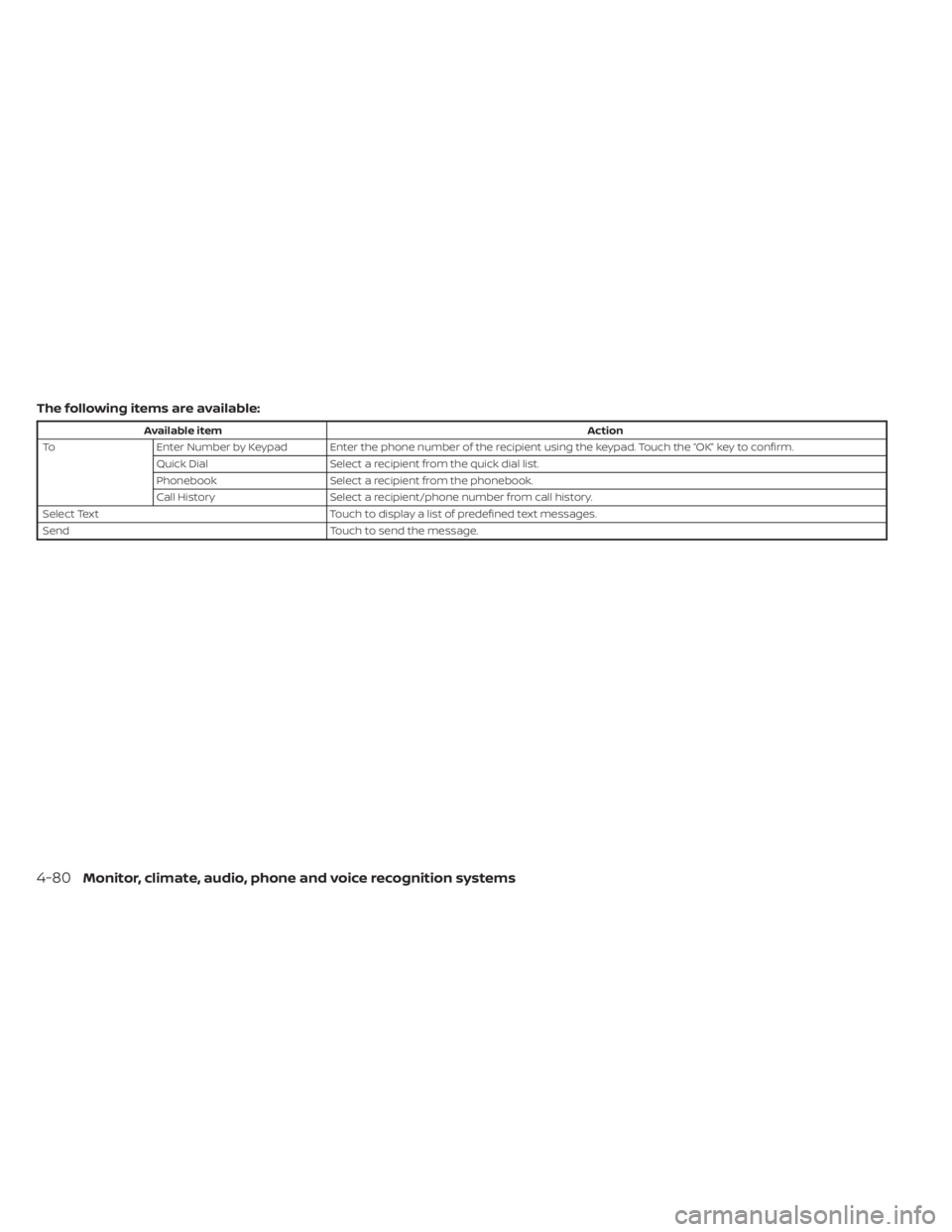
The following items are available:
Available itemAction
To Enter Number by Keypad Enter the phone number of the recipient using the keypad. Touch the “OK” key to confirm.
Quick Dial Select a recipient from the quick dial list.
Phonebook Select a recipient from the phonebook.
Call History Select a recipient/phone number from call history.
Select Text Touch to display a list of predefined text messages.
Send Touch to send the message.
4-80Monitor, climate, audio, phone and voice recognition systems
Page 291 of 644
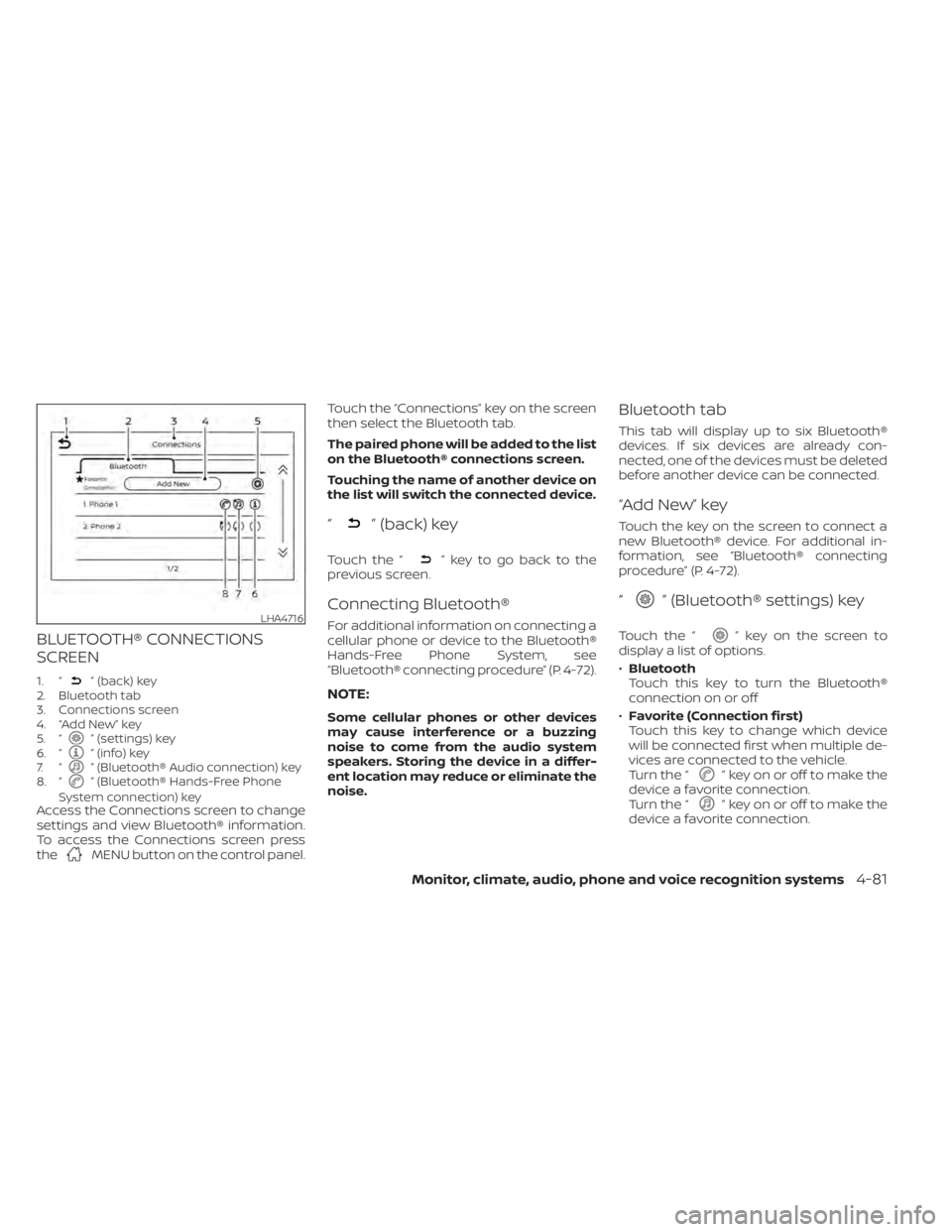
BLUETOOTH® CONNECTIONS
SCREEN
1. “” (back) key
2. Bluetooth tab
3. Connections screen
4. “Add New” key
5. “
” (settings) key
6. “” (info) key
7. “” (Bluetooth® Audio connection) key
8. “” (Bluetooth® Hands-Free Phone
System connection) key
Access the Connections screen to change
settings and view Bluetooth® information.
To access the Connections screen press
the
MENU button on the control panel. Touch the “Connections” key on the screen
then select the Bluetooth tab.
The paired phone will be added to the list
on the Bluetooth® connections screen.
Touching the name of another device on
the list will switch the connected device.
“” (back) key
Touch the “” key to go back to the
previous screen.
Connecting Bluetooth®
For additional information on connecting a
cellular phone or device to the Bluetooth®
Hands-Free Phone System, see
“Bluetooth® connecting procedure” (P. 4-72).
NOTE:
Some cellular phones or other devices
may cause interference or a buzzing
noise to come from the audio system
speakers. Storing the device in a differ-
ent location may reduce or eliminate the
noise.
Bluetooth tab
This tab will display up to six Bluetooth®
devices. If six devices are already con-
nected, one of the devices must be deleted
before another device can be connected.
“Add New” key
Touch the key on the screen to connect a
new Bluetooth® device. For additional in-
formation, see “Bluetooth® connecting
procedure” (P. 4-72).
“” (Bluetooth® settings) key
Touch the “” key on the screen to
display a list of options.
• Bluetooth
Touch this key to turn the Bluetooth®
connection on or off
• Favorite (Connection first)
Touch this key to change which device
will be connected first when multiple de-
vices are connected to the vehicle.
Turn the “
” key on or off to make the
device a favorite connection.
Turn the “
” key on or off to make the
device a favorite connection.
LHA4716
Monitor, climate, audio, phone and voice recognition systems4-81
Page 292 of 644
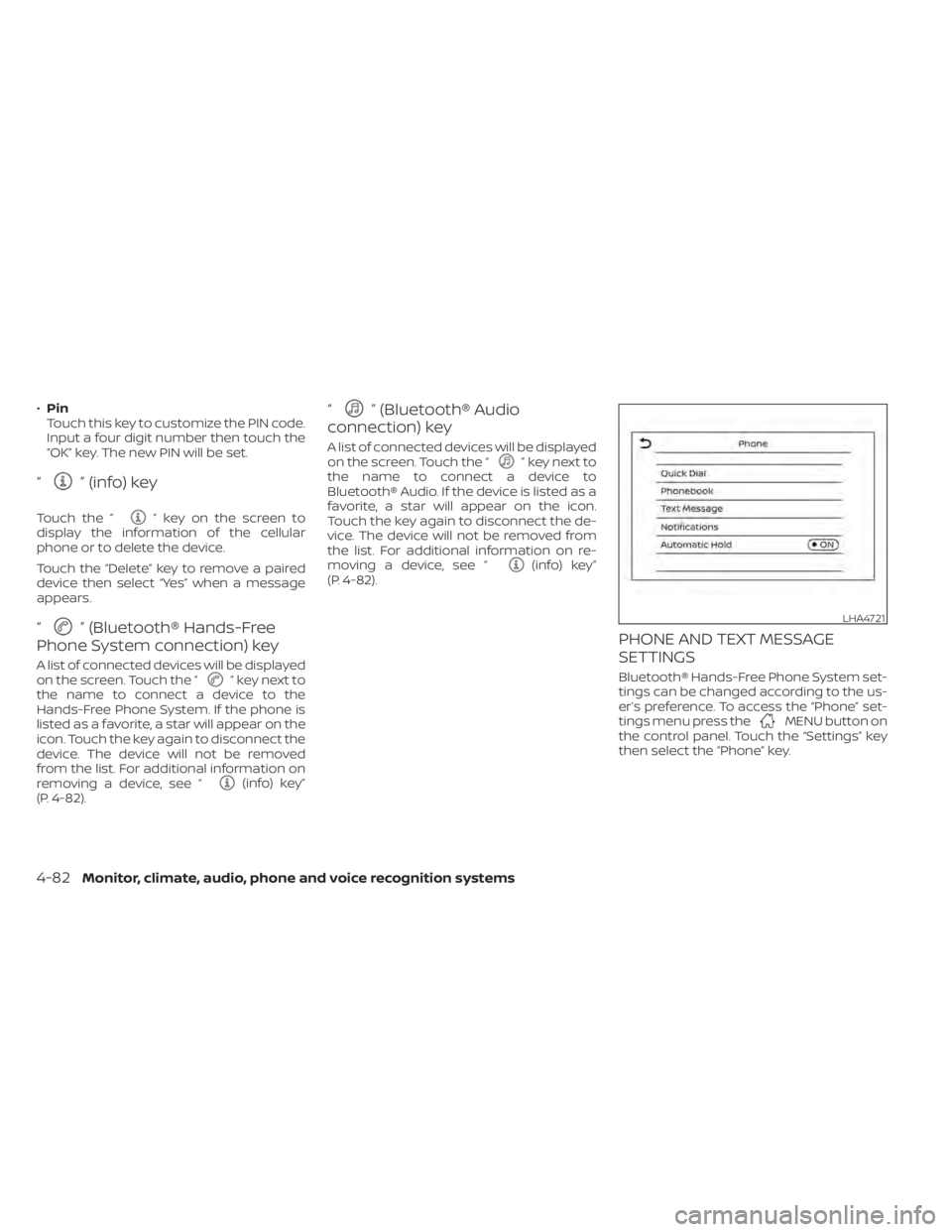
•Pin
Touch this key to customize the PIN code.
Input a four digit number then touch the
“OK” key. The new PIN will be set.
“” (info) key
Touch the “” key on the screen to
display the information of the cellular
phone or to delete the device.
Touch the “Delete” key to remove a paired
device then select “Yes” when a message
appears.
“” (Bluetooth® Hands-Free
Phone System connection) key
A list of connected devices will be displayed
on the screen. Touch the “” key next to
the name to connect a device to the
Hands-Free Phone System. If the phone is
listed as a favorite, a star will appear on the
icon. Touch the key again to disconnect the
device. The device will not be removed
from the list. For additional information on
removing a device, see “
(info) key”
(P. 4-82).
“” (Bluetooth® Audio
connection) key
A list of connected devices will be displayed
on the screen. Touch the “” key next to
the name to connect a device to
Bluetooth® Audio. If the device is listed as a
favorite, a star will appear on the icon.
Touch the key again to disconnect the de-
vice. The device will not be removed from
the list. For additional information on re-
moving a device, see “
(info) key”
(P. 4-82).
PHONE AND TEXT MESSAGE
SETTINGS
Bluetooth® Hands-Free Phone System set-
tings can be changed according to the us-
er’s preference. To access the “Phone” set-
tings menu press the
MENU button on
the control panel. Touch the “Settings” key
then select the “Phone” key.
LHA4721
4-82Monitor, climate, audio, phone and voice recognition systems
Page 293 of 644
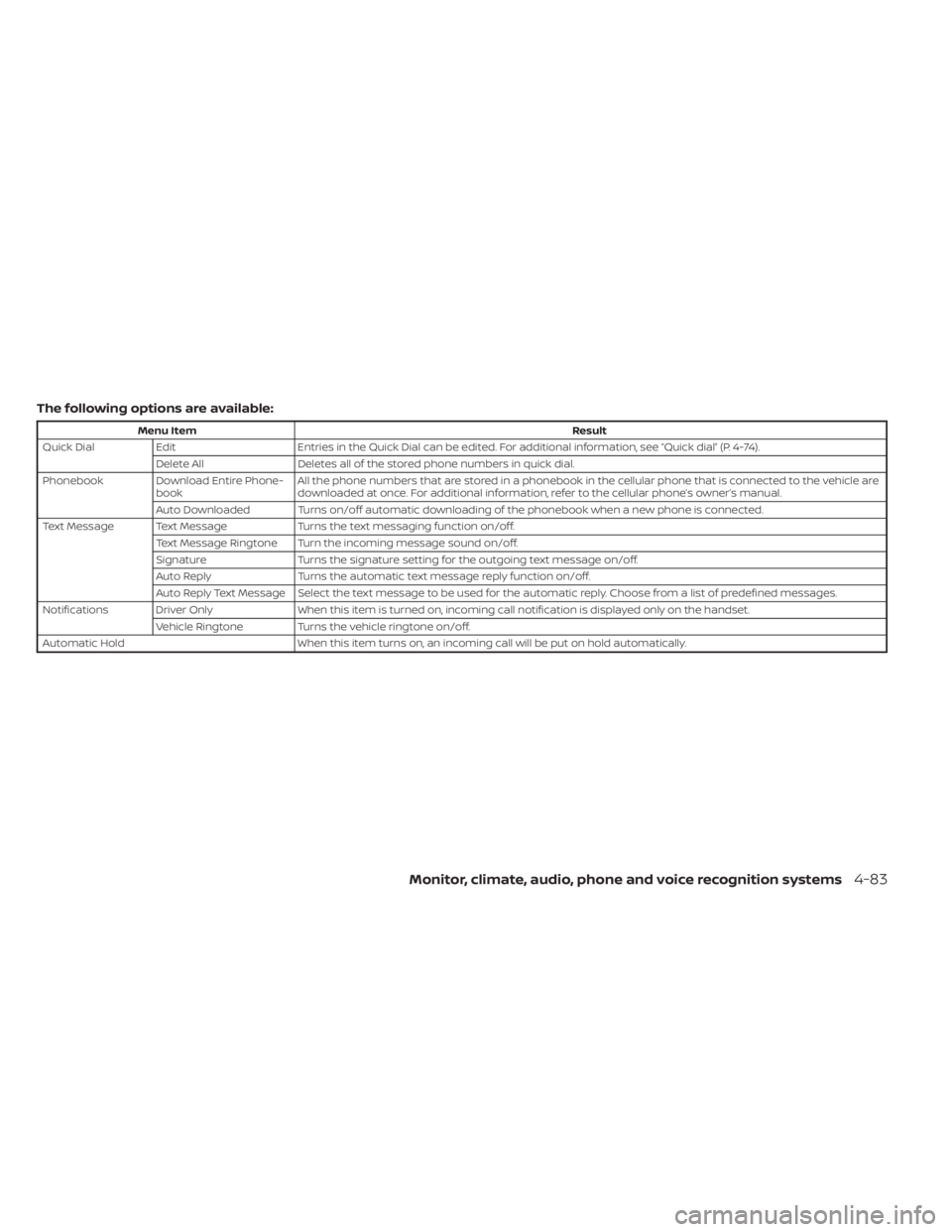
The following options are available:
Menu ItemResult
Quick Dial Edit Entries in the Quick Dial can be edited. For additional information, see “Quick dial” (P. 4-74).
Delete All Deletes all of the stored phone numbers in quick dial.
Phonebook Download Entire Phone- book All the phone numbers that are stored in a phonebook in the cellular phone that is connected to the vehicle are
downloaded at once. For additional information, refer to the cellular phone’s owner’s manual.
Auto Downloaded Turns on/off automatic downloading of the phonebook when a new phone is connected.
Text Message Text Message Turns the text messaging function on/off.
Text Message Ringtone Turn the incoming message sound on/off.
Signature Turns the signature setting for the outgoing text message on/off.
Auto Reply Turns the automatic text message reply function on/off.
Auto Reply Text Message Select the text message to be used for the automatic reply. Choose from a list of predefined messages.
Notifications Driver Only When this item is turned on, incoming call notification is displayed only on the handset.
Vehicle Ringtone Turns the vehicle ringtone on/off.
Automatic Hold When this item turns on, an incoming call will be put on hold automatically.
Monitor, climate, audio, phone and voice recognition systems4-83
Page 302 of 644
Additional information:
• When using a wheel without the TPMSsuch as the spare tire, the TPMS does not
monitor the tire pressure of the spare tire.
• The TPMS will activate only when the ve- hicle is driven at speeds above 16 mph (25
km/h). Also, this system may not detect a
sudden drop in tire pressure (for example,
a flat tire while driving).
• The low tire pressure warning light does not automatically turn off when the tire
pressure is adjusted on all four tires. Af ter
all four tires are inflated to the recom-
mended pressure, the vehicle must be
driven at speeds above 16 mph (25 km/h)
to activate the TPMS and turn off the low
tire pressure warning light. Use a tire
pressure gauge to check the tire
pressure.
• The “Tire Pressure Low - Add Air” warning appears in the vehicle information dis-
play when the low tire pressure warning
light is illuminated and low tire pressure is
detected. The “Tire Pressure Low - Add
Air” warning turns off when the low tire
pressure warning light turns off. • The “Tire Pressure Low - Add Air” warning
appears each time the ignition switch is
placed in the ON position as long as the
low tire pressure warning light remains
illuminated.
• The “Tire Pressure Low - Add Air” warning does not appear if the low tire pressure
warning light illuminates to indicate a
TPMS malfunction.
• Tire pressure rises and falls depending on the heat caused by the vehicle’s opera-
tion and the outside temperature. Do not
reduce the tire pressure af ter driving be-
cause the tire pressure rises af ter driving.
Low outside temperature can lower the
temperature of the air inside the tire
which can cause a lower tire inflation
pressure. This may cause the low tire
pressure warning light to illuminate. If the
warning light illuminates, check the tire
pressure for all four tires.
• The Tire and Loading Information label is located in the driver's door opening.
• You can also check the tire pressure of all tires (except the spare) on the vehicle in-
formation display screen. The order of
the tire pressure figures displayed on the
screen corresponds with the actual order
of the tire position. For additional information, see “Low tire
pressure warning light” (P. 2-13), “Tire Pres-
sure Monitoring System (TPMS)” (P. 6-3) and
“Tire pressure” (P. 8-29).
WARNING
• Radio waves could adversely affect
electric medical equipment. Those
who use a pacemaker should contact
the electric medical equipment
manufacturer for the possible influ-
ences before use.
5-6Starting and driving
Page 307 of 644
Please observe the following precautions:
WARNING
• Spinning the front wheels on slippery
surfaces may cause the AWD
warning message to display and the
AWD system to automatically switch
from the AWD to the 2WD mode. This
could reduce the traction. Be espe-
cially careful when towing a trailer
(AWD models).
• Drive carefully when off the road and
avoid dangerous areas. Every person
who drives or rides in this vehicle
should be seated with their seat belt
fastened. This will keep you and your
passengers in position when driving
over rough terrain.
• Do not drive across steep slopes. In-
stead drive either straight up or
straight down the slopes. Off-road
vehicles can tip over sideways much
more easily than they can forward or
backward.
• Many hills are too steep for any ve-
hicle. If you drive up them, you may
stall. If you drive down them, you may
not be able to control your speed. If
you drive across them, you may roll
over. •
Do not shif t gears while driving on
downhill grades as this could cause
loss of control of the vehicle.
• Stay alert when driving to the top of a
hill. At the top there could be a drop-
off or other hazard that could cause
an accident.
• If your engine stalls or you cannot
make it to the top of a steep hill,
never attempt to turn around. Your
vehicle could tip or roll over. Always
back straight down in R (Reverse)
gear and apply brakes to control your
speed.
• Heavy braking going down a hill
could cause your brakes to overheat
and fade, resulting in loss of control
and an accident. Apply brakes lightly
and use a low gear to control your
speed.
• Unsecured cargo can be thrown
around when driving over rough ter-
rain. Properly secure all cargo so it
will not be thrown forward and cause
injury to you or your passengers.
• Exceeding the roof rack capacity can
raise the center of gravity excessively
and affect the handling and stability
of the vehicle. •
Secure heavy loads in the cargo area
as far forward and as low as possible.
Do not equip the vehicle with tires
larger than specified in this manual.
This could cause your vehicle to roll
over.
• Do not grip the inside or spokes of
the steering wheel when driving off-
road. The steering wheel could move
suddenly and injure your hands. In-
stead drive with your fingers and
thumbs on the outside of the rim.
• Before operating the vehicle, ensure
that the driver and all passengers
have their seat belts fastened.
• Always drive with the floor mats in
place as the floor may become hot.
• Lower your speed when encounter-
ing strong crosswinds. With a higher
center of gravity, your NISSAN is more
affected by strong side winds. Slower
speeds ensure better vehicle control.
• Do not drive beyond the perfor-
mance capability of the tires, even
with AWD engaged.
Starting and driving5-11
Page 309 of 644
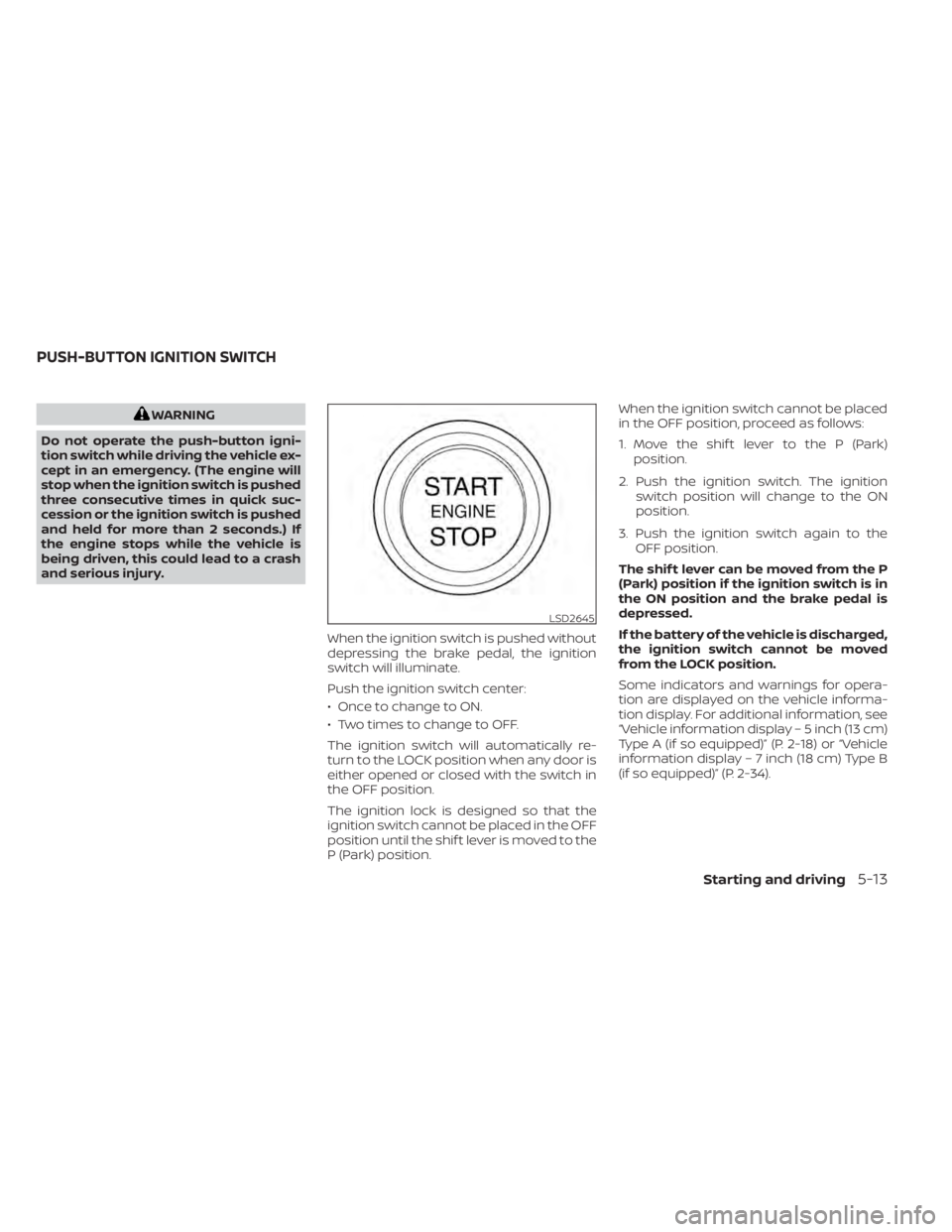
WARNING
Do not operate the push-button igni-
tion switch while driving the vehicle ex-
cept in an emergency. (The engine will
stop when the ignition switch is pushed
three consecutive times in quick suc-
cession or the ignition switch is pushed
and held for more than 2 seconds.) If
the engine stops while the vehicle is
being driven, this could lead to a crash
and serious injury.
When the ignition switch is pushed without
depressing the brake pedal, the ignition
switch will illuminate.
Push the ignition switch center:
• Once to change to ON.
• Two times to change to OFF.
The ignition switch will automatically re-
turn to the LOCK position when any door is
either opened or closed with the switch in
the OFF position.
The ignition lock is designed so that the
ignition switch cannot be placed in the OFF
position until the shif t lever is moved to the
P (Park) position. When the ignition switch cannot be placed
in the OFF position, proceed as follows:
1. Move the shif t lever to the P (Park)
position.
2. Push the ignition switch. The ignition switch position will change to the ON
position.
3. Push the ignition switch again to the OFF position.
The shif t lever can be moved from the P
(Park) position if the ignition switch is in
the ON position and the brake pedal is
depressed.
If the battery of the vehicle is discharged,
the ignition switch cannot be moved
from the LOCK position.
Some indicators and warnings for opera-
tion are displayed on the vehicle informa-
tion display. For additional information, see
“Vehicle information display – 5 inch (13 cm)
Type A (if so equipped)” (P. 2-18) or “Vehicle
information display – 7 inch (18 cm) Type B
(if so equipped)” (P. 2-34).
LSD2645
PUSH-BUTTON IGNITION SWITCH
Starting and driving5-13
Page 315 of 644
2. A screen is displayed for a period of timethat indicates the status of the driving
aid functions (if so equipped).
– AEB with Pedestrian Detection, LDW, and BSW are enabled when the speci-
fied driving aid is shaded.
– I-LI is enabled when the driving aid is solid.
– Use the
O1orO2button to
navigate the settings screen. For ad-
ditional information, see “How to use
the vehicle information display ”
(P. 2-19) or (P. 2-35)
3. Keep the foot brake pedal depressed and move the shif t lever to a driving
position.
4. Release the foot brake, then gradually start the vehicle in motion.
5. Stop the vehicle completely before mov- ing the shif t lever to the P (Park) position.
WARNING
• Do not depress the accelerator pedal
while shif ting from P (Park) or N (Neu-
tral) to R (Reverse), D (Drive), L (Low) or
manual shif t mode (if so equipped).
Always depress the brake pedal until
shif ting is completed. Failure to do so
could cause you to lose control and
have an accident.
• Cold engine idle speed is high, so use
caution when shif ting into a forward
or reverse gear before the engine has
warmed up.
• Do not downshif t abruptly on slip-
pery roads. This may cause a loss of
control.
• Never shif t to either the P (Park) or R
(Reverse) position while the vehicle is
moving forward and P (Park) or D
(Drive) position while the vehicle is
reversing. This could cause an acci-
dent or damage the transmission.CAUTION
• Except in an emergency, do not shif t
to the N (Neutral) position while driv-
ing. Coasting with the transmission
in the N (Neutral) position may cause
serious damage to the transmission.
• To avoid possible damage to your ve-
hicle, when stopping the vehicle on
an uphill grade, do not hold the ve-
hicle by depressing the accelerator
pedal. The foot brake should be used
for this purpose.
Starting and driving5-19