phone NISSAN GT-R 2011 User Guide
[x] Cancel search | Manufacturer: NISSAN, Model Year: 2011, Model line: GT-R, Model: NISSAN GT-R 2011Pages: 312, PDF Size: 13.07 MB
Page 51 of 312
Black plate (49,1)
Model "R35-N" EDITED: 2009/ 10/ 30
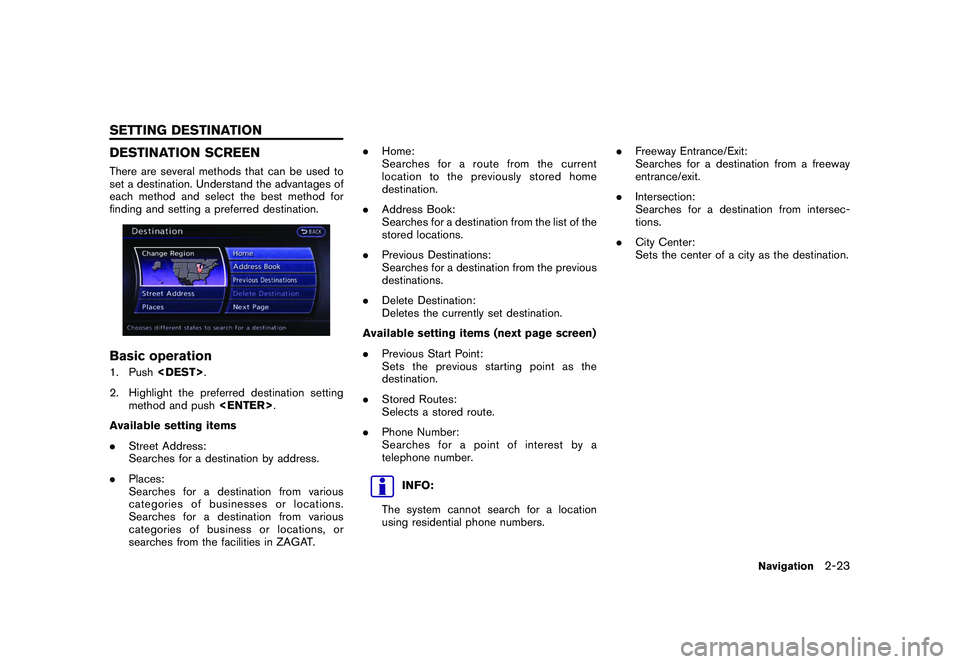
DESTINATION SCREENThere are several methods that can be used to
set a destination. Understand the advantages of
each method and select the best method for
finding and setting a preferred destination.Basic operation1. Push
2. Highlight the preferred destination setting method and push
Available setting items
. Street Address:
Searches for a destination by address.
. Places:
Searches for a destination from various
categories of businesses or locations.
Searches for a destination from various
categories of business or locations, or
searches from the facilities in ZAGAT. .
Home:
Searches for a route from the current
location to the previously stored home
destination.
. Address Book:
Searches for a destination from the list of the
stored locations.
. Previous Destinations:
Searches for a destination from the previous
destinations.
. Delete Destination:
Deletes the currently set destination.
Available setting items (next page screen)
. Previous Start Point:
Sets the previous starting point as the
destination.
. Stored Routes:
Selects a stored route.
. Phone Number:
Searches for a point of interest by a
telephone number.
INFO:
The system cannot search for a location
using residential phone numbers. .
Freeway Entrance/Exit:
Searches for a destination from a freeway
entrance/exit.
. Intersection:
Searches for a destination from intersec-
tions.
. City Center:
Sets the center of a city as the destination.
Navigation
2-23
SETTING DESTINATION
Page 64 of 312
Black plate (62,1)
Model "R35-N" EDITED: 2009/ 10/ 30
To set a previous start point as the destination:
“Previous Start Point” (Alternate Command
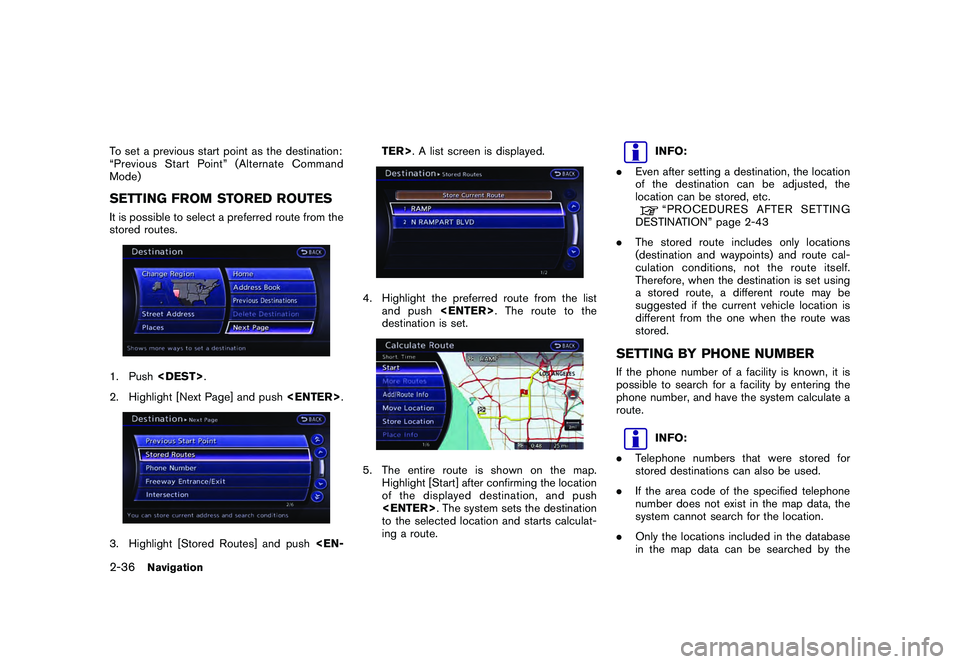
Mode)SETTING FROM STORED ROUTESIt is possible to select a preferred route from the
stored routes.1. Push
2. Highlight [Next Page] and push
4. Highlight the preferred route from the list
and push
destination is set.5. The entire route is shown on the map. Highlight [Start] after confirming the location
of the displayed dest ination, and push
to the selected location and starts calculat-
ing a route.
INFO:
. Even after setting a destination, the location
of the destination can be adjusted, the
location can be stored, etc.“PROCEDURES AFTER SETTING
DESTINATION” page 2-43
. The stored route includes only locations
(destination and waypoints) and route cal-
culation conditions, not the route itself.
Therefore, when the destination is set using
a stored route, a different route may be
suggested if the current vehicle location is
different from the one when the route was
stored.
SETTING BY PHONE NUMBERIf the phone number of a facility is known, it is
possible to search for a facility by entering the
phone number, and have the system calculate a
route.
INFO:
. Telephone numbers that were stored for
stored destinations can also be used.
. If the area code of the specified telephone
number does not exist in the map data, the
system cannot search for the location.
. Only the locations included in the database
in the map data can be searched by the
2-36
Navigation
Page 65 of 312
![NISSAN GT-R 2011 User Guide Black plate (63,1)
Model "R35-N" EDITED: 2009/ 10/ 30
phone number. Residential phone numbers
cannot be used to search for a location.
1. Push<DEST>.
2. Highlight [Next Page] and push <ENTER>.3. Highl](/img/5/58175/w960_58175-64.png "NISSAN GT-R 2011 User Guide Black plate (63,1)
Model \"R35-N\" EDITED: 2009/ 10/ 30
phone number. Residential phone numbers
cannot be used to search for a location.
1. Push<DEST>.
2. Highlight [Next Page] and push <ENTER>.3. Highl")
Black plate (63,1)
Model "R35-N" EDITED: 2009/ 10/ 30
phone number. Residential phone numbers
cannot be used to search for a location.
1. Push
2. Highlight [Next Page] and push
is displayed.
4. Enter the telephone number including the area code.
5. After finishing the entry, highlight [List] and push
“NUMBER INPUT SCREEN” page 1-
17
6. A list screen is displayed if there are two or more search results. Highlight the preferred
destination from the list and push
and the location is displayed, and the system
starts calculating.
7. The entire route is shown on the map.
Highlight [Start] after confirming the location
of the displayed dest ination, and push
to the selected location and starts calculat-
ing a route.
INFO:
Even after setting a destination, the location of
the destination can be adjusted, the route can
be stored, etc.“PROCEDURES AFTER SETTING DES-
TINATION” page 2-43
Navigation
2-37
Page 75 of 312
Black plate (73,1)
Model "R35-N" EDITED: 2009/ 10/ 30
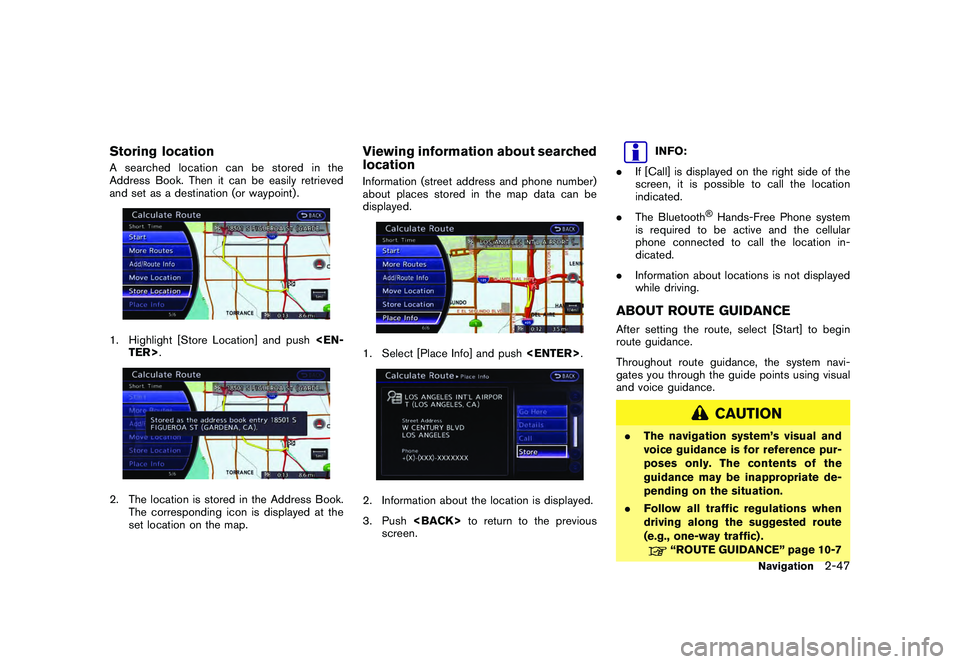
Storing locationA searched location can be stored in the
Address Book. Then it can be easily retrieved
and set as a destination (or waypoint) .1. Highlight [Store Location] and push
set location on the map.
Viewing information about searched
locationInformation (street address and phone number)
about places stored in the map data can be
displayed.1. Select [Place Info] and push
3. Push
screen.
INFO:
. If [Call] is displayed on the right side of the
screen, it is possible to call the location
indicated.
. The Bluetooth
®Hands-Free Phone system
is required to be active and the cellular
phone connected to call the location in-
dicated.
. Information about locations is not displayed
while driving.
ABOUT ROUTE GUIDANCEAfter setting the route, select [Start] to begin
route guidance.
Throughout route guidance, the system navi-
gates you through the guide points using visual
and voice guidance.
CAUTION
.The navigation system’s visual and
voice guidance is for reference pur-
poses only. The contents of the
guidance may be inappropriate de-
pending on the situation.
. Follow all traffic regulations when
driving along the suggested route
(e.g., one-way traffic) .
“ROUTE GUIDANCE” page 10-7
Navigation
2-47
Page 107 of 312
![NISSAN GT-R 2011 User Guide Black plate (105,1)
Model "R35-N" EDITED: 2009/ 10/ 30
1. Push<DEST>.
2. Highlight [Address Book] and push <EN-
TER>.
3. Highlight [Store/Edit] and push <ENTER>.
Minor adjustment of home or stored
add](/img/5/58175/w960_58175-106.png "NISSAN GT-R 2011 User Guide Black plate (105,1)
Model \"R35-N\" EDITED: 2009/ 10/ 30
1. Push<DEST>.
2. Highlight [Address Book] and push <EN-
TER>.
3. Highlight [Store/Edit] and push <ENTER>.
Minor adjustment of home or stored
add")
Black plate (105,1)
Model "R35-N" EDITED: 2009/ 10/ 30
1. Push
2. Highlight [Address Book] and push
3. Highlight [Store/Edit] and push
Minor adjustment of home or stored
addressWhen [Edit] is selected, you can edit the
following items of the home or stored location
can be edited.
.[Show Icon on Map]:
. [Name] (only for stored locations):
. [Voicetag] (only for stored locations):
. [Icon]:
. [Sound]:
. [Direction]:
. [Distance]:
. [Phone No.]:
. [Group] (only for stored locations):
. [Entry Numbers] (only for stored locations):
Show Icon on Map:Displays the home icon or the stored address
icon on the map.1. Highlight [Show Icon on Map] and push
2. The indicator illuminates when the item is set. Then the system displays the icon on
the map.
Navigation
2-79
Page 110 of 312
![NISSAN GT-R 2011 User Guide Black plate (108,1)
Model "R35-N" EDITED: 2009/ 10/ 30
2. Set the direction that sounds the alarm andpush <ENTER> .
The selected direction is set.
INFO:
After the direction is set and [Direction] is
s](/img/5/58175/w960_58175-109.png "NISSAN GT-R 2011 User Guide Black plate (108,1)
Model \"R35-N\" EDITED: 2009/ 10/ 30
2. Set the direction that sounds the alarm andpush <ENTER> .
The selected direction is set.
INFO:
After the direction is set and [Direction] is
s")
Black plate (108,1)
Model "R35-N" EDITED: 2009/ 10/ 30
2. Set the direction that sounds the alarm andpush
The selected direction is set.
INFO:
After the direction is set and [Direction] is
selected and set again, a confirmation message
is displayed. Confirm the contents of the
message, highlight [Yes] and push
The set direction is overwritten.
Distance:Sets the alarm to sound when reaching a
specific distance to the home or stored address.1. Highlight [Distance] and push
2. Highlight the preferred distance option and
push
selected distance illuminates.
Available distance options:
. 150 feet (50 m)
. 300 feet (100 m)
. 1000 feet (300 m)
. 1500 feet (500 m)
INFO:
Once the direction and the distance to sound an
alarm are set, the system will sound the alarm
when the vehicle enters the triggering zone.
Phone number:Stores the telephone number of the home or a
stored location.
1. Highlight [Phone No.] and push
The telephone number entry screen is
displayed.2. Enter the telephone number of the home or
stored location.
“NUMBER INPUT SCREEN” page 1-
17
3. Highlight [OK] and push
The telephone number is stored.
2-82
Navigation
Page 111 of 312
Black plate (109,1)
Model "R35-N" EDITED: 2009/ 10/ 30
INFO:
If the phone number of the home or a location is
stored, the phone number can be used to search
for the destination even if it is not included in the
map data.
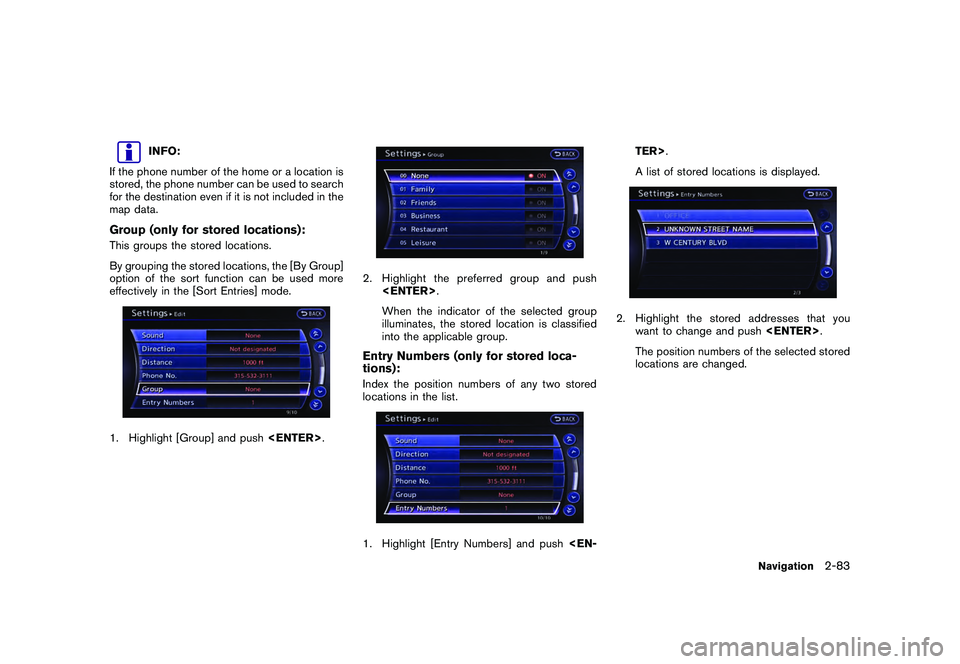
Group (only for stored locations):This groups the stored locations.
By grouping the stored locations, the [By Group]
option of the sort function can be used more
effectively in the [Sort Entries] mode.1. Highlight [Group] and push
2. Highlight the preferred group and push
When the indicator of the selected group
illuminates, the stored location is classified
into the applicable group.Entry Numbers (only for stored loca-
tions):Index the position numbers of any two stored
locations in the list.1. Highlight [Entry Numbers] and push
A list of stored locations is displayed.
2. Highlight the stored addresses that you
want to change and push
The position numbers of the selected stored
locations are changed.
Navigation
2-83
Page 127 of 312
Black plate (10,1)
3 Audio system
Model "R35-N" EDITED: 2009/ 10/ 30
Audio system.................................................... 3-2
Audio operation precautions ............................. 3-2
Antenna ..................................................... 3-12
FM-AM-SAT radio with Compact Disc (CD)
player ........................................................ 3-12
DVD (DIGITAL VERSATILE DISC) player
operation .................................................... 3-16 USB memory operation
................................. 3-18
Bluetooth streaming audio .............................. 3-21
iPod ®
player operation .................................. 3-25
Music box .................................................. 3-26
CD/DVD/USB memory care and cleaning .......... 3-31
Car phone or CB radio ...................................... 3-32
Page 128 of 312
Black plate (128,1)
Model "R35-N" EDITED: 2009/ 10/ 30
AUDIO OPERATION PRECAUTIONS
RadioPush the ignition switch to the ACC or ON
position and push the radio band select button
to turn on the radio. If you listen to the radio with
the engine not running, the ignition switch
should be pushed to the ACC position.
Radio reception is affected by station signal
strength, distance from radio transmitter, build-
ings, bridges, mountains and other external
influences. Intermittent changes in reception
quality normally are caused by these external
influences.
Using a cellular phone in or near the
vehicle may influence radio reception
quality.Radio reception:Your NISSAN radio system is equipped with
state-of-the-art electronic circuits to enhance
radio reception. These circuits are designed to
extend reception range, and to enhance the
quality of that reception.
However there are some general characteristics
of both FM and AM radio signals that can affect
radio reception quality in a moving vehicle, even
when the finest equipment is used. These
characteristics are completely normal in a given
reception area, and do not indicate any mal-
function in your NISSAN radio system.Reception conditions will constantly change
because of vehicle movement. Buildings, terrain,
signal distance and interference from other
vehicles can work against ideal reception.
Described below are some of the factors that
can affect your radio reception.
Some cellular phones or other devices may
cause interference or a buzzing noise to come
from the audio system speakers. Storing the
device in a different location may reduce or
eliminate the noise.
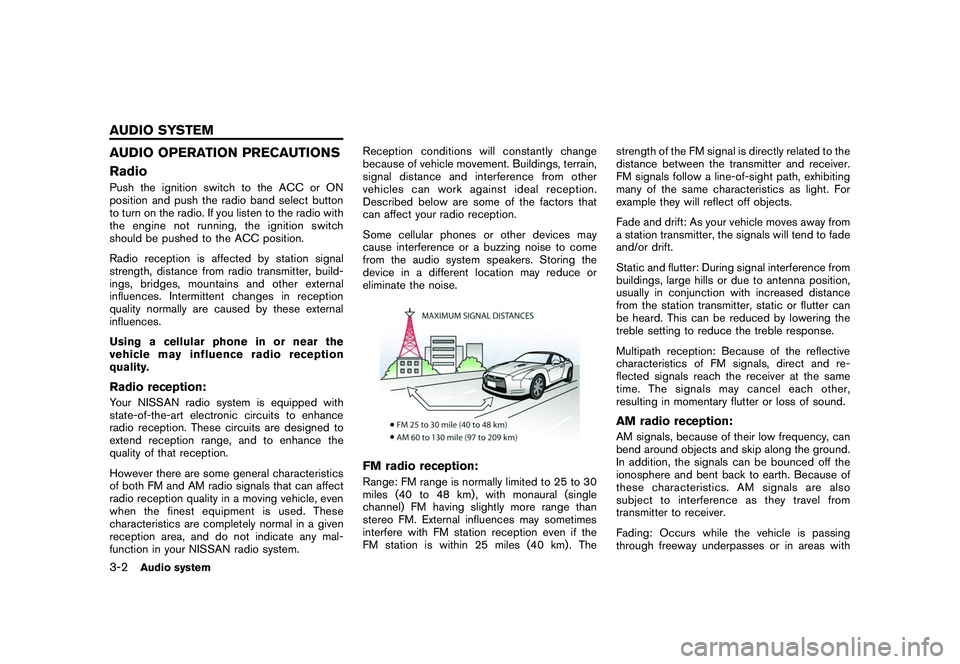
FM radio reception:Range: FM range is normally limited to 25 to 30
miles (40 to 48 km) , with monaural (single
channel) FM having slightly more range than
stereo FM. External influences may sometimes
interfere with FM station reception even if the
FM station is within 25 miles (40 km). The
strength of the FM signal is directly related to the
distance between the transmitter and receiver.
FM signals follow a line-of-sight path, exhibiting
many of the same characteristics as light. For
example they will reflect off objects.
Fade and drift: As your vehicle moves away from
a station transmitter, the signals will tend to fade
and/or drift.
Static and flutter: During signal interference from
buildings, large hills or due to antenna position,
usually in conjunction with increased distance
from the station transmitter, static or flutter can
be heard. This can be reduced by lowering the
treble setting to reduce the treble response.
Multipath reception: Because of the reflective
characteristics of FM signals, direct and re-
flected signals reach the receiver at the same
time. The signals may cancel each other,
resulting in momentary flutter or loss of sound.
AM radio reception:AM signals, because of their low frequency, can
bend around objects and skip along the ground.
In addition, the signals can be bounced off the
ionosphere and bent back to earth. Because of
these characteristics. AM signals are also
subject to interference as they travel from
transmitter to receiver.
Fading: Occurs while the vehicle is passing
through freeway underpasses or in areas with
3-2
Audio system
AUDIO SYSTEM
Page 137 of 312
Black plate (137,1)
Model "R35-N" EDITED: 2009/ 10/ 30
Bluetooth streaming audio.Some Bluetooth
®audio devices may not be
recognized by the in-vehicle audio system.
. It is necessary to set up the wireless
connection between a compatible Blue-
tooth
®
audio device and the in-vehicle
Bluetooth®module before using the Blue-
tooth streaming audio.
. Operating procedure of the Bluetooth
streaming audio will vary depending on the
device. Make sure it is understood how to
operate an audio device before using it with
this system.
. The Bluetooth streaming audio may be
stopped under the following conditions:
— Receiving a hands-free call.
— Checking the connection to the hands- free phone.
. Do not place a Bluetooth
®audio device in
an area surrounded by metal or far away
from the in-vehicle Bluetooth®module to
prevent tone quality degradation and wire-
less connection disruption.
. While an audio device is connected through
a Bluetooth
®wireless connection, the bat-
tery power of the device may discharge
quicker than usual.
. This system supports the Bluetooth
®Audio Distribution Profile (A2DP, AVRCP) .
. Bluetooth
®is a trademark owned by Blue-
tooth SIG, Inc.
Music BoxRecording:. Note that data that is lost and not stored to
the in-vehicle memory due to system da-
mage, improper operation or malfunction is
not under warranty.
. Vehicle owners are not permitted to record
music without permission of the owner of
the copyright except for personal use.
. Check if the music is appropriately recorded
to the in-vehicle memory after recording
when the compact disc cannot be rere-
corded.
. Some music cannot be recorded depending
on the disc condition due to high-speed
recording.
. Jumping sounds may be recorded when a
compact disc is recorded while driving on
rough roads and excessive vibration occurs.
. A mark indicating jumping sounds is dis-
played if jumping sounds are recorded.
. No sounds may be recorded if jumping sounds occurs or the disc is in poor
condition.
. Tracks that include Serial Copy Manage-
ment System (SCMS) are not recorded.
. If a compact disc is scratched or dirty, it may
not be recorded, jumping sounds may occur
or it may take a long time to record.
Automatic title download:.The title information that is automatically
downloaded may differ from the actual title.
. When newly released compact discs are
recorded, their title information may not be
downloaded.
Audio system
3-11