phone NISSAN GT-R 2011 Owner's Guide
[x] Cancel search | Manufacturer: NISSAN, Model Year: 2011, Model line: GT-R, Model: NISSAN GT-R 2011Pages: 312, PDF Size: 13.07 MB
Page 165 of 312
Black plate (167,1)
Model "R35-N" EDITED: 2009/ 10/ 30
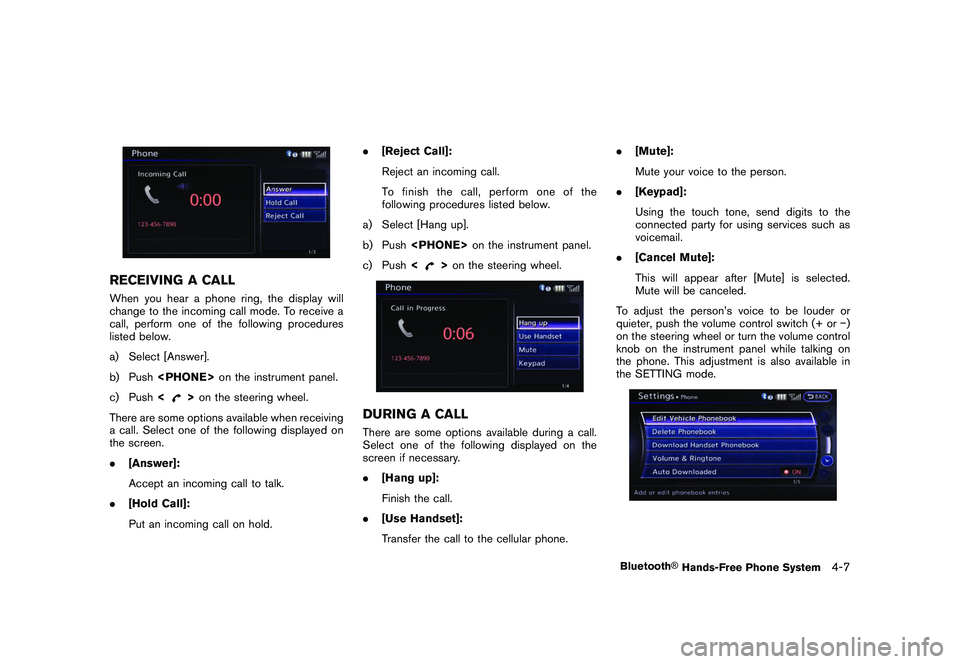
RECEIVING A CALLWhen you hear a phone ring, the display will
change to the incoming call mode. To receive a
call, perform one of the following procedures
listed below.
a) Select [Answer].
b) Push
c) Push <
>on the steering wheel.
There are some options available when receiving
a call. Select one of the following displayed on
the screen.
. [Answer]:
Accept an incoming call to talk.
. [Hold Call]:
Put an incoming call on hold. .
[Reject Call]:
Reject an incoming call.
To finish the call, perform one of the
following procedures listed below.
a) Select [Hang up].
b) Push
c) Push <
>on the steering wheel.
DURING A CALLThere are some options available during a call.
Select one of the following displayed on the
screen if necessary.
. [Hang up]:
Finish the call.
. [Use Handset]:
Transfer the call to the cellular phone. .
[Mute]:
Mute your voice to the person.
. [Keypad]:
Using the touch tone, send digits to the
connected party for using services such as
voicemail.
. [Cancel Mute]:
This will appear after [Mute] is selected.
Mute will be canceled.
To adjust the person’s voice to be louder or
quieter, push the volume control switch (+ or )
on the steering wheel or turn the volume control
knob on the instrument panel while talking on
the phone. This adjustment is also available in
the SETTING mode.
Bluetooth
®Hands-Free Phone System
4-7
Page 166 of 312
![NISSAN GT-R 2011 Owners Guide Black plate (168,1)
Model "R35-N" EDITED: 2009/ 10/ 30
PHONE SETTINGTo set up the Bluetooth
®Hands-Free Phone
System to your preferred settings, push <SET-
TING> and select [PHONE].
Edit Vehicle Phon](/img/5/58175/w960_58175-165.png "NISSAN GT-R 2011 Owners Guide Black plate (168,1)
Model \"R35-N\" EDITED: 2009/ 10/ 30
PHONE SETTINGTo set up the Bluetooth
®Hands-Free Phone
System to your preferred settings, push <SET-
TING> and select [PHONE].
Edit Vehicle Phon")
Black plate (168,1)
Model "R35-N" EDITED: 2009/ 10/ 30
PHONE SETTINGTo set up the Bluetooth
®Hands-Free Phone
System to your preferred settings, push
Edit Vehicle PhonebookPhonebook registration and editing/deleting the
registered phonebook can be performed.Delete PhonebookThe vehicle phonebook entries can be deleted
all at the same time or one by one.Download Handset PhonebookDownload the contacts registered in a Blue-
tooth
®cellular phone. Availability of this function
depends on each cellular phone. The memory
downloading procedure from the cellular phone
also varies according to each cellular phone.
See cellular phone Owner’s Manual for details.
VolumeThe following kinds of phone volume can be set.
Pushing
also operate the same settings.
. [Ringtone]/[Incoming Call]/[Outgoing
Call]:
To increase or decrease the volume, select
[Ringtone], [Incoming Call] or [Outgoing
Call] and adjust it with the center dial. .
[Automatic Hold]:
When this function is activated, an incoming
phone call is automatically held.
. [Vehicle Ringtone]:
When this function is activated, a specific
ringtone that is different from the cellular
phone will sound when receiving a call.
Auto DownloadWhen this item is activated and supported by a
compatible phone, the phonebook of the hands-
free phone is automatically downloaded at the
same time that the hands-free phone is con-
nected.
4-8
Bluetooth
®Hands-Free Phone System
Page 200 of 312
Black plate (206,1)
Model "R35-N" EDITED: 2009/ 10/ 30
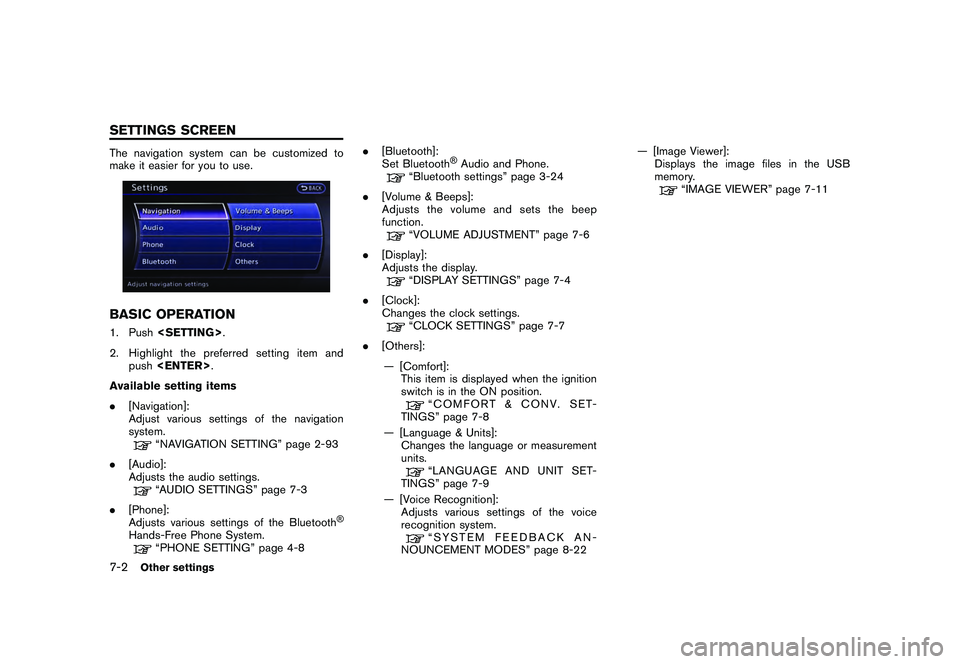
The navigation system can be customized to
make it easier for you to use.BASIC OPERATION1. Push
2. Highlight the preferred setting item and push
Available setting items
. [Navigation]:
Adjust various settings of the navigation
system.
“NAVIGATION SETTING” page 2-93
. [Audio]:
Adjusts the audio settings.“AUDIO SETTINGS” page 7-3
. [Phone]:
Adjusts various settings of the Bluetooth
®
Hands-Free Phone System.
“PHONE SETTING” page 4-8 .
[Bluetooth]:
Set Bluetooth
®Audio and Phone.
“Bluetooth settings” page 3-24
. [Volume & Beeps]:
Adjusts the volume and sets the beep
function.“VOLUME ADJUSTMENT” page 7-6
. [Display]:
Adjusts the display.“DISPLAY SETTINGS” page 7-4
. [Clock]:
Changes the clock settings.“CLOCK SETTINGS” page 7-7
. [Others]:
— [Comfort]: This item is displayed when the ignition
switch is in the ON position.
“COMFORT & CONV. SET-
TINGS” page 7-8
— [Language & Units]: Changes the language or measurement
units.“LANGUAGE AND UNIT SET-
TINGS” page 7-9
— [Voice Recognition]: Adjusts various settings of the voice
recognition system.“SYSTEM FEEDBACK AN-
NOUNCEMENT MODES” page 8-22 — [Image Viewer]:
Displays the image files in the USB
memory.
“IMAGE VIEWER” page 7-11
7-2
Other settings
SETTINGS SCREEN
Page 204 of 312
![NISSAN GT-R 2011 Owners Guide Black plate (210,1)
Model "R35-N" EDITED: 2009/ 10/ 30
Night screen
INFO:
The background color setting can also be
changed using the <DAY/NIGHT OFF> .
SETTING COLOR THEME1. Highlight [Color Theme] and](/img/5/58175/w960_58175-203.png "NISSAN GT-R 2011 Owners Guide Black plate (210,1)
Model \"R35-N\" EDITED: 2009/ 10/ 30
Night screen
INFO:
The background color setting can also be
changed using the <DAY/NIGHT OFF> .
SETTING COLOR THEME1. Highlight [Color Theme] and")
Black plate (210,1)
Model "R35-N" EDITED: 2009/ 10/ 30
Night screen
INFO:
The background color setting can also be
changed using the
SETTING COLOR THEME1. Highlight [Color Theme] and push
2. Highlight the preferred menu color and push
This turns on and off, as well as adjusts, the
phone function (ringer, incoming and outgoing
volume) , the voice guide function and the beep
function.BASIC OPERATION1. Push
2. Highlight [Volume & Beeps] and push
3. Highlight the preferred adjustment item and push
4. Use the center dial to adjust the volume. Push
5. After setting, push
>to
apply the setting.
6. Push <
>to return to the previous
screen. Push
Page 214 of 312
Black plate (220,1)
Model "R35-N" EDITED: 2009/ 10/ 30
NISSAN Voice Recognition allows hands-free
operation of the navigation system and other
systems equipped on this vehicle, in one of two
modes, Standard Mode or Alternate Command
Mode. Standard Mode allows the operation of
Navigation, Phone, Audio, Information and Help.
The commands that are available are always
shown on the display and announced by the
system. To perform operations, simply follow the
prompts given by the system. In Standard Mode,
hands-free operation of Change map view,
Route selection and Bluetooth Audio, etc. is
not available through Voice Recognition.
Alternate Command Mode allows advanced
operations. When this mode is active, an
expanded list of commands can be spoken after
pushing<
>, and the voice command menu
prompts are turned off. Note that in this mode
the recognition success rate may be affected
because the number of available commands and
ways of speaking each command are increased.
Otherwise, it is recommended that Alternate
Command Mode be turned OFF and Standard
Mode be used for the best recognition perfor-
mance.
“Alternate Command Mode” page 8-13INFO:
. To improve recognition success when Alter-
nate Command Mode is active, try using the Speaker Adaptation function available in that
mode.
“SPEAKER ADAPTATION” page 8-23
Otherwise, it is recommended that Alternate
Command Mode be turned OFF and Stan-
dard Mode be used for the best recognition
performance.
. For the voice commands for the audio,
phone and other systems, refer to the
vehicle Owner’s Manual. The following sec-
tions refer only to the navigation, phone and
information systems.
. If the air conditioner is set to “Auto”, the fan
speed is automatically lowered so that
commands can be recognized more easily.
CONFIRMING HOW TO USE VOICE
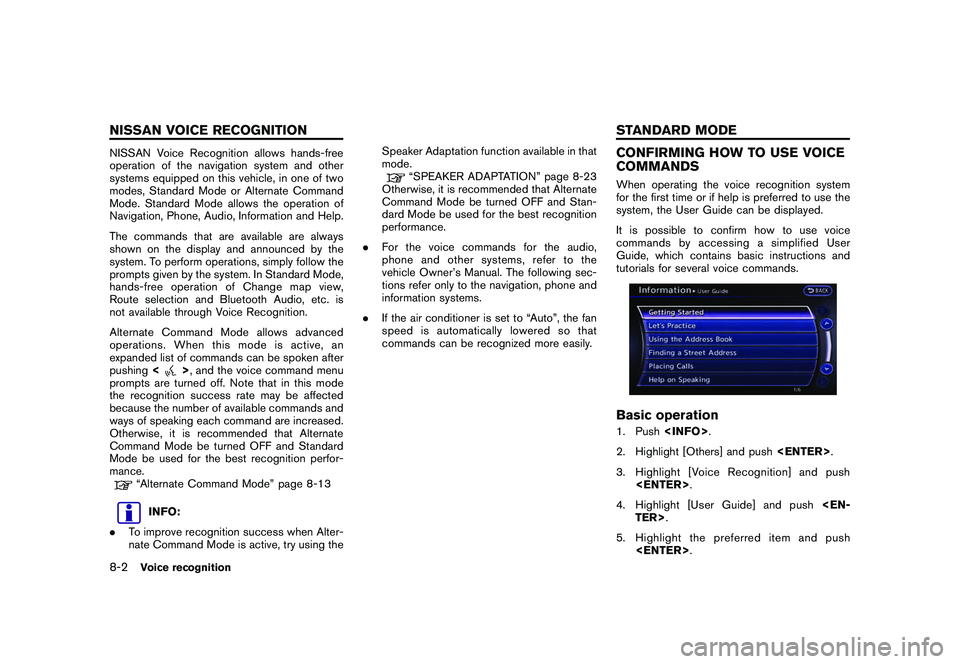
COMMANDSWhen operating the voice recognition system
for the first time or if help is preferred to use the
system, the User Guide can be displayed.
It is possible to confirm how to use voice
commands by accessing a simplified User
Guide, which contains basic instructions and
tutorials for several voice commands.Basic operation1. Push
2. Highlight [Others] and push
3. Highlight [Voice Recognition] and push
4. Highlight [User Guide] and push
5. Highlight the preferred item and push
8-2
Voice recognition
NISSAN VOICE RECOGNITION STANDARD MODE
Page 215 of 312
![NISSAN GT-R 2011 Owners Guide Black plate (221,1)
Model "R35-N" EDITED: 2009/ 10/ 30
Available items
.[Getting Started]:
Describes the basics of how to operate the
voice recognition system.
. [Let’s Practice]:
Mode for practice](/img/5/58175/w960_58175-214.png "NISSAN GT-R 2011 Owners Guide Black plate (221,1)
Model \"R35-N\" EDITED: 2009/ 10/ 30
Available items
.[Getting Started]:
Describes the basics of how to operate the
voice recognition system.
. [Let’s Practice]:
Mode for practice")
Black plate (221,1)
Model "R35-N" EDITED: 2009/ 10/ 30
Available items
.[Getting Started]:
Describes the basics of how to operate the
voice recognition system.
. [Let’s Practice]:
Mode for practice following the system
voice.
. [Using the Address Book]:
Tutorial for entering a destination by the
Address Book.
. [Finding a Street Address]:
Tutorial for entering a destination by street
address.
. [Placing Calls]:
Tutorial for making a phone call by voice
command operation. Refer to the vehicle
Owner’s Manual for details.
. [Help on Speaking]:
Displays useful tips regarding speaking for
correct command recognition by the system.
INFO:
The Command List feature is only available when
Alternate Command Mode is active.
Getting StartedBefore using the voice recognition system for
the first time, it is possible to confirm how to use
commands by viewing the Getting Started
section of the User Guide.1. Highlight [Getting Started] and push
2. To confirm the page, scroll the screen using the up and down switches of the main
directional buttons or the center dial.
Practicing voice commandsPractice for using the voice recognition function
can be performed by repeating a phone number
after the system announces it.1. Highlight [Let’s Practice] and push
2. Practice voice commands in accordance with the audio guidance.
Voice recognition
8-3
Page 216 of 312
![NISSAN GT-R 2011 Owners Guide Black plate (222,1)
Model "R35-N" EDITED: 2009/ 10/ 30
Tutorials on operation of voice re-
cognition systemWhen selecting [Using the Address Book],
[Finding a Street Address] or [Placing Calls],
the s](/img/5/58175/w960_58175-215.png "NISSAN GT-R 2011 Owners Guide Black plate (222,1)
Model \"R35-N\" EDITED: 2009/ 10/ 30
Tutorials on operation of voice re-
cognition systemWhen selecting [Using the Address Book],
[Finding a Street Address] or [Placing Calls],
the s")
Black plate (222,1)
Model "R35-N" EDITED: 2009/ 10/ 30
Tutorials on operation of voice re-
cognition systemWhen selecting [Using the Address Book],
[Finding a Street Address] or [Placing Calls],
the system displays tutorials on how to perform
these operations using voice recognition.Useful tips for correct operationIt is possible to display useful speaking informa-
tion that may help the system to accept a voice
command correctly.
1. Highlight [Help on Speaking] and push
2. To confirm the page, scroll the screen using the up and down switches of the main
directional buttons or the center dial.USING VOICE RECOGNITION SYS-
TEM
InitializationWhen the ignition switch is pushed to the ON
position, Voice Recognition is initialized, which
takes a few seconds. When completed, the
system is ready to accept voice commands. If
<
>is pushed before the initialization
completes, the display will show the message:
“System not ready”.
BEFORE STARTINGTo get the best recognition performance from
Voice Recognition, observe the following items.
. The interior of the vehicle should be as quiet
as possible. Close the windows to eliminate
the surrounding noises (traffic noise and
vibration sounds, etc.) , which may prevent
the system from correctly recognizing the
voice commands.
. Wait until the tone sounds before speaking a
command.
. Speak in a natural conversational voice without pausing between words.
GIVING VOICE COMMANDS1. Push
wheel.
2. A list of commands appears on the screen, and the system provides the voice menu
prompt “Would you like to access Phone,
Navigation, Information, Audio or Help?”.
3. After the tone sounds and the icon on the screen changes from [
]to[
], speak
a command.
4. Continue to follow the voice menu prompts and speak after the tone sounds until the
preferred operation is completed.
8-4
Voice recognition
Page 217 of 312
Black plate (223,1)
Model "R35-N" EDITED: 2009/ 10/ 30
Operating tips.Speak a command after the tone.
. Commands that are available are always
shown on the display and spoken through
voice menu prompts. Commands other than
those that are displayed are not accepted.
Follow the prompts given by the system.
. If the command is not accepted, the system
announces, “Please say again”. Repeat the
command in a clear voice.
. Push <
>once to return to the previous
screen.
. To cancel the command, push and hold
<
>. The message, “Voice canceled” will
be announced.
. Push <
>to stop the voice prompt and
give the command at once. Remember to
wait for the tone before speaking.
. To adjust the volume of the system feed-
back, push the volume control buttons <+>
or < > on the steering wheel or use the
audio system volume control knob while the
system is making an announcement.
How to speak numbersNISSAN Voice Recognition requires a certain
way to speak numbers when giving voice
commands. Refer to the following examples.General rule:Only single digits 0 (zero) to 9 can be used. (For
example, if speaking 500, “five zero zero” can be
used, but “five hundred” cannot.)Examples:1-800-662-6200
“One eight zero zero six six two six two zero
zero”
Improving Recognition of Phone numbers:
Recognition of phone numbers can be improved
by speaking the phone number in 3 groups of
numbers. For example, to call 800-662-6200,
speak “Eight Zero Zero” first, and the system will
then ask to speak the next three digits. Then,
speak “Six Six Two”. After recognition, the
system will then ask to speak the last 4 digits.
Speak, “Six Two Zero Zero”. Using this method
of phone digit entry can improve recognition
performance.
INFO:
For best recognition, speak “zero” for the
number “0” and “oh” for the letter “o”.
Voice recognition
8-5
Page 218 of 312
Black plate (224,1)
Model "R35-N" EDITED: 2009/ 10/ 30
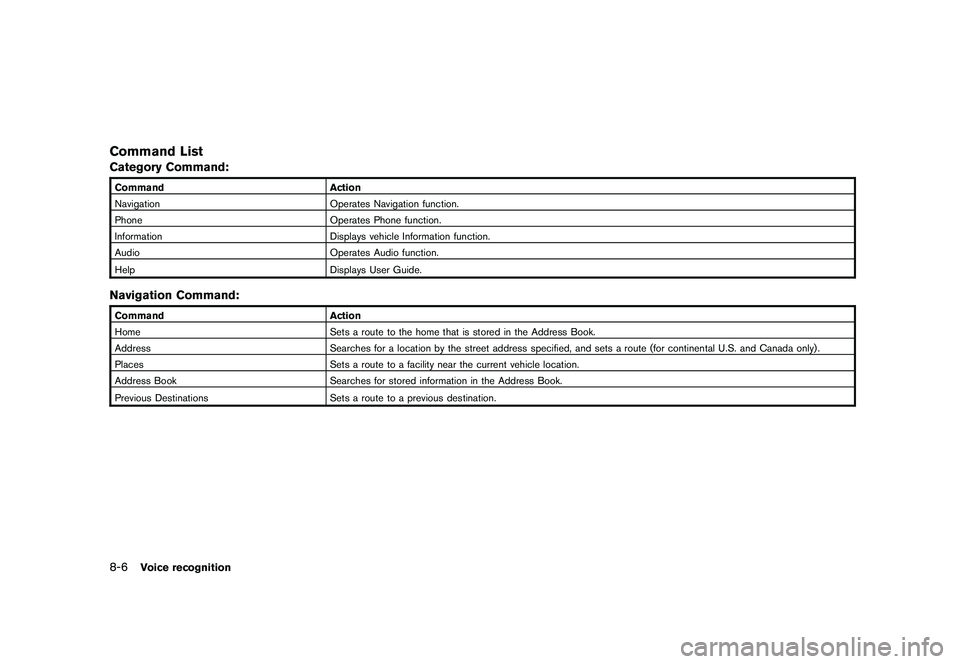
Command ListCategory Command:CommandAction
Navigation Operates Navigation function.
Phone Operates Phone function.
Information Displays vehicle Information function.
Audio Operates Audio function.
Help Displays User Guide.Navigation Command:CommandAction
Home Sets a route to the home that is stored in the Address Book.
Address Searches for a location by the street address specified, and sets a route (for continental U.S. and Canada only) .
Places Sets a route to a facility near the current vehicle location.
Address Book Searches for stored information in the Address Book.
Previous Destinations Sets a route to a previous destination.8-6
Voice recognition
Page 219 of 312
Black plate (225,1)
Model "R35-N" EDITED: 2009/ 10/ 30
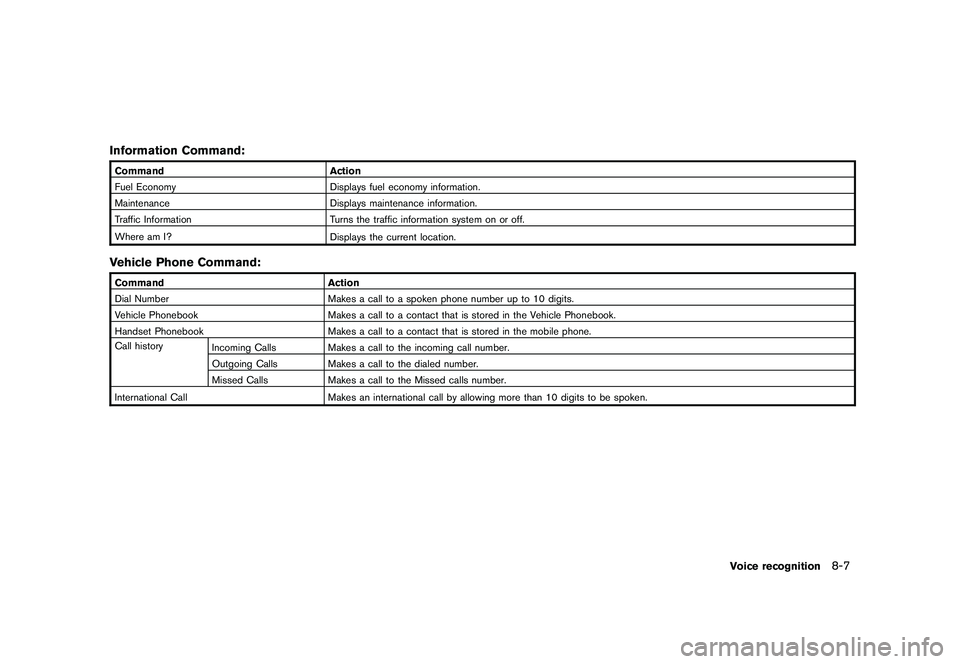
Information Command:CommandAction
Fuel Economy Displays fuel economy information.
Maintenance Displays maintenance information.
Traffic Information Turns the traffic information system on or off.
Where am I? Displays the current location.Vehicle Phone Command:CommandAction
Dial Number Makes a call to a spoken phone number up to 10 digits.
Vehicle Phonebook Makes a call to a contact that is stored in the Vehicle Phonebook.
Handset Phonebook Makes a call to a contact that is stored in the mobile phone.
Call history Incoming Calls Makes a call to the incoming call number.
Outgoing Calls Makes a call to the dialed number.
Missed Calls Makes a call to the Missed calls number.
International Call Makes an international call by allowing more than 10 digits to be spoken.
Voice recognition
8-7