phone NISSAN GT-R 2011 Service Manual
[x] Cancel search | Manufacturer: NISSAN, Model Year: 2011, Model line: GT-R, Model: NISSAN GT-R 2011Pages: 312, PDF Size: 13.07 MB
Page 221 of 312
Black plate (227,1)
Model "R35-N" EDITED: 2009/ 10/ 30
VOICE COMMAND EXAMPLESTo use the voice recognition function, speaking
one command is sometimes sufficient, but at
other times it is necessary to speak two or more
commands. As examples, some additional basic
operations that can be performed by voice
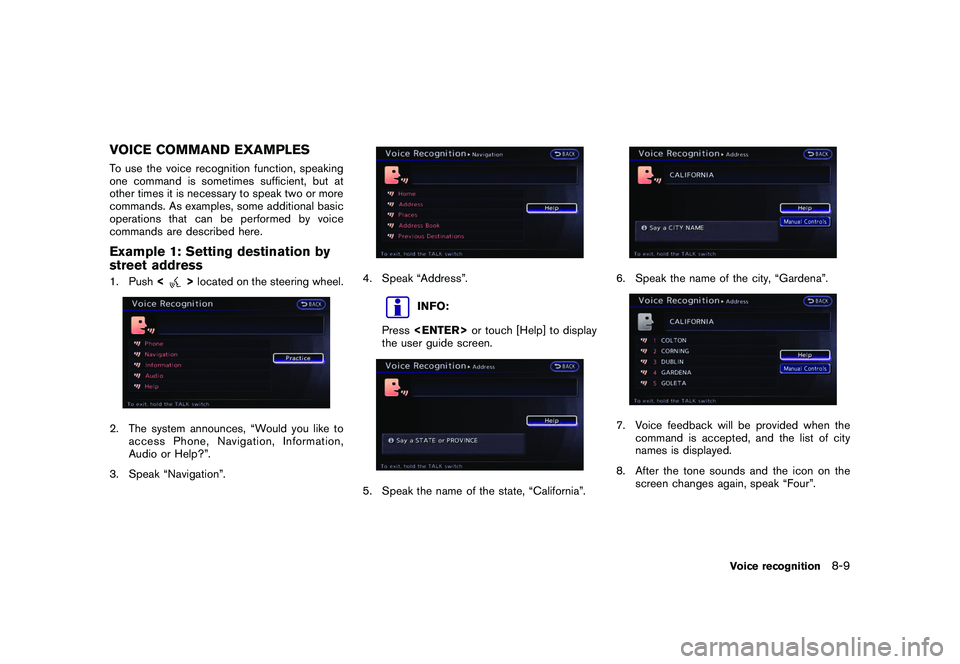
commands are described here.Example 1: Setting destination by
street address1. Push<
>located on the steering wheel.
2. The system announces, “Would you like to
access Phone, Navigation, Information,
Audio or Help?”.
3. Speak “Navigation”.
4. Speak “Address”.
INFO:
Press
the user guide screen.
5. Speak the name of the state, “California”.
6. Speak the name of the city, “Gardena”.7. Voice feedback will be provided when the command is accepted, and the list of city
names is displayed.
8. After the tone sounds and the icon on the screen changes again, speak “Four”.
Voice recognition
8-9
Page 223 of 312
Black plate (229,1)
Model "R35-N" EDITED: 2009/ 10/ 30
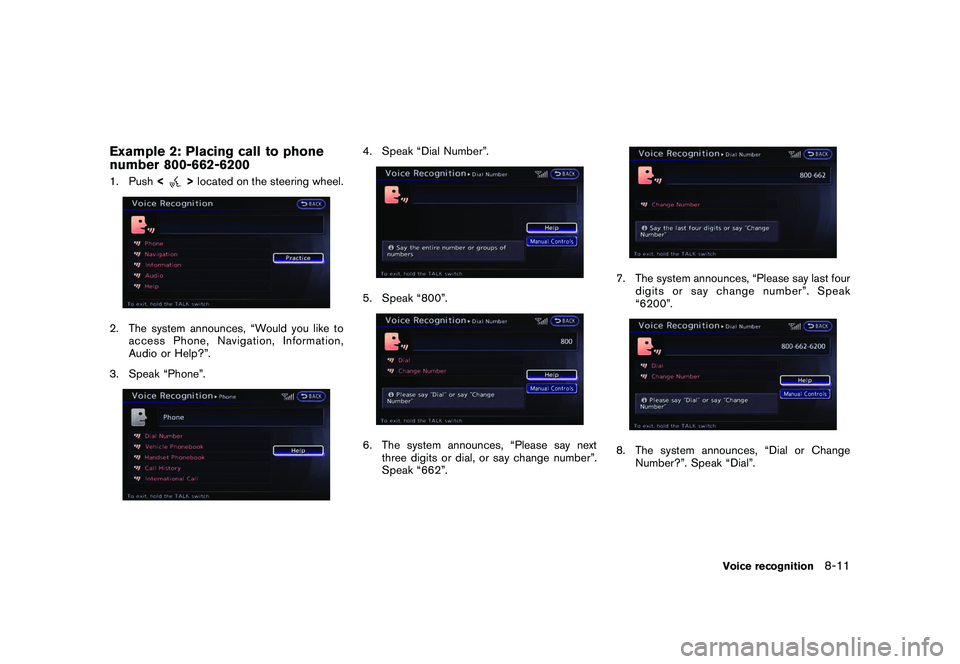
Example 2: Placing call to phone
number 800-662-62001. Push<
>located on the steering wheel.
2. The system announces, “Would you like to
access Phone, Navigation, Information,
Audio or Help?”.
3. Speak “Phone”.
4. Speak “Dial Number”.5. Speak “800”.6. The system announces, “Please say next three digits or dial, or say change number”.
Speak “662”.
7. The system announces, “Please say last fourdigits or say change number”. Speak
“6200”.8. The system announces, “Dial or Change
Number?”. Speak “Dial”.
Voice recognition
8-11
Page 224 of 312
Black plate (230,1)
Model "R35-N" EDITED: 2009/ 10/ 30
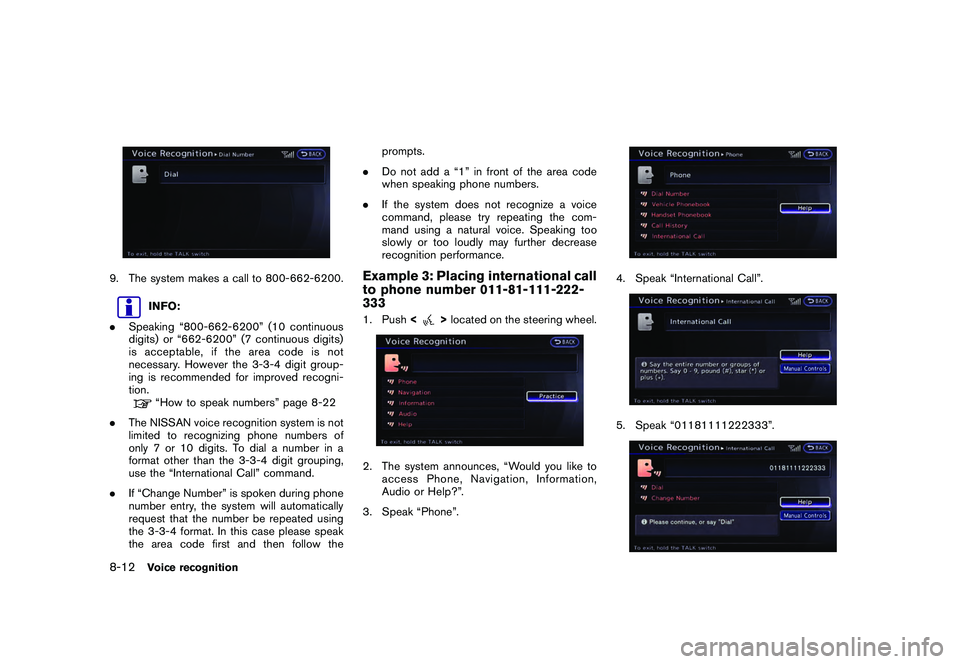
9. The system makes a call to 800-662-6200.
INFO:
. Speaking “800-662-6200” (10 continuous
digits) or “662-6200” (7 continuous digits)
is acceptable, if the area code is not
necessary. However the 3-3-4 digit group-
ing is recommended for improved recogni-
tion.“How to speak numbers” page 8-22
. The NISSAN voice recognition system is not
limited to recognizing phone numbers of
only 7 or 10 digits. To dial a number in a
format other than the 3-3-4 digit grouping,
use the “International Call” command.
. If “Change Number” is spoken during phone
number entry, the system will automatically
request that the number be repeated using
the 3-3-4 format. In this case please speak
the area code first and then follow the prompts.
. Do not add a “1” in front of the area code
when speaking phone numbers.
. If the system does not recognize a voice
command, please try repeating the com-
mand using a natural voice. Speaking too
slowly or too loudly may further decrease
recognition performance.
Example 3: Placing international call
to phone number 011-81-111-222-
3331. Push <
>located on the steering wheel.
2. The system announces, “Would you like to
access Phone, Navigation, Information,
Audio or Help?”.
3. Speak “Phone”.
4. Speak “International Call”.5. Speak “01181111222333”.
8-12
Voice recognition
Page 226 of 312
![NISSAN GT-R 2011 Service Manual Black plate (232,1)
Model "R35-N" EDITED: 2009/ 10/ 30
Available items
.[Command List]:
A list of voice commands that the system
can accept is displayed.
. [User Guide]:
A simplified operation manual](/img/5/58175/w960_58175-225.png "NISSAN GT-R 2011 Service Manual Black plate (232,1)
Model \"R35-N\" EDITED: 2009/ 10/ 30
Available items
.[Command List]:
A list of voice commands that the system
can accept is displayed.
. [User Guide]:
A simplified operation manual")
Black plate (232,1)
Model "R35-N" EDITED: 2009/ 10/ 30
Available items
.[Command List]:
A list of voice commands that the system
can accept is displayed.
. [User Guide]:
A simplified operation manual of the voice
recognition system can be displayed and
how to use the voice commands can be
confirmed.
INFO:
The Command List feature is only available when
Alternate Command Mode is active.
Confirming voice commandsWhen controlling the system by voice com-
mands for the first time or if an appropriate voice
command is unknown, confirm using the voice
command lists.
The following information describes how to
display the navigation command list and the
help list. For information about the operations of
other functions, refer to the vehicle Owner’s
Manual.
Example: Displaying the navigation
command list:1. Push
2. Highlight [Others] and push
3. Highlight [Voice Recognition] and push
.
Phone Commands
. Navigation Commands
. Information Commands
. Audio Commands
. Help Commands
6. To confirm the list, scroll the screen using
the up and down switches of the main
directional buttons or the center dial.
7. Push <
>to return to the previous
screen.
8-14
Voice recognition
Page 228 of 312
Black plate (234,1)
Model "R35-N" EDITED: 2009/ 10/ 30
INFO:
The words in italics are variable.
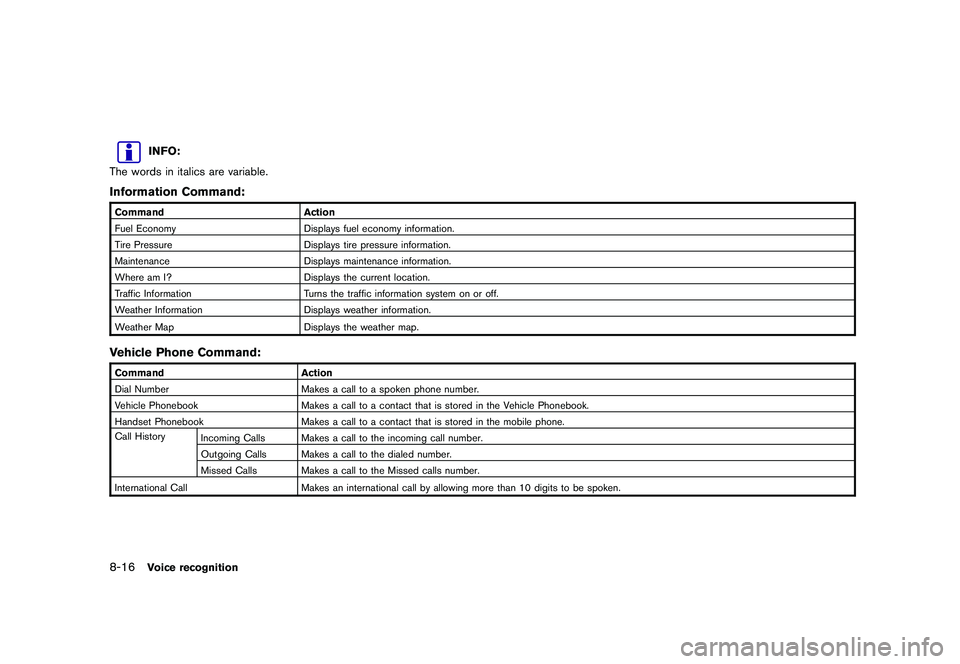
Information Command:Command Action
Fuel Economy Displays fuel economy information.
Tire Pressure Displays tire pressure information.
Maintenance Displays maintenance information.
Where am I? Displays the current location.
Traffic Information Turns the traffic information system on or off.
Weather Information Displays weather information.
Weather Map Displays the weather map.Vehicle Phone Command:CommandAction
Dial Number Makes a call to a spoken phone number.
Vehicle Phonebook Makes a call to a contact that is stored in the Vehicle Phonebook.
Handset Phonebook Makes a call to a contact that is stored in the mobile phone.
Call History Incoming Calls Makes a call to the incoming call number.
Outgoing Calls Makes a call to the dialed number.
Missed Calls Makes a call to the Missed calls number.
International Call Makes an international call by allowing more than 10 digits to be spoken.8-16
Voice recognition
Page 230 of 312
Black plate (236,1)
Model "R35-N" EDITED: 2009/ 10/ 30
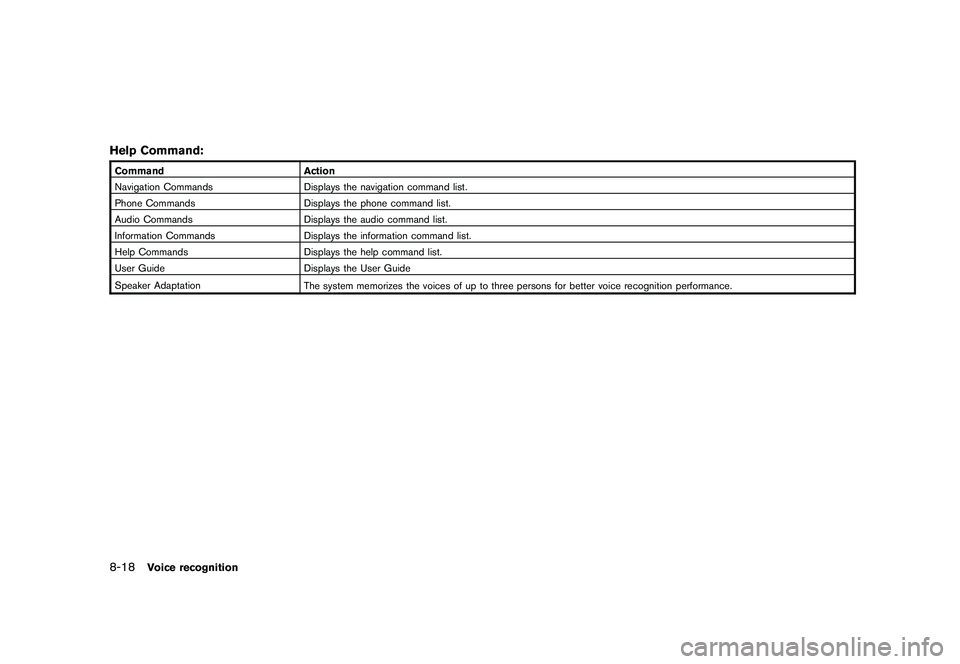
Help Command:CommandAction
Navigation Commands Displays the navigation command list.
Phone Commands Displays the phone command list.
Audio Commands Displays the audio command list.
Information Commands Displays the information command list.
Help Commands Displays the help command list.
User Guide Displays the User Guide
Speaker Adaptation The system memorizes the voices of up to three persons for better voice recognition performance.8-18
Voice recognition
Page 231 of 312
Black plate (237,1)
Model "R35-N" EDITED: 2009/ 10/ 30
CONFIRMING HOW TO USE VOICE
COMMANDSIt is possible to confirm how to use voice
commands by accessing a simplified User
Guide, which contains basic instructions and
tutorials for several voice commands.Basic operation1. Push
2. Highlight [Others] and push
3. Highlight [Voice Recognition] and push
4. Highlight [User Guide] and push
5. Highlight the preferred item and push
.
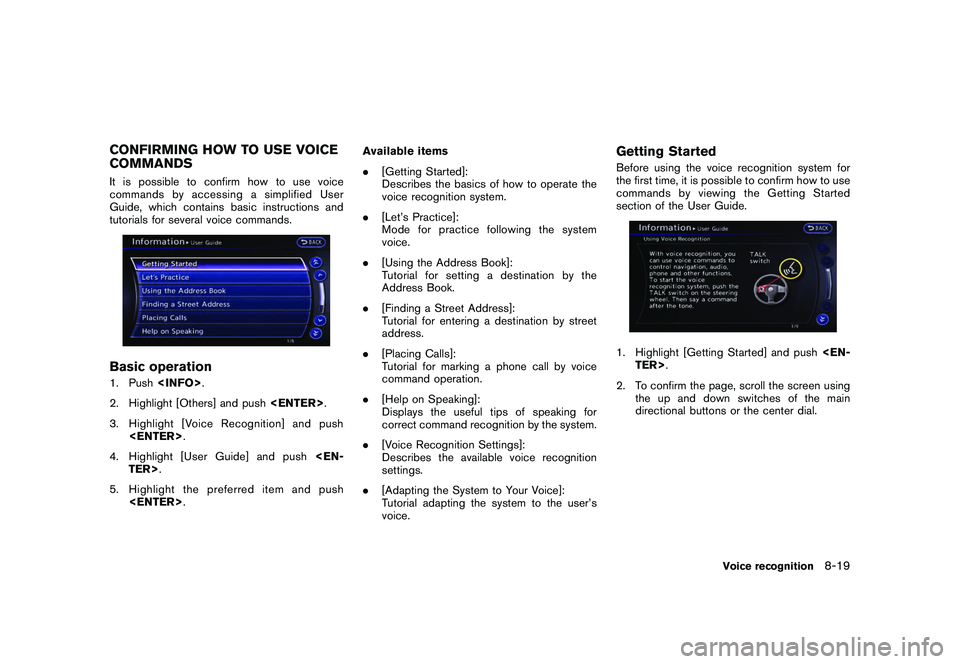
[Getting Started]:
Describes the basics of how to operate the
voice recognition system.
. [Let’s Practice]:
Mode for practice following the system
voice.
. [Using the Address Book]:
Tutorial for setting a destination by the
Address Book.
. [Finding a Street Address]:
Tutorial for entering a destination by street
address.
. [Placing Calls]:
Tutorial for marking a phone call by voice
command operation.
. [Help on Speaking]:
Displays the useful tips of speaking for
correct command recognition by the system.
. [Voice Recognition Settings]:
Describes the available voice recognition
settings.
. [Adapting the System to Your Voice]:
Tutorial adapting the system to the user’s
voice.
Getting StartedBefore using the voice recognition system for
the first time, it is possible to confirm how to use
commands by viewing the Getting Started
section of the User Guide.1. Highlight [Getting Started] and push
2. To confirm the page, scroll the screen using the up and down switches of the main
directional buttons or the center dial.
Voice recognition
8-19
Page 234 of 312
Black plate (240,1)
Model "R35-N" EDITED: 2009/ 10/ 30
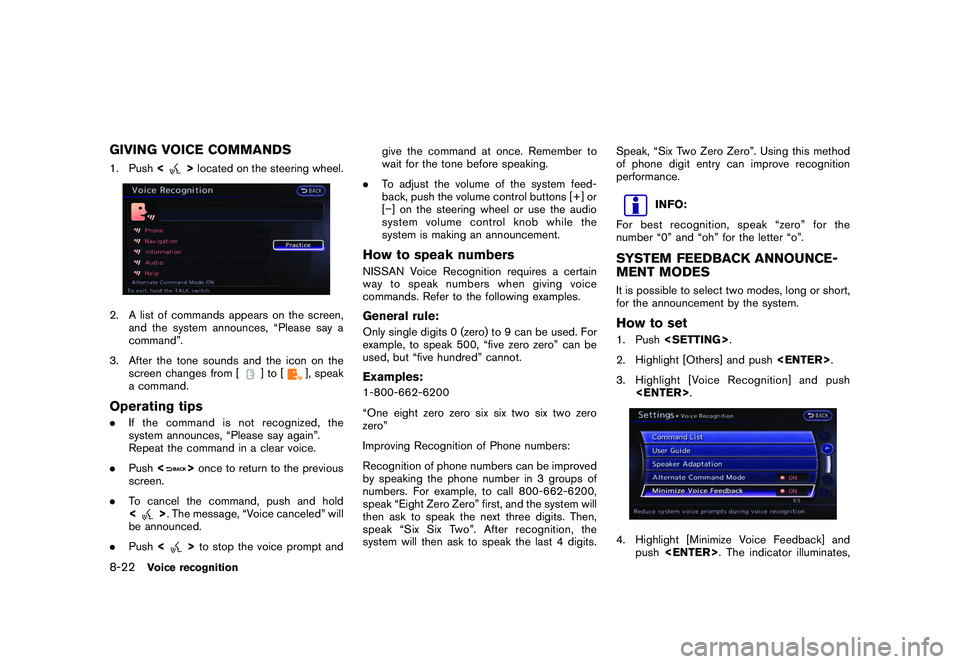
GIVING VOICE COMMANDS1. Push<
>located on the steering wheel.
2. A list of commands appears on the screen,
and the system announces, “Please say a
command”.
3. After the tone sounds and the icon on the screen changes from [
]to[
], speak
a command.
Operating tips. If the command is not recognized, the
system announces, “Please say again”.
Repeat the command in a clear voice.
. Push <
>once to return to the previous
screen.
. To cancel the command, push and hold
<
>. The message, “Voice canceled” will
be announced.
. Push <
>to stop the voice prompt and give the command at once. Remember to
wait for the tone before speaking.
. To adjust the volume of the system feed-
back, push the volume control buttons [+] or
[] on the steering wheel or use the audio
system volume control knob while the
system is making an announcement.
How to speak numbersNISSAN Voice Recognition requires a certain
way to speak numbers when giving voice
commands. Refer to the following examples.General rule:Only single digits 0 (zero) to 9 can be used. For
example, to speak 500, “five zero zero” can be
used, but “five hundred” cannot.Examples:1-800-662-6200
“One eight zero zero six six two six two zero
zero”
Improving Recognition of Phone numbers:
Recognition of phone numbers can be improved
by speaking the phone number in 3 groups of
numbers. For example, to call 800-662-6200,
speak “Eight Zero Zero” first, and the system will
then ask to speak the next three digits. Then,
speak “Six Six Two”. After recognition, the
system will then ask to speak the last 4 digits. Speak, “Six Two Zero Zero”. Using this method
of phone digit entry can improve recognition
performance.
INFO:
For best recognition, speak “zero” for the
number “0” and “oh” for the letter “o”.
SYSTEM FEEDBACK ANNOUNCE-
MENT MODESIt is possible to select two modes, long or short,
for the announcement by the system.How to set1. Push
2. Highlight [Others] and push
3. Highlight [Voice Recognition] and push
push
8-22
Voice recognition
Page 281 of 312
Black plate (287,1)
Model "R35-N" EDITED: 2009/ 10/ 30
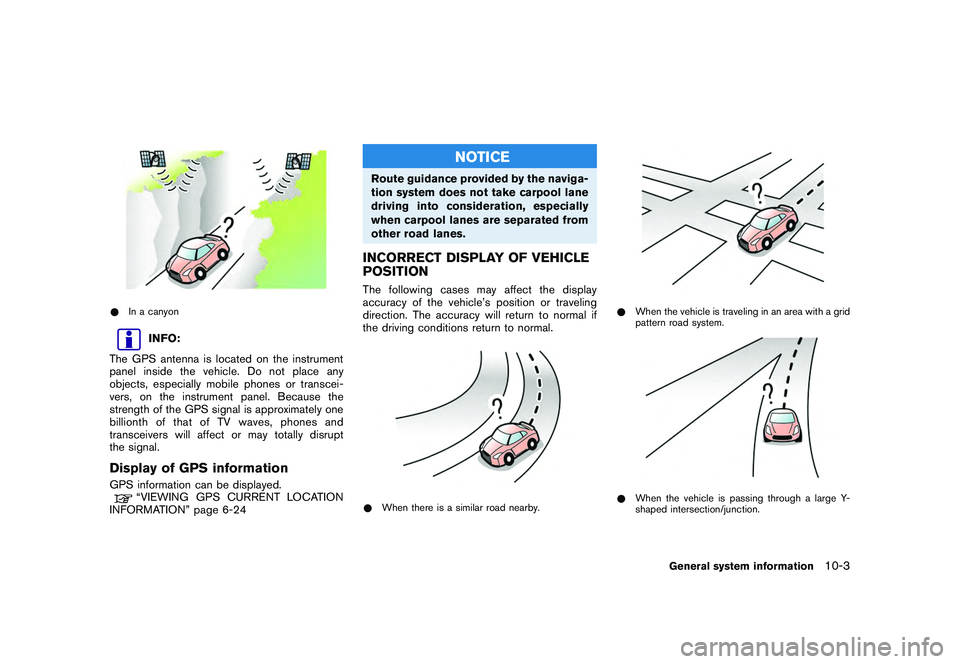
*In a canyon
INFO:
The GPS antenna is located on the instrument
panel inside the vehicle. Do not place any
objects, especially mobile phones or transcei-
vers, on the instrument panel. Because the
strength of the GPS signal is approximately one
billionth of that of TV waves, phones and
transceivers will affect or may totally disrupt
the signal.
Display of GPS informationGPS information can be displayed.
“VIEWING GPS CURRENT LOCATION
INFORMATION” page 6-24
NOTICE
Route guidance provided by the naviga-
tion system does not take carpool lane
driving into consideration, especially
when carpool lanes are separated from
other road lanes.INCORRECT DISPLAY OF VEHICLE
POSITIONThe following cases may affect the display
accuracy of the vehicle’s position or traveling
direction. The accuracy will return to normal if
the driving conditions return to normal.* When there is a similar road nearby.
*When the vehicle is traveling in an area with a grid
pattern road system.*When the vehicle is passing through a large Y-
shaped intersection/junction.
General system information
10-3
Page 293 of 312
Black plate (299,1)
Model "R35-N" EDITED: 2009/ 10/ 30
systems, or applications installed or otherwise
connected to or in communication with vehicles,
capable of vehicle navigation, positioning, dis-
patch, real time route guidance, fleet manage-
ment or similar applications; or (b) with or in
communication with any positioning devices or
any mobile or wireless-connected electronic or
computer devices, including without limitation
cellular phones, palmtop and handheld compu-
ters, pagers, and personal digital assistants or
PDAs.Warning.The Data may contain inaccurate or
incomplete information due to the passage of
time, changing circumstances, sources used
and the nature of collecting comprehensive
geographic data, any of which may lead to
incorrect results.No Warranty. This Data is provided to you “as
is,” and you agree to use it at your own risk.
HITACHI and its licensors (and their licensors
and suppliers) make no guarantees, representa-
tions or warranties of any kind, express or
implied, arising by law or otherwise, including
but not limited to, content, quality, accuracy,
completeness, effectiveness, reliability, fitness
for a particular purpose, usefulness, use or
results to be obtained from this Data, or that the
Data or server will be uninterrupted or error-free.Disclaimer of Warranty: HITACHI AND ITS
LICENSORS (INCLUDING THEIR LICENSORS
AND SUPPLIERS) DISCLAIM ANY WARRAN- TIES, EXPRESS OR IMPLIED, OF QUALITY,
PERFORMANCE, MERCHANTABILITY, FIT-
NESS FOR A PARTICULAR PURPOSE OR
NONINFRINGEMENT. Some States, Territories
and Countries do not allow certain warranty
exclusions, so to that extent the above exclusion
may not apply to you.
Disclaimer of Liability:
HITACHI AND ITS
LICENSORS (INCLUDING THEIR LICENSORS
AND SUPPLIERS) SHALL NOT BE LIABLE TO
YOU: IN RESPECT OF ANY CLAIM, DEMAND
OR ACTION, IRRESPECTIVE OF THE NATURE
OF THE CAUSE OF THE CLAIM, DEMAND OR
ACTION ALLEGING ANY LOSS, INJURY OR
DAMAGES, DIRECT OR INDIRECT, WHICH
MAY RESULT FROM THE USE OR POSSES-
SION OF THE INFORMATION; OR FOR ANY
LOSS OF PROFIT, REVENUE, CONTRACTS
OR SAVINGS, OR ANY OTHER DIRECT,
INDIRECT, INCIDENTAL, SPECIAL OR CON-
SEQUENTIAL DAMAGES ARISING OUT OF
YOUR USE OF OR INABILITY TO USE THIS
INFORMATION, ANY DEFECT IN THE INFOR-
MATION, OR THE BREACH OF THESE
TERMS OR CONDITIONS, WHETHER IN AN
ACTION IN CONTRACT OR TORT OR BASED
ON A WARRANTY, EVEN IF HITACHI OR ITS
LICENSORS HAVE BEEN ADVISED OF THE
POSSIBILITY OF SUCH DAMAGES. Some
States, Territories and Countries do not allow
certain liability exclusions or damages limita-
tions, so to that extent the above may not apply to you.
Export Control.
You agree not to export from
anywhere any part of the Data provided to you or
any direct product thereof except in compliance
with, and with all licenses and approvals
required under, applicable export laws, rules
and regulations.Entire Agreement. These terms and condi-
tions constitute the entire agreement between
HITACHI (and its licensors, including their
licensors and suppliers) and you pertaining to
the subject matter hereof, and supersedes in
their entirety any and all written or oral agree-
ments previously existing between us with
respect to such subject matter.Governing Law. The above terms and condi-
tions shall be governed by the laws of the State
of Illinois, without giving effect to (i) its conflict of
laws provisions, or (ii) the United Nations
Convention for Contracts for the International
Sale of Goods, which is explicitly excluded. You
agree to submit to the jurisdiction of the State of
Illinois for any and all disputes, claims and
actions arising from or in connection with the
Data provided to you hereunder.Government End Users. If the Data is being
acquired by or on behalf of the United States
government or any other entity seeking or
applying rights similar to those customarily
claimed by the United States government,
General system information
10-15