steering NISSAN GT-R 2011 Owner's Manual
[x] Cancel search | Manufacturer: NISSAN, Model Year: 2011, Model line: GT-R, Model: NISSAN GT-R 2011Pages: 312, PDF Size: 13.07 MB
Page 180 of 312
Black plate (184,1)
Model "R35-N" EDITED: 2009/ 10/ 30
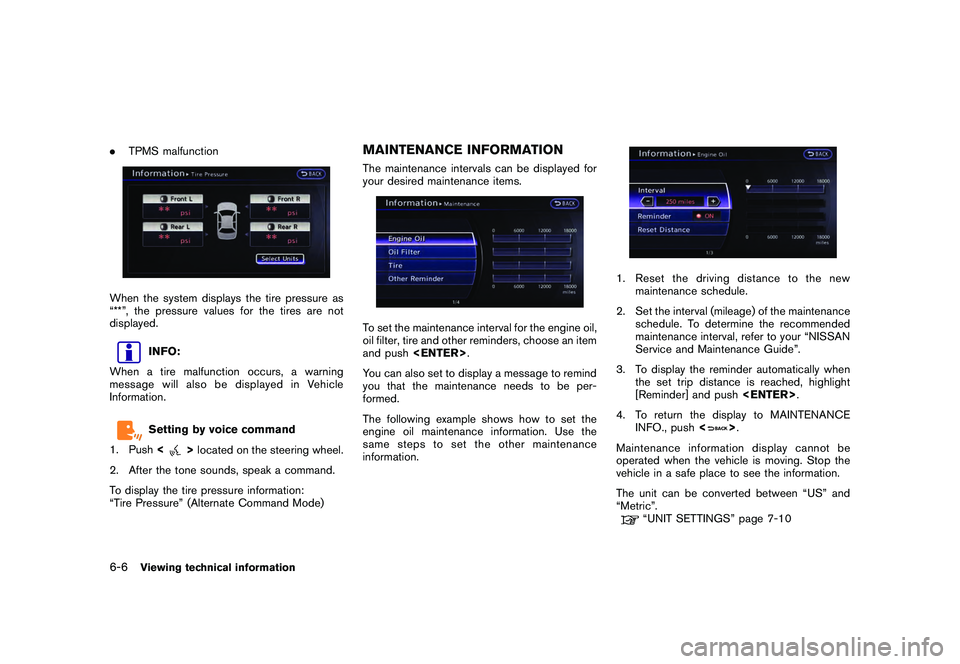
.TPMS malfunctionWhen the system displays the tire pressure as
“**”, the pressure values for the tires are not
displayed.
INFO:
When a tire malfunction occurs, a warning
message will also be displayed in Vehicle
Information.Setting by voice command
1. Push <
>located on the steering wheel.
2. After the tone sounds, speak a command.
To display the tire pressure information:
“Tire Pressure” (Alternate Command Mode)
MAINTENANCE INFORMATIONThe maintenance intervals can be displayed for
your desired maintenance items.To set the maintenance interval for the engine oil,
oil filter, tire and other reminders, choose an item
and push
You can also set to display a message to remind
you that the maintenance needs to be per-
formed.
The following example shows how to set the
engine oil maintenance information. Use the
same steps to set the other maintenance
information.
1. Reset the driving distance to the new maintenance schedule.
2. Set the interval (mileage) of the maintenance schedule. To determine the recommended
maintenance interval, refer to your “NISSAN
Service and Maintenance Guide”.
3. To display the reminder automatically when the set trip distance is reached, highlight
[Reminder] and push
4. To return the display to MAINTENANCE INFO., push <
>.
Maintenance information display cannot be
operated when the vehicle is moving. Stop the
vehicle in a safe place to see the information.
The unit can be converted between “US” and
“Metric”.
“UNIT SETTINGS” page 7-10
6-6
Viewing technical information
Page 181 of 312
Black plate (185,1)
Model "R35-N" EDITED: 2009/ 10/ 30
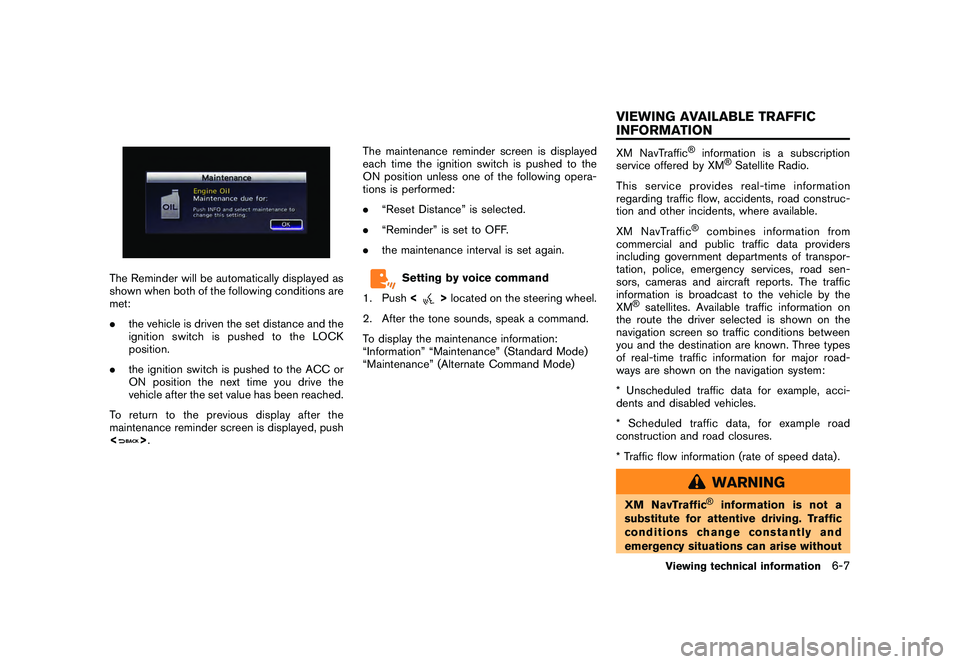
The Reminder will be automatically displayed as
shown when both of the following conditions are
met:
.the vehicle is driven the set distance and the
ignition switch is pushed to the LOCK
position.
. the ignition switch is pushed to the ACC or
ON position the next time you drive the
vehicle after the set value has been reached.
To return to the previous display after the
maintenance reminder screen is displayed, push
<
> . The maintenance reminder screen is displayed
each time the ignition switch is pushed to the
ON position unless one of the following opera-
tions is performed:
.
“Reset Distance” is selected.
. “Reminder” is set to OFF.
. the maintenance interval is set again.
Setting by voice command
1. Push <
>located on the steering wheel.
2. After the tone sounds, speak a command.
To display the maintenance information:
“Information” “Maintenance” (Standard Mode)
“Maintenance” (Alternate Command Mode)
XM NavTraffic
®
information is a subscription
service offered by XM
®Satellite Radio.
This service provides real-time information
regarding traffic flow, accidents, road construc-
tion and other incidents, where available.
XM NavTraffic
®
combines information from
commercial and public traffic data providers
including government departments of transpor-
tation, police, emergency services, road sen-
sors, cameras and aircraft reports. The traffic
information is broadcast to the vehicle by the
XM
®satellites. Available traffic information on
the route the driver selected is shown on the
navigation screen so traffic conditions between
you and the destination are known. Three types
of real-time traffic information for major road-
ways are shown on the navigation system:
* Unscheduled traffic data for example, acci-
dents and disabled vehicles.
* Scheduled traffic data, for example road
construction and road closures.
* Traffic flow information (rate of speed data) .
WARNING
XM NavTraffic
®
information is not a
substitute for attentive driving. Traffic
conditions change constantly and
emergency situations can arise without
Viewing technical information
6-7
VIEWING AVAILABLE TRAFFIC
INFORMATION
Page 183 of 312
Black plate (187,1)
Model "R35-N" EDITED: 2009/ 10/ 30
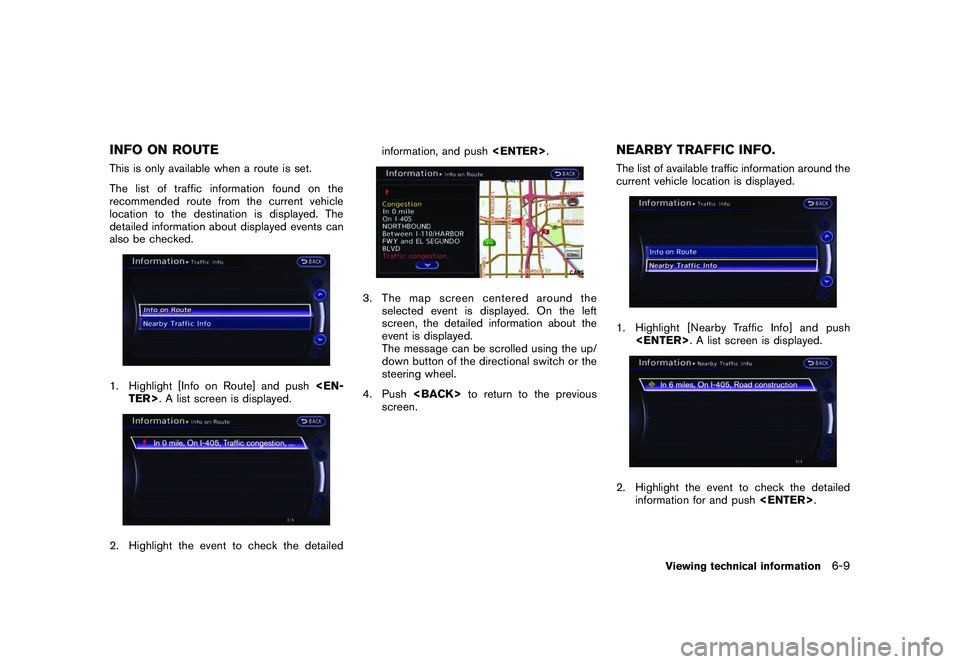
INFO ON ROUTEThis is only available when a route is set.
The list of traffic information found on the
recommended route from the current vehicle
location to the destination is displayed. The
detailed information about displayed events can
also be checked.1. Highlight [Info on Route] and push
3. The map screen centered around the
selected event is displayed. On the left
screen, the detailed information about the
event is displayed.
The message can be scrolled using the up/
down button of the directional switch or the
steering wheel.
4. Push
screen.
NEARBY TRAFFIC INFO.The list of available traffic information around the
current vehicle location is displayed.1. Highlight [Nearby Traffic Info] and push
information for and push
Viewing technical information
6-9
Page 184 of 312
Black plate (188,1)
Model "R35-N" EDITED: 2009/ 10/ 30
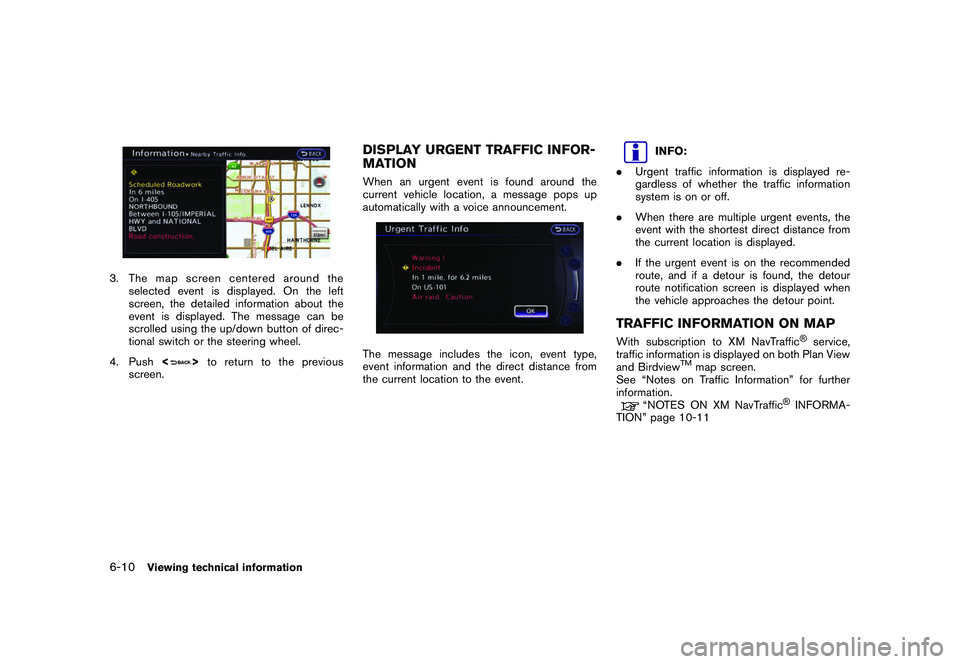
3. The map screen centered around theselected event is displayed. On the left
screen, the detailed information about the
event is displayed. The message can be
scrolled using the up/down button of direc-
tional switch or the steering wheel.
4. Push <
>to return to the previous
screen.
DISPLAY URGENT TRAFFIC INFOR-
MATIONWhen an urgent event is found around the
current vehicle location, a message pops up
automatically with a voice announcement.The message includes the icon, event type,
event information and the direct distance from
the current location to the event.
INFO:
. Urgent traffic information is displayed re-
gardless of whether the traffic information
system is on or off.
. When there are multiple urgent events, the
event with the shortest direct distance from
the current location is displayed.
. If the urgent event is on the recommended
route, and if a detour is found, the detour
route notification screen is displayed when
the vehicle approaches the detour point.
TRAFFIC INFORMATION ON MAPWith subscription to XM NavTraffic
®service,
traffic information is displayed on both Plan View
and Birdview
TM
map screen.
See “Notes on Traffic Information” for further
information.
“NOTES ON XM NavTraffic
®INFORMA-
TION” page 10-11
6-10
Viewing technical information
Page 186 of 312
Black plate (190,1)
Model "R35-N" EDITED: 2009/ 10/ 30
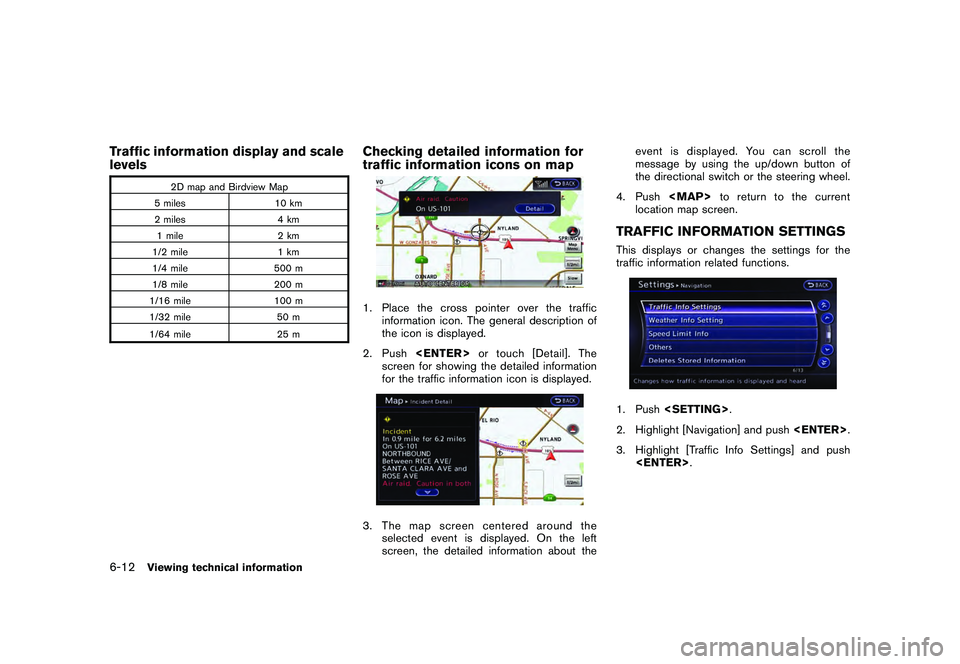
Traffic information display and scale
levels
2D map and Birdview Map
5 miles 10 km
2 miles 4 km 1 mile 2 km
1/2 mile 1 km
1/4 mile 500 m
1/8 mile 200 m
1/16 mile 100 m
1/32 mile 50 m
1/64 mile 25 m
Checking detailed information for
traffic information icons on map1. Place the cross pointer over the traffic
information icon. The general description of
the icon is displayed.
2. Push
screen for showing the detailed information
for the traffic information icon is displayed.3. The map screen centered around the selected event is displayed. On the left
screen, the detailed information about the event is displayed. You can scroll the
message by using the up/down button of
the directional switch or the steering wheel.
4. Push
Page 187 of 312
Black plate (191,1)
Model "R35-N" EDITED: 2009/ 10/ 30
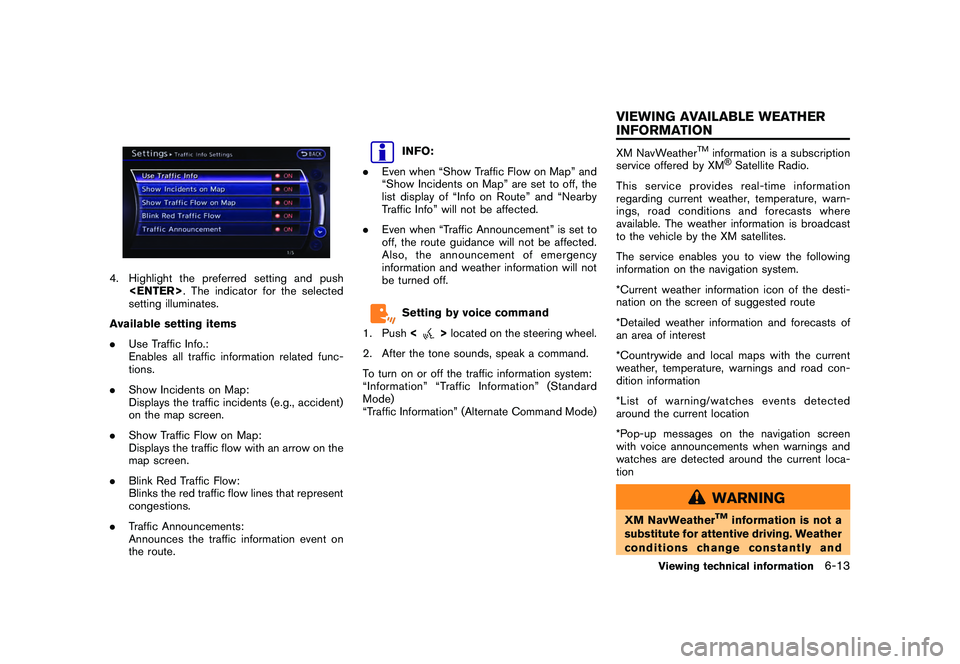
4. Highlight the preferred setting and push
setting illuminates.
Available setting items
. Use Traffic Info.:
Enables all traffic information related func-
tions.
. Show Incidents on Map:
Displays the traffic incidents (e.g., accident)
on the map screen.
. Show Traffic Flow on Map:
Displays the traffic flow with an arrow on the
map screen.
. Blink Red Traffic Flow:
Blinks the red traffic flow lines that represent
congestions.
. Traffic Announcements:
Announces the traffic information event on
the route.
INFO:
. Even when “Show Traffic Flow on Map” and
“Show Incidents on Map” are set to off, the
list display of “Info on Route” and “Nearby
Traffic Info” will not be affected.
. Even when “Traffic Announcement” is set to
off, the route guidance will not be affected.
Also, the announcement of emergency
information and weather information will not
be turned off.Setting by voice command
1. Push <
>located on the steering wheel.
2. After the tone sounds, speak a command.
To turn on or off the traffic information system:
“Information” “Traffic Information” (Standard
Mode)
“Traffic Information” (Alternate Command Mode)
XM NavWeather
TM
information is a subscription
service offered by XM®Satellite Radio.
This service provides real-time information
regarding current weather, temperature, warn-
ings, road conditions and forecasts where
available. The weather information is broadcast
to the vehicle by the XM satellites.
The service enables you to view the following
information on the navigation system.
*Current weather information icon of the desti-
nation on the screen of suggested route
*Detailed weather information and forecasts of
an area of interest
*Countrywide and local maps with the current
weather, temperature, warnings and road con-
dition information
*List of warning/watches events detected
around the current location
*Pop-up messages on the navigation screen
with voice announcements when warnings and
watches are detected around the current loca-
tion
WARNING
XM NavWeather
TM
information is not a
substitute for attentive driving. Weather
conditions change constantly and
Viewing technical information
6-13
VIEWING AVAILABLE WEATHER
INFORMATION
Page 191 of 312
Black plate (195,1)
Model "R35-N" EDITED: 2009/ 10/ 30
Setting by voice command
1. Push <
>located on the steering wheel.
2. After the tone sounds, speak a command.
To display the list for weather information:
“Weather Information” (Alternate Command
Mode)
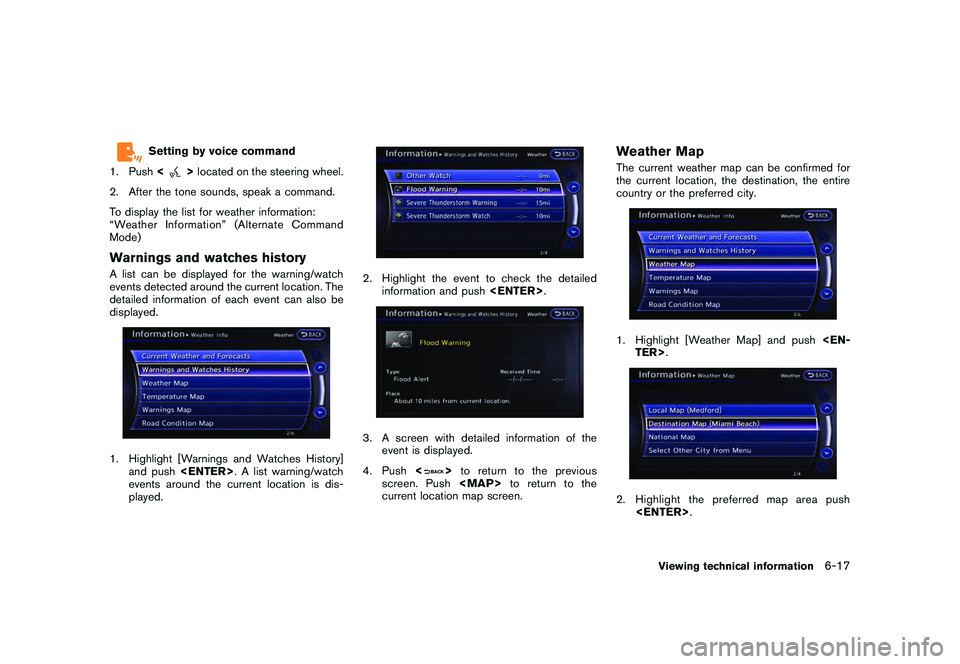
Warnings and watches historyA list can be displayed for the warning/watch
events detected around the current location. The
detailed information of each event can also be
displayed.1. Highlight [Warnings and Watches History] and push
events around the current location is dis-
played.
2. Highlight the event to check the detailed information and push
event is displayed.
4. Push <
>to return to the previous
screen. Push
Page 192 of 312
![NISSAN GT-R 2011 Owners Manual Black plate (196,1)
Model "R35-N" EDITED: 2009/ 10/ 30
INFO:
[Destination Map] is not available unless a
destination is set for the route guidance.
3. A weather map is displayed. The weather and preci](/img/5/58175/w960_58175-191.png "NISSAN GT-R 2011 Owners Manual Black plate (196,1)
Model \"R35-N\" EDITED: 2009/ 10/ 30
INFO:
[Destination Map] is not available unless a
destination is set for the route guidance.
3. A weather map is displayed. The weather and preci")
Black plate (196,1)
Model "R35-N" EDITED: 2009/ 10/ 30
INFO:
[Destination Map] is not available unless a
destination is set for the route guidance.
3. A weather map is displayed. The weather and precipitation level are shown by colors.
4. Push <
>to return to the previous
screen. Push
Page 216 of 312
![NISSAN GT-R 2011 Owners Manual Black plate (222,1)
Model "R35-N" EDITED: 2009/ 10/ 30
Tutorials on operation of voice re-
cognition systemWhen selecting [Using the Address Book],
[Finding a Street Address] or [Placing Calls],
the s](/img/5/58175/w960_58175-215.png "NISSAN GT-R 2011 Owners Manual Black plate (222,1)
Model \"R35-N\" EDITED: 2009/ 10/ 30
Tutorials on operation of voice re-
cognition systemWhen selecting [Using the Address Book],
[Finding a Street Address] or [Placing Calls],
the s")
Black plate (222,1)
Model "R35-N" EDITED: 2009/ 10/ 30
Tutorials on operation of voice re-
cognition systemWhen selecting [Using the Address Book],
[Finding a Street Address] or [Placing Calls],
the system displays tutorials on how to perform
these operations using voice recognition.Useful tips for correct operationIt is possible to display useful speaking informa-
tion that may help the system to accept a voice
command correctly.
1. Highlight [Help on Speaking] and push
2. To confirm the page, scroll the screen using the up and down switches of the main
directional buttons or the center dial.USING VOICE RECOGNITION SYS-
TEM
InitializationWhen the ignition switch is pushed to the ON
position, Voice Recognition is initialized, which
takes a few seconds. When completed, the
system is ready to accept voice commands. If
<
>is pushed before the initialization
completes, the display will show the message:
“System not ready”.
BEFORE STARTINGTo get the best recognition performance from
Voice Recognition, observe the following items.
. The interior of the vehicle should be as quiet
as possible. Close the windows to eliminate
the surrounding noises (traffic noise and
vibration sounds, etc.) , which may prevent
the system from correctly recognizing the
voice commands.
. Wait until the tone sounds before speaking a
command.
. Speak in a natural conversational voice without pausing between words.
GIVING VOICE COMMANDS1. Push
wheel.
2. A list of commands appears on the screen, and the system provides the voice menu
prompt “Would you like to access Phone,
Navigation, Information, Audio or Help?”.
3. After the tone sounds and the icon on the screen changes from [
]to[
], speak
a command.
4. Continue to follow the voice menu prompts and speak after the tone sounds until the
preferred operation is completed.
8-4
Voice recognition
Page 217 of 312
Black plate (223,1)
Model "R35-N" EDITED: 2009/ 10/ 30
Operating tips.Speak a command after the tone.
. Commands that are available are always
shown on the display and spoken through
voice menu prompts. Commands other than
those that are displayed are not accepted.
Follow the prompts given by the system.
. If the command is not accepted, the system
announces, “Please say again”. Repeat the
command in a clear voice.
. Push <
>once to return to the previous
screen.
. To cancel the command, push and hold
<
>. The message, “Voice canceled” will
be announced.
. Push <
>to stop the voice prompt and
give the command at once. Remember to
wait for the tone before speaking.
. To adjust the volume of the system feed-
back, push the volume control buttons <+>
or < > on the steering wheel or use the
audio system volume control knob while the
system is making an announcement.
How to speak numbersNISSAN Voice Recognition requires a certain
way to speak numbers when giving voice
commands. Refer to the following examples.General rule:Only single digits 0 (zero) to 9 can be used. (For
example, if speaking 500, “five zero zero” can be
used, but “five hundred” cannot.)Examples:1-800-662-6200
“One eight zero zero six six two six two zero
zero”
Improving Recognition of Phone numbers:
Recognition of phone numbers can be improved
by speaking the phone number in 3 groups of
numbers. For example, to call 800-662-6200,
speak “Eight Zero Zero” first, and the system will
then ask to speak the next three digits. Then,
speak “Six Six Two”. After recognition, the
system will then ask to speak the last 4 digits.
Speak, “Six Two Zero Zero”. Using this method
of phone digit entry can improve recognition
performance.
INFO:
For best recognition, speak “zero” for the
number “0” and “oh” for the letter “o”.
Voice recognition
8-5