steering NISSAN GT-R 2011 Service Manual
[x] Cancel search | Manufacturer: NISSAN, Model Year: 2011, Model line: GT-R, Model: NISSAN GT-R 2011Pages: 312, PDF Size: 13.07 MB
Page 266 of 312
Black plate (272,1)
Model "R35-N" EDITED: 2009/ 10/ 30
STEERING SCREENThe steering screen allows you to confirm how
the vehicle responds to your driving by display-
ing the results of how you operate the vehicle.
The results of your driving are displayed as a
timeline of the g-force exerted on the vehicle.
Use the displayed information to improve your
steering smoothness.
WARNING
.Use the information from the multi
function meter strictly as a refer-
ence to make your driving more
comfortable. The readings are not
meant to prevent accidents caused
by reckless driving or poor driving
conditions (due to weather, road
condition, etc.) . Always obey all
traffic regulations and posted speed
limits.
. Red zone readings are configured to
function only as a guide for smooth
driving. The readings are not in-
tended to prevent accidents caused
by reckless driving.
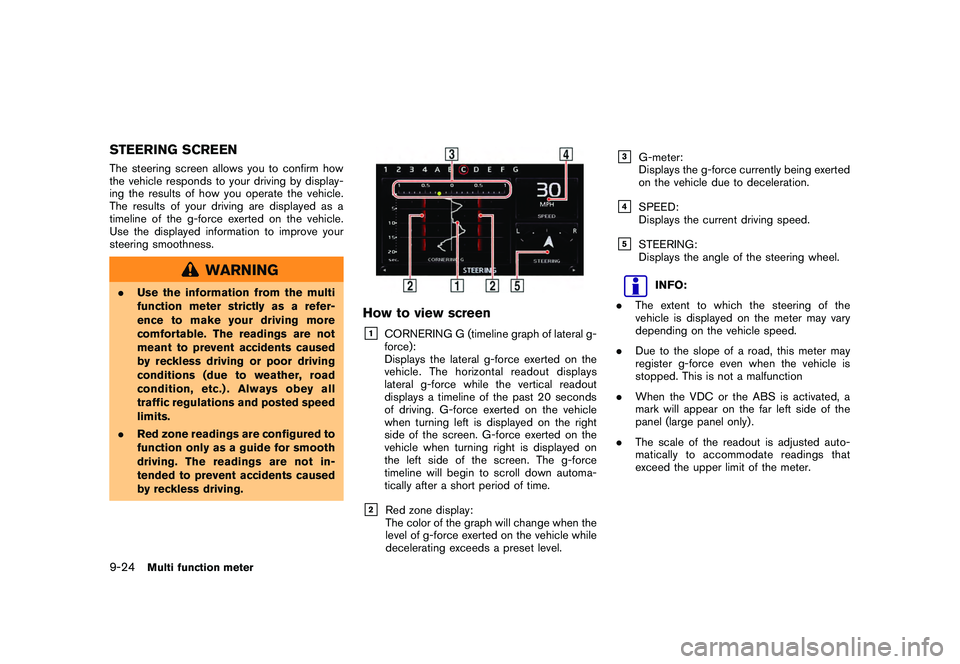
How to view screen&1
CORNERING G (timeline graph of lateral g-
force):
Displays the lateral g-force exerted on the
vehicle. The horizontal readout displays
lateral g-force while the vertical readout
displays a timeline of the past 20 seconds
of driving. G-force exerted on the vehicle
when turning left is displayed on the right
side of the screen. G-force exerted on the
vehicle when turning right is displayed on
the left side of the screen. The g-force
timeline will begin to scroll down automa-
tically after a short period of time.
&2
Red zone display:
The color of the graph will change when the
level of g-force exerted on the vehicle while
decelerating exceeds a preset level.
&3
G-meter:
Displays the g-force currently being exerted
on the vehicle due to deceleration.
&4
SPEED:
Displays the current driving speed.
&5
STEERING:
Displays the angle of the steering wheel.
INFO:
. The extent to which the steering of the
vehicle is displayed on the meter may vary
depending on the vehicle speed.
. Due to the slope of a road, this meter may
register g-force even when the vehicle is
stopped. This is not a malfunction
. When the VDC or the ABS is activated, a
mark will appear on the far left side of the
panel (large panel only) .
. The scale of the readout is adjusted auto-
matically to accommodate readings that
exceed the upper limit of the meter.
9-24
Multi function meter
Page 267 of 312
Black plate (273,1)
Model "R35-N" EDITED: 2009/ 10/ 30
Using result screens to improve
drivingThis section explains how to use the driving
timeline screens. Use this information to make
your driving smoother.
INFO:
The criteria for smooth driving may vary depend-
ing on road conditions. Use this information for
reference purposes only.
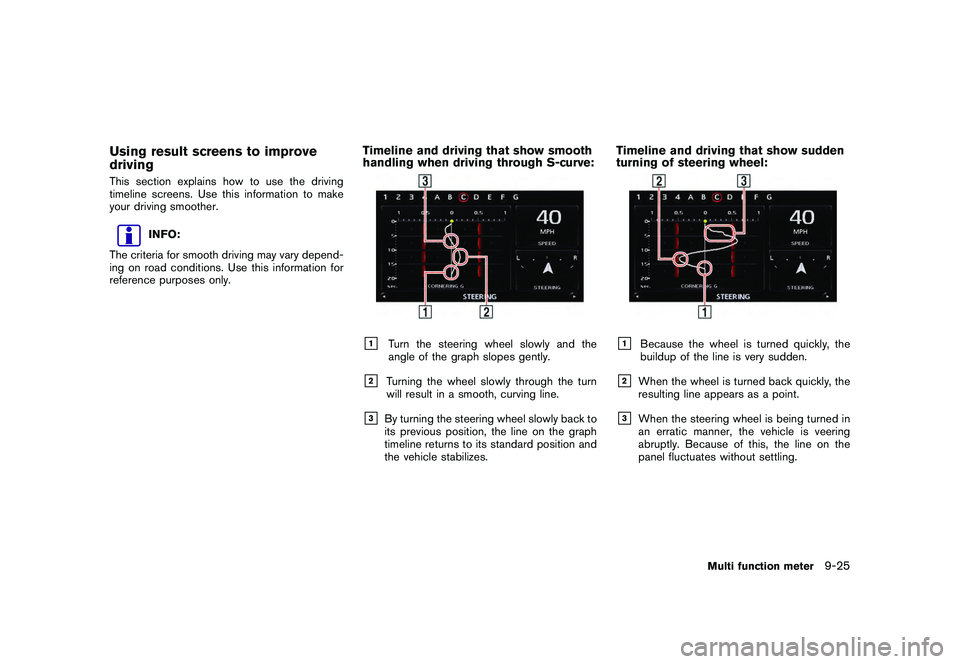
Timeline and driving that show smooth
handling when driving through S-curve:&1
Turn the steering wheel slowly and the
angle of the graph slopes gently.
&2
Turning the wheel slowly through the turn
will result in a smooth, curving line.
&3
By turning the steering wheel slowly back to
its previous position, the line on the graph
timeline returns to its standard position and
the vehicle stabilizes.
Timeline and driving that show sudden
turning of steering wheel:&1
Because the wheel is turned quickly, the
buildup of the line is very sudden.
&2
When the wheel is turned back quickly, the
resulting line appears as a point.
&3
When the steering wheel is being turned in
an erratic manner, the vehicle is veering
abruptly. Because of this, the line on the
panel fluctuates without settling.
Multi function meter
9-25
Page 271 of 312
Black plate (277,1)
Model "R35-N" EDITED: 2009/ 10/ 30
&3
SPEED:
Displays the vehicle speed while driving.
&4
ELAPSED TIME:
Displays the total elapsed time measured
since the stopwatch function was started.
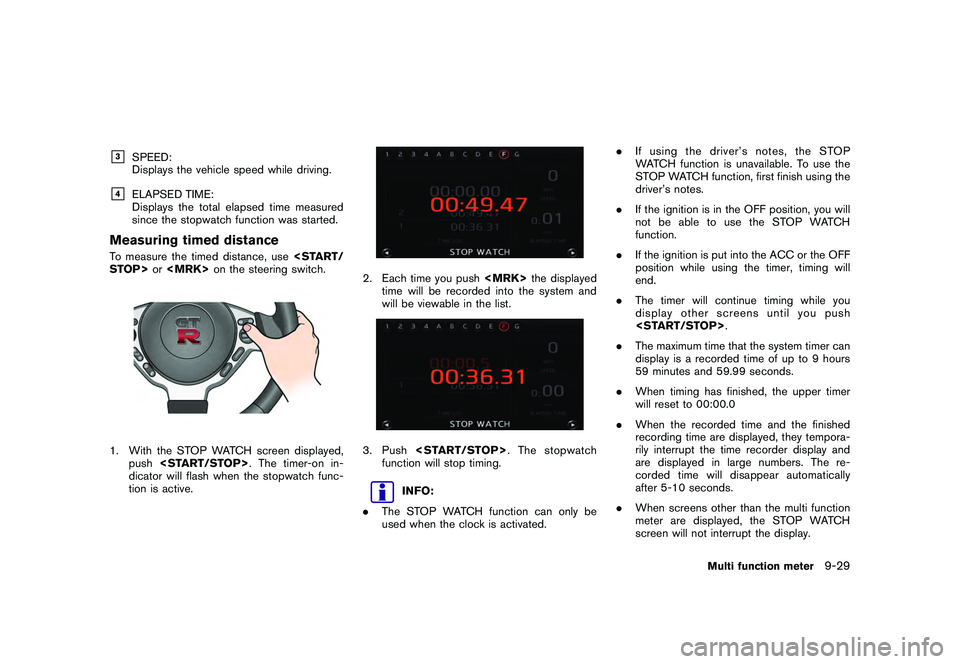
Measuring timed distanceTo measure the timed distance, use
push
dicator will flash when the stopwatch func-
tion is active.
2. Each time you push
time will be recorded into the system and
will be viewable in the list.3. Push
function will stop timing.
INFO:
. The STOP WATCH function can only be
used when the clock is activated. .
If using the driver’s notes, the STOP
WATCH function is unavailable. To use the
STOP WATCH function, first finish using the
driver’s notes.
. If the ignition is in the OFF position, you will
not be able to use the STOP WATCH
function.
. If the ignition is put into the ACC or the OFF
position while using the timer, timing will
end.
. The timer will continue timing while you
display other screens until you push
. The maximum time that the system timer can
display is a recorded time of up to 9 hours
59 minutes and 59.99 seconds.
. When timing has finished, the upper timer
will reset to 00:00.0
. When the recorded time and the finished
recording time are displayed, they tempora-
rily interrupt the time recorder display and
are displayed in large numbers. The re-
corded time will disappear automatically
after 5-10 seconds.
. When screens other than the multi function
meter are displayed, the STOP WATCH
screen will not interrupt the display.
Multi function meter
9-29
Page 275 of 312

Black plate (281,1)
Model "R35-N" EDITED: 2009/ 10/ 30
Timing waypointsTo measure a waypoint, use
or
played, push
VER’S NOTES function will activate, and the
timer indicator will flash.
2. Pass the waypoint. The waypoint will be automatically recorded and will be displayed
in the list.3. Push
played in the list when
4. Push
NOTES function will end.
The waypoint will be displayed as described
below:
. The name of the waypoint that was selected
when
. State line/provincial border (name of state/
province entered)
. Point where the name of the road changed
. Place where the vehicle was put in P (park)
Multi function meter
9-33
Page 308 of 312
Black plate (314,1)
Model "R35-N" EDITED: 2009/ 10/ 30
SymptomPossible cause Possible solution
The system does not accept
the voice command.
or
The system accepts the voice
command incorrectly. The interior of the vehicle is too noisy.
Close the windows or have other occupants be quiet.
The volume of the voice is too low. Speak louder.
The volume of the voice is too loud. Speak softer.
Pronunciation is unclear. Speak clearly.
The voice command is given before the voice recognition
system is ready. Push
<
>on the steering wheel, and speak a command after the tone
sounds.
8 seconds or more have passed after pushing <
>on the
steering wheel. Make sure to speak a command within 8 seconds after the beep tone
sounds.
Only a limited range of voice commands is usable for each
screen. Use a correct voice command appropriate for the current screen.
INFO:
For the best recognition, speak appropriate commands. Command lists are available earlier in this manual.
Standard Mode:“Command List” page 8-6
Alternate Command Mode:“Command List” page 8-15
11-12
Troubleshooting guide
VOICE RECOGNITION
Page 311 of 312
Black plate (3,1)
Setting the image viewer.......................... 7-12
Settings screen ...................................... 7-2
Speaker adaptation ................................ 8-23
Speed limit indication on map .................... 2-94
Standard mode ...................................... 8-2
Start-up screen .................................... 1-11
Status screen ........................................ 6-2
Steering screen .................................... 9-24
Steering switch .................................... 1-10
Stopwatch screen ................................. 9-28
Storing a location/route ........................... 2-71
Storing avoid area ................................. 2-76
Storing location .................................... 2-71
Storing route ....................................... 2-74
Storing tracked route .............................. 2-75
System feedback announcement modes ......... 8-22
T
Tire pressure information ............................ 6-5
To turn the system off ............................... 5-6
Touch panel operation ............................. 1-15
Traffic information .................................. 11-9
Traffic information on map ......................... 6-10
Traffic information settings ........................ 6-12
Transferring information to/from address
book ................................................ 2-91
U
Unit settings ........................................ 7-10
Unit settings (pressure) ........................... 7-10
USB memory operation ........................... 3-18
Using Voice Recognition System ............ 8-4, 8-21 V
Vehicle icon ........................................ 11-4
Vehicle information display .......................... 6-4
Vehicle phonebook .................................. 4-4
Ventilators ............................................ 5-6
Viewing available traffic information ................ 6-7
Viewing available weather information ............ 6-13
Viewing GPS current location information ....... 6-24
Viewing information about current vehicle
location ............................................... 6-3
Viewing navigation system version
information .......................................... 6-24
Voice command examples .................... 8-9, 8-25
Voice commands ..................................... 4-3
Voice guidance ................................ 2-3, 11-8
Voice recognition ................................. 11-12
Volume adjustment ................................... 7-6
W
What is GPS (Global Positioning System)? ..... 10-2
When gray road is displayed on map ............ 10-5
X
XM NavTraffic
®information ......................... 2-2
12-3
Model "R35-N" EDITED: 2009/ 10/ 30