steering NISSAN GT-R 2011 User Guide
[x] Cancel search | Manufacturer: NISSAN, Model Year: 2011, Model line: GT-R, Model: NISSAN GT-R 2011Pages: 312, PDF Size: 13.07 MB
Page 60 of 312
![NISSAN GT-R 2011 User Guide Black plate (58,1)
Model "R35-N" EDITED: 2009/ 10/ 30
10. The entire route is shown on the map.Highlight [Start] after confirming the location
of the displayed destination and pushing
<ENTER> . The sy](/img/5/58175/w960_58175-59.png "NISSAN GT-R 2011 User Guide Black plate (58,1)
Model \"R35-N\" EDITED: 2009/ 10/ 30
10. The entire route is shown on the map.Highlight [Start] after confirming the location
of the displayed destination and pushing
<ENTER> . The sy")
Black plate (58,1)
Model "R35-N" EDITED: 2009/ 10/ 30
10. The entire route is shown on the map.Highlight [Start] after confirming the location
of the displayed destination and pushing
to the selected location and starts calculat-
ing a route.
INFO:
Even after setting a destination, the location
of the destination can be adjusted, the route
can be stored, etc.“PROCEDURES AFTER SETTING
DESTINATION” page 2-43
*C2009 Zagat Survey, LLC. Zagat Survey is a
registered trademark of Zagat Survey, LLC.SETTING HOME AS DESTINATIONThe home location can be set as the destination
to which the system calculates a route. This
function is especially useful when searching for
a route to return to the home location.1. Push
2. Highlight [Home] and push
3. The home location is displayed, and the
systemsetsthehomelocationasthe
destination.
INFO:
If the home location is not stored yet, the
system will automatically display a screen for
storing it.“STORING LOCATION” page 2-71
4. The entire route to the home location is shown on the map. Highlight [Start] after
confirming the location of the displayed
destination, and push
system sets the destination to the selected
location and starts calculating a route.
Setting by voice command
1. Push <
>located on the steering wheel.
2. After the tone sounds, speak a command.
2-32
Navigation
Page 62 of 312
Black plate (60,1)
Model "R35-N" EDITED: 2009/ 10/ 30
to the selected location and starts calculat-
ing a route.
INFO:
Even after setting a destination, the location of
the destination can be adjusted, the route can
be stored, etc.“PROCEDURES AFTER SETTING DES-
TINATION” page 2-43Setting by voice command
1. Push <
>located on the steering wheel.
2. After the tone sounds, speak a command.
To set the destination from the Address Book:
“Navigation” “Address Book” (Standard Mode)
“Address book” (Alternate Command Mode)
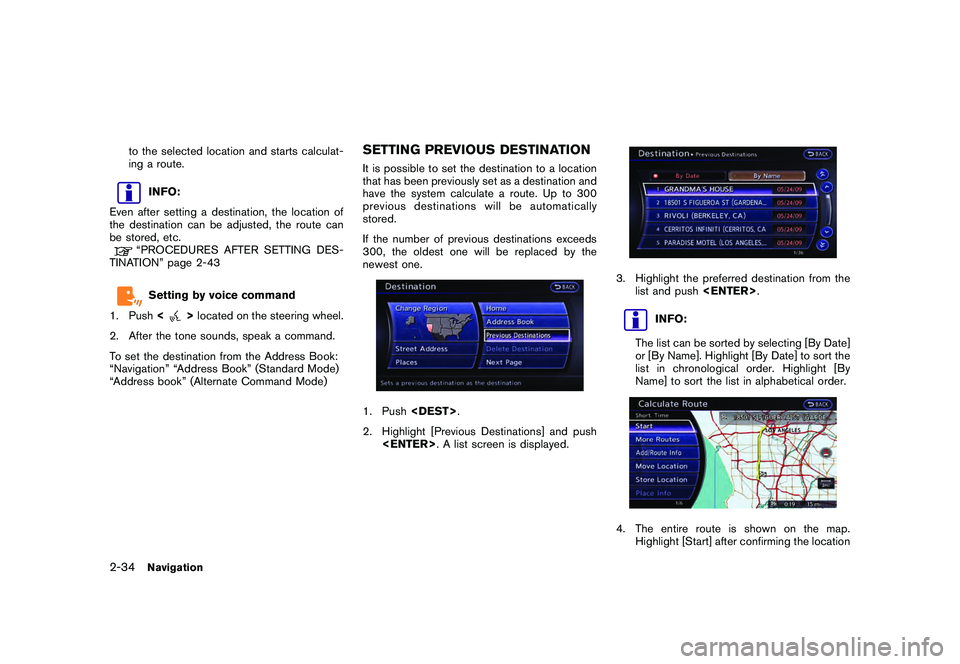
SETTING PREVIOUS DESTINATIONIt is possible to set the destination to a location
that has been previously set as a destination and
have the system calculate a route. Up to 300
previous destinations will be automatically
stored.
If the number of previous destinations exceeds
300, the oldest one will be replaced by the
newest one.1. Push
2. Highlight [Previous Destinations] and push
3. Highlight the preferred destination from the
list and push
INFO:
The list can be sorted by selecting [By Date]
or [By Name]. Highlight [By Date] to sort the
list in chronological order. Highlight [By
Name] to sort the list in alphabetical order.
4. The entire route is shown on the map. Highlight [Start] after confirming the location
2-34
Navigation
Page 63 of 312
Black plate (61,1)
Model "R35-N" EDITED: 2009/ 10/ 30
of the displayed destination, and push
to the selected location and starts calculat-
ing a route.
INFO:
Even after setting a destination, the location of
the destination can be adjusted, the route can
be stored, etc.“PROCEDURES AFTER SETTING DES-
TINATION” page 2-43Setting by voice command
1. Push <
>located on the steering wheel.
2. After the tone sounds, speak a command.
To display the previous destinations list:
“Navigation” “Previous Destinations” (Standard
Mode)
“Previous Destinations” (Alternate Command
Mode)
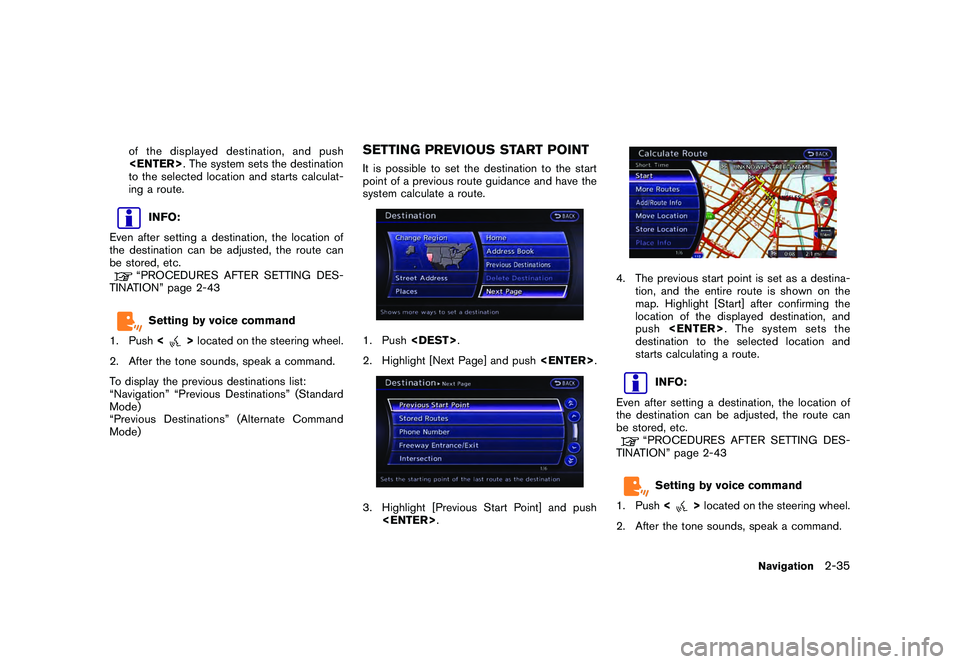
SETTING PREVIOUS START POINTIt is possible to set the destination to the start
point of a previous route guidance and have the
system calculate a route.1. Push
2. Highlight [Next Page] and push
4. The previous start point is set as a destina-
tion, and the entire route is shown on the
map. Highlight [Start] after confirming the
location of the displayed destination, and
push
destination to the selected location and
starts calculating a route.
INFO:
Even after setting a destination, the location of
the destination can be adjusted, the route can
be stored, etc.“PROCEDURES AFTER SETTING DES-
TINATION” page 2-43Setting by voice command
1. Push <
>located on the steering wheel.
2. After the tone sounds, speak a command.
Navigation
2-35
Page 71 of 312
![NISSAN GT-R 2011 User Guide Black plate (69,1)
Model "R35-N" EDITED: 2009/ 10/ 30
2. Select [Delete Destination] and press<EN-
TER>.3. A confirmation message is displayed. Select [Yes] and press <ENTER>.
The destination and the](/img/5/58175/w960_58175-70.png "NISSAN GT-R 2011 User Guide Black plate (69,1)
Model \"R35-N\" EDITED: 2009/ 10/ 30
2. Select [Delete Destination] and press<EN-
TER>.3. A confirmation message is displayed. Select [Yes] and press <ENTER>.
The destination and the")
Black plate (69,1)
Model "R35-N" EDITED: 2009/ 10/ 30
2. Select [Delete Destination] and press
The destination and the waypoints are
deleted.
INFO:
The deleted destination and waypoints are not
able to be reactivated.Setting by voice command
1. Push <
>on the steering wheel.
2. After the tone sounds, speak a command.
To delete a destination and all waypoints:
“Delete Destination” (Alternate Command
Mode)
PROCEDURES AFTER SETTING
DESTINATIONAfter performing a route search, the route
guidance can be immediately started. Also, it is
possible to confirm or change a route.Available items after setting destination
. [Start]:
Starts route guidance to the selected
destination.
“Starting route guidance” page 2-44
. [More Routes]:
Displays 3 alternative routes.“Selecting route” page 2-44 .
[Add/Route Info]:
Displays the route information. A destination
or a waypoint can also be added.
“Confirming route” page 2-45
. [Move Location]:
Displays a map screen. The location of the
destination can be adjusted.“Moving location of destination” page
2-46
. [Store Location]:
Stores the location in the Address Book.“Storing location” page 2-47
. [Place Info]:
Displays information about the facility that
has been set as the destination, if it is
included in the map data.“Viewing information about searched
location” page 2-47INFO:
. If no operations have been performed on the
system for several seconds, [Start] is auto-
matically selected, and the system starts
route guidance.
. When using waypoints, [More Routes] is
disabled. After the route is started, push
Route] to change the route between each
waypoint.
Navigation
2-43
ROUTE GUIDANCE
Page 83 of 312
Black plate (81,1)
Model "R35-N" EDITED: 2009/ 10/ 30
Setting by voice command
1. Push <
>located on the steering wheel.
2. After the tone sounds, speak a command.
To cancel a route:
“Cancel Route” (Alternate Command Mode)
Reactivating route:1. Push
2. Highlight [Resume Route] and push
3. A confirmation message is displayed. High- light [Yes] and push
celed route is reactivated.
INFO:
If a new route is set, the canceled route cannot
be reactivated.
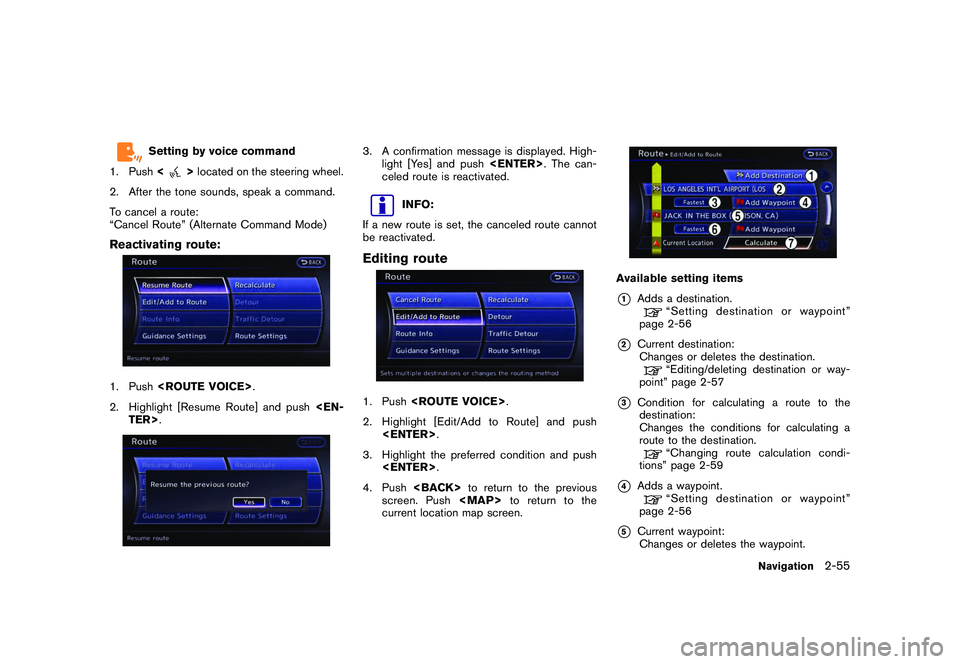
Editing route1. Push
2. Highlight [Edit/Add to Route] and push
3. Highlight the preferred condition and push
4. Push
screen. Push
Page 90 of 312
![NISSAN GT-R 2011 User Guide Black plate (88,1)
Model "R35-N" EDITED: 2009/ 10/ 30
Available setting items
.[Guidance Voice]:
Activates or deactivates voice guidance. The
indicator illuminates if voice guidance is
activated.
. [G](/img/5/58175/w960_58175-89.png "NISSAN GT-R 2011 User Guide Black plate (88,1)
Model \"R35-N\" EDITED: 2009/ 10/ 30
Available setting items
.[Guidance Voice]:
Activates or deactivates voice guidance. The
indicator illuminates if voice guidance is
activated.
. [G")
Black plate (88,1)
Model "R35-N" EDITED: 2009/ 10/ 30
Available setting items
.[Guidance Voice]:
Activates or deactivates voice guidance. The
indicator illuminates if voice guidance is
activated.
. [Guidance Volume]:
Adjusts the volume level of voice guidance.
. [Traffic Announcement]:
Provides the announcement of a traffic
information event on the route.
Setting by voice command
1. Push <
>located on the steering wheel.
2. After the tone sounds, speak a command. To turn the Voice Guidance ON or OFF:
“Voice Guidance On/Off” (Alternate Com-
mand Mode)
Recalculate routeA route can be manually searched again after
changing the search condition. When the
vehicle deviates from the suggested route, the
route from the current location to the destination
is automatically searched again.Manually re-searching route:1. Push
2. Highlight [Recalculate] and push
3. A message is displayed, and the route is
recalculated.4. Set the route conditions. After finishing thesetting, highlight [Start] and push
“PROCEDURES AFTER SETTING
DESTINATION” page 2-43INFO:
When a waypoint has been set on the route, the
system will search for only one route even if
route recalculation is performed.
2-62
Navigation
Page 93 of 312
Black plate (91,1)
Model "R35-N" EDITED: 2009/ 10/ 30
INFO:
. If no operation is performed for one minute
after the message is displayed, the message
disappears. The detour will not be accepted,
and the current suggested route will remain
unchanged.
. When [Traffic Announcement] is turned on in
the guidance settings, the system will
announce voice guidance at the same time
that the message appears on the screen.“Guidance settings” page 2-61
Setting conditions for route calcu-
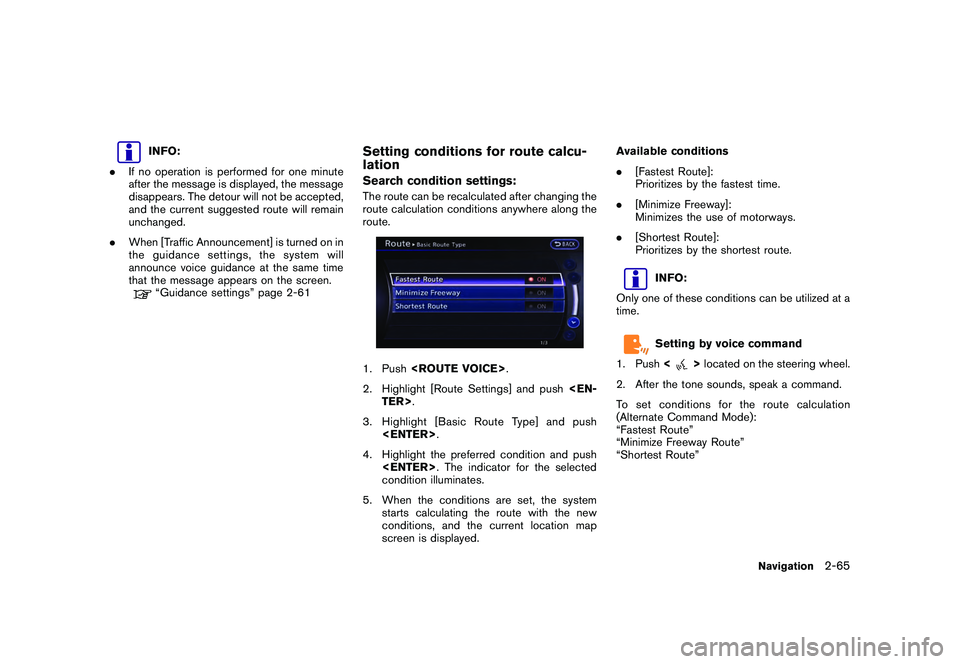
lationSearch condition settings:The route can be recalculated after changing the
route calculation conditions anywhere along the
route.1. Push
2. Highlight [Route Settings] and push
3. Highlight [Basic Route Type] and push
4. Highlight the preferred condition and push
condition illuminates.
5. When the conditions are set, the system starts calculating the route with the new
conditions, and the current location map
screen is displayed. Available conditions
.
[Fastest Route]:
Prioritizes by the fastest time.
. [Minimize Freeway]:
Minimizes the use of motorways.
. [Shortest Route]:
Prioritizes by the shortest route.
INFO:
Only one of these conditions can be utilized at a
time.Setting by voice command
1. Push <
>located on the steering wheel.
2. After the tone sounds, speak a command.
To set conditions for the route calculation
(Alternate Command Mode):
“Fastest Route”
“Minimize Freeway Route”
“Shortest Route”
Navigation
2-65
Page 153 of 312
Black plate (153,1)
Model "R35-N" EDITED: 2009/ 10/ 30
.The recording process can be
stopped at any time. All tracks that
were played before the CD was
stopped are stored.
. Individual tracks can be deleted
from the hard-disk drive after the
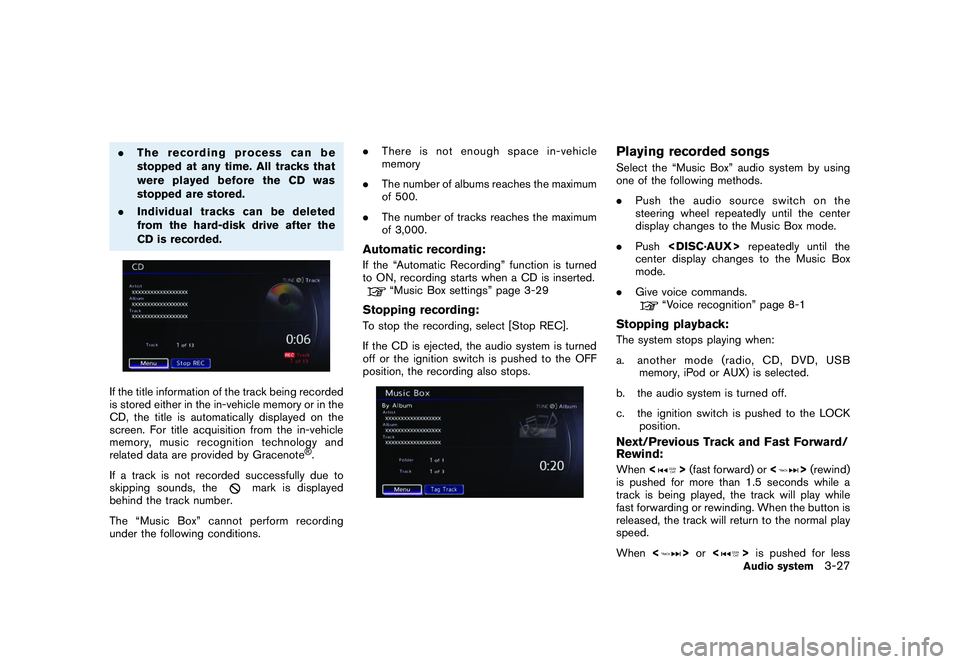
CD is recorded.If the title information of the track being recorded
is stored either in the in-vehicle memory or in the
CD, the title is automatically displayed on the
screen. For title acquisition from the in-vehicle
memory, music recognition technology and
related data are provided by Gracenote
®.
If a track is not recorded successfully due to
skipping sounds, the
mark is displayed
behind the track number.
The “Music Box” cannot perform recording
under the following conditions. .
There is not enough space in-vehicle
memory
. The number of albums reaches the maximum
of 500.
. The number of tracks reaches the maximum
of 3,000.
Automatic recording:If the “Automatic Recording” function is turned
to ON, recording starts when a CD is inserted.
“Music Box settings” page 3-29
Stopping recording:To stop the recording, select [Stop REC].
If the CD is ejected, the audio system is turned
off or the ignition switch is pushed to the OFF
position, the recording also stops.
Playing recorded songsSelect the “Music Box” audio system by using
one of the following methods.
.Push the audio source switch on the
steering wheel repeatedly until the center
display changes to the Music Box mode.
. Push
center display changes to the Music Box
mode.
. Give voice commands.
“Voice recognition” page 8-1
Stopping playback:The system stops playing when:
a. another mode (radio, CD, DVD, USB
memory, iPod or AUX) is selected.
b. the audio system is turned off.
c. the ignition switch is pushed to the LOCK position.Next/Previous Track and Fast Forward/
Rewind:When <
>(fast forward) or <
>(rewind)
is pushed for more than 1.5 seconds while a
track is being played, the track will play while
fast forwarding or rewinding. When the button is
released, the track will return to the normal play
speed.
When <
>or <
>is pushed for lessAudio system
3-27
Page 165 of 312
Black plate (167,1)
Model "R35-N" EDITED: 2009/ 10/ 30
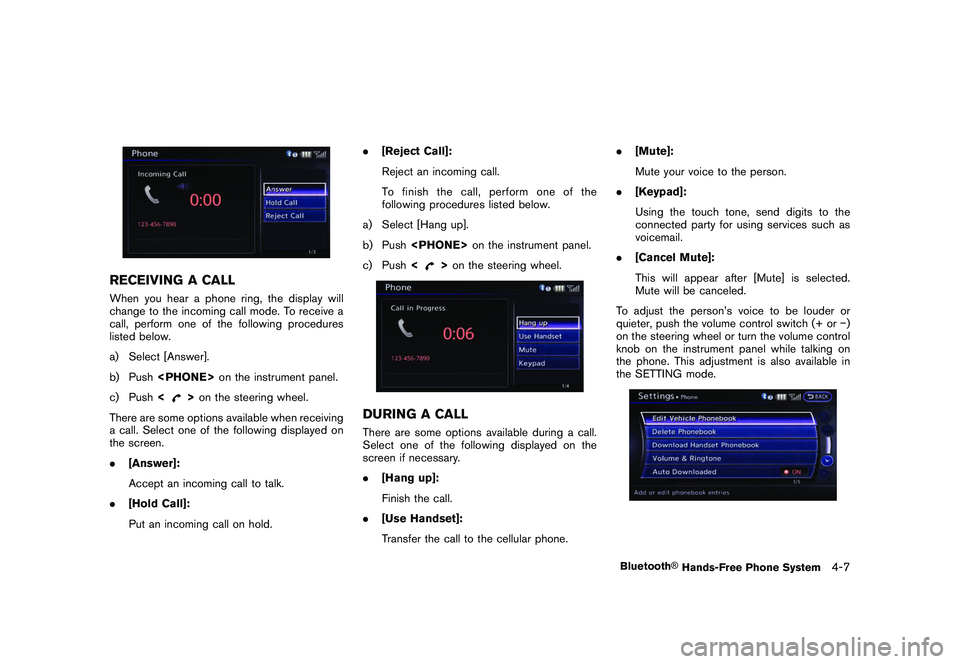
RECEIVING A CALLWhen you hear a phone ring, the display will
change to the incoming call mode. To receive a
call, perform one of the following procedures
listed below.
a) Select [Answer].
b) Push
c) Push <
>on the steering wheel.
There are some options available when receiving
a call. Select one of the following displayed on
the screen.
. [Answer]:
Accept an incoming call to talk.
. [Hold Call]:
Put an incoming call on hold. .
[Reject Call]:
Reject an incoming call.
To finish the call, perform one of the
following procedures listed below.
a) Select [Hang up].
b) Push
c) Push <
>on the steering wheel.
DURING A CALLThere are some options available during a call.
Select one of the following displayed on the
screen if necessary.
. [Hang up]:
Finish the call.
. [Use Handset]:
Transfer the call to the cellular phone. .
[Mute]:
Mute your voice to the person.
. [Keypad]:
Using the touch tone, send digits to the
connected party for using services such as
voicemail.
. [Cancel Mute]:
This will appear after [Mute] is selected.
Mute will be canceled.
To adjust the person’s voice to be louder or
quieter, push the volume control switch (+ or )
on the steering wheel or turn the volume control
knob on the instrument panel while talking on
the phone. This adjustment is also available in
the SETTING mode.
Bluetooth
®Hands-Free Phone System
4-7
Page 178 of 312
Black plate (182,1)
Model "R35-N" EDITED: 2009/ 10/ 30
Contents of vehicle location infor-
mation*1
Next Street:
Displays the next street on the route.
*2
Current Street:
Displays the current street on the route.
*3
Previous Street:
Displays the previous street on the route.
*4
Displays the distance to the next intersec-tion on the route.
*5
Displays the distance traveled from theprevious intersection on the route.
Setting by voice command
1. Push <
>located on the steering wheel.
2. After the tone sounds, speak a command.
To display the information about the vehicle
location:
“Information” “Where am I?” (Standard Mode)
“Where am I?” (Alternate Command Mode)
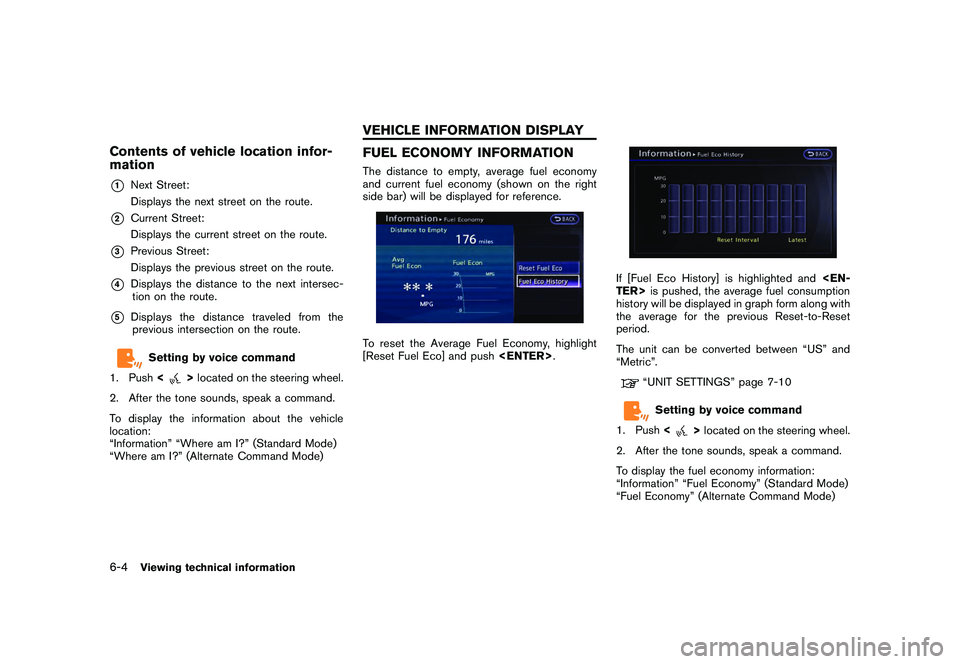
FUEL ECONOMY INFORMATIONThe distance to empty, average fuel economy
and current fuel economy (shown on the right
side bar) will be displayed for reference.To reset the Average Fuel Economy, highlight
[Reset Fuel Eco] and push
If [Fuel Eco History] is highlighted and
history will be displayed in graph form along with
the average for the previous Reset-to-Reset
period.
The unit can be converted between “US” and
“Metric”.
“UNIT SETTINGS” page 7-10Setting by voice command
1. Push <
>located on the steering wheel.
2. After the tone sounds, speak a command.
To display the fuel economy information:
“Information” “Fuel Economy” (Standard Mode)
“Fuel Economy” (Alternate Command Mode)
6-4
Viewing technical information
VEHICLE INFORMATION DISPLAY