steering NISSAN GT-R 2011 Owner's Guide
[x] Cancel search | Manufacturer: NISSAN, Model Year: 2011, Model line: GT-R, Model: NISSAN GT-R 2011Pages: 312, PDF Size: 13.07 MB
Page 221 of 312
Black plate (227,1)
Model "R35-N" EDITED: 2009/ 10/ 30
VOICE COMMAND EXAMPLESTo use the voice recognition function, speaking
one command is sometimes sufficient, but at
other times it is necessary to speak two or more
commands. As examples, some additional basic
operations that can be performed by voice
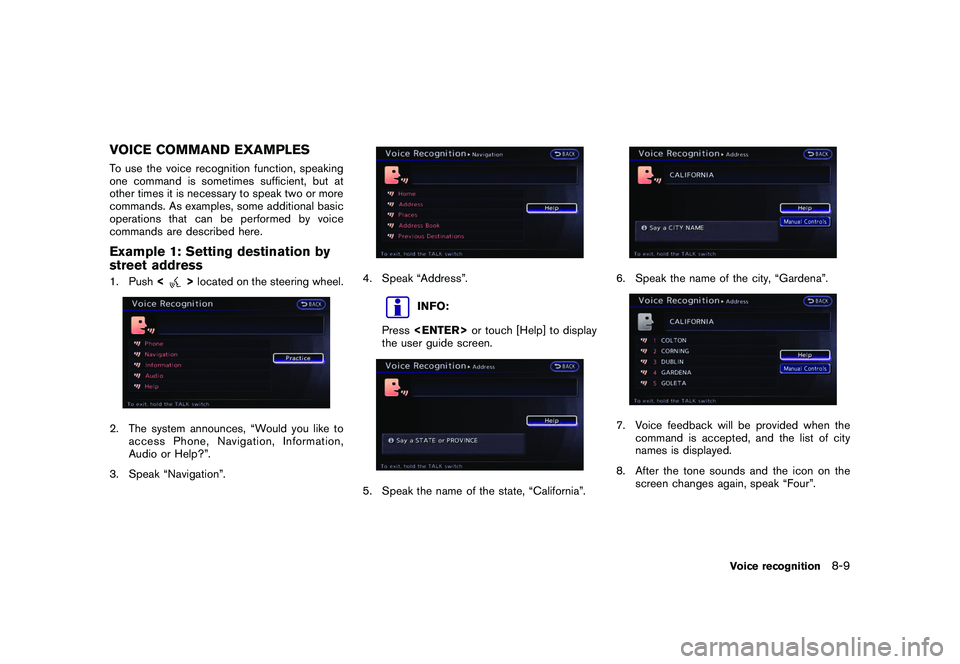
commands are described here.Example 1: Setting destination by
street address1. Push<
>located on the steering wheel.
2. The system announces, “Would you like to
access Phone, Navigation, Information,
Audio or Help?”.
3. Speak “Navigation”.
4. Speak “Address”.
INFO:
Press
the user guide screen.
5. Speak the name of the state, “California”.
6. Speak the name of the city, “Gardena”.7. Voice feedback will be provided when the command is accepted, and the list of city
names is displayed.
8. After the tone sounds and the icon on the screen changes again, speak “Four”.
Voice recognition
8-9
Page 223 of 312
Black plate (229,1)
Model "R35-N" EDITED: 2009/ 10/ 30
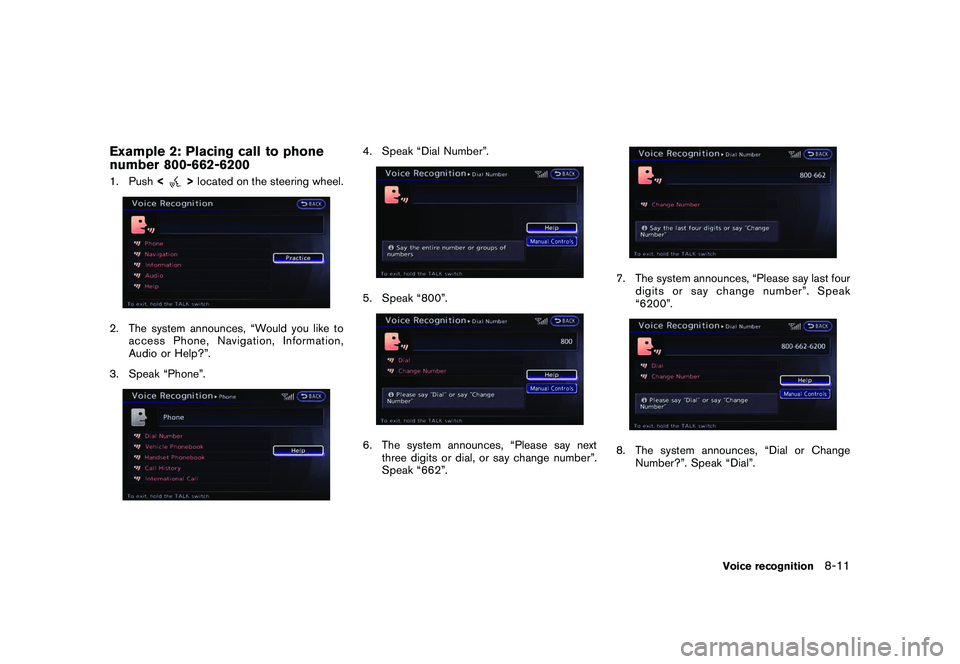
Example 2: Placing call to phone
number 800-662-62001. Push<
>located on the steering wheel.
2. The system announces, “Would you like to
access Phone, Navigation, Information,
Audio or Help?”.
3. Speak “Phone”.
4. Speak “Dial Number”.5. Speak “800”.6. The system announces, “Please say next three digits or dial, or say change number”.
Speak “662”.
7. The system announces, “Please say last fourdigits or say change number”. Speak
“6200”.8. The system announces, “Dial or Change
Number?”. Speak “Dial”.
Voice recognition
8-11
Page 224 of 312
Black plate (230,1)
Model "R35-N" EDITED: 2009/ 10/ 30
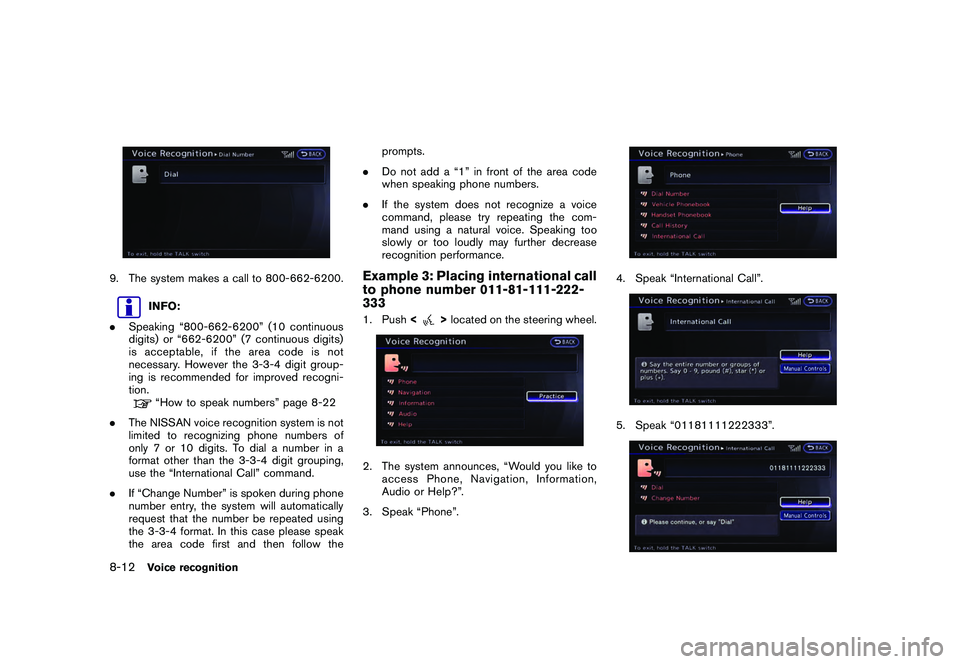
9. The system makes a call to 800-662-6200.
INFO:
. Speaking “800-662-6200” (10 continuous
digits) or “662-6200” (7 continuous digits)
is acceptable, if the area code is not
necessary. However the 3-3-4 digit group-
ing is recommended for improved recogni-
tion.“How to speak numbers” page 8-22
. The NISSAN voice recognition system is not
limited to recognizing phone numbers of
only 7 or 10 digits. To dial a number in a
format other than the 3-3-4 digit grouping,
use the “International Call” command.
. If “Change Number” is spoken during phone
number entry, the system will automatically
request that the number be repeated using
the 3-3-4 format. In this case please speak
the area code first and then follow the prompts.
. Do not add a “1” in front of the area code
when speaking phone numbers.
. If the system does not recognize a voice
command, please try repeating the com-
mand using a natural voice. Speaking too
slowly or too loudly may further decrease
recognition performance.
Example 3: Placing international call
to phone number 011-81-111-222-
3331. Push <
>located on the steering wheel.
2. The system announces, “Would you like to
access Phone, Navigation, Information,
Audio or Help?”.
3. Speak “Phone”.
4. Speak “International Call”.5. Speak “01181111222333”.
8-12
Voice recognition
Page 234 of 312
Black plate (240,1)
Model "R35-N" EDITED: 2009/ 10/ 30
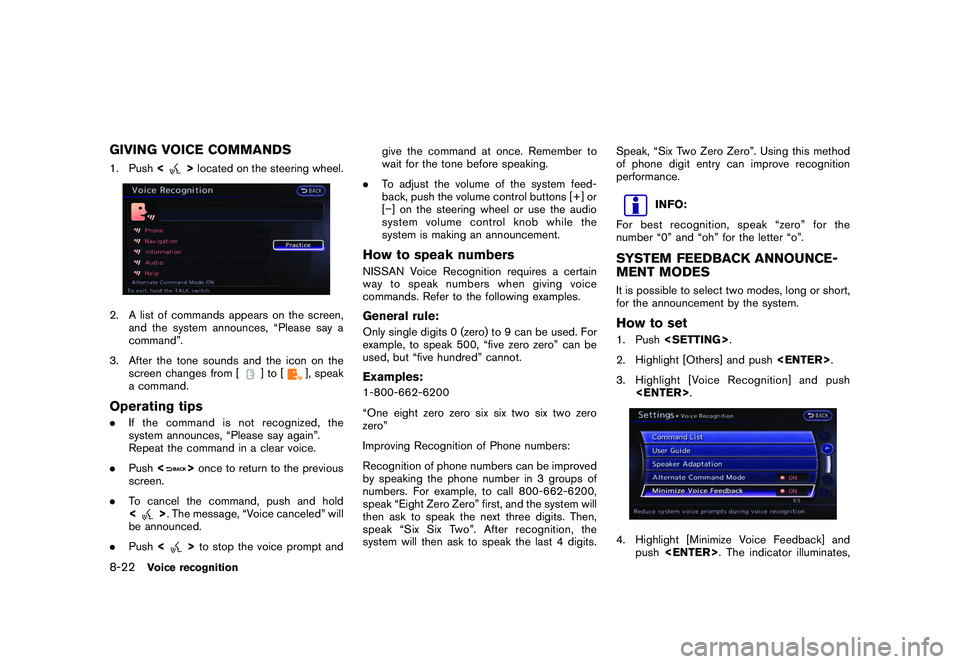
GIVING VOICE COMMANDS1. Push<
>located on the steering wheel.
2. A list of commands appears on the screen,
and the system announces, “Please say a
command”.
3. After the tone sounds and the icon on the screen changes from [
]to[
], speak
a command.
Operating tips. If the command is not recognized, the
system announces, “Please say again”.
Repeat the command in a clear voice.
. Push <
>once to return to the previous
screen.
. To cancel the command, push and hold
<
>. The message, “Voice canceled” will
be announced.
. Push <
>to stop the voice prompt and give the command at once. Remember to
wait for the tone before speaking.
. To adjust the volume of the system feed-
back, push the volume control buttons [+] or
[] on the steering wheel or use the audio
system volume control knob while the
system is making an announcement.
How to speak numbersNISSAN Voice Recognition requires a certain
way to speak numbers when giving voice
commands. Refer to the following examples.General rule:Only single digits 0 (zero) to 9 can be used. For
example, to speak 500, “five zero zero” can be
used, but “five hundred” cannot.Examples:1-800-662-6200
“One eight zero zero six six two six two zero
zero”
Improving Recognition of Phone numbers:
Recognition of phone numbers can be improved
by speaking the phone number in 3 groups of
numbers. For example, to call 800-662-6200,
speak “Eight Zero Zero” first, and the system will
then ask to speak the next three digits. Then,
speak “Six Six Two”. After recognition, the
system will then ask to speak the last 4 digits. Speak, “Six Two Zero Zero”. Using this method
of phone digit entry can improve recognition
performance.
INFO:
For best recognition, speak “zero” for the
number “0” and “oh” for the letter “o”.
SYSTEM FEEDBACK ANNOUNCE-
MENT MODESIt is possible to select two modes, long or short,
for the announcement by the system.How to set1. Push
2. Highlight [Others] and push
3. Highlight [Voice Recognition] and push
push
8-22
Voice recognition
Page 238 of 312
Black plate (244,1)
Model "R35-N" EDITED: 2009/ 10/ 30
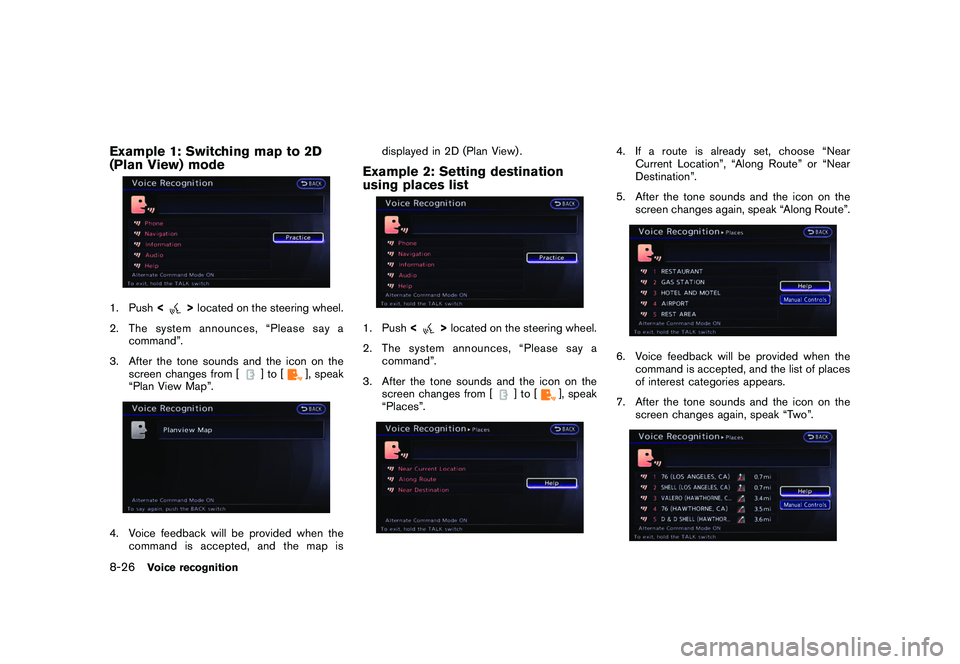
Example 1: Switching map to 2D
(Plan View) mode1. Push<
>located on the steering wheel.
2. The system announces, “Please say a command”.
3. After the tone sounds and the icon on the screen changes from [
]to[
], speak
“Plan View Map”.
4. Voice feedback will be provided when the command is accepted, and the map is displayed in 2D (Plan View) .
Example 2: Setting destination
using places list1. Push
<
>located on the steering wheel.
2. The system announces, “Please say a command”.
3. After the tone sounds and the icon on the screen changes from [
]to[
], speak
“Places”.
4. If a route is already set, choose “Near Current Location”, “Along Route” or “Near
Destination”.
5. After the tone sounds and the icon on the screen changes again, speak “Along Route”.6. Voice feedback will be provided when thecommand is accepted, and the list of places
of interest categories appears.
7. After the tone sounds and the icon on the screen changes again, speak “Two”.
8-26
Voice recognition
Page 239 of 312
Black plate (245,1)
Model "R35-N" EDITED: 2009/ 10/ 30
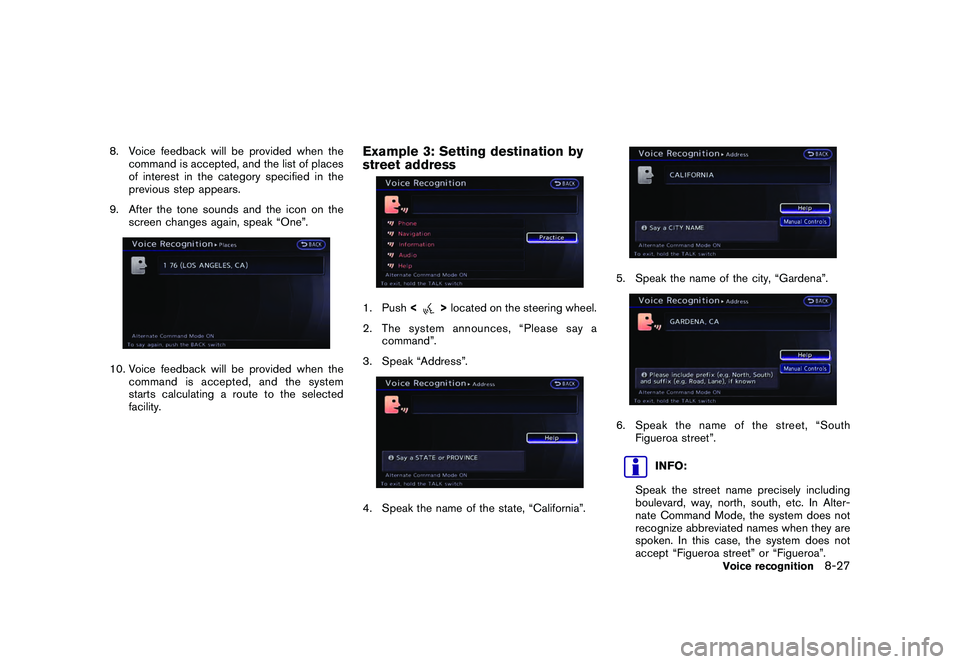
8. Voice feedback will be provided when thecommand is accepted, and the list of places
of interest in the category specified in the
previous step appears.
9. After the tone sounds and the icon on the screen changes again, speak “One”.10. Voice feedback will be provided when the
command is accepted, and the system
starts calculating a route to the selected
facility.
Example 3: Setting destination by
street address1. Push <
>located on the steering wheel.
2. The system announces, “Please say a command”.
3. Speak “Address”.
4. Speak the name of the state, “California”.
5. Speak the name of the city, “Gardena”.6. Speak the name of the street, “South Figueroa street”.
INFO:
Speak the street name precisely including
boulevard, way, north, south, etc. In Alter-
nate Command Mode, the system does not
recognize abbreviated names when they are
spoken. In this case, the system does not
accept “Figueroa street” or “Figueroa”.
Voice recognition
8-27
Page 243 of 312
Black plate (28,1)
9 Multi function meter
Model "R35-N" EDITED: 2009/ 10/ 30
About multi function meter.................................... 9-2
Safety notes ................................................. 9-2
Multi function meter list ................................... 9-3
Basic operation ................................................. 9-4
How to view the function meter screen ............... 9-4
How to switch screens .................................... 9-6
Custom view screen ........................................... 9-7
Selecting panel .............................................. 9-7
Performance and vehicle information panel ......... 9-10Driving support screen
...................................... 9-20
Acceleration screen ...................................... 9-20
Braking screen ............................................ 9-22
Steering screen ........................................... 9-24
Gear position screen .................................... 9-26
Fuel economy screen .................................... 9-27
Driving record screen ........................................ 9-28
Stopwatch screen ........................................ 9-28
Driver’s notes screen .................................... 9-32
Page 245 of 312
Black plate (251,1)
Model "R35-N" EDITED: 2009/ 10/ 30
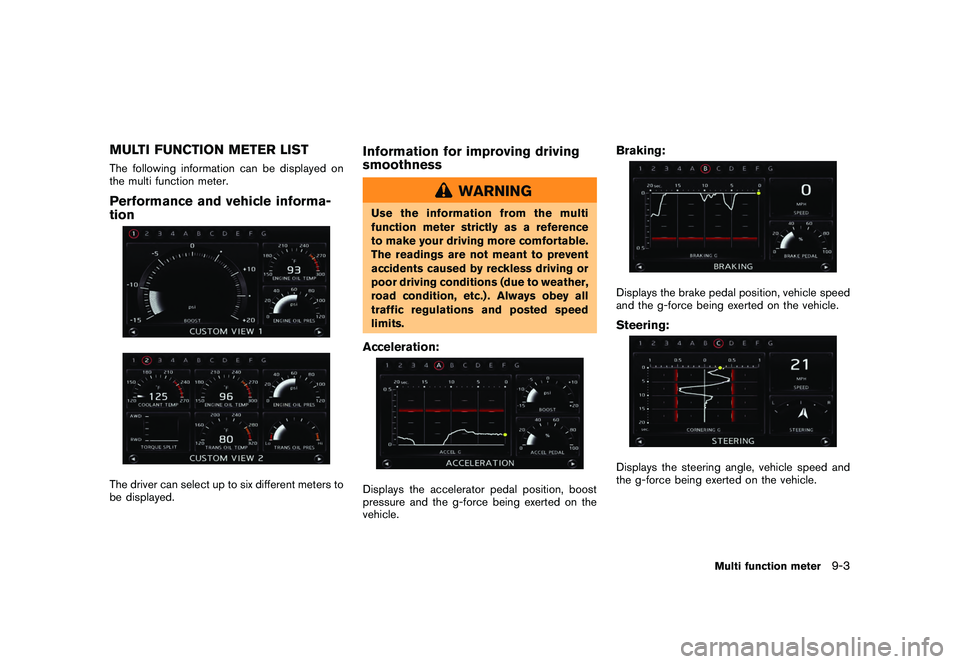
MULTI FUNCTION METER LISTThe following information can be displayed on
the multi function meter.Performance and vehicle informa-
tionThe driver can select up to six different meters to
be displayed.
Information for improving driving
smoothness
WARNING
Use the information from the multi
function meter strictly as a reference
to make your driving more comfortable.
The readings are not meant to prevent
accidents caused by reckless driving or
poor driving conditions (due to weather,
road condition, etc.) . Always obey all
traffic regulations and posted speed
limits.Acceleration:Displays the accelerator pedal position, boost
pressure and the g-force being exerted on the
vehicle.
Braking:Displays the brake pedal position, vehicle speed
and the g-force being exerted on the vehicle.Steering:Displays the steering angle, vehicle speed and
the g-force being exerted on the vehicle.
Multi function meter
9-3
Page 251 of 312
Black plate (257,1)
Model "R35-N" EDITED: 2009/ 10/ 30
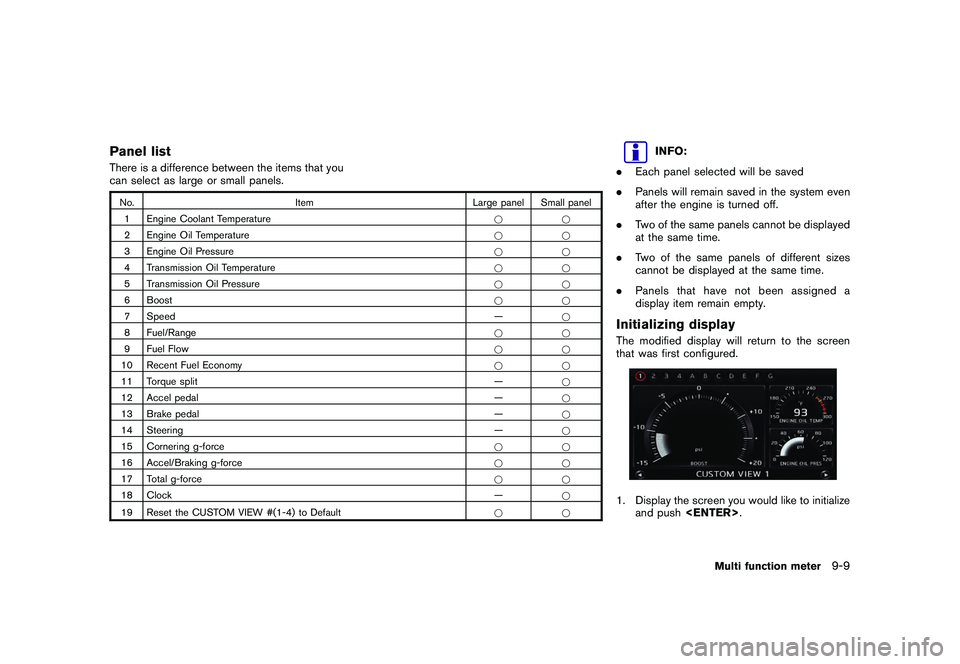
Panel listThere is a difference between the items that you
can select as large or small panels.No.Item Large panel Small panel
1 Engine Coolant Temperature **
2 Engine Oil Temperature **
3 Engine Oil Pressure **
4 Transmission Oil Temperature **
5 Transmission Oil Pressure **
6 Boost **
7 Speed —*
8 Fuel/Range **
9 Fuel Flow **
10 Recent Fuel Economy **
11 Torque split —*
12 Accel pedal —*
13 Brake pedal —*
14 Steering —*
15 Cornering g-force **
16 Accel/Braking g-force **
17 Total g-force **
18 Clock —*
19 Reset the CUSTOM VIEW #(1-4) to Default *
*
INFO:
. Each panel selected will be saved
. Panels will remain saved in the system even
after the engine is turned off.
. Two of the same panels cannot be displayed
at the same time.
. Two of the same panels of different sizes
cannot be displayed at the same time.
. Panels that have not been assigned a
display item remain empty.
Initializing displayThe modified display will return to the screen
that was first configured.1. Display the screen you would like to initialize
and push
Multi function meter
9-9
Page 258 of 312
Black plate (264,1)
Model "R35-N" EDITED: 2009/ 10/ 30
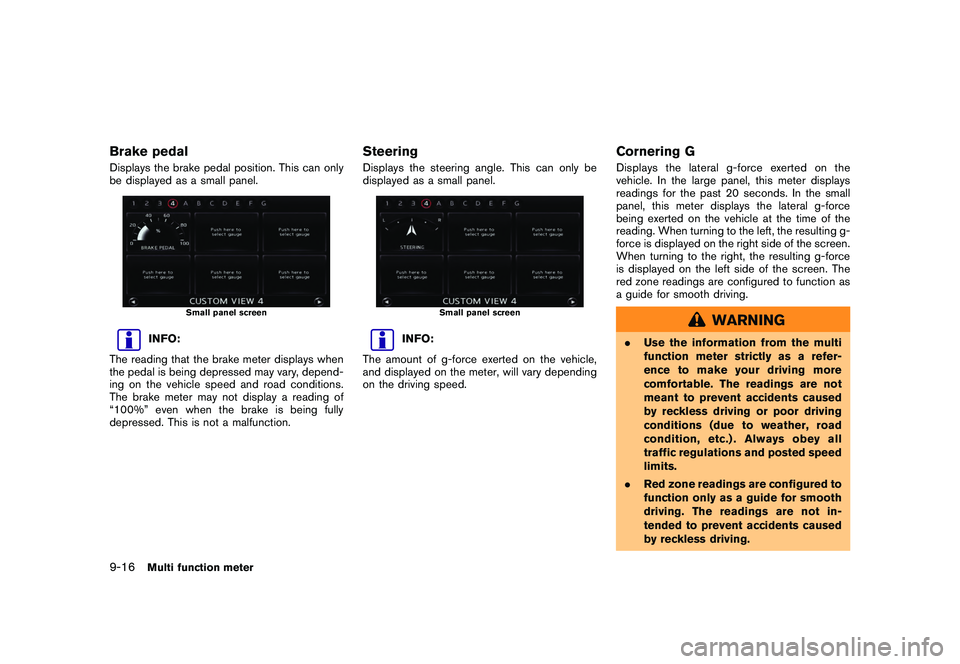
Brake pedalDisplays the brake pedal position. This can only
be displayed as a small panel.
Small panel screen
INFO:
The reading that the brake meter displays when
the pedal is being depressed may vary, depend-
ing on the vehicle speed and road conditions.
The brake meter may not display a reading of
“100%” even when the brake is being fully
depressed. This is not a malfunction.
SteeringDisplays the steering angle. This can only be
displayed as a small panel.
Small panel screen
INFO:
The amount of g-force exerted on the vehicle,
and displayed on the meter, will vary depending
on the driving speed.
Cornering GDisplays the lateral g-force exerted on the
vehicle. In the large panel, this meter displays
readings for the past 20 seconds. In the small
panel, this meter displays the lateral g-force
being exerted on the vehicle at the time of the
reading. When turning to the left, the resulting g-
force is displayed on the right side of the screen.
When turning to the right, the resulting g-force
is displayed on the left side of the screen. The
red zone readings are configured to function as
a guide for smooth driving.
WARNING
. Use the information from the multi
function meter strictly as a refer-
ence to make your driving more
comfortable. The readings are not
meant to prevent accidents caused
by reckless driving or poor driving
conditions (due to weather, road
condition, etc.) . Always obey all
traffic regulations and posted speed
limits.
. Red zone readings are configured to
function only as a guide for smooth
driving. The readings are not in-
tended to prevent accidents caused
by reckless driving.
9-16
Multi function meter