light NISSAN GT-R 2011 Owner's Guide
[x] Cancel search | Manufacturer: NISSAN, Model Year: 2011, Model line: GT-R, Model: NISSAN GT-R 2011Pages: 312, PDF Size: 13.07 MB
Page 66 of 312
Black plate (64,1)
Model "R35-N" EDITED: 2009/ 10/ 30
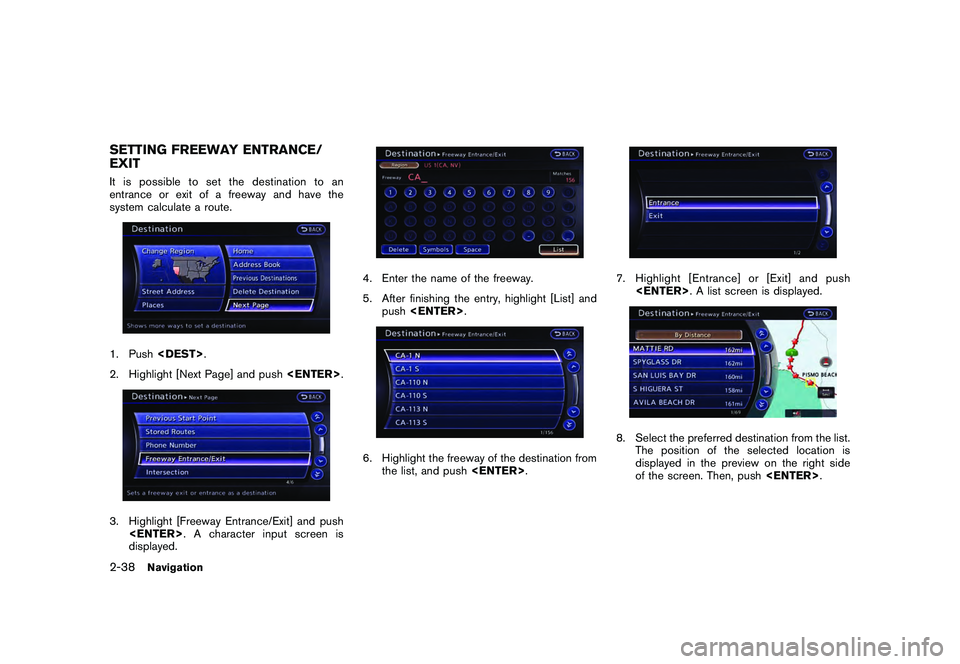
SETTING FREEWAY ENTRANCE/
EXITIt is possible to set the destination to an
entrance or exit of a freeway and have the
system calculate a route.1. Push
2. Highlight [Next Page] and push
displayed.
4. Enter the name of the freeway.
5. After finishing the entry, highlight [List] and
push
the list, and push
7. Highlight [Entrance] or [Exit] and push
The position of the selected location is
displayed in the preview on the right side
of the screen. Then, push
2-38
Navigation
Page 67 of 312
![NISSAN GT-R 2011 Owners Guide Black plate (65,1)
Model "R35-N" EDITED: 2009/ 10/ 30
INFO:
Select [By Distance] to sort the list by the
nearest distance.
9. The entire route is shown on the map. Highlight [Start] after confirming t](/img/5/58175/w960_58175-66.png "NISSAN GT-R 2011 Owners Guide Black plate (65,1)
Model \"R35-N\" EDITED: 2009/ 10/ 30
INFO:
Select [By Distance] to sort the list by the
nearest distance.
9. The entire route is shown on the map. Highlight [Start] after confirming t")
Black plate (65,1)
Model "R35-N" EDITED: 2009/ 10/ 30
INFO:
Select [By Distance] to sort the list by the
nearest distance.
9. The entire route is shown on the map. Highlight [Start] after confirming the location
of the displayed dest ination, and push
to the selected location and starts calculat-
ing a route.
INFO:
Even after setting a destination, the location of
the destination can be adjusted, the route can
be stored, etc.“PROCEDURES AFTER SETTING DES-
TINATION” page 2-43
SETTING INTERSECTIONIt is possible to set an intersection of any two
streets as the destination and have the system
calculate a route.1. Push
2. Highlight [Next Page] and push
3. Highlight [Intersection] and push
played.4. Enter the name of the 1st street.
After finishing the entry, highlight [List] and
push
Navigation
2-39
Page 68 of 312
Black plate (66,1)
Model "R35-N" EDITED: 2009/ 10/ 30
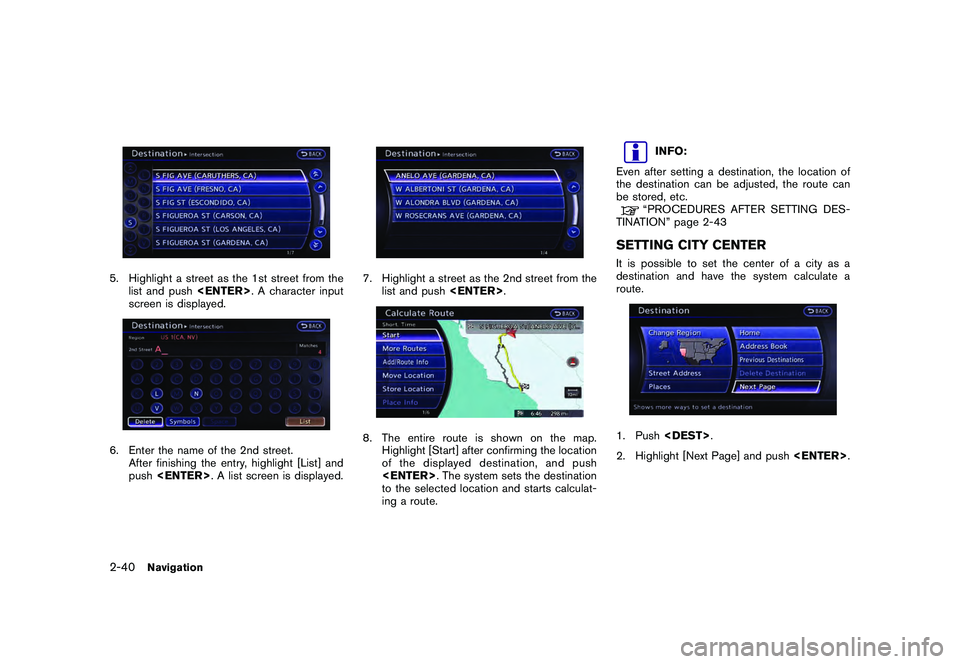
5. Highlight a street as the 1st street from thelist and push
screen is displayed.6. Enter the name of the 2nd street. After finishing the entry, highlight [List] and
push
7. Highlight a street as the 2nd street from the
list and push
Highlight [Start] after confirming the location
of the displayed dest ination, and push
to the selected location and starts calculat-
ing a route.
INFO:
Even after setting a destination, the location of
the destination can be adjusted, the route can
be stored, etc.“PROCEDURES AFTER SETTING DES-
TINATION” page 2-43
SETTING CITY CENTERIt is possible to set the center of a city as a
destination and have the system calculate a
route.1. Push
2. Highlight [Next Page] and push
2-40
Navigation
Page 69 of 312
![NISSAN GT-R 2011 Owners Guide Black plate (67,1)
Model "R35-N" EDITED: 2009/ 10/ 30
3. Highlight [City Center] and push<EN-
TER>. A character input screen is dis-
played.4. Enter the name of the city, highlight [List]
and push <EN](/img/5/58175/w960_58175-68.png "NISSAN GT-R 2011 Owners Guide Black plate (67,1)
Model \"R35-N\" EDITED: 2009/ 10/ 30
3. Highlight [City Center] and push<EN-
TER>. A character input screen is dis-
played.4. Enter the name of the city, highlight [List]
and push <EN")
Black plate (67,1)
Model "R35-N" EDITED: 2009/ 10/ 30
3. Highlight [City Center] and push
played.4. Enter the name of the city, highlight [List]
and push
displayed.
INFO:
Highlight [Last 5 Cities] and push
as destinations.
5. Highlight the preferred destination from the list and push
selected location is displayed in the preview
on the right side of the screen.
INFO:
Select [By Distance] to sort the list by the
nearest distance.
6. The selected destination is displayed at the center of the map. Highlight [Start] after
confirming the location of the displayed
destination, and push
The system sets the destination to the
selected location and starts calculating a
route.
Navigation
2-41
Page 70 of 312

Black plate (68,1)
Model "R35-N" EDITED: 2009/ 10/ 30
INFO:
Even after setting a destination, the location
of the destination can be adjusted, the route
can be stored, etc.“PROCEDURES AFTER SETTING
DESTINATION” page 2-43
SETTING POINT ON MAPIt is possible to set a location scrolled to on the
map as the destination and have the system
calculate a route.1. Scroll the map, place the cross pointer over the preferred location, and push
INFO:
. The map scale should be adjusted to
search for a location more effectively.
. The point on the blinking road where the
center of the cross pointer is located can be set as a destination.
2. Highlight [New Dest.] and push
INFO:
For the items other than [New Dest.], refer to
“Map menu screen”.“Scrolled location map screen” page
2-19
3. The system sets the destination to the selected location and starts calculating a route.
INFO:
If a point on a freeway is set as the destination, a
confirmation message is displayed.
DELETE DESTINATIONIt is possible to delete a destination and all
waypoints that have already been set.1. Press
2-42
Navigation
Page 72 of 312
Black plate (70,1)
Model "R35-N" EDITED: 2009/ 10/ 30
“Editing route” page 2-55
. Even if the map screen is touched or
directional buttons other than the up or
down button are pushed, the same map
screen as when [Move Location] is selected
is displayed.
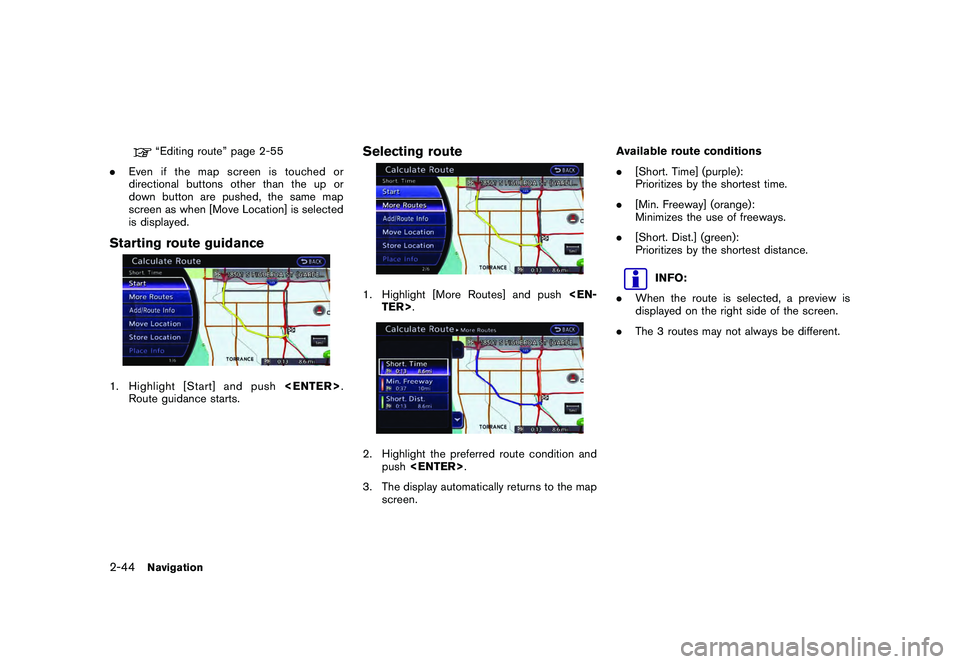
Starting route guidance1. Highlight [Start] and push
Route guidance starts.
Selecting route1. Highlight [More Routes] and push
3. The display automatically returns to the map screen. Available route conditions
.
[Short. Time] (purple):
Prioritizes by the shortest time.
. [Min. Freeway] (orange):
Minimizes the use of freeways.
. [Short. Dist.] (green):
Prioritizes by the shortest distance.
INFO:
. When the route is selected, a preview is
displayed on the right side of the screen.
. The 3 routes may not always be different.
2-44
Navigation
Page 73 of 312
![NISSAN GT-R 2011 Owners Guide Black plate (71,1)
Model "R35-N" EDITED: 2009/ 10/ 30
Confirming route1. Highlight [Add/Route Info] and push<EN-
TER>.
2. Highlight the preferred information item and push <ENTER> .
3. Push <BACK> to](/img/5/58175/w960_58175-72.png "NISSAN GT-R 2011 Owners Guide Black plate (71,1)
Model \"R35-N\" EDITED: 2009/ 10/ 30
Confirming route1. Highlight [Add/Route Info] and push<EN-
TER>.
2. Highlight the preferred information item and push <ENTER> .
3. Push <BACK> to")
Black plate (71,1)
Model "R35-N" EDITED: 2009/ 10/ 30
Confirming route1. Highlight [Add/Route Info] and push
2. Highlight the preferred information item and push
3. Push
screen.
Available information
. [Turn List]:
Displays the details of the suggested route.
“Using turn list” page 2-60
. [Preview]:
The system will trace the planned route
going forward or in reverse.“Using route preview” page 2-61
. [Add Way Pt.]:
Edits the route by adding a waypoint or a
destination.“Adding destination or waypoint” page
2-45
. [Store Route]:
Stores a calculated route. A maximum of 5
routes can be stored. Stored routes can be
easily retrieved and set as the suggested
route.“STORING ROUTE” page 2-74
. [Map Scroll]:
Displays a map screen where the location of
the destination can be confirmed. Even if the
map screen is touched or directional buttons
other than the up or down button are
pushed, the same map screen as when
[Map Scroll] is selected is displayed.
Adding destination or waypoint:Before starting route guidance, destinations
and/or waypoints can be added. A total of 6
destinations or waypoints can be set.1. Highlight [Add Way Pt.] and push
The method of searching for a location is the
same as the one for a destination.
“SETTING DESTINATION” page 2-23
Navigation
2-45
Page 74 of 312
![NISSAN GT-R 2011 Owners Guide Black plate (72,1)
Model "R35-N" EDITED: 2009/ 10/ 30
3. Highlight [Add Destination] or [Add Way-point] and push <ENTER>.4. The system starts calculating a route that
includes the added destination or](/img/5/58175/w960_58175-73.png "NISSAN GT-R 2011 Owners Guide Black plate (72,1)
Model \"R35-N\" EDITED: 2009/ 10/ 30
3. Highlight [Add Destination] or [Add Way-point] and push <ENTER>.4. The system starts calculating a route that
includes the added destination or")
Black plate (72,1)
Model "R35-N" EDITED: 2009/ 10/ 30
3. Highlight [Add Destination] or [Add Way-point] and push
includes the added destination or waypoint.
When the calculation is finished, the route is
displayed.
INFO:
. If a waypoint was added, [More Routes]
cannot be selected. .
If a destination was added, the prior
destination becomes a waypoint.
Moving location of destinationThe location of the destination can be adjusted
by moving the cross pointer across the map.1. Highlight [Move Location] and push
INFO:
The screen for adjusting the location also
changes by touching the map screen dis-
played on the right side of the screen.
2. Adjust the location by moving the cross pointer across the map and push
modified.
INFO:
Even if the map screen is touched or the
directional buttons other than the up or down
button are operated, the same map screen as
when [Move Location] is selected is displayed.
2-46
Navigation
Page 75 of 312
Black plate (73,1)
Model "R35-N" EDITED: 2009/ 10/ 30
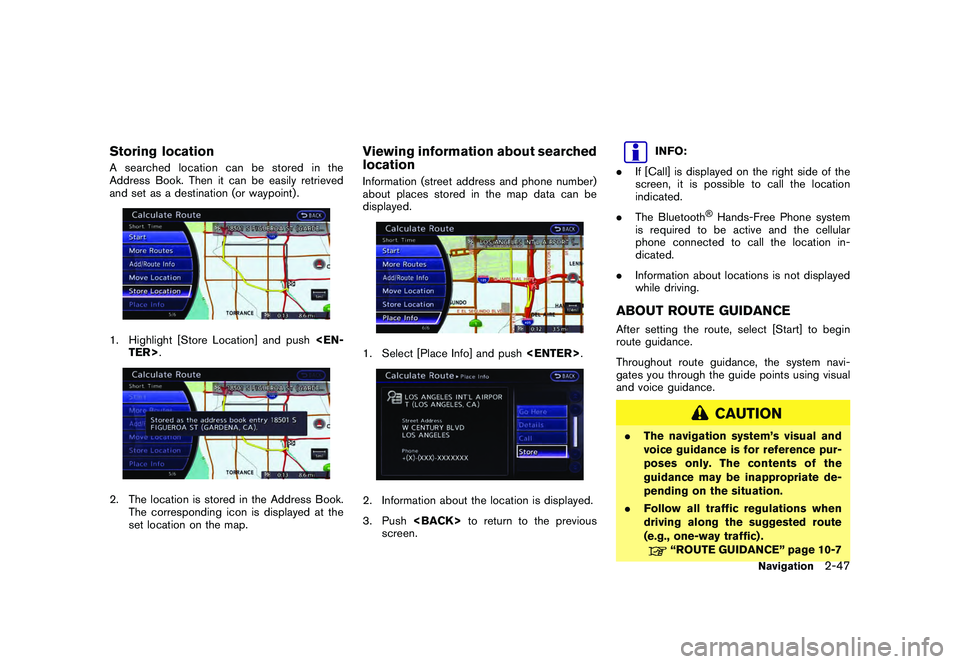
Storing locationA searched location can be stored in the
Address Book. Then it can be easily retrieved
and set as a destination (or waypoint) .1. Highlight [Store Location] and push
set location on the map.
Viewing information about searched
locationInformation (street address and phone number)
about places stored in the map data can be
displayed.1. Select [Place Info] and push
3. Push
screen.
INFO:
. If [Call] is displayed on the right side of the
screen, it is possible to call the location
indicated.
. The Bluetooth
®Hands-Free Phone system
is required to be active and the cellular
phone connected to call the location in-
dicated.
. Information about locations is not displayed
while driving.
ABOUT ROUTE GUIDANCEAfter setting the route, select [Start] to begin
route guidance.
Throughout route guidance, the system navi-
gates you through the guide points using visual
and voice guidance.
CAUTION
.The navigation system’s visual and
voice guidance is for reference pur-
poses only. The contents of the
guidance may be inappropriate de-
pending on the situation.
. Follow all traffic regulations when
driving along the suggested route
(e.g., one-way traffic) .
“ROUTE GUIDANCE” page 10-7
Navigation
2-47
Page 78 of 312
Black plate (76,1)
Model "R35-N" EDITED: 2009/ 10/ 30
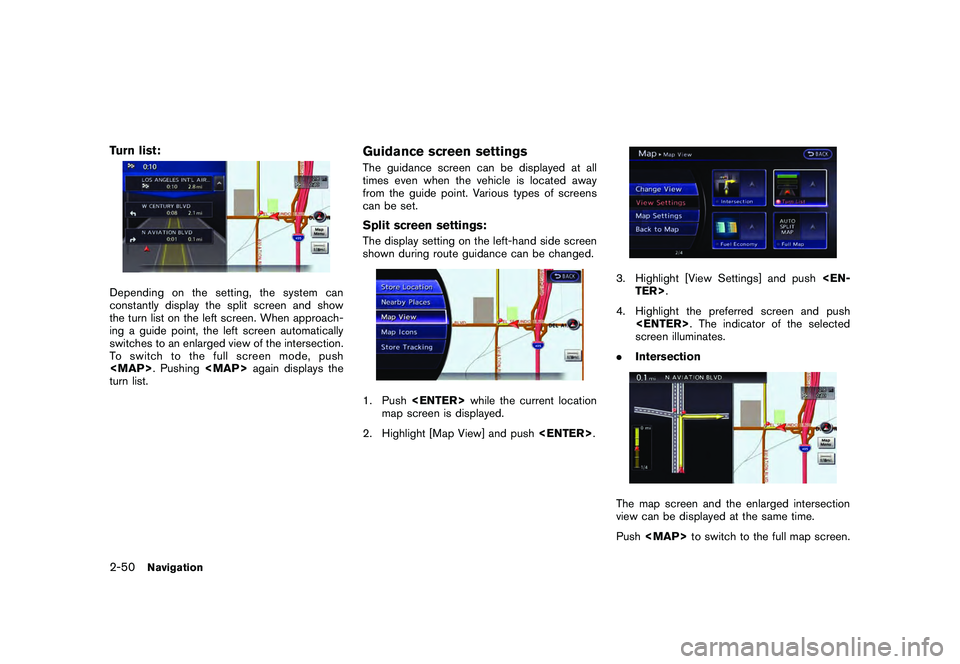
Turn list:Depending on the setting, the system can
constantly display the split screen and show
the turn list on the left screen. When approach-
ing a guide point, the left screen automatically
switches to an enlarged view of the intersection.
To switch to the full screen mode, push