display NISSAN MAXIMA 2010 Owner´s Manual
[x] Cancel search | Manufacturer: NISSAN, Model Year: 2010, Model line: MAXIMA, Model: NISSAN MAXIMA 2010Pages: 457, PDF Size: 4.66 MB
Page 210 of 457
Compact disc (CD) player (models
without Navigation System)
CAUTION
cDo not force a compact disc into the CD
insert slot. This could damage the CD
and/or CD changer/player.
cTrying to load a CD with the CD door
closed could damage the CD and/or CD
changer.
cOnly one CD can be loaded into the CD
player at a time.
cOnly use high quality 4.7 in (12 cm)
round discs that have the “COMPACT
disc DIGITAL AUDIO” logo on the disc
or packaging.
cDuring cold weather or rainy days, the
player may malfunction due to the hu-
midity. If this occurs, remove the CD
and dehumidify or ventilate the player
completely.
cThe player may skip while driving on
rough roads.cThe CD player sometimes cannot func-
tion when the compartment tempera-
ture is extremely high or low.
Decrease/increase the temperature
before use.
cDo not expose the CD to direct sun-
light.
cCDs that are in poor condition or are
dirty, scratched or covered with finger-
prints may not work properly.
cThe following CDs may not work prop-
erly:
cCopy control compact discs (CCCD)
cRecordable compact discs (CD-R)
cRewritable compact discs (CD-RW)
cDo not use the following CDs as they
may cause the CD player to malfunc-
tion:
c3.1 in (8 cm) discs with an adapter
cCDs that are not round
cCDs with a paper label
cCDs that are warped, scratched, or
have abnormal edgescThis audio system can only play pre-
recorded CDs. It has no capability to
record or burn CDs.
cIf the CD cannot be played, one of the
following messages will be displayed.
CHECK DISC:
cConfirm that the CD is inserted cor-
rectly (the label side is facing up,
etc.) .
cConfirm that the CD is not bent or
warped and it is free of scratches.
PRESS EJECT:
This is an error due to excessive tem-
perature inside the player. Remove the
CD by pressing the EJECT button. After
a short time, reinsert the CD. The CD
can be played when the temperature of
the player returns to normal.
UNPLAYABLE:
The file is unplayable in this audio sys-
tem (only MP3 or WMA (if so equipped)
CD) .
4-50Monitor, climate, audio, phone and voice recognition systems
Page 212 of 457
Region Invalid
cThe DVD is not for region 1 or all
regions.
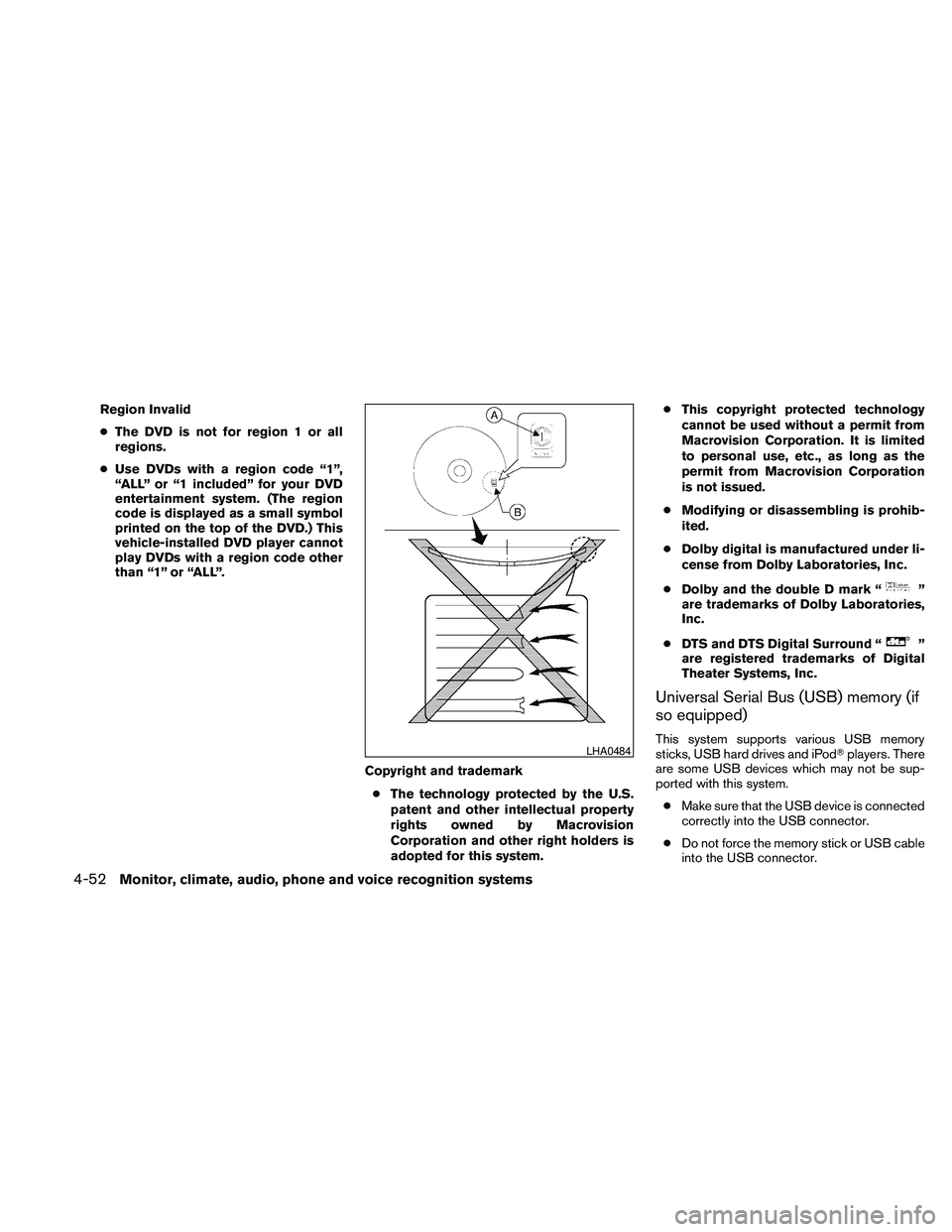
cUse DVDs with a region code “1”,
“ALL” or “1 included” for your DVD
entertainment system. (The region
code is displayed as a small symbol
printed on the top of the DVD.) This
vehicle-installed DVD player cannot
play DVDs with a region code other
than “1” or “ALL”.
Copyright and trademark
cThe technology protected by the U.S.
patent and other intellectual property
rights owned by Macrovision
Corporation and other right holders is
adopted for this system.cThis copyright protected technology
cannot be used without a permit from
Macrovision Corporation. It is limited
to personal use, etc., as long as the
permit from Macrovision Corporation
is not issued.
cModifying or disassembling is prohib-
ited.
cDolby digital is manufactured under li-
cense from Dolby Laboratories, Inc.
cDolby and the double D mark “
”
are trademarks of Dolby Laboratories,
Inc.
cDTS and DTS Digital Surround “
”
are registered trademarks of Digital
Theater Systems, Inc.
Universal Serial Bus (USB) memory (if
so equipped)
This system supports various USB memory
sticks, USB hard drives and iPodTplayers. There
are some USB devices which may not be sup-
ported with this system.
cMake sure that the USB device is connected
correctly into the USB connector.
cDo not force the memory stick or USB cable
into the USB connector.LHA0484
4-52Monitor, climate, audio, phone and voice recognition systems
Page 213 of 457
cDuring cold weather or rainy days, the player
may malfunction due to the humidity. If this
occurs, remove the USB memory stick and
dehumidify or ventilate the player com-
pletely.
cThe player sometimes cannot function when
the passenger compartment temperature is
extremely high. Decrease the temperature
before use.
cDo not leave the USB memory in a place
prone to static electricity or where the air
conditioner blows directly. The data in the
USB memory may be damaged.
cPrepare the USB device by yourself be-
cause it is not equipped with the vehicle.
cThe USB device cannot be formatted with
this system. If you want to format the USB
memory, use your personal computer.
cPartitioned USB devices may not be played
correctly.
cSome characters used in other languages
(Chinese, Japanese, etc.) are not displayed
properly on the vehicle center screen.
NISSAN recommends using English lan-
guage characters with USB devices.cDo not connect the USB device if the con-
nector or cable is wet. Allow the cable
and/or connectors to dry completely before
connecting the USB device.
cLarge video podcast files cause slow re-
sponses in the iPodT. The vehicle center
display may momentarily black out, but it will
soon recover.
cIf the iPodTautomatically selects large video
podcast files while in the shuffle mode, the
vehicle center display may momentarily
black out, but it will soon recover.
cAudiobooks may not play in the same order
as they appear on the iPodT.
cThe iPodTnano (1st Generation) may re-
main in fast forward or rewind mode if it is
connected during a seek operation. In this
case, please manually reset the iPodT.
cThe iPodTnano (2nd Generation) will con-
tinue to fast forward or rewind if it is discon-
nected during a seek operation.
cAn incorrect song title may appear when the
Play Mode is changed while using the iPodT
nano (2nd generation) .cIf you are using an iPodT(3rd Generation
with Dock connector) , do not use very long
names for the song title, album name or artist
name to avoid the iPodTresetting itself.
iPodTis a trademark of Apple Inc., registered in
the U.S. and other countries.
BluetoothTaudio player (if so
equipped)
cSome BluetoothTaudio devices may not be
recognized by the in-vehicle audio system.
Contact a NISSAN dealer for the compatible
device.
cIt is necessary to set up the wireless con-
nection between a compatible BluetoothT
audio device and the in-vehicle BluetoothT
module before using the BluetoothTaudio.
cOperating procedure of the BluetoothTau-
dio will vary depending on the devices. Make
sure how to operate your audio device be-
fore using it with this system.
cThe BluetoothTaudio may be stopped under
the following conditions:
cReceiving a call on the Hands-Free
Phone System.
cChecking the connection to the hands-
free phone.
Monitor, climate, audio, phone and voice recognition systems4-53
Page 214 of 457
cDo not place the BluetoothTaudio device in
an area surrounded by metal or far away from
the in-vehicle BluetoothTmodule to prevent
tone quality degradation and wireless con-
nection disruption.
cWhile an audio device is connected through
the BluetoothTwireless connection, the bat-
tery power of the device may discharge
quicker than usual.
cThis system supports the BluetoothTAudio
Distribution Profile (A2DP, AVRCP) .
BLUETOOTHtis a
trademark owned by
Bluetooth SIG, Inc.
CD or USB with Compressed Audio
Files (models without Navigation
System)
The file types supported by this system are MP3
and WMA.Explanation of terms:
cMP3 — MP3 is short for Moving Pictures
Experts Group Audio Layer 3. MP3 is the
most well-known compressed digital audio
file format. This format allows for near “CD
quality” sound, but at a fraction of the size of
normal audio files. MP3 conversion of an
audio track from CD-ROM can reduce the
file size by approximately a 10:1 ratio with
virtually no perceptible loss in quality. MP3
compression removes the redundant and
irrelevant parts of a sound signal that the
human ear doesn’t hear.
cWMA — Windows Media Audio (WMA)* is a
compressed audio format created by Mi-
crosoft as an alternative to MP3. The WMA
codec offers greater file compression than
the MP3 codec, enabling storage of more
digital audio tracks in the same amount of
space when compared to MP3s at the same
level of quality.
cBit rate — Bit rate denotes the number of
bits per second used by a digital music file.
The size and quality of a compressed digital
audio file is determined by the bit rate used
when encoding the file.cSampling frequency — Sampling frequency
is the rate at which the samples of a signal
are converted from analog to digital (A/D
conversion) per second.
cMultisession — Multisession is one of the
methods for writing data to media. Writing
data once to the media is called a single
session, and writing more than once is called
a multisession.
cID3/WMA Tag — The ID3/WMA tag is the
part of the encoded MP3 or WMA file that
contains information about the digital music
file such as song title, artist, encoding bit
rate, track time duration, etc. ID3 tag infor-
mation is displayed on the Artist/song title
line on the display.
* WindowsT, Windows MediaTand Windows
VistaTare registered trademarks and trademarks
in the United States of America and other coun-
tries of Microsoft Corporation of the USA.
4-54Monitor, climate, audio, phone and voice recognition systems
Page 215 of 457
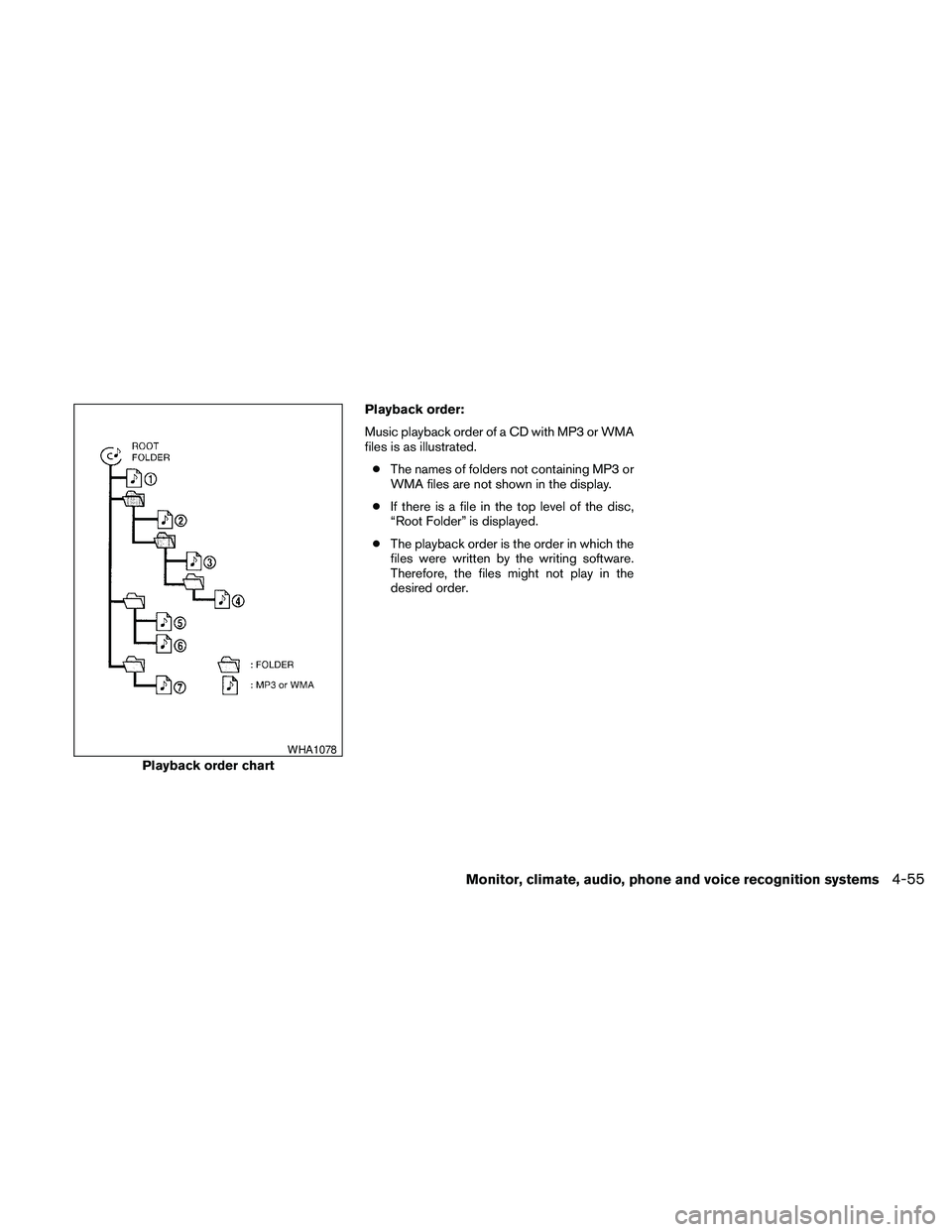
Playback order:
Music playback order of a CD with MP3 or WMA
files is as illustrated.
cThe names of folders not containing MP3 or
WMA files are not shown in the display.
cIf there is a file in the top level of the disc,
“Root Folder” is displayed.
cThe playback order is the order in which the
files were written by the writing software.
Therefore, the files might not play in the
desired order.
Playback order chart
WHA1078
Monitor, climate, audio, phone and voice recognition systems4-55
Page 216 of 457
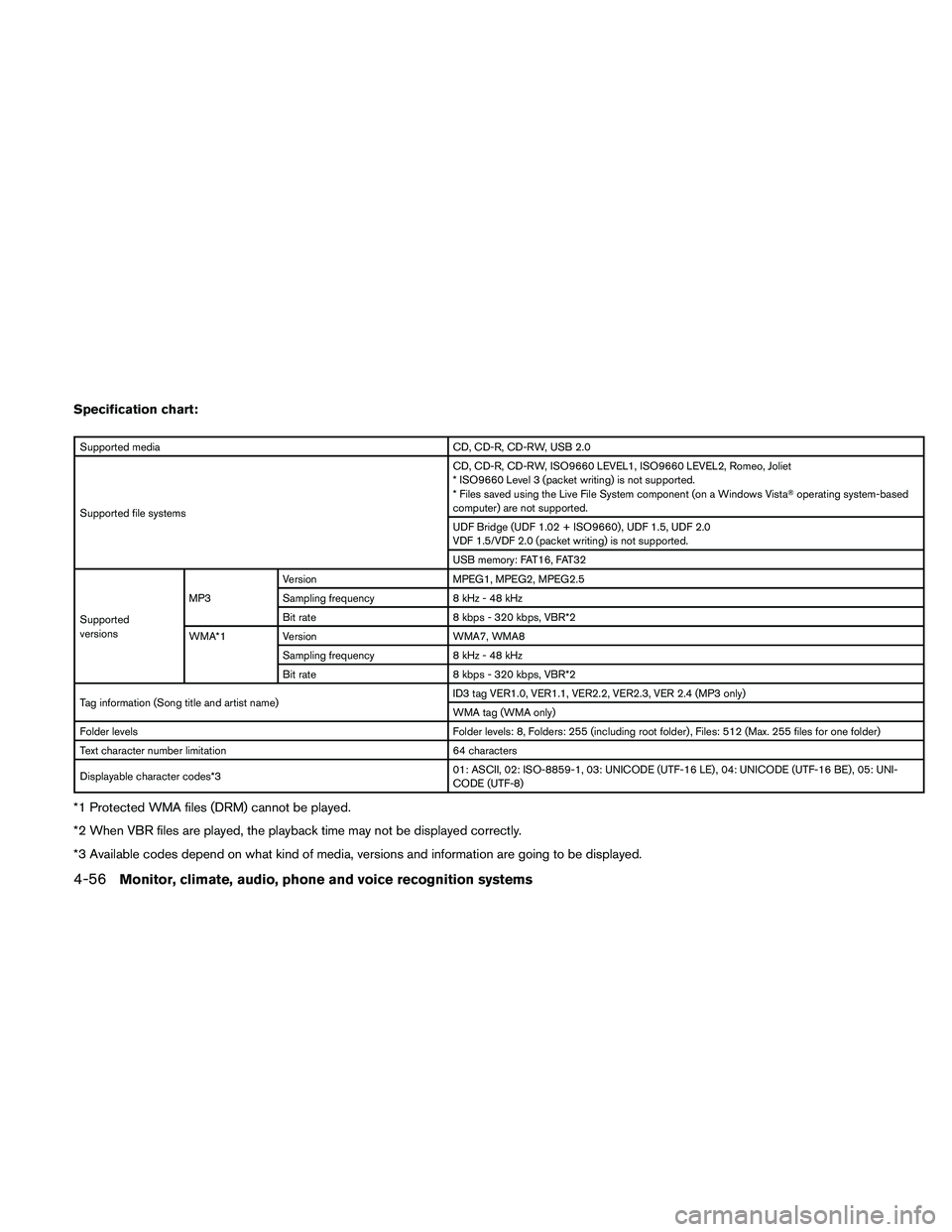
Specification chart:
Supported media CD, CD-R, CD-RW, USB 2.0
Supported file systemsCD, CD-R, CD-RW, ISO9660 LEVEL1, ISO9660 LEVEL2, Romeo, Joliet
* ISO9660 Level 3 (packet writing) is not supported.
* Files saved using the Live File System component (on a Windows VistaToperating system-based
computer) are not supported.
UDF Bridge (UDF 1.02 + ISO9660) , UDF 1.5, UDF 2.0
VDF 1.5/VDF 2.0 (packet writing) is not supported.
USB memory: FAT16, FAT32
Supported
versionsMP3Version MPEG1, MPEG2, MPEG2.5
Sampling frequency 8 kHz - 48 kHz
Bit rate 8 kbps - 320 kbps, VBR*2
WMA*1 Version WMA7, WMA8
Sampling frequency 8 kHz - 48 kHz
Bit rate 8 kbps - 320 kbps, VBR*2
Tag information (Song title and artist name)ID3 tag VER1.0, VER1.1, VER2.2, VER2.3, VER 2.4 (MP3 only)
WMA tag (WMA only)
Folder levels Folder levels: 8, Folders: 255 (including root folder) , Files: 512 (Max. 255 files for one folder)
Text character number limitation 64 characters
Displayable character codes*301: ASCII, 02: ISO-8859-1, 03: UNICODE (UTF-16 LE) , 04: UNICODE (UTF-16 BE) , 05: UNI-
CODE (UTF-8)
*1 Protected WMA files (DRM) cannot be played.
*2 When VBR files are played, the playback time may not be displayed correctly.
*3 Available codes depend on what kind of media, versions and information are going to be displayed.
4-56Monitor, climate, audio, phone and voice recognition systems
Page 218 of 457
CD, DVD or USB with Compressed
Audio Files (models with Navigation
System)
The file types supported by this system are MP3,
WMA, AAC/M4A and ATRAC3.
Explanation of terms:
cMP3 — MP3 is short for Moving Pictures
Experts Group Audio Layer 3. MP3 is the
most well known compressed digital audio
file format. This format allows for near “CD
quality” sound, but at a fraction of the size of
normal audio files. MP3 conversion of an
audio track can reduce the file size by ap-
proximately 10:1 ratio (Sampling: 44.1 kHz,
Bit rate: 128 kbps) with virtually no percep-
tible loss in quality. The compression re-
duces certain parts of sound that seem in-
audible to most people.
cWMA — Windows Media Audio (WMA) is a
compressed audio format created by Mi-
crosoft as an alternative to MP3. The WMA
codec offers greater file compression than
the MP3 codec, enabling storage of more
digital audio tracks in the same amount of
space when compared to MP3s at the same
level of quality.cAAC/M4A — Advanced Audio Coding
(AAC) is a lossy audio compression format.
Audio files that have been encoded with
AAC are generally smaller in size and deliver
a higher quality of sound than MP3.
cATRAC3, ATRAC3 Plus — Adaptive Trans-
form Acoustic Coding (ATRAC) is a lossy
audio compression format developed by
Sony.
cBit rate — Bit rate denotes the number of
bits per second used by a digital music file.
The size and quality of a compressed digital
audio file is determined by the bit rate used
when encoding the file.
cSampling frequency — Sampling frequency
is the rate at which the samples of a signal
are converted from analog to digital (A/D
conversion) per second.
cMultisession — Multisession is one of the
methods for writing data to media. Writing
data once to the media is called a single
session, and writing more than once is called
a multisession.cID3/WMA Tag — The ID3/WMA tag is the
part of the encoded MP3 or WMA file that
contains information about the digital music
file such as song title, artist, album title,
encoding bit rate, track time duration, etc.
ID3 tag information is displayed on the
Album/Artist/Track title line on the display.
* WindowsT, Windows MediaTand Windows
VistaTare registered trademarks or trademarks
of Microsoft Corporation in the United States of
America and/or other countries.
4-58Monitor, climate, audio, phone and voice recognition systems
Page 219 of 457
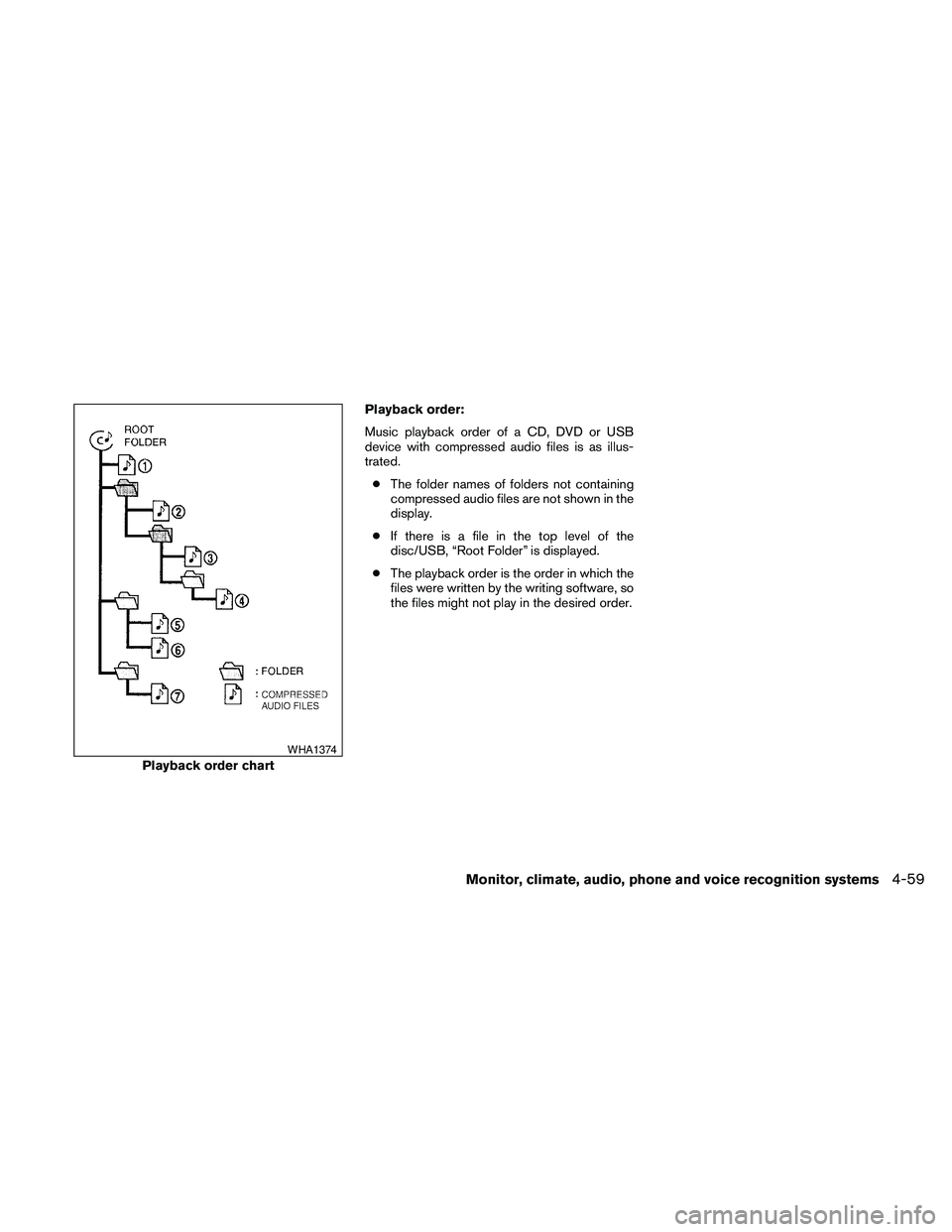
Playback order:
Music playback order of a CD, DVD or USB
device with compressed audio files is as illus-
trated.
cThe folder names of folders not containing
compressed audio files are not shown in the
display.
cIf there is a file in the top level of the
disc/USB, “Root Folder” is displayed.
cThe playback order is the order in which the
files were written by the writing software, so
the files might not play in the desired order.
Playback order chart
WHA1374
Monitor, climate, audio, phone and voice recognition systems4-59
Page 220 of 457
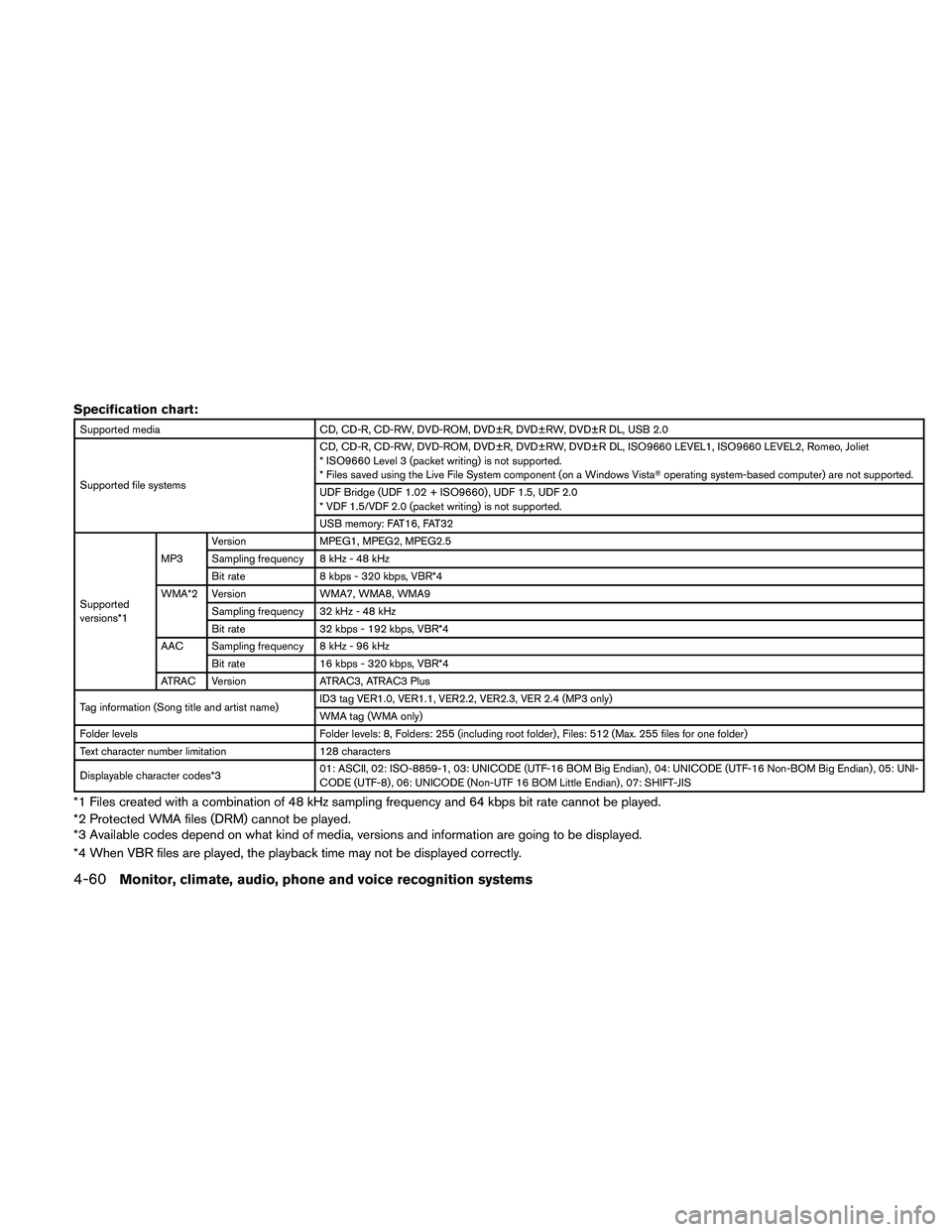
Specification chart:
Supported media CD, CD-R, CD-RW, DVD-ROM, DVD±R, DVD±RW, DVD±R DL, USB 2.0
Supported file systemsCD, CD-R, CD-RW, DVD-ROM, DVD±R, DVD±RW, DVD±R DL, ISO9660 LEVEL1, ISO9660 LEVEL2, Romeo, Joliet
* ISO9660 Level 3 (packet writing) is not supported.
* Files saved using the Live File System component (on a Windows VistaToperating system-based computer) are not supported.
UDF Bridge (UDF 1.02 + ISO9660) , UDF 1.5, UDF 2.0
* VDF 1.5/VDF 2.0 (packet writing) is not supported.
USB memory: FAT16, FAT32
Supported
versions*1MP3Version MPEG1, MPEG2, MPEG2.5
Sampling frequency 8 kHz - 48 kHz
Bit rate 8 kbps - 320 kbps, VBR*4
WMA*2 Version WMA7, WMA8, WMA9
Sampling frequency 32 kHz - 48 kHz
Bit rate 32 kbps - 192 kbps, VBR*4
AAC Sampling frequency 8 kHz - 96 kHz
Bit rate 16 kbps - 320 kbps, VBR*4
ATRAC Version ATRAC3, ATRAC3 Plus
Tag information (Song title and artist name)ID3 tag VER1.0, VER1.1, VER2.2, VER2.3, VER 2.4 (MP3 only)
WMA tag (WMA only)
Folder levels Folder levels: 8, Folders: 255 (including root folder) , Files: 512 (Max. 255 files for one folder)
Text character number limitation 128 characters
Displayable character codes*301: ASCII, 02: ISO-8859-1, 03: UNICODE (UTF-16 BOM Big Endian) , 04: UNICODE (UTF-16 Non-BOM Big Endian) , 05: UNI-
CODE (UTF-8) , 06: UNICODE (Non-UTF 16 BOM Little Endian) , 07: SHIFT-JIS
*1 Files created with a combination of 48 kHz sampling frequency and 64 kbps bit rate cannot be played.
*2 Protected WMA files (DRM) cannot be played.
*3 Available codes depend on what kind of media, versions and information are going to be displayed.
*4 When VBR files are played, the playback time may not be displayed correctly.
4-60Monitor, climate, audio, phone and voice recognition systems
Page 225 of 457

AUDIO control knob (Bass, Treble, Fade,
Balance and Beep):
Press the AUDIO control knob to change the
mode as follows:
Bass!Treble!Fade!Balance!Beep
ON/OFF!Bass
To adjust Bass, Treble, Fade and Balance, press
the AUDIO control knob until the desired mode
appears on the display. Turn the TUNE/FOLDER
knob to adjust Bass and Treble to the desired
level. You can also use the TUNE/FOLDER knob
to adjust Fade and Balance modes. Fade adjusts
the sound level between the front and rear speak-
ers and Balance adjusts the sound between the
right and left speakers.
To change the Beep to ON or OFF, turn the
TUNE/FOLDER knob left or right. This will enable
or disable the beep sound heard during menu
selection.
Once you have adjusted the sound quality to the
desired level, press the AUDIO control knob re-
peatedly until the radio or CD display reappears.
Otherwise, the radio or CD display will automati-
cally reappear after about five seconds.
Clock set
The clock displays the time when the ignition
switch is placed in the ACC or ON position.Adjusting the time
1. Push and hold the DISP/CLOCK button for
more than 2 seconds until the display shows
“Hour Adjust”.
2. Turn the TUNE/FOLDER knob to adjust the
hour.
3. Press the DISP/CLOCK button again; the
display will show “Minute Adjust”.
4. Turn the TUNE/FOLDER knob to adjust the
minutes.
5. Press the DISP/CLOCK button again to exit
the clock set mode.
Press the DISP/CLOCK button again to return to
the regular clock display. If no action is taken, the
display will return to the regular clock display
after 10 seconds.
If the power supply is disconnected, the clock will
not indicate the correct time.
Readjust the time.
CD display mode
To change the text displayed while playing a CD
with text, press the DISP/CLOCK button. The
DISP/CLOCK button will allow you to scroll
through CD text as follows: Track number and
Track timeÃ!Album titleÃ!Song title.cTrack number displays the track number se-
lected on the disc.
cTrack time displays the amount of time the
track has played.
cAlbum title displays the title of the CD being
played.
cSong title displays the title of the selected
CD track.
MP3 display mode
To change the text displayed when listening to a
CD with MP3s and ID3 tags, press the
DISP/CLOCK button. The DISP/CLOCK button
will scroll through the CD text as follows: Disc
number, Track number and Folder numberÃ!
Folder titleÃ!Song titleÃ!Artist nameÃ!
Album title.
cDisc number displays the number of the
current disc playing.
cTrack number displays the number of the
track playing on the selected disc.
cFolder number displays the number of the
current folder on the MP3 CD.
cFolder title displays the title of the folder.
cSong title displays the title of the song play-
ing.
Monitor, climate, audio, phone and voice recognition systems4-65