service NISSAN QASHQAI 2017 Owner´s Manual
[x] Cancel search | Manufacturer: NISSAN, Model Year: 2017, Model line: QASHQAI, Model: NISSAN QASHQAI 2017Pages: 508, PDF Size: 2.68 MB
Page 187 of 508
4-6Heater, air conditioner, audio and phone systems
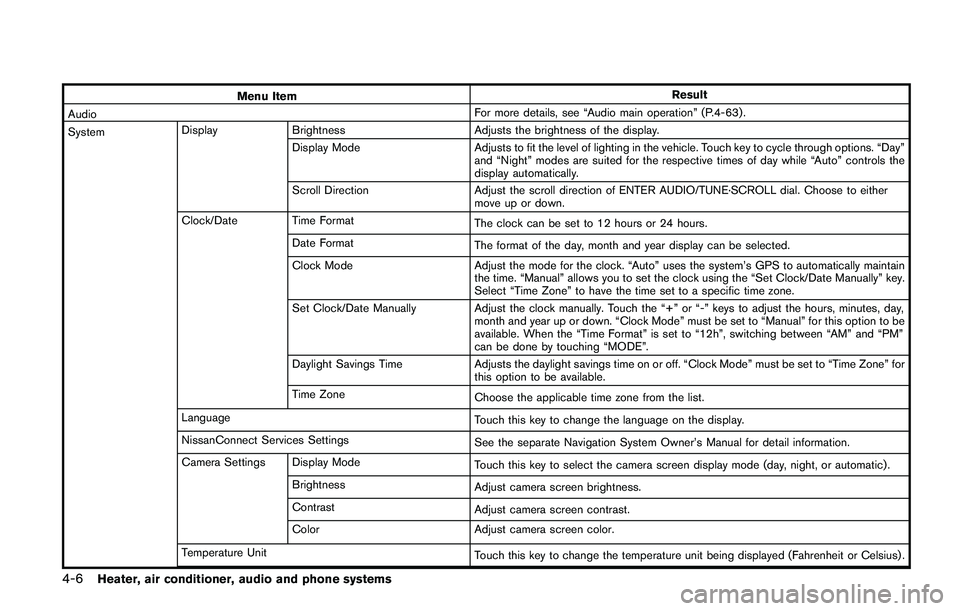
Menu ItemResult
AudioFor more details, see “Audio main operation” (P.4-63) .
SystemDisplay Brightness Adjusts the brightness of the display.
Display Mode Adjusts to fit the level of lighting in the vehicle. Touch key to cycle through options. “Day”
and “Night” modes are suited for the respective times of day while “Auto” controls the
display automatically.
Scroll Direction Adjust the scroll direction of ENTER AUDIO/TUNE·SCROLL dial. Choose to either
move up or down.
Clock/Date Time Format
The clock can be set to 12 hours or 24 hours.
Date Format
The format of the day, month and year display can be selected.
Clock Mode Adjust the mode for the clock. “Auto” uses the system’s GPS to automatically maintain
the time. “Manual” allows you to set the clock using the “Set Clock/Date Manually” key.
Select “Time Zone” to have the time set to a specific time zone.
Set Clock/Date Manually Adjust the clock manually. Touch the “+” or “-” keys to adjust the hours, minutes, day,
month and year up or down. “Clock Mode” must be set to “Manual” for this option to be
available. When the “Time Format” is set to “12h”, switching between “AM” and “PM”
can be done by touching “MODE”.
Daylight Savings Time Adjusts the daylight savings time on or off. “Clock Mode” must be set to “Time Zone” for
this option to be available.
Time Zone
Choose the applicable time zone from the list.
Language
Touch this key to change the language on the display.
NissanConnect Services Settings
See the separate Navigation System Owner’s Manual for detail information.
Camera Settings Display Mode
Touch this key to select the camera screen display mode (day, night, or automatic) .
Brightness
Adjust camera screen brightness.
Contrast
Adjust camera screen contrast.
Color Adjust camera screen color.
Temperature Unit
Touch this key to change the temperature unit being displayed (Fahrenheit or Celsius) .
Page 218 of 508
JVH0727X
JVH0728X
OPERATING TIPS (for automatic air
conditioner)
When the engine coolant temperature and
outside air temperature are low, the air flow
from the foot outlets may not operate for a
maximum of 150 seconds. However, this is not a
malfunction. After the coolant temperature
warms up, air flow from the foot outlets will
operate normally.
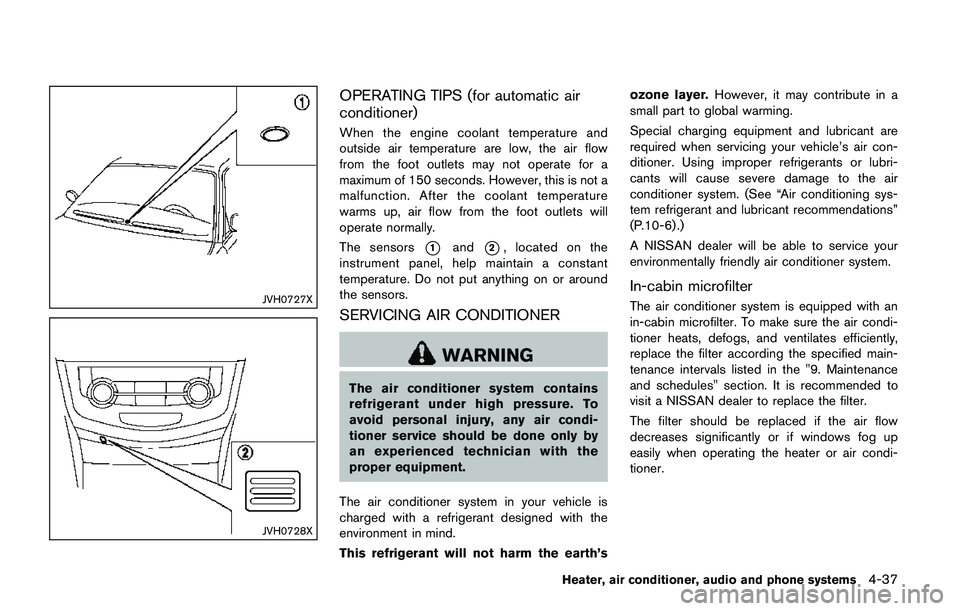
The sensors
*1and*2, located on the
instrument panel, help maintain a constant
temperature. Do not put anything on or around
the sensors.
SERVICING AIR CONDITIONER
WARNING
The air conditioner system contains
refrigerant under high pressure. To
avoid personal injury, any air condi-
tioner service should be done only by
an experienced technician with the
proper equipment.
The air conditioner system in your vehicle is
charged with a refrigerant designed with the
environment in mind.
This refrigerant will not harm the earth’sozone layer.However, it may contribute in a
small part to global warming.
Special charging equipment and lubricant are
required when servicing your vehicle’s air con-
ditioner. Using improper refrigerants or lubri-
cants will cause severe damage to the air
conditioner system. (See “Air conditioning sys-
tem refrigerant and lubricant recommendations”
(P.10-6) .)
A NISSAN dealer will be able to service your
environmentally friendly air conditioner system.
In-cabin microfilter
The air conditioner system is equipped with an
in-cabin microfilter. To make sure the air condi-
tioner heats, defogs, and ventilates efficiently,
replace the filter according the specified main-
tenance intervals listed in the "9. Maintenance
and schedules" section. It is recommended to
visit a NISSAN dealer to replace the filter.
The filter should be replaced if the air flow
decreases significantly or if windows fog up
easily when operating the heater or air condi-
tioner.
Heater, air conditioner, audio and phone systems4-37
Page 231 of 508
4-50Heater, air conditioner, audio and phone systems
SETTING/TUNE·FOLDER dial and then
push the ENTER SETTING/TUNE·FOLDER
dial. Use the ENTER SETTING/
TUNE·FOLDER dial to select the preferred
language. Push the ENTER SETTING/
TUNE·FOLDER dial to apply the setting.
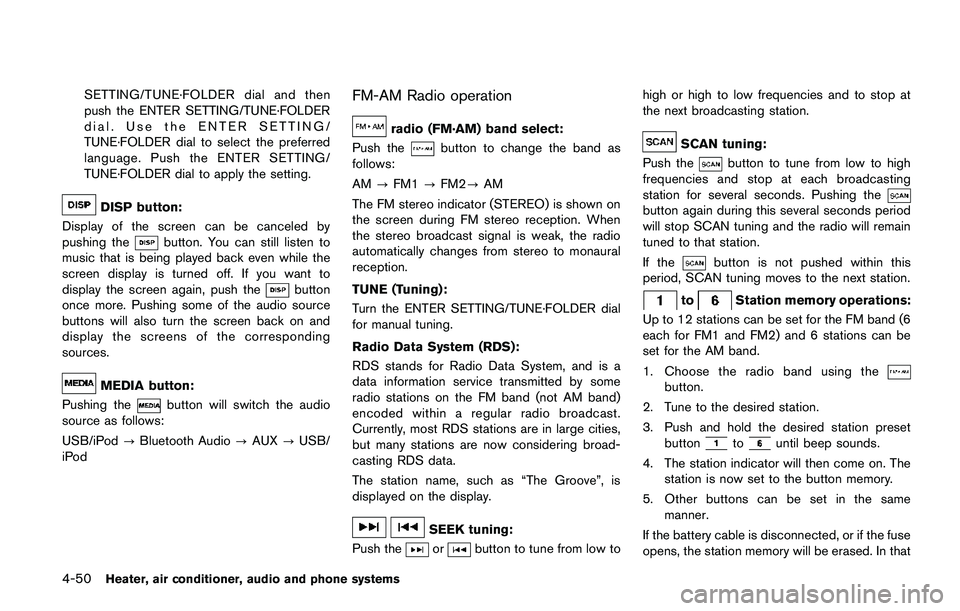
DISP button:
Display of the screen can be canceled by
pushing the
button. You can still listen to
music that is being played back even while the
screen display is turned off. If you want to
display the screen again, push the
button
once more. Pushing some of the audio source
buttons will also turn the screen back on and
display the screens of the corresponding
sources.
MEDIA button:
Pushing the
button will switch the audio
source as follows:
USB/iPod?Bluetooth Audio?AUX?USB/
iPod
FM-AM Radio operation
radio (FM·AM) band select:
Push the
button to change the band as
follows:
AM?FM1?FM2?AM
The FM stereo indicator (STEREO) is shown on
the screen during FM stereo reception. When
the stereo broadcast signal is weak, the radio
automatically changes from stereo to monaural
reception.
TUNE (Tuning):
Turn the ENTER SETTING/TUNE·FOLDER dial
for manual tuning.
Radio Data System (RDS):
RDS stands for Radio Data System, and is a
data information service transmitted by some
radio stations on the FM band (not AM band)
encoded within a regular radio broadcast.
Currently, most RDS stations are in large cities,
but many stations are now considering broad-
casting RDS data.
The station name, such as “The Groove”, is
displayed on the display.
SEEK tuning:
Push the
orbutton to tune from low tohigh or high to low frequencies and to stop at
the next broadcasting station.
SCAN tuning:
Push the
button to tune from low to high
frequencies and stop at each broadcasting
station for several seconds. Pushing the
button again during this several seconds period
will stop SCAN tuning and the radio will remain
tuned to that station.
If the
button is not pushed within this
period, SCAN tuning moves to the next station.
toStation memory operations:
Up to 12 stations can be set for the FM band (6
each for FM1 and FM2) and 6 stations can be
set for the AM band.
1. Choose the radio band using the
button.
2. Tune to the desired station.
3. Push and hold the desired station preset
button
tountil beep sounds.
4. The station indicator will then come on. The
station is now set to the button memory.
5. Other buttons can be set in the same
manner.
If the battery cable is disconnected, or if the fuse
opens, the station memory will be erased. In that
Page 239 of 508
4-58Heater, air conditioner, audio and phone systems
categories when any category is not se-
lected.
Radio Data System (RDS):
RDS stands for Radio Data System, and is a
data information service transmitted by some
radio stations on the FM band (not AM band)
encoded within a regular radio broadcast.
Currently, most RDS stations are in large cities,
but many stations are now considering broad-
casting RDS data.
The station name, such as “The Groove”, is
displayed on the display.
SEEK tuning/CAT (category):
.For AM and FM radio
Push the
orbutton to tune from low
to high or high to low frequencies and to
stop at the next broadcasting station.
.For SiriusXM Satellite Radio
Push the
orbutton to tune to the
first channel of the next or previous category.
SCAN tuning:
Push the
button to tune from low to high
frequencies and stop at each broadcasting
station for several seconds. Pushing the
button again during this several seconds period
will stop SCAN tuning and the radio will remaintuned to that station.
If the
button is not pushed within five
seconds, SCAN tuning moves to the next
station.
toStation memory operations:
6 stations can be set for the AM band. 12
stations can be set for the FM band (6 for FM1,
6 for FM2) . 18 channels can be set for the
satellite radio (6 for XM1, 6 for XM2, 6 for XM3) .
1. Choose the radio band using the
or XM
button.
2. Tune to the desired station or channel.
3. Push and hold the desired station or channel
preset button
tountil beep sounds.
4. The station or channel indicator will then
come on. Memorizing is now complete.
5. Other buttons can be set in the same
manner.
If the battery cable is disconnected, or if the fuse
opens, the station memory will be erased. In that
case, reset the desired stations or channels.
CD player operation
Place the ignition switch in the ACC or ON
position, and insert the Compact Disc (CD) into
the slot with the label side facing up. The CD will
be guided automatically into the slot and start
playing.
After loading the CD, the number of tracks on
the CD and the play time will appear on the
display.
If another audio source is already operating, it
will automatically turn off and the CD will play.
If the system was turned off while the CD was
playing, pushing the Power/VOL dial will start
the CD.
PLAY:
With a CD loaded, push the
button until the
CD mode is displayed on the screen.
CD/MP3 display mode:
While listening to an MP3/WMA CD, certain text
may be displayed on the screen if the CD has
been encoded with text information. Depending
on how the MP3/WMA CD is encoded,
information such as Artist, Song and Folder will
be displayed. The track number and the total
number of tracks in the current folder or on the
current disc are displayed on the screen as well.
Page 244 of 508
FM-AM-SAT RADIO WITH COMPACT
DISC (CD) PLAYER (Type B) (if so
equipped)
*No satellite radio reception is available when
the SXM button is pushed to access satellite
radio channels unless optional satellite receiver
and antenna are installed and a SiriusXM
Satellite Radio service subscription is active.
Satellite radio is not available in Alaska, Hawaii
and Guam.
For all operation precautions, see “Audio opera-
tion precautions” (P.4-38) .
Audio main operation
POWER/VOLUME dial:
Place the ignition switch in the ACC or ON
position and push the POWER/VOLUME dial
while the system is off to call up the available
audio source that was playing immediately
before the system was turned off.
To turn the system off, push the POWER/
VOLUME dial.
Turn the POWER/VOLUME dial to adjust the
volume.
This vehicle may be equipped with Speed
Sensitive Volume. When this feature is active,
the audio volume changes as the driving speed
changes.Audio settings:
Adjust the audio settings according to the
following procedure.
1. Push the APPS·i button.
2. Touch the “Settings” key.
3. Touch the “Audio” key.
Adjust the following items to the desired
setting.
.Bass:
Adjusts the bass to the desired level.
.Treble:
Adjusts the treble to the desired level.
.Balance:
Adjusts the balance to the desired level.
Balance adjusts the sound level between
the left and right speakers.
.Fade:
Adjusts the fade to the desired level.
Fade adjusts the sound level between
the front and rear speakers.
.Speed Sensitive Vol.:
Adjusts the speed sensitive volume
function, which increases the volume of
the audio system as the speed of the
vehicle increases. Set to “0” to disable
the feature. The higher the setting, the
more the volume increases in relation to
vehicle speed.
.AUX Volume Level:
Controls the volume level of incoming
sound when an auxiliary device is con-
nected to the system. Available options
are Low (quiet) , Medium, and High
(loud) .
Bass, treble, balance and fade can also be
adjusted by pushing the ENTER AUDIO/TU-
NE·SCROLL dial.
SXM settings:
View the SXM settings according to the follow-
ing procedure.
1. Push the APPS·i button.
2. Touch the “Settings” key.
3. Touch the “SXM” key.
The signal strength, activation status and other
information are displayed on the screen.
FM/AM/SAT radio operation
Radio (FM·AM) band select:
Push the FM·AM button to change the band as
follows:
AM?FM1?FM2?AM
If another audio source is playing when the
FM·AM button is pushed, the audio source
playing will automatically be turned off and the
last radio station played will begin playing.
The FM stereo indicator (ST) is shown on the
Heater, air conditioner, audio and phone systems4-63
Page 258 of 508
www.nissan.ca/nissanconnect/fr (French)
CONNECT PHONE
To use this feature, a compatible smartphone
must be connected via BluetoothŠor USB
connection port to the vehicle. For more
information on connecting your phone, see
“Bluetooth
ŠHands-Free Phone System (models
with navigation system)” (P.4-92) .
NOTE:
.For iPhone
Š, NissanConnectSMMobile
Apps REQUIRES the phone to be
plugged in via USB connection port.
.For Android phones, NissanConnect
SM
Mobile Apps REQUIRES the phone to
be paired via BluetoothŠ.
APPLICATION DOWNLOAD
Once connected, the NissanConnectSMMobile
Apps will search your phone to determine which
compatible applications are currently installed.
The user will then choose which apps they want
to bring into their vehicle from the list of apps
within the “Manage My Apps” section of the
NissanConnect
SMMobile Apps on their smart-
phone. The vehicle will then download the in-
vehicle interface for each of these compatible
applications. Once downloaded, the user can
access their selected smartphone applications
through the vehicle touch screen. For moreinformation on application availability see Nis-
sanConnect
SMwebsite.
NissanConnectSMwebsite:
For U.S.
www.nissanusa.com/connect/
For Canada
www.nissan.ca/nissanconnect (English)
www.nissan.ca/nissanconnect/fr (French)NissanConnect
SMServices is a suite of tele-
matics tools that provide emergency prepared-
ness, remote access, customizable alerts and
convenience services. This feature is an option
on navigation system equipped vehicles. For
additional information, refer to the separate
Navigation System Owner’s Manual.
Heater, air conditioner, audio and phone systems4-77
NISSANCONNECTSMSERVICES (if
so equipped)
Page 264 of 508
Once your cellular phone is connected to the in-
vehicle phone module, no other phone connect-
ing procedure is required. Your phone is
automatically connected with the in-vehicle
phone module when the ignition switch is
placed in the ACC or ON position with the
previously connected cellular phone turned on
and carried in the vehicle.
NOTE:
Some devices require the user to accept
connections to other Bluetooth
Šdevices. If
your phone does not connect automatic
ally to the system, consult the phone’s
owner’s manual for details on device
operation.
You can connect up to five different Bluetooth
Š
cellular phones to the in-vehicle phone module.
However, you can talk on only one cellular phone
at a time.
Before using the Bluetooth
ŠHands-Free Phone
System, refer to the following notes.
.Set up the wireless connection between a
compatible cellular phone and the in-vehicle
phone module before using the Hands-Free
Phone System.
.Some Bluetooth
Šenabled cellular phones
may not be recognized by the in-vehicle
phone module. Please visit www.nissanusa.
com/bluetooth or www.nissan.ca/bluetoothfor a recommended phone list.
.You will not be able to use a hands-free
phone under the following conditions:
— Your vehicle is outside of the cellular
service area.
— Your vehicle is in an area where it is
difficult to receive a cellular signal; such
as in a tunnel, in an underground parking
garage, near a tall building or in a
mountainous area.
— Your cellular phone is locked to prevent it
from being dialed.
.When the radio wave condition is not ideal
or ambient sound is too loud, it may be
difficult to hear the other person’s voice
during a call.
.Do not place the cellular phone in an area
surrounded by metal or far away from the in-
vehicle phone module to prevent tone quality
degradation and wireless connection dis-
ruption.
.While a cellular phone is connected through
the Bluetooth
Šwireless connection, the
battery power of the cellular phone may
discharge quicker than usual. The Blue-
tooth
ŠHands-Free Phone System cannot
charge cellular phones.
.If the Bluetooth
ŠHands-Free Phone System
seems to be malfunctioning, visit www.nissanusa.com/bluetooth or www.nissan.
ca/bluetooth for troubleshooting help.
.Some cellular phones or other devices may
cause interference or a buzzing noise to
come from the audio system speakers.
Storing the device in a different location
may reduce or eliminate the noise.
.Refer to the cellular phone owner’s manual
regarding the telephone charges, cellular
phone antenna and body, etc.
REGULATORY INFORMATION
FCC Regulatory information
.CAUTION: To maintain compliance with
FCC’s RF exposure guidelines, use only
the supplied antenna. Unauthorized antenna,
modification, or attachments could damage
the transmitter and may violate FCC regula-
tions.
.Operation is subject to the following two
conditions:
1) this device may not cause interference
and
2) this device must accept any interference,
including interference that may cause
undesired operation of the device.
Heater, air conditioner, audio and phone systems4-83
Page 274 of 508
ing.
.You will not be able to use a hands-free
phone under the following conditions:
— Your vehicle is outside of the cellular
service area.
— Your vehicle is in an area where it is
difficult to receive cellular signal; such as
in a tunnel, in an underground parking
garage, near a tall building or in a
mountainous area.
— Your cellular phone is locked to prevent it
from being dialed.
.When the radio wave condition is not ideal
or ambient sound is too loud, it may be
difficult to hear the other person’s voice
during a call.
.Immediately after the ignition switch is
placed in the ON position, it may be
impossible to receive a call for a short
period of time.
.Do not place the cellular phone in an area
surrounded by metal or far away from the in-
vehicle phone module to prevent tone quality
degradation and wireless connection dis-
ruption.
.While a cellular phone is connected through
the Bluetooth
Šwireless connection, the
battery power of the cellular phone may
discharge quicker than usual. The Blue-tooth
ŠHands-Free Phone System cannot
charge cellular phones.
.If the Bluetooth
ŠHands-Free Phone System
seems to be malfunctioning, visit www.
nissanusa.com/bluetooth or www.nissan.
ca/bluetooth for troubleshooting help.
.Some cellular phones or other devices may
cause interference or a buzzing noise to
come from the audio system speakers.
Storing the device in a different location
may reduce or eliminate the noise.
.Refer to the cellular phone owner’s manual
regarding the telephone charges, cellular
phone antenna and body, etc.
.The signal strength display on the monitor
will not coincide with the signal strength
display of some cellular phones.
REGULATORY INFORMATION
FCC Regulatory information
.CAUTION: To maintain compliance with
FCC’s RF exposure guidelines, use only
the supplied antenna. Unauthorized antenna,
modification, or attachments could damage
the transmitter and may violate FCC regula-
tions..Operation is subject to the following two
conditions:
1) This device may not cause interference
and
2) This device must accept any interfer-
ence, including interference that may
cause undesired operation of the device.
IC Regulatory information
.Operation is subject to the following two
conditions: (1) this device may not cause
interference, and (2) this device must accept
any interference, including interference that
may cause undesired operation of the
device.
.This Class B digital apparatus meets all
requirements of the Canadian Interference-
Causing Equipment Regulations.
BluetoothŠis a trademark
owned by Bluetooth SIG, Inc.
and licensed to Robert Bosch
GmbH.
Heater, air conditioner, audio and phone systems4-93
Page 289 of 508
5-4Starting and driving
WARNING
.Do not leave children or adults who
would normally require the support
of others alone in your vehicle. Pets
should not be left alone either. They
could accidentally injure themselves
or others through inadvertent op-
eration of the vehicle. Also, on hot,
sunny days, temperatures in a
closed vehicle could quickly become
high enough to cause severe or
possibly fatal injuries to people or
animals.
.Properly secure all cargo with ropes
or straps to help prevent it from
sliding or shifting. Do not place
cargo higher than the seatbacks. In
a sudden stop or collision, unse-
cured cargo could cause personal
injury.
EXHAUST GAS (carbon monoxide)
WARNING
.Do not breathe exhaust gas; it
contains colorless and odorless
carbon monoxide. Carbon monoxide
is dangerous. It can cause uncon-
sciousness or death.
.If you suspect that exhaust fumes
are entering the vehicle, drive with
all windows fully open, and have the
vehicle inspected immediately.
.Do not run the engine in closed
spaces such as a garage.
.Do not park the vehicle with the
engine running for an extended
period of time.
.Keep the liftgate closed while driv-
ing, otherwise exhaust gas could be
drawn into the passenger compart-
ment. If you must drive with the
liftgate open, follow these precau-
tions:
— Open all the windows.
— Turn the air recirculation mode
off and set the fan speed control
to the highest level to circulatethe air.
.If a special body or other equipment
is added for recreational or other
usage, follow the manufacturer’s
recommendation to prevent carbon
monoxide entry into the vehicle.
(Some recreational vehicle appli-
ances such as stoves, refrigerators,
heaters, etc. may also generate
carbon monoxide.)
.The exhaust system and body
should be inspected by a qualified
mechanic whenever:
— Your vehicle is raised while
being serviced.
— You suspect that exhaust fumes
are entering into the passenger
compartment.
— You notice a change in the
sound of the exhaust system.
— You have had an accident invol-
ving damage to the exhaust
system, underbody, or rear of
the vehicle.
PRECAUTIONS WHEN STARTING
AND DRIVING
Page 290 of 508
THREE-WAY CATALYST
The three-way catalyst is an emission control
device installed in the exhaust system. Exhaust
gases in the three-way catalyst are burned at
high temperatures to help reduce pollutants.
WARNING
.The exhaust gas and the exhaust
system are very hot. Keep people,
animals and flammable materials
away from the exhaust system com-
ponents.
.Do not stop or park the vehicle over
flammable materials such as dry
grass, wastepaper or rags. They
may ignite and cause a fire.
CAUTION
.Do not use leaded gasoline. Depos-
its from leaded gasoline will ser-
iously reduce the three-way
catalyst’s ability to help reduce ex-
haust pollutants.
.Keep your engine tuned up. Mal-
functions in the ignition, fuel injec-tion, or electrical systems can cause
overrich fuel flow into the three-way
catalyst, causing it to overheat. Do
not keep driving if the engine mis-
fires, or if noticeable loss of perfor-
mance or other unusual operating
conditions are detected. Have the
vehicle inspected. It is recom-
mended you visit a NISSAN dealer
for this service.
.Avoid driving with an extremely low
fuel level. Running out of fuel could
cause the engine to misfire, dama-
ging the three-way catalyst.
.Do not race the engine while warm-
ing it up.
.Do not push or tow your vehicle to
start the engine.
TIRE PRESSURE MONITORING SYS-
TEM (TPMS)
Each tire, including the spare (if provided) ,
should be checked monthly when cold and
inflated to the inflation pressure recommended
by the vehicle manufacturer on the vehicle
placard or tire inflation pressure label. (If your
vehicle has tires of a different size than the size
indicated on the vehicle placard or tire inflation
pressure label, you should determine the propertire inflation pressure for those tires.)
As an added safety feature, your vehicle has
been equipped with a Tire Pressure Monitoring
System (TPMS) that illuminates a low tire
pressure telltale when one or more of your tires
is significantly under-inflated. Accordingly, when
the low tire pressure telltale illuminates, you
should stop and check your tires as soon as
possible, and inflate them to the proper pres-
sure. Driving on a significantly under-inflated tire
causes the tire to overheat and can lead to tire
failure. Under-inflation also reduces fuel effi-
ciency and tire tread life, and may affect the
vehicle’s handling and stopping ability.
Please note that the TPMS is not a substitute for
proper tire maintenance, and it is the driver’s
responsibility to maintain correct tire pressure,
even if under-inflation has not reached the level
to trigger illumination of the TPMS low tire
pressure telltale.
Your vehicle has also been equipped with a
TPMS malfunction indicator to indicate when the
system is not operating properly. The TPMS
malfunction indicator is combined with the low
tire pressure telltale. When the system detects a
malfunction, the telltale will flash for approxi-
mately one minute and then remain continuously
illuminated. This sequence will continue upon
subsequent vehicle start-ups as long as the
Starting and driving5-5