navigation NISSAN ROGUE 2021 Owner´s Manual
[x] Cancel search | Manufacturer: NISSAN, Model Year: 2021, Model line: ROGUE, Model: NISSAN ROGUE 2021Pages: 556, PDF Size: 2.7 MB
Page 3 of 556
safety features to all occupants
of the vehicle.
. ALWAYS review this Owner’s Man-
ual for important safety informa-
tion.
On-pavement and off-road
driving
This vehicle will handle and maneuver
differently from an ordinary passenger
car because it has a higher center of
gravity. As with other vehicles with
features of this type, failure to operate
this vehicle correctly may result in loss
of control or an accident. Be sure to
read “Avoiding collision and rollover”
and “Driving safety precautions” in the
“5. Starting and driving” section of this
manual.
MODIFICATION OF YOUR VEHI-
CLE
This vehicle should not be modified.
Modification could affect its perfor-
mance, safety or durability, and may
even violate governmental regula-
tions. In addition, damage or perfor-
mance problems resulting from
modification may not be covered un-
der NISSAN warranties.
WARNING
Installing an aftermarket On-Board
Diagnostic (OBD) plug-in device that
uses the port during normal driving,
for example remote insurance com-
pany monitoring, remote vehicle di-
agnostics, telematics or engine
reprogramming, may cause interfer-
ence or damage to vehicle systems.
We do not recommend or endorse
the use of any aftermarket OBD
plug-in devices, unless specifically
approved by NISSAN. The vehicle
warranty may not cover damage
caused by any aftermarket plug-in
device.
WHEN READING THE MANUAL
This manual includes information for all
features and equipment available on
this model. Features and equipment in
your vehicle may vary depending on
model, trim level, options selected, or-
der, date of production, region or avail-
ability. Therefore, you may find
information about features or equip-
ment that are not included or installed
on your vehicle.
All information, specifications and illustra-
tions in this manual are those in effect at
the time of printing. NISSAN reserves the
right to change specifications, perfor-
mance, design or component suppliers
without notice and without obligation.
From time to time, NISSAN may update
or revise this manual to provide Owners
with the most accurate information cur-
rently available. Please carefully read and
retain with this manual all revision up-
dates sent to you by NISSAN to ensure
you have access to accurate and up-to-
date information regarding your vehicle.
Current versions of vehicle Owner’s Man-
uals and any updates can also be found in
the Owner section of the NISSAN website
at https://owners.nissanusa.com/now-
ners/navigation/manualsGuide. If you
have questions concerning any informa-
tion in your Owner’s Manual, contact
Page 15 of 556
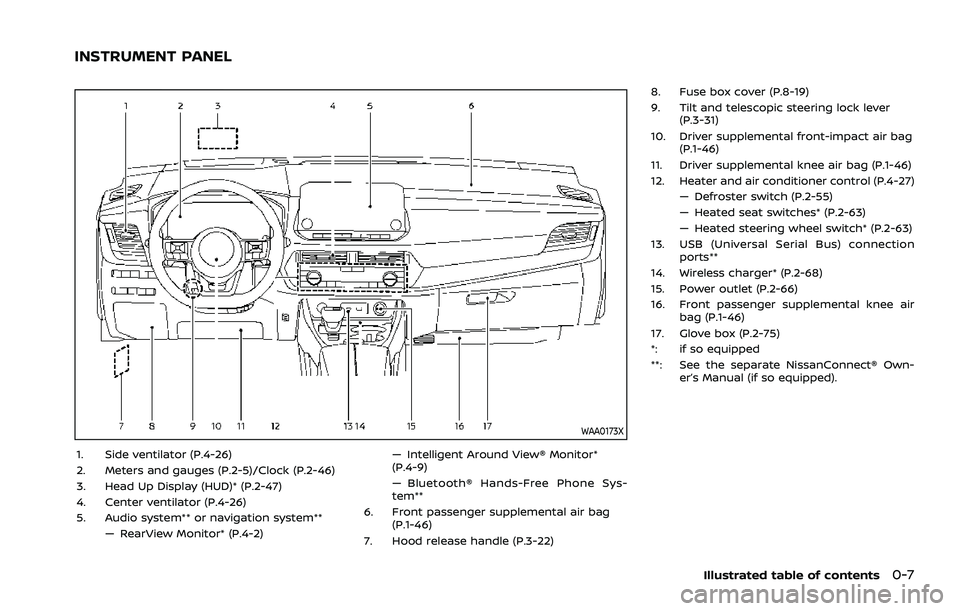
WAA0173X
1. Side ventilator (P.4-26)
2. Meters and gauges (P.2-5)/Clock (P.2-46)
3. Head Up Display (HUD)* (P.2-47)
4. Center ventilator (P.4-26)
5. Audio system** or navigation system**— RearView Monitor* (P.4-2) — Intelligent Around View® Monitor*
(P.4-9)
— Bluetooth® Hands-Free Phone Sys-
tem**
6. Front passenger supplemental air bag (P.1-46)
7. Hood release handle (P.3-22) 8. Fuse box cover (P.8-19)
9. Tilt and telescopic steering lock lever
(P.3-31)
10. Driver supplemental front-impact air bag (P.1-46)
11. Driver supplemental knee air bag (P.1-46)
12. Heater and air conditioner control (P.4-27) — Defroster switch (P.2-55)
— Heated seat switches* (P.2-63)
— Heated steering wheel switch* (P.2-63)
13. USB (Universal Serial Bus) connection ports**
14. Wireless charger* (P.2-68)
15. Power outlet (P.2-66)
16. Front passenger supplemental knee air bag (P.1-46)
17. Glove box (P.2-75)
*: if so equipped
**: See the separate NissanConnect® Own- er’s Manual (if so equipped).
Illustrated table of contents0-7
INSTRUMENT PANEL
Page 89 of 556

2 Instruments and controls
Cockpit ........................................................................\
.......................... 2-3
Instrument panel ........................................................................\
.. 2-4
Meters and gauges ..................................................................... 2-5Models with analog meter and
color display ........................................................................\
....... 2-5
Models with full-screen display .................................. 2-6
Speedometer and odometer ........................................ 2-8
Tachometer ........................................................................\
........ 2-9
Engine coolant temperature gauge ....................... 2-9
Fuel gauge ........................................................................\
........ 2-10
Instrument brightness control ................................. 2-11
Continuously Variable Transmission (CVT)
position indicator ................................................................ 2-11
ECO Drive Report ................................................................ 2-11
Warning lights, indicator lights and
audible reminders ..................................................................... 2-13
Checking lights ..................................................................... 2-14
Warning/indicator lights (red) ................................... 2-14
Warning/indicator lights (yellow) ........................... 2-17
Warning/indicator lights (other) ............................. 2-21
Audible reminders .............................................................. 2-22
Vehicle information display ............................................... 2-22 Changing the meter screen view
(models with full-screen display) ............................ 2-23
How to use the vehicle
information display ........................................................... 2-23 Startup display ................................................................... 2-23
Settings ........................................................................\
............ 2-24
Vehicle information display warnings
and indicators ..................................................................... 2-34
Trip computer ..................................................................... 2-44
Clock and outside air temperature ................... 2-46
Head Up Display (HUD) (if so equipped) .................. 2-47 How to use the HUD ...................................................... 2-49
Driver Assistance/Navigation/Traffic
Sign/Audio/TEL/SMS linking ................................... 2-50
Security systems ....................................................................... 2-50 Vehicle Security System (if so equipped) ...... 2-50
NISSAN Vehicle Immobilizer System ................. 2-51
Wiper and washer switch ................................................... 2-52 Windshield wiper and washer operation ...... 2-53
Rear window wiper and
washer operation ............................................................. 2-53
Rear window and outside mirror
(if so equipped) defroster switch ................................. 2-55
Headlight and turn signal switch ................................ 2-55
Headlight switch ............................................................... 2-55
Turn signal switch ........................................................... 2-62
Fog light switch (if so equipped) ......................... 2-62
Horn ........................................................................\
............................. 2-63
Heated steering wheel (if so equipped) .................. 2-63
Page 92 of 556

2-4Instruments and controls
WAA0173X
1. Side ventilator
2. Meters and gauges/Clock
3. Head Up Display (HUD)*
4. Center ventilator
5. Audio system** or navigation system**— RearView Monitor*
— Intelligent Around View® Monitor* — Bluetooth® Hands-Free Phone Sys-
tem**
6. Front passenger supplemental air bag
7. Hood release handle
8. Fuse box cover
9. Tilt and telescopic steering lock lever
10. Driver supplemental front-impact air bag 11. Driver supplemental knee air bag
12. Heater and air conditioner control
— Defroster switch
— Heated seat switches*
— Heated steering wheel switch*
13. USB (Universal Serial Bus) connection ports**
14. Wireless charger*
15. Power outlet
16. Front passenger supplemental knee air bag
17. Glove box
*: if so equipped
**: See the separate NissanConnect® Own- er’s Manual (if so equipped).
INSTRUMENT PANEL
Page 111 of 556
.Audio information
. Navigation - turn by turn
. Indicators and warnings
. Tire pressure information
. Other information
CHANGING THE METER SCREEN
VIEW (models with full-screen dis-
play)
For the model with full-screen display, the
meter screen view can be changed to
expand the vehicle information display
area. See “Changing the meter screen
view (models with full-screen display)”
(P.2-7) for how to change the view.
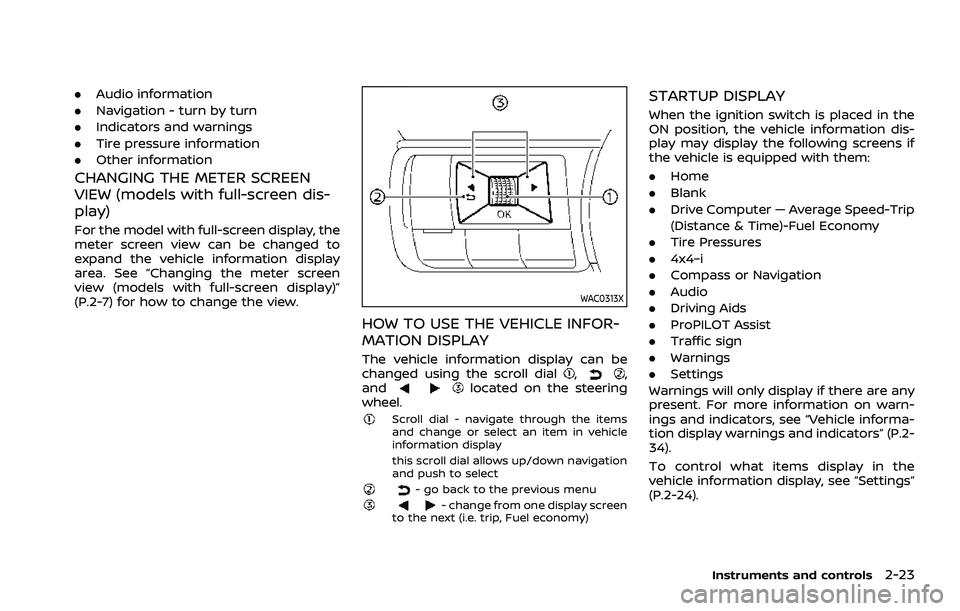
WAC0313X
HOW TO USE THE VEHICLE INFOR-
MATION DISPLAY
The vehicle information display can be
changed using the scroll dial,,
andlocated on the steering
wheel.
Scroll dial - navigate through the items
and change or select an item in vehicle
information display
this scroll dial allows up/down navigation
and push to select
- go back to the previous menu- change from one display screen
to the next (i.e. trip, Fuel economy)
STARTUP DISPLAY
When the ignition switch is placed in the
ON position, the vehicle information dis-
play may display the following screens if
the vehicle is equipped with them:
. Home
. Blank
. Drive Computer — Average Speed-Trip
(Distance & Time)-Fuel Economy
. Tire Pressures
. 4x4–i
. Compass or Navigation
. Audio
. Driving Aids
. ProPILOT Assist
. Traffic sign
. Warnings
. Settings
Warnings will only display if there are any
present. For more information on warn-
ings and indicators, see “Vehicle informa-
tion display warnings and indicators” (P.2-
34).
To control what items display in the
vehicle information display, see “Settings”
(P.2-24).
Instruments and controls2-23
Page 113 of 556
.Rear
Allows user to turn the Rear Auto-
matic Braking (RAB) system ON/OFF.
(See “Automatic Emergency Braking (AEB)
with pedestrian detection system” (P.5-
122), “Intelligent Forward Collision Warn-
ing (I-FCW)” (P.5-132) and “Rear Automatic
Braking (RAB)” (P.5-143).)
Speed Limit Sign (if so equipped):
Allows user to turn the Traffic Sign
Recognition (TSR) ON/OFF. (See “Traffic
Sign Recognition (TSR)” (P.5-43).)
Speed Adjust by Route (if so equipped):
Allows user to turn the Speed Adjust by
Route (ProPILOT Assist with Navi-link)
function ON/OFF. (See “Speed Limit Assist
- a feature of ProPILOT Assist with Navi-
link” (P.5-102).)
Spd.Limit Assist (if so equipped):
Allows user to customize the Speed Limit
Assist (ProPILOT Assist with Navi-link)
options.
. OFF
. Manual
. Auto
(See “Speed Limit Assist - a feature of
ProPILOT Assist with Navi-link” (P.5-102).) Parking Aids:
To change the status or turn on or off any
of the systems displayed in the “Parking
Aids” menu, use the scroll dial
to select
and change a menu item:
. Moving Object (if so equipped)
Allows user to turn the Moving Object
Detection (MOD) ON/OFF.
. Auto Show Sonar (if so equipped)
Allows user to turn the sonar system
or the Rear Sonar System (RSS) display
ON/OFF.
. Front (if so equipped)
Allows user to turn the front sonar
sensors ON/OFF.
. Rear
Allows user to turn the rear sonar
sensors ON/OFF.
. Side (if so equipped)
Allows user to turn the side sonar
sensors ON/OFF.
. Distance (if so equipped)
Allows user to select the sonar sen-
sor’s detection distance (Long, Med-
ium or Short).
. Volume
Allows user to select the volume of the
sonar tone (High, Medium or Low).
(See “Moving Object Detection (MOD)”
(P.4-22), “Sonar system” (P.5-162) and “Rear Sonar System (RSS)” (P.5-168).)
Cross Traffic Alert:
Allows user to turn the Rear Cross Traffic
Alert (RCTA) system ON/OFF. (See “Rear
Cross Traffic Alert (RCTA)” (P.5-76).)
Driver Attention Alert:
Allows user to turn the Intelligent Driver
Alertness (I-DA) on or off. (See “Intelligent
Driver Alertness (I-DA)” (P.5-141).)
Timer Alert:
Allows user to adjust the Timer Alert or
reset.
.
(Current Time)/(Set Time)
. Reset
Low Temp. Alert:
Allows user to turn the Low Temperature
Alert function ON/OFF.
Personal Display (if so equipped)
To change the display in the “Personal
Display” menu, use the scroll dialto
select and change a menu item:
. Blank
. Navigation
. Time to Destination
. Fuel Economy
— Manual Reset1
Instruments and controls2-25
Page 114 of 556
2-26Instruments and controls
— Manual Reset2
— Auto Refuel
. Trip
— Manual Reset1
— Manual Reset2
— Auto Refuel
. Gear position
. Average speed
— Manual Reset1
— Manual Reset2
— Auto Refuel
Head-Up Display (if so equipped)
To change the status or turn on or off any
of the systems displayed in the “Head-Up
Display” menu, use the scroll dial
to
select and change a menu item:
. Brightness
. Height
. Rotation
. Contents selection
— Navigation (if so equipped)
— Driving Assist
— Speed Limit Sign
— Audio
— TEL/SMS
. Reset
(See “Head Up Display (HUD)” (P.2-47).)
ECO Mode Setting
This setting allows user to change the
ECO mode system settings.
To change the status or turn on or off any
of the systems displayed in the “ECO
Mode Settings” menu, use the scroll dial
to select and change a menu item:
. ECO Customize
— Cruise Control
. ECO Drive Assist
— ECO Indicator
— ECO Drive Report
. View History
To reset the View History:
1) Select “View History” using the
scroll dial
and push it.
2) Push the scroll dial
.
3) Select “Yes” by pushing the scroll dial
.
. Tire Pres ECO advice
Push the scroll dial
to turn the “Tire
Pres ECO advice” ON/OFF.
TPMS Setting
The following submenu appears.
Page 118 of 556
2-30Instruments and controls
and intervals, refer to the “9. Maintenance
and schedules” section.
Tire:
This indicator appears when the user set
distance comes for replacing tires. You
can set or reset the distance for replacing
tires.
WARNING
The tire replacement indicator is not
a substitute for regular tire checks,
including tire pressure checks. (See
“Changing wheels and tires” (P.8-
33).) Many factors including tire in-
flation, alignment, driving habits and
road conditions affect tire wear and
when tires should be replaced.
Setting the tire replacement indica-
tor for a certain driving distance
does not mean your tires will last
that long. Use the tire replacement
indicator as a guide only and always
perform regular tire checks. Failure
to perform regular tire checks, in-
cluding tire pressure checks could
result in tire failure. Serious vehicle
damage could occur and may lead to
a collision, which could result in
serious personal injury or death.Other:
This indicator appears when the user set
distance comes for checking or replacing
maintenance items other than the engine
oil, oil filter and tires. Other maintenance
items can include such things as air filter
or tire rotation. You can set or reset the
distance for checking or replacing the
items.
Customize Display
The display settings allows user to
choose from the various meter selections.
The display settings can be changed
using the scroll dial
.
Main Menu Selection:
Displays available screens that can be
shown in the vehicle information display.
Route Guidance (if so equipped):
To change the setting, use the scroll dial
to select and push it.
. Alerts
The “Alerts” allows user to turn the
Navigation Settings alerts on or off.
Transition (Cruise) (if so equipped):
The ”Transition (Cruise)” allows user to
turn the cruise screen transition on or off. Welcome Effect:
The “Welcome Effect” displays the avail-
able welcome effect settings.
. Gauges (if so equipped)
. Animation
Operation guidance:
The “Operation guidance” displays the
available operation guidance settings.
. Lights
. Wiper
. Seat Memory (if so equipped)
. Cruise Control (if so equipped)
Unit/Language
The units that are shown in the vehicle
information display can be changed:
.Mileage/Fuel
. Tire Pressure
. Temperature
. Language
Use the scroll dial
to select and change
the units of the vehicle information dis-
play.
Mileage/Fuel:
The unit for the mileage that is shown in
the vehicle information display can be
changed.
Page 132 of 556
2-44Instruments and controls
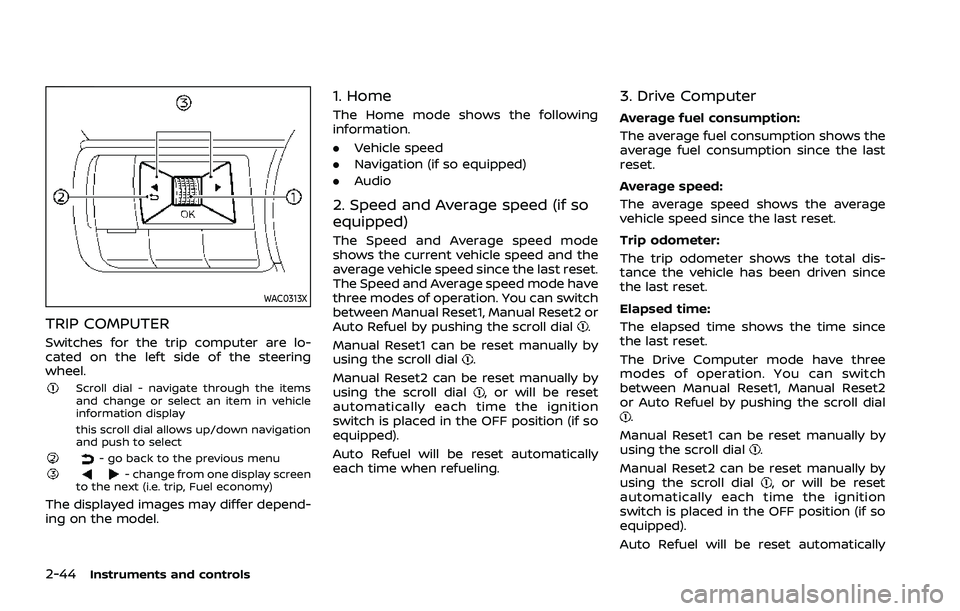
WAC0313X
TRIP COMPUTER
Switches for the trip computer are lo-
cated on the left side of the steering
wheel.
Scroll dial - navigate through the items
and change or select an item in vehicle
information display
this scroll dial allows up/down navigation
and push to select
- go back to the previous menu- change from one display screen
to the next (i.e. trip, Fuel economy)
The displayed images may differ depend-
ing on the model.
1. Home
The Home mode shows the following
information.
. Vehicle speed
. Navigation (if so equipped)
. Audio
2. Speed and Average speed (if so
equipped)
The Speed and Average speed mode
shows the current vehicle speed and the
average vehicle speed since the last reset.
The Speed and Average speed mode have
three modes of operation. You can switch
between Manual Reset1, Manual Reset2 or
Auto Refuel by pushing the scroll dial
.
Manual Reset1 can be reset manually by
using the scroll dial
.
Manual Reset2 can be reset manually by
using the scroll dial
, or will be reset
automatically each time the ignition
switch is placed in the OFF position (if so
equipped).
Auto Refuel will be reset automatically
each time when refueling.
3. Drive Computer
Average fuel consumption:
The average fuel consumption shows the
average fuel consumption since the last
reset.
Average speed:
The average speed shows the average
vehicle speed since the last reset.
Trip odometer:
The trip odometer shows the total dis-
tance the vehicle has been driven since
the last reset.
Elapsed time:
The elapsed time shows the time since
the last reset.
The Drive Computer mode have three
modes of operation. You can switch
between Manual Reset1, Manual Reset2
or Auto Refuel by pushing the scroll dial
.
Manual Reset1 can be reset manually by
using the scroll dial
.
Manual Reset2 can be reset manually by
using the scroll dial
, or will be reset
automatically each time the ignition
switch is placed in the OFF position (if so
equipped).
Auto Refuel will be reset automatically
Page 133 of 556
each time when refueling.
4. Fuel economy display
Current fuel consumption:
The Fuel economy display mode shows
the current fuel consumption.
Average fuel consumption:
The Fuel economy display mode shows
the average fuel consumption since the
last reset.
The Fuel economy display mode have
three modes of operation. You can switch
between Manual Reset1, Manual Reset2 or
Auto Refuel by pushing the scroll dial
.
Manual Reset1 can be reset manually by
using the scroll dial
.
Manual Reset2 can be reset manually by
using the scroll dial
, or will be reset
automatically each time the ignition
switch is placed in the OFF position (if so
equipped).
Auto Refuel will be reset automatically
each time when refueling.
5. ECO Pedal Guide
When the ECO mode is selected, you can
view the ECO Pedal Guide function for
improving fuel economy.
The ECO Pedal Guide mode have three
modes of operation. You can switch
between Manual Reset1, Manual Reset2
or Auto Refuel by pushing the scroll dial
.
Manual Reset1 can be reset manually by
using the scroll dial
.
Manual Reset2 can be reset manually by
using the scroll dial
, or will be reset
automatically each time the ignition
switch is placed in the OFF position (if so
equipped).
Auto Refuel will be reset automatically
each time when refueling.
(See “ECO Pedal Guide function” (P.5-33).)
6. Tire Pressures
The tire pressure mode shows the pres-
sure of all four tires while the vehicle is
driven.
With the “Tire Pres ECO advice” function
ON, when the tire pressure is getting low,
”Check Tire Pressures for Best Fuel Econ-
omy” or ”Add air for Best Fuel Economy”
appears. (See “ECO Mode Setting” (P.2-26)
and “Tire Pres ECO advice” (P.5-33).) When the Tire Pressure Low — Add Air
warning appears, the display can be
switched to the tire pressure mode by
pushing the scroll dial
to reveal addi-
tional details on the displayed warning.
7. Intelligent 4x4 torque distribution
display (if so equipped)
When the Intelligent 4x4 torque distribu-
tion display is selected, you can view the
distribution ratio of the transmission
torque to the front and rear wheels
during driving.
8. Compass (if so equipped)
This display indicates the heading direc-
tion of the vehicle.
9. Navigation (if so equipped)
When the route guidance is set in the
navigation system, this item shows the
navigation route information.
10. Audio
The audio mode shows the status of
audio information.
Instruments and controls2-45