change time NISSAN TITAN 2018 Owner´s Manual
[x] Cancel search | Manufacturer: NISSAN, Model Year: 2018, Model line: TITAN, Model: NISSAN TITAN 2018Pages: 650, PDF Size: 7.54 MB
Page 258 of 650
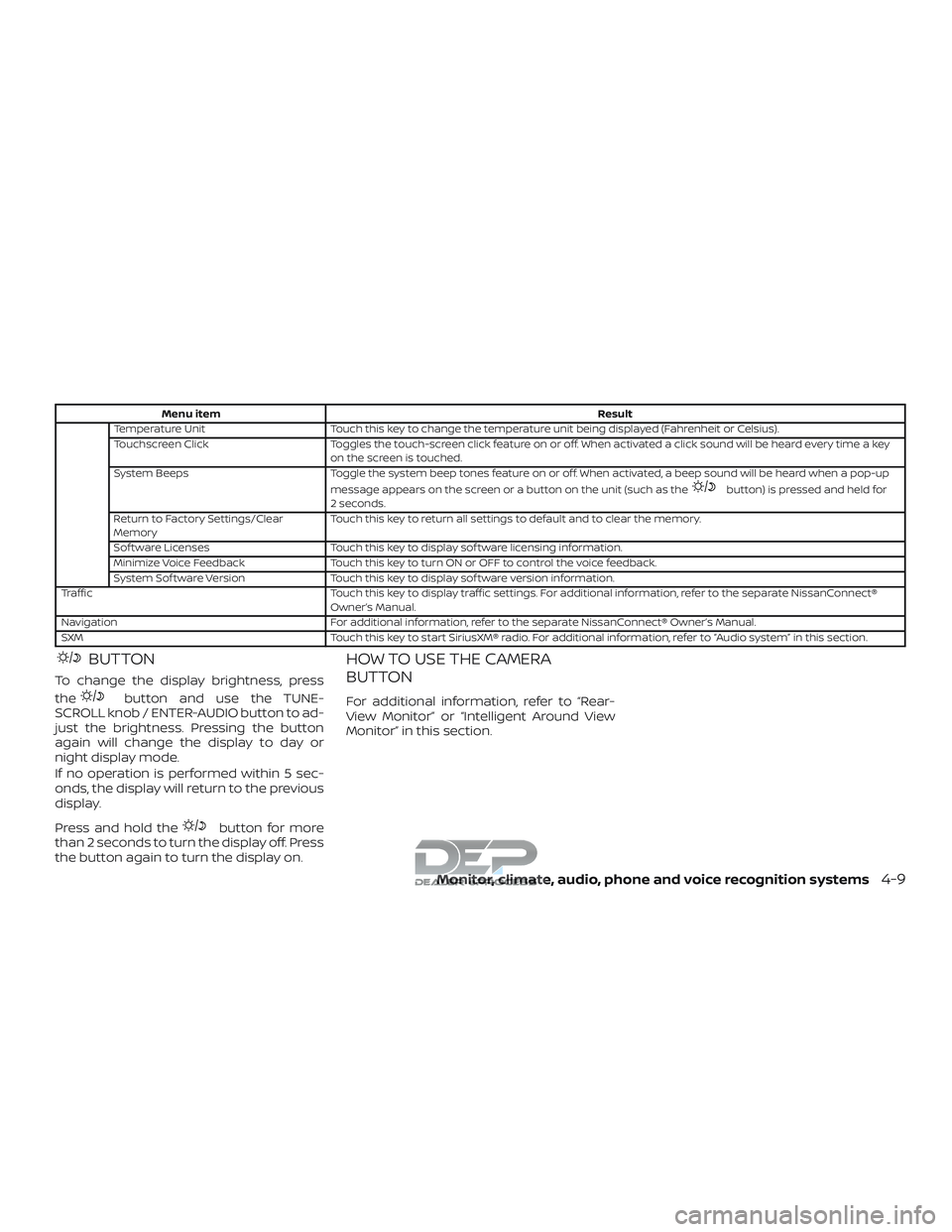
Menu itemResult
Temperature Unit Touch this key to change the temperature unit being displayed (Fahrenheit or Celsius).
Touchscreen Click Toggles the touch-screen click feature on or off. When activated a click sound will be heard every time a key
on the screen is touched.
System Beeps Toggle the system beep tones feature on or off. When activated, a beep sound will be heard when a pop-up
message appears on the screen or a button on the unit (such as the
button) is pressed and held for
2 seconds.
Return to Factory Settings/Clear
Memory Touch this key to return all settings to default and to clear the memory.
Sof tware Licenses Touch this key to display sof tware licensing information.
Minimize Voice Feedback Touch this key to turn ON or OFF to control the voice feedback.
System Sof tware Version Touch this key to display sof tware version information.
Traffic Touch this key to display traffic settings. For additional information, refer to the separate NissanConnect®
Owner’s Manual.
Navigation For additional information, refer to the separate NissanConnect® Owner’s Manual.
SXM Touch this key to start SiriusXM® radio. For additional information, refer to “Audio system” in this section.
BUTTON
To change the display brightness, press
the
button and use the TUNE-
SCROLL knob / ENTER-AUDIO button to ad-
just the brightness. Pressing the button
again will change the display to day or
night display mode.
If no operation is performed within 5 sec-
onds, the display will return to the previous
display.
Press and hold the
button for more
than 2 seconds to turn the display off. Press
the button again to turn the display on.
HOW TO USE THE CAMERA
BUTTON
For additional information, refer to “Rear-
View Monitor” or “Intelligent Around View
Monitor” in this section.
Monitor, climate, audio, phone and voice recognition systems4-9
Page 298 of 650
Reception conditions will constantly
change because of vehicle movement.
Buildings, terrain, signal distance and inter-
ference from other vehicles can work
against ideal reception. Described below
are some of the factors that can affect your
radio reception.
Some cellular phones or other devices may
cause interference or a buzzing noise to
come from the audio system speakers.
Storing the device in a different location
may reduce or eliminate the noise.
FM RADIO RECEPTION
Range: FM range is normally limited to 25 –
30 mi (40 – 48 km), with monaural (single
channel) FM having slightly more range
than stereo FM. External influences may
sometimes interfere with FM station re-
ception even if the FM station is within 25
mi (40 km). The strength of the FM signal is
directly related to the distance between
the transmitter and receiver. FM signals fol-
low a line-of-sight path, exhibiting many of
the same characteristics as light. For ex-
ample, they will reflect off objects.
Fade and drif t: As your vehicle moves away
from a station transmitter, the signals will
tend to fade and/or drif t.Static and flutter: During signal interfer-
ence from buildings, large hills or due to
antenna position (usually in conjunction
with increased distance from the station
transmitter), static or flutter can be heard.
This can be reduced by adjusting the treble
control to reduce treble response.
Multipath reception: Because of the reflec-
tive characteristics of FM signals, direct and
reflected signals reach the receiver at the
same time. The signals may cancel each
other, resulting in momentary flutter or loss
of sound.AM RADIO RECEPTION
AM signals, because of their low frequency,
can bend around objects and skip along
the ground. In addition, the signals can be
bounced off the ionosphere and bent back
to earth. Because of these characteristics,
AM signals are also subject to interference
as they travel from transmitter to receiver.
Fading: Occurs while the vehicle is passing
through freeway underpasses or in areas
with many tall buildings. It can also occur
for several seconds during ionospheric tur-
bulence even in areas where no obstacles
exist.
Static: Caused by thunderstorms, electrical
power lines, electric signs and even traffic
lights.
SATELLITE RADIO RECEPTION (if so
equipped)
When the satellite radio is used for the first
time or the battery has been replaced, the
satellite radio may not work properly. This
is not a malfunction. Wait more than
10 minutes with satellite radio ON and the
vehicle outside of any metal or large build-
ing for satellite radio to receive all of the
necessary data.
No satellite radio reception is available and
“NO SAT” is displayed when the SAT band
option is selected unless optional satellite
receiver and antenna are installed and a
SiriusXM® Satellite Radio service subscrip-
tion is active. Satellite radio is not available
in Alaska, Hawaii and Guam.
Satellite radio performance may be af-
fected if cargo carried on the roof blocks
the satellite radio signal.
If possible, do not put cargo over the satel-
lite antenna.
Monitor, climate, audio, phone and voice recognition systems4-49
Page 309 of 650
tion. Depending on how the MP3/WMA CD
is encoded, information such as Artist,
Song and Folder will be displayed.
The track number and the total number of
tracks in the current folder or on the cur-
rent disc are displayed on the screen as
well.
SEEK/TRACK (Reverse orFast Forward) button
Press and hold the
orSEEK/TRACK button for 1.5 seconds while
the compact disc is playing to reverse or
fast forward the track being played. The
compact disc plays at an increased speed
while reversing or fast forwarding. When
the button is released, the compact disc
returns to normal play speed.
SEEK/TRACK button
Press the
SEEK/TRACK button while a
CD or MP3/WMA CD is playing to return to
the beginning of the current track. Press
the
SEEK/TRACK button several times
to skip backward several tracks.
Press the
SEEK/TRACK button while a
CD or MP3/WMA CD is playing to advance
one track. Press the
SEEK/TRACK but- ton several times to skip forward several
tracks. If the last track on a CD is skipped,
the first track on the disc is played. If the last
track in a folder of an MP3/WMA CD is
skipped, the first track of the next folder is
played.
TUNE/FOLDER knob (MP3/WMA CD only)
If a MP3/WMA CD with multiple folders is
playing, turn the TUNE/FOLDER knob to
change folders. Turn the knob to the lef t to
skip back a folder. Turn the knob to the right
to skip ahead a folder.
RPT (repeat) button
When the RPT (repeat) button is pressed
while a compact disc is playing, the play
pattern can be changed as follows:
CD:
1 Track Repeat
←→OFF
CD with MP3 or WMA:
1 Folder Repeat →1 Track Repeat →OFF
1 Track Repeat: the current track will be
repeated.
1 Folder Repeat: the current folder will be
repeated. OFF: No repeat play pattern is applied. The
indicator on the display will turn off.
The current play pattern of the CD is dis-
played on the screen unless no pattern is
applied.
RDM (random) button
When the RDM (random) button is pressed
while a compact disc is playing, the play
pattern can be changed as follows:
CD:
1 Disc Random
←→OFF
CD with MP3 or WMA:
1 Disc Random →1 Folder Random →OFF
1 Disc Random: all tracks on the disc will be
played randomly.
1 Folder Random: all tracks in the current
folder will be played randomly.
OFF: No random play pattern is applied. The
indicator on the display will turn off.
The current play pattern of the CD is dis-
played on the screen unless no pattern is
applied.
4-60Monitor, climate, audio, phone and voice recognition systems
Page 314 of 650
2. Tune to the desired station usingthe
orSEEK/CAT button.
Press and hold any of the desired sta-
tion memory buttons (1 – 6) until the
preset number is updated on the dis-
play and a beep is heard.
3. Programming is now complete.
4. Other buttons can be set in the same manner.
If the battery cable is disconnected, or if the
fuse opens, the radio memory will be can-
celed. In that case, reset the desired sta-
tions.
Compact disc (CD) player
operation
If the radio is already operating, it automati-
cally turns off and the compact disc begins
to play.
MEDIA button
With a CD loaded, press the MEDIA button
until the CD mode is displayed on the
screen. CD/MP3 display mode
While listening to an MP3/WMA CD, certain
text may be displayed on the screen if the
CD has been encoded with text informa-
tion. Depending on how the MP3/WMA CD
is encoded, information such as Artist,
Song and Folder will be displayed.
The track number and the total number of
tracks in the current folder or on the current
disc are displayed on the screen as well.
SEEK/CAT (Reverse or
Fast Forward) button
Press and hold the
orSEEK/CAT button for 1.5 seconds while the
compact disc is playing to reverse or fast
forward the track being played. The com-
pact disc plays at an increased speed while
reversing or fast forwarding. When the but-
ton is released, the compact disc returns to
normal play speed.
SEEK/CAT button
Press the
SEEK/CAT button while a
CD or MP3/WMA CD is playing to return to
the beginning of the current track. Press
the
SEEK/CAT button several times to
skip backward several tracks. Press the
SEEK/CAT button while a
CD or MP3/WMA CD is playing to advance
one track. Press the
SEEK/CAT button
several times to skip forward several
tracks. If the last track on a CD is skipped,
the first track on the disc is played. If the last
track in a folder of an MP3/WMA CD is
skipped, the first track of the next folder is
played.
TUNE/SCROLL knob (MP3/WMA CD only)
If a MP3/WMA CD with multiple folders is
playing, turn the TUNE/SCROLL knob to
change folders. Turn the knob to the lef t to
skip back a folder. Turn the knob to the right
to skip ahead a folder.
RPT (repeat) button
When the RPT (repeat) button is pressed
while a compact disc is playing, the play
pattern can be changed as follows:
CD:
1 Track Repeat ←→OFF
CD with MP3 or WMA:
1 Folder Repeat →1 Track Repeat →OFF
1 Track Repeat: the current track will be
repeated.
Monitor, climate, audio, phone and voice recognition systems4-65
Page 326 of 650
CAUTION
∙ To avoid damage and loss of functionwhen using a USB device, note the fol-
lowing precautions.
∙ Do not force the USB device into the USB port. Inserting the USB device
tilted or up-side-down into the port
may damage the port. Make sure that
the USB device is connected correctly
into the USB port.
∙ Do not grab the USB port cover (if so equipped) when pulling the USB de-
vice out of the port. This could dam-
age the port and the cover.
∙ Do not leave the USB cable in a place where it can be pulled unintentionally.
Pulling the cable may damage the
port.
For additional information, refer to your de-
vice manufacturer’s owner information re-
garding the proper use and care of the
device.
The USB port is located on the instrument
panel beneath the heater and air condi-
tioner controls. Insert the USB device into
the connection port. When a compatible storage device is
plugged into the connection port, compat-
ible audio files on the storage device can be
played through the vehicle’s audio system.
Audio file operation
AUX button
Place the ignition switch in the ON or ACC
position and press the AUX button to
switch to the USB input mode. If another
audio source is playing and a USB memory
device is inserted, press the AUX button
until the center display changes to the USB
memory mode.
If the system has been turned off while the
USB memory was playing, press the
POWER button to restart the USB memory.
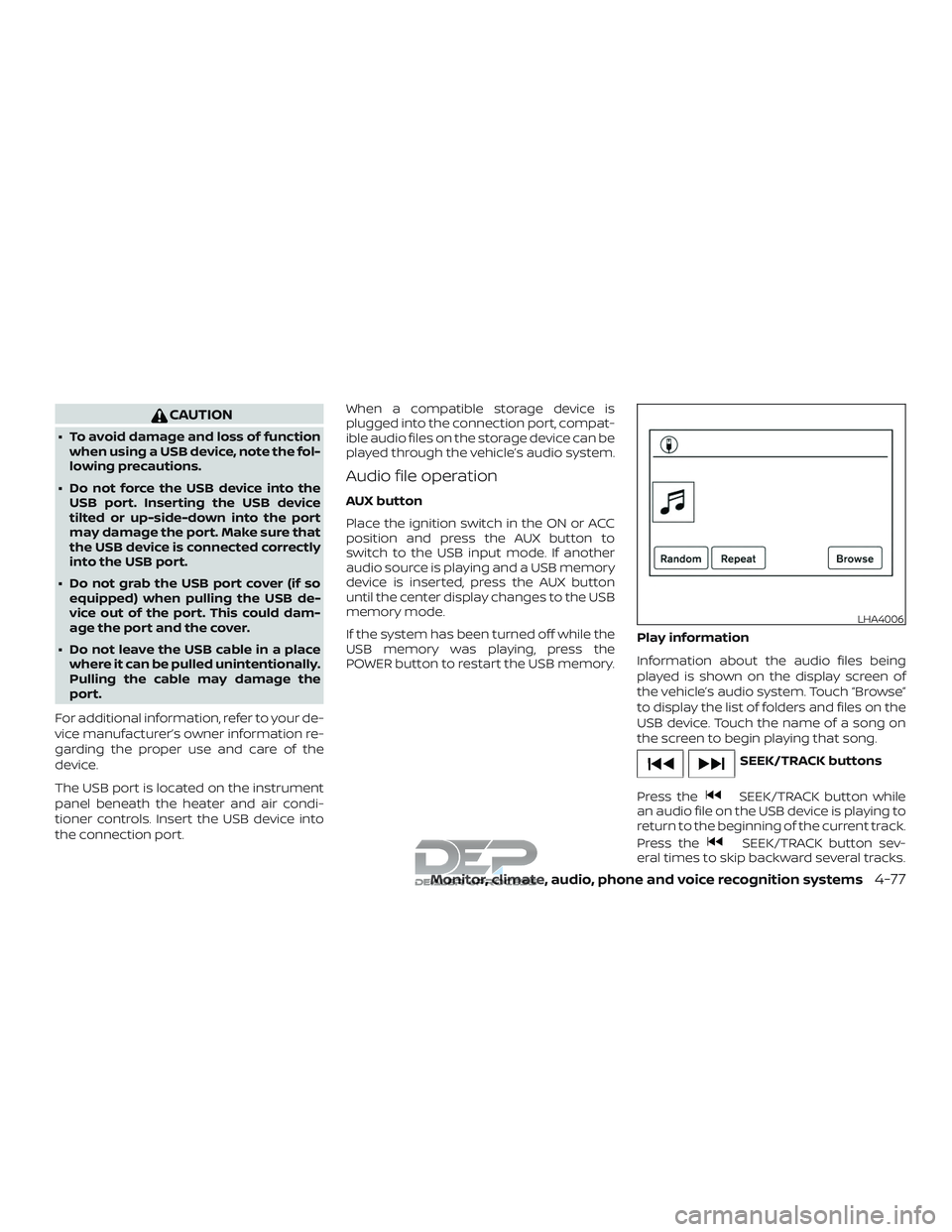
Play information
Information about the audio files being
played is shown on the display screen of
the vehicle’s audio system. Touch “Browse”
to display the list of folders and files on the
USB device. Touch the name of a song on
the screen to begin playing that song.
SEEK/TRACK buttons
Press the
SEEK/TRACK button while
an audio file on the USB device is playing to
return to the beginning of the current track.
Press the
SEEK/TRACK button sev-
eral times to skip backward several tracks.
LHA4006
Monitor, climate, audio, phone and voice recognition systems4-77
Page 341 of 650
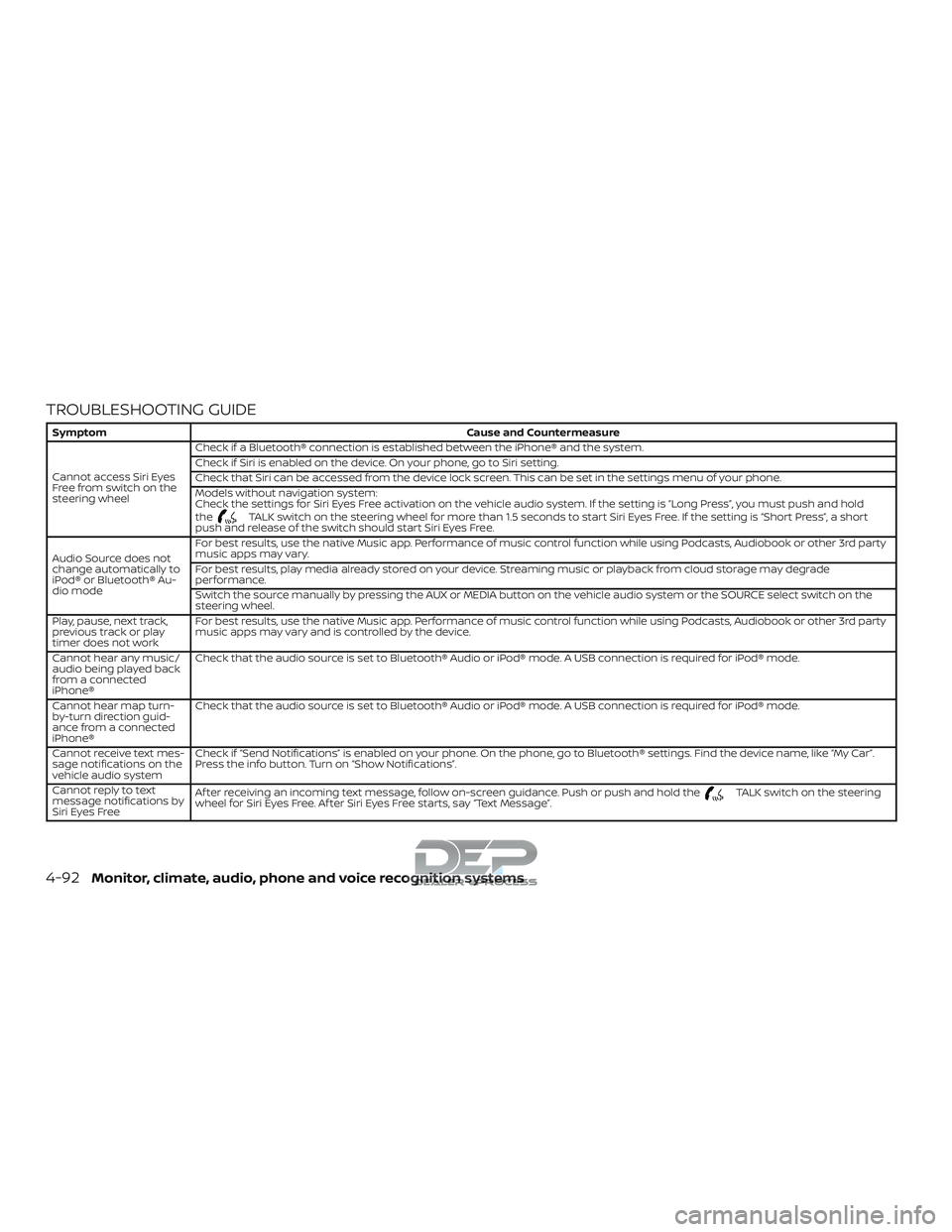
TROUBLESHOOTING GUIDE
SymptomCause and Countermeasure
Cannot access Siri Eyes
Freefromswitchonthe
steering wheel Check if a Bluetooth® connection is established between the iPhone® and the system.
Check if Siri is enabled on the device. On your phone, go to Siri setting.
Check that Siri can be accessed from the device lock screen. This can be set in the settings menu of your phone.
Models without navigation system:
Check the settings for Siri Eyes Free activation on the vehicle audio system. If the setting is “Long Press”, you must push and hold
the
TALK switch on the steering wheel for more than 1.5 seconds to start Siri Eyes Free. If the setting is “Short Press”, a short
push and release of the switch should start Siri Eyes Free.
Audio Source does not
change automatically to
iPod® or Bluetooth® Au-
dio mode For best results, use the native Music app. Performance of music control function while using Podcasts, Audiobook or other 3rd party
music apps may vary.
For best results, play media already stored on your device. Streaming music or playback from cloud storage may degrade
performance.
Switch the source manually by pressing the AUX or MEDIA button on the vehicle audio system or the SOURCE select switch on the
steering wheel.
Play, pause, next track,
previous track or play
timer does not work For best results, use the native Music app. Performance of music control function while using Podcasts, Audiobook or other 3rd party
music apps may vary and is controlled by the device.
Cannot hear any music/
audio being played back
from a connected
iPhone® Check that the audio source is set to Bluetooth® Audio or iPod® mode. A USB connection is required for iPod® mode.
Cannot hear map turn-
by-turn direction guid-
ance from a connected
iPhone® Check that the audio source is set to Bluetooth® Audio or iPod® mode. A USB connection is required for iPod® mode.
Cannot receive text mes-
sage notifications on the
vehicle audio system Check if “Send Notifications” is enabled on your phone. On the phone, go to Bluetooth® settings. Find the device name, like “My Car”.
Press the info button. Turn on “Show Notifications”.
Cannot reply to text
message notifications by
Siri Eyes Free Af ter receiving an incoming text message, follow on-screen guidance. Push or push and hold the
TALK switch on the steering
wheel for Siri Eyes Free. Af ter Siri Eyes Free starts, say “Text Message”.
4-92Monitor, climate, audio, phone and voice recognition systems
Page 342 of 650
WARNING
∙ The Mobile Entertainment System isdesigned for rear seat passenger
viewing only.
∙ It is unlawful in most jurisdictions for a person to drive a motor vehicle
which is equipped with a television
viewer or screen that is located in the
motor vehicle at any point forward of
the back of the driver’s seat, or that is
visible, directly or indirectly, to the
driver while operating the vehicle.
∙ In the interest of safety, the monitors should never be installed where they
will be visible, directly or indirectly, by
the operator of the motor vehicle.
∙ If your vehicle is equipped with a wire- less rear seat audio system or any
other wireless infrared device, make
sure it is powered off when operating
the Rear Seat Entertainment System.
If both systems are powered on at the
same time, the two systems may ob-
struct each other, possibly creating
undesirable audio interference
through the wireless headphones. ∙ For safety reasons, when changing
video discs it is recommended that
the vehicle is not in motion, and that
you do not allow children to unfasten
safety belts to change discs or make
any adjustments to the system. Sys-
tem adjustments can be accom-
plished using the remote control unit,
while safety belts remain fastened.
CAUTION
∙ Be sure to run the vehicle engine whileusing the system. Using this system
without running the engine can result
in a battery drain. To avoid the risk of
battery drain, please remember to
turn off the system when the vehicle
is not in use. Do not touch the inner
pins of the jacks on the front panel.
Electrostatic discharge may cause
permanent damage to the system.
NOTE:
Depending on the USB device, it may or
may not charge when connected to the
USB connection port. Not all devices are
able to charge when connected to the
USB connection port. Each monitor includes a built-in dual chan-
nel infrared transmitter for use with wire-
less headphones. The wireless head-
phones must be used within a line of sight
from the transmitter as infrared transmis-
sion, like visible light, travels only in a
straight line.
When placing the headphones on your
head, make sure to observe the Lef t and
Right orientation. The headphones must
be oriented correctly (facing forward) in or-
der to receive the audio signal. Press the
power button on the headphones, then se-
lect channel “A” to listen to monitor A, or
channel “B” to listen to monitor B. Adjust the
audio level using the volume control on
each headphone.
There is a 3.5mm stereo headphone out-
put jack on each monitor which can be
used with any standard stereo headphone
with an in-line volume control (wired head-
phones sold separately).
The system includes a built-in infrared re-
ceiver for use with the included wireless
remote control. For additional information,
refer to “Remote control operation” in this
section.
NISSAN MOBILE ENTERTAINMENT
SYSTEM (MES) (if so equipped)
Monitor, climate, audio, phone and voice recognition systems4-93
Page 361 of 650
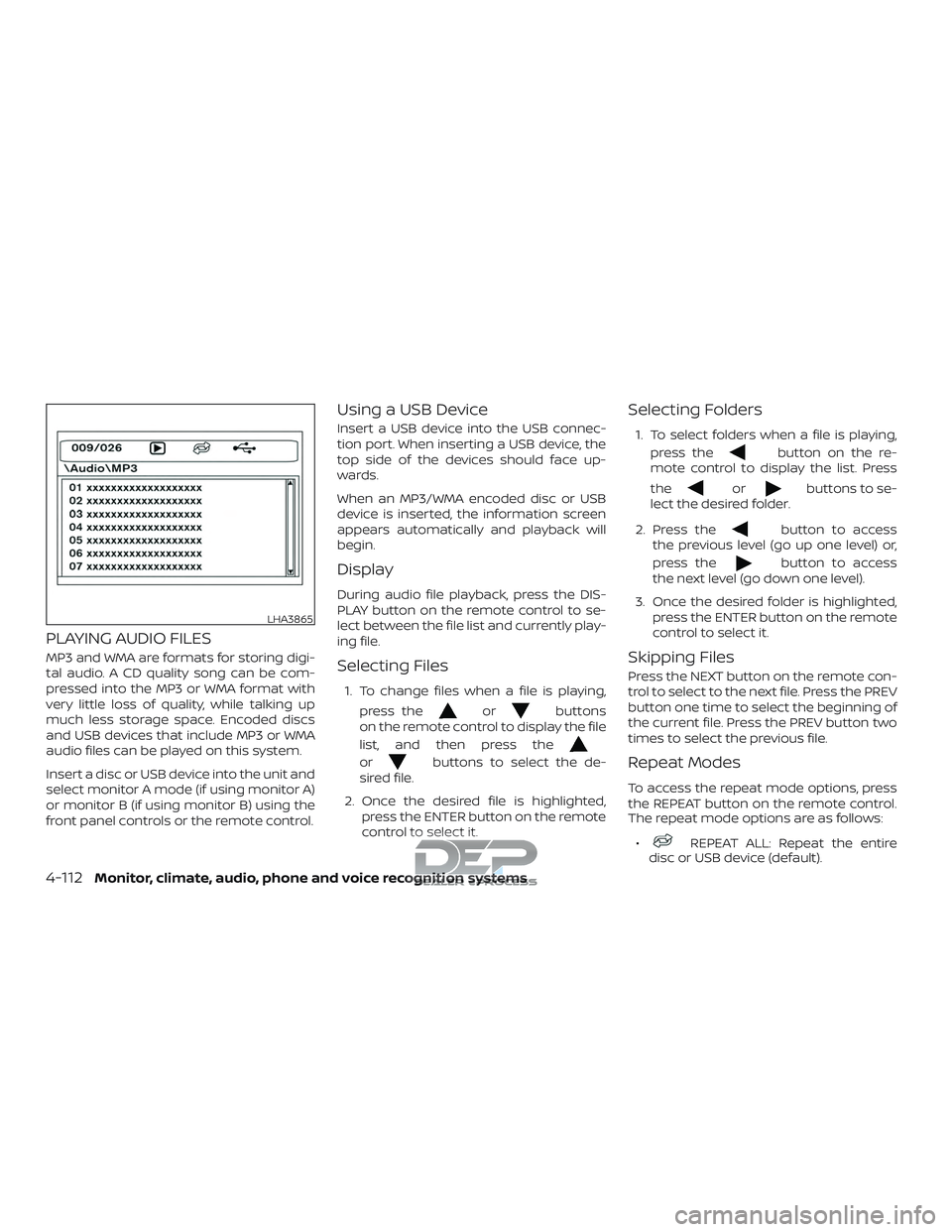
PLAYING AUDIO FILES
MP3 and WMA are formats for storing digi-
tal audio. A CD quality song can be com-
pressed into the MP3 or WMA format with
very little loss of quality, while talking up
much less storage space. Encoded discs
and USB devices that include MP3 or WMA
audio files can be played on this system.
Insert a disc or USB device into the unit and
select monitor A mode (if using monitor A)
or monitor B (if using monitor B) using the
front panel controls or the remote control.
Using a USB Device
Insert a USB device into the USB connec-
tion port. When inserting a USB device, the
top side of the devices should face up-
wards.
When an MP3/WMA encoded disc or USB
device is inserted, the information screen
appears automatically and playback will
begin.
Display
During audio file playback, press the DIS-
PLAY button on the remote control to se-
lect between the file list and currently play-
ing file.
Selecting Files
1. To change files when a file is playing,press the
orbuttons
on the remote control to display the file
list, and then press the
orbuttons to select the de-
sired file.
2. Once the desired file is highlighted, press the ENTER button on the remote
control to select it.
Selecting Folders
1. To select folders when a file is playing,
press the
button on the re-
mote control to display the list. Press
the
orbuttons to se-
lect the desired folder.
2. Press the
button to access
the previous level (go up one level) or,
press the
button to access
the next level (go down one level).
3. Once the desired folder is highlighted, press the ENTER button on the remote
control to select it.
Skipping Files
Press the NEXT button on the remote con-
trol to select to the next file. Press the PREV
button one time to select the beginning of
the current file. Press the PREV button two
times to select the previous file.
Repeat Modes
To access the repeat mode options, press
the REPEAT button on the remote control.
The repeat mode options are as follows:
∙
REPEAT ALL: Repeat the entire
disc or USB device (default).
LHA3865
4-112Monitor, climate, audio, phone and voice recognition systems
Page 381 of 650
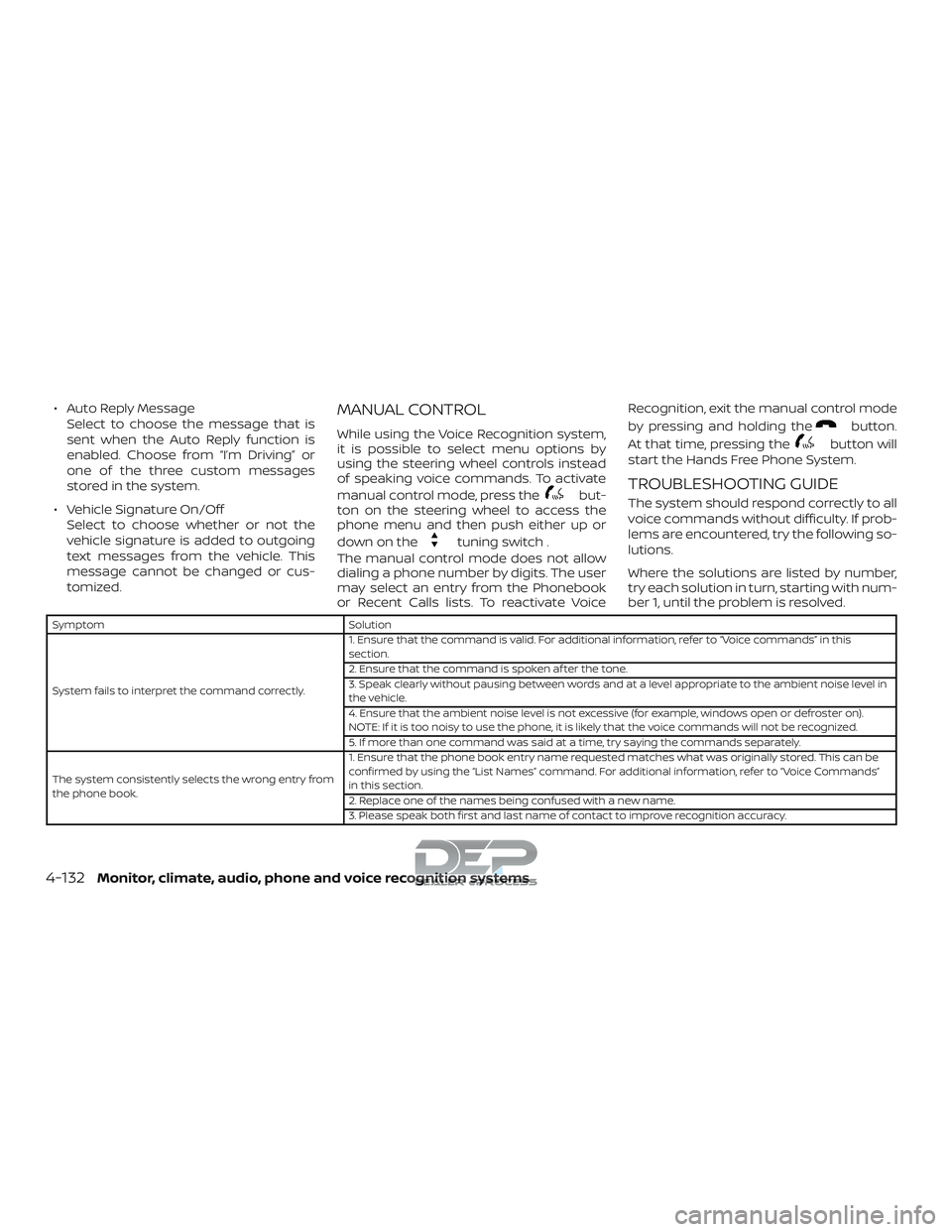
∙ Auto Reply MessageSelect to choose the message that is
sent when the Auto Reply function is
enabled. Choose from “I’m Driving” or
one of the three custom messages
stored in the system.
∙ Vehicle Signature On/Off Select to choose whether or not the
vehicle signature is added to outgoing
text messages from the vehicle. This
message cannot be changed or cus-
tomized.MANUAL CONTROL
While using the Voice Recognition system,
it is possible to select menu options by
using the steering wheel controls instead
of speaking voice commands. To activate
manual control mode, press the
but-
ton on the steering wheel to access the
phone menu and then push either up or
down on the
tuning switch .
The manual control mode does not allow
dialing a phone number by digits. The user
may select an entry from the Phonebook
or Recent Calls lists. To reactivate Voice Recognition, exit the manual control mode
by pressing and holding the
button.
At that time, pressing the
button will
start the Hands Free Phone System.
TROUBLESHOOTING GUIDE
The system should respond correctly to all
voice commands without difficulty. If prob-
lems are encountered, try the following so-
lutions.
Where the solutions are listed by number,
try each solution in turn, starting with num-
ber 1, until the problem is resolved.
Symptom Solution
System fails to interpret the command correctly. 1. Ensure that the command is valid. For additional information, refer to “Voice commands” in this
section.
2. Ensure that the command is spoken af ter the tone.
3. Speak clearly without pausing between words and at a level appropriate to the ambient noise level in
the vehicle.
4. Ensure that the ambient noise level is not excessive (for example, windows open or defroster on).
NOTE: If it is too noisy to use the phone, it is likely that the voice commands will not be recognized.
5. If more than one command was said at a time, try saying the commands separately.
The system consistently selects the wrong entry from
the phone book. 1. Ensure that the phone book entry name requested matches what was originally stored. This can be
confirmed by using the “List Names” command. For additional information, refer to “Voice Commands”
in this section.
2. Replace one of the names being confused with a new name.
3. Please speak both first and last name of contact to improve recognition accuracy.
4-132Monitor, climate, audio, phone and voice recognition systems
Page 386 of 650
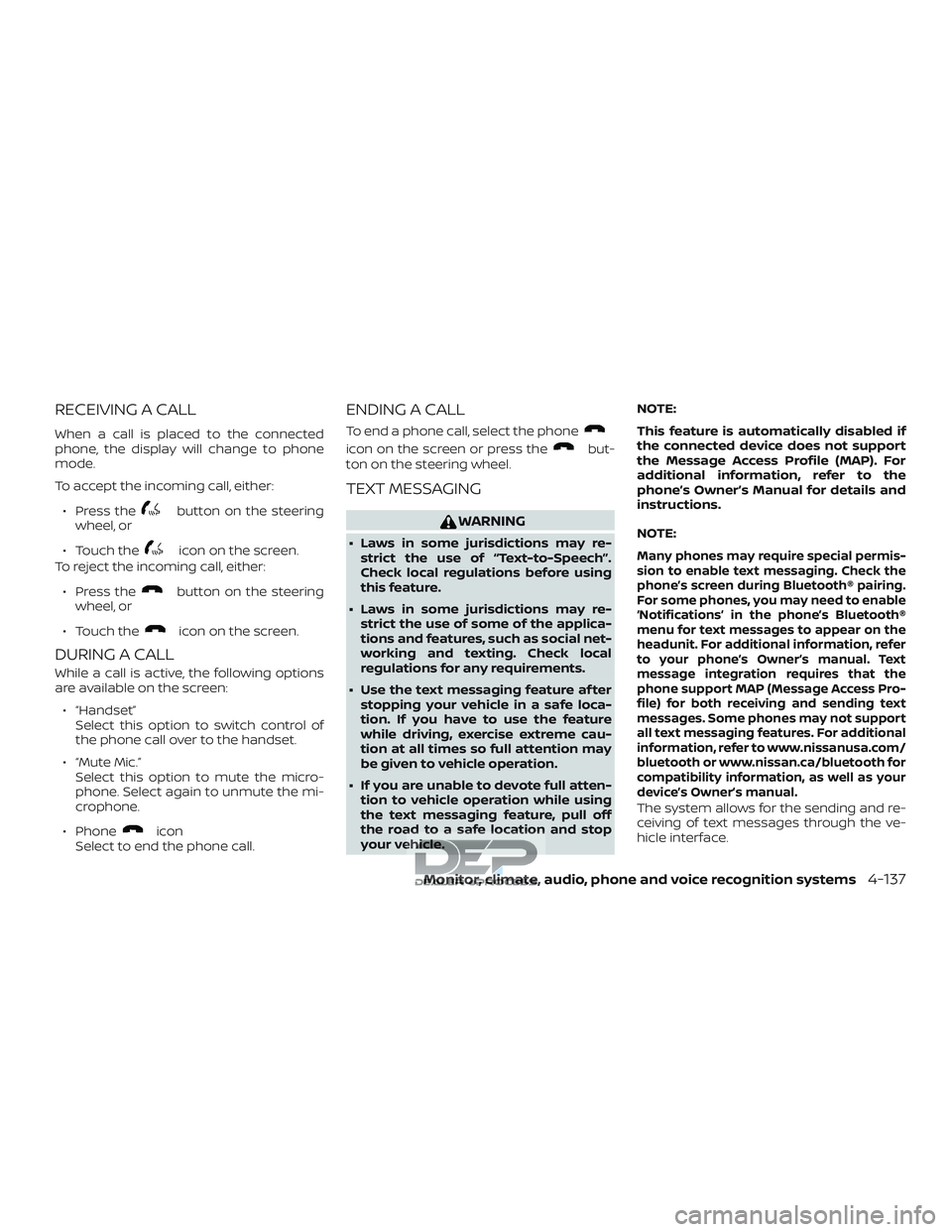
RECEIVING A CALL
When a call is placed to the connected
phone, the display will change to phone
mode.
To accept the incoming call, either:∙ Press the
button on the steering
wheel, or
∙ Touch the
icon on the screen.
To reject the incoming call, either:
∙ Press the
button on the steering
wheel, or
∙ Touch the
icon on the screen.
DURING A CALL
While a call is active, the following options
are available on the screen: ∙ “Handset” Select this option to switch control of
the phone call over to the handset.
∙ “Mute Mic.” Select this option to mute the micro-
phone. Select again to unmute the mi-
crophone.
∙ Phone
icon
Select to end the phone call.
ENDING A CALL
To end a phone call, select the phone
icon on the screen or press thebut-
ton on the steering wheel.
TEXT MESSAGING
WARNING
∙ Laws in some jurisdictions may re- strict the use of “Text-to-Speech”.
Check local regulations before using
this feature.
∙ Laws in some jurisdictions may re- strict the use of some of the applica-
tions and features, such as social net-
working and texting. Check local
regulations for any requirements.
∙ Use the text messaging feature af ter stopping your vehicle in a safe loca-
tion. If you have to use the feature
while driving, exercise extreme cau-
tion at all times so full attention may
be given to vehicle operation.
∙ If you are unable to devote full atten- tion to vehicle operation while using
the text messaging feature, pull off
the road to a safe location and stop
your vehicle. NOTE:
This feature is automatically disabled if
the connected device does not support
the Message Access Profile (MAP). For
additional information, refer to the
phone’s Owner’s Manual for details and
instructions.
NOTE:Many phones may require special permis-
sion to enable text messaging. Check the
phone’s screen during Bluetooth® pairing.
For some phones, you may need to enable
‘Notifications’ in the phone’s Bluetooth®
menu for text messages to appear on the
headunit. For additional information, refer
to your phone’s Owner’s manual. Text
message integration requires that the
phone support MAP (Message Access Pro-
file) for both receiving and sending text
messages. Some phones may not support
all text messaging features. For additional
information, refer to www.nissanusa.com/
bluetooth or www.nissan.ca/bluetooth for
compatibility information, as well as your
device’s Owner’s manual.
The system allows for the sending and re-
ceiving of text messages through the ve-
hicle interface.
Monitor, climate, audio, phone and voice recognition systems4-137