audio NISSAN TITAN 2021 Owner´s Manual
[x] Cancel search | Manufacturer: NISSAN, Model Year: 2021, Model line: TITAN, Model: NISSAN TITAN 2021Pages: 638, PDF Size: 4.31 MB
Page 9 of 638
Table of
contentsIllustrated table of contents
Safety-Seats, seat belts and supplemental restraint system
Instruments and controls
Pre-driving checks and adjustments
Monitor, climate, audio, phone and voice recognition systems
Starting and driving
In case of emergency
Appearance and care
Do-it-yourself
Maintenance and schedules
Technical and consumer information
Index
0
1
2
3
4
5
6
7
8
9
10
11
Page 16 of 638
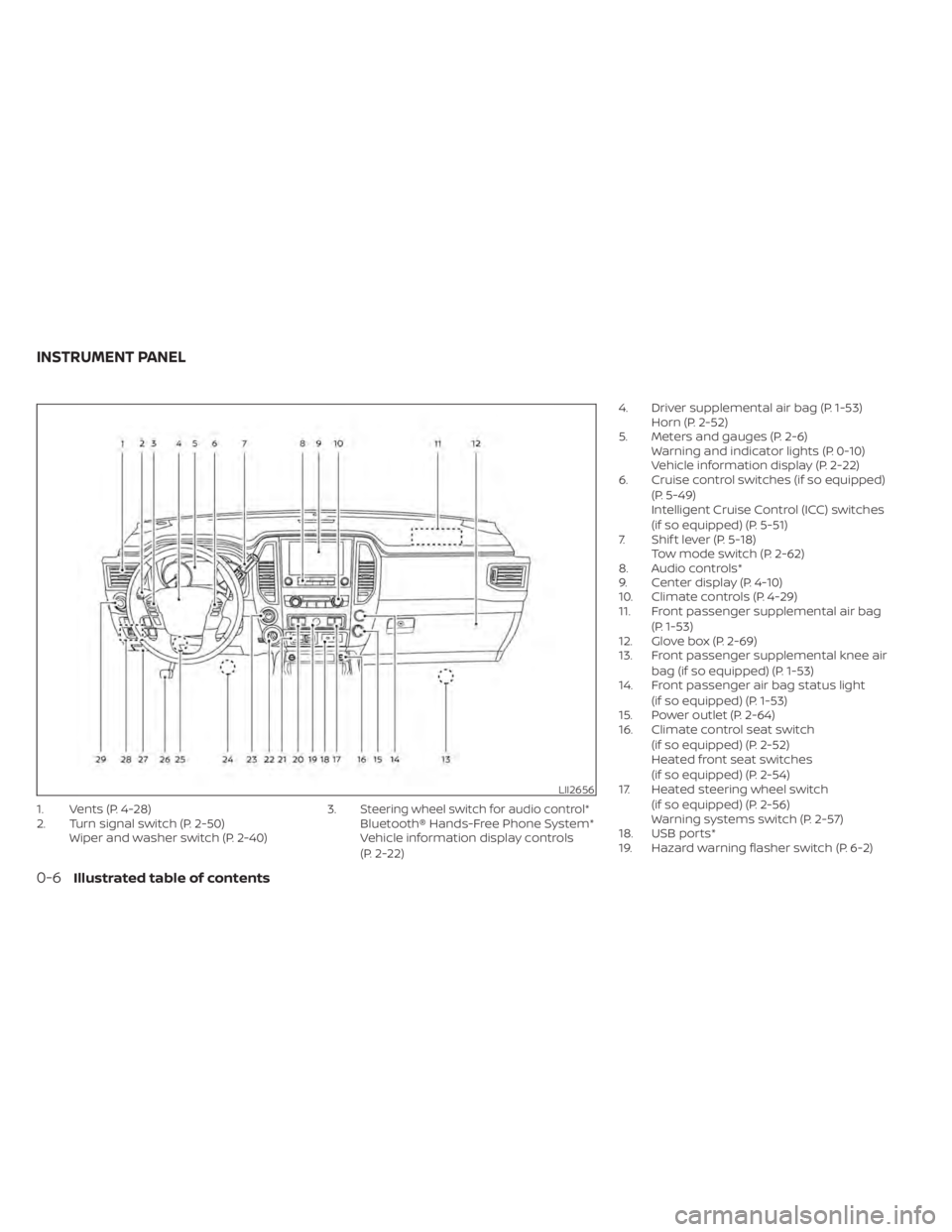
1. Vents (P. 4-28)
2. Turn signal switch (P. 2-50)Wiper and washer switch (P. 2-40) 3.Steering wheel switch for audio control*Bluetooth® Hands-Free Phone System*
Vehicle information display controls
(P. 2-22)4. Driver supplemental air bag (P. 1-53)
Horn (P. 2-52)
5. Meters and gauges (P. 2-6) Warning and indicator lights (P. 0-10)
Vehicle information display (P. 2-22)
6. Cruise control switches (if so equipped)
(P. 5-49)
Intelligent Cruise Control (ICC) switches
(if so equipped) (P. 5-51)
7. Shif t lever (P. 5-18) Tow mode switch (P. 2-62)
8. Audio controls*
9. Center display (P. 4-10)
10. Climate controls (P. 4-29)
11. Front passenger supplemental air bag
(P. 1-53)
12. Glove box (P. 2-69)
13. Front passenger supplemental knee air
bag (if so equipped) (P. 1-53)
14. Front passenger air bag status light
(if so equipped) (P. 1-53)
15. Power outlet (P. 2-64)
16. Climate control seat switch
(if so equipped) (P. 2-52)
Heated front seat switches
(if so equipped) (P. 2-54)
17. Heated steering wheel switch
(if so equipped) (P. 2-56)
Warning systems switch (P. 2-57)
18. USB ports*
19. Hazard warning flasher switch (P. 6-2)
LII2656
INSTRUMENT PANEL
0-6Illustrated table of contents
Page 110 of 638
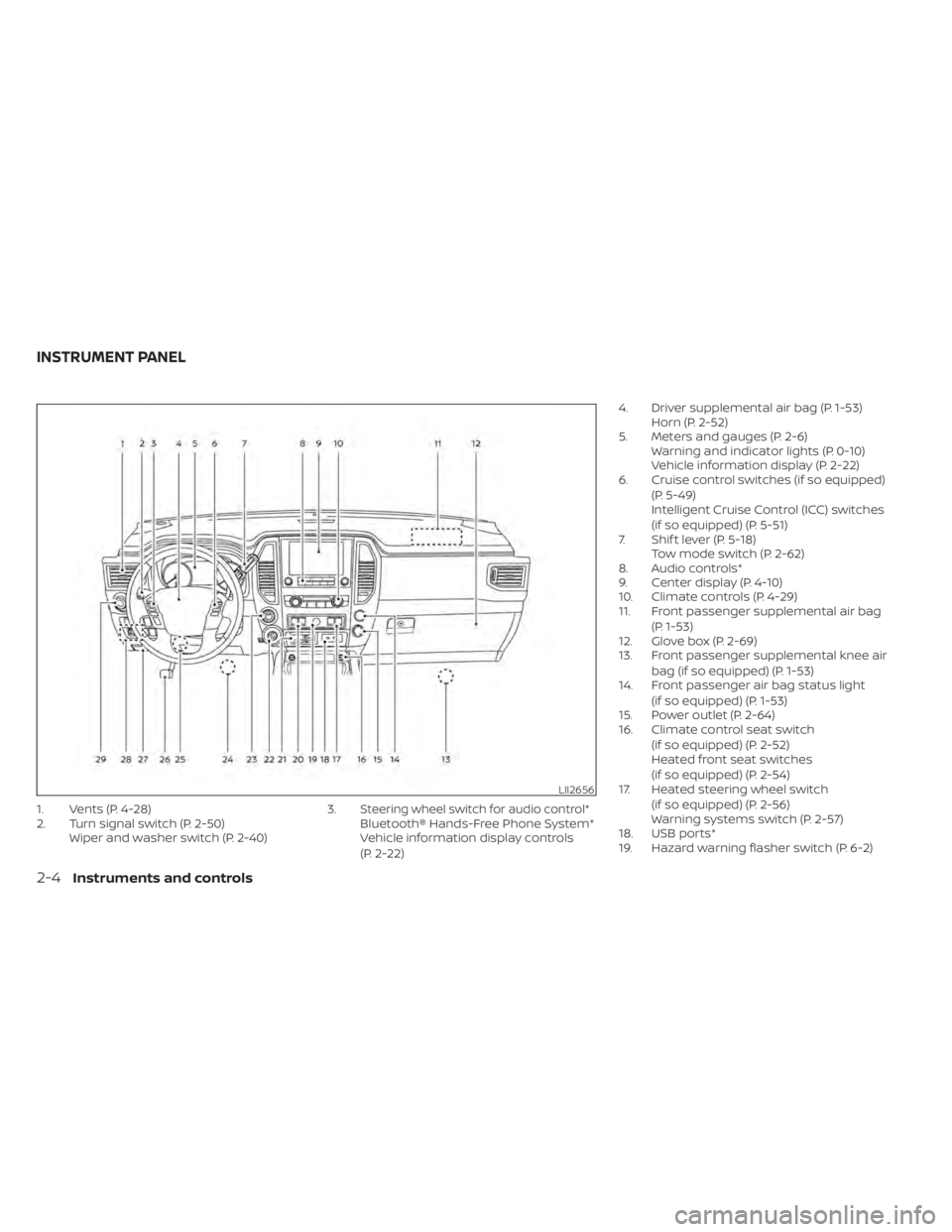
1. Vents (P. 4-28)
2. Turn signal switch (P. 2-50)Wiper and washer switch (P. 2-40) 3.Steering wheel switch for audio control*Bluetooth® Hands-Free Phone System*
Vehicle information display controls
(P. 2-22)4. Driver supplemental air bag (P. 1-53)
Horn (P. 2-52)
5. Meters and gauges (P. 2-6) Warning and indicator lights (P. 0-10)
Vehicle information display (P. 2-22)
6. Cruise control switches (if so equipped)
(P. 5-49)
Intelligent Cruise Control (ICC) switches
(if so equipped) (P. 5-51)
7. Shif t lever (P. 5-18) Tow mode switch (P. 2-62)
8. Audio controls*
9. Center display (P. 4-10)
10. Climate controls (P. 4-29)
11. Front passenger supplemental air bag
(P. 1-53)
12. Glove box (P. 2-69)
13. Front passenger supplemental knee air
bag (if so equipped) (P. 1-53)
14. Front passenger air bag status light
(if so equipped) (P. 1-53)
15. Power outlet (P. 2-64)
16. Climate control seat switch
(if so equipped) (P. 2-52)
Heated front seat switches
(if so equipped) (P. 2-54)
17. Heated steering wheel switch
(if so equipped) (P. 2-56)
Warning systems switch (P. 2-57)
18. USB ports*
19. Hazard warning flasher switch (P. 6-2)
LII2656
INSTRUMENT PANEL
2-4Instruments and controls
Page 129 of 638
HOW TO USE THE VEHICLE
INFORMATION DISPLAY
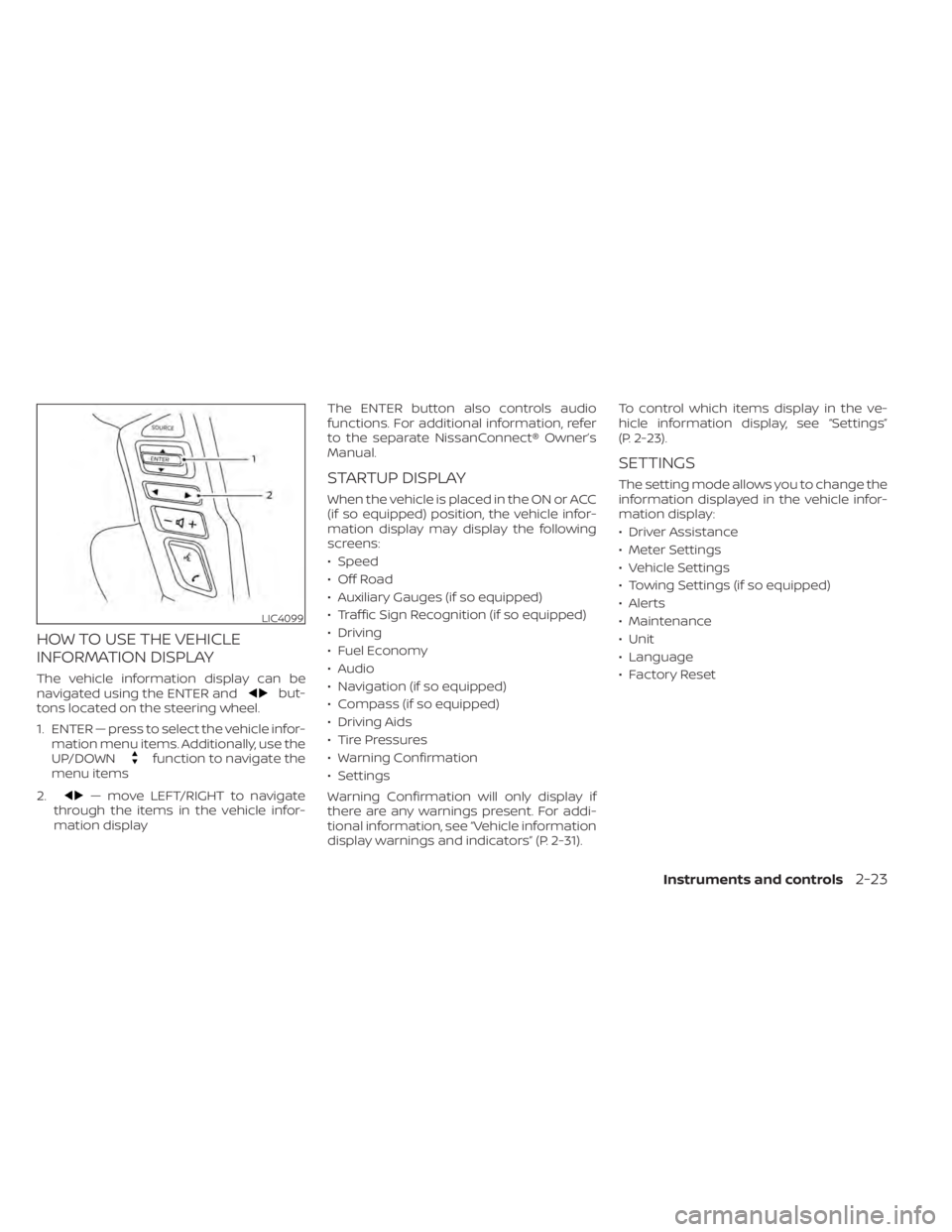
The vehicle information display can be
navigated using the ENTER andbut-
tons located on the steering wheel.
1. ENTER — press to select the vehicle infor- mation menu items. Additionally, use the
UP/DOWN
function to navigate the
menu items
2.
— move LEFT/RIGHT to navigate
through the items in the vehicle infor-
mation display The ENTER button also controls audio
functions. For additional information, refer
to the separate NissanConnect® Owner’s
Manual.
STARTUP DISPLAY
When the vehicle is placed in the ON or ACC
(if so equipped) position, the vehicle infor-
mation display may display the following
screens:
• Speed
• Off Road
• Auxiliary Gauges (if so equipped)
• Traffic Sign Recognition (if so equipped)
• Driving
• Fuel Economy
• Audio
• Navigation (if so equipped)
• Compass (if so equipped)
• Driving Aids
• Tire Pressures
• Warning Confirmation
• Settings
Warning Confirmation will only display if
there are any warnings present. For addi-
tional information, see “Vehicle information
display warnings and indicators” (P. 2-31). To control which items display in the ve-
hicle information display, see “Settings”
(P. 2-23).
SETTINGS
The setting mode allows you to change the
information displayed in the vehicle infor-
mation display:
• Driver Assistance
• Meter Settings
• Vehicle Settings
• Towing Settings (if so equipped)
• Alerts
• Maintenance
• Unit
• Language
• Factory Reset
LIC4099
Instruments and controls2-23
Page 131 of 638
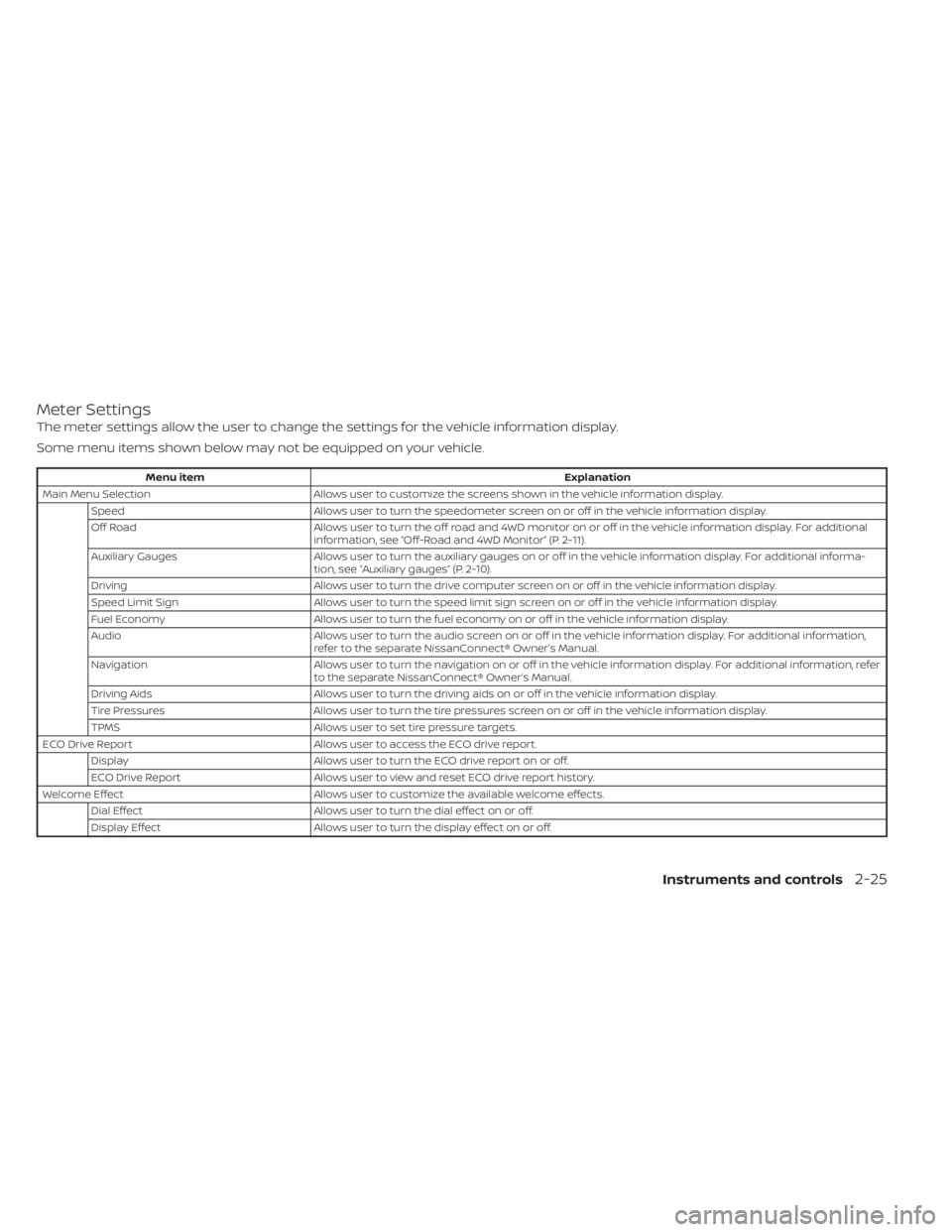
Meter Settings
The meter settings allow the user to change the settings for the vehicle information display.
Some menu items shown below may not be equipped on your vehicle.
Menu itemExplanation
Main Menu Selection Allows user to customize the screens shown in the vehicle information display.
Speed Allows user to turn the speedometer screen on or off in the vehicle information display.
Off Road Allows user to turn the off road and 4WD monitor on or off in the vehicle information display. For additional
information, see “Off-Road and 4WD Monitor” (P. 2-11).
Auxiliary Gauges Allows user to turn the auxiliary gauges on or off in the vehicle information display. For additional informa-
tion, see “Auxiliary gauges” (P. 2-10).
Driving Allows user to turn the drive computer screen on or off in the vehicle information display.
Speed Limit Sign Allows user to turn the speed limit sign screen on or off in the vehicle information display.
Fuel Economy Allows user to turn the fuel economy on or off in the vehicle information display.
Audio Allows user to turn the audio screen on or off in the vehicle information display. For additional information,
refer to the separate NissanConnect® Owner’s Manual.
Navigation Allows user to turn the navigation on or off in the vehicle information display. For additional information, refer
to the separate NissanConnect® Owner’s Manual.
Driving Aids Allows user to turn the driving aids on or off in the vehicle information display.
Tire Pressures Allows user to turn the tire pressures screen on or off in the vehicle information display.
TPMS Allows user to set tire pressure targets.
ECO Drive Report Allows user to access the ECO drive report.
Display Allows user to turn the ECO drive report on or off.
ECO Drive Report Allows user to view and reset ECO drive report history.
Welcome Effect Allows user to customize the available welcome effects.
Dial Effect Allows user to turn the dial effect on or off.
Display Effect Allows user to turn the display effect on or off.
Instruments and controls2-25
Page 203 of 638
•Do not strike the Intelligent Key
sharply against another object.
• Do not change or modif y the Intelli-
gent Key.
• Wetting may damage the Intelligent
Key. If the Intelligent Key gets wet,
immediately wipe until it is com-
pletely dry.
• Do not place the Intelligent Key for an
extended period in an area where
temperatures exceed 140°F (60°C).
• Do not attach the Intelligent Key with
a key holder that contains a magnet.
• Do not place the Intelligent Key near
equipment that produces a magnetic
field, such as a TV, audio equipment
and personal computers.
If an Intelligent Key is lost or stolen, NISSAN
recommends erasing the ID code of that
Intelligent Key from the vehicle. This may
prevent the unauthorized use of the Intelli-
gent Key to operate the vehicle. For infor-
mation regarding the erasing procedure, it
is recommended that you visit a NISSAN
dealer.
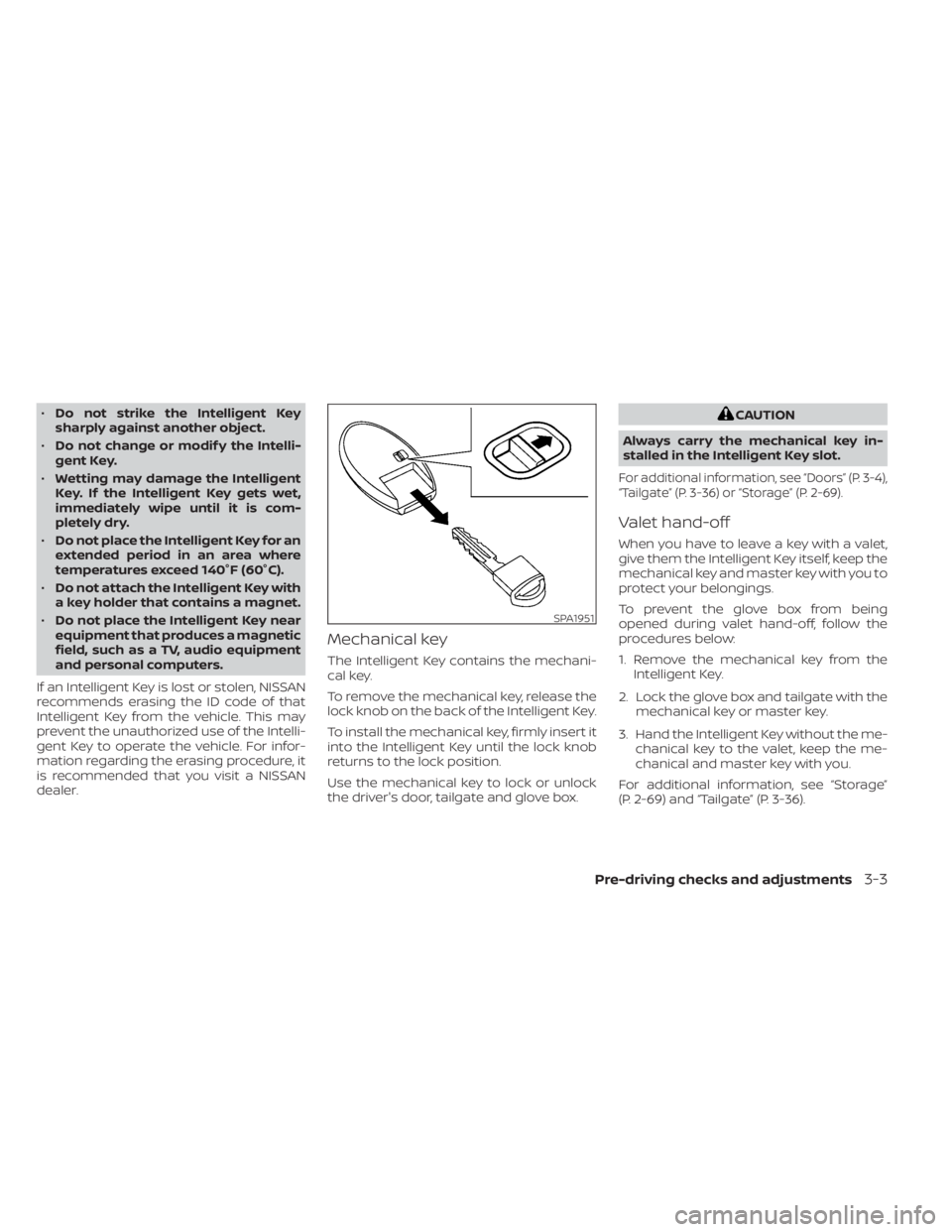
Mechanical key
The Intelligent Key contains the mechani-
cal key.
To remove the mechanical key, release the
lock knob on the back of the Intelligent Key.
To install the mechanical key, firmly insert it
into the Intelligent Key until the lock knob
returns to the lock position.
Use the mechanical key to lock or unlock
the driver's door, tailgate and glove box.
CAUTION
Always carry the mechanical key in-
stalled in the Intelligent Key slot.
For additional information, see “Doors” (P. 3-4),
“Tailgate” (P. 3-36) or “Storage” (P. 2-69).
Valet hand-off
When you have to leave a key with a valet,
give them the Intelligent Key itself, keep the
mechanical key and master key with you to
protect your belongings.
To prevent the glove box from being
opened during valet hand-off, follow the
procedures below:
1. Remove the mechanical key from the Intelligent Key.
2. Lock the glove box and tailgate with the mechanical key or master key.
3. Hand the Intelligent Key without the me- chanical key to the valet, keep the me-
chanical and master key with you.
For additional information, see “Storage”
(P. 2-69) and “Tailgate” (P. 3-36).
SPA1951
Pre-driving checks and adjustments3-3
Page 244 of 638
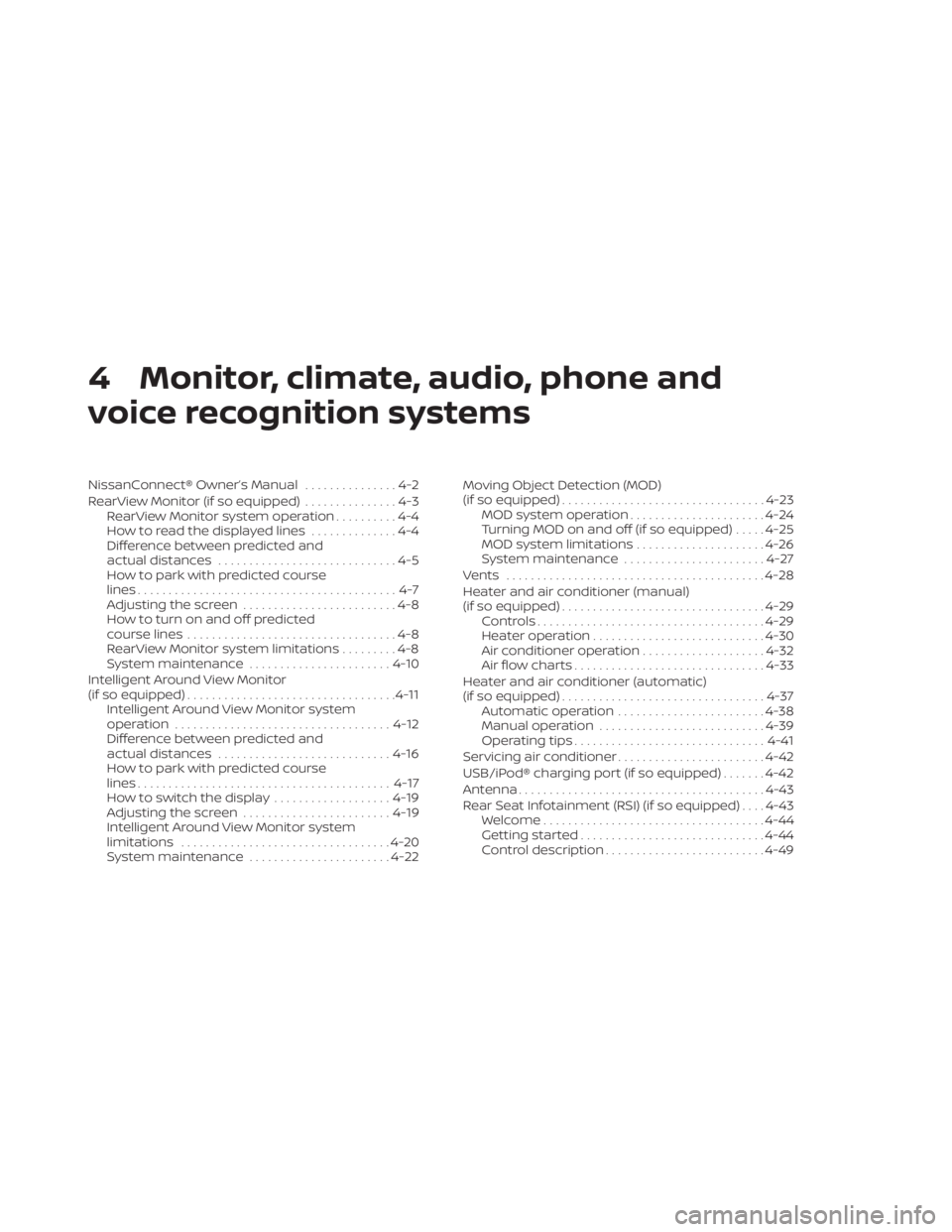
4 Monitor, climate, audio, phone and
voice recognition systems
NissanConnect® Owner’s Manual...............4-2
RearView Monitor (if so equipped) ...............4-3
RearView Monitor system operation ..........4-4
How to read the displayed lines ..............4-4
Difference between predicted and
actual distances .............................4-5
How to park with predicted course
lines ..........................................4-7
Adjusting the screen .........................4-8
How to turn on and off predicted
course lines ..................................4-8
RearView Monitor system limitations .........4-8
System maintenance ....................... 4-10
Intelligent Around View Monitor
(if so equipped) .................................. 4-11
Intelligent Around View Monitor system
operation ................................... 4-12
Difference between predicted and
actual distances ............................ 4-16
How to park with predicted course
lines ......................................... 4-17
How to switch the display ...................4-19
Adjusting the screen ........................ 4-19
Intelligent Around View Monitor system
limitations .................................. 4-20
System maintenance .......................4-22Moving Object Detection (MOD)
(if so equipped)
................................. 4-23
MOD system operation ......................4-24
Turning MOD on and off (if so equipped) .....4-25
MOD system limitations .....................4-26
System maintenance .......................4-27
Vents .......................................... 4-28
Heater and air conditioner (manual)
(if so equipped) ................................. 4-29
Controls ..................................... 4-29
Heater operation ............................ 4-30
Air conditioner operation ....................4-32
Air flow charts ............................... 4-33
Heater and air conditioner (automatic)
(if so equipped) ................................. 4-37
Automatic operation ........................ 4-38
Manual operation ........................... 4-39
Operating tips ............................... 4-41
Servicing air conditioner ........................4-42
USB/iPod® charging port (if so equipped) .......4-42
Antenna ........................................ 4-43
R
ear Seat Infotainment (RSI) (if so equipped) ....4-43
Welcome.................................... 4-44
Getting started .............................. 4-44
Control description .......................... 4-49
Page 246 of 638
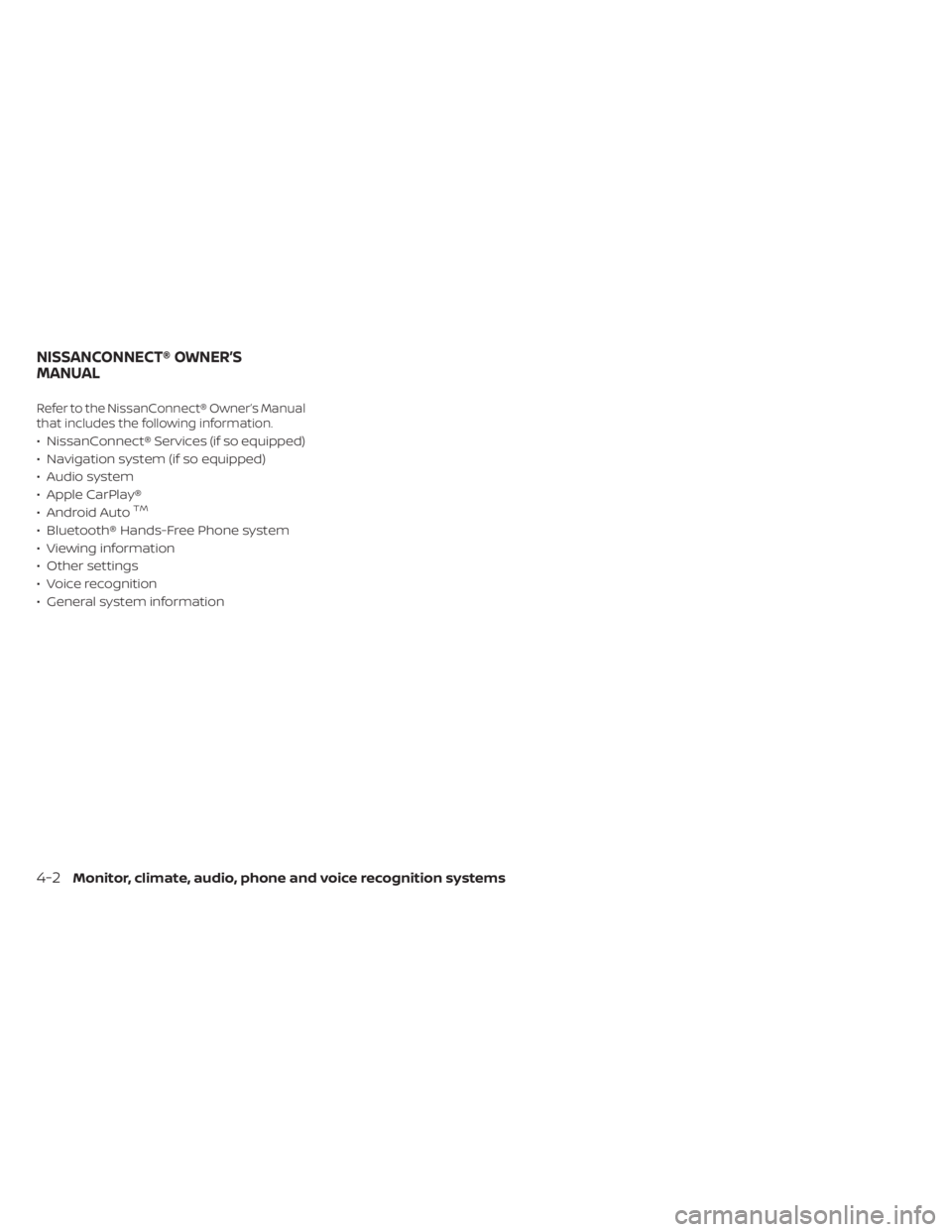
Refer to the NissanConnect® Owner’s Manual
that includes the following information.
• NissanConnect® Services (if so equipped)
• Navigation system (if so equipped)
• Audio system
• Apple CarPlay®
• Android Auto
TM
• Bluetooth® Hands-Free Phone system
• Viewing information
• Other settings
• Voice recognition
• General system information
NISSANCONNECT® OWNER’S
MANUAL
4-2Monitor, climate, audio, phone and voice recognition systems
Page 247 of 638
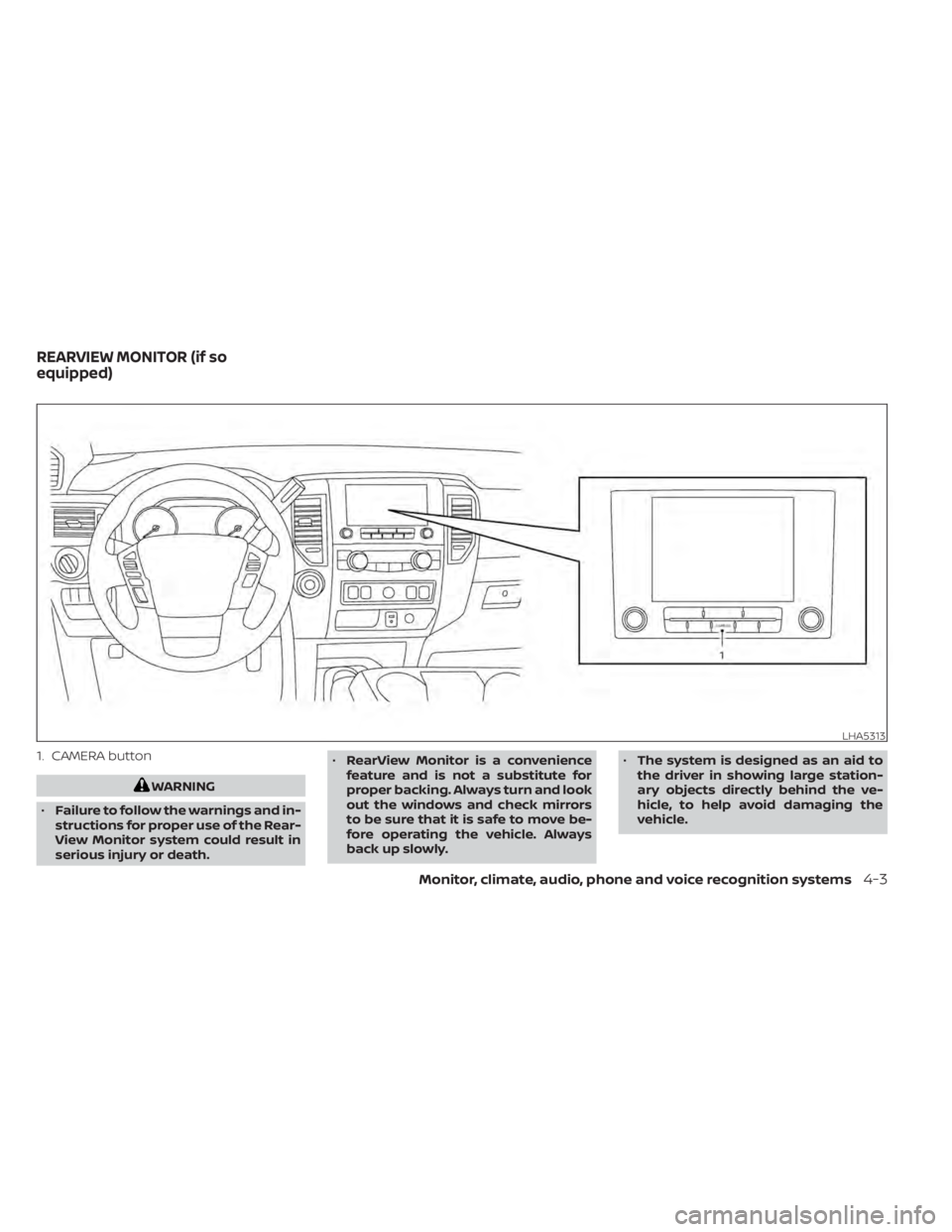
1. CAMERA button
WARNING
• Failure to follow the warnings and in-
structions for proper use of the Rear-
View Monitor system could result in
serious injury or death. •
RearView Monitor is a convenience
feature and is not a substitute for
proper backing. Always turn and look
out the windows and check mirrors
to be sure that it is safe to move be-
fore operating the vehicle. Always
back up slowly. •
The system is designed as an aid to
the driver in showing large station-
ary objects directly behind the ve-
hicle, to help avoid damaging the
vehicle.
LHA5313
REARVIEW MONITOR (if so
equipped)
Monitor, climate, audio, phone and voice recognition systems4-3
Page 248 of 638
•The distance guide line and the ve-
hicle width line should be used as a
reference only when the vehicle is on
a level paved surface. The distance
viewed on the monitor is for refer-
ence only and may be different than
the actual distance between the ve-
hicle and displayed objects.
CAUTION
Do not scratch the camera lens when
cleaning dirt or snow from the front of
the camera.
The RearView Monitor system automati-
cally shows a rear view of the vehicle when
the shif t lever is shif ted into the R (Reverse)
position. While in R (Reverse), pressing the
CAMERA will cycle through guideline op-
tions. The radio can still be heard while the
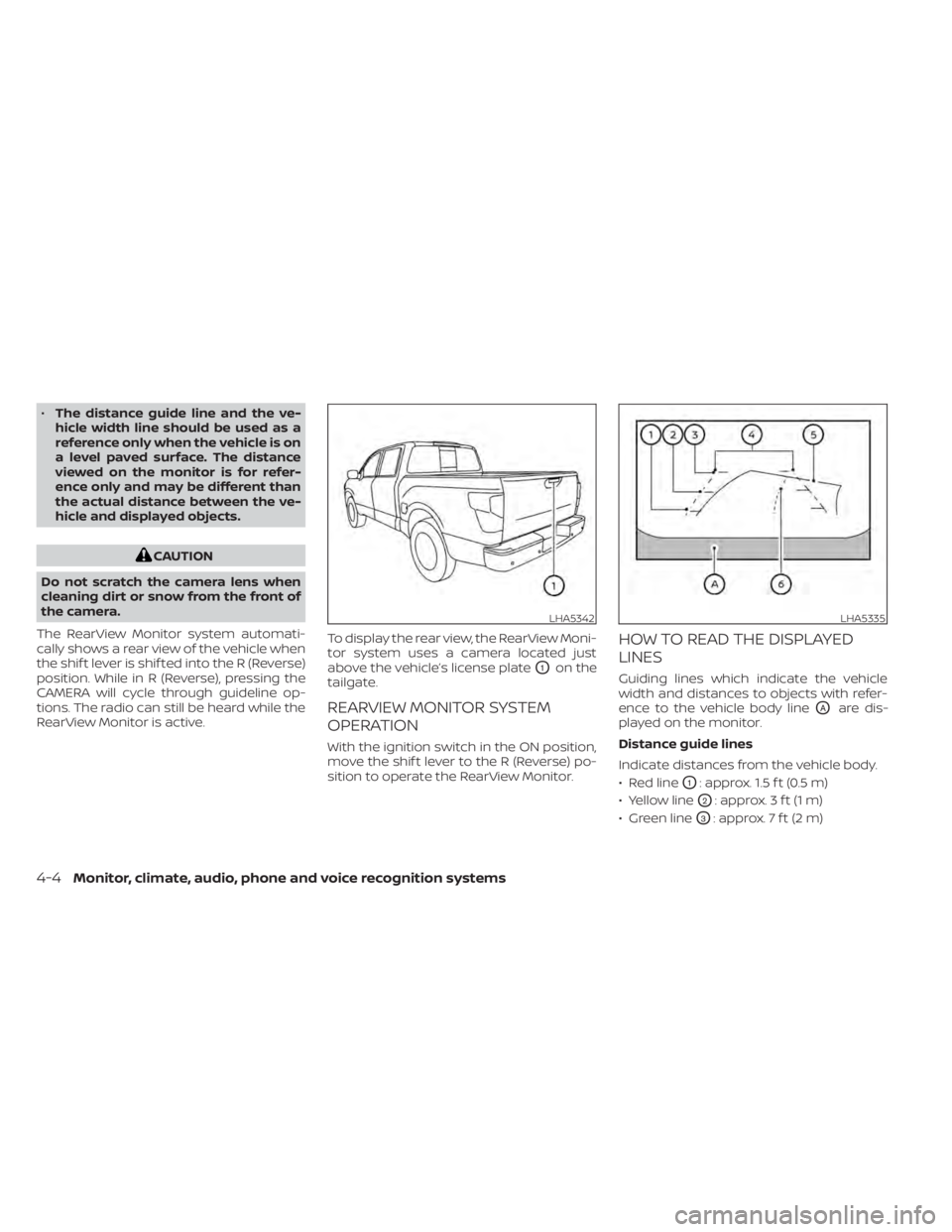
RearView Monitor is active. To display the rear view, the RearView Moni-
tor system uses a camera located just
above the vehicle’s license plate
O1on the
tailgate.
REARVIEW MONITOR SYSTEM
OPERATION
With the ignition switch in the ON position,
move the shif t lever to the R (Reverse) po-
sition to operate the RearView Monitor.
HOW TO READ THE DISPLAYED
LINES
Guiding lines which indicate the vehicle
width and distances to objects with refer-
ence to the vehicle body line
OAare dis-
played on the monitor.
Distance guide lines
Indicate distances from the vehicle body.
• Red line
O1: approx. 1.5 f t (0.5 m)
• Yellow line
O2: approx. 3 f t (1 m)
• Green line
O3: approx. 7 f t (2 m)
LHA5342LHA5335
4-4Monitor, climate, audio, phone and voice recognition systems