ignition Oldsmobile Aurora 1997 s Service Manual
[x] Cancel search | Manufacturer: OLDSMOBILE, Model Year: 1997, Model line: Aurora, Model: Oldsmobile Aurora 1997Pages: 404, PDF Size: 20.75 MB
Page 134 of 404
The oil light could also come on in three other situations:
When the ignition is on but the engine is not running,
the light will
come on as a test to show you it is
working, but the light will go out when you turn the
ignition to
START. If it doesn’t come on with the
ignition
on, you may have a problem with the fuse or
bulb. Have it fixed right away.
0 Sometimes when the engine is idling at a stop, the
light may blink on and off. This is normal.
If you make a hard stop, the light may come on for a
moment. This is normal.
d!!, CAUTION:
Don’t keep driving if the oil pressure is low. If
you do, your engine can become so hot that it
catches fire. You
or others could be burned.
Check your oil
as soon as possible and have your
vehicle serviced.
NOTICE:
Damage to your engine from neglected oil
problems can be costly and
is not covered by
your warranty.
2-78
Page 135 of 404
Fuel Gage
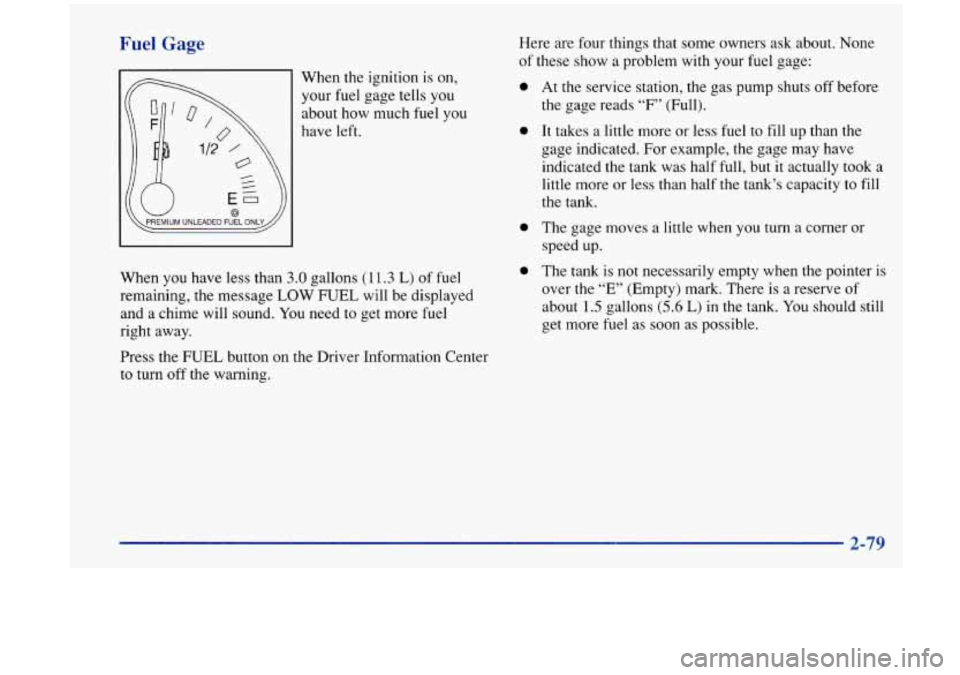
When the ignition is on,
your
fuel gage tells you
about how much fuel you
have left.
When you have less than
3.0 gallons (1 It .3 L) of fuel
remaining, the message LOW FUEL will be displayed
and a chime will sound. You need to get more
fuel
right away.
Press the FUEL button on the Driver Information Center
to turn off the warning. Here
are four things that some owners ask about. None
of these show a problem with your fuel gage:
0
0
0
0
At the service station, the gas pump shuts off before
the gage reads
“F’ (Full).
It takes a little more or less fuel to fill up than the
gage indicated. For example, the gage may have
indicated the tank was half full, but it actually took a
little more or less than half the tank’s capacity to fill
the tank.
The gage moves a little when you turn a corner or
speed up.
The tank is not necessarily empty when the pointer is
over the
“E” (Empty) mark. There is a reserve of
about 1.5 gallons (5.6 L) in the tank. You should still
get more fuel as soon as possible.
Page 136 of 404
Driver Information Center
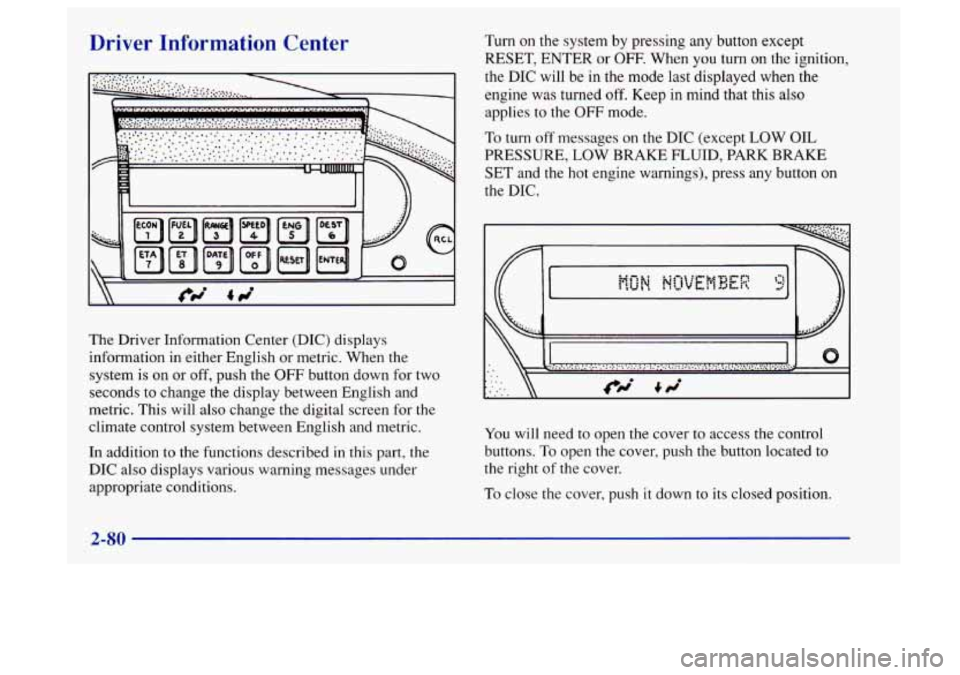
The Driver Information Center (DIC) displays
information in either English or metric. When the
system
is on or off, push the OFF button down for two
seconds to change the display between English and
metric. This will also change the digital screen for the
climate control system between English and metric.
In addition to the functions described in this part, the
DIC also displays various warning messages under
appropriate conditions.
Turn on the system by pressing any button except
RESET, ENTER or
OFF- When you turn on the ignition,
the DIC will be in the mode
last displayed when the
engine was turned
off. Keep in mind that this also
applies to the
OFF mode.
To turn off messages on the DIC (except LOW OIL
PRESSURE,
LOW BRAKE FLUID, PARK BRAKE
SET and the hot engine warnings), press any button on
the DIC.
0
You will need to open the cover to access the control
buttons.
To open the cover, push the button located to
the right of the cover.
To close the cover, push it down to its closed position.
2-80
Page 139 of 404
When the remaining oil life or transaxle fluid life is low,
the system will alert you with a message:
CHANGE OIL SOON
or CHANGE TRNS
FLUID SOON
When the oil or transaxle fluid life is down to zero, you
will receive
the message:
CHANGE OIL NOW or CHANGE TRNS
FLUID NOW
To reset the OIL LIFE reminder after an oil change or
the TRNS FLUID LIFE reminder after a transaxle
fluid change:
1. With the ignition on, press the ENG button so the
OIL LIFE percentage or the TRNS LIFE percentage
is displayed.
2. Press RESET and hold for five seconds. The word
RESET will appear, then OIL LIFE 100% or TRNS
FLUID 100%.
Remember, you must reset the OIL LIFE or TRNS
FLUID yourself after each oil or transaxle fluid change.
It will not reset itself. Also, be careful not to reset the
OIL LIFE or TRNS FLUID accidentally at any time
other than when the oil or transaxle fluid has just been
changed. It can’t be reset accurately until the next oil or
transaxle fluid change. The
DIC does
not replace the need to maintain your
vehicle
as recommended in the Maintenance Schedule in
this manual.
Also, the oil change reminder will not
detect dusty conditions or engine malfunctions that may
affect the oil.
If you drive in dusty areas, change your oil
after every
3,000 miles (5 000 km) or three months,
whichever occurs first, unless the DIC instructs you to
do so sooner. Also, the oil change reminder does not
measure how much oil you have in your engine.
So, be
sure to check your oil level often. See “Engine Oil” in
the Index.
Check Oil Level Warning
When CHECK OIL LEVEL appears, it indicates that the
engine oil level is
1 to 1 1/2 quarts (0.9 L to 1.4 L) low.
The message will appear only if the engine is running
and it’s been at least eight minutes since the engine was
last running. If the message appears, check the oil
dipstick level. If it reads low, your oil level should be
brought up
to the proper level (see “Engine Oil” in the
Index). After bringing the oil
to the proper level, the
ignition must be off for eight minutes to allow
the
majority of oil to drain into the oil pan.
Page 140 of 404
Distance to Destination
This feature acts as a reverse trip odometer by counting
backward from an estimated distance which you enter
before starting your trip. It also uses that information to
determine the estimated time
of arrival.
To set, press DEST, then RESET and enter a maximum
of four digits for the length of your trip. (Always use
whole miles or kilometers.) Then press ENTER. The
system will only accept the last four digits you enter as
your distance to destination.
The system will display the total distance to destination,
such as:
365 MI TO DEST or 587 KM TO DEST
When the system counts down to zero distance
remaining, even if you’re in another display, a chime
will sound and the display will show:
TRIP COMPLETE
The TRIP COMPLETE message will
go off when you
press any button, or when you turn your ignition to
OFF,
then on. The display returns to the mode displayed prior
to the interruption.
Estimated Time of Arrival (ETA)
ETA is based on the average speed, the date and time of
the day, and the estimated distance to your destination.
After you have entered your distance to destination,
press ETA to display estimated time of arrival, such as:
ETA TUE
1256 PM
Press ETA again
to display the time to destination. The
display will show the current time as the hours and
minutes to destination, such as:
1250 TIME TO DEST
If the time to destination calculation is seven days or
greater, the display will read:
TRIP OVER
7 DAYS
When the trip is complete a chime will sound and the
display will show:
TRIP COMPLETE
The trip complete message will
go off when you press
any button,
or when you turn your ignition off, then on.
The display returns to the mode displayed prior to
the interruption.
2-84
Page 141 of 404
Elapsed Time (ET)
When the ignition is on, the DIC can be used as a
stopwatch. The display will show hours and minutes.
The elapsed time indicator will record up to
100 hours,
then it will reset to zero and continue counting. Press
ET, and the display will show the amount
of time that
has elapsed since the elapsed time indicator was last
reset (not including time
the ignition is off), such as:
01:08 ELAPSED TIME
To reset elapsed time to zero, press RESET while the
elapsed time is displayed.
Date
Press DATE to display the date. To change the date,
press DATE then RESET. The following display
will appear:
MONTH? XX/DD/YY
MM, DD and YY represent
the month, date and year
you currently have in your system. Check to make sure
your clock is in the correct AM or PM mode. Notice that each
key has a number. Push the key to enter
the number. The first XX’s will flash until you enter the
first digit for the month. You don’t need to enter the
leading zero if the number is under
10. Press ENTER
after you’ve entered the month. The display will
change to:
DAY? MM/XX/YY
Set the day just as you set the month. After the day entry
is made, press ENTER and the display will change to:
YEAR? MM/DD/XX
Set the year just as you set the month and day.
If a valid
date is entered, the display will automatically exit to the
date mode and display the day of the week, the month
and the date. If an invalid date is entered, the display
will return to MONTH? XX/DD/YY and you’ll need
to
repeat the above steps.
After
a battery reconnect (loss of power), the display
will read CONFIRM TIME AND DATE.
2-85
Page 149 of 404
Manual Operation
You may override the automatic airflow distribution by
rotating the AUTO-PUSH knob. After you rotate this
knob, the comfort setting will be displayed for five
seconds, then the outside temperature will be displayed.
The fan control will remain
in the automatic control
mode unless you rotate the AUTO
FAN knob to select a
manual fan speed.
fl UPPER: This setting directs airflow through the
@.
upper air outlets located in the instrument panel and
door panels.
fl BI-LEVEL: This setting directs the airflow
through both the upper air outlets and the lower floor
outlets. There is also a small amount of air directed to
the front defroster and the side window defrosters.
tflo HEAT This setting directs most of the airflow to
the lower floor outlets with some airflow directed to the
side window defrosters. There is also a small amount of
airflow directed to the front defroster.
w ' # DEFOG: This setting directs the majority of the
airflow to the lower floor outlets and the front defroster.
A
small amount of airflow is directed to the side window
defroster outlets.
This mode can be useful to remove the
moisture from the inside of the windshield when the
outside temperature
is cold or the humidity is high.
DEF (Defrost): This setting directs the majority of
the airflow to the windshield with some airflow to the
side window defrosters and lower floor outlets. To
increase the fan speed, rotate the AUTO
FAN knob to
the right.
RECIRC: Press this button to limit the amount of
outside air entering your vehicle. This
is helpful when
you are trying to cool the interior of
the vehicle quickly
or limit the amount of outside air entering your vehicle
for some other reason. The RECIRC button and the
AUTO-PUSH knob may be selected at the same time.
The system will remain in RECIRC until the ignition is
turned off, then the system will return back to the
previously selected mode. RECIRC may be selected in
all manual airflow modes except front defrost.
3-5
Page 153 of 404

Defogging and Defrosting
On cool, humid days use the defog setting to keep the
windows clear while also providing heat through the
lower outlets. Press
DEF to quickly remove fog or ice
from the windshield.
Rear Window Defogger
//I R. DEFOG: Press
this button
to warm the
defogger grid on
the rear
window. An indicator light
in the button will glow
while the rear window
defogger is operating.
At speeds above
30 mph (48 km/h), the rear defogger
will stay
on until you press the R. DEFOG button
again. At speeds below
30 mph (48 km/h), the rear
window defogger will turn off automatically after about
10 minutes of use. If you press it again, the defogger
will operate for about five minutes only. You can also
turn the defogger off by turning off the ignition.
Do not attach a temporary vehicle license across the
defogger grid
on the rear window.
When you operate the rear window defogger, the
outside rearview mirrors are also heated
to help remove
ice and fog.
3-9
Page 155 of 404
Audio Systems
Your Delco@ audio system has been designed to operate
easily and give years
of listening pleasure. You will get
the most enjoyment out
of it if you acquaint yourself
with it first. Find out what your Delco system can do
and how to operate all its controls, to be sure you’re
getting the most out of the advanced engineering that
went into
it.
Setting the Clock
Press and hold HR until the correct hour appears. The
letter
A or P may appear on the display for AM or PM.
Then, press and hold MN until the correct minute
appears. The clock may be set with the ignition
on or off.
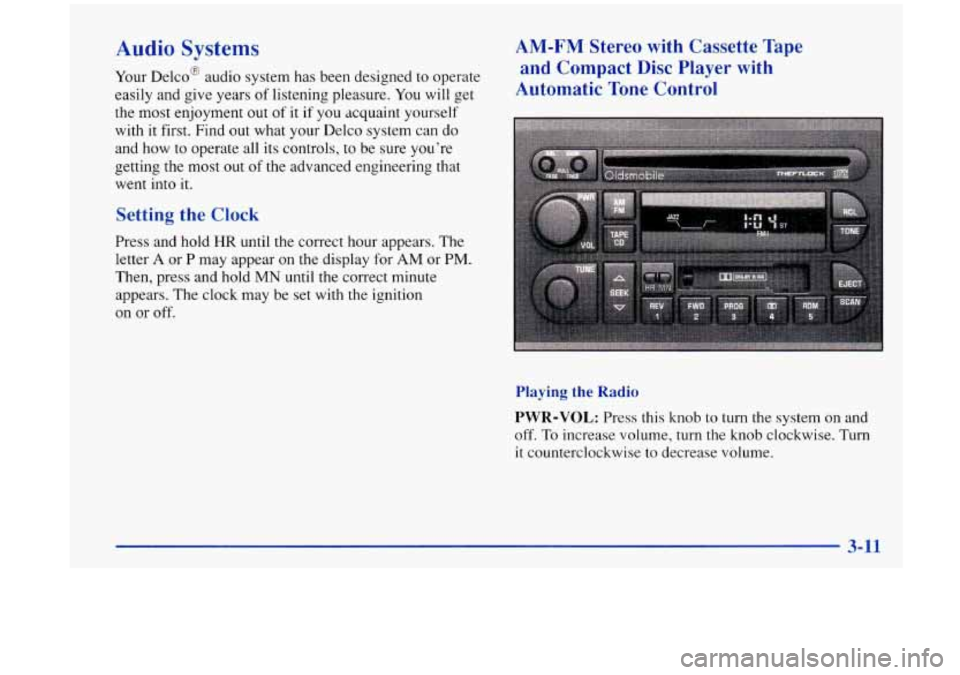
AM-FM Stereo with Cassette Tape
and Compact Disc Player with
Automatic Tone Control
Playing the Radio
PWR-VOL:
Press this knob to turn the system on and
off. To increase volume, turn the knob clockwise. Turn
it counterclockwise to decrease volume.
Page 156 of 404
RCL: Press this button briefly to recall the station being
played or to display the clock.
To change what is
normally shown on the display (station or time), press
the
RCL button until you see the display you want, then
hold the RCL button until the display flashes. If you
press the button when the ignition is off,
the clock will
show for a few seconds.
Finding a Station
AM-FM: Press this button to switch between AM, FMl
and FM2. The display shows your selection.
TUNE: Press this knob lightly so it extends. Turn it to
choose radio stations. Push the knob back into its stored
position when you’re not using it.
SEEK: Press the up or down arrow to go to the next
higher or lower station and stay there. The sound will
mute while seeking.
SCAN: Press this button and release it to listen to
stations for a few seconds. The radio will go to a station,
stop for a few seconds, then
go on to the next station.
Press the button again to stop scanning. The sound will
mute while scanning, and SCAN will appear on the
display. If you press SCAN for more than two seconds,
the radio will change to P SCAN mode. P SCAN will
appear on the display.
PUSHBUTTONS: The five numbered pushbuttons let
you return
to your favorite stations. You can set up to
15 stations (five AM, five FM 1 and five FM2). Just:
1.
2.
3.
4.
5.
6.
Turn the radio on.
Press AM-FM to select the band.
Tune in the desired station. Press
TONE to select the equalization that best suits
the type
of station selected.
Press and hold one of the five numbered buttons.
The sound will mute, When
it returns, release the
button. Whenever you press that numbered button,
the station you set will return and the tone that you
selected
will also be automatically selected for
that button.
Repeat the steps for each pushbutton.
P SCAN: Press SCAN for more than two seconds, and
P SCAN will appear on the display. The radio will go to
the first preset station stored on your pushbuttons, stop
for a few seconds, then
go on to the next preset station.
Press SCAN again to stop scanning.
3-12