display PEUGEOT 2008 2015 Manual PDF
[x] Cancel search | Manufacturer: PEUGEOT, Model Year: 2015, Model line: 2008, Model: PEUGEOT 2008 2015Pages: 340, PDF Size: 8.4 MB
Page 255 of 340
253
2008_en_Chap12b_SMEGplus_ed01-2015
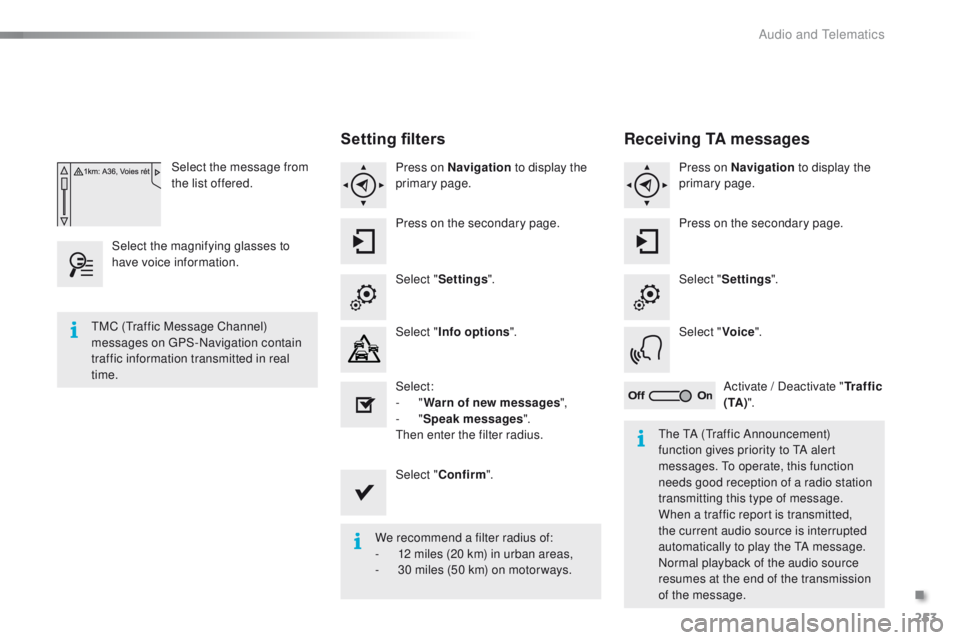
Select the message from
the list offered.
Select the magnifying glasses to
have voice information.
Setting filters
Press on Navigation to display the
primary page.
Press on the secondary page.
Select " Settings ".
Select " Info options ".
Select:
-
"Warn of new messages ",
-
"Speak messages ".
Then enter the filter radius.
Select " Confirm ".
We recommend a filter radius of:
-
1
2 miles (20 km) in urban areas,
-
3
0 miles (50 km) on motor ways.
TMC (Traffic Message Channel)
messages on GPS-Navigation contain
traffic information transmitted in real
time.
The TA (Traffic Announcement)
function gives priority to TA alert
messages. To operate, this function
needs good reception of a radio station
transmitting this type of message.
When a traffic report is transmitted,
the current audio source is interrupted
automatically to play the TA message.
Normal playback of the audio source
resumes at the end of the transmission
of the message.
Receiving TA messages
Press on Navigation to display the
primary page.
Press on the secondary page.
Select " Settings ".
Select " Voice".
Activate / Deactivate " Tr a f f i c
( TA ) ".
.
Audio and Telematics
Page 259 of 340
257
2008_en_Chap12b_SMEGplus_ed01-2015
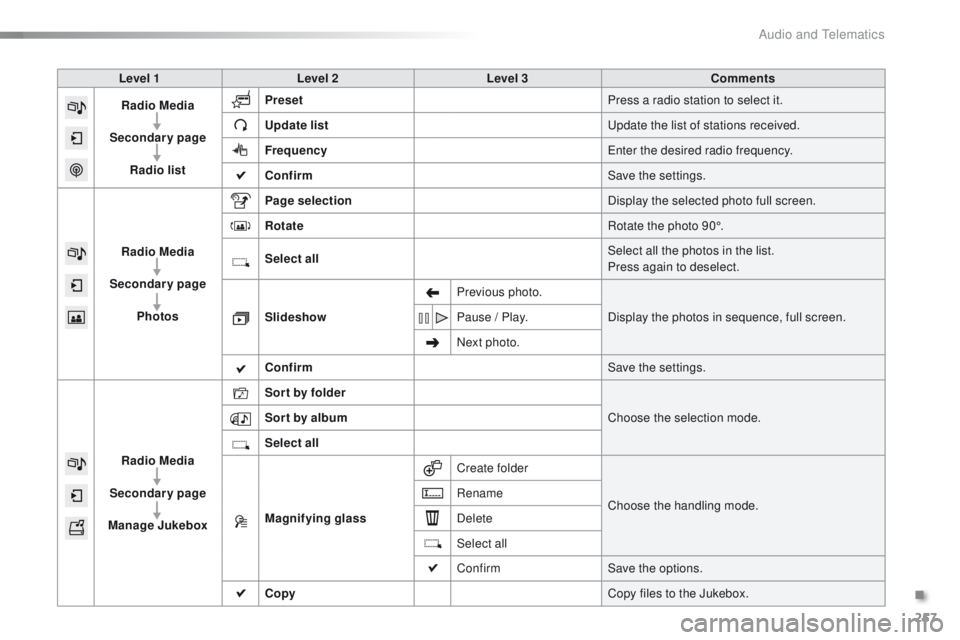
Level 1Level 2 Level 3 Comments
Radio Media
Secondary page Radio list Preset
Press a radio station to select it.
Update list Update the list of stations received.
Frequency Enter the desired radio frequency.
Confirm Save the settings.
Radio Media
Secondary page Photos Page selection
Display the selected photo full screen.
Rotate Rotate the photo 90°.
Select all Select all the photos in the list.
Press again to deselect.
Slideshow Previous photo.
Display the photos in sequence, full screen.
Pause / Play.
Next photo.
Confirm Save the settings.
Radio Media
Secondary page
Manage Jukebox Sor t by folder
Choose the selection mode.
Sor t by album
Select all
Magnifying glass Create folder
Choose the handling mode.
Rename
Delete
Select all
Confirm
Save the options.
Copy Copy files to the Jukebox.
.
Audio and Telematics
Page 261 of 340

259
2008_en_Chap12b_SMEGplus_ed01-2015
Level 1Level 2 Level 3 Comments
Radio Media
Secondary page Media list Presentation of the last media used.
Radio Media
Secondary page Settings Media
Settings Random (all tracks):
Choose the play settings.
Random (current album):
Loop:
Aux. amplification
Radio
Settings RDS options
Activate or deactivate the options.
DAB/FM options
Display Radio Text
DAB radio thumbnails
Announcements Settings
Traffic announcements (TA)
Activate or deactivate the options.
Weather
Varied - Sport
Alert settings
Confirm Save the settings.
.
Audio and Telematics
Page 262 of 340
260
2008_en_Chap12b_SMEGplus_ed01-2015
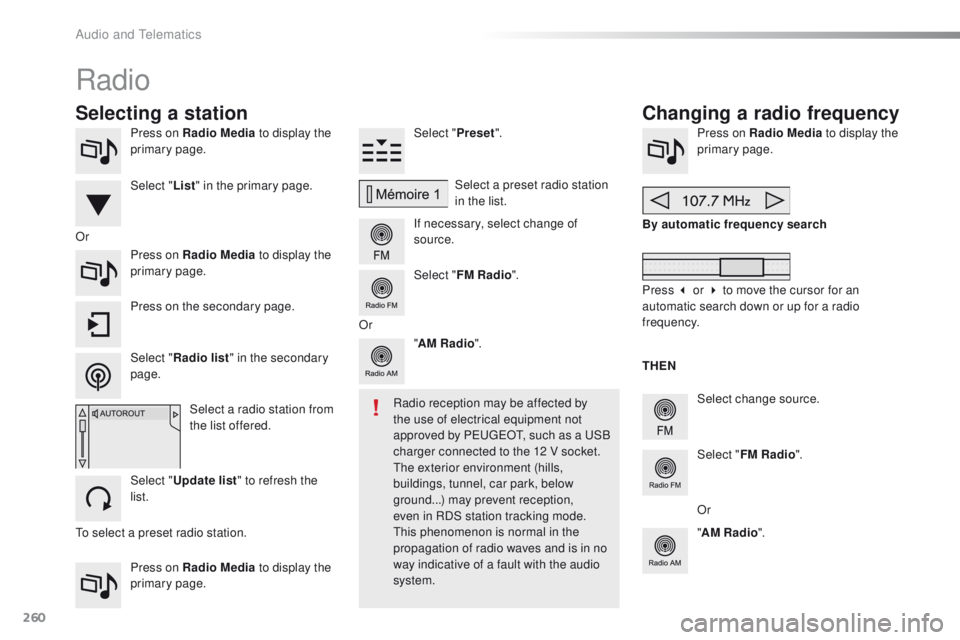
Press on Radio Media to display the
primary page.
Press on Radio Media to display the
primary page. Select "
Preset".
If necessary, select change of
source. Press on Radio Media
to display the
primary page.
Select change source.
"
AM Radio ". By automatic frequency search
Select "FM Radio ".
" AM Radio ".
Press on Radio Media
to display the
primary page. Select a preset radio station
in the list.
Select " FM Radio ".
Select a radio station from
the list offered.
Select " Update list " to refresh the
list. Press on the secondary page.
Or
Radio
Changing a radio frequency
Selecting a station
To select a preset radio station. THEN
Radio reception may be affected by
the use of electrical equipment not
approved by PEUGEOT, such as a USB
charger connected to the 12 V socket.
The exterior environment (hills,
buildings, tunnel, car park, below
ground...) may prevent reception,
even in RDS station tracking mode.
This phenomenon is normal in the
propagation of radio waves and is in no
way indicative of a fault with the audio
system.
Select "
List" in the primary page.
Select " Radio list " in the secondary
page. Or
Press 3 or 4 to move the cursor for an
automatic search down or up for a radio
frequency.
Or
Audio and Telematics
Page 263 of 340
261
2008_en_Chap12b_SMEGplus_ed01-2015
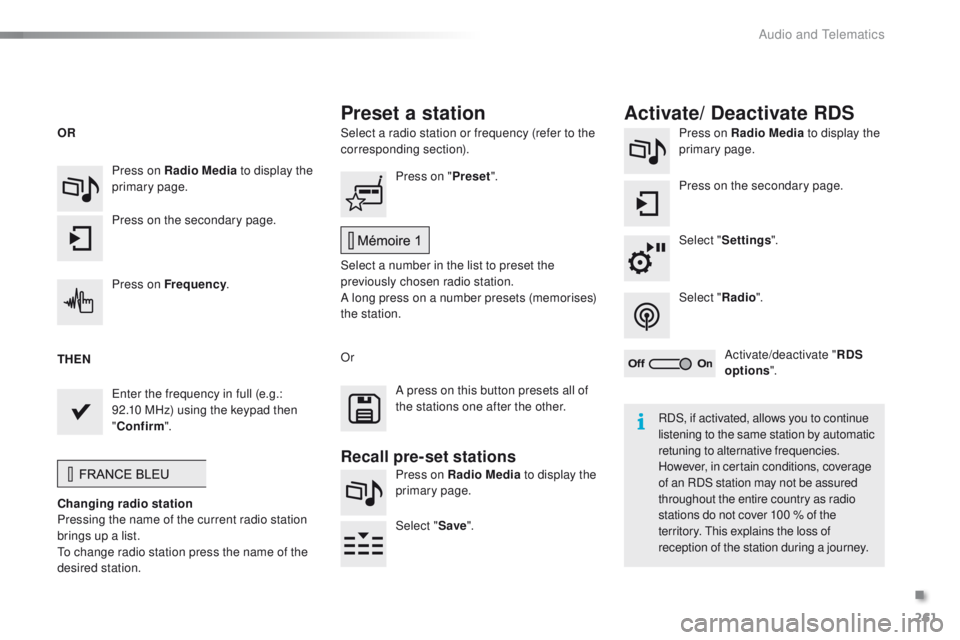
Select a radio station or frequency (refer to the
corresponding section).Press on Radio Media
to display the
primary page.
Press on the secondary page.
Select " Settings ".
Select " Radio".
Activate/deactivate " RDS
options ".
Press on Radio Media
to display the
primary page.
Press on the secondary page. Press on "
Preset".
Select a number in the list to preset the
previously chosen radio station.
A long press on a number presets (memorises)
the station.
Press on Frequency
.
Enter the frequency in full (e.g.:
92.10 MHz) using the keypad then
" Confirm ".
Changing radio station
Pressing the name of the current radio station
brings up a list.
To change radio station press the name of the
desired station. Or
Press on Radio Media to display the
primary page.
Select " Save".
Preset a station Activate/ Deactivate RDS
OR
THEN
A press on this button presets all of
the stations one after the other.
Recall pre-set stations
RDS, if activated, allows you to continue
listening to the same station by automatic
retuning to alternative frequencies.
However, in certain conditions, coverage
of an RDS station may not be assured
throughout the entire country as radio
stations do not cover 100 % of the
territory. This explains the loss of
reception of the station during a journey.
.
Audio and Telematics
Page 264 of 340
262
2008_en_Chap12b_SMEGplus_ed01-2015
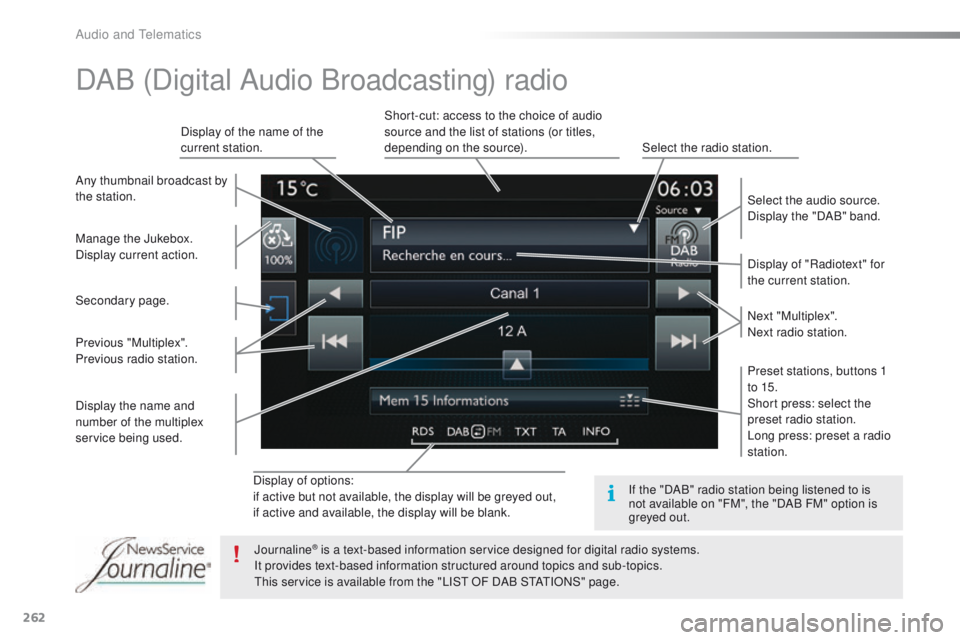
Display of options:
if active but not available, the display will be greyed out,
if active and available, the display will be blank.Display of "Radiotext" for
the current station.
Manage the Jukebox.
Display current action. Select the audio source.
Display the "DAB" band.
Display of the name of the
current station.
Short-cut: access to the choice of audio
source and the list of stations (or titles,
depending on the source).
Select the radio station.
Any thumbnail broadcast by
the station.
Preset stations, buttons 1
to 15.
Short press: select the
preset radio station.
Long press: preset a radio
station. Next "Multiplex".
Next radio station.
Secondary page.
Display the name and
number of the multiplex
service being used. Previous "Multiplex".
Previous radio station.
DAB (Digital Audio Broadcasting) radio
If the "DAB" radio station being listened to is
not available on "FM", the "DAB FM" option is
greyed out.
Journaline
® is a text-based information service designed for digital radio systems.
I
t provides text-based information structured around topics and sub-topics.
This service is available from the "LIST OF DAB STATIONS" page.
Audio and Telematics
Page 265 of 340
263
2008_en_Chap12b_SMEGplus_ed01-2015
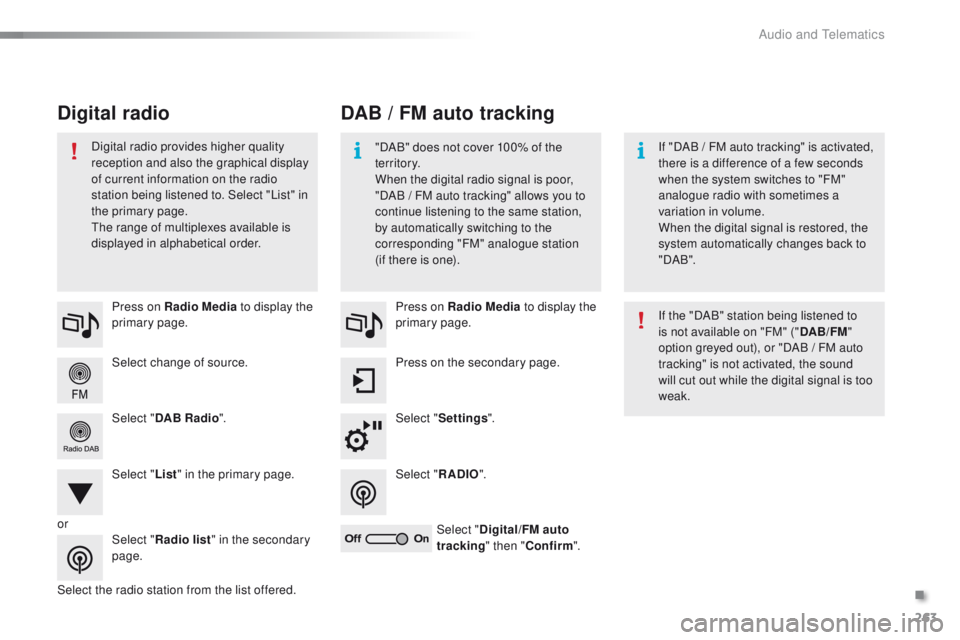
Select change of source. Press on Radio Media to display the
primary page.
Select " DAB Radio ".
Select " List" in the primary page.
Select the radio station from the list offered. Press on Radio Media
to display the
primary page.
Press on the secondary page.
Select " Settings ".
Select " RADIO".
Select " Digital/FM auto
tracking " then "Confirm ".
DAB / FM auto tracking
Digital radio
"DAB" does not cover 100% of the
te r r i to r y.
When the digital radio signal is poor,
"DAB
/ FM auto tracking" allows you to
continue listening to the same station,
by automatically switching to the
corresponding "FM" analogue station
(if there is one). If "DAB
/ FM auto tracking" is activated,
there is a difference of a few seconds
when the system switches to "FM"
analogue radio with sometimes a
variation in volume.
When the digital signal is restored, the
system automatically changes back to
" DA B ".
Digital radio provides higher quality
reception and also the graphical display
of current information on the radio
station being listened to. Select "List" in
the primary page.
The range of multiplexes available is
displayed in alphabetical order.
If the "DAB" station being listened to
is not available on "FM" ("DAB/FM"
option greyed out), or "DAB
/ FM auto
tracking" is not activated, the sound
will cut out while the digital signal is too
weak.
or Select "Radio list " in the secondary
page.
.
Audio and Telematics
Page 266 of 340
264
2008_en_Chap12b_SMEGplus_ed01-2015
Media
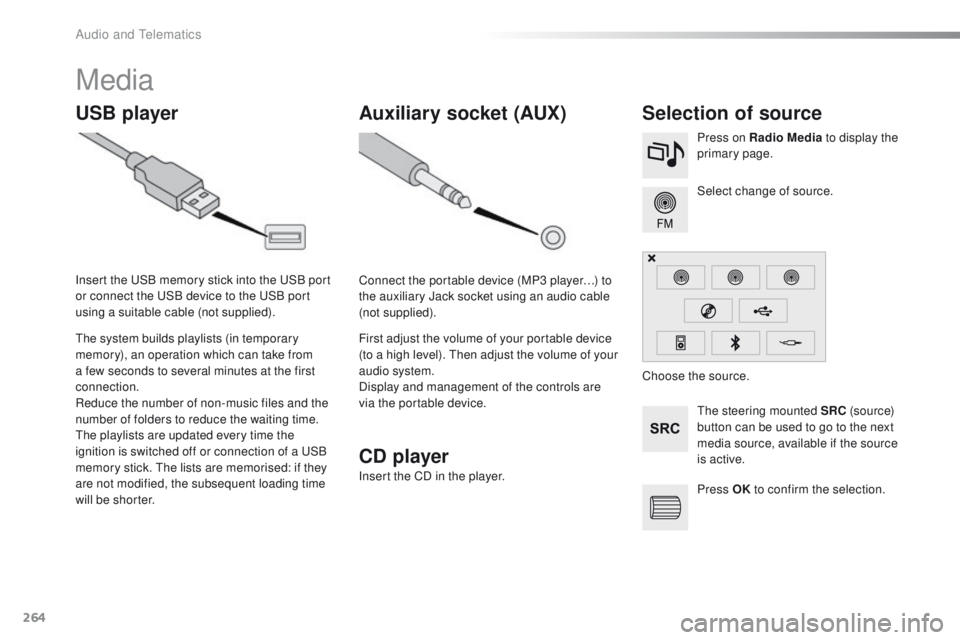
USB playerSelection of source
The steering mounted SRC (s o u r c e)
button can be used to go to the next
media source, available if the source
is active. Select change of source. Press on Radio Media to display the
primary page.
The system builds playlists (in temporary
memory), an operation which can take from
a few seconds to several minutes at the first
connection.
Reduce the number of non-music files and the
number of folders to reduce the waiting time.
The playlists are updated every time the
ignition is switched off or connection of a USB
memory stick. The lists are memorised: if they
are not modified, the subsequent loading time
will be shorter. Insert the USB memory stick into the USB port
or connect the USB device to the USB port
using a suitable cable (not supplied).
Auxiliary socket (AUX)
Connect the portable device (MP3 player…) to
the auxiliary Jack socket using an audio cable
(not supplied).
First adjust the volume of your portable device
(to a high level). Then adjust the volume of your
audio system.
Display and management of the controls are
via the portable device. Choose the source.
CD player
Insert the CD in the player.
Press OK to confirm the selection.
Audio and Telematics
Page 267 of 340
265
2008_en_Chap12b_SMEGplus_ed01-2015
The audio equipment will only play audio
files with ".wma, .aac, .flac, .ogg and. mp3"
file extensions and with a bit rate of between
32 Kbps and 320 Kbps.
It also supports VBR (Variable Bit Rate) mode.
No other type of file (.mp4,...) can be played.
".wma" files must be of the standard wma 9 type.
The sampling rates supported are 11, 22, 44
and 48 KHz.
It is advisable to restrict file names to
20
characters, without using of special
characters (e.g.: " " ? ; ù) to avoid any playing
and displaying problems.
Information and advice
Use only USB memory sticks formatted FAT 32
(file allocation table).
The system supports USB mass
storage devices, BlackBerry
® devices
or Apple® players via USB ports. The
adaptor cable not supplied.
Control of the peripheral device is with
the audio system controls.
Other peripherals, not recognised on
connection, must be connected to the
auxiliary socket using a Jack cable
(not
supplied). It is recommended that the USB cable
for the portable device is used. The system does not support the
simultaneous connection of two
identical devices (two memory sticks,
two Apple
® players) but it is possible
t
o connect one memory stick and one
Apple
® player at the same time.
In order to be able to play a recorded CDR or
CDRW, when recording it is preferable to select
the ISO 9660 level 1, 2 or Joliet standard.
If the disc is recorded in another format it may
not be played correctly.
It is recommended that the same recording
standard is always used for an individual disc,
with as low a speed as possible (4x maximum)
for optimum sound quality.
In the particular case of a multi-session CD, the
Joliet standard is recommended.
.
Audio and Telematics
Page 271 of 340
269
2008_en_Chap12b_SMEGplus_ed01-2015
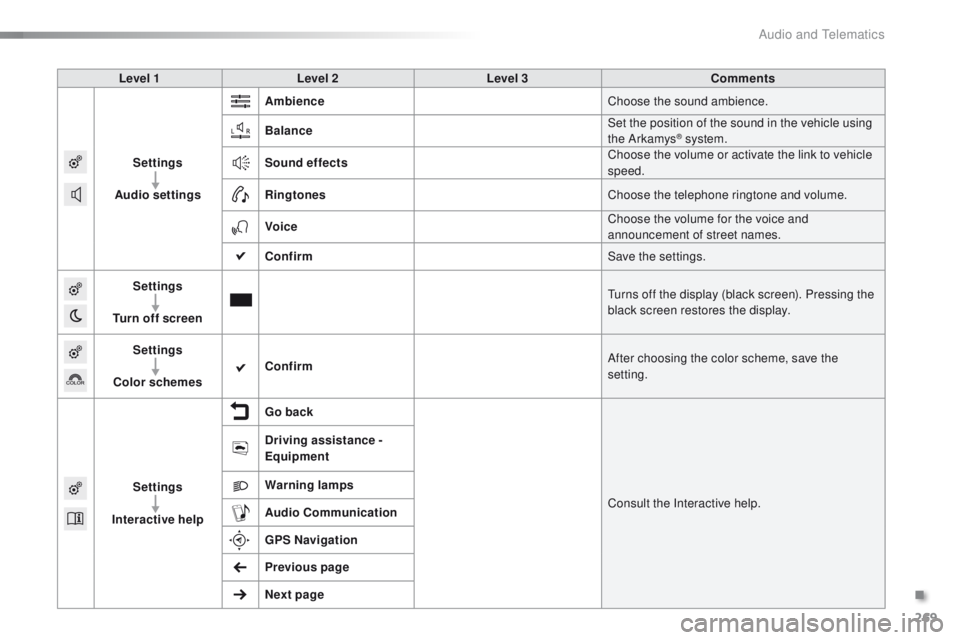
Level 1Level 2 Level 3 Comments
Settings
Audio settings Ambience
Choose the sound ambience.
Balance Set the position of the sound in the vehicle using
the Arkamys
® system.
Sound effects Choose the volume or activate the link to vehicle
speed.
Ringtones Choose the telephone ringtone and volume.
Voice Choose the volume for the voice and
announcement of street names.
Confirm Save the settings.
Settings
Turn off screen Turns off the display (black screen). Pressing the
black screen restores the display.
Settings
Color schemes Confirm
After choosing the color scheme, save the
setting.
Settings
Interactive help Go back
Consult the Interactive help.
Driving assistance -
Equipment
Warning lamps
Audio
Communication
GPS Navigation
Previous page
Next page
.
Audio and Telematics