display PEUGEOT 2008 2015 Repair Manual
[x] Cancel search | Manufacturer: PEUGEOT, Model Year: 2015, Model line: 2008, Model: PEUGEOT 2008 2015Pages: 340, PDF Size: 8.4 MB
Page 241 of 340
239
2008_en_Chap12b_SMEGplus_ed01-2015
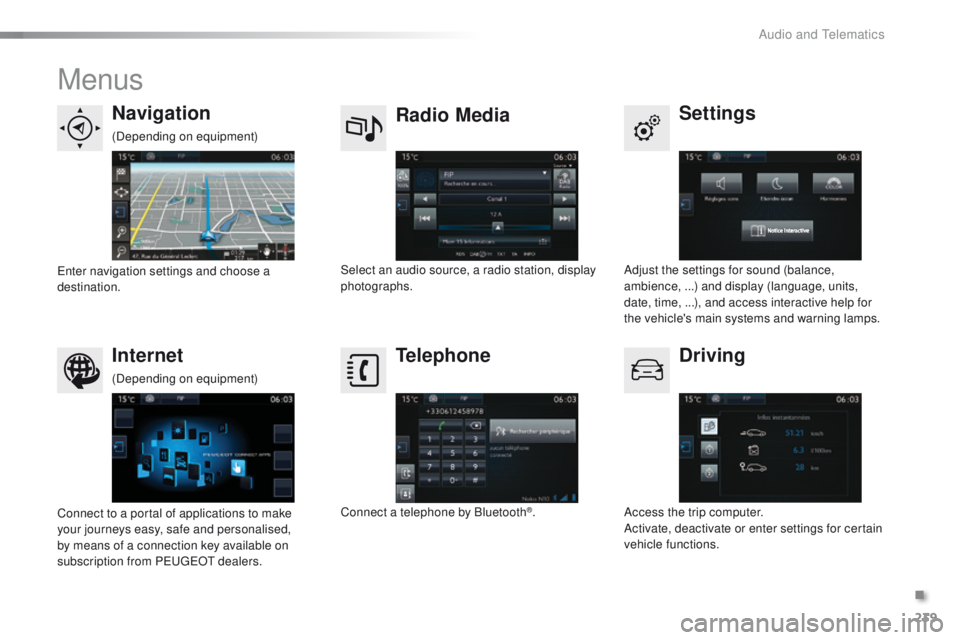
Menus
Settings
Radio Media
Navigation
Driving
Internet Telephone
Adjust the settings for sound (balance,
ambience, ...) and display (language, units,
date, time, ...), and access interactive help for
the vehicle's main systems and warning lamps.
Select an audio source, a radio station, display
photographs.
Enter navigation settings and choose a
destination.
Access the trip computer.
Activate, deactivate or enter settings for certain
vehicle functions.
Connect to a portal of applications to make
your journeys easy, safe and personalised,
by means of a connection key available on
subscription from PEUGEOT dealers. Connect a telephone by Bluetooth
®.
(Depending on equipment)
(Depending on equipment)
.
Audio and Telematics
Page 243 of 340
241
2008_en_Chap12b_SMEGplus_ed01-2015
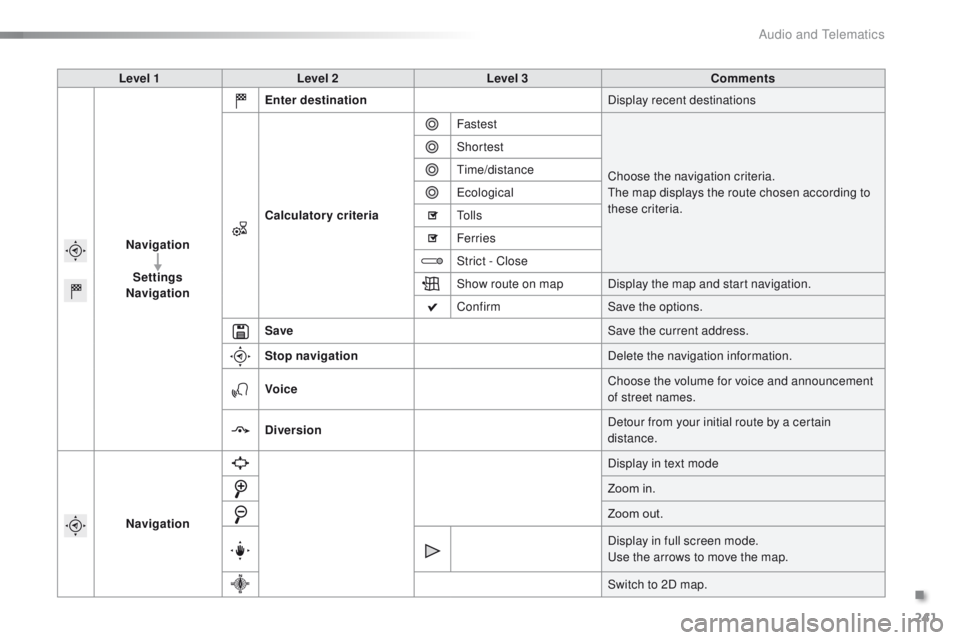
Level 1Level 2 Level 3 Comments
Navigation Settings
Navigation Enter destination
Display recent destinations
Calculatory criteria Fastest
Choose the navigation criteria.
The map displays the route chosen according to
these criteria.
Shortest
Time/distance
Ecological
To l l s
Ferries
Strict - Close
Show route on map
Display the map and start navigation.
Confirm Save the options.
Save Save the current address.
Stop navigation Delete the navigation information.
Voice Choose the volume for voice and announcement
of street names.
Diversion Detour from your initial route by a certain
distance.
Navigation Display in text mode
Zoom in.
Zoom out.
Display in full screen mode.
Use the arrows to move the map.
Switch to 2D map.
.
Audio and Telematics
Page 245 of 340
243
2008_en_Chap12b_SMEGplus_ed01-2015
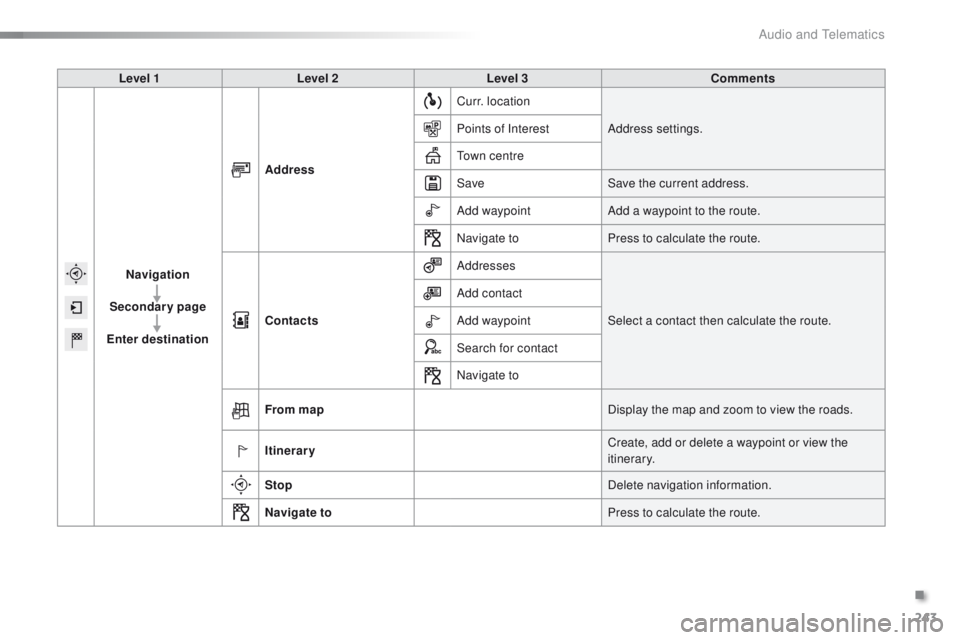
Level 1Level 2 Level 3 Comments
Navigation
Secondary page
Enter destination Address
Curr. location
Address settings.
Points of Interest
Town centre
Save Save the current address.
Add waypoint Add a waypoint to the route.
Navigate to Press to calculate the route.
Contacts Addresses
Select a contact then calculate the route.
Add contact
Add waypoint
Search for contact
Navigate to
From map Display the map and zoom to view the roads.
Itinerary Create, add or delete a waypoint or view the
itinerary.
Stop Delete navigation information.
Navigate to Press to calculate the route.
.
Audio and Telematics
Page 246 of 340
244
2008_en_Chap12b_SMEGplus_ed01-2015
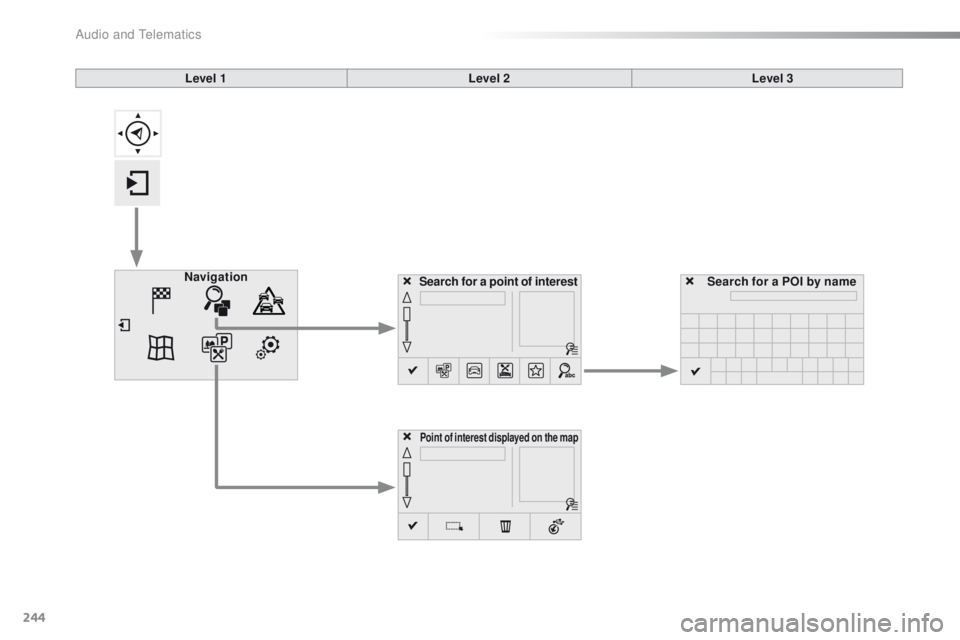
Search for a point of interestSearch for a POI by name
Navigation
Point of interest displayed on the map
Level 1
Level 2Level 3
Audio and Telematics
Page 247 of 340
245
2008_en_Chap12b_SMEGplus_ed01-2015
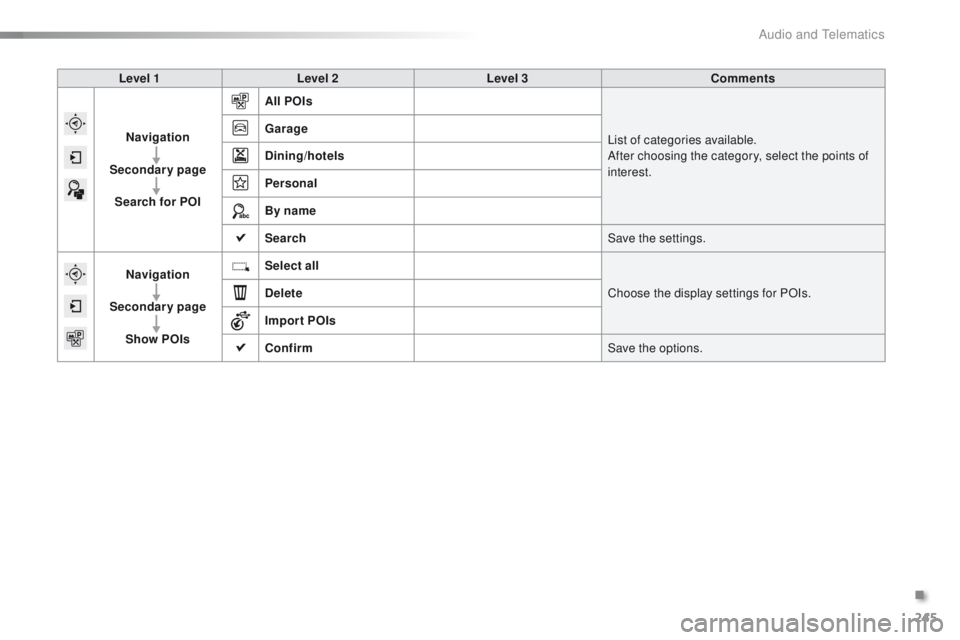
Level 1Level 2 Level 3 Comments
Navigation
Secondary page Search for POI All POIs
List of categories available.
After choosing the category, select the points of
interest.
Garage
Dining/hotels
Personal
By name
Search
Save the settings.
Navigation
Secondary page Show POIs Select all
Choose the display settings for POIs.
Delete
Import POIs
Confirm Save the options.
.
Audio and Telematics
Page 249 of 340
247
2008_en_Chap12b_SMEGplus_ed01-2015
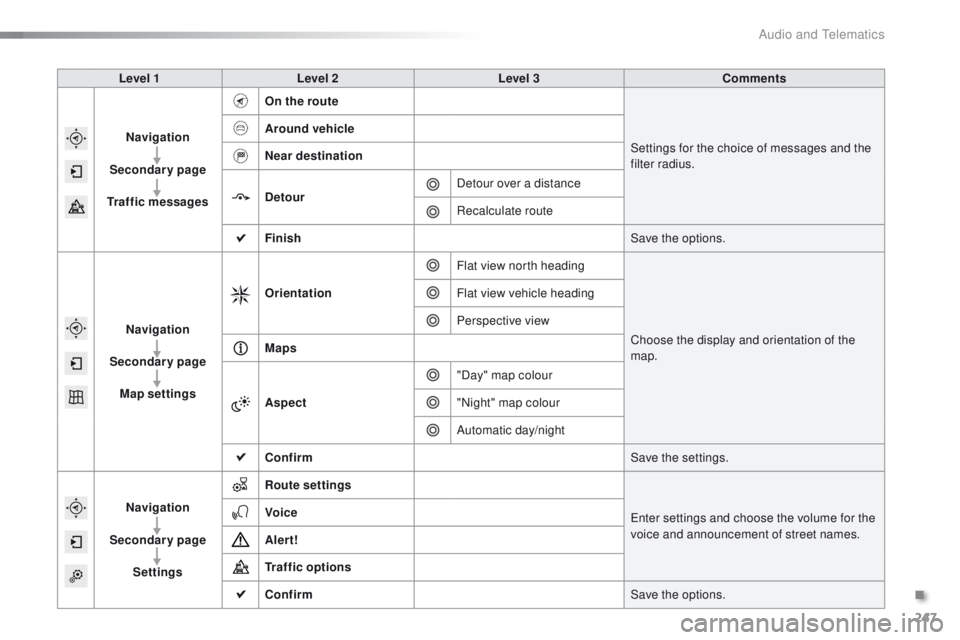
Level 1Level 2 Level 3 Comments
Navigation
Secondary page
Traffic messages On the route
Settings for the choice of messages and the
filter radius.
Around vehicle
Near destination
Detour
Detour over a distance
Recalculate route
Finish Save the options.
Navigation
Secondary page Map settings Orientation
Flat view north heading
Choose the display and orientation of the
map.
Flat view vehicle heading
Perspective view
Maps
Aspect "Day" map colour
"Night" map colour
Automatic day/night
Confirm Save the settings.
Navigation
Secondary page Settings Route settings
Enter settings and choose the volume for the
voice and announcement of street names.
Voice
Alert!
Traffic options
Confirm
Save the options.
.
Audio and Telematics
Page 250 of 340
248
2008_en_Chap12b_SMEGplus_ed01-2015
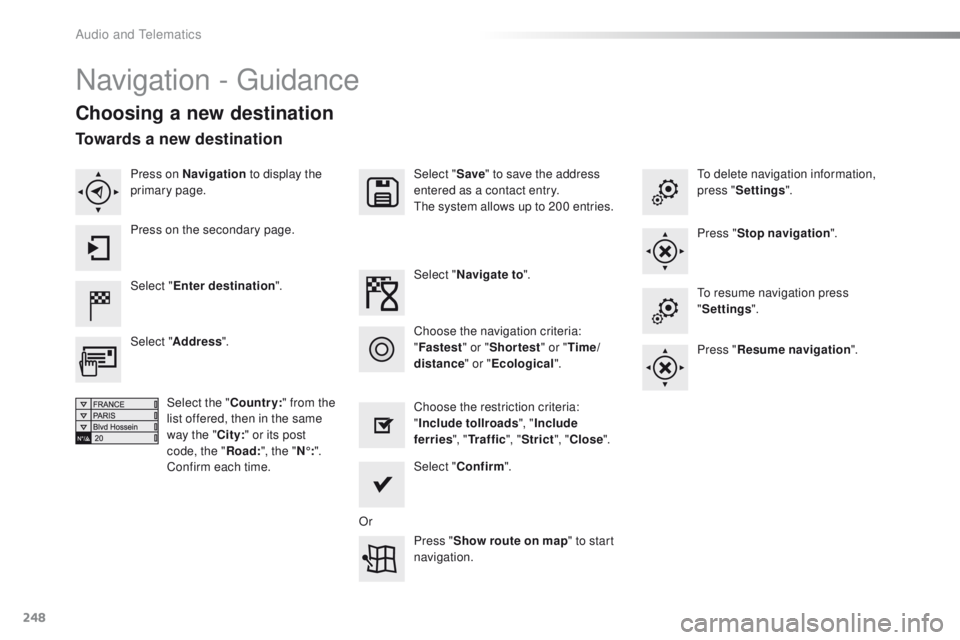
Navigation - Guidance
Choosing a new destination
Select "Enter destination ". Select "
Save" to save the address
entered as a contact entry.
The system allows up to 200 entries.
Select " Confirm ".
Press " Show route on map " to start
navigation.
Select "
Address ".
Select the " Country:" from the
list offered, then in the same
way the " City:" or its post
code, the " Road:", the " N°:".
Confirm each time. Select "
Navigate to ".
Choose the restriction criteria:
" Include tollroads ", "Include
ferries ", "Tr a f f i c ", "Strict ", "Close ".
Choose the navigation criteria:
"
Fastest " or "Shortest " or "Time/
distance " or "Ecological". To delete navigation information,
press "
Settings ".
Press " Stop navigation ".
To resume navigation press
" Settings ".
Press " Resume navigation ".
Press on Navigation
to display the
primary page.
Press on the secondary page.
Towards a new destination
Or
Audio and Telematics
Page 251 of 340
249
2008_en_Chap12b_SMEGplus_ed01-2015
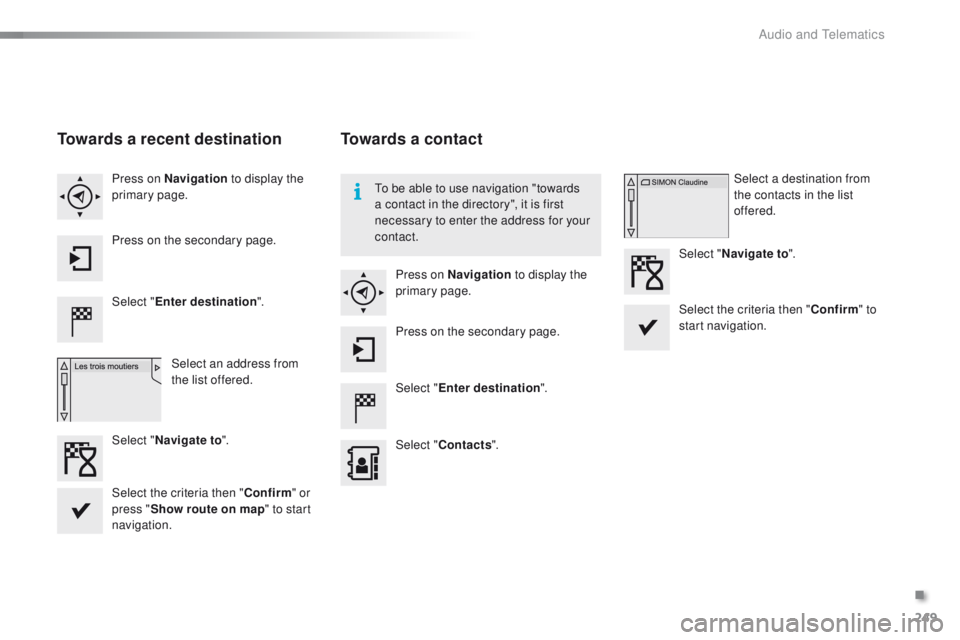
Towards a recent destination
Select "Enter destination ".
Select an address from
the list offered.
Press on Navigation
to display the
primary page.
Press on the secondary page.
Select " Navigate to ".
Towards a contact
Select "Enter destination ".
Select " Contacts ".
Press on Navigation
to display the
primary page.
Press on the secondary page. Select a destination from
the contacts in the list
offered.
Select " Navigate to ".
Select the criteria then " Confirm" to
start navigation.
To be able to use navigation "towards
a contact in the directory", it is first
necessary to enter the address for your
contact.
Select the criteria then " Confirm" or
press " Show route on map " to start
navigation.
.
Audio and Telematics
Page 252 of 340
250
2008_en_Chap12b_SMEGplus_ed01-2015
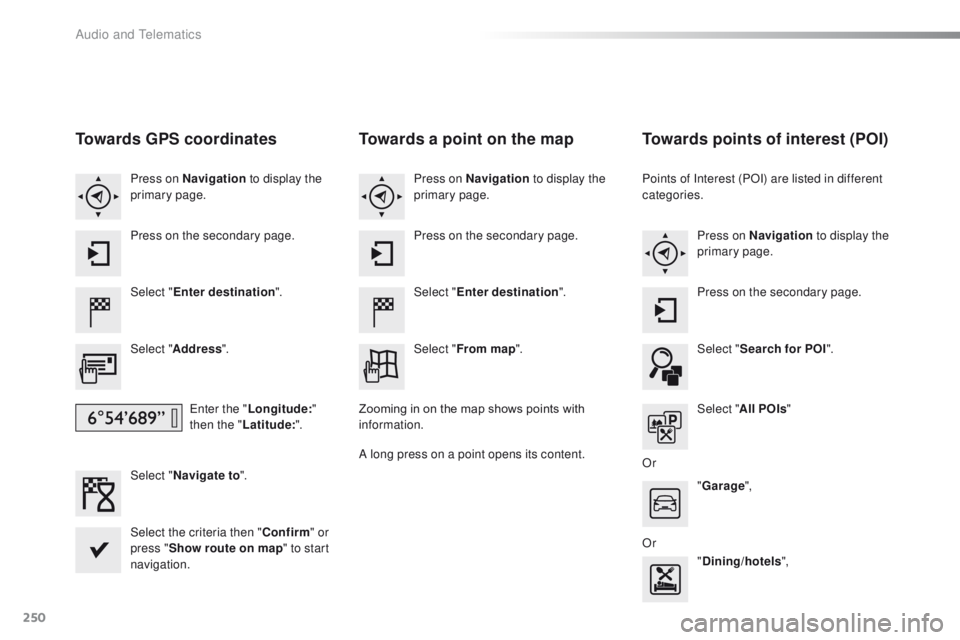
Towards GPS coordinates
Select "Enter destination ".
Select " Address ".
Enter the " Longitude: "
then the " Latitude: ".
Select " Navigate to ".
Select the criteria then " Confirm" or
press " Show route on map " to start
navigation. Press on Navigation to display the
primary page.
Press on the secondary page.
Towards a point on the map
Select " Enter destination ".
Select " From map ".
Press on Navigation
to display the
primary page.
Press on the secondary page.
Zooming in on the map shows points with
information.
A long press on a point opens its content.
Towards points of interest (POI)
Points of Interest (POI) are listed in different
categories. Press on Navigation to display the
primary page.
Press on the secondary page.
Select " Search for POI ".
Select " All POIs "
Or "Garage ",
Or "Dining/hotels ",
Audio and Telematics
Page 254 of 340
252
2008_en_Chap12b_SMEGplus_ed01-2015
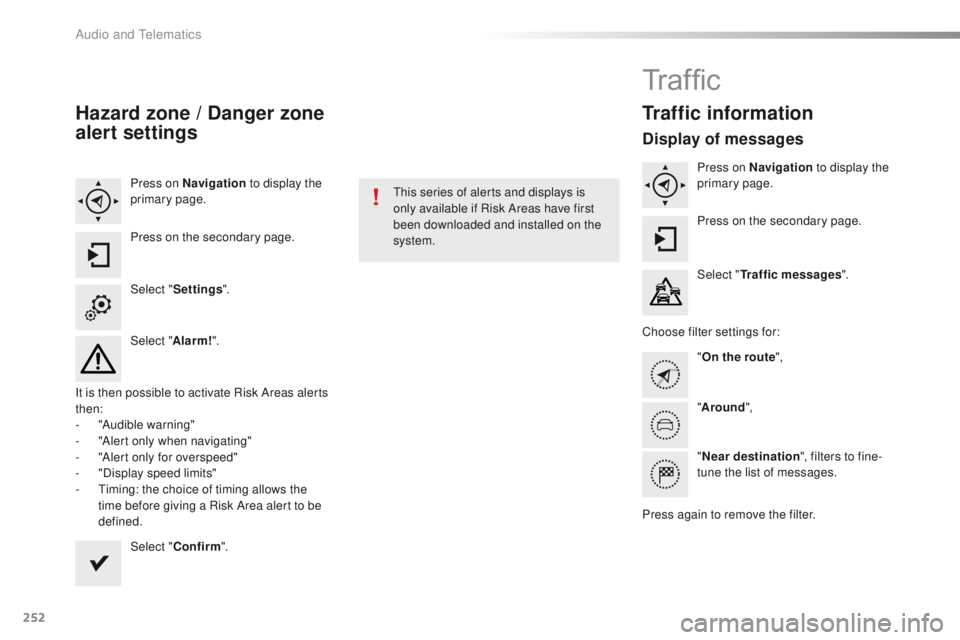
Hazard zone / Danger zone
alert settings
Press on Navigation to display the
primary page.
Press on the secondary page.
Select " Settings ".
Select " Alarm!".
It is then possible to activate Risk Areas alerts
then:
-
"
Audible warning"
-
"
Alert only when navigating"
-
"
Alert only for overspeed"
-
"
Display speed limits"
-
T
iming: the choice of timing allows the
time before giving a Risk Area alert to be
defined.
Select " Confirm ". This series of alerts and displays is
only available if Risk Areas have first
been downloaded and installed on the
system.
Tr a f fi c
Traffic information
Display of messages
Press on Navigation
to display the
primary page.
Press on the secondary page.
Select " Traffic messages ".
Choose filter settings for: "On the route ",
" Around ",
" Near destination ", filters to fine-
tune the list of messages.
Press again to remove the filter.
Audio and Telematics