ECO mode PEUGEOT 3008 2013 Service Manual
[x] Cancel search | Manufacturer: PEUGEOT, Model Year: 2013, Model line: 3008, Model: PEUGEOT 3008 2013Pages: 352, PDF Size: 15.64 MB
Page 260 of 352
258
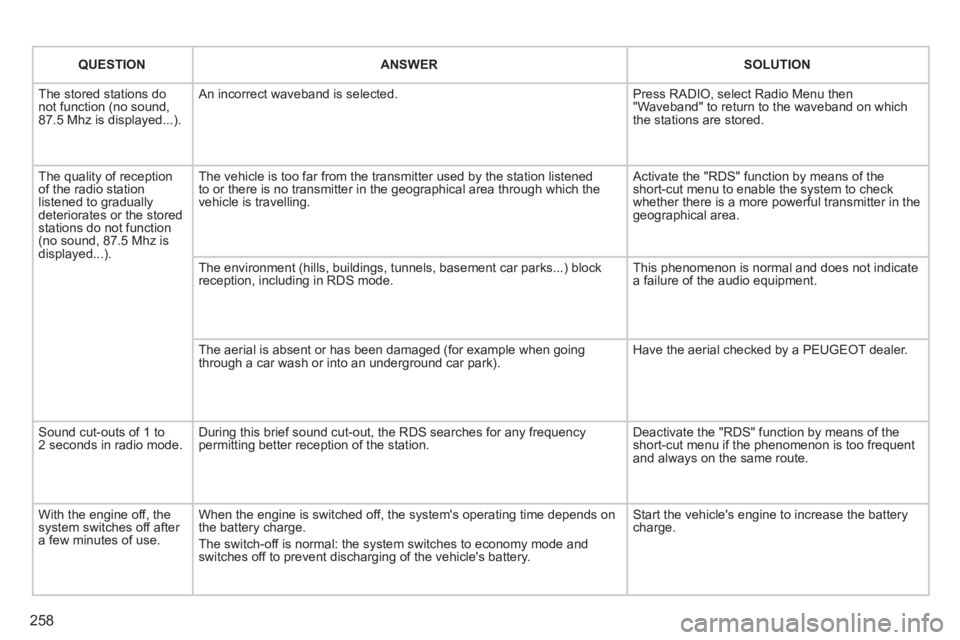
QUESTIONANSWERSOLUTION
The stored stations donot function (no sound, 87.5 Mhz is displayed...).
An incorrect waveband is selected.
Press RADIO, select Radio Menu then"Waveband" to return to the waveband on which the stations are stored.
The quality of receptionof the radio station listened to graduallydeteriorates or the stored stations do not function(no sound, 87.5 Mhz is displayed...).
The vehicle is too far from the transmitter used by the station listenedto or there is no transmitter in the geographical area through which the vehicle is travelling.
Activate the "RDS" function by means of theshort-cut menu to enable the system to check whether there is a more powerful transmitter in thegeographical area.
The environment (hills, buildings, tunnels, basement car parks...) block reception, including in RDS mode.
This phenomenon is normal and does not indicate a failure of the audio equipment.
The aerial is absent or has been damaged (for example when goingthrough a car wash or into an underground car park).
Have the aerial checked by a PEUGEOT dealer.
Sound cut-outs of 1 to2 seconds in radio mode.During this brief sound cut-out, the RDS searches for any frequency permitting better reception of the station.
Deactivate the "RDS" function by means of the short-cut menu if the phenomenon is too frequentand always on the same route.
With the engine off, the system switches off after a few minutes of use.
When the engine is switched off, the system's operating time depends on the battery charge.
The switch-off is normal: the system switches to economy mode and switches off to prevent discharging of the vehicle's battery.
Start the vehicle's engine to increase the batterycharge.
Page 262 of 352
260
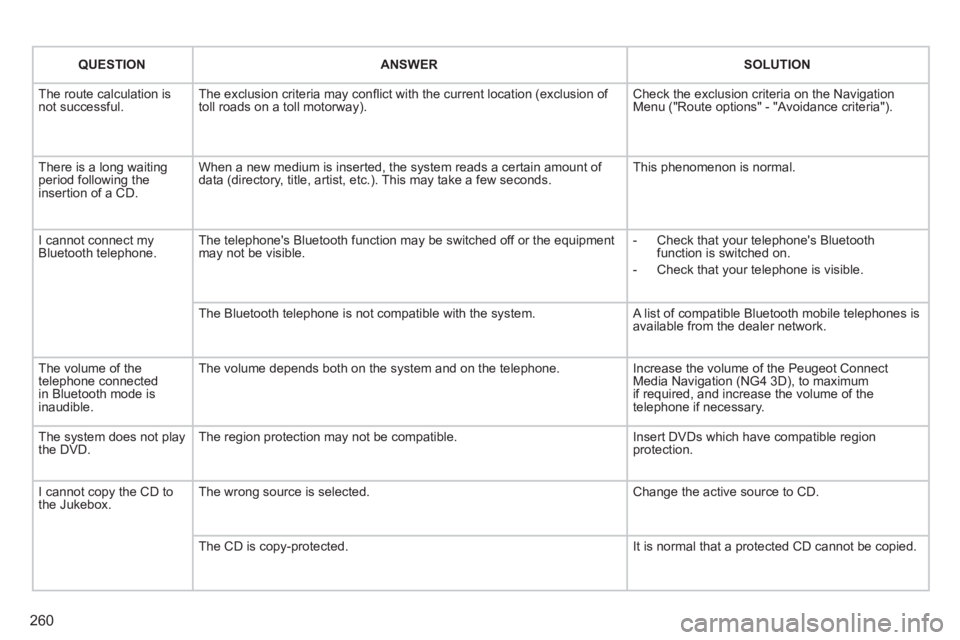
QUESTIONANSWERSOLUTION
The route calculation is not successful. The exclusion criteria may confl ict with the current location (exclusion of toll roads on a toll motorway). Check the exclusion criteria on the NavigationMenu ("Route options" - "Avoidance criteria").
There is a long waiting period following theinsertion of a CD.
When a new medium is inserted, the system reads a certain amount of data (directory, title, artist, etc.). This may take a few seconds. This phenomenon is normal.
I cannot connect myBluetooth telephone.The telephone's Bluetooth function may be switched off or the equipmentmay not be visible.
- Check that your telephone's Bluetoothfunction is switched on.
- Check that your telephone is visible.
The Bluetooth telephone is not compatible with the system. A list of compatible Bluetooth mobile telephones is available from the dealer network.
The volume of thetelephone connectedin Bluetooth mode isinaudible.
The volume depends both on the system and on the telephone.
Increase the volume of the Peugeot Connect Media Navigation (NG4 3D), to maximumif required, and increase the volume of thetelephone if necessary.
The system does not play the DVD. The region protection may not be compatible. Insert DVDs which have compatible region protection.
I cannot copy the CD tothe Jukebox. The wrong source is selected.
Change the active source to CD.
The CD is copy-protected.
It is normal that a protected CD cannot be copied.
Page 265 of 352
263
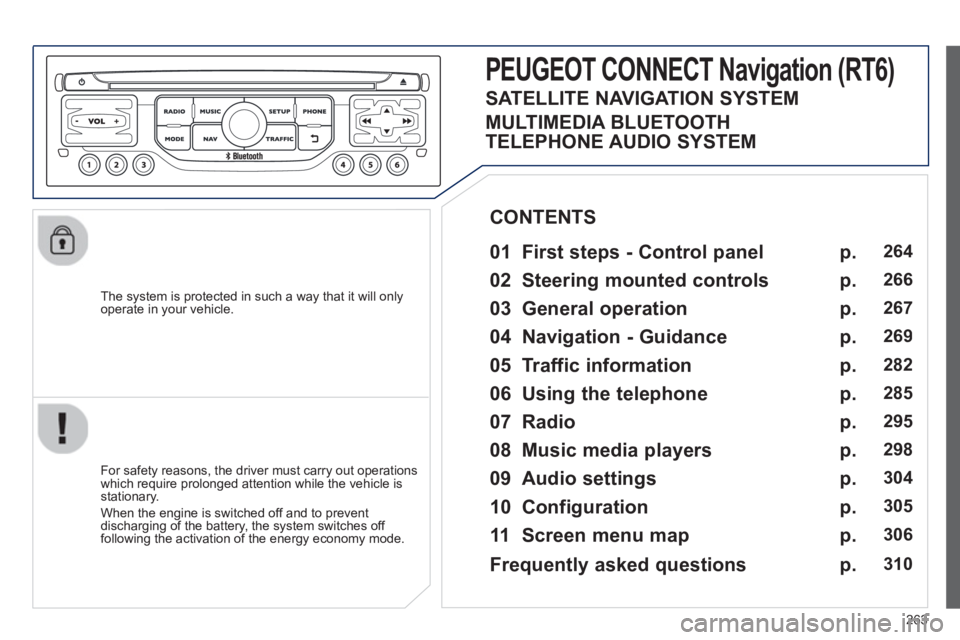
The system is protected in such a way that it will onlyoperate in your vehicle.
PEUGEOT CONNECT Navigation (RT6)
01 First steps - Control panel
For safety reasons, the driver must carry out operations
which require prolonged attention while the vehicle is stationary.
When the en
gine is switched off and to prevent
discharging of the battery, the system switches off following the activation of the energy economy mode.
CONTENTS
02 Steerin
g mounted controls
03 General o
peration
04 Navi
gation - Guidance
05 Traffic information
06 Usin
g the telephone
07 Radio
08 Music media pla
yers
09 Audio settin
gs
10 Confi
guration
11 Screen menu ma
p
p.
p.
p.
p.
p.
p.
p.
p.
p.
p.
p.
264
266
267
269
282
285
295
29
8
304
305
30
6
SATELLITE NAVIGATION SYSTEM
MULTIMEDIA BLUETOOTH
TELEPHONE AUDIO SYSTEM
Frequentl
y asked questions p. 310
Page 269 of 352
267
03
For a detailed global view of the menus available, refer to the
"Screen menu map" section.
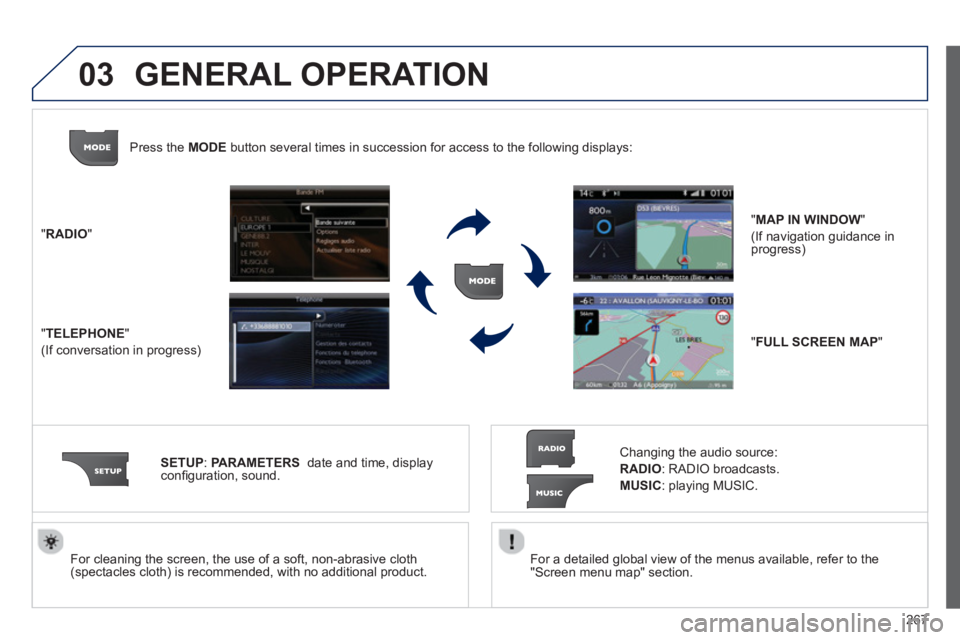
For cleaning the screen, the use of a soft, non-abrasive cloth (spectacles cloth) is recommended, with no additional product. "RADIO
"
"
TELEPHONE"
(If conversation in progress)
SETUP:
PARAMETER
S
date and time, displayconfi guration, sound.
Changing the audio source:
RADIO:
RADIO broadcasts.
MUSIC: playing MUSIC. Pr
ess the MODE button several times in succession for access to the following displays:
GENERAL OPERATION
"FULL SCREEN MAP"
"MAP IN WINDOW"
(If navigation guidance in progress)
Page 289 of 352
287
06
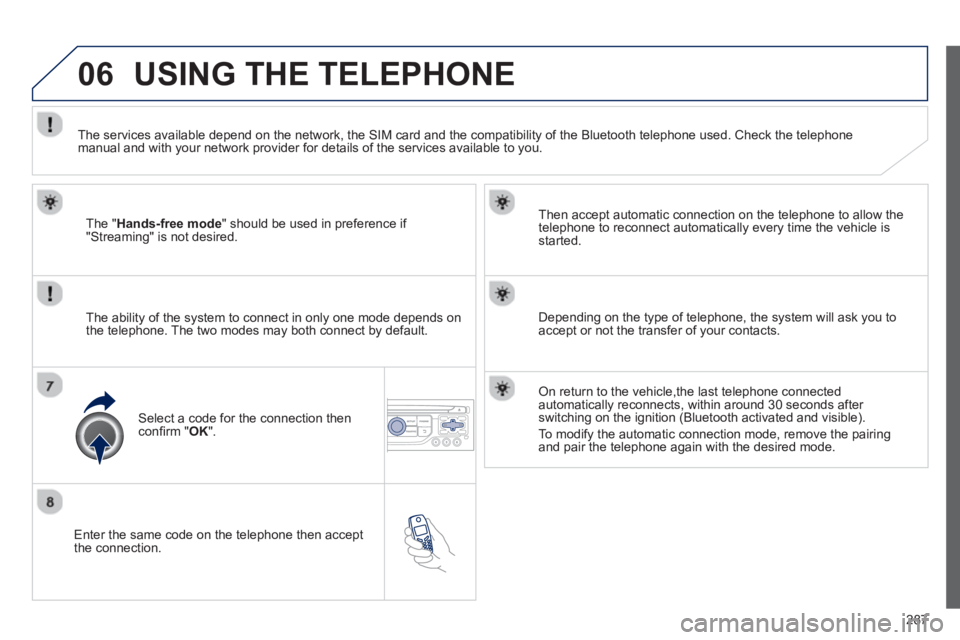
Enter the same code on the telephone then accept
the connection.
Then accept automatic connection on the telephone to allow the
te
lephone to reconnect automatically every time the vehicle is started.
The abilit
y of the system to connect in only one mode depends on
the telephone. The two modes may both connect by default.
USING THE TELEPHONE
The "Hands-free mode
" should be used in preference if "Streaming" is not desired.
The services available depend on the network, the
SIM card and the compatibility of the Bluetooth telephone used. Check the telephone manual and with your network provider for details of the services available to you.
Select a code for the connection thenconfi rm "OK".
Depending on the type of telephone, the system will ask you to
accept or not the transfer of your contacts.
On return to the vehicle,the last telephone connected
automatically reconnects, within around 30 seconds after switching on the ignition (Bluetooth activated and visible).
To modi
fy the automatic connection mode, remove the pairingand pair the telephone again with the desired mode.
Page 301 of 352
299
08
CD, MP3 CD / USB PLAYER
The audio equipment will only play audio fi les with ".wma, .aac, .fl ac, .ogg and .mp3" fi le extensions and with a bit rate of between 32 Kbps
and 320 Kbps.
It also supports VBR
(Variable Bit Rate) mode.
No other t
ype of fi le (.mp4, .m3u...) can be played.
WMA
fi les must be of the standard wma 9 type.
The samplin
g rates supported are 11, 22, 44 and 48 KHz.
It is advisable to restrict fi le names to 20 characters, without usin
g of special characters (e.g. : " " ? ; ù) to avoid any playing and displayingproblems.
In order to be able to pla
y a recorded CDR or CDRW, when recording
it is preferable to select the ISO 9660 level 1, 2 or Joliet standard.
If the disc is recorded in another format it ma
y not be played correctly.
It is recommended that the same recordin
g standard is always used
for an individual disc, with as low a speed as possible (4x maximum)for optimum sound quality.
In the particular case o
f a multi-session CD, the Joliet standard isrecommended.
INFORMATION AND ADVICE
The s
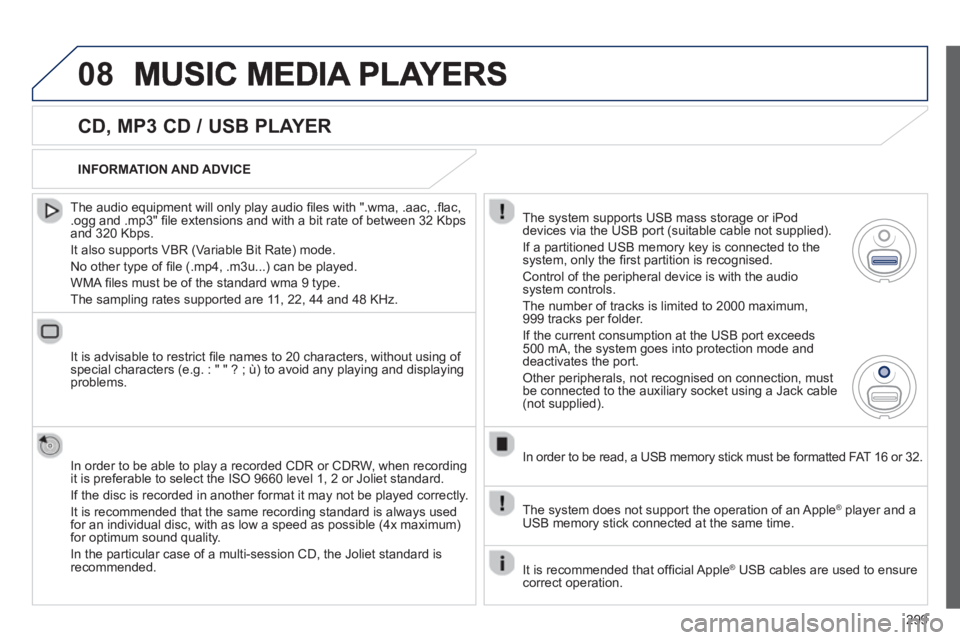
ystem supports USB mass storage or iPod
devices via the USB port (suitable cable not supplied).
I
f a partitioned USB memory key is connected to the system, only the fi rst partition is recognised.
Control of the peripheral device is with the audiosystem controls.
The number of tracks is limited to 2000 maximum,
999 tracks per folder.
I
f the current consumption at the USB port exceeds 500 mA, the system goes into protection mode and
deactivates the port.
Other peripherals, not recognised on connection, must
be connected to the auxiliary socket using a Jack cable (not supplied).
In order to be read, a USB memor
y stick must be formatted FAT 16 or 32.
The s
ystem does not support the operation of an Apple Æplayer and a USB memory stick connected at the same time.
It is recommended that o
ffi cial AppleÆ USB cables are used to ensure Æ
correct operation.
Page 304 of 352
302
08
AUDIO STREAMING
Streaming allows audio fi les on your telephone to be played via the
vehicle's speakers.
Connect the telephone: see "USING THE TELEPHONE".
Select " Audio" or " All" profi le.
I
f play does not start automatically, it may be necessary to start the audio playback from the telephone.
Control is from the peripheral device or b
y using the audio system buttons.
Once connected in streaming mode, the telephone is considered to bea media source.
It is recommended that
you activate " Repeat" on the Bluetooth
peripheral.
MUSIC MEDIA PLAYERS
CONNECTING APPLE®
PLAYERS ®
Connect the Apple ®player to the USB port using a suitable cable (not
supplied).
Play starts automatically.
Control is via the audio system.
The classifi cations available are those of the portable device
connected (artists / albums / genres / playlists / audiobooks / podcasts).
The de
fault classifi cation used is by artist. To modify the classifi cationused, return to the fi rst level of the menu then select the desired classifi cation (playlists for example) and confi rm to go down through
the menu to the desired track.
The "
Shuffl e tracks" mode on an iPod®
corresponds to the "Random" ®
mode on the audio system.
The "
Shuffl e albums" mode on an iPod®
corresponds to the "Random ®
all" on the audio system.
"
Shuffl e tracks" is restored by default on each connection.
The version of software in the audio s
ystem may not be compatible
with the generation of your Apple Æplayer.
The list of devices compatible with software versions is available from
PEU
GEOT dealers.
Page 314 of 352
312
QUESTIONANSWERSOLUTION
Some contacts areduplicated in the list.The options for synchronizing contacts are synchronizing the contacts
on the SIM card, the contacts on the telephone, or both. When both
synchronizations are selected, some contacts may be duplicated. Select "Displa
y SIM card contacts" or "Displaytelephone contacts".
Contacts are not shown
in alphabetical order.Some telephones offer display options. Depending on the settingschosen, contacts can be transferred in a specifi c order. Modify the display setting in the telephone
directory.
The system does not receive SMS text messages.The Bluetooth mode does not permit sending SMS text messages to the
system.
The
CD is ejected
automatically or is not played by the player. The
CD is inserted upside down, is unplayable, does not contain any audio data or contains an audio format which the player cannot play.
- Check that the CD is inserted in the player the
right way up.
-
Check the condition of the CD: the CD cannot
be played if it is too damaged.
-
Check the content in the case of a recordedCD: consult the advice in the "Audio" section.
- The audio s
ystem's CD player does not play DVDs.
-
Some recorded CDs will not be played by
the audio system because they are not of thecorrect quality. Le
CD has been recorded in a format that is not compatible with the player.
The CD is protected b
y an anti-pirating protection system which is not recognised by the audio system.
There is a long waiting period following the insertion
of a CD or connection of aUSB memory stick.
When a new medium is inserted, the system reads a certain amount of
data (directory, title, artist, etc.). This may take from a few seconds to a
few minutes. This
phenomenon is normal.
The
CD player sound ispoor.The CD used is scratched or of poor quality. Insert good quality CDs and store them in suitable conditions.
The audio equipment settin
gs (bass, treble, ambiences) are unsuitable. Set the treble or bass level to 0, without selectingan ambience.
Page 317 of 352
315
FREQUENTLY ASKED QUESTIONS
QUESTIONANSWER SOLUTION
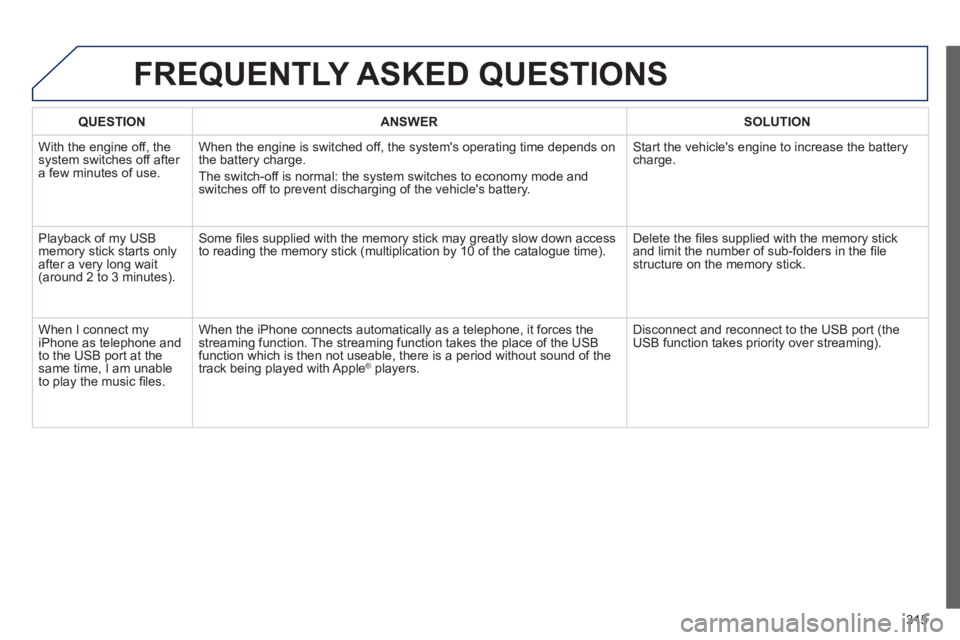
With the engine off, the system switches off after a few minutes of use.When the en
gine is switched off, the system's operating time depends on
the battery charge.
The switch-o
ff is normal: the system switches to economy mode and
switches off to prevent discharging of the vehicle's battery.
Start the vehicle's engine to increase the batterycharge.
Pla
yback of my USB memory stick starts only
after a very long wait (around 2 to 3 minutes).
Some fi les supplied with the memory stick may greatly slow down access
to reading the memory stick (multiplication by 10 of the catalogue time). Delete the fi les supplied with the memory stickand limit the number of sub-folders in the fi le structure on the memory stick.
When I connect my
iPhone as telephone and
to the U
SB port at thesame time, I am unable
to play the music fi les. When the iPhone connects automatically as a telephone, it
forces the
streaming function. The streaming function takes the place of the USBfunction which is then not useable, there is a period without sound of the
track being played with Apple ® players.®
Disconnect and reconnect to the USB port (the USB function takes priority over streaming).
Page 323 of 352
321
04 AUDIO
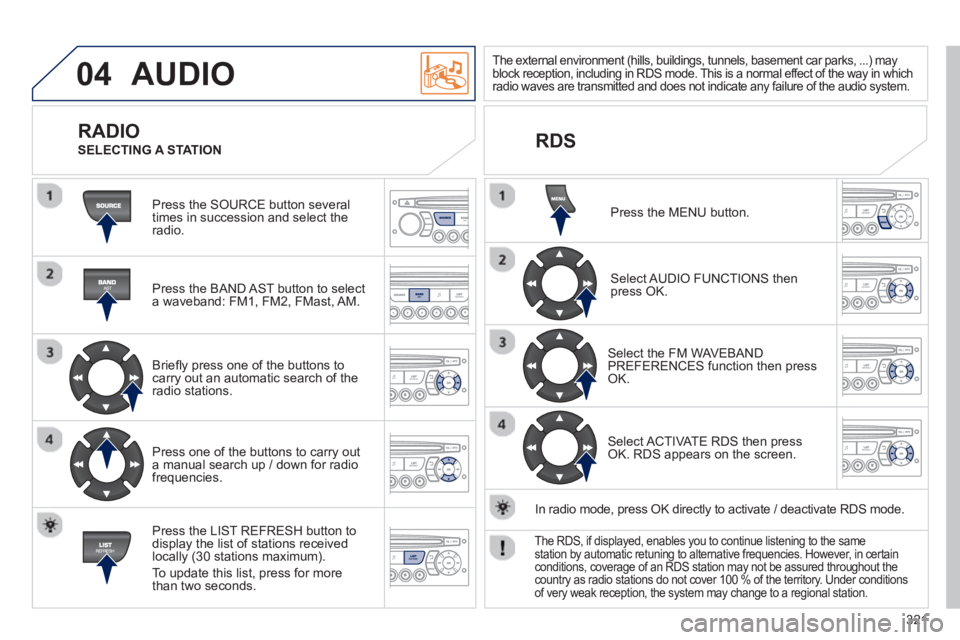
Press the SOURCE button several
times in succession and select theradio.
Press the BAND A
ST button to select
a waveband: FM1, FM2, FMast, AM.
Briefl
y press one of the buttons tocarry out an automatic search of theradio stations.
Press one o
f the buttons to carry out
a manual search up / down for radiofrequencies.
Press the LI
ST REFRESH button to
display the list of stations received
locally (30 stations maximum).
To update this list, press for more
t
han two seconds.
The external environment (hills, buildings, tunnels, basement car parks, ...) may
block reception, including in RDS mode. This is a normal effect of the way in which
radio waves are transmitted and does not indicate any failure of the audio system.
RDS
RADIO
SELECTING A STATION
Press the MENU button.
Select AUDIO FUNCTIONS thenpress OK.
Select the FM WAVEBANDPREFERENCES function then pressOK.
Select ACTIVATE RDS then pressOK. RDS appears on the screen.
In radio mode, press
OK directly to activate / deactivate RDS mode.
The RDS, if displayed, enables you to continue listening to the samestation by automatic retuning to alternative frequencies. However, in certainconditions, coverage of an RDS station may not be assured throughout thecountry as radio stations do not cover 100 % of the territory. Under conditions
of very weak reception, the system may change to a regional station.