audio PEUGEOT 308 2014 Service Manual
[x] Cancel search | Manufacturer: PEUGEOT, Model Year: 2014, Model line: 308, Model: Peugeot 308 2014Pages: 389, PDF Size: 22.92 MB
Page 303 of 389
03
301
For the details of the menus, refer to the "Screen menu map" section. For cleaning the screen, the use of a soft, non-abrasive cloth (spectacles cloth) is recommended, with no additional product.
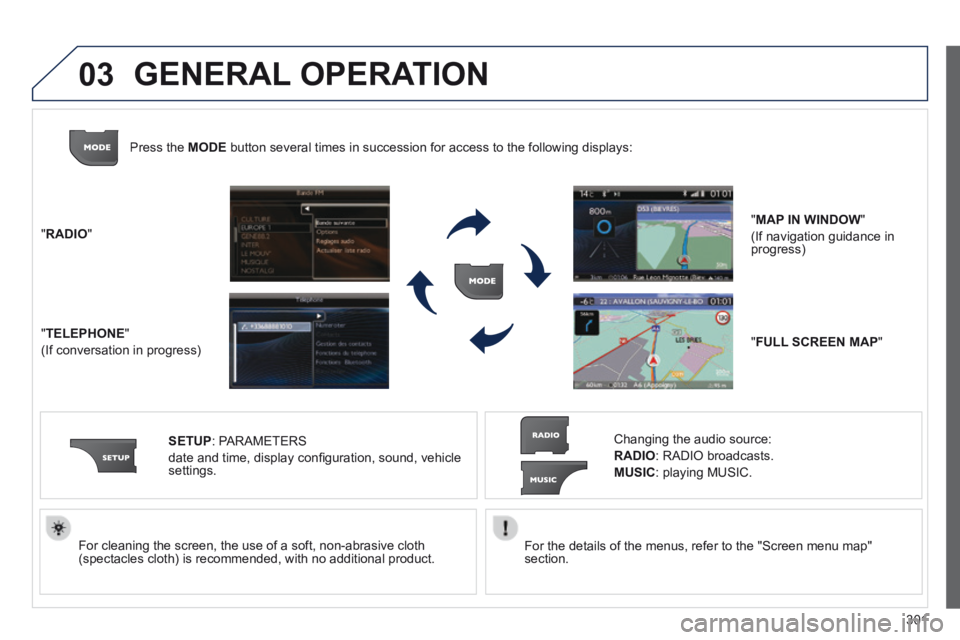
" RADIO "
" TELEPHONE "
(If conversation in progress)
SETUP : PARAMETERS
date and time, display confi guration, sound, vehicle settings.
Changing the audio source:
RADIO : RADIO broadcasts.
MUSIC : playing MUSIC.
Press the MODE button several times in succession for access to the following displays\
:
" FULL SCREEN MAP "
" MAP IN WINDOW "
(If navigation guidance in progress)
GENERAL OPERATION
Page 307 of 389
04
305
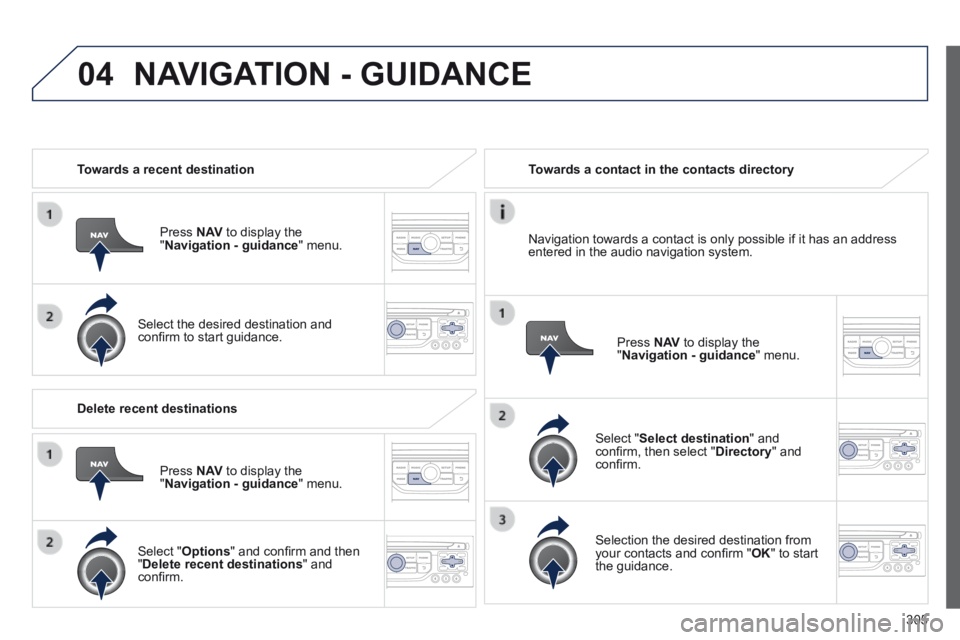
Towards a recent destination
Press N AV to display the " Navigation - guidance " menu.
Select the desired destination and confi rm to start guidance.
Towards a contact in the contacts directory
Select " Select destination " and confi rm, then select " Directory " and confi rm.
Selection the desired destination from your contacts and confi rm " OK " to start the guidance.
Press N AV to display the " Navigation - guidance " menu.
Navigation towards a contact is only possible if it has an address entered in the audio navigation system.
Delete recent destinations
Press N AV to display the " Navigation - guidance " menu.
Select " Options " and confi rm and then " Delete recent destinations " and confi rm.
NAVIGATION - GUIDANCE
Page 320 of 389
05
318
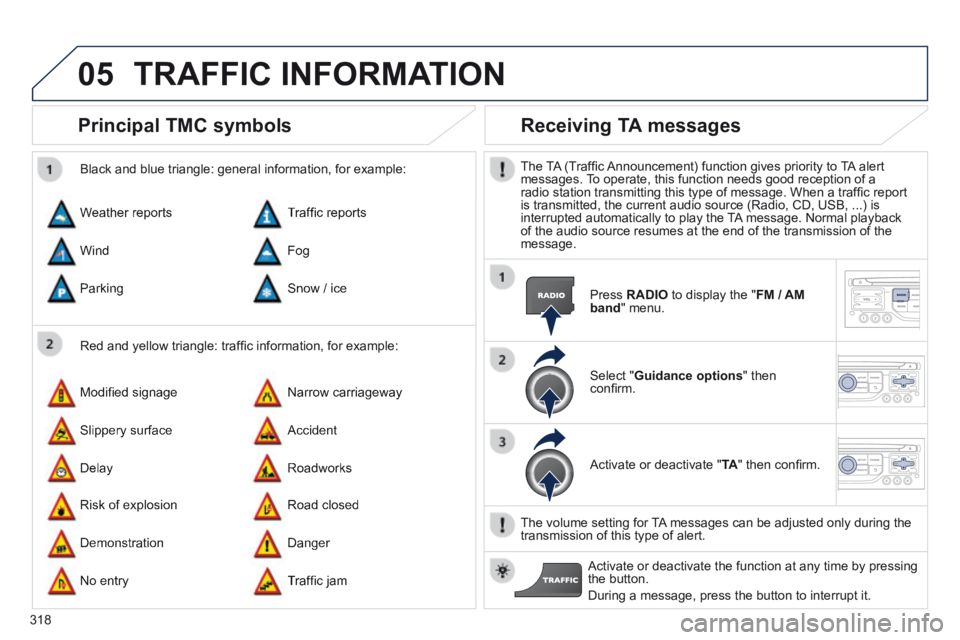
Principal TMC symbols
Red and yellow triangle: traffi c information, for example:
Black and blue triangle: general information, for example:
Weather reports
Modifi ed signage
Risk of explosion
Traffi c reports
Narrow carriageway
Road closed
Wind
Slippery surface
Demonstration
Fog
Accident
Danger
Parking
Delay
No entry
Snow / ice
Roadworks
Traffi c jam
Receiving TA messages
The TA (Traffi c Announcement) function gives priority to TA alert messages. To operate, this function needs good reception of a radio station transmitting this type of message. When a traffi c report is transmitted, the current audio source (Radio, CD, USB, ...) is interrupted automatically to play the TA message. Normal playback of the audio source resumes at the end of the transmission of the message.
Press RADIO to display the " FM / AM band " menu.
Select " Guidance options " then confi rm.
Activate or deactivate " TA " then confi rm.
The volume setting for TA messages can be adjusted only during the transmission of this type of alert.
Activate or deactivate the function at any time by pressing the button.
During a message, press the button to interrupt it.
TRAFFIC INFORMATION
Page 322 of 389
06
320
USING THE TELEPHONE
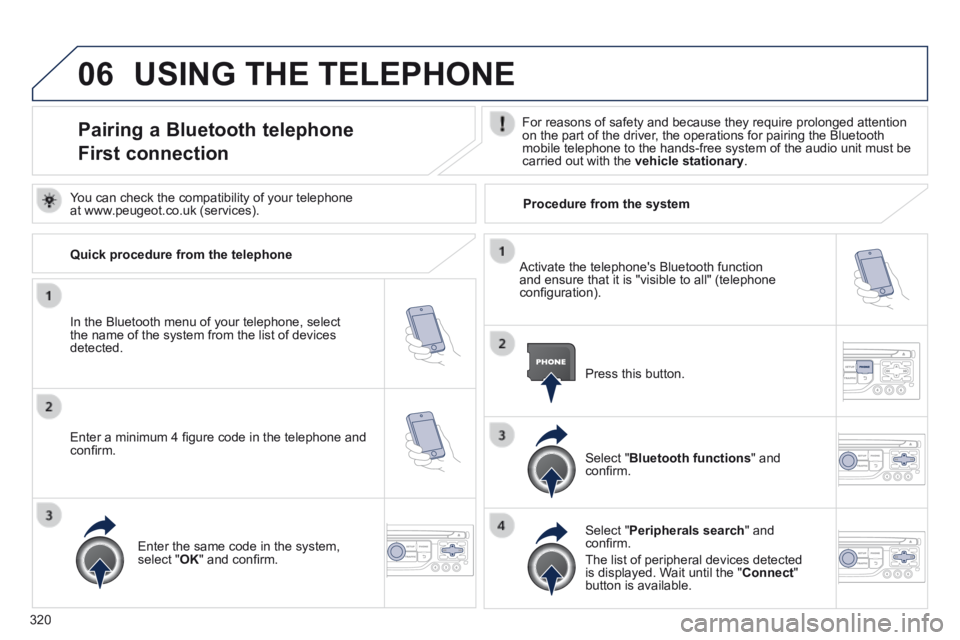
Pairing a Bluetooth telephone
First connection
For reasons of safety and because they require prolonged attention on the part of the driver, the operations for pairing the Bluetooth mobile telephone to the hands-free system of the audio unit must be carried out with the vehicle stationary .
In the Bluetooth menu of your telephone, select the name of the system from the list of devices detected.
Press this button.
Select " Bluetooth functions " and confi rm.
Select " Peripherals search " and confi rm.
The list of peripheral devices detected is displayed. Wait until the " Connect " button is available.
You can check the compatibility of your telephone at www.peugeot.co.uk (services).
Activate the telephone's Bluetooth function and ensure that it is "visible to all" (telephone confi guration).
Quick procedure from the telephone
Enter a minimum 4 fi gure code in the telephone and confi rm.
Enter the same code in the system, select " OK " and confi rm.
Procedure from the system
Page 323 of 389
06
321
USING THE TELEPHONE
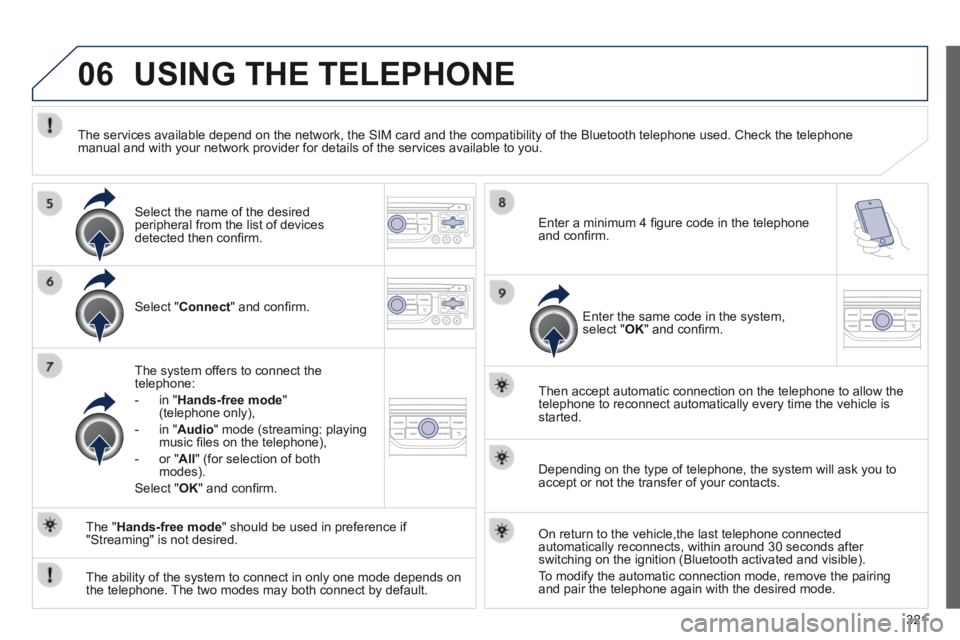
Select " Connect " and confi rm.
The system offers to connect the telephone:
- in " Hands-free mode " (telephone only),
- in " Audio " mode (streaming: playing music fi les on the telephone),
- or " All " (for selection of both modes).
Select " OK " and confi rm.
Then accept automatic connection on the telephone to allow the telephone to reconnect automatically every time the vehicle is started.
The ability of the system to connect in only one mode depends on the telephone. The two modes may both connect by default.
The " Hands-free mode " should be used in preference if "Streaming" is not desired.
The services available depend on the network, the SIM card and the compa\
tibility of the Bluetooth telephone used. Check the telephone manual and with your network provider for details of the services availa\
ble to you.
Depending on the type of telephone, the system will ask you to accept or not the transfer of your contacts.
On return to the vehicle,the last telephone connected automatically reconnects, within around 30 seconds after switching on the ignition (Bluetooth activated and visible).
To modify the automatic connection mode, remove the pairing and pair the telephone again with the desired mode.
Enter a minimum 4 fi gure code in the telephone and confi rm.
Enter the same code in the system, select " OK " and confi rm.
Select the name of the desired peripheral from the list of devices detected then confi rm .
Page 331 of 389
07
329
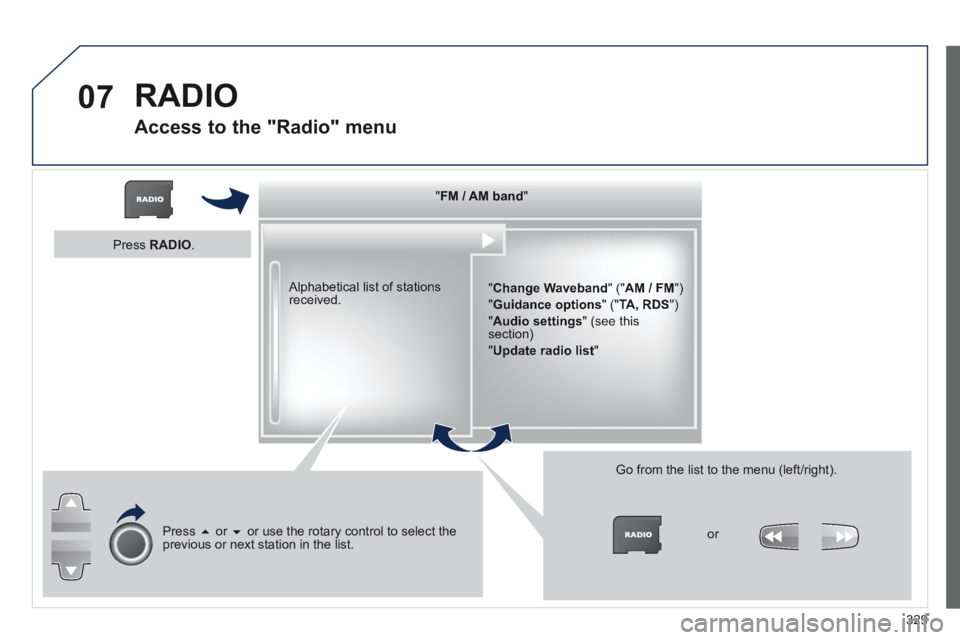
" " " " " " " " " " " " " " " " " " " FM / AM bandFM / AM bandFM / AM bandFM / AM bandFM / AM bandFM / AM bandFM / AM bandFM / AM bandFM / AM bandFM / AM bandFM / AM bandFM / AM bandFM / AM bandFM / AM bandFM / AM bandFM / AM bandFM / AM bandFM / AM bandFM / AM band " " " " " " " " " " " " " " " " " " "
" Change Waveband " (" AM / FM ")
" Guidance options " (" TA, RDS ")
" Audio settings " (see this section)
" Update radio list "
Alphabetical list of stations received.
Press or or use the rotary control to select the previous or next station in the list.
Go from the list to the menu (left/right).
or
Press RADIO .
RADIO
Access to the "Radio" menu
Page 332 of 389
07
330
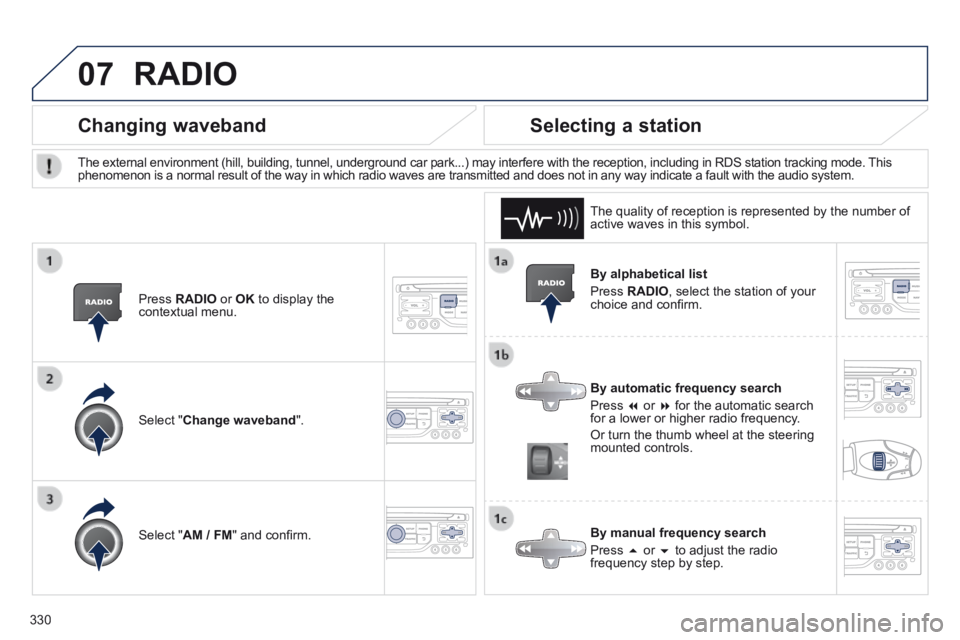
By alphabetical list
Press RADIO , select the station of your choice and confi rm.
By automatic frequency search
Press or for the automatic search for a lower or higher radio frequency.
Or turn the thumb wheel at the steering mounted controls.
By manual frequency search
Press or to adjust the radio frequency step by step.
Selecting a station
The external environment (hill, building, tunnel, underground car park.\
..) may interfere with the reception, including in RDS station tracking mode. This phenomenon is a normal result of the way in which radio waves are transm\
itted and does not in any way indicate a fault with the audio system.
The quality of reception is represented by the number of active waves in this symbol.
Press RADIO or OK to display the contextual menu.
Changing waveband
Select " Change waveband ".
Select " AM / FM " and confi rm.
RADIO
Page 334 of 389
08
332
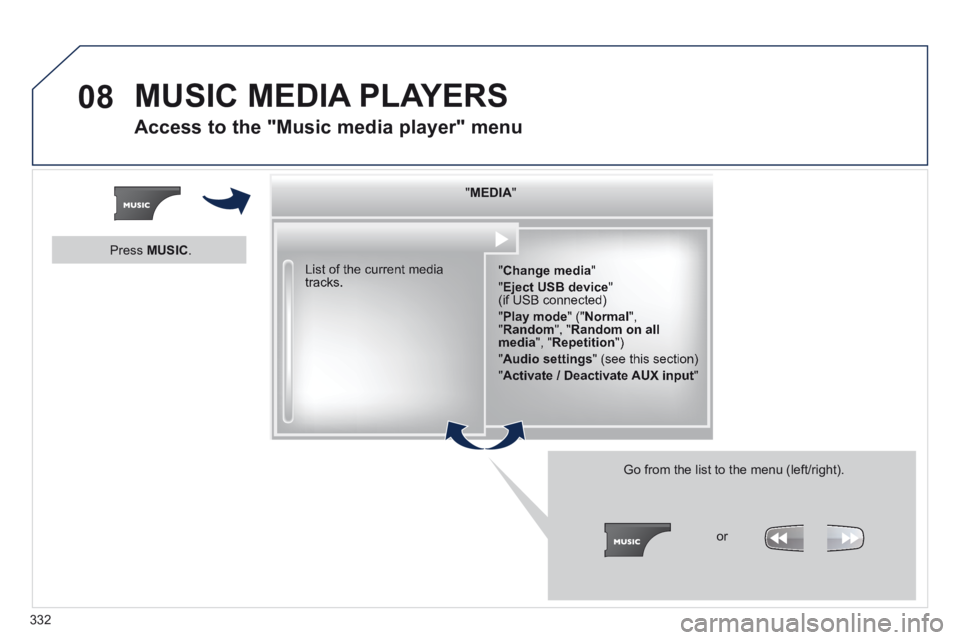
" " " " " " " " " " " " " " " " " " " MEDIAMEDIAMEDIAMEDIAMEDIAMEDIAMEDIAMEDIAMEDIAMEDIAMEDIAMEDIAMEDIAMEDIAMEDIAMEDIAMEDIAMEDIAMEDIA " " " " " " " " " " " " " " " " " " "
" Change media "
" Eject USB device " (if USB connected)
" Play mode " (" Normal ", " Random ", " Random on all media ", " Repetition ")
" Audio settings " (see this section)
" Activate / Deactivate AUX input "
List of the current media tracks.
Go from the list to the menu (left/right).
or
Press MUSIC .
MUSIC MEDIA PLAYERS
Access to the "Music media player" menu
Page 335 of 389
08
333
CD, MP3 CD / USB player
The audio equipment will only play audio fi les with ".wma, .aac, .fl ac, .ogg and .mp3" fi le extensions and with a bit rate of between 32 Kbps and 320 Kbps.
It also supports VBR (Variable Bit Rate) mode.
No other type of fi le (.mp4, .m3u...) can be played.
WMA fi les must be of the standard wma 9 type.
The sampling rates supported are greater than 32 KHz.
It is advisable to restrict fi le names to 20 characters, without using of special characters (e.g.: " " ? ; ù) to avoid any playing and displ\
aying problems.
In order to be able to play a recorded CDR or CDRW, when recording it is preferable to select the ISO 9660 level 1, 2 or Joliet standard.
If the disc is recorded in another format (udf, ...), it may not be pl\
ayed correctly.
It is recommended that the same recording standard is always used for an individual disc, with as low a speed as possible (4x maximum) for optimum sound quality.
In the particular case of a multi-session CD, the Joliet standard is recommended.
Information and advice
The system supports USB mass storage or iPod devices via the USB port (suitable cable not supplied).
If a partitioned USB memory key is connected to the system, only the fi rst partition is recognised.
Control of the peripheral device is with the audio system controls.
The number of tracks is limited to 2000 maximum, 999 tracks per folder.
If the current consumption at the USB port exceeds 500 mA, the system goes into protection mode and deactivates the port.
Other peripherals, not recognised on connection, must be connected to the auxiliary socket using a Jack cable (not supplied).
In order to be read, a USB memory stick must be formatted FAT 16 or 32.
The system does not support the operation of an Apple ® player and a ® player and a ®
USB memory stick connected at the same time.
It is recommended that offi cial Apple ® USB cables are used to ensure ® USB cables are used to ensure ®
correct operation.
MUSIC MEDIA PLAYERS
Page 338 of 389
08
336
Audio streaming
Streaming allows audio fi les on your telephone to be played via the vehicle's speakers.
Connect the telephone: see " USING THE TELEPHONE ".
Select " Audio " or " All " profi le.
If play does not start automatically, it may be necessary to start the audio playback from the telephone.
Control is from the peripheral device or by using the audio system buttons.
Once connected in streaming mode, the telephone is considered to be a media source.
It is recommended that you activate " Repeat " on the Bluetooth peripheral.
MUSIC MEDIA PLAYERS
Connecting APPLE ® Connecting APPLE ® Connecting APPLE players ® players ®
Connect the Apple ® player to the USB port using a suitable cable ® player to the USB port using a suitable cable ®
(not supplied).
Play starts automatically.
Control is via the audio system.
The classifi cations available are those of the portable device connected (artists / albums / genres / playlists / audiobooks / podcasts).
The default classifi cation used is by artist. To modify the classifi cation used, return to the fi rst level of the menu then select the desired classifi cation (playlists for example) and confi rm to go down through the menu to the desired track.
The "Shuffl e tracks" mode on an iPod ® corresponds to the "Random" ® corresponds to the "Random" ®
mode on the audio system.
The "Shuffl e albums" mode on an iPod ® corresponds to the "Random ® corresponds to the "Random ®
all" on the audio system.
"Shuffl e tracks" is restored by default on each connection.
The version of software in the audio system may not be compatible with the generation of your Apple ® player. ® player. ®