audio PEUGEOT 308 2014 Owner's Manual
[x] Cancel search | Manufacturer: PEUGEOT, Model Year: 2014, Model line: 308, Model: Peugeot 308 2014Pages: 389, PDF Size: 22.92 MB
Page 259 of 389
257
02
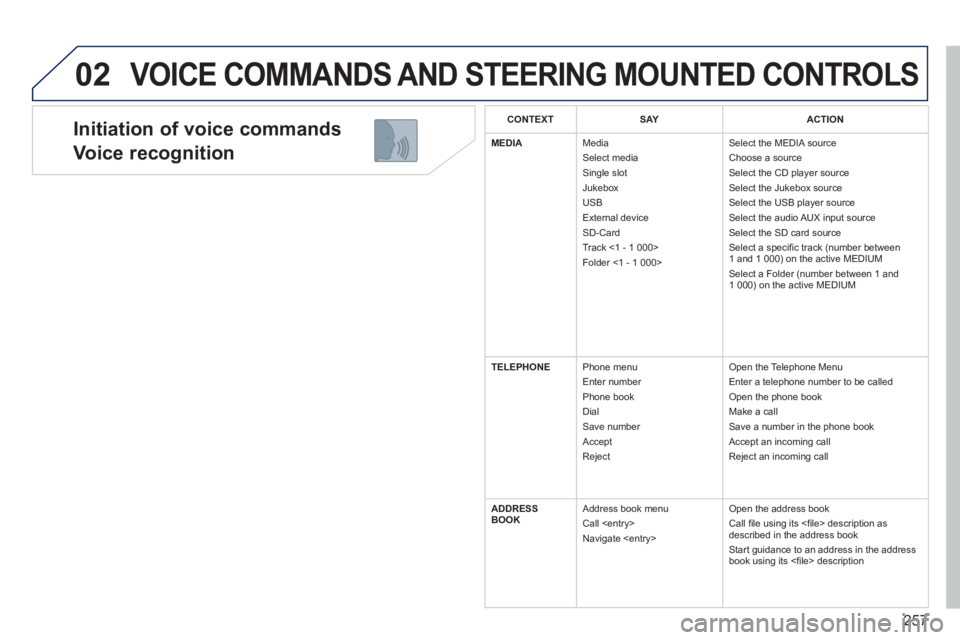
Initiation of voice commands
Voice recognition
VOICE COMMANDS AND STEERING MOUNTED CONTROLS
CONTEXTS AYACTION
MEDIA Media Select media Single slot Jukebox USB External device SD-Card Track <1 - 1 000> Folder <1 - 1 000>
Select the MEDIA source Choose a source Select the CD player source Select the Jukebox source Select the USB player source Select the audio AUX input source Select the SD card source Select a specifi c track (number between 1 and 1 000) on the active MEDIUM Select a Folder (number between 1 and 1 000) on the active MEDIUM
TELEPHONE Phone menu Enter number Phone book Dial Save number Accept Reject
Open the Telephone Menu Enter a telephone number to be called Open the phone book Make a call Save a number in the phone book Accept an incoming call Reject an incoming call
ADDRESS BOOK Address book menu Call
Open the address book Call fi le using its <fi le> description as described in the address book Start guidance to an address in the address book using its <fi le> description
Page 260 of 389

258
02 VOICE COMMANDS AND STEERING MOUNTED CONTROLS
Steering mounted controls
Wiper stalk: display "RADIO" and "MEDIA".
Lighting stalk: activate voice commands with a short press; indication o\
f the current navigation instruction with a long press.
Change audio source.
Start a call from the contacts list
Call/hang up the telephone.
Confi rm a selection.
Press for more than 2 seconds: telephone menu.
Radio: automatic search for a lower frequency.
CD / SD CARD / JUKEBOX: select the previous track.
CD / SD CARD / JUKEBOX: continuous press: fast backwards.
Radio: select the previous/next pre-set station.
CD audio: select the previous/next track
If "MEDIA" is displayed in the screen:
MP3 CD / SD CARD / JUKEBOX: select the previous/next folder.
Select the previous/next item in the contacts list.
Radio: automatic search for a higher frequency.
CD / SD CARD / JUKEBOX: select the next track.
CD / SD CARD / JUKEBOX: continuous press: fast forwards.
Volume increase.
Volume decrease.
Mute: press the volume increase and decrease buttons simultaneously.
The sound is restored by pressing one of the two volume buttons.
Page 261 of 389
259
03
SETUP
TRAFFIC
MEDIA
GENERAL OPERATION
For a detailed global view of the menus available, refer to the "Screen menu map" section of this handbook.
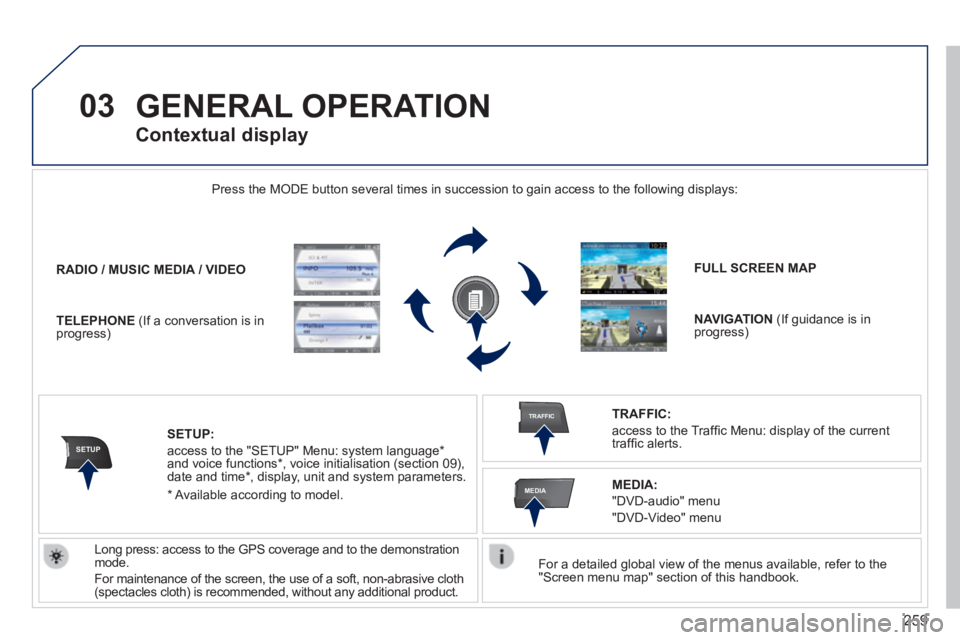
Press the MODE button several times in succession to gain access to the \
following displays:
Long press: access to the GPS coverage and to the demonstration mode.
For maintenance of the screen, the use of a soft, non-abrasive cloth (spectacles cloth) is recommended, without any additional product.
RADIO / / / /MUSIC MEDIA / VIDEO
TELEPHONE (If a conversation is in progress)
FULL SCREEN MAP
NAVIGATION (If guidance is in progress)
SETUP:
access to the "SETUP" Menu: system language * and voice functions * , voice initialisation (section 09), date and time * , display, unit and system parameters.
TRAFFIC:
access to the Traffi c Menu: display of the current traffi c alerts.
Contextual display
MEDIA:
"DVD-audio" menu
"DVD-Video" menu
* Available according to model.
Page 263 of 389
261
03 GENERAL OPERATION
Contextual display
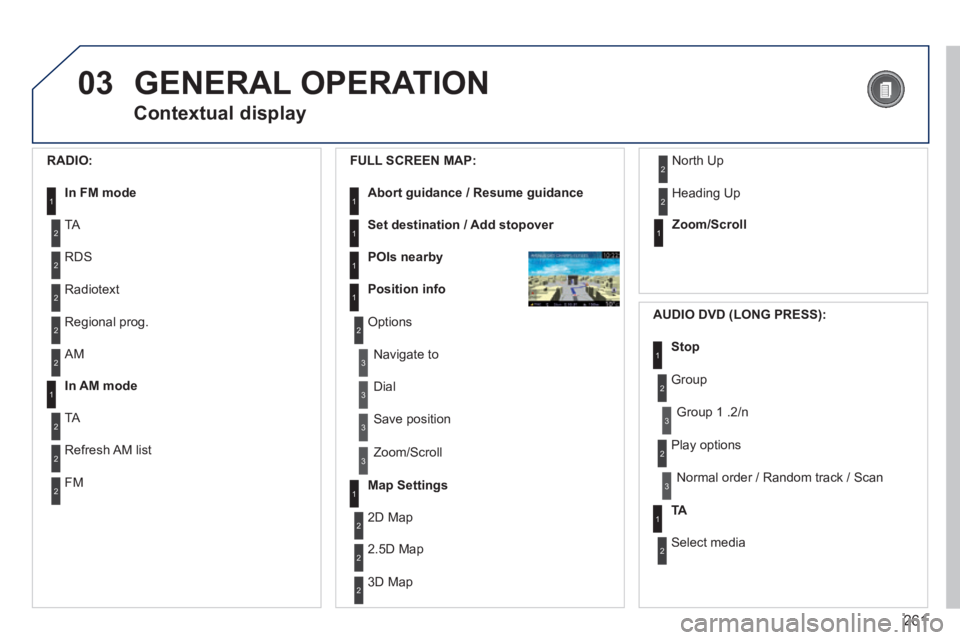
RADIO:
In FM mode1
2
2
TA
RDS
2 Radiotext
2 Regional prog.
FULL SCREEN MAP:
Abort guidance / Resume guidance1
1
1
1
Set destination / Add stopover
POIs nearby
Position info
2 Options
3
3
Navigate to
Dial
3 Save position
3 Zoom/Scroll
Map Settings1
1Zoom/Scroll
2
2
2D Map
2.5D Map
2 3D Map
2 North Up
2 Heading Up
AUDIO DVD (LONG PRESS):
1Stop
2 Group
3 Group 1 .2/n
TA1
2 Select media
2 Play options
3 Normal order / Random track / Scan
2 AM
In AM mode1
2
2
TA
Refresh AM list
2 FM
Page 264 of 389
262
03
3
3
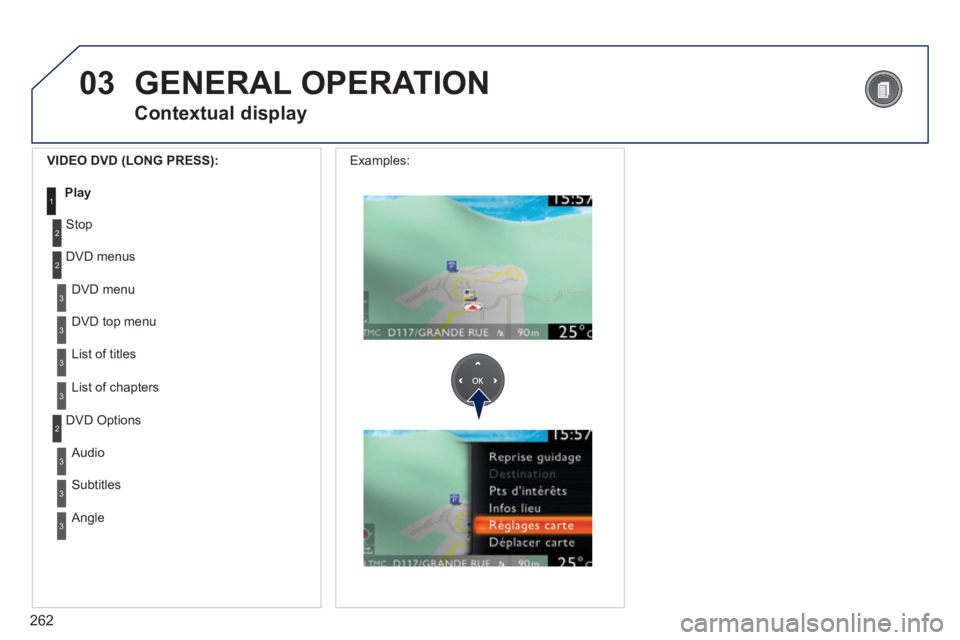
DVD menu
DVD top menu
3 List of titles
3 List of chapters
VIDEO DVD (LONG PRESS):
Play1
GENERAL OPERATION
Contextual display
2
2
Stop
DVD menus
3
3
Audio
Subtitles
3 Angle
2 DVD Options
Examples:
Page 276 of 389
274
05
2ABC3DEF5JKL4GHI6MNO8TUV7PQR S9WXYZ0*#
1RADIO MEDIA NA
V TRAFFIC
SETUPADDR
BOOK
2ABC3DEF5JKL4GHI6MNO8TUV7PQR S9WXYZ0*#
1RADIO MEDIA NA
V TRAFFIC
SETUPADDR
BOOK
TRAFFIC INFORMATION
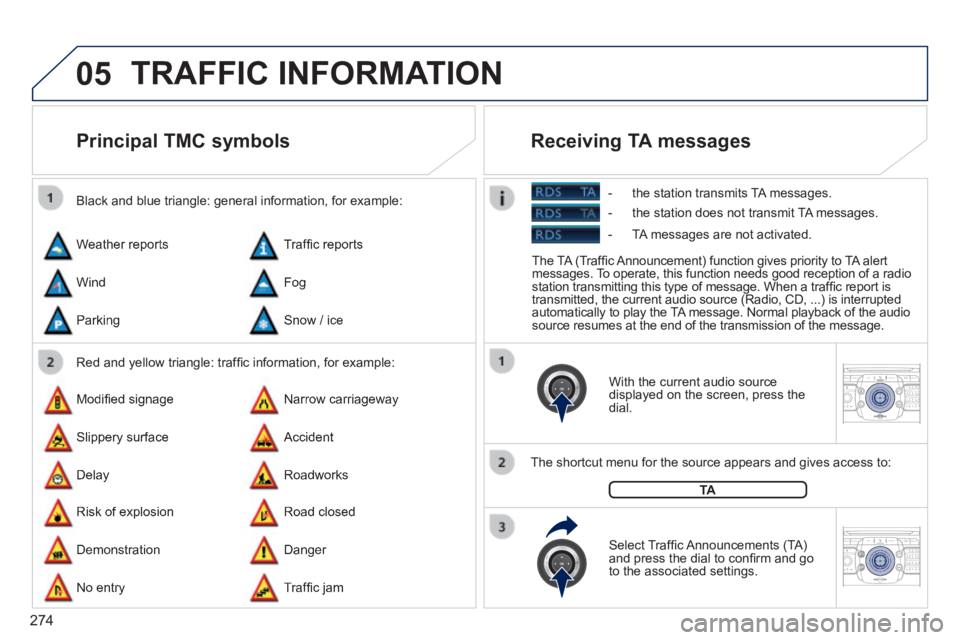
Principal TMC symbols
Red and yellow triangle: traffi c information, for example:
Black and blue triangle: general information, for example:
Weather reports
Modifi ed signage
Risk of explosion
Traffi c reports
Narrow carriageway
Road closed
Wind
Slippery surface
Demonstration
Fog
Accident
Danger
Parking
Delay
No entry
Snow / ice
Roadworks
Traffi c jam
With the current audio source displayed on the screen, press the dial.
The shortcut menu for the source appears and gives access to:
Select Traffi c Announcements (TA) and press the dial to confi rm and go to the associated settings.
TA
The TA (Traffi c Announcement) function gives priority to TA alert messages. To operate, this function needs good reception of a radio station transmitting this type of message. When a traffi c report is transmitted, the current audio source (Radio, CD, ...) is interrupted automatically to play the TA message. Normal playback of the audio source resumes at the end of the transmission of the message.
Receiving TA messages
- the station transmits TA messages.
- the station does not transmit TA messages.
- TA messages are not activated.
Page 277 of 389
275
06
RADIO
2ABC3DEF5JKL4GHI6MNO8TUV7PQR S9WXYZ0*#
1RADIO MEDIA NA
V TRAFFIC
SETUPADDR
BOOK
2ABC3DEF5JKL4GHI6MNO8TUV7PQR S9WXYZ0*#
1RADIO MEDIA NA
V TRAFFIC
SETUPADDR
BOOK
2ABC3DEF5JKL4GHI6MNO8TUV7PQR S9WXYZ0*#
1RADIO MEDIA NA
V TRAFFIC
SETUPADDR
BOOK2ABC3DEF5JKL4GHI6MNO8TUV7PQR S9WXYZ0*#
1RADIO MEDIA NA
V TRAFFIC
SETUPADDR
BOOK
RADIO NA
V TRAFFICMEDIA
RADIO NA
V TRAFFICMEDIA
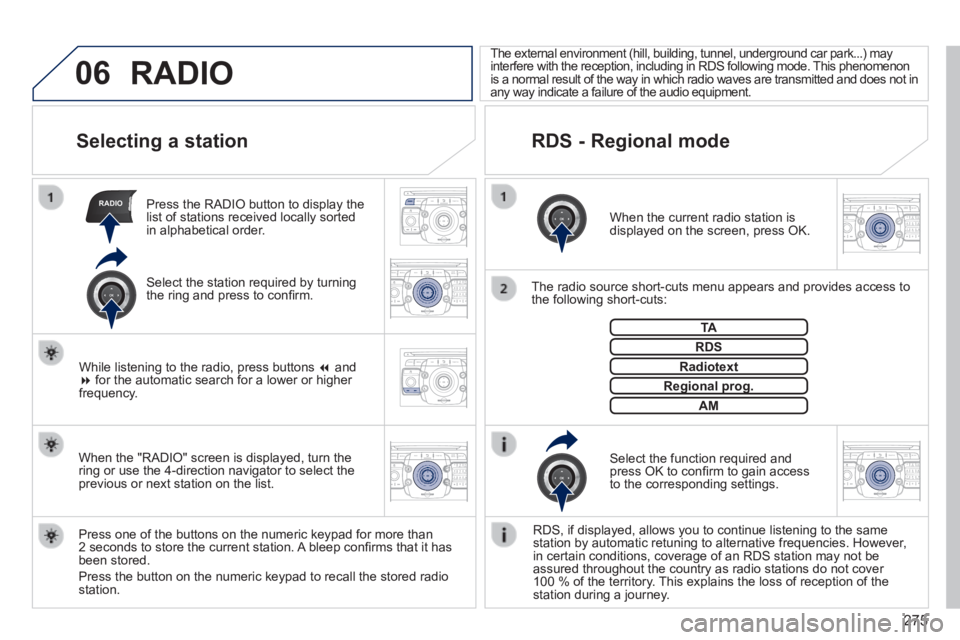
Selecting a station
When the current radio station is displayed on the screen, press OK.
The radio source short-cuts menu appears and provides access to the following short-cuts:
Select the function required and press OK to confi rm to gain access to the corresponding settings.
TA
RDS, if displayed, allows you to continue listening to the same station by automatic retuning to alternative frequencies. However, in certain conditions, coverage of an RDS station may not be assured throughout the country as radio stations do not cover 100 % of the territory. This explains the loss of reception of the station during a journey.
The external environment (hill, building, tunnel, underground car park.\
..) may interfere with the reception, including in RDS following mode. This phenomenon is a normal result of the way in which radio waves are transmitted and d\
oes not in any way indicate a failure of the audio equipment.
RDS - Regional mode
Press the RADIO button to display the list of stations received locally sorted in alphabetical order.
Press one of the buttons on the numeric keypad for more than 2 seconds to store the current station. A bleep confi rms that it has been stored.
Press the button on the numeric keypad to recall the stored radio station.
RDS
Radiotext
Regional prog.Regional prog.
RADIO
When the "RADIO" screen is displayed, turn the ring or use the 4-direction navigator to select the previous or next station on the list.
While listening to the radio, press buttons and for the automatic search for a lower or higher frequency.
Select the station required by turning the ring and press to confi rm.
AM
Page 278 of 389
276
07 MUSIC MEDIA PLAYERS
CD, MP3 / WMA CD, MP3 / WMA SD card /
USB player
In order to be able to play a recorded CDR or CDRW, when recording it is preferable to select the ISO 9660 level 1, 2 or Joliet standard.
If the disc is recorded in another format it may not be played correctly.
It is recommended that the same recording standard is always used for an individual disc, with as low a speed as possible (4x maximum) for optimum sound quality.
In the particular case of a multi-session CD, the Joliet standard is recommended.
The audio equipment will only play audio fi les with the extension ".mp3" with a speed of between 8 Kbps and 320 Kbps and the extension ".wma" with a speed of between 5 Kbps and 384 Kbps.
It also supports the VBR (Variable Bit Rate) mode.
No other type of fi le (.mp4, .m3u...) can be played.
The MP3 format, an abbreviation of MPEG 1, 2 & 2.5 Audio Layer 3 and the WMA format, an abbreviation of Windows Media Audio and the property of Microsoft, are audio compression standards which permit the recording of several tens of music fi les on a single disc.
Connecting an iPod:
To play MP3 type fi les, connect the iPod using the USB port (limited functions).
To play ITunes fi les, connect the iPod using the auxiliary socket (AUX).
In order to be read, a USB memory stick must be formatted to FAT 32.
It is advisable to restrict fi le names to 20 characters, without using of special characters (e.g.: " " ? ; ù) to avoid any playing and displaying problems.
During play, exit the "SD-Card" or "USB" source before removing the SD card or the USB memory stick from its port.
To avoid any risk of theft, remove the SD card or the USB memory stick when you leave your vehicle with the roof open.
Information and advice
Page 279 of 389
277
07
MEDIA
2ABC3DEF5JKL4GHI6MNO8TU V7PQRS9WXYZ0*#
1RADIOM EDIA NA
V ESC TRAFFIC
SETUPADDR
BOOK
2AB C3DEF5JKL4GHI6MNO8TUV7PQR S9WXYZ0*#
1RADIO MEDIA NA
V TRAFFIC
SETUPADDR
BOOK
2ABC3DEF5JKL4GHI6MNO8TUV7PQR S9WXYZ0*#
1RADIO MEDIA NA
V TRAFFIC
SETUPADDR
BOOK
2ABC3DEF5JKL4GHI6MNO8TUV7PQR S9WXYZ0*#
1RADIO MEDIA NA
V TRAFFIC
SETUPADDR
BOOK
2ABC3DEF5JKL4GHI6MNO8TUV7PQR S9WXYZ0*#
1RADIO MEDIA NA
V TRAFFIC
SETUPADDR
BOOK
2ABC3DEF5JKL4GHI6MNO8TUV7PQR S9WXYZ0*#
1RADIO MEDIA NA
V TRAFFIC
SETUPADDR
BOOK
RADIO NA
V TRAFFICMEDIA
Selecting / Playing
CD, MP3 / WMA CD, MP3 / WMA SD card /
USB player
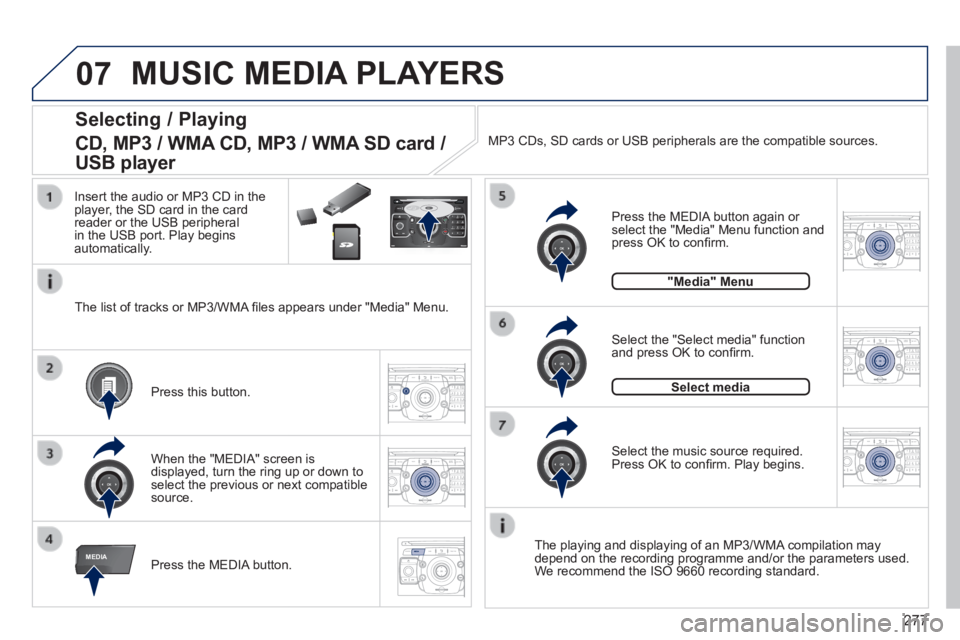
The playing and displaying of an MP3/WMA compilation may depend on the recording programme and/or the parameters used. We recommend the ISO 9660 recording standard. Press the MEDIA button.
Select the "Select media" function and press OK to confi rm.
Press this button.
Select the music source required. Press OK to confi rm. Play begins.
Select media
Press the MEDIA button again or select the "Media" Menu function and press OK to confi rm.
When the "MEDIA" screen is displayed, turn the ring up or down to select the previous or next compatible source.
"Media" Menu
The list of tracks or MP3/WMA fi les appears under "Media" Menu.
Insert the audio or MP3 CD in the player, the SD card in the card reader or the USB peripheral in the USB port. Play begins automatically.
MP3 CDs, SD cards or USB peripherals are the compatible sources.
MUSIC MEDIA PLAYERS
Page 280 of 389
278
07
MEDIA
2ABC3DEF5JKL4GHI6MNO8TU V7PQRS9WXYZ0*#
1RADIOM EDIA NA
V ESC TRAFFIC
SETUPADDR
BOOK
2AB C3DEF5JKL4GHI6MNO8TUV7PQR S9WXYZ0*#
1RADIO MEDIA NA
V TRAFFIC
SETUPADDR
BOOK
2ABC3DEF5JKL4GHI6MNO8TUV7PQR S9WXYZ0*#
1RADIO MEDIA NA
V TRAFFIC
SETUPADDR
BOOK
2ABC3DEF5JKL4GHI6MNO8TUV7PQR S9WXYZ0*#
1RADIO MEDIA NA
V TRAFFIC
SETUPADDR
BOOK
2ABC3DEF5JKL4GHI6MNO8TUV7PQR S9WXYZ0*#
1RADIO MEDIA NA
V TRAFFIC
SETUPADDR
BOOK
2ABC3DEF5JKL4GHI6MNO8TUV7PQR S9WXYZ0*#
1RADIO MEDIA NA
V TRAFFIC
SETUPADDR
BOOK
2ABC3DEF5JKL4GHI6MNO8TUV7PQR S9WXYZ0*#
1RADIO MEDIA NA
V TRAFFIC
SETUPADDR
BOOK
2ABC3DEF5JKL4GHI6MNO8TUV7PQR S9WXYZ0*#
1RADIO MEDIA NA
V TRAFFIC
SETUPADDR
BOOK
RADIO NA
V TRAFFICMEDIA
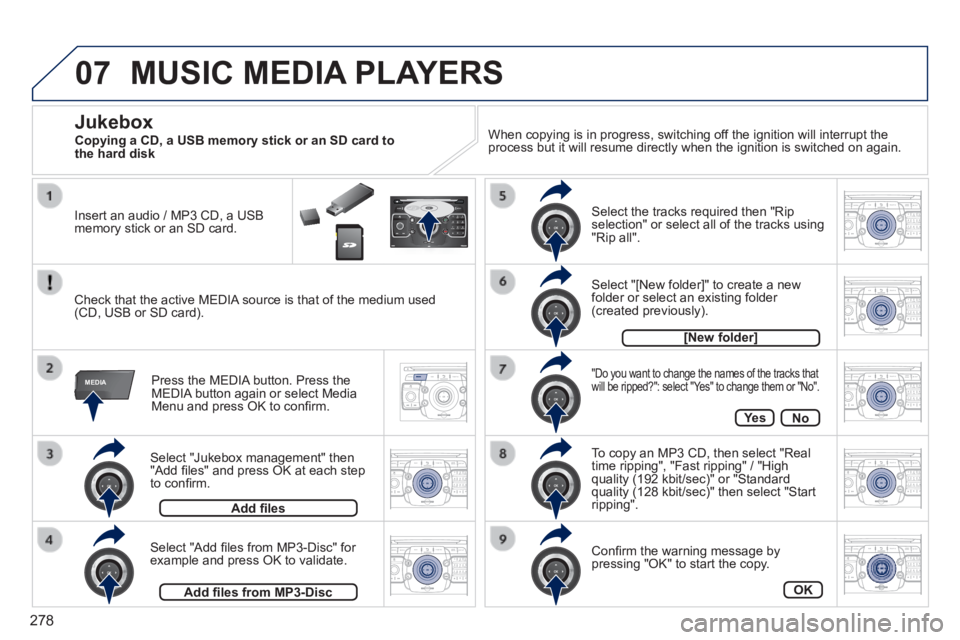
Select "Jukebox management" then "Add fi les" and press OK at each step to confi rm.
Press the MEDIA button. Press the MEDIA button again or select Media Menu and press OK to confi rm.
Insert an audio / MP3 CD, a USB memory stick or an SD card.
Jukebox
Add fi les
Check that the active MEDIA source is that of the medium used (CD, USB or SD card).
Select "Add fi les from MP3-Disc" for example and press OK to validate.
Select the tracks required then "Rip selection" or select all of the tracks using "Rip all".
Select "[New folder]" to create a new folder or select an existing folder (created previously).
Add fi les from MP3-Disc
[New folder]
"Do you want to change the names of the tracks that will be ripped?": select "Yes" to change them or "No".
To copy an MP3 CD, then select "Real time ripping", "Fast ripping" / "High quality (192 kbit/sec)" or "Standard quality (128 kbit/sec)" then select "Start ripping".
Confi rm the warning message by pressing "OK" to start the copy.
OK
Ye sNo
When copying is in progress, switching off the ignition will interrupt the process but it will resume directly when the ignition is switched on aga\
in.
MUSIC MEDIA PLAYERS
Copying a CD, a USB memory stick or an SD card to the hard disk