display Peugeot 308 2015 User Guide
[x] Cancel search | Manufacturer: PEUGEOT, Model Year: 2015, Model line: 308, Model: Peugeot 308 2015Pages: 416, PDF Size: 11.81 MB
Page 37 of 416
35
308_en_Chap01_controle-de-marche_ed01-2015
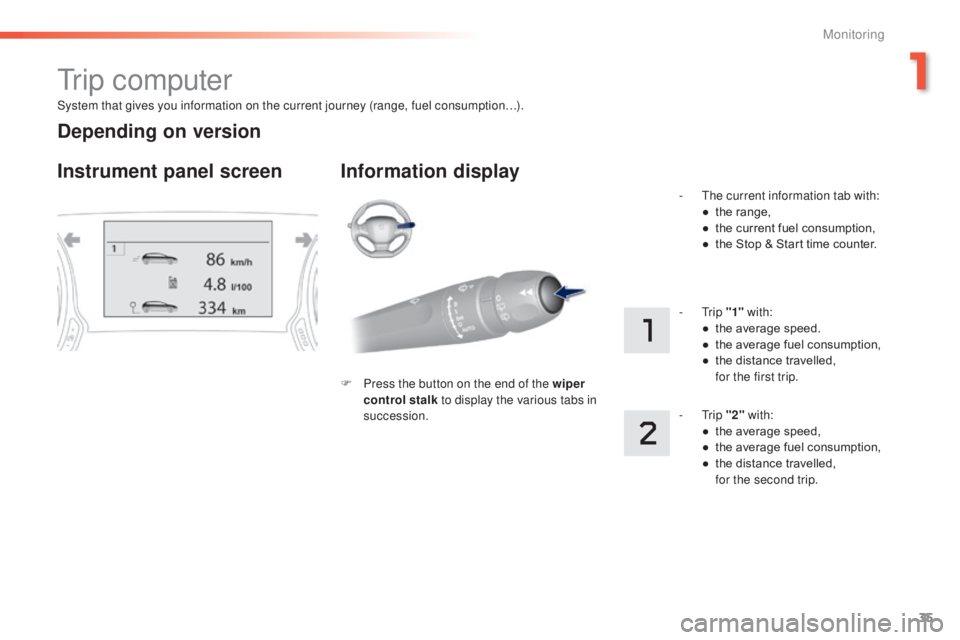
System that gives you information on the current journey (range, fuel consumption…).
tr i p c o m p u t e r
Instrument panel screen Information display
F Press the button on the end of the wiper control stalk to display the various tabs in
succession. -
t
h
e current information tab with:
●
t
he range,
●
t
he current fuel consumption,
●
t
he Stop & Start time counter.
- t
r
ip
"1" with:
●
t
he average speed.
●
t
he average fuel consumption,
●
t
he distance travelled, f
or the first trip.
- t
r
ip "2" with:
●
t
he average speed,
●
t
he average fuel consumption,
●
t
he distance travelled,
f
or the second trip.
Depending on version
1
Monitoring
Page 38 of 416
36
308_en_Chap01_controle-de-marche_ed01-2015
Trip reset
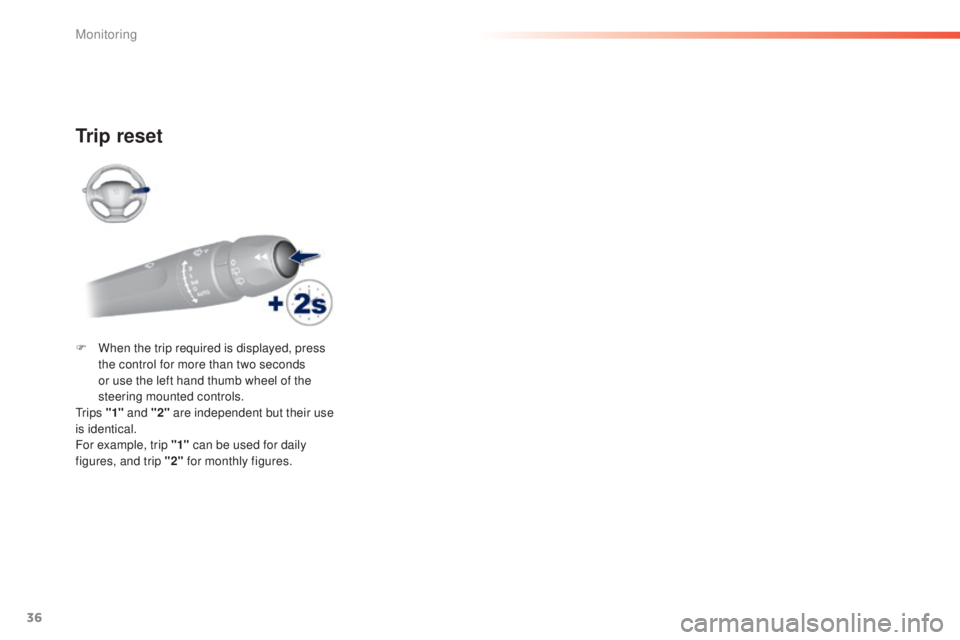
F When the trip required is displayed, press the control for more than two seconds
or use the left hand thumb wheel of the
steering mounted controls.
t
r i p s "1" and "2" are independent but their use
is identical.
For example, trip "1" can be used for daily
figures, and trip "2" for monthly figures.
Monitoring
Page 39 of 416
37
308_en_Chap01_controle-de-marche_ed01-2015
tr i p c o m p u t e r
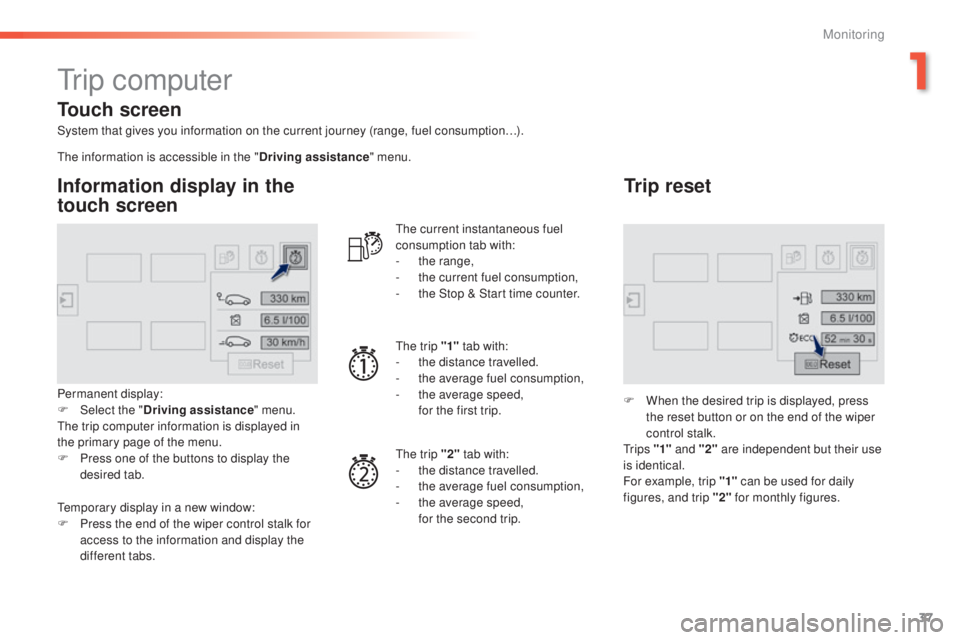
System that gives you information on the current journey (range, fuel consumption…).
Information display in the
touch screen
Permanent display:
F Sel ect the " Driving assistance " menu.
th
e trip computer information is displayed in
the primary page of the menu.
F
P
ress one of the buttons to display the
desired tab.
th
e current instantaneous fuel
consumption tab with:
-
t
he range,
-
t
he current fuel consumption,
-
t
he Stop & Start time counter.
th
e trip "1"
tab with:
-
t
he distance travelled.
- t he average fuel consumption,
- t he average speed,
f
or the first trip.
th
e trip "2" tab with:
-
t
he distance travelled.
-
t
he average fuel consumption,
-
t
he average speed,
f
or the second trip.
Trip reset
F When the desired trip is displayed, press the reset button or on the end of the wiper
control stalk.
t
r i p s "1" and "2" are independent but their use
is identical.
For example, trip "1" can be used for daily
figures, and trip "2" for monthly figures.
th
e information is accessible in the "
Driving assistance" menu.
te
mporary display in a new window:
F
P
ress the end of the wiper control stalk for
access to the information and display the
different tabs.
Touch screen
1
Monitoring
Page 40 of 416
38
308_en_Chap01_controle-de-marche_ed01-2015
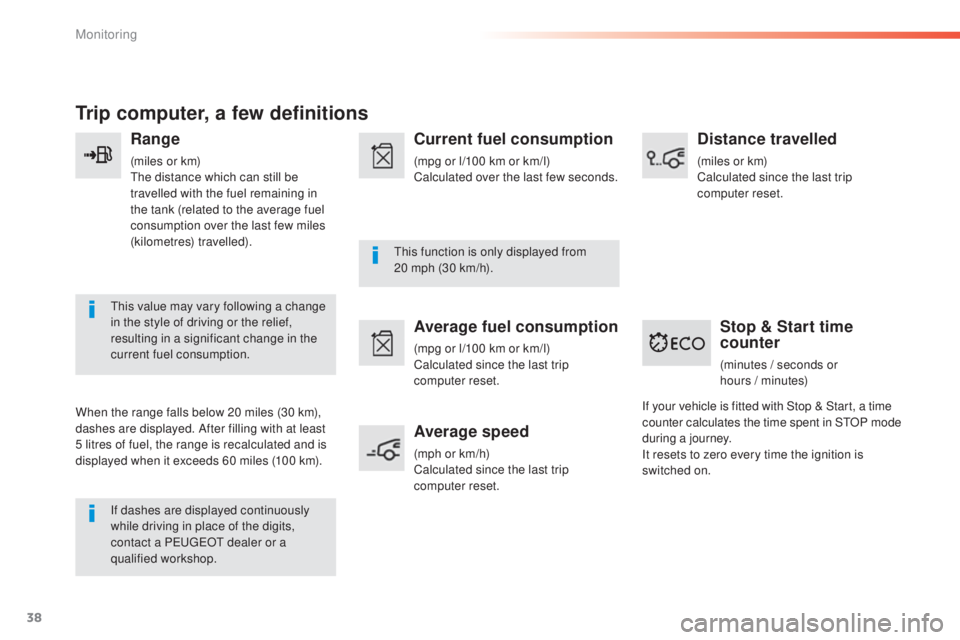
Trip computer, a few definitions
Range
(miles or km)the distance which can still be
travelled with the fuel remaining in
the tank (related to the average fuel
consumption over the last few miles
(kilometres) travelled).
th
is value may vary following a change
in the style of driving or the relief,
resulting in a significant change in the
current fuel consumption.
When the range falls below 20 miles (30 km),
dashes are displayed. After filling with at least
5 litres of fuel, the range is recalculated and is
displayed when it exceeds 60 miles (100 km). If dashes are displayed continuously
while driving in place of the digits,
contact a P
e
uge
Ot
dealer or a
qualified workshop.
th
is function is only displayed from
20
mph (30 km/h).
Current fuel consumption
(mpg or l/100 km or km/l)
Calculated over the last few seconds.
Average fuel consumption
(mpg or l/100 km or km/l)
Calculated since the last trip
computer reset.
Average speed
(mph or km/h)
Calculated since the last trip
computer reset.
Distance travelled
(miles or km)
Calculated since the last trip
computer reset.
Stop & Start time
counter
(minutes / seconds or
h ours / minutes)
If your vehicle is fitted with Stop & Start, a time
counter calculates the time spent in S
tO
P mode
during a journey.
It resets to zero every time the ignition is
switched on.
Monitoring
Page 41 of 416
39
308_en_Chap01_controle-de-marche_ed01-2015
touch screen
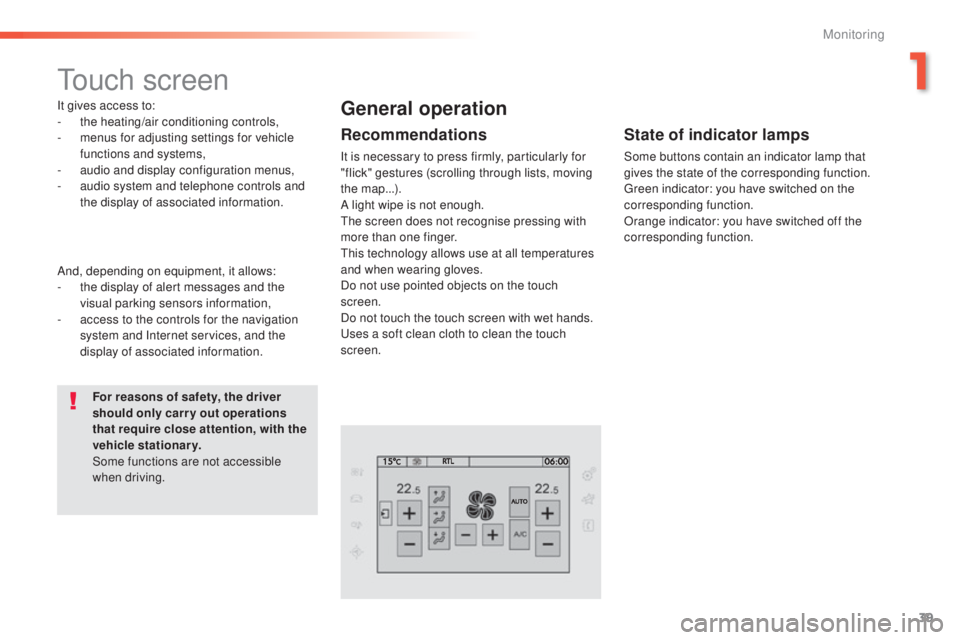
It gives access to:
- the heating/air conditioning controls,
-
m
enus for adjusting settings for vehicle
functions and systems,
-
a
udio and display configuration menus,
-
a
udio system and telephone controls and
the display of associated information.
For reasons of safety, the driver
should only carr y out operations
that require close attention, with the
vehicle stationary.
Some functions are not accessible
when driving.General operation
Recommendations
It is necessary to press firmly, particularly for
"flick" gestures (scrolling through lists, moving
the map...).
A light wipe is not enough.
th
e screen does not recognise pressing with
more than one finger.
th
is technology allows use at all temperatures
and when wearing gloves.
Do not use pointed objects on the touch
screen.
Do not touch the touch screen with wet hands.
us
es a soft clean cloth to clean the touch
screen.
And, depending on equipment, it allows:
-
t
he display of alert messages and the
visual parking sensors information,
-
a
ccess to the controls for the navigation
system and Internet services, and the
display of associated information.
State of indicator lamps
Some buttons contain an indicator lamp that
gives the state of the corresponding function.
gr
een indicator: you have switched on the
corresponding function.
Orange indicator: you have switched off the
corresponding function.
1
Monitoring
Page 42 of 416
40
308_en_Chap01_controle-de-marche_ed01-2015
use this button to go to the
secondary page.
us
e this button to return to the
primary page.
us
e this button for access to
additional information and to the
settings for certain functions.
us
e this button to confirm.
us
e this button to quit.
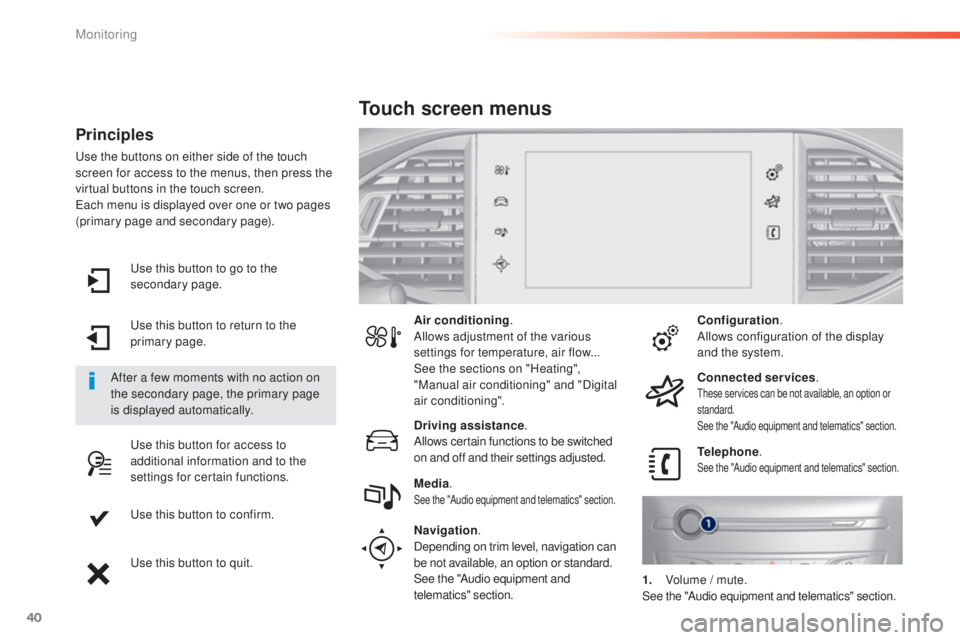
Principles
use the buttons on either side of the touch
screen for access to the menus, then press the
virtual buttons in the touch screen.
ea
ch menu is displayed over one or two pages
(primary page and secondary page).
After a few moments with no action on
the secondary page, the primary page
is displayed automatically. Air conditioning
.
Allows adjustment of the various
settings for temperature, air flow...
See the sections on "Heating",
"Manual air conditioning" and "Digital
air conditioning".
Touch screen menus
Driving assistance .
Allows certain functions to be switched
on and off and their settings adjusted. Telephone
.
See the "Audio equipment and telematics" section.Media.See the "Audio equipment and telematics" section.
Navigation .
Depending on trim level, navigation can
be not available, an option or standard.
See the "Audio equipment and
telematics" section. Configuration
.
Allows configuration of the display
and the system.
Connected services .
these services can be not available, an option or
standard.
See the "Audio equipment and telematics" section.
1. Volume / mute.See the "Audio equipment and telematics" section.
Monitoring
Page 44 of 416
42
308_en_Chap01_controle-de-marche_ed01-2015
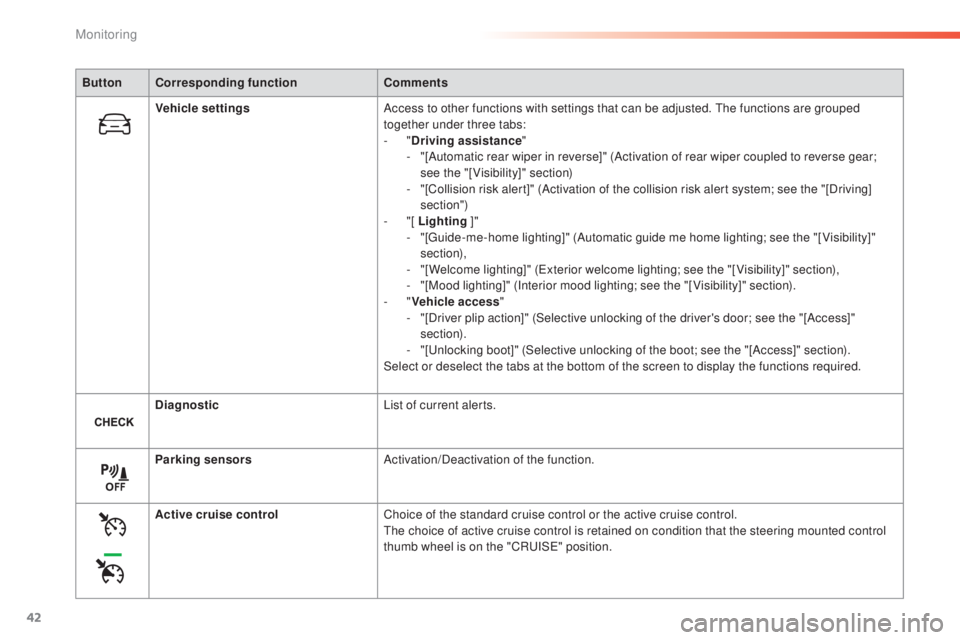
ButtonCorresponding function Comments
Vehicle settings Access to other functions with settings that can be adjusted.
t
h
e functions are grouped
together under three tabs:
-
"Driving assistance "
-
"
[Automatic rear wiper in reverse]" (Activation of rear wiper coupled to reverse gear;
see the "[Visibility]" section)
-
"
[Collision risk alert]" (Activation of the collision risk alert system; see the "[Driving]
section")
-
"[ Lighting ]"
-
"
[
gu
ide-me-home lighting]" (Automatic guide me home lighting; see the "[ Visibility]"
section),
-
"
[Welcome lighting]" (
ex
terior welcome lighting; see the "[ Visibility]" section),
-
"
[Mood lighting]" (Interior mood lighting; see the "[ Visibility]" section).
-
"Vehicle access "
-
"
[Driver plip action]" (Selective unlocking of the driver's door; see the "[Access]"
section).
-
"
[
un
locking boot]" (Selective unlocking of the boot; see the "[Access]" section).
Select or deselect the tabs at the bottom of the screen to display the functions required.
Diagnostic List of current alerts.
Parking sensors Activation/Deactivation of the function.
Active cruise control Choice of the standard cruise control or the active cruise control.
th
e choice of active cruise control is retained on condition that the steering mounted control
thumb wheel is on the "CR
uI
S
e" p
osition.
Monitoring
Page 45 of 416
43
308_en_Chap01_controle-de-marche_ed01-2015
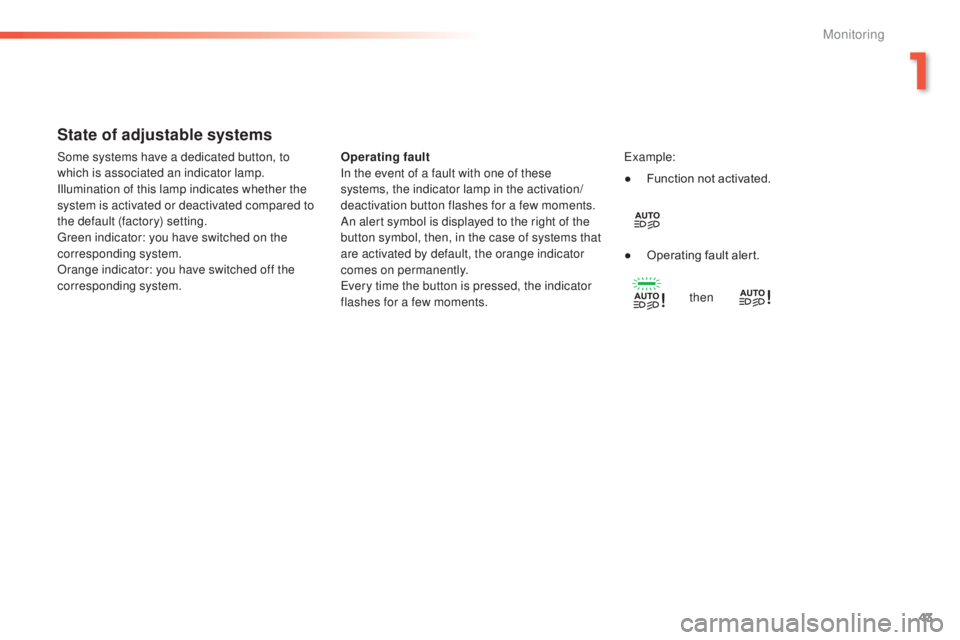
State of adjustable systems
Operating fault
In the event of a fault with one of these
systems, the indicator lamp in the activation/
deactivation button flashes for a few moments.
An alert symbol is displayed to the right of the
button symbol, then, in the case of systems that
are activated by default, the orange indicator
comes on permanently.
ev
ery time the button is pressed, the indicator
flashes for a few moments.ex ample:
Some systems have a dedicated button, to
which is associated an indicator lamp.
Illumination of this lamp indicates whether the
system is activated or deactivated compared to
the default (factory) setting.
gr
een indicator: you have switched on the
corresponding system.
Orange indicator: you have switched off the
corresponding system. ●
F
unction not activated.
●
O
perating fault alert.then
1
Monitoring
Page 47 of 416
45
308_en_Chap01_controle-de-marche_ed01-2015
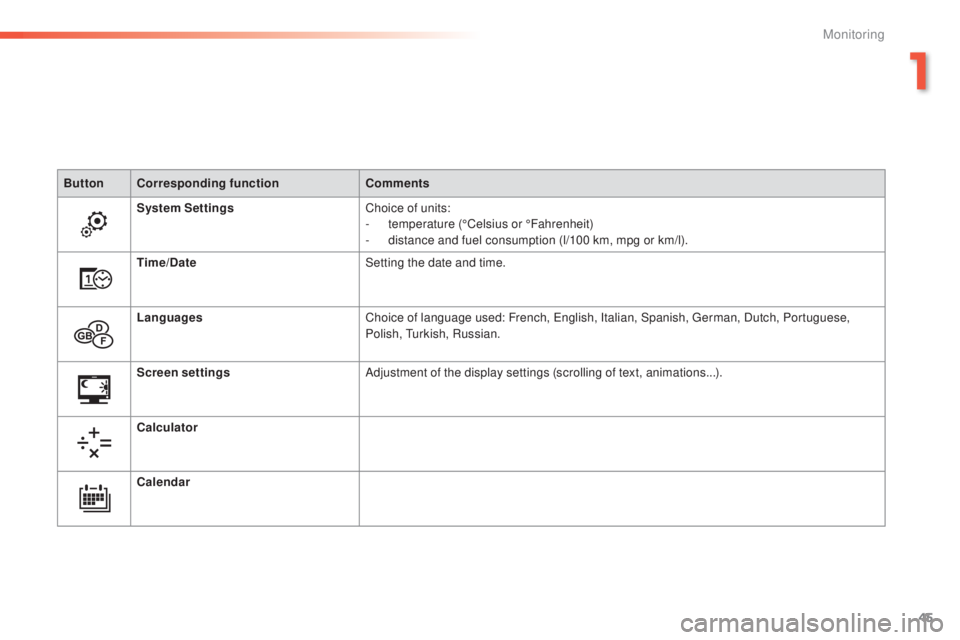
ButtonCorresponding function Comments
System Settings Choice of units:
-
t
emperature (°Celsius or °Fahrenheit)
-
d
istance and fuel consumption (l/100 km, mpg or km/l).
Time/Date Setting the date and time.
Languages Choice of language used: French,
e
n
glish, Italian, Spanish, g
e
rman, Dutch, Portuguese,
Polish,
t
u
rkish, Russian.
Screen settings Adjustment of the display settings (scrolling of text, animations...).
Calculator
Calendar
1
Monitoring
Page 49 of 416
47
308_en_Chap01_controle-de-marche_ed01-2015
For more information on the
Multimedia menu, refer to the "Audio
equipment and telematics" section.
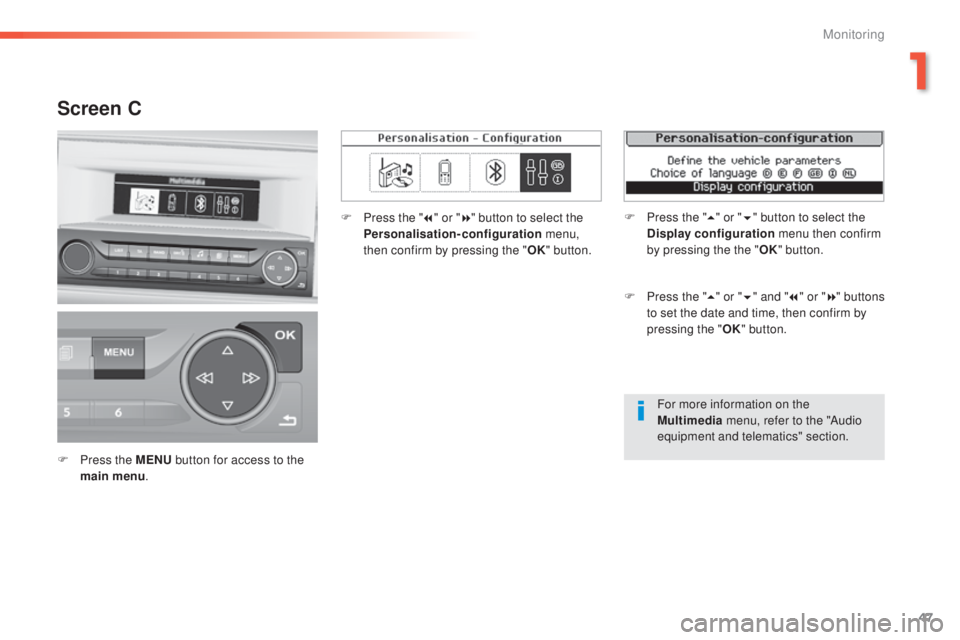
Screen C
F Press the MENU button for access to the
main menu . F
P
ress the "
7" or " 8" button to select the
Personalisation-configuration menu,
then confirm by pressing the " OK" button.
F
P
ress the "
5" or " 6" and " 7" or " 8" buttons
to set the date and time, then confirm by
pressing the " OK" button.
F
P
ress the "
5" or " 6" button to select the
Display configuration menu then confirm
by pressing the the " OK" button.
1
Monitoring