ECO mode PEUGEOT 308 2022 Repair Manual
[x] Cancel search | Manufacturer: PEUGEOT, Model Year: 2022, Model line: 308, Model: PEUGEOT 308 2022Pages: 260, PDF Size: 7.92 MB
Page 214 of 260
212
PEUGEOT i-Connect Advanced - PEUGEOT i-Connect
In order to make your system’s
Bluetooth® visible, first open the "My
Devices " menu on the system.
Continue the first connection procedure
proposed by the system and on the device.
For example: validating pairing codes.
Pairing procedure from the system
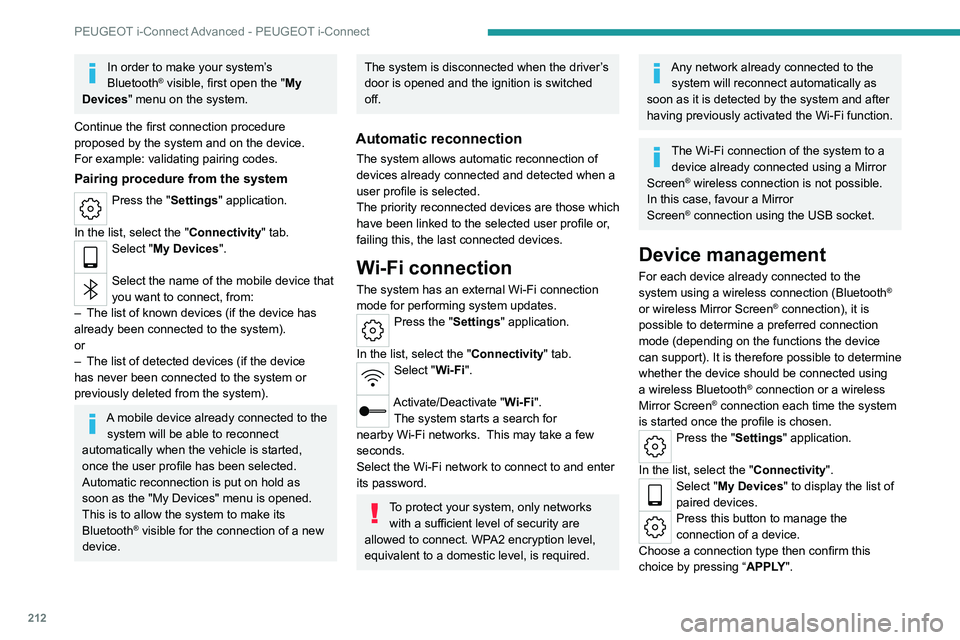
Press the "Settings" application.
In the list, select the "Connectivity" tab.
Select "My Devices ".
Select the name of the mobile device that
you want to connect, from:
–
The list of known devices (if the device has
already been connected to the system).
or
–
The list of detected devices (if the device
has never been connected to the system or
previously deleted from the system).
A mobile device already connected to the system will be able to reconnect
automatically when the vehicle is started,
once the user profile has been selected.
Automatic reconnection is put on hold as
soon as the "My Devices" menu is opened.
This is to allow the system to make its
Bluetooth
® visible for the connection of a new
device.
The system is disconnected when the driver’s
door is opened and the ignition is switched
off.
Automatic reconnection
The system allows automatic reconnection of
devices already connected and detected when a
user profile is selected.
The priority
reconnected devices are those which
have been linked to the selected user profile or,
failing this, the last connected devices.
Wi-Fi connection
The system has an external Wi-Fi connection
mode for performing system updates.
Press the "Settings" application.
In the list, select the "Connectivity" tab.
Select "Wi-Fi".
Activate/Deactivate "Wi-Fi". The system starts a search for
nearby
Wi-Fi networks. This may take a few
seconds.
Select the Wi-Fi network to connect to and enter
its password.
To protect your system, only networks with a sufficient level of security are
allowed to connect. WPA2 encryption level,
equivalent to a domestic level, is required.
Any network already connected to the system will reconnect automatically as
soon as it is detected by the system and after
having previously activated the Wi-Fi function.
The Wi-Fi connection of the system to a device already connected using a Mirror
Screen
® wireless connection is not possible.
In this case, favour a Mirror
Screen
® connection using the USB socket.
Device management
For each device already connected to the
system using a wireless connection (Bluetooth®
or wireless Mirror Screen® connection), it is
possible to determine a preferred connection
mode (depending on the functions the device
can support). It is therefore possible to determine
whether the device should be connected using
a wireless Bluetooth
® connection or a wireless
Mirror Screen® connection each time the system
is started once the profile is chosen.
Press the "Settings" application.
In the list, select the "Connectivity".
Select "My Devices " to display the list of
paired devices.
Press this button to manage the
connection of a device.
Choose a connection type then confirm this
choice by pressing “ APPLY".
Page 215 of 260
213
PEUGEOT i-Connect Advanced - PEUGEOT i-Connect
10Deleting a device
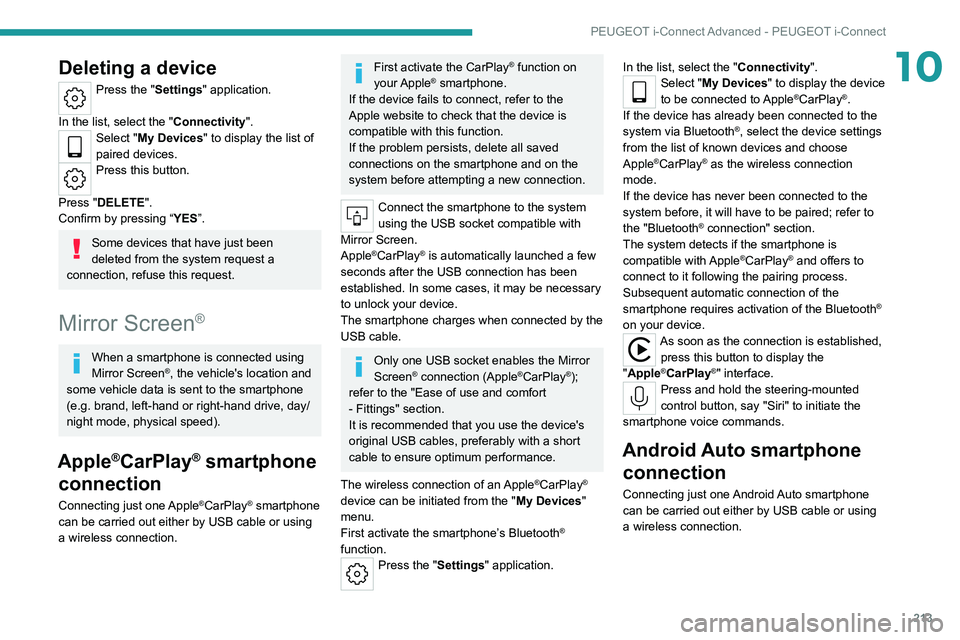
Press the "Settings" application.
In the list, select the "Connectivity".
Select "My Devices " to display the list of
paired devices.
Press this button.
Press "DELETE".
Confirm by pressing “ YES”.
Some devices that have just been
deleted from the system request a
connection, refuse this request.
Mirror Screen®
When a smartphone is connected using
Mirror Screen®, the vehicle's location and
some vehicle data is sent to the smartphone
(e.g. brand, left-hand or right-hand drive, day/
night mode, physical speed).
Apple®CarPlay® smartphone
connection
Connecting just one Apple®CarPlay® smartphone
can be carried out either by
USB cable or using
a wireless connection.
First activate the CarPlay® function on
your Apple® smartphone.
If the device fails to connect, refer to the
Apple website to check that the device is
compatible with this function.
If the problem persists, delete all saved
connections on the smartphone and on the
system before attempting a new connection.
Connect the smartphone to the system
using the USB socket compatible with
Mirror Screen.
Apple
®CarPlay® is automatically launched a few
seconds after the USB connection has been
established. In some cases, it may be necessary
to unlock your device.
The smartphone charges when connected by the
USB cable.
Only one USB socket enables the Mirror
Screen® connection (Apple®CarPlay®);
refer to the "Ease of use and comfort
- Fittings" section.
It is recommended that you use the device's
original USB cables, preferably with a short
cable to ensure optimum performance.
The wireless connection of an
Apple®CarPlay®
device can be initiated from the " My Devices"
menu.
First activate the smartphone’s Bluetooth
®
function.
Press the "Settings" application. In the list, select the "Connectivity".
Select "My Devices
" to display the device
to be connected to Apple®CarPlay®.
If the device has already been connected to the
system via Bluetooth
®, select the device settings
from the list of known devices and choose
Apple
®CarPlay® as the wireless connection
mode.
If the device has never been connected to the
system before, it will have to be paired; refer to
the "Bluetooth
® connection" section.
The system detects if the smartphone is
compatible with Apple
®CarPlay® and offers to
connect to it following the pairing process.
Subsequent automatic connection of the
smartphone requires activation of the Bluetooth
®
on your device.
As soon as the connection is established, press this button to display the
"Apple
®CarPlay®" interface.Press and hold the steering-mounted
control button, say "Siri" to initiate the
smartphone voice commands.
Android Auto smartphone connection
Connecting just one Android Auto smartphone
can be carried out either by USB cable or using
a wireless connection.
Page 216 of 260
214
PEUGEOT i-Connect Advanced - PEUGEOT i-Connect
Install the "Android Auto" application on
the smartphone via "Play Store".
The "Android Auto" function requires a
compatible smartphone.
If the device fails to connect, refer to the
Android Auto website to check that the device
is compatible with this function.
If the problem persists, delete all saved
connections on the smartphone and on the
system before attempting a new connection.
To ensure an optimum wireless connection,
we recommend avoiding placing your
smartphone too close to other Wi-Fi networks
to which it can connect automatically.
Connect the smartphone to the system
using the USB socket compatible with
Mirror Screen
®.
Android Auto is automatically launched a few
seconds after the USB connection has been
established. A validation procedure on the
smartphone has to be followed for the first
connection, with the vehicle stationary.
The smartphone charges when connected by the
USB cable.
Only one USB socket enables the Mirror
Screen® connection (Android Auto); refer
to the "Ease of use and comfort - Fittings"
section.
It is recommended that you use the device's
original USB cables, preferably with a short
cable to ensure optimum performance. The wireless connection of an Android Auto
device can be initiated from the "
My Devices"
menu.
First activate the smartphone’s Bluetooth
®
function.
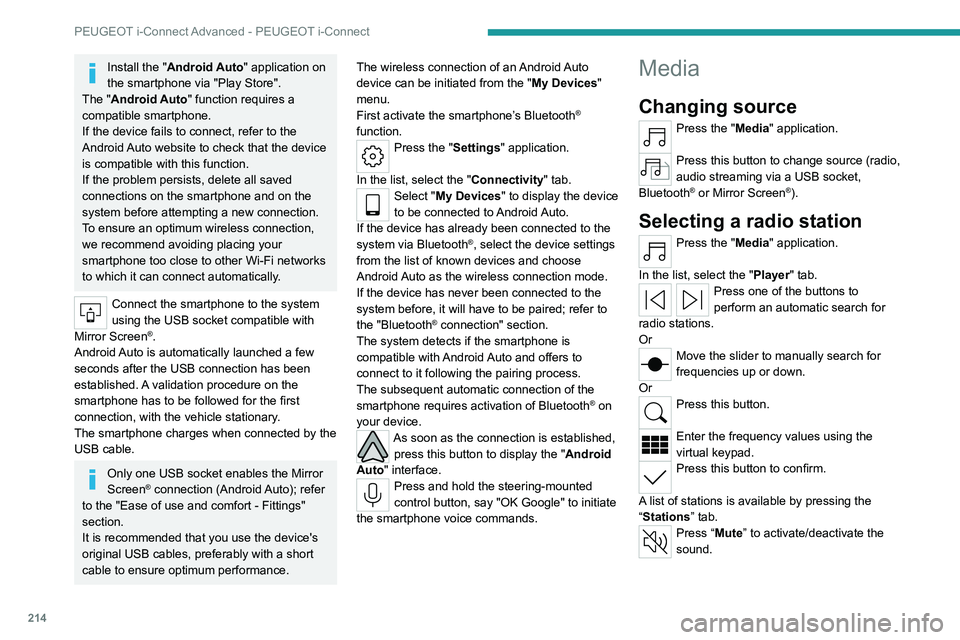
Press the "Settings" application.
In the list, select the "Connectivity" tab.
Select "My Devices " to display the device
to be connected to Android Auto.
If the device has already been connected to the
system via
Bluetooth
®, select the device settings
from the list of known devices and choose
Android Auto as the wireless connection mode.
If the device has never been connected to the
system before, it will have to be paired; refer to
the "Bluetooth
® connection" section.
The system detects if the smartphone is
compatible with Android Auto and offers to
connect to it following the pairing process.
The subsequent automatic connection of the
smartphone requires activation of Bluetooth
® on
your device.
As soon as the connection is established, press this button to display the " Android
Auto" interface.
Press and hold the steering-mounted
control button, say "OK Google" to initiate
the smartphone voice commands.
Media
Changing source
Press the "Media" application.
Press this button to change source (radio,
audio streaming via a USB socket,
Bluetooth
® or Mirror Screen®).
Selecting a radio station
Press the "Media" application.
In the list, select the "Player" tab.
Press one of the buttons to
perform an automatic search for
radio stations.
Or
Move the slider to manually search for
frequencies up or down.
Or
Press this button.
Enter the frequency values using the
virtual keypad.
Press this button to confirm.
A list of stations is available by pressing the
“Stations” tab.
Press “Mute” to activate/deactivate the
sound.
Page 218 of 260
216
PEUGEOT i-Connect Advanced - PEUGEOT i-Connect
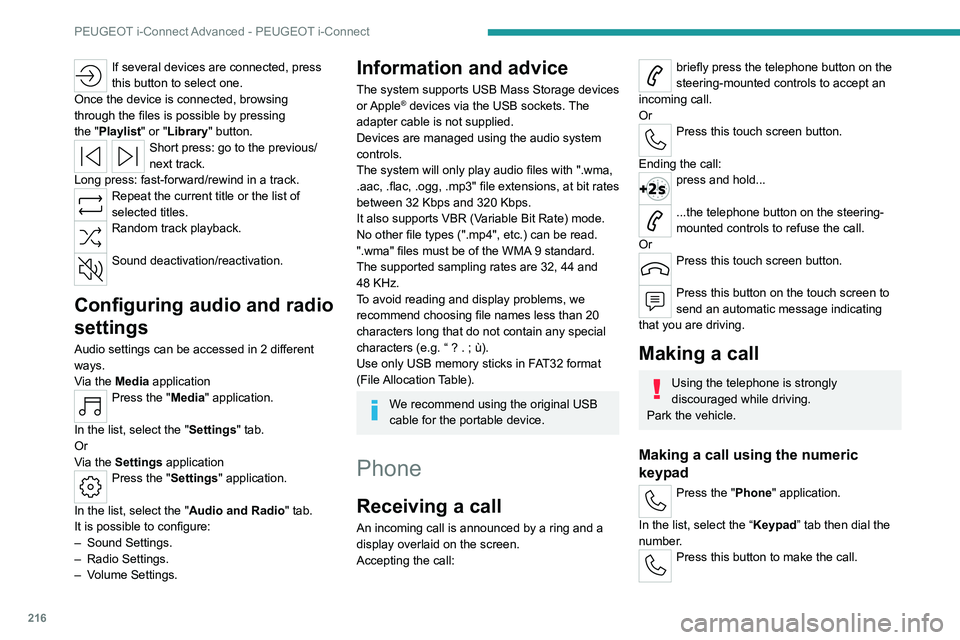
If several devices are connected, press
this button to select one.
Once the device is connected, browsing
through the files is possible by pressing
the
"Playlist" or "Library" button.
Short press: go to the previous/
next track.
Long press: fast-forward/rewind in a track.
Repeat the current title or the list of
selected titles.
Random track playback.
Sound deactivation/reactivation.
Configuring audio and radio
settings
Audio settings can be accessed in 2 different
ways.
Via the Media application
Press the "Media" application.
In the list, select the "Settings" tab.
Or
Via the Settings application
Press the "Settings" application.
In the list, select the "Audio and Radio " tab.
It is possible to configure:
–
Sound Settings.
–
Radio Settings.
–
V
olume Settings.
Information and advice
The system supports USB Mass Storage devices
or Apple® devices via the USB sockets. The
adapter cable is not supplied.
Devices are managed using the audio system
controls.
The system will only play audio files with ".wma,
.aac,
.flac, .ogg, .mp3" file extensions, at bit rates
between 32 Kbps and 320 Kbps.
It also supports VBR (Variable Bit Rate) mode.
No other file types (".mp4", etc.) can be read.
".wma" files must be of the WMA 9 standard.
The supported sampling rates are 32, 44 and
48 KHz.
To avoid reading and display problems, we
recommend choosing file names less than 20
characters long that do not contain any special
characters (e.g. “ ? .
; ù).
Use only USB memory sticks in FAT32 format
(File Allocation Table).
We recommend using the original USB
cable for the portable device.
Phone
Receiving a call
An incoming call is announced by a ring and a
display overlaid on the screen.
Accepting the call:
briefly press the telephone button on the
steering-mounted controls to accept an
incoming call.
Or
Press this touch screen button.
Ending the call:
press and hold...
...the telephone button on the steering-
mounted controls to refuse the call.
Or
Press this touch screen button.
Press this button on the touch screen to
send an automatic message indicating
that you are driving.
Making a call
Using the telephone is strongly
discouraged while driving.
Park the vehicle.
Making a call using the numeric
keypad
Press the "Phone" application.
In the list, select the “Keypad” tab then dial the
number.
Press this button to make the call.
Page 223 of 260
221
Event data recorders
11Depending on the vehicle's equipment level, this
may include:
–
Seat and steering wheel position settings.
–
Chassis and air conditioning settings.
–
Personalised settings such as the interior
lighting.
Y
ou can enter your own data into the functions
of your vehicle's audio and telematic system, as
part of the selected functionalities.
Depending on the vehicle's equipment level,
this
may
include:
–
Multimedia data such as music, videos or
photos to be read by an integrated multimedia
system.
–
Address book data to be used with an
integrated hands-free system or with an
integrated navigation system.
–
Entered destinations.
–
Data regarding the use of online services.
This data for the comfort and infotainment
functions may be stored locally in the vehicle
or saved to a device that you have connected
to the vehicle (e.g.
smartphone, USB memory
stick or MP3 player). Data that you have entered
yourself may be deleted at any time.
This data may also be transmitted outside the
vehicle at your request, particularly when using
online services in line with the settings that you
have selected. Smartphone integration
(e.g.
Android
Auto
® or
Apple
®CarPlay®)
If your vehicle is equipped accordingly, you can
connect your smartphone or another mobile
device to the vehicle in order to operate it using
the vehicle's integrated controls. Images and
sounds from the smartphone can be transmitted
through the audio and telematics system.
Specific information is simultaneously sent
to your smartphone. Depending on the type
of
integration, this includes data such as location,
day/night mode and other general information
about the vehicle. For more information, please
refer to the user instructions for the vehicle or the
audio and telematics system.
Integrating a smartphone allows you to use
its applications, such as a navigation app or
music player. No other
integration between
the smartphone and the vehicle is possible, in
particular active access to vehicle data. How the
data is processed subsequently is determined
by the supplier of the application being used.
The ability the change settings depends on the
application in question and on the operating
system installed on your smartphone.
Online services
If your vehicle is connected to a wireless
network, data can be exchanged between
your vehicle and other systems. Connection
to a wireless network is made possible
via a transmitter located in your vehicle or a mobile
device that you have provided (e.g.
smartphone).
The online services can be used via this wireless
connection.
These include online services and
applications (apps) provided to you by the
Manufacturer or other suppliers.
Exclusive services
As regards the Manufacturer's online services,
the corresponding functions are described by
the Manufacturer in an appropriate medium
(e.g.
handbook, Manufacturer's website) and the
information about data protection is provided.
Personal data may be used for online services.
The exchange of data for this purpose takes
place over a secure connection, using for
example the Manufacturer's dedicated computer
systems. The collection, processing and use of
personal data for the development of services
are carried out solely on the basis of a legal
authorisation, for example in the case of a
legal emergency call system or a contractual
agreement or else under a consent agreement.
You can activate or deactivate the services and
functions (some may be chargeable) and, in
some cases, the vehicle's entire connection to
the wireless network. This does not include the
statutory functions and services such as the
emergency or assistance call system.
Third-party services
If you use online services provided by other
(third-party) suppliers, these services are subject
Page 226 of 260
224
Alphabetical index
Checking tyre pressures
(using the kit)
132, 134
Checks
120, 171–173
Checks, routine
171–173
Child lock
47
Children
36, 91–93
Children (safety)
47
Child seats
36, 88–91
Child seats, conventional
42, 44, 46
Child seats, i-Size
44, 46
Child seats, ISOFIX
91–93, 46
Cleaning (advice)
104, 176–178
Closing the boot
17, 21
Closing the doors
30–31, 21
Collision Risk Alert
135–136
Configuration, vehicle
10, 23
Connection, Bluetooth
212–213
Connectivity
168
Consumption figures
23
Container, AdBlue®
125
Control, emergency boot release
21
Control, emergency door
19
Control, heated seats
46–47
Controls, steering mounted
105–106
Control stalk, lighting
67–68
Control stalk, wipers
73–75
Control unit
154–156, 111
Courtesy lamp, front
37
Courtesy lamps
37
Cruise control
117–118, 120–122
Cruise control, adaptive
117–118, 122–123Cruise control by speed limit
recognition
117–118
D
Date (setting) 169
Daytime running lamps
25
Deactivating the passenger airbag
38, 41
Deadlocking
15, 17
Deferred charging
24, 112
Deferred charging (Rechargeable
hybrid)
24–25, 105, 110
Defrosting
24, 32
Defrosting, front
32
Demisting
24, 32
Demisting, front
32
Demisting, rear
32
Demisting, rear screen
32
Diagnosis, vehicle
20
Dials and gauges
9
Digital instrument panel
9
Dimensions
153
Dipstick
18, 121
Direction indicators
25, 139
Display screen, instrument panel
10–11
Domestic charging
107
Domestic charging (Rechargeable hybrid)
111
Doors
21
Drive Assist Plus
122–123
Driver’s attention warning
138–139
Driving
43–44, 97–98, 65
Driving abroad 29
Driving aids camera (warnings)
64
Driving aid shortcuts
66
Driving aids (recommendations)
64
Driving economically
7
Driving modes
107–108
Driving positions (storing)
22
Dynamic stability control (DSC)
33
E
EBFD 32
Eco-driving (advice)
7
ECO mode
59
Economy mode
11 8
Electronic brake force distribution (EBFD)
32
Emergency braking assistance (EBA)
33
Emergency call
79–80
Emergency switching off
101–102
Emergency warning lamps
29, 130
Emissions control system, SCR
19, 124
Energy economy mode
11 8
Energy flows
23
Energy recovery
20, 57
Engine
124
Engine compartment
168–169
Engine, Diesel
102, 120, 130
Engine, petrol
60, 120
Engines
148
Environment
7, 20
e-Save function (energy reserve)
24
Page 228 of 260
226
Alphabetical index
K
Key 14, 16, 19
Key, electronic
30–31
Keyless Entry and Starting
29–30, 100–101
Key not recognised
101–102
Key with remote control
14, 98–99
Kit, hands-free
163
Kit, puncture repair
180–181
Kit, temporary puncture repair
180–183
L
Labels 6
Labels, identification
153
Lamp, boot
42
Lamps, parking
25
Lamps, rear
139
Lams with Full LED technology
26, 28
Lane assist
122–123, 127–129
Lane departure warning active
90
Leather (care)
129
LEDs - Light-emitting diodes
25, 139
Level, AdBlue®
122
Level, brake fluid
122
Level, Diesel additive
171–172
Level, engine coolant
18, 122
Level, engine oil
18, 121
Levels and checks
169–171
Level, screenwash fluid
31, 122
Light-emitting diodes - LEDs
25, 139
Lighting dimmer 21
Lighting, exterior
24, 27
Lighting, guide-me home
16, 26
Lighting, interior
61–62
Lighting, mood
38
Lighting, welcome
69–70
Loading
11 6
Load reduction mode
119
Locating your vehicle
15
Locking
28–30
Locking from the inside
18
Locking the doors
18
Log, alerts
20
Long-distance blind spot monitoring
93
Long objects, transporting
38
Low fuel level
102
Lumbar
21
M
Mains socket (domestic network) 154–155
Maintenance (advice)
104, 127
Maintenance, routine
65, 122, 124
Manoeuvring aids (recommendations)
64
Map reading lamps
37
Markings, identification
153
Massage function
23
Massage, multi-point
23
Mat
37, 65
Menu short cuts
23
Mirror, rear view
25
Mirrors, door 48–49, 32, 93
Mirror, vanity
34
Misfuel prevention
103
Mobile application
24, 33, 110, 112
Motor, electric
108–109, 103, 152
Motorised tailgate
22, 24
Mountings, ISOFIX
42, 44, 46
N
Net, high load retaining 40
Net, luggage retaining
39
O
Obstacle detection 94
Oil change
121
Oil consumption
121
OIl, engine
121
On-board tools
42, 179–181
Opening the bonnet
168–169
Opening the boot
17, 21
Opening the doors
17, 21
Opening the windows
14
P
Pads, brake 123
Paint
128, 153
Page 230 of 260
228
Alphabetical index
Settings, equipment 10, 23
Shield, snow
11 7
Sidelamps
25, 139
Silent vehicle warning sound
(Rechargeable hybrid)
30
Ski flap
38
Smartphone
24, 35
Snow chains
63, 118
Snow screen
11 7
Socket, 12 V accessory
34, 41
Speakers
36
Speed adjustment during cornering
82
Speed limiter
117–120
Speed limit recognition
66, 68
Speedometer
9, 65
Sport mode
108–109
Spotlamps, side
27
Stability control (ESC)
32, 34
Starting a Diesel engine
102
Starting the engine
50, 52
Starting the vehicle
99–100, 57
Starting using another battery
52, 141
State of charge, battery
23
Station, radio
214–215
Stay, bonnet
120
Steering wheel
65
Steering wheel, adjustment
24
Stickers, customising ~ Stickers,
expressive
128
Stopping the vehicle
99–101, 106–107
Stop & Start
22, 29, 32, 110–111,
102, 119, 123, 143
Storage
34, 36, 62–63Storage box 42
Storage wells
39, 42
Storing driving positions
22
Stowing rings
39
Sunshine sensor
28
Sun visor
34
Suspension
124
Switching off the engine
50
Synchronising the remote control
20
T
Tables of engines 152
Tailgate
21
Tank, fuel
151–152
Technical data
152
Telephone
212–213, 216–217
Temperature, coolant
18
Time (setting)
169
Tool box
42
Tools
179–181
Topping-up AdBlue®
125
Top Tether (fixing)
42, 44, 46
Total distance recorder
21
Touch screen
23–25, 33
Touch-sensitive reading lamps
37
Towball, quickly detachable
162–165
Towbar
34, 112
Towbar with quickly detachable
towball
162–165
Towed loads
148, 152
Towing another vehicle
145, 147
Traction battery charge 107
Traction battery (Rechargeable
hybrid)
20, 152–153, 110
Traction control (ASR)
33
Trailer
34, 112
Trailer stability assist (TSA)
34
Trajectory control systems
32
Triangle, warning
130
Trip computer
22–23
Trip distance recorder
21
Tyres
124, 154
Tyre under-inflation detection
62, 133
U
Under-inflation (detection) 62
Unlocking
14, 17
Unlocking from the inside
18
Unlocking the boot
15, 17
Unlocking the doors
18
Unlocking the tailgate
15, 17
Updating the time
169
V
Vehicle data recording and privacy 171
Ventilation
28
Visibility
32
Visiopark 1
96
Visiopark 1 - Visiopark 2
97