navigation Peugeot 308 CC 2011 User Guide
[x] Cancel search | Manufacturer: PEUGEOT, Model Year: 2011, Model line: 308 CC, Model: Peugeot 308 CC 2011Pages: 292, PDF Size: 40.04 MB
Page 175 of 292
10
!
i
i
173
PRACTICAL INFORMATION
The fi tting of electrical equipment
or accessories which are not rec-
ommended by PEUGEOT may
result in a failure of your vehicle's
electronic system and excessive
electrical consumption.
Please note this precaution. You
are advised to contact a PEUGEOT
representative to be shown the
range of recommended equipment
and accessories.
Depending on the legislation in
force in the country, it may be com-
pulsory to have a high visibility
safety vest, warning triangle and
spare bulbs and fuses available in
the vehicle.
By visiting a PEUGEOT dealer, you can
also obtain products for maintenance
and cleaning (interior and exterior), in-
cluding products in the "TECHNATURE"
range, products for topping up (screen-
wash...), touch-up pens and paint aero-
sols in the exact colour of your vehicle,
and refi lls (sealant cartridge for the tem-
porary puncture repair kit), ...
Installation of radio
communication transmitters
Before installing any after-market ra-
dio communication transmitter, you
can contact a PEUGEOT dealer for
the specifi cation of transmitters which can be fi tted (frequency, maximum
power, aerial position, specifi c instal-
lation requirements), in line with the
Vehicle Electromagnetic Compatibility Directive (2004/104/EC).
"Multimedia":
portable satellite navigation systems,
Bluetooth hands-free kit, DVD player,
USB Box...
Page 187 of 292
185
2ABC3DEF5JKL4GHI6MNO8TUV7PQRS9WXYZ0*#
1
RADIO MEDIANAV ESC TRAFFIC
SETUPADDR
BOOK
The Peugeot Connect Media is protected in such a
way that it will only operate in your vehicle. If it is to be
installed in another vehicle, contact a PEUGEOT dealer
for confi guration of the system.
Certain functions described in this handbook will
become available during the course of the year.
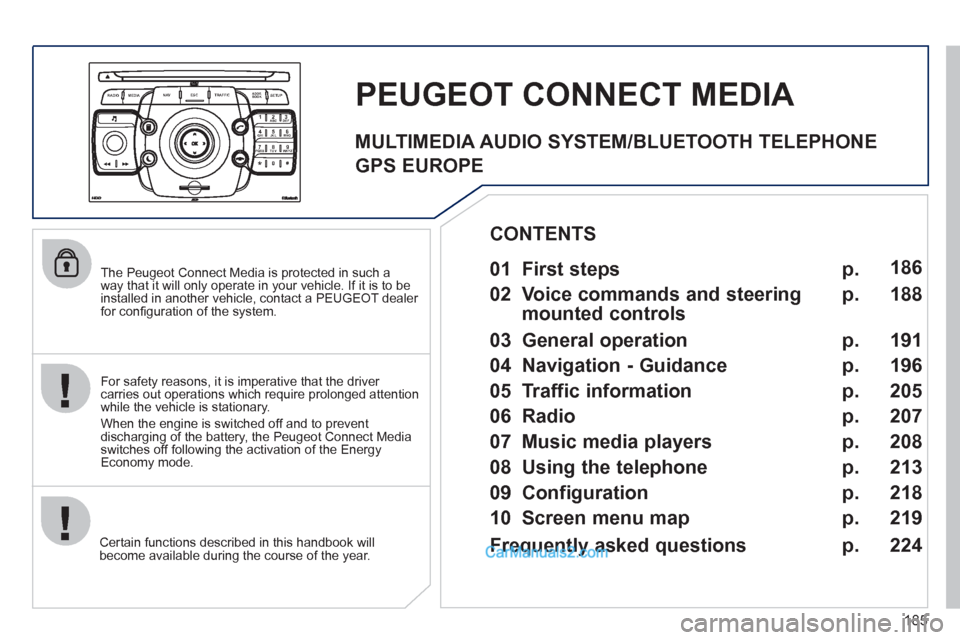
PEUGEOT CONNECT MEDIA
For safety reasons, it is imperative that the driver
carries out operations which require prolonged attention
while the vehicle is stationary.
When the engine is switched off and to prevent
discharging of the battery, the Peugeot Connect Media
switches off following the activation of the Energy
Economy mode.
01 First steps
02 Voice commands and steering
mounted controls
03 General operation
04 Navigation - Guidance
05 Traffic information
06 Radio
07 Music media players
08 Using the telephone
09 Configuration
10 Screen menu map p.
p.
p.
p.
p.
p.
p.
p.
p.
p. 186
188
191
196
205
207
208
213
218
219
CONTENTS
Frequently asked questions p.
224
MULTIMEDIA AUDIO SYSTEM/BLUETOOTH TELEPHONE
GPS EUROPE
Page 188 of 292
186
01
2ABC3DEF
5JKL4GHI6MNO
8TUV7PQRS9WXYZ
0*#
1
RADIO MEDIANAV ESC TRAFFIC
SETUPADDR
BOOK
1
10
2
3
4
612
9
7
8
115
TU PQRS
0*
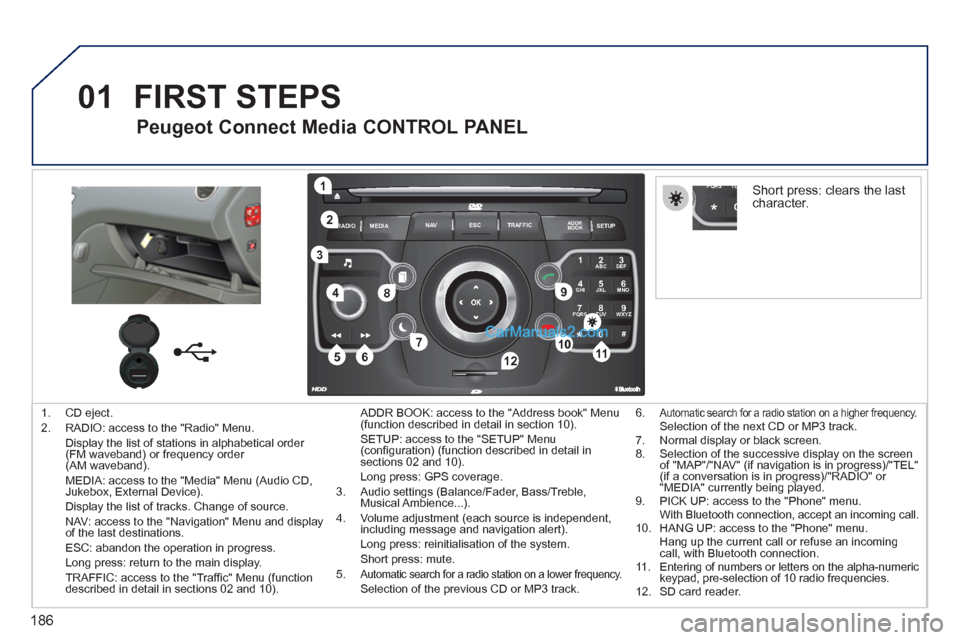
1. CD eject.
2. RADIO: access to the "Radio" Menu.
Display the list of stations in alphabetical order
(FM waveband) or frequency order
(AM waveband).
MEDIA: access to the "Media" Menu (Audio CD,
Jukebox, External Device).
Display the list of tracks. Change of source.
NAV: access to the "Navigation" Menu and display
of the last destinations.
ESC: abandon the operation in progress.
Long press: return to the main display.
TRAFFIC: access to the "Traffi c" Menu (function
described in detail in sections 02 and 10). ADDR BOOK: access to the "Address book" Menu
(function described in detail in section 10).
SETUP: access to the "SETUP" Menu
(confi guration) (function described in detail in
sections 02 and 10).
Long press: GPS coverage.
3. Audio settings (Balance/Fader, Bass/Treble,
Musical Ambience...).
4. Volume adjustment (each source is independent,
including message and navigation alert).
Long press: reinitialisation of the system.
Short press: mute.
5.
Automatic search for a radio station on a lower frequency. Selection of the previous CD or MP3 track.
FIRST STEPS
Peugeot Connect Media CONTROL PANEL
6. Automatic search for a radio station on a higher frequency. Selection of the next CD or MP3 track.
7. Normal display or black screen.
8. Selection of the successive display on the screen
of "MAP"/"NAV" (if navigation is in progress)/"TEL"
(if a conversation is in progress)/"RADIO" or
"MEDIA" currently being played.
9. PICK UP: access to the "Phone" menu.
With Bluetooth connection, accept an incoming call.
10. HANG UP: access to the "Phone" menu.
Hang up the current call or refuse an incoming
call, with Bluetooth connection.
11. Entering of numbers or letters on the alpha-numeric
keypad, pre-selection of 10 radio frequencies.
12. SD card reader.
Short press: clears the last
character.
Page 190 of 292
188
2ABC3DEF5JKL4GHI6MNO8TUV7PQRS9WXYZ0*#
1NAV ESC TRAFFICADDR
BOOKSETUP
02
2
1
SETUP
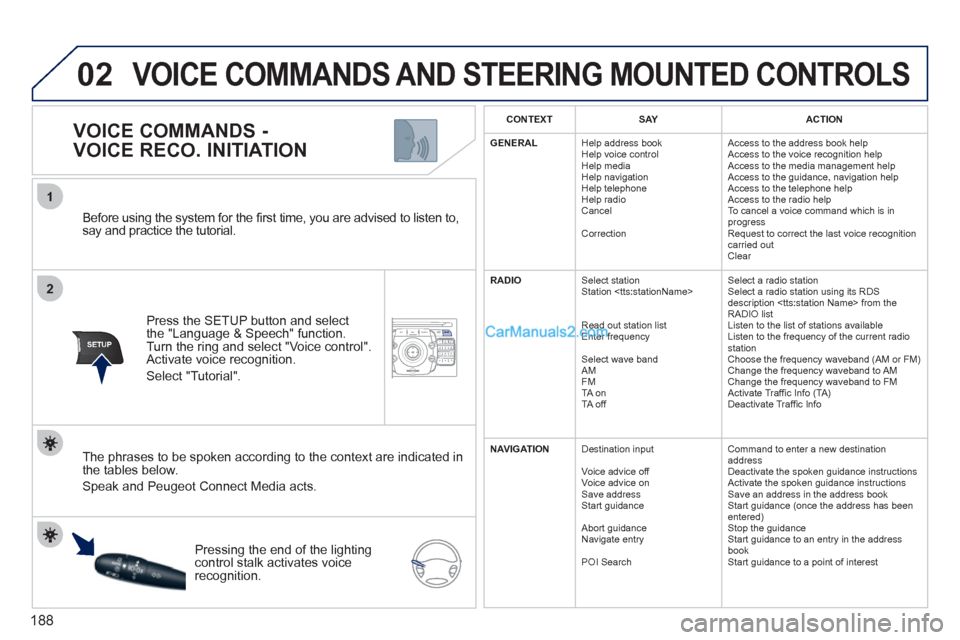
Before using the system for the fi rst time, you are advised to listen to,
say and practice the tutorial.
Press the SETUP button and select
the "Language & Speech" function.
Turn the ring and select "Voice control".
Activate voice recognition.
Select "Tutorial".
VOICE COMMANDS -
VOICE RECO. INITIATION
The phrases to be spoken according to the context are indicated in
the tables below.
Speak and Peugeot Connect Media acts.
Pressing the end of the lighting
control stalk activates voice
recognition.
CONTEXT
SAY
ACTION
GENERAL
Help address book
Help voice control
Help media
Help navigation
Help telephone
Help radio
Cancel
Correction Access to the address book help
Access to the voice recognition help
Access to the media management help
Access to the guidance, navigation help
Access to the telephone help
Access to the radio help
To cancel a voice command which is in
progress
Request to correct the last voice recognition
carried out
Clear
RADIO
Select station
Station
Read out station list
Enter frequency
Select wave band
AM
FM
TA on
TA off Select a radio station
Select a radio station using its RDS
description
RADIO list
Listen to the list of stations available
Listen to the frequency of the current radio
station
Choose the frequency waveband (AM or FM)
Change the frequency waveband to AM
Change the frequency waveband to FM
Activate Traffi c Info (TA)
Deactivate Traffi c Info
NAVIGATION
Destination input
Voice advice off
Voice advice on
Save address
Start guidance
Abort guidance
Navigate entry
POI Search Command to enter a new destination
address
Deactivate the spoken guidance instructions
Activate the spoken guidance instructions
Save an address in the address book
Start guidance (once the address has been
entered)
Stop the guidance
Start guidance to an entry in the address
book
Start guidance to a point of interest
VOICE COMMANDS AND STEERING MOUNTED CONTROLS
Page 192 of 292
190
02 VOICE COMMANDS AND STEERING MOUNTED CONTROLS
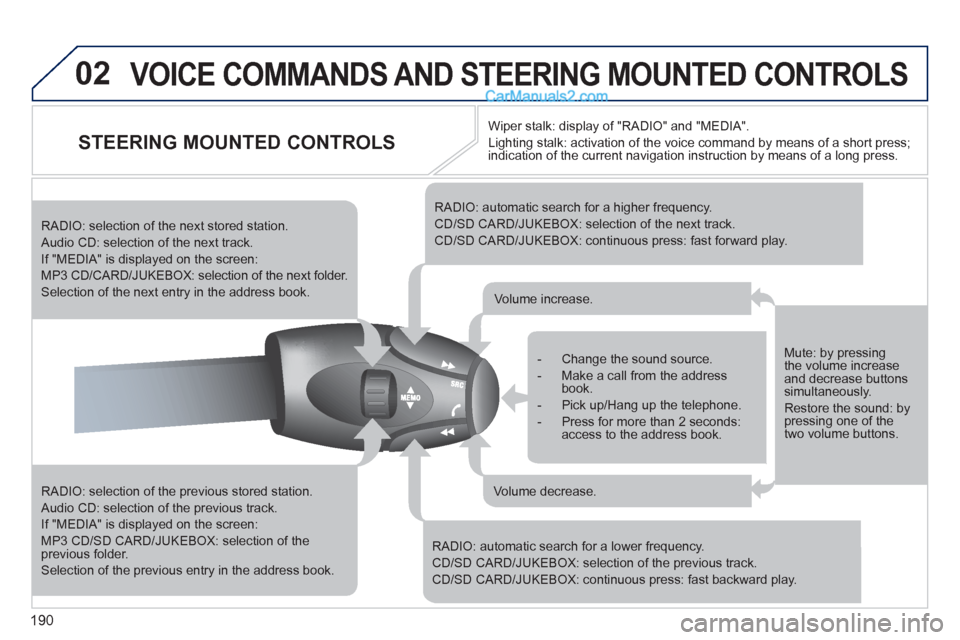
STEERING MOUNTED CONTROLS
RADIO: selection of the previous stored station.
Audio CD: selection of the previous track.
If "MEDIA" is displayed on the screen:
MP3 CD/SD CARD/JUKEBOX: selection of the
previous folder.
Selection of the previous entry in the address book.
RADIO: selection of the next stored station.
Audio CD: selection of the next track.
If "MEDIA" is displayed on the screen:
MP3 CD/CARD/JUKEBOX: selection of the next folder.
Selection of the next entry in the address book.
RADIO: automatic search for a higher frequency.
CD/SD CARD/JUKEBOX: selection of the next track.
CD/SD CARD/JUKEBOX: continuous press: fast forward play.
RADIO: automatic search for a lower frequency.
CD/SD CARD/JUKEBOX: selection of the previous track.
CD/SD CARD/JUKEBOX: continuous press: fast backward play.
- Change the sound source.
- Make a call from the address
book.
- Pick up/Hang up the telephone.
- Press for more than 2 seconds:
access to the address book.
Volume increase.
Volume decrease.
Mute: by pressing
the volume increase
and decrease buttons
simultaneously.
Restore the sound: by
pressing one of the
two volume buttons.
Wiper stalk: display of "RADIO" and "MEDIA".
Lighting stalk: activation of the voice command by means of a short press;
indication of the current navigation instruction by means of a long press.
Page 193 of 292
191
03
SETUP
TRAFFIC
MEDIA
GENERAL OPERATION
For a detailed global view of the menus available, refer to the
"Screen menu map" section of this handbook.
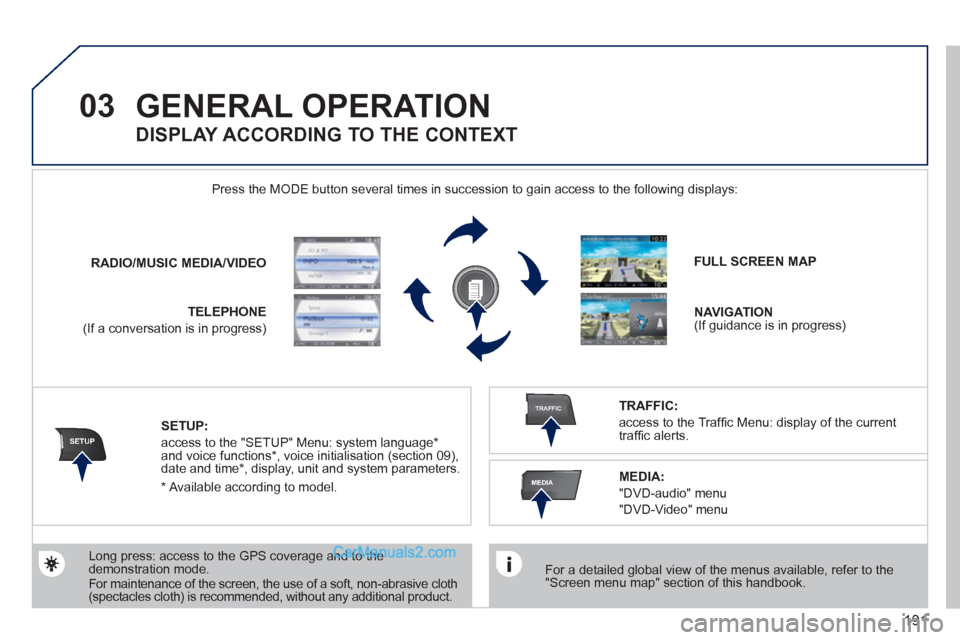
Press the MODE button several times in succession to gain access to the following displays:
Long press: access to the GPS coverage and to the
demonstration mode.
For maintenance of the screen, the use of a soft, non-abrasive cloth
(spectacles cloth) is recommended, without any additional product.
RADIO
/
MUSIC
MEDIA/VIDEO
TELEPHONE
(If a conversation is in progress)
FULL SCREEN MAP
NAVIGATION
(If guidance is in progress)
SETUP:
access to the "SETUP" Menu: system language *
and voice functions * , voice initialisation (section 09),
date and time * , display, unit and system parameters.
TRAFFIC:
access to the Traffi c Menu: display of the current
traffi c alerts.
DISPLAY ACCORDING TO THE CONTEXT
MEDIA:
"DVD-audio" menu
"DVD-Video" menu
*
Available according to model.
Page 194 of 292
192
03 GENERAL OPERATION
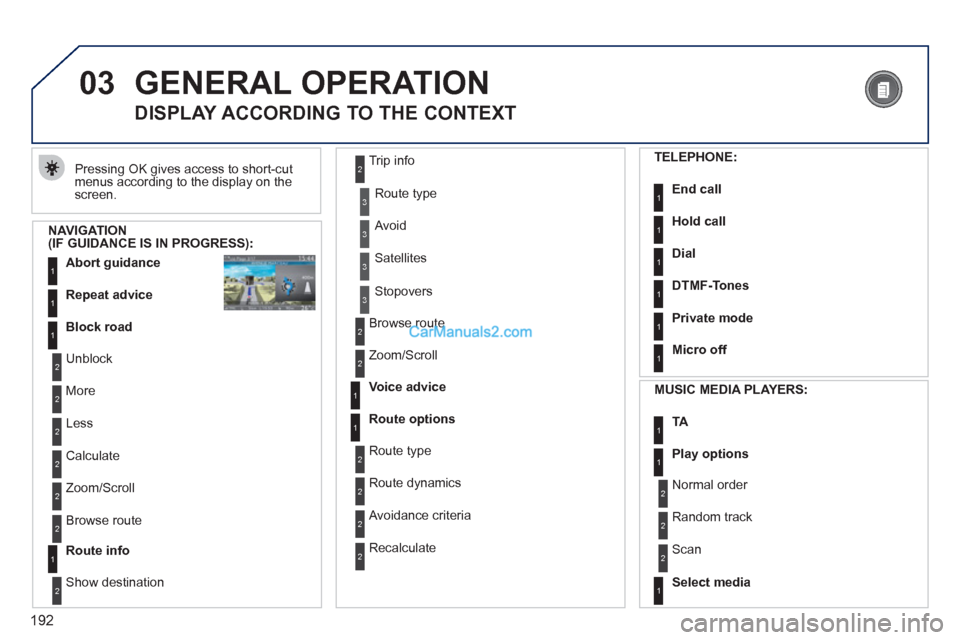
Pressing OK gives access to short-cut
menus according to the display on the
screen.
DISPLAY ACCORDING TO THE CONTEXT
NAVIGATION
(IF GUIDANCE IS IN PROGRESS):
Abort guidance
1
1
1
Repeat advice
Block road
2
2
Unblock
More
2
Less
3
3
Route type
Avoid
3
Satellites
2
2
Calculate
Zoom/Scroll
2
Browse route
1
Route info
2
2
Show destination Trip info
3
Stopovers
2
2
Browse route
Zoom/Scroll
1
1
Voice advice
Route options
2
2
Route type
Route dynamics
2
Avoidance criteria
2
Recalculate
TELEPHONE:
End call
1
1
1
1
Hold call
Dial
DTMF-Tones
1
Private mode
1
Micro off
MUSIC MEDIA PLAYERS:
TA
1
1
Play options
1
Select media
2
2
Normal order
Random track
2
Scan
Page 198 of 292
196
04
2ABC3DEF5JKL4GHI6MNO8TUV7PQRS9WXYZ0*#
1RADIO MEDIANAVESC TRAFFIC
SETUPADDR
BOOK
2ABC3DEF5JKL4GHI6MNO8TUV7PQRS9WXYZ0*#
1RADIO MEDIANAV ESC TRAFFIC
SETUPADDR
BOOK
NAV
1
2
3
4
5
6
2ABC3DEF5JKL4GHI6MNO8TUV7PQRS9WXYZ0*#
1RADIO MEDIANAV ESC TRAFFIC
SETUPADDR
BOOK
2ABC3DEF5JKL4GHI6MNO8TUV7PQRS9WXYZ0*#
1RADIO MEDIANAV ESC TRAFFIC
SETUPADDR
BOOK
2ABC3DEF5JKL4GHI6MNO8TUV7PQRS9WXYZ0*#
1RADIO MEDIANAV ESC TRAFFIC
SETUPADDR
BOOK
2ABC3DEF5JKL4GHI6MNO8TUV7PQRS9WXYZ0*#
1RADIO MEDIANAV ESC TRAFFIC
SETUPADDR
BOOK
NAVIGATION - GUIDANCE
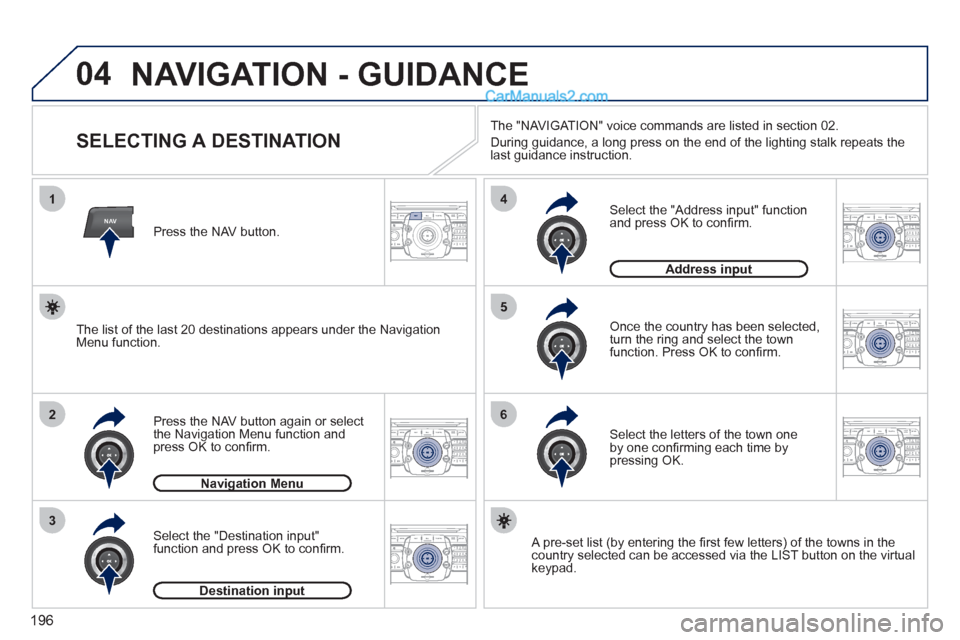
SELECTING A DESTINATION
Press the NAV button again or select
the Navigation Menu function and
press OK to confi rm.
Select the "Destination input"
function and press OK to confi rm.
Press the NAV button.
Select the letters of the town one
by one confi rming each time by
pressing OK.
Once the country has been selected,
turn the ring and select the town
function. Press OK to confi rm.
Navigation Menu
Destination input
A pre-set list (by entering the fi rst few letters) of the towns in the
country selected can be accessed via the LIST button on the virtual
keypad.
Select the "Address input" function
and press OK to confi rm.
Address input
The list of the last 20 destinations appears under the Navigation
Menu function.
The "NAVIGATION" voice commands are listed in section 02.
During guidance, a long press on the end of the lighting stalk repeats the
last guidance instruction.
Page 199 of 292
197
04
2ABC3DEF5JKL4GHI6MNO8TUV7PQRS9WXYZ0*#
1RADIO MEDIANAV ESC TRAFFIC
SETUPADDR
BOOK7
8
9
10
11
2ABC3DEF5JKL4GHI6MNO8TUV7PQRS9WXYZ0*#
1RADIO MEDIANAV ESC TRAFFIC
SETUPADDR
BOOK
2ABC3DEF5JKL4GHI6MNO8TUV7PQRS9WXYZ0*#
1RADIO MEDIANAV ESC TRAFFIC
SETUPADDR
BOOK
2ABC3DEF5JKL4GHI6MNO8TUV7PQRS9WXYZ0*#
1RADIO MEDIANAV ESC TRAFFIC
SETUPADDR
BOOK
2ABC3DEF5JKL4GHI6MNO8TUV7PQRS9WXYZ0*#
1RADIO MEDIANAV ESC TRAFFIC
SETUPADDR
BOOK
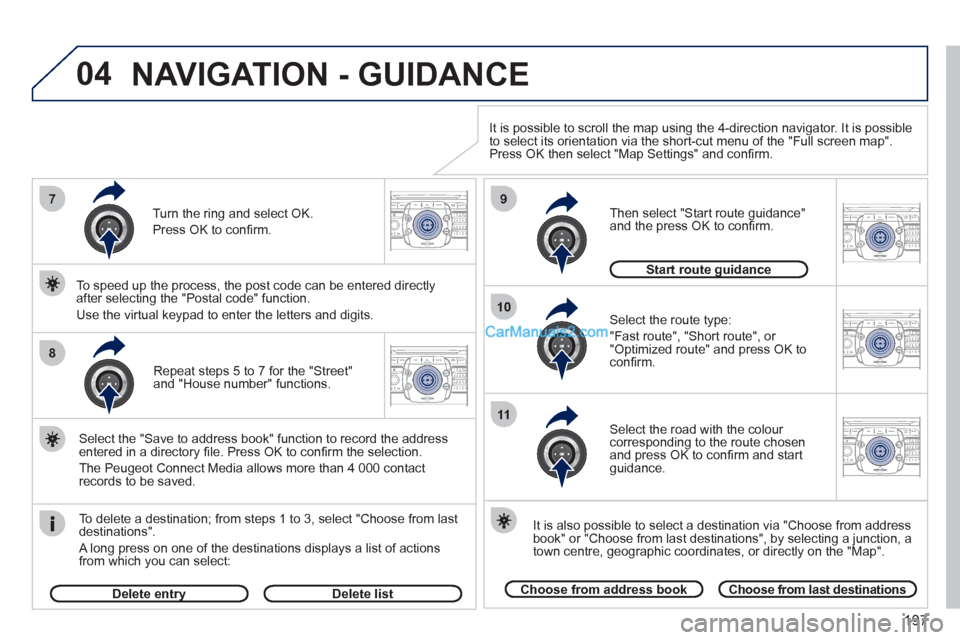
Repeat steps 5 to 7 for the "Street"
and "House number" functions.
To delete a destination; from steps 1 to 3, select "Choose from last
destinations".
A long press on one of the destinations displays a list of actions
from which you can select:
Select the "Save to address book" function to record the address
entered in a directory fi le. Press OK to confi rm the selection.
The Peugeot Connect Media allows more than 4 000 contact
records to be saved.
To speed up the process, the post code can be entered directly
after selecting the "Postal code" function.
Use the virtual keypad to enter the letters and digits.
Select the route type:
"Fast route", "Short route", or
"Optimized route" and press OK to
confi rm.
Then select "Start route guidance"
and the press OK to confi rm.
It is also possible to select a destination via "Choose from address
book" or "Choose from last destinations", by selecting a junction, a
town centre, geographic coordinates, or directly on the "Map".
Choose from address book
Choose from last destinations
Start route guidance
It is possible to scroll the map using the 4-direction navigator. It is possible
to select its orientation via the short-cut menu of the "Full screen map".
Press OK then select "Map Settings" and confi rm.
Select the road with the colour
corresponding to the route chosen
and press OK to confi rm and start
guidance.
Turn the ring and select OK.
Press OK to confi rm.
Delete entry
Delete list
NAVIGATION - GUIDANCE
Page 200 of 292
198
04
2ABC3DEF5JKL4GHI6MNO8TUV7PQRS9WXYZ0*#
1RADIO MEDIANAV ESC TRAFFIC
SETUPADDR
BOOK
1
2
3
4
2ABC3DEF5JKL4GHI6MNO8TUV7PQRS9WXYZ0*#
1RADIO MEDIANAV ESC TRAFFIC
SETUPADDR
BOOK
2ABC3DEF5JKL4GHI6MNO8TUV7PQRS9WXYZ0*#
1RADIO MEDIANAV ESC TRAFFIC
SETUPADDR
BOOK2ABC3DEF5JKL4GHI6MNO8TUV7PQRS9WXYZ0*#
1RADIO MEDIANAVESC TRAFFIC
SETUPADDR
BOOKNAV
NAVIGATION - GUIDANCE
SETTING AND NAVIGATING TO MY
"HOME ADDRESS"
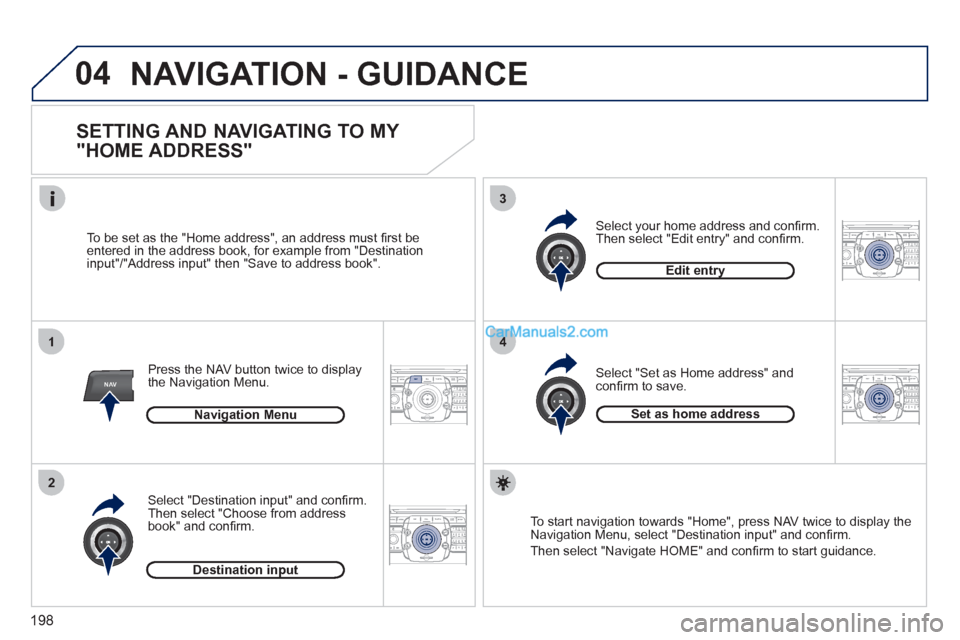
Press the NAV button twice to display
the Navigation Menu.
To be set as the "Home address", an address must fi rst be
entered in the address book, for example from "Destination
input"/"Address input" then "Save to address book".
Select "Destination input" and confi rm.
Then select "Choose from address
book" and confi rm.
Select "Set as Home address" and
confi rm to save.
Select your home address and confi rm.
Then select "Edit entry" and confi rm.
To start navigation towards "Home", press NAV twice to display the
Navigation Menu, select "Destination input" and confi rm.
Then select "Navigate HOME" and confi rm to start guidance.
Navigation Menu
Destination input
Edit entry
Set as home address