radio PEUGEOT 4008 2014 User Guide
[x] Cancel search | Manufacturer: PEUGEOT, Model Year: 2014, Model line: 4008, Model: PEUGEOT 4008 2014Pages: 368, PDF Size: 20.33 MB
Page 295 of 368
293
TOUCH SCREEN AUDIO-CD
System
The system is protected in such a way that it will only
operate in your vehicle.
01 First steps - Control panel
For safety reasons, the driver must carry out operations
which require prolonged attention while the vehicle is
stationary.
When the engine is switched off and to prevent
discharging of the battery, the system switches off
following the activation of the energy economy mode.
CONTENTS
03 General operation
02 Steering mounted controls
04 Radio
05 CDs
06 USB / iPod
®
07 Bluetooth
®
telephone p.
p. p.
p.
p.
p.
p. 294
295
297
304
307
308
310
Page 297 of 368
295
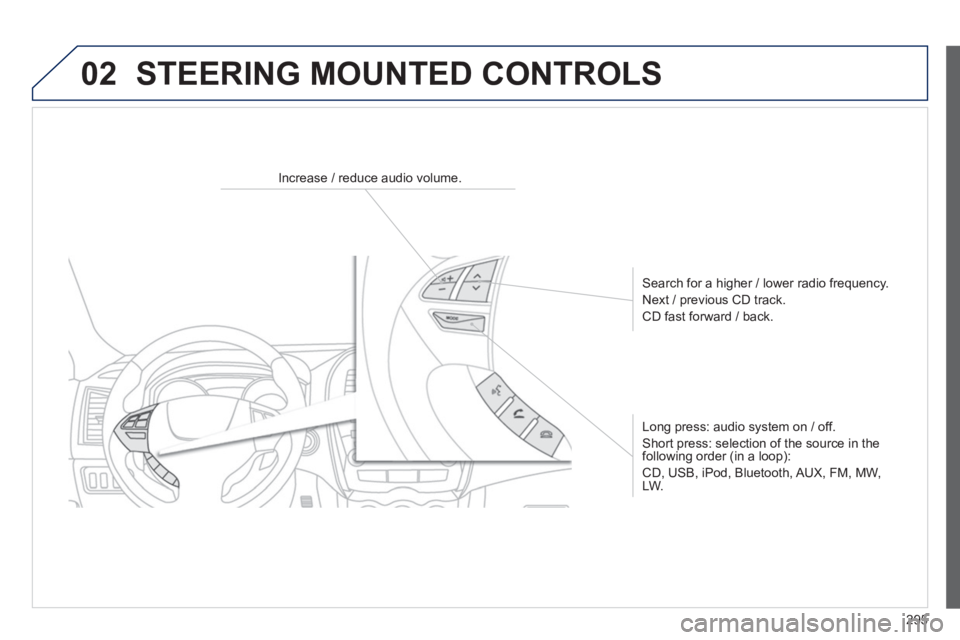
02 STEERING MOUNTED CONTROLS
Increase / reduce audio volume.
Search for a higher / lower radio frequency.
Next / previous CD track.
CD fast forward / back.
Long press: audio system on / off.
Short press: selection of the source in the
following order (in a loop):
CD, USB, iPod, Bluetooth, AUX, FM, MW,
LW.
Page 299 of 368
297
03 GENERAL OPERATION
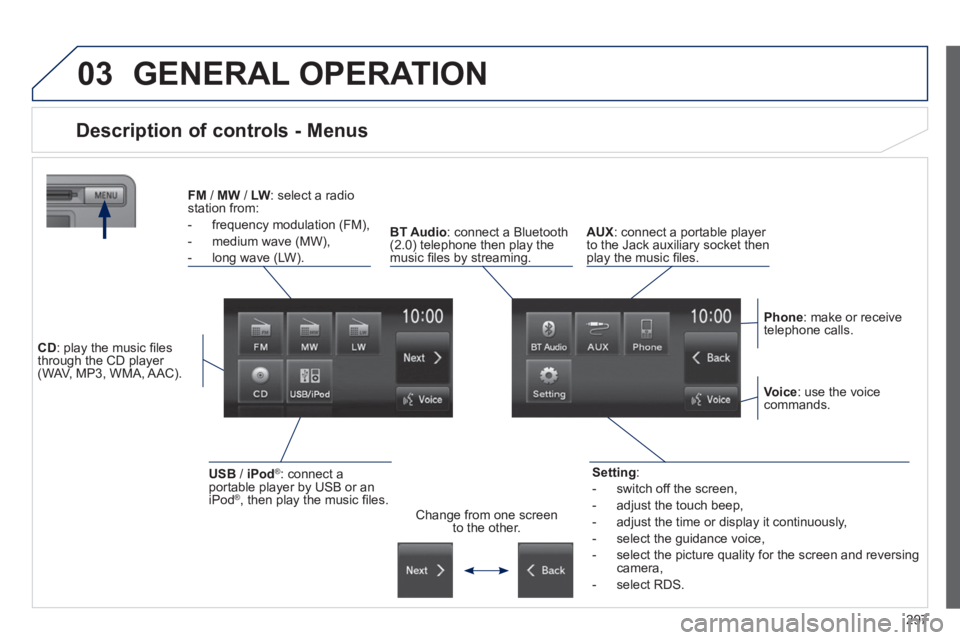
Description of controls - Menus
Setting
:
- switch off the screen,
- adjust the touch beep,
- adjust the time or display it continuously,
- select the guidance voice,
- select the picture quality for the screen and reversing
camera,
- select RDS.
FM
/ MW
/ LW
: select a radio
station from:
- frequency modulation (FM),
- medium wave (MW),
- long wave (LW).
BT Audio
: connect a Bluetooth
(2.0) telephone then play the
music fi les by streaming.
AUX
: connect a portable player
to the Jack auxiliary socket then
play the music fi les.
Phone
: make or receive
telephone calls.
Change from one screen
to the other.
Voice
: use the voice
commands.
USB
/ iPod
®
: connect a
portable player by USB or an
iPod
® , then play the music fi les.
CD
: play the music fi les
through the CD player
(WAV, MP3, WMA, AAC).
Page 301 of 368
299
Level 1
Level 2
Level 3
Comments
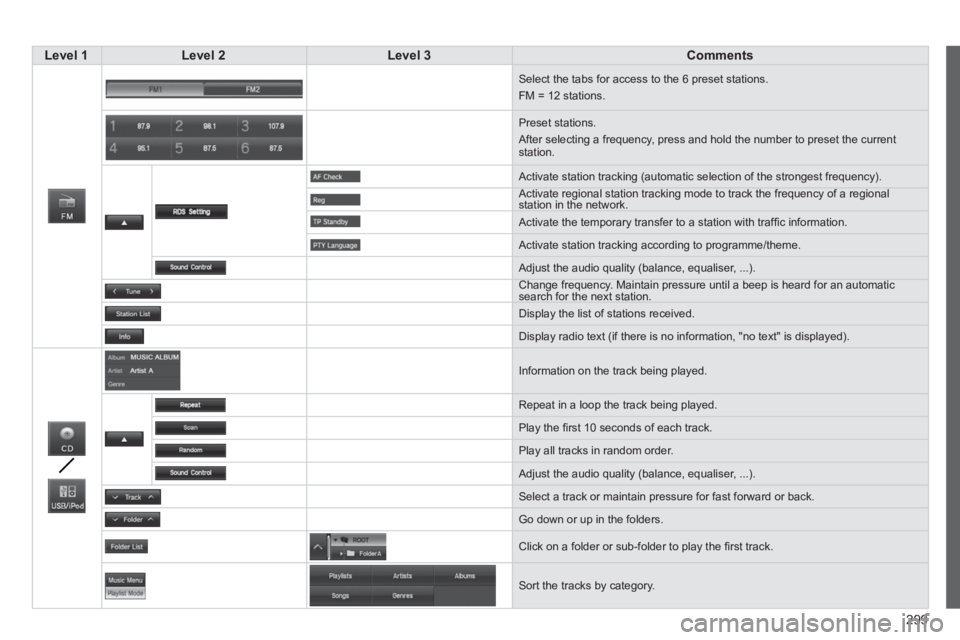
Select the tabs for access to the 6 preset stations.
FM = 12 stations.
Preset stations.
After selecting a frequency, press and hold the number to preset the current
station.
Activate station tracking (automatic selection of the strongest frequency).
Activate regional station tracking mode to track the frequency of a regional
station in the network.
Activate the temporary transfer to a station with traffi c information.
Activate station tracking according to programme/theme.
Adjust the audio quality (balance, equaliser, ...).
Change frequency. Maintain pressure until a beep is heard for an automatic
search for the next station.
Display the list of stations received.
Display radio text (if there is no information, "no text" is displayed).
Information on the track being played.
Repeat in a loop the track being played.
Play the fi rst 10 seconds of each track.
Play all tracks in random order.
Adjust the audio quality (balance, equaliser, ...).
Select a track or maintain pressure for fast forward or back.
Go down or up in the folders.
Click on a folder or sub-folder to play the fi rst track.
Sort the tracks by category.
Page 306 of 368
304
04
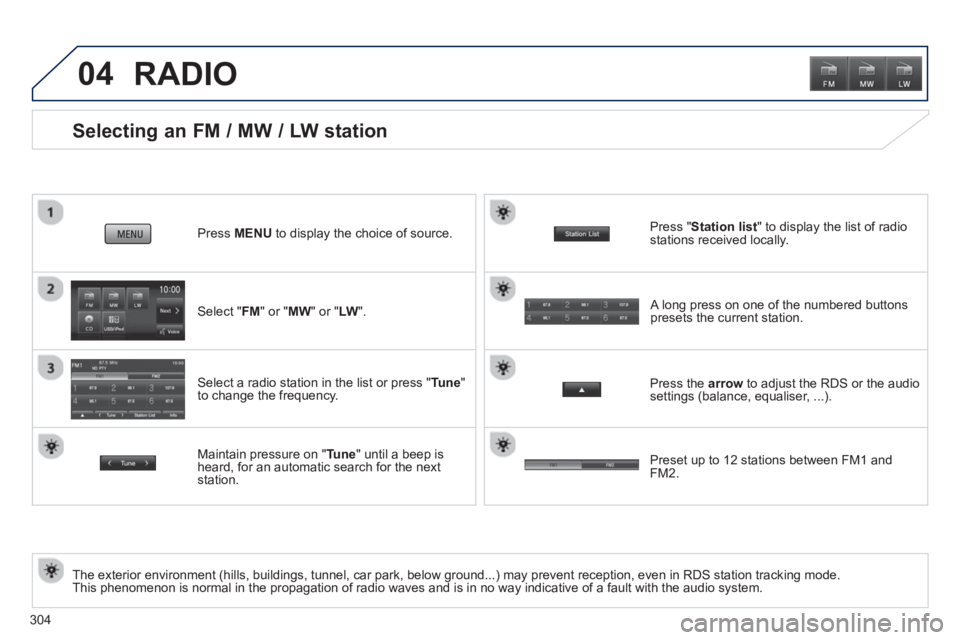
Selecting an FM / MW / LW station
The exterior environment (hills, buildings, tunnel, car park, below ground...) may prevent reception, even in RDS station tracking mode.
This phenomenon is normal in the propagation of radio waves and is in no way indicative of a fault with the audio system.
Select " FM
" or " MW
" or " LW
".
Press MENU
to display the choice of source.
Select a radio station in the list or press " Tune
"
to change the frequency.
Maintain pressure on " Tune
" until a beep is
heard, for an automatic search for the next
station.
RADIO
Press the arrow
to adjust the RDS or the audio
settings (balance, equaliser, ...).
Press " Station list
" to display the list of radio
stations received locally.
A long press on one of the numbered buttons
presets the current station.
Preset up to 12 stations between FM1 and
FM2.
Page 307 of 368
305
04
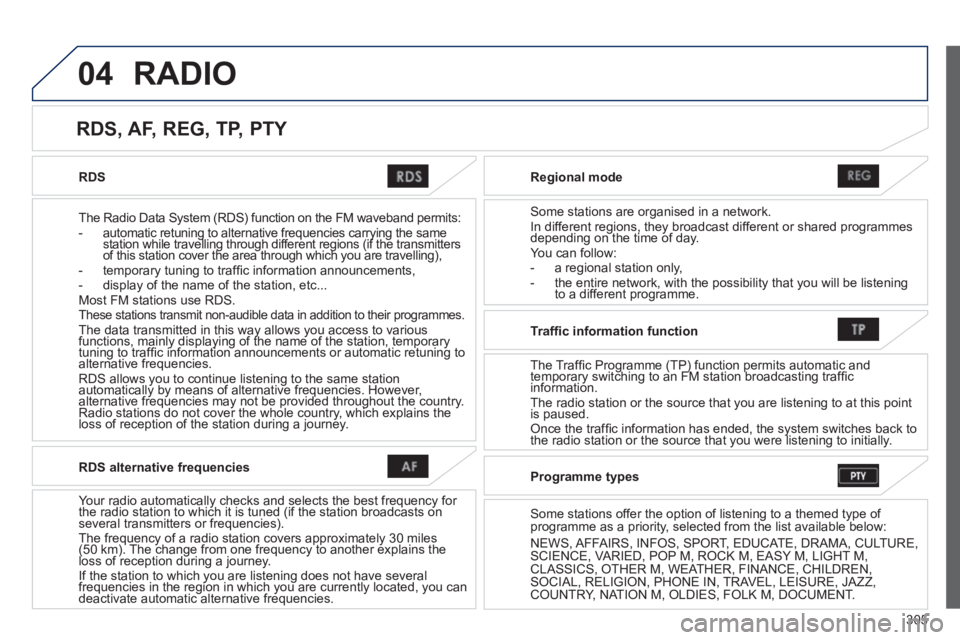
RDS
The Radio Data System (RDS) function on the FM waveband permits:
- automatic retuning to alternative frequencies carrying the same
station while travelling through different regions (if the transmitters
of this station cover the area through which you are travelling),
- temporary tuning to traffi c information announcements,
- display of the name of the station, etc...
Most FM stations use RDS.
These stations transmit non-audible data in addition to their programmes.
The data transmitted in this way allows you access to various
functions, mainly displaying of the name of the station, temporary
tuning to traffi c information announcements or automatic retuning to
alternative frequencies.
RDS allows you to continue listening to the same station
automatically by means of alternative frequencies. However,
alternative frequencies may not be provided throughout the country.
Radio stations do not cover the whole country, which explains the
loss of reception of the station during a journey.
Regional mode
Some stations are organised in a network.
In different regions, they broadcast different or shared programmes
depending on the time of day.
You can follow:
- a regional station only,
- the entire network, with the possibility that you will be listening
to a different programme.
RDS, AF, REG, TP, PTY
RADIO
RDS alternative frequencies
Your radio automatically checks and selects the best frequency for
the radio station to which it is tuned (if the station broadcasts on
several transmitters or frequencies).
The frequency of a radio station covers approximately 30 miles
(50 km). The change from one frequency to another explains the
loss of reception during a journey.
If the station to which you are listening does not have several
frequencies in the region in which you are currently located, you can
deactivate automatic alternative frequencies.
Traffi c information function
The Traffic Programme (TP) function permits automatic and
temporary switching to an FM station broadcasting traffi c
information.
The radio station or the source that you are listening to at this point
is paused.
Once the traffi c information has ended, the system switches back to
the radio station or the source that you were listening to initially.
Programme types
Some stations offer the option of listening to a themed type of
programme as a priority, selected from the list available below:
NEWS, AFFAIRS, INFOS, SPORT, EDUCATE, DRAMA, CULTURE,
SCIENCE, VARIED, POP M, ROCK M, EASY M, LIGHT M,
CLASSICS, OTHER M, WEATHER, FINANCE, CHILDREN,
SOCIAL, RELIGION, PHONE IN, TRAVEL, LEISURE, JAZZ,
COUNTRY, NATION M, OLDIES, FOLK M, DOCUMENT.
Page 308 of 368
306
04
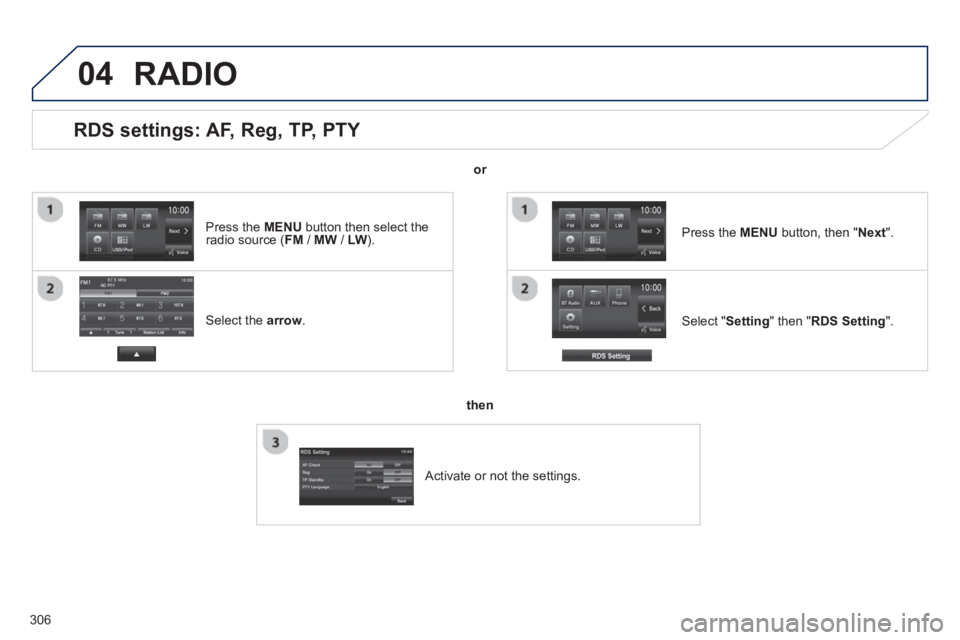
RDS settings: AF, Reg, TP, PTY
Select the arrow
.
Select " Setting
" then " RDS Setting
".
Press the MENU
button, then " Next
".
RADIO
or
then
Activate or not the settings.
Press the MENU
button then select the
radio source (FM / MW / LW).
Page 315 of 368
313
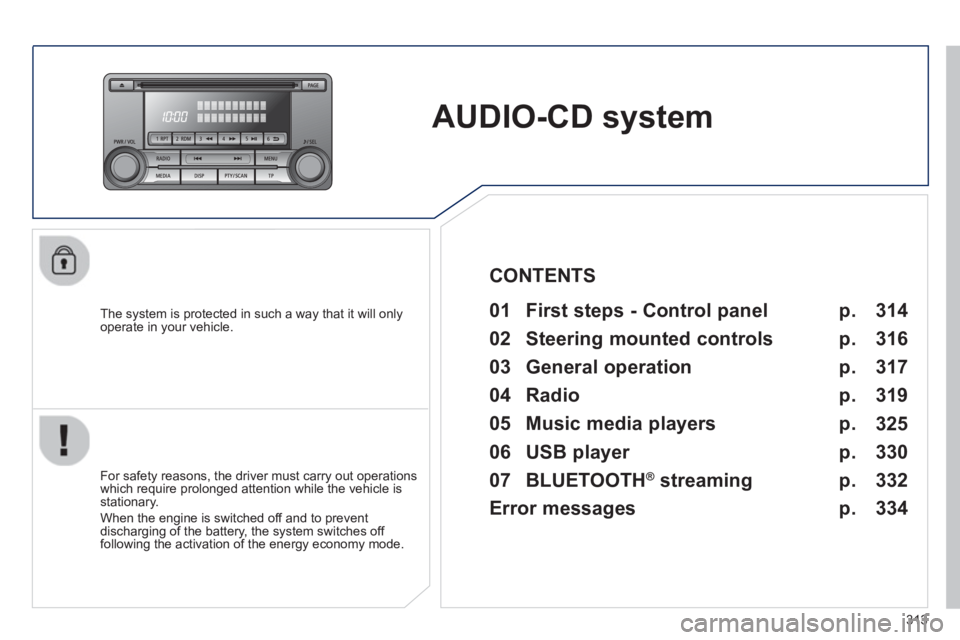
AUDIO-CD system
The system is protected in such a way that it will only
operate in your vehicle.
01 First steps - Control panel
For safety reasons, the driver must carry out operations
which require prolonged attention while the vehicle is
stationary.
When the engine is switched off and to prevent
discharging of the battery, the system switches off
following the activation of the energy economy mode.
CONTENTS
02 Steering mounted controls
03 General operation
04 Radio
05 Music media players
06 USB player
07 BLUETOOTH
®
streaming
Error messages p.
p.
p.
p.
p.
p.
p.
p. 314
316
317
319
325
330
332
334
Page 316 of 368
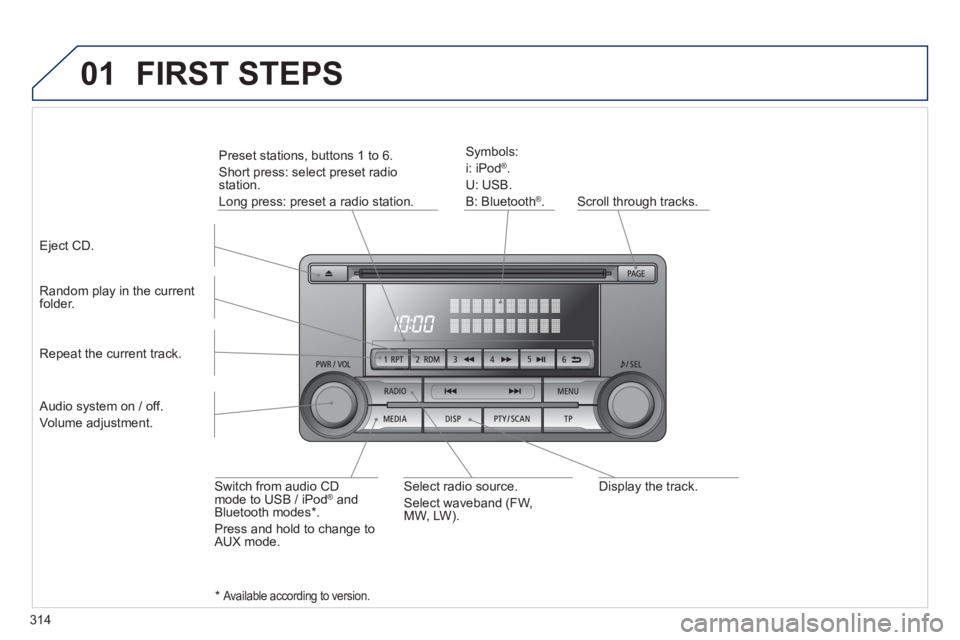
314
01
Display the track.
Scroll through tracks.
Symbols:
i: iPod
®
.
U: USB.
B: Bluetooth
®
.
Random play in the current
folder.
Switch from audio CD
mode to USB / iPod
® and
Bluetooth modes * .
Press and hold to change to
AUX mode.
Repeat the current track.
FIRST STEPS
Audio system on / off.
Volume adjustment.
Select radio source.
Select waveband (FW,
MW, LW).
*
Available according to version.
Eject CD.
Preset stations, buttons 1 to 6.
Short press: select preset radio
station.
Long press: preset a radio station.
Page 317 of 368
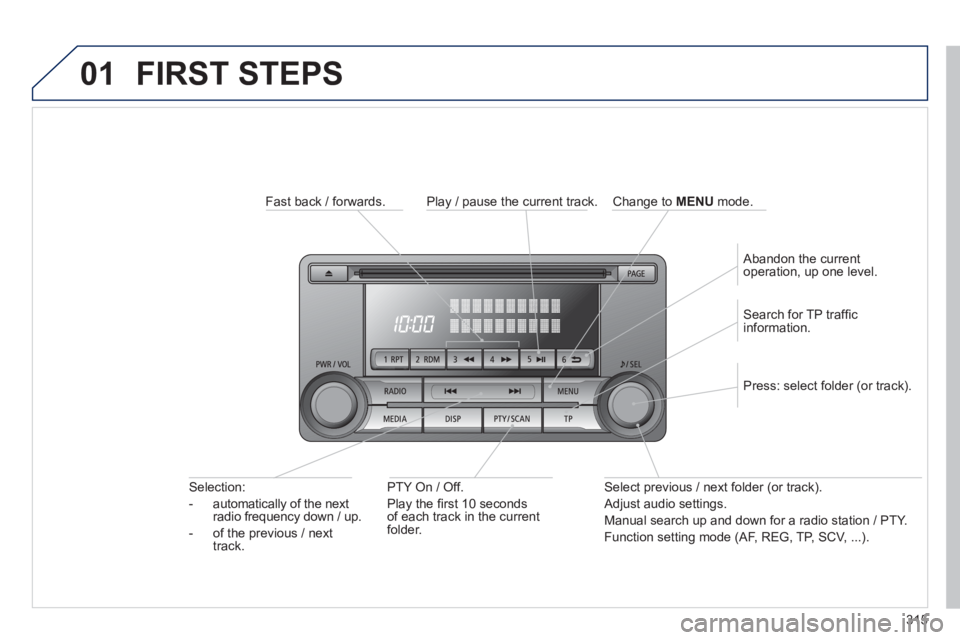
315
01 FIRST STEPS
Fast back / forwards.
PTY On / Off.
Play the fi rst 10 seconds
of each track in the current
folder.
Selection:
- automatically of the next
radio frequency down / up.
- of the previous / next
track.
Select previous / next folder (or track).
Adjust audio settings.
Manual search up and down for a radio station / PTY.
Function setting mode (AF, REG, TP, SCV, ...).
Press: select folder (or track).
Search for TP traffi c
information.
Play / pause the current track.
Abandon the current
operation, up one level.
Change to MENU
mode.