USB PEUGEOT 5008 2014 Owner's Manual
[x] Cancel search | Manufacturer: PEUGEOT, Model Year: 2014, Model line: 5008, Model: PEUGEOT 5008 2014Pages: 404, PDF Size: 23.34 MB
Page 360 of 404
358
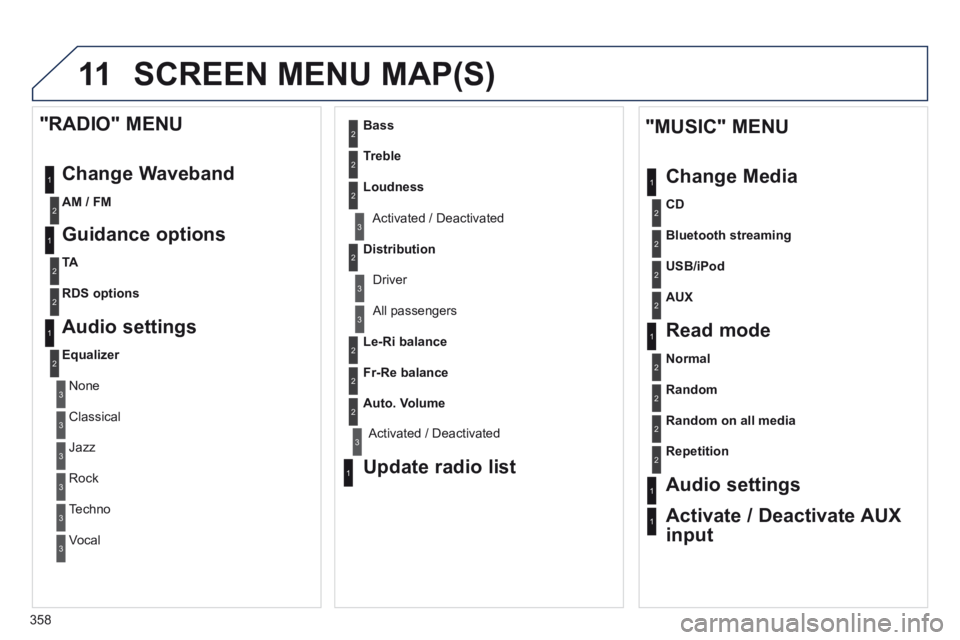
11 SCREEN MENU MAP(S)
1
1
2
1
1
2
2
2
2
2
2
2
3
3
2
2
2
1
Random on all media
Repetition
Audio settings
Activate / Deactivate AUX
input
"MUSIC" MENU
Change Media
Read mode
Normal
Random
All passengers
Le-Ri balance
Fr-Re balance
Auto. Volume
Update radio list
Bass
Treble
Loudness
Distribution
Driver
1
2
2
1
1
3
3
3
3
3
3
2Equalizer
"RADIO" MENU
Change Waveband
Guidance options
TA
RDS options
Audio settings
None
Classical
Jazz
Rock
Techno
Vocal
2
2
2
2
USB/iPod
AUX
CD
Bluetooth streaming
2AM / FM
3 Activated / Deactivated
3 Activated / Deactivated
Page 364 of 404
362
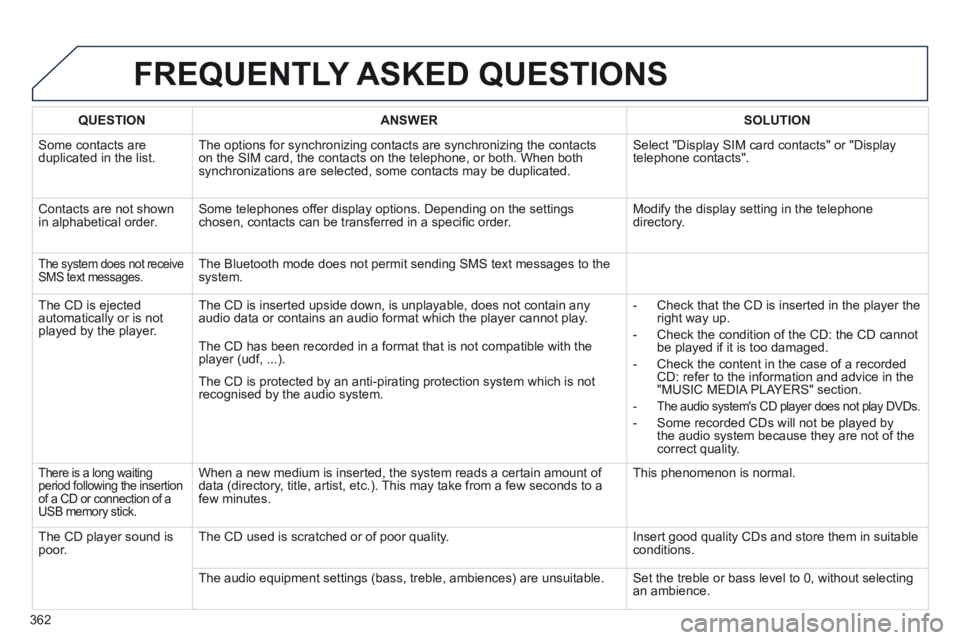
FREQUENTLY ASKED QUESTIONS
QUESTIONANSWERSOLUTION
Some contacts are duplicated in the list. The options for synchronizing contacts are synchronizing the contacts on the SIM card, the contacts on the telephone, or both. When both synchronizations are selected, some contacts may be duplicated.
Select "Display SIM card contacts" or "Display telephone contacts".
Contacts are not shown in alphabetical order. Some telephones offer display options. Depending on the settings chosen, contacts can be transferred in a specifi c order. Modify the display setting in the telephone directory.
The system does not receive SMS text messages. The Bluetooth mode does not permit sending SMS text messages to the system.
The CD is ejected automatically or is not played by the player.
The CD is inserted upside down, is unplayable, does not contain any audio data or contains an audio format which the player cannot play. - Check that the CD is inserted in the player the right way up.
- Check the condition of the CD: the CD cannot be played if it is too damaged.
- Check the content in the case of a recorded CD: refer to the information and advice in the "MUSIC MEDIA PLAYERS" section.
- The audio system's CD player does not play DVDs.
- Some recorded CDs will not be played by the audio system because they are not of the correct quality.
The CD has been recorded in a format that is not compatible with the player (udf, ...).
The CD is protected by an anti-pirating protection system which is not recognised by the audio system.
There is a long waiting period following the insertion of a CD or connection of a USB memory stick.
When a new medium is inserted, the system reads a certain amount of data (directory, title, artist, etc.). This may take from a few seconds to a few minutes.
This phenomenon is normal.
The CD player sound is poor. The CD used is scratched or of poor quality. Insert good quality CDs and store them in suitable conditions.
The audio equipment settings (bass, treble, ambiences) are unsuitable.\
Set the treble or bass level to 0, without selecting an ambience.
Page 367 of 404
365
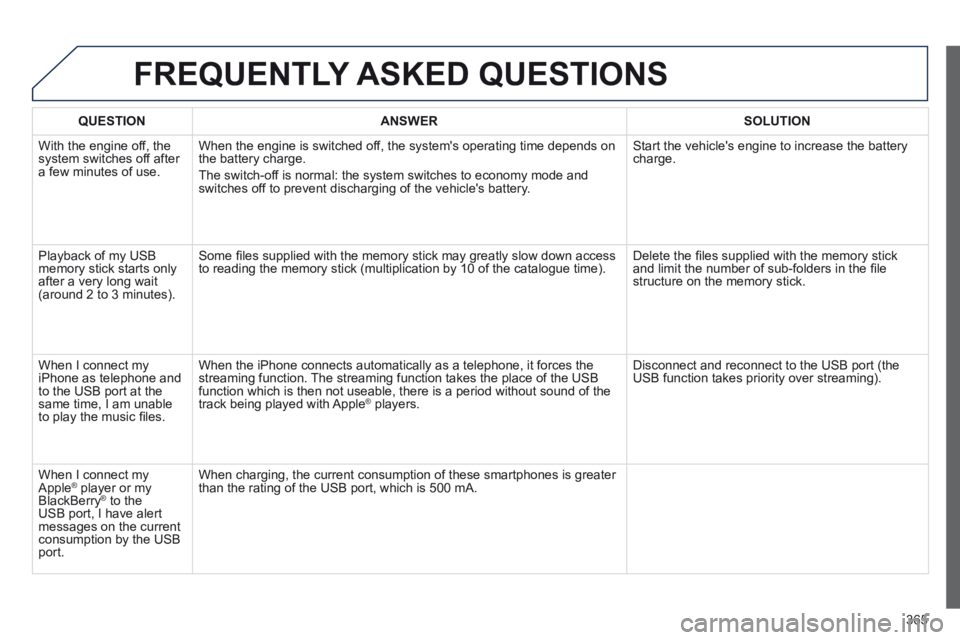
FREQUENTLY ASKED QUESTIONS
QUESTIONANSWERSOLUTION
With the engine off, the system switches off after a few minutes of use.
When the engine is switched off, the system's operating time depends on the battery charge.
The switch-off is normal: the system switches to economy mode and switches off to prevent discharging of the vehicle's battery.
Start the vehicle's engine to increase the battery charge.
Playback of my USB memory stick starts only after a very long wait (around 2 to 3 minutes).
Some fi les supplied with the memory stick may greatly slow down access to reading the memory stick (multiplication by 10 of the catalogue time). Delete the fi les supplied with the memory stick and limit the number of sub-folders in the fi le structure on the memory stick.
When I connect my iPhone as telephone and to the USB port at the same time, I am unable to play the music fi les.
When the iPhone connects automatically as a telephone, it forces the streaming function. The streaming function takes the place of the USB function which is then not useable, there is a period without sound of t\
he track being played with Apple ® players. ® players. ®
Disconnect and reconnect to the USB port (the USB function takes priority over streaming).
When I connect my Apple ® player or my ® player or my ®
BlackBerry ® to the ® to the ®
USB port, I have alert messages on the current consumption by the USB port.
When charging, the current consumption of these smartphones is greater than the rating of the USB port, which is 500 mA.
Page 369 of 404
367
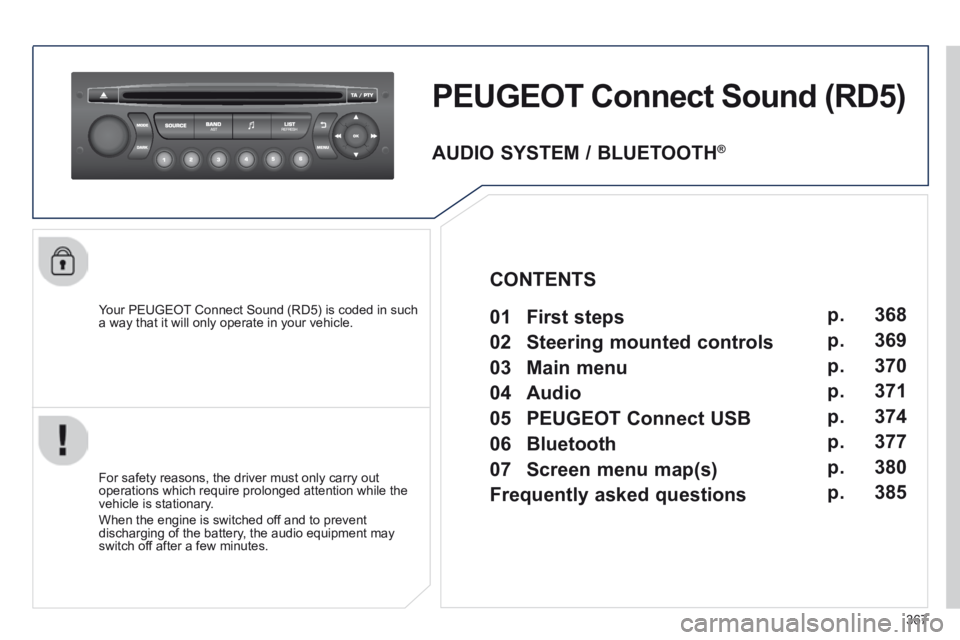
PEUGEOT Connect Sound (RD5)
Your PEUGEOT Connect Sound (RD5) is coded in such a way that it will only operate in your vehicle.
For safety reasons, the driver must only carry out operations which require prolonged attention while the vehicle is stationary.
When the engine is switched off and to prevent discharging of the battery, the audio equipment may switch off after a few minutes.
AUDIO SYSTEM / BLUETOOTH ®
01 First steps
02 Steering mounted controls
03 Main menu
04 Audio
05 PEUGEOT Connect USB
06 Bluetooth
07 Screen menu map(s)
Frequently asked questions p.
p.
p.
p.
p.
p.
p.
p.
368
369
370
371
374
377
380
385
CONTENTS
Page 370 of 404
368
01 FIRST STEPS
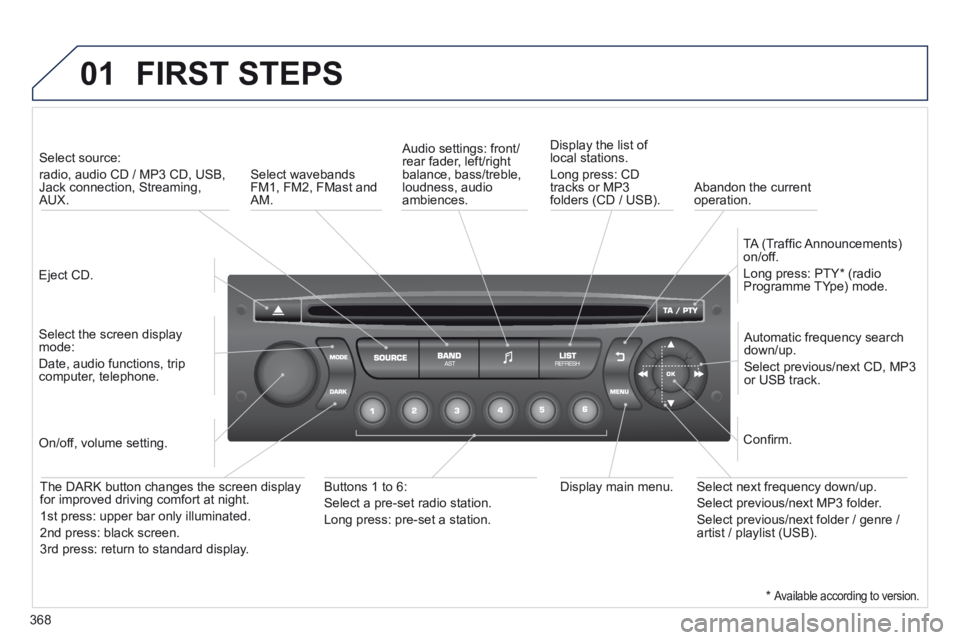
Eject CD.
Select source:
radio, audio CD / MP3 CD, USB, Jack connection, Streaming, AUX.
Select the screen display mode:
Date, audio functions, trip computer, telephone.
Automatic frequency search down/up.
Select previous/next CD, MP3 or USB track.
Audio settings: front/rear fader, left/right balance, bass/treble, loudness, audio ambiences.
Display the list of local stations.
Long press: CD tracks or MP3 folders (CD / USB).
TA (Traffi c Announcements) on/off.
Long press: PTY * (radio Programme TYpe) mode.
Display main menu. The DARK button changes the screen display for improved driving comfort at night.
1 st press: upper bar only illuminated.
2 nd press: black screen.
3 rd press: return to standard display.
On/off, volume setting.
Buttons 1 to 6:
Select a pre-set radio station.
Long press: pre-set a station.
Select next frequency down/up.
Select previous/next MP3 folder.
Select previous/next folder / genre / artist / playlist (USB).
Confi rm.
Select wavebands FM1, FM2, FMast and AM. Abandon the current operation.
* Available according to version.
Page 371 of 404
369
02 STEERING MOUNTED CONTROLS
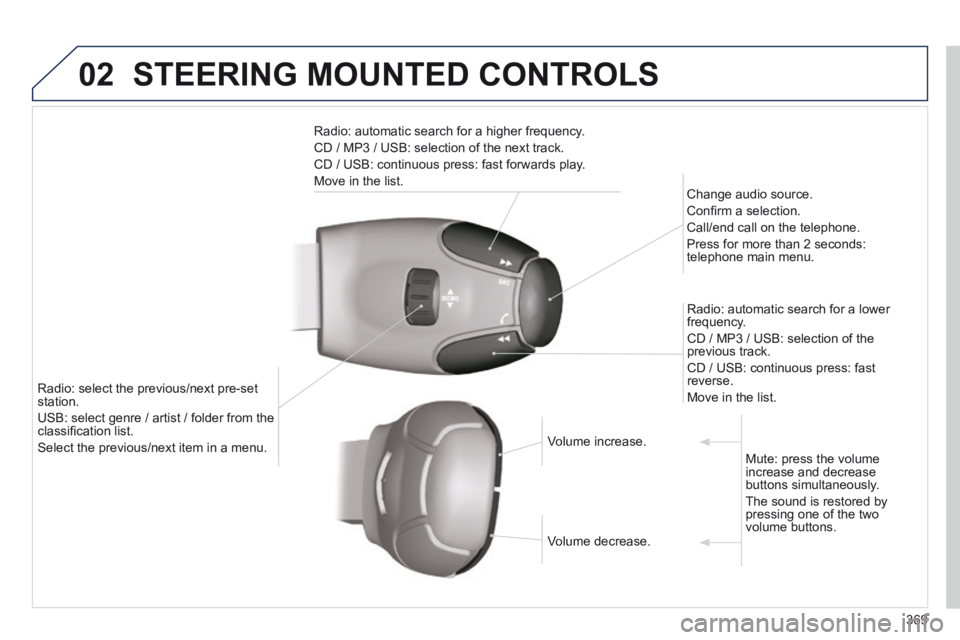
Radio: automatic search for a higher frequency.
CD / MP3 / USB: selection of the next track.
CD / USB: continuous press: fast forwards play.
Move in the list. Change audio source.
Confi rm a selection.
Call/end call on the telephone.
Press for more than 2 seconds: telephone main menu.
Radio: automatic search for a lower frequency.
CD / MP3 / USB: selection of the previous track.
CD / USB: continuous press: fast reverse.
Move in the list. Radio: select the previous/next pre-set station.
USB: select genre / artist / folder from the USB: select genre / artist / folder from the classifi cation list.
Select the previous/next item in a menu. Volume increase. Volume increase.
Volume decrease. Volume decrease.
Mute: press the volume increase and decrease buttons simultaneously.
The sound is restored by pressing one of the two volume buttons.
Page 372 of 404

370
03 MAIN MENU
AUDIO FUNCTIONS : radio, CD, USB, options.
Screen C
For a detailed global view of the menus available, refer to the "Screen menu map" in this section.
TELEPHONE : Bluetooth hands-free, pairing, management of a call.
PERSONALISATION-CONFIGURATION : vehicle parameters, display, languages.
TRIP COMPUTER : entering of distances, alerts, status of functions.
Screen A
Page 376 of 404
374
05 USB PLAYER - PLUG
The system puts together playlists (temporary memory) created over a period which depends on the capacity of the USB device.
The other sources are available during this time.
The playlists are updated each time the ignition is switched off or each time a USB memory stick is connected.
When connecting for the fi rst time, the classifi cation suggested is by folder. When you reconnect, the classifi cation selected previously is retained.
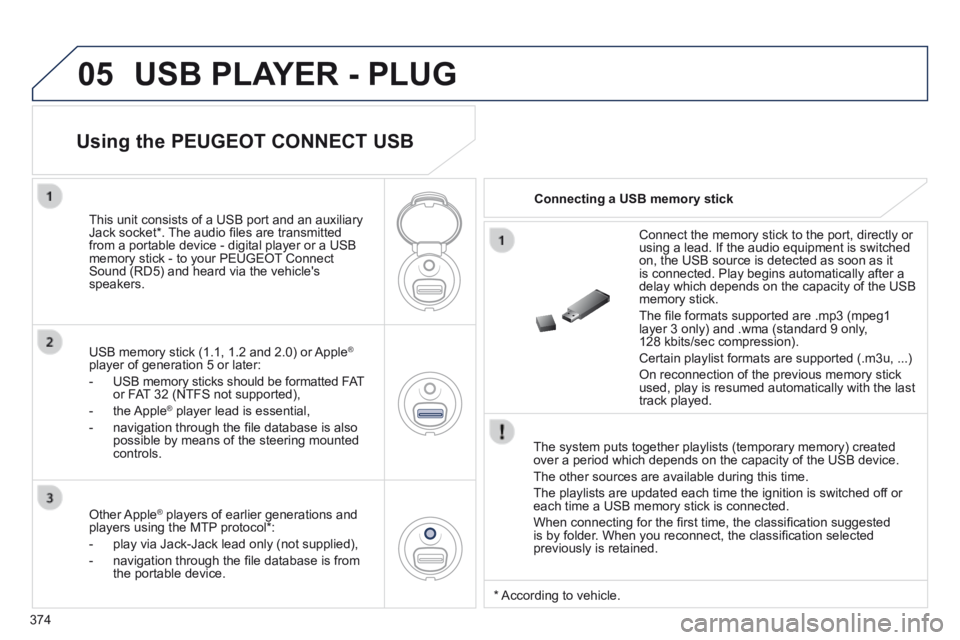
Connect the memory stick to the port, directly or using a lead. If the audio equipment is switched on, the USB source is detected as soon as it is connected. Play begins automatically after a delay which depends on the capacity of the USB memory stick.
The fi le formats supported are .mp3 (mpeg1 layer 3 only) and .wma (standard 9 only, 128 kbits/sec compression).
Certain playlist formats are supported (.m3u, ...)
On reconnection of the previous memory stick used, play is resumed automatically with the last track played.
This unit consists of a USB port and an auxiliary Jack socket * . The audio fi les are transmitted from a portable device - digital player or a USB memory stick - to your PEUGEOT Connect Sound (RD5) and heard via the vehicle's speakers.
USB memory stick (1.1, 1.2 and 2.0) or Apple ®
player of generation 5 or later:
- USB memory sticks should be formatted FAT or FAT 32 (NTFS not supported),
- the Apple ® player lead is essential, ® player lead is essential, ®
- navigation through the fi le database is also possible by means of the steering mounted controls.
Using the PEUGEOT CONNECT USB
Connecting a USB memory stick
Other Apple ® players of earlier generations and ® players of earlier generations and ®
players using the MTP protocol * :
- play via Jack-Jack lead only (not supplied),
- navigation through the fi le database is from the portable device.
* According to vehicle.
Page 377 of 404

375
05
Using the PEUGEOT CONNECT USB
Press LIST briefl y to display the previously selected classifi cation.
Navigate through the list using the left/right and up/down buttons.
Confi rm the selection by pressing OK.
The lists available are Artist, Genre and Playlist (as defi ned in the Apple ® player). ® player). ®
Selection and Navigation are described in steps 1 to 4 above.
Do not connect a hard disk or USB connection device other than audio equipment to the USB port. This could damage your installation.
Connecting an Apple ® Connecting an Apple ® Connecting an Apple player via the USB port ® player via the USB port ®
Press one of these buttons to gain access to the previous / next track on the classifi cation list currently being played.
Press and hold one of the buttons for fast forward or backward play.
Press one of these buttons to gain access to the previous / next Genre, Folder, Artist or Playlist on the classifi cation list currently being played.
Press and hold LIST to display the different classifi cations.
Select by Folder / Artist / Genre / Playlist, press OK to select the classifi cation required, then press OK again to confi rm.
- by Folder: all folders containing audio fi les recognised on the peripheral device.
- by Artist: all of the artist names defi ned in the ID3 Tags, classifi ed in alphabetical order.
- by Genre: all of the genres defi ned in the ID3 Tags.
- by Playlist: in accordance with the playlists recorded on the USB device.
USB PLAYER - PLUG
Page 378 of 404
376
05
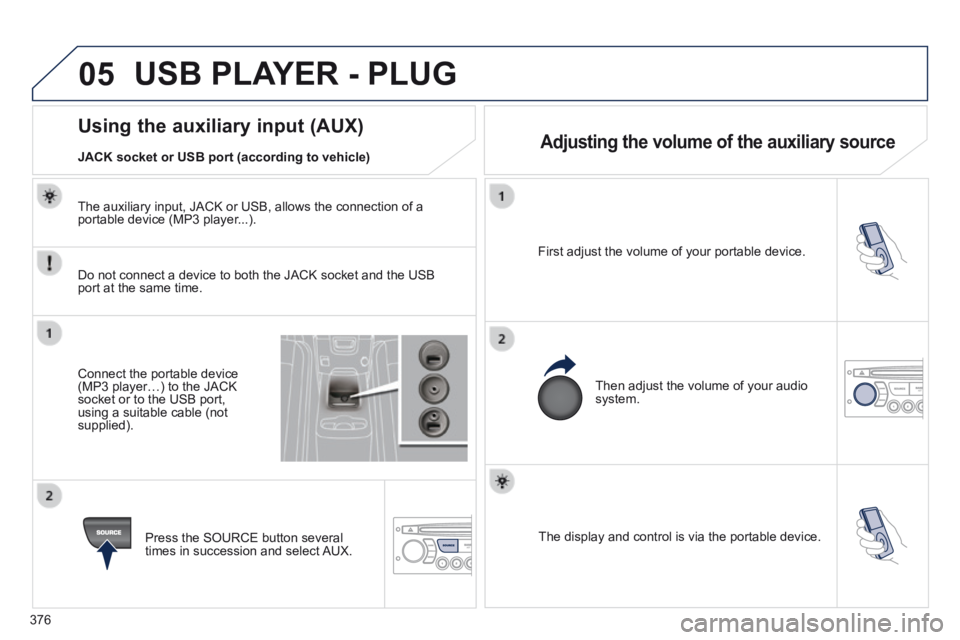
The display and control is via the portable device.
First adjust the volume of your portable device.
Then adjust the volume of your audio system.
Using the auxiliary input (AUX) Adjusting the volume of the auxiliary source JACK socket or USB port (according to vehicle)
USB PLAYER - PLUG
Do not connect a device to both the JACK socket and the USB port at the same time.
Connect the portable device (MP3 player…) to the JACK socket or to the USB port, using a suitable cable (not supplied).
Press the SOURCE button several times in succession and select AUX.
The auxiliary input, JACK or USB, allows the connection of a portable device (MP3 player...).