time Peugeot 508 2011 Repair Manual
[x] Cancel search | Manufacturer: PEUGEOT, Model Year: 2011, Model line: 508, Model: Peugeot 508 2011Pages: 340, PDF Size: 25.72 MB
Page 260 of 340
258
8
06
7
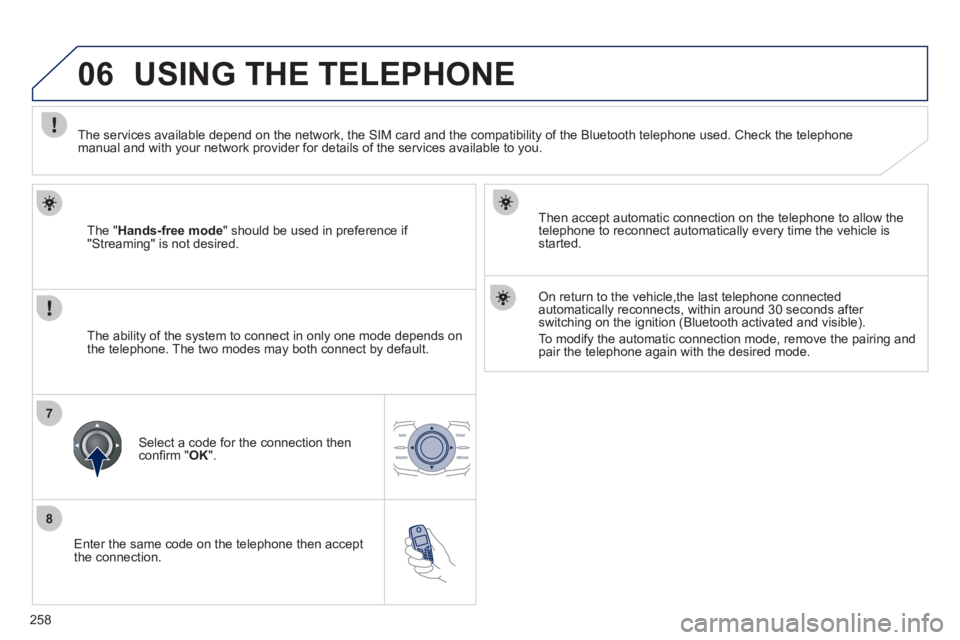
Enter the same code on the telephone then accept
the connection.
Then accept automatic connection on the telephone to allow the
telephone to reconnect automatically every time the vehicle is
started.
On return to the vehicle,the last telephone connected
automatically reconnects, within around 30 seconds after
switching on the ignition (Bluetooth activated and visible).
To modify the automatic connection mode, remove the pairing and
pair the telephone again with the desired mode.
USING THE TELEPHONE
The " Hands-free mode
" should be used in preference if
"Streaming" is not desired.
The services available depend on the network, the SIM card and the compatibility of the Bluetooth telephone used. Check the telephone
manual and with your network provider for details of the services available to you.
The ability of the system to connect in only one mode depends on
the telephone. The two modes may both connect by default.
Select a code for the connection then
confi rm " OK
".
Page 264 of 340
262
1
2a
2b
2c
2d
06 USING THE TELEPHONE
OPTIONS DURING A CALL *
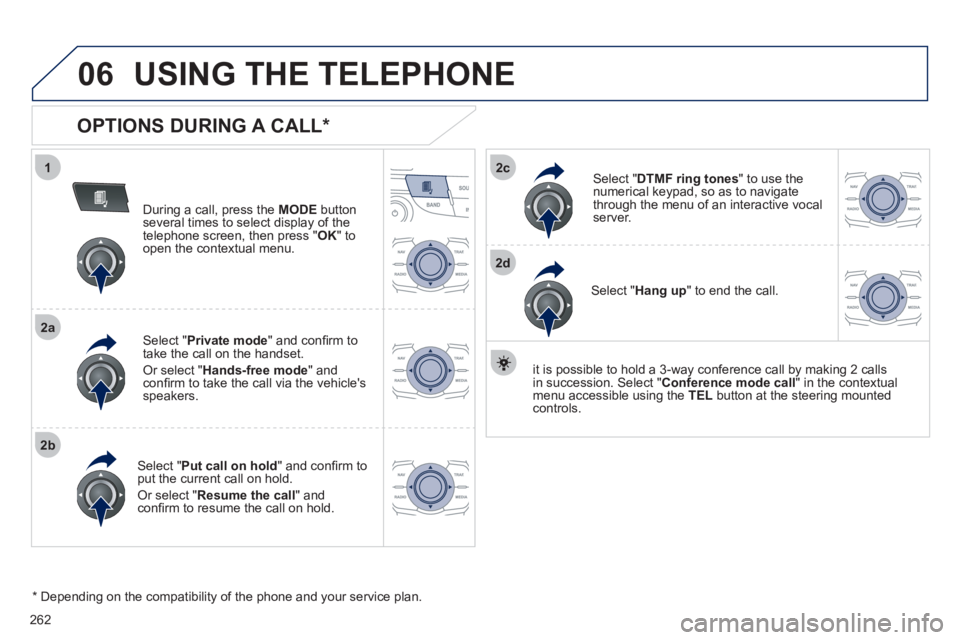
During a call, press the MODE
button
several times to select display of the
telephone screen, then press " OK
" to
open the contextual menu.
Select " Private mode
" and confi rm to
take the call on the handset.
Or select " Hands-free mode
" and
confi rm to take the call via the vehicle's
speakers.
Select " Put call on hold
" and confi rm to
put the current call on hold.
Or select " Resume the call
" and
confi rm to resume the call on hold.
Select " DTMF ring tones
" to use the
numerical keypad, so as to navigate
through the menu of an interactive vocal
server.
Select " Hang up
" to end the call.
* Depending on the compatibility of the phone and your service plan.
it is possible to hold a 3-way conference call by making 2 calls
in succession. Select " Conference
mode call
" in the contextual
menu accessible using the TEL
button at the steering mounted
controls.
Page 274 of 340
272
09
1
2
3
MUSIC MEDIA PLAYERS
CD, MP3 CD, USB PLAYER
Insert the CD in the player, insert the USB memory
stick in the USB player or connect the USB
peripheral to the USB port using a suitable cable
(not supplied).
The system builds playlists (in temporary memory),
an operation which can take from a few seconds to
several minutes.
Reduce the number of non-music fi les and the
number of folders to reduce the waiting time.
The playlists are updated every time the ignition is
switched off or connection of a USB memory stick.
Play starts automatically after a period which
depends on the capacity of the USB memory stick.
SELECTION OF SOURCE
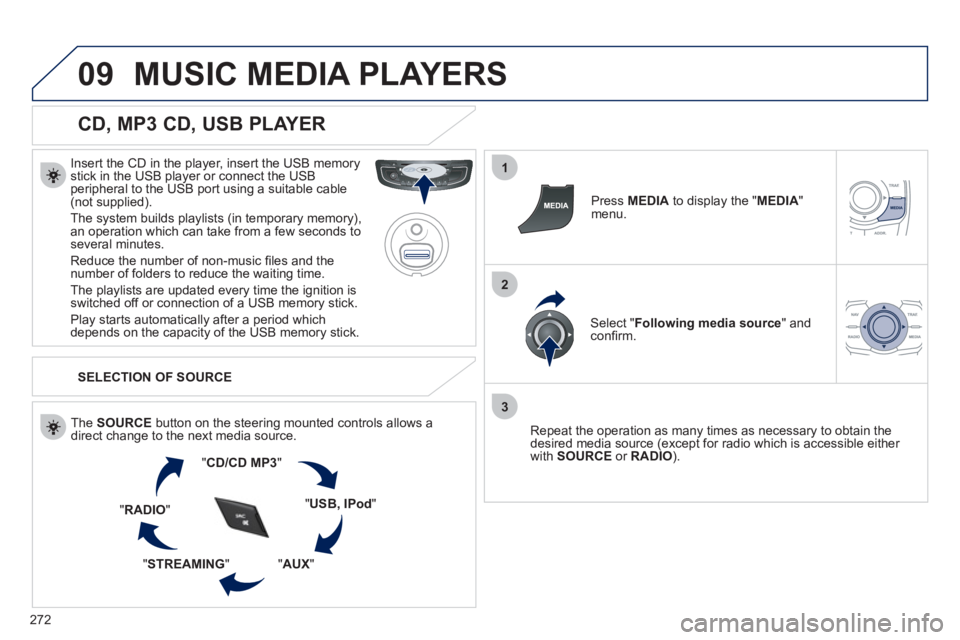
The SOURCE
button on the steering mounted controls allows a
direct change to the next media source.
" CD/CD MP3
"
" USB, IPod
"
" AUX
"
" STREAMING
" " RADIO
"
Press MEDIA
to display the " MEDIA
"
menu.
Select " Following media source
" and
confi rm.
Repeat the operation as many times as necessary to obtain the
desired media source (except for radio which is accessible either
with SOURCE
or RADIO
).
Page 279 of 340
277
11
1
2
3a
3b
1
2
3
4
CONFIGURATION
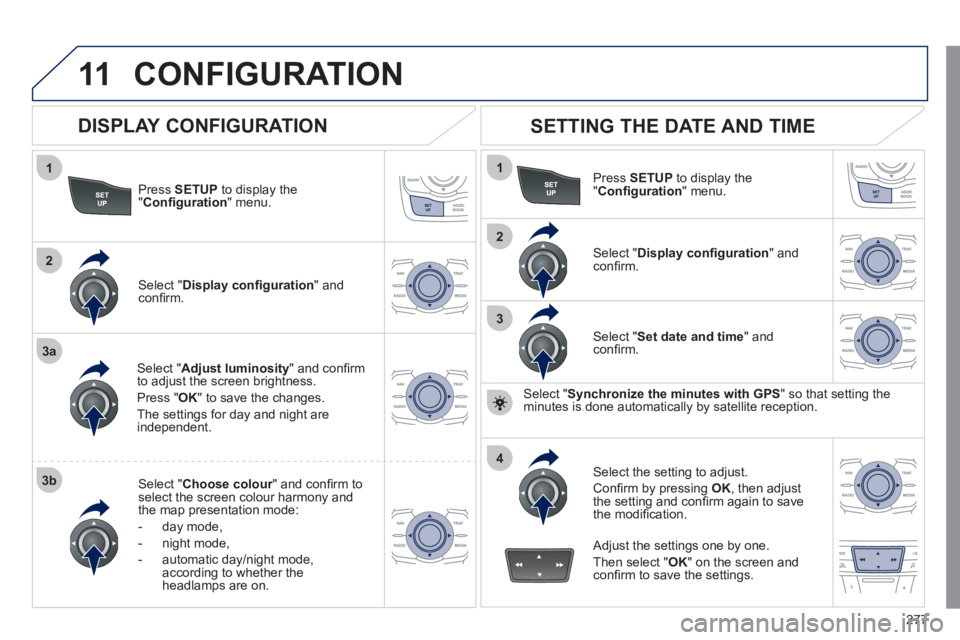
Press SETUP
to display the
" Confi guration
" menu.
Select " Adjust luminosity
" and confi rm
to adjust the screen brightness.
Press " OK
" to save the changes.
The settings for day and night are
independent.
Select " Choose colour
" and confi rm to
select the screen colour harmony and
the map presentation mode:
- day mode,
- night mode,
- automatic day/night mode,
according to whether the
headlamps are on.
SETTING THE DATE AND TIME
Select " Set date and time
" and
confi rm.
Select the setting to adjust.
Confi rm by pressing OK
, then adjust
the setting and confi rm again to save
the modifi cation.
Select " Display confi guration
" and
confi rm.
Press SETUP
to display the
" Confi guration
" menu.
Select " Display confi guration
" and
confi rm.
Adjust the settings one by one.
Then select " OK
" on the screen and
confi rm to save the settings.
DISPLAY CONFIGURATION
Select " Synchronize the minutes with GPS
" so that setting the
minutes is done automatically by satellite reception.
Page 282 of 340
280
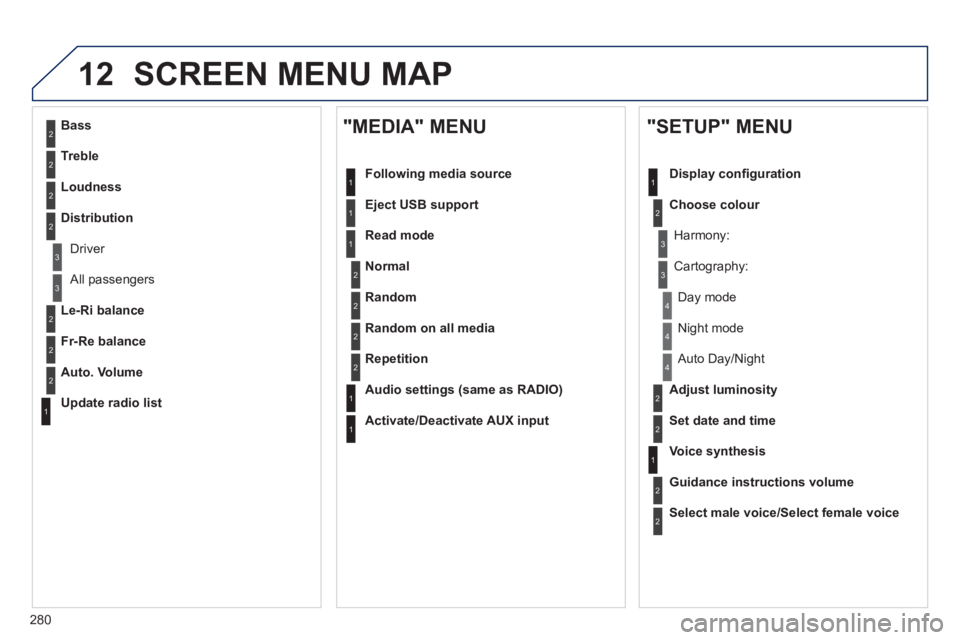
12 SCREEN MENU MAP
2
3
3
1
4
2
2
1
4
4
2
2
1
1
1
2
1
1
2
2
2
2
2
2
2
3
3
2
2
2
1
Random on all media
Repetition
Audio settings (same as RADIO)
Activate/Deactivate AUX input
"MEDIA" MENU
Following media source
Eject USB support
Read mode
Normal
Random
All passengers
Le-Ri balance
Fr-Re balance
Auto. Volume
Update radio list
Bass
Treble
Loudness
Distribution
Driver
Night mode
Auto Day/Night
Adjust luminosity
Set date and time
"SETUP" MENU
Display confi guration
Choose colour
Harmony:
Cartography:
Day mode
Voice synthesis
Guidance instructions volume
Select male voice/Select female voice
Page 283 of 340
281
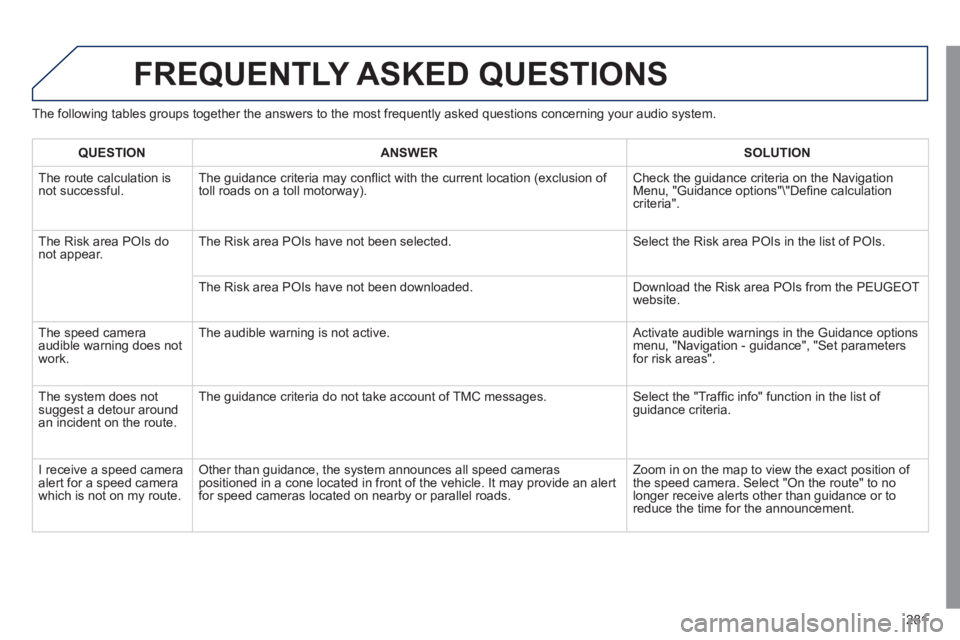
FREQUENTLY ASKED QUESTIONS
The following tables groups together the answers to the most frequently asked questions concerning your audio system.
QUESTION
ANSWER
SOLUTION
The route calculation is
not successful. The guidance criteria may confl ict with the current location (exclusion of
toll roads on a toll motorway). Check the guidance criteria on the Navigation
Menu, "Guidance options"\"Defi ne calculation
criteria".
The Risk area POIs do
not appear. The Risk area POIs have not been selected. Select the Risk area POIs in the list of POIs.
The Risk area POIs have not been downloaded. Download the Risk area POIs from the PEUGEOT
website.
The speed camera
audible warning does not
work. The audible warning is not active. Activate audible warnings in the Guidance options
menu, "Navigation - guidance", "Set parameters
for risk areas".
The system does not
suggest a detour around
an incident on the route. The guidance criteria do not take account of TMC messages. Select the "Traffi c info" function in the list of
guidance criteria.
I receive a speed camera
alert for a speed camera
which is not on my route. Other than guidance, the system announces all speed cameras
positioned in a cone located in front of the vehicle. It may provide an alert
for speed cameras located on nearby or parallel roads. Zoom in on the map to view the exact position of
the speed camera. Select "On the route" to no
longer receive alerts other than guidance or to
reduce the time for the announcement.
Page 284 of 340
282
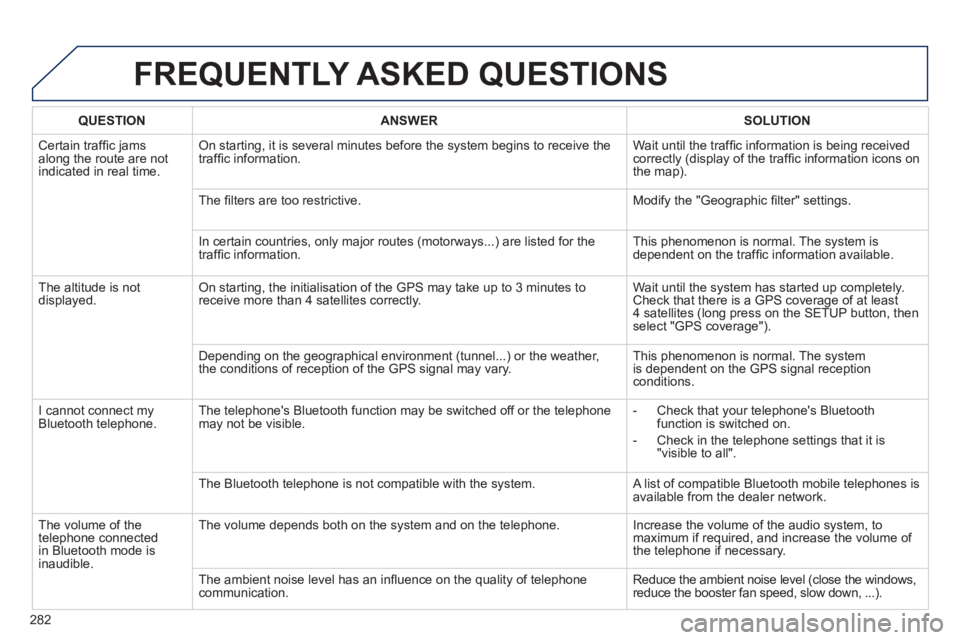
FREQUENTLY ASKED QUESTIONS
QUESTION
ANSWER
SOLUTION
Certain traffi c jams
along the route are not
indicated in real time. On starting, it is several minutes before the system begins to receive the
traffi c information. Wait until the traffi c information is being received
correctly (display of the traffi c information icons on
the map).
The fi lters are too restrictive. Modify the "Geographic fi lter" settings.
In certain countries, only major routes (motorways...) are listed for the
traffi c information. This phenomenon is normal. The system is
dependent on the traffi c information available.
The altitude is not
displayed. On starting, the initialisation of the GPS may take up to 3 minutes to
receive more than 4 satellites correctly. Wait until the system has started up completely.
Check that there is a GPS coverage of at least
4 satellites (long press on the SETUP button, then
select "GPS coverage").
Depending on the geographical environment (tunnel...) or the weather,
the conditions of reception of the GPS signal may vary. This phenomenon is normal. The system
is dependent on the GPS signal reception
conditions.
I cannot connect my
Bluetooth telephone. The telephone's Bluetooth function may be switched off or the telephone
may not be visible.
- Check that your telephone's Bluetooth
function is switched on.
- Check in the telephone settings that it is
"visible to all".
The Bluetooth telephone is not compatible with the system. A list of compatible Bluetooth mobile telephones is
available from the dealer network.
The volume of the
telephone connected
in Bluetooth mode is
inaudible. The volume depends both on the system and on the telephone. Increase the volume of the audio system, to
maximum if required, and increase the volume of
the telephone if necessary.
The ambient noise level has an infl uence on the quality of telephone
communication. Reduce the ambient noise level (close the windows,
reduce the booster fan speed, slow down, ...).
Page 288 of 340
286
QUESTION
ANSWER
SOLUTION
With the engine off, the
system switches off after
a few minutes of use. When the engine is switched off, the system's operating time depends on
the battery charge.
The switch-off is normal: the system switches to economy mode and
switches off to prevent discharging of the vehicle's battery. Start the vehicle's engine to increase the battery
charge.
Playback of my USB
memory stick starts only
after a very long wait
(around 2 to 3 minutes). Some fi les supplied with the memory stick may greatly slow down access
to reading the memory stick (multiplication by 10 of the catalogue time). Delete the fi les supplied with the memory stick
and limit the number of sub-folders in the fi le
structure on the memory stick.
When I connect my
iPhone as telephone and
to the USB port at the
same time, I am unable
to play the music fi les. When the iPhone connects automatically as a telephone, it is possible
that it connects streaming and telephone functions simultaneously. The
streaming function takes the place of the USB function which is then not
useable. Two possible solutions (depending on the iPhone):
- disconnect then reconnect the USB
connection (the USB function then takes the
place of the streaming function),
- go to the "Bluetooth functions"\"List of the
paired peripherals" menu, disconnect the
iPhone then reconnect it in "Hands-free
mode" only.
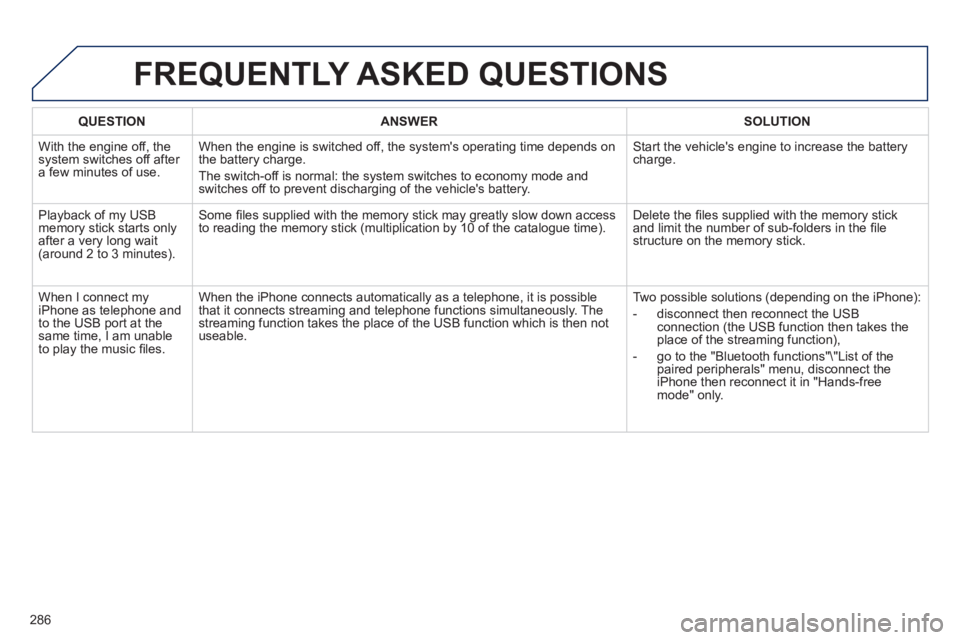
FREQUENTLY ASKED QUESTIONS
Page 290 of 340
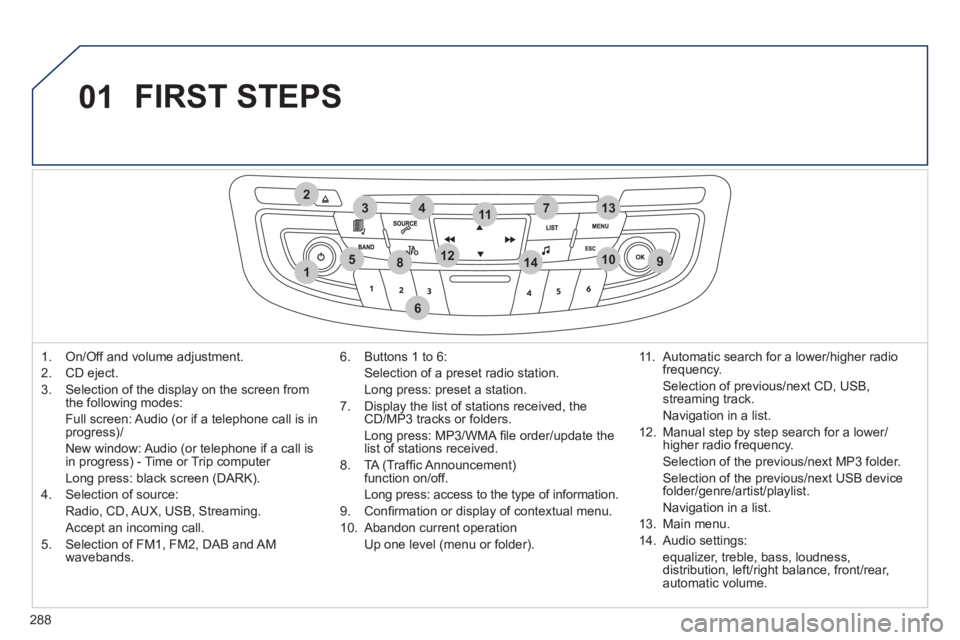
288
01
1
274
5
6
3
8910
1311
1214
FIRST STEPS
1. On/Off and volume adjustment.
2. CD eject.
3. Selection of the display on the screen from
the following modes:
Full screen: Audio (or if a telephone call is in
progress)/
New window: Audio (or telephone if a call is
in progress) - Time or Trip computer
Long press: black screen (DARK).
4. Selection of source:
Radio, CD, AUX, USB, Streaming.
Accept an incoming call.
5. Selection of FM1, FM2, DAB and AM
wavebands.
6. Buttons 1 to 6:
Selection of a preset radio station.
Long press: preset a station.
7. Display the list of stations received, the
CD/MP3 tracks or folders.
Long press: MP3/WMA fi le order/update the
list of stations received.
8. TA (Traffi c Announcement)
function on/off.
Long press: access to the type of information.
9. Confi rmation or display of contextual menu.
10. Abandon current operation
Up one level (menu or folder).
11. Automatic search for a lower/higher radio
frequency.
Selection of previous/next CD, USB,
streaming track.
Navigation in a list.
12. Manual step by step search for a lower/
higher radio frequency.
Selection of the previous/next MP3 folder.
Selection of the previous/next USB device
folder/genre/artist/playlist.
Navigation in a list.
13. Main menu.
14. Audio settings:
equalizer, treble, bass, loudness,
distribution, left/right balance, front/rear,
automatic volume.
Page 292 of 340
290
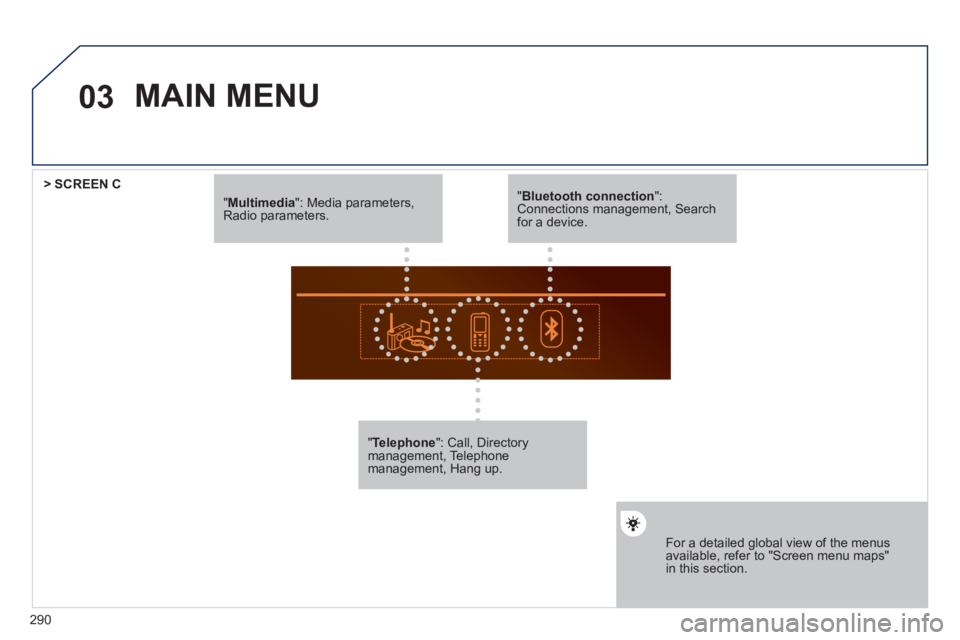
03
" Multimedia
": Media parameters,
Radio parameters.
" Telephone
": Call, Directory
management, Telephone
management, Hang up.
For a detailed global view of the menus
available, refer to "Screen menu maps"
in this section.
> SCREEN C
" Bluetooth connection
":
Connections management, Search
for a device.
MAIN MENU