service PEUGEOT BOXER 2021 Owner's Manual
[x] Cancel search | Manufacturer: PEUGEOT, Model Year: 2021, Model line: BOXER, Model: PEUGEOT BOXER 2021Pages: 212, PDF Size: 6.37 MB
Page 135 of 212
133
In the event of a breakdown
8Ensure that the weight of the towing vehicle is
higher than that of the towed vehicle.
The driver must remain at the wheel of the
towed vehicle and must have a valid driving
licence.
When towing a vehicle with all four wheels on
the ground, always use an approved towing
arm; rope and straps are prohibited.
The towing vehicle must move off gently.
When the vehicle is towed with its engine
off, there is no longer braking and steering
assistance.A professional towing service must be
called if:
–
Broken down on a motorway or main road.
–
Not possible to put
the gearbox into neutral,
unlock the steering, or release the parking
brake.
–
Not possible to tow a vehicle with an
automatic gearbox, with the engine running.
–
T
owing with only two wheels on the ground.
–
Four-wheel drive vehicle.
–
No approved towbar available.
Before towing the vehicle, it is essential
to put the vehicle in free-wheeling mode.
Electric motor
An electric vehicle cannot under any
circumstances be used to tow another
vehicle.
However, it may be used, for example, to exit
a rut.
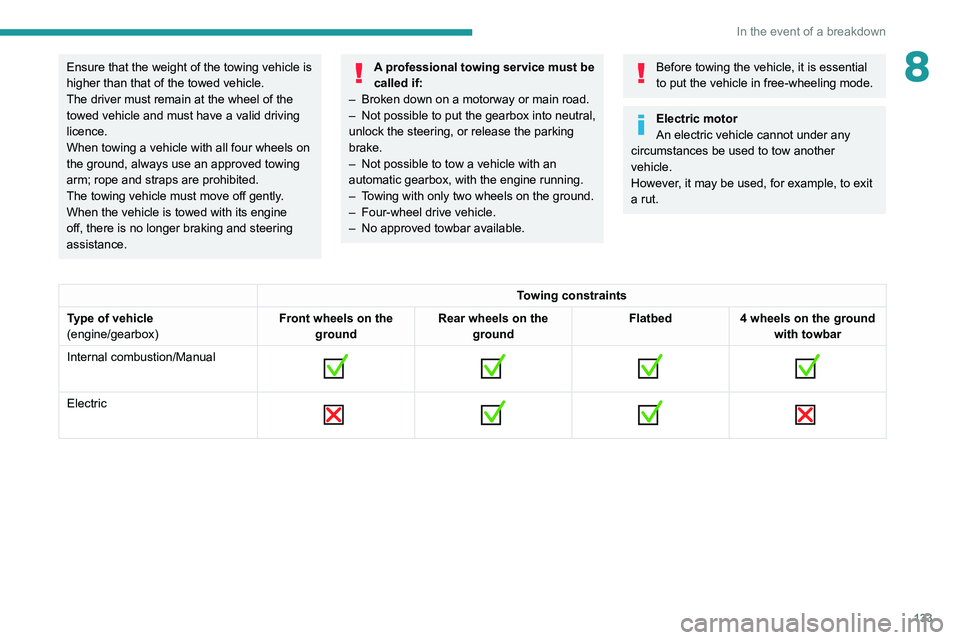
Towing constraints
Type of vehicle
(engine/gearbox) Front wheels on the
ground Rear wheels on the
ground Flatbed
4 wheels on the ground
with towbar
Internal combustion/Manual
Electric
Page 162 of 212
160
Special features
– Never work under a tipper body that is not
supported,
–
Switch off the power supply to the electro-
hydraulic unit using the circuit breaker
,
–
V
ehicle stationary, engine off.
For safety reasons, we very strongly
advise against doing anything under the
tipper body while it is being operated or while
it is being serviced.
Maintenance
Reservoir
Regularly check and top up the engine oil level.
Change the oil once a year. If the oil contains
water, change it.
Regularly check the condition of the hose and
ensure the hydraulic system is properly sealed.
Pump and motor
No servicing required. The rolling elements are
permanently lubricated and the bearings are
lubricated by the pumped oil.
Lubrication
The pins of the tipper truck and the ram do not
contain lubricant. Regularly lubricate the hinges
and the grab handles of the side boards as well
as the retaining hooks of the rear board.
Sub-frame and tipper truck
For maximum service life, you are advised to
maintain your tipper truck by regularly washing it
using a power washer.
Carry out any required paint touch-ups quickly to
prevent the spread of rust.
After 8 months of use, check the tightening torque of the connection
between the chassis and the underbody (in
accordance with the manufacturer's
bodybuilding recommendations).
Cleaning the slide valve
► Loosen cap 244A, taking care with the ball
and retrieving it.
►
Using a wide screwdriver
, unscrew the banjo
bolt/piston assembly.
►
Check that the piston slides freely and
remove any foreign bodies. Use a magnet to
remove any metal filings.
►
Refit the assembly and make sure that the
piston slides freely
. Retain the ball with a little
grease on the cap for refitting.
►
Bleed the hydraulic unit.
Bleeding the hydraulic unit
► Unscrew hexagonal cap 257 .
► Loosen internal screw 587
by half a turn,
using a 6 mm hex key.
►
Operate the unit for a few seconds by
pressing the raise button.
The tipper does not rise or rises very slowly
.
When the oil exits through this opening, the unit
is bled.
►
Retighten screw 587
and refit cap 257. Check
that the tipper lowers correctly.
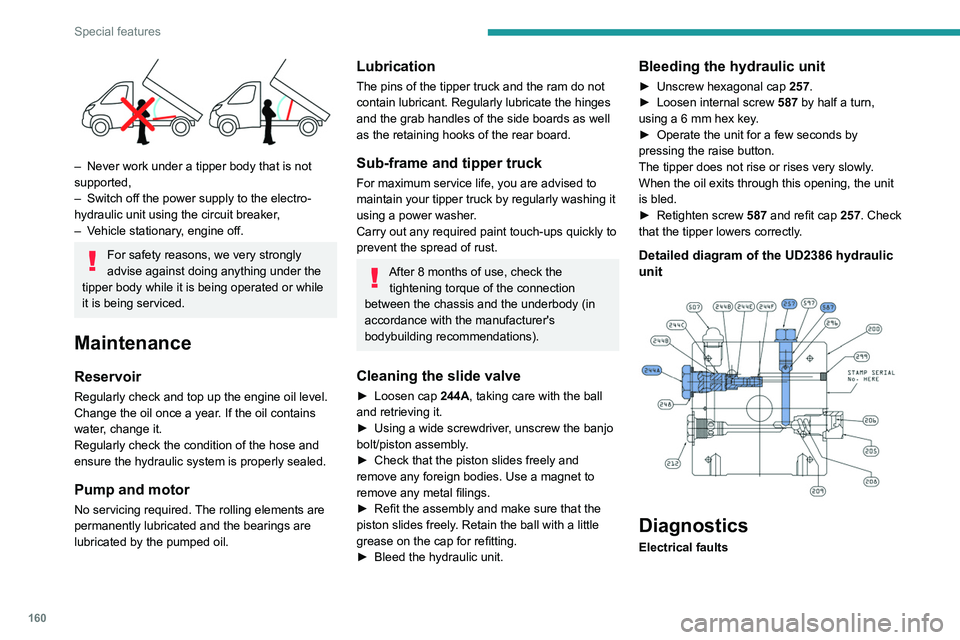
Detailed diagram of the UD2386 hydraulic
unit
Diagnostics
Electrical faults
Page 163 of 212
161
Special features
10SymptomsVerification/Check
The hydraulic
unit does not
work. Power harness and unit
relay.
Control harness (control
unit).
Circuit-breaker.
The ram does
not lower. No, check the coil and the
electrical connections of
the valve.
The control unit
does not work. Check the connection and
contacts.
The fuse blows
while lowering. Replace the lowering coil.
Hydraulic faults
Symptoms Verification/Check
Very noisy unit,
rises slowly. Suction strainer clogged
or crushed at the bottom
of the tank.
Very noisy
new unit, rises
quickly. Pump alignment, change
the unit.
The ram lowers
by itself. Lowering valve crushed or
blocked.
Symptoms
Verification/Check
The ram does
not lower. Yes, check the slide valve
and bleed.
Refer to the
"Maintenance" section.
No, replace the solenoid
valve.
No, check the alignment
of the ram.
The unit works
but its pressure
does not
increase. Slide valve jammed if no
solenoid valve on the unit.
Refer to the
"Maintenance" section.
Pressure relief device,
setting, dirt.
Pump seal out of service.
Motor/pump coupling.
Pump loose from its
support.
The hydraulic
unit does not
work. Solenoid valve stuck,
replace it or retighten the
nut behind the strainer.
Emulsion in the
tank. Incorrectly positioned
return pipe.
Insufficient oil level.Symptoms
Verification/Check
The oil flows
back through
the oil breather
pipe. Oil level too high.
Tolerance of the oil
breather pipe membrane
too high, to be replaced.
Valid only for UD2386
units.
Page 169 of 212
167
Audio system
11It is possible to replace the "Mobile
phone" tag with three other available
tags: "Home"; "Office"; "Other".
Call* > Henri Dupont
Dial the telephone number associated with the
contact Henri Dupont.
Call* > Henri Dupont > Mobile phone
Dial the telephone number with the mobile phone
tag associated with the contact Henri Dupont.
Call number > 0123456789
Call number 0123456789.
Redial
Call the number or contact of the last call made.
Call back
Call the number or contact of the last call
received.
Recent calls*
View the complete list of recent calls: outgoing,
missed and incoming.
Outgoing calls *
View the list of outgoing calls.
Missed calls*
View the list of missed calls.
Incoming calls *
View the list of incoming calls.
Directory *
View the directory of the connected telephone.
* This function is av ailable only if the telephone connected to the system supports downloading of contacts and recent calls and if the corresponding
download has been performed.
**
This function is a
vailable only if the telephone connected to the system supports the text message reading function.
***
It
is possible to replace "Magic" with any other FM station name received by the radio. Not all radio stations provide this service.
Search* > Henri Dupont
View Henri Dupont's contact information in the
directory with all of the numbers saved.
Search* > Henri Dupont > Mobile phone
View the telephone number with the mobile
phone tag associated with the contact Henri
Dupont.
View messages**
View the list of text messages received by the
connected telephone.
If the telephone allows the recording of
the "First Name" (Henri) and the
"Surname" (Dupont) in two separate fields,
perform the following voice commands:
–
"Call" > "Henri" > "Dupont" or "Call" >
"Dupont" > "Henri".
–
"Search" > "Henri" > "Dupont" or "Search"
> "Dupont" > "Henri".
"AM/FM radio” voice
commands
The following commands can be made from any main screen page after pressing
the voice recognition button located on the
steering wheel, as long as there is no telephone
call in progress. Tune to
> 105.5 > FM
Tune the radio to the 105.5 frequency of the FM
band.
Tune to > 940 > AM
Tune the radio to the 940 frequency of the AM
band.
Tune to *** > Magic > FM
Tune the radio to the station Magic.
"Media" voice commands
The following commands can be made from any main screen page after pressing
the voice recognition button located on the
steering wheel, as long as there is no telephone
call in progress.
Listen to track > "Track 1"
Play the track
“Track 1”.
Listen to album > "Album 1"
Play the songs of the album “Album 1”.
Listen to artist > "Artist 1"
Play the songs of the artist
“Artist 1”.
Listen to music style > "Jazz"
Play the songs of the music style “Jazz”.
Listen to playlist > "Playlist 1"
Play the songs of the playlist “Playlist1”.
Listen to podcast > "Radio 1"
Play the podcast
“Podcast 1”.
Listen to audio book > "Book 1"
Page 176 of 212
174
Touch screen audio and telematics system
To protect the system, do not use a USB hub.
The system does not support the simultaneous connection of two identical
devices (two memory sticks or two
Apple
® players) but it is possible to connect
one memory stick and one Apple® player at
the same time.
It is recommended that you use genuine
Apple® USB cables to guarantee correct
operation.
Bluetooth® audio streaming
Streaming allows music files on the telephone to
be played via the vehicle's speakers.
Activate the Bluetooth
® function on the device.Press "MEDIA".
If there is a media source active, press
the "Source" button.
Select the "Bluetooth®" media source
then press the "Add device" button.
If no device has yet been paired with the system,
a special page is displayed on the screen.
Select "Yes" to start the pairing procedure, and
then search for the name of the system on the
device.
Select the name of the system on the device
and, when requested by the audio system, enter
the PIN code displayed on the system's screen
or confirm the PIN displayed on the device.
During pairing, a screen page is displayed
showing the progress of the operation.
If the pairing procedure fails, we recommend
deactivating and then reactivating the Bluetooth
®
function on the device.
Once the pairing procedure is complete, a
screen page appears:
–
if you reply "Y
es" to the question, the
Bluetooth
® audio device will be saved as
favourite (the device will have priority over other
devices paired later).
–
if you reply "No", the priority will be determined
by the order of connection.
The last device
connected has the highest priority.
Some Bluetooth® devices do not allow
you to scroll through the tracks and
information on the telephone using all of the
categories present in the system.
Connecting Apple® players
Connect the Apple® player to the USB
socket using a suitable cable (not
supplied).
Play starts automatically.
Control is via the audio system.
The classifications available are those of the portable device connected (artists/
albums/types/tracks/playlists/audio books/
podcasts).
The default classification is sorting by artist.
To change the classification used, return to
the first level of the menu and then select the
desired classification (playlists for example)
and confirm to browse the tree to the desired
track.
The audio system software version may
not be compatible with the generation of
your Apple
® player.
Navigation
Press "N AV " and then at the centre or
bottom of the screen to display the
settings and navigation menus:
Go to...
Select "Go to" to set the destination in several
ways and not just by entering the address.
Display the map
Display the route map for an overview using the
map's navigator.
Plan a route
Use the navigation system to plan a route in
advance by selecting the starting point and the
destination.
Services
Use traffic information to minimise the impact of
traffic delays on your route.
Settings
Change the appearance and behaviour of the
navigation system.
Most system settings can be accessed by
touching "Settings" in the main menu.
Page 177 of 212
175
Touch screen audio and telematics system
12Help
Access information about assistance services
and other specialised services.
Finish
Validate the settings.
Limitation
Speed limitation (if known).
To see the difference between the desired arrival
time and the estimated arrival time.
Switch between a 3D map and a 2D map.
Go to..., Display the map, Plan a route,
Services, Settings, Help, Finish.
When the navigation system starts for the first
time, the "Driving mode" as well as detailed
information on the current position is displayed.
Touch the centre of the screen to open the main
menu.
Details
The route summary provides an overview of the
route, the remaining distance to the destination
and an estimate of the remaining travel time.
With the RDS-TMC data, the route summary
also shows the traffic information concerning
delays along the route.
Modify route
The navigation system helps you to get to your
destination as quickly as possible by displaying a
faster alternative route when it is available.
Finish
Validate the settings.
Instructions
Navigation instructions for the next part of the
trip and the distance to the next instruction. If the second instruction is less than 150 metres from
the first one, it is immediately displayed instead
of the distance.
Touch this part of the status bar to repeat the last
voice instruction.
Updating maps
To get a map update, proceed as follows: – Map refresh guarantee: if a new map
becomes available within 90 days of the first
use of the system, you can download it once
for free.
–
Map update: you can purchase a new
version of the map loaded on the system.
T
o install a map update on the system, perform
the following four steps:
–
Prepare a USB device.
–
Install TomTom HOME and create a
MyTomTom account.
–
Download the map.
–
Install the new map.
Use a USB device and not a mass
storage device (telephone or media
player).
To protect the system, do not use a USB hub.
Prepare a USB device
The preparation of the USB device
must be done with the engine running
and the vehicle stationary.
In order to update the map, you must have
a USB device that meets the following
requirements:
–
The USB device must be empty
.
–
The USB device has 16 GB of available
space.
–
Use only USB devices formatted to F
AT32
(File Allocation Table).
–
Do not lock the USB device and check that
files can be saved to it.
T
o prepare the USB device, proceed as follows:
►
Make sure that the map to be updated is
active on the vehicle's navigation system.
If the navigation system has multiple maps and
you want to update a map that is not currently
active, you will need to activate it.
►
Select "
Change map" in the "Settings" menu
of the navigation application.
►
Select "
Navigation updates" in the
"Settings" menu.
►
Y
ou must indicate whether you want to
prepare a USB device to download updates.
►
Select "
Ye s".
►
Insert the USB device into the USB socket
located in the central storage space
and
which is dedicated to data transfer.
The system starts preparing the USB device.
Page 180 of 212
178
Touch screen audio and telematics system
If the pairing procedure fails, it is
recommended that you deactivate and
then reactivate the Bluetooth function on your
telephone.
Once the pairing procedure is complete, a
screen page appears:
–
answer "Y
es" to the question; the mobile
phone is registered as the favourite (the mobile
phone will have priority over other mobile
phones, which may be registered later).
–
if no other device is associated, the system
considers the first associated device as the
favourite.
For mobile phones that are not set as
favourites, priority is determined by the
connection order. The last phone
connected
will have the highest priority.
The services available depend on the
network, the SIM card and the compatibility
of the Bluetooth
® devices used. Refer to your
telephone’s user guide and your service provider
to check which services you are able to access.
When you return to the vehicle, the last
phone
connected reconnects automatically,
within approximately 30 seconds of switching the
ignition on (with
Bluetooth
® activated).
To change the automatic connection profile,
select the phone from the list then select the
desired parameters.
The profiles compatible with the system are:
HFP, OPP, PBAP, A2DP, AVRCP, MAP.
Automatic reconnection
When the ignition is switched on, the telephone
connected when the ignition was last switched
off reconnects automatically, if this connection
mode had been set during the pairing procedure
(see previous pages).
The connection is confirmed by the display of a
message and the name of the telephone.
Managing paired telephones
This function allows a device to be connected or disconnected, as well as a
pairing to be deleted.
Press "Settings".
Select “Telephone/Bluetooth
®” then select the
telephone from the list of paired devices.
Select “Connect” or “Disconnect”, “Delete
device” or “Add device”, “Memorise
Favourite”, “Text on”, “Download ” from the list
of available options.
Receiving a call
An incoming call is announced by a ring and a
display overlaid on the screen.
Make a short press on this steering-
mounted button to accept an incoming
call.
or
Press the "Answer“ button displayed on the
screen.
If two calls are in progress (one in progress and
one on hold), it is possible to switch from one to
the other by pressing the " Call toggle” button or
unite the two calls in a conference by pressing
the "Confer." button.
Ending a call
To refuse a call, press this steering- mounted button.
or
Press the “Ignore” button
displayed on the
screen.
Making a call
Calling a new number
You are strongly advised NOT to use the telephone while driving. We recommend
that you park safely or make use of the
steering-mounted controls.
Press “PHONE".
Press the keypad button.
Enter the telephone number using the keypad,
then press the “Call” button to make the call.
Calling a contact
Press "PHONE".
Page 184 of 212
182
Touch screen audio and telematics system
Tune the radio to the 940 frequency of the AM
band.
Tune to* > Magic > FM
Tune the radio to the station Magic.
Tune to DAB channel ** > Absolute Radio
Tune the DAB radio to the Absolute Radio
channel.
"Media" voice commands
The following commands can be made from any main screen page after pressing
the voice recognition button located on the
steering wheel, as long as there is no telephone
call in progress.
Listen to track > "Track 1"
Play the track
“Track 1”.
Listen to album > "Album 1"
Play the songs of the album “Album 1”.
Listen to artist > "Artist 1"
Play the songs of the artist
“Artist 1”.
Listen to music style > "Jazz"
Play the songs of the music style “Jazz”.
Listen to playlist > "Playlist 1"
Play the songs of the playlist “Playlist1”.
Listen to podcast > "Radio 1"
Play the podcast
“Podcast 1”.
Listen to audio book > "Book 1"
Play the audio book "Book 1”.
Listen to track number > "5"
Play track
number “5”.
* It is possible to rep lace "Magic" with any other FM station name received by the radio. Not all radio stations provide this service.
** It is possible to re place "Absolute Radio" with any other DAB channel received by the radio. Not all DAB channels provide this service. Select > "USB"
Select the USB media support as the active
audio source.
Browse > "Album"
View the list of available albums.
"Navigation" voice
commands
The following commands can be made
from any main screen page after pressing
the voice recognition or telephone button located
on the steering wheel, as long as there is no
telephone call in progress.
Go home
Display the route home.
2D mode
Switch to 2D mode.
3D mode
Switch to 3D mode.
Clear route
Clear the displayed route.
Add a favourite
Display the favourites screen page.
Repeat instruction
Repeat the last spoken voice message.
"Text message" voice
commands
The following commands can be made from each main screen after pressing the
telephone button located on the steering wheel,
as long as there is no telephone call in progress.
Send a text message to > 0123456789
Start the voice procedure to send a preset text
message using the system.
Send a text message to > Henri Dupont >
Mobile phone
Start the voice procedure to send a preset text
message using the system.
View text message > Henri Dupont > Mobile
phone
View the list of text messages downloaded by
the phone.
"Hands-free calls" voice
commands
The following commands are available when a call is in progress.
The commands can be made from any screen
page during a call after pressing the telephone
button located on the steering wheel.
Send 0123456789
The selection tones are sent for 0123456789.
Send Voicemail password
Page 189 of 212
187
Event data recorders
14Recording event data
Electronic control units are installed in your
vehicle. These control units process data
received from the vehicle's sensors, for example,
or data they generate themselves or exchange
with each other. Some of these control units are
required for the correct operation of your vehicle,
some others assist you while driving (driving or
manoeuvring aids), while others provide comfort
or infotainment functions.
The following contains general information about
how data is processed within the vehicle.
You will find additional information about the
specific data which is downloaded, stored
and transmitted to third parties and what it is
used for in your vehicle under the keyword
"Data protection". This information is directly
associated with the references for the functions
in question contained in the corresponding
vehicle handbook, or in the general terms and
conditions of sale.
This information is also available online.
Vehicle operating data
The control units process the data used for the
operation of the vehicle.
This data includes, for example:
–
Information about the state of the vehicle
(e.g.
speed, travel time, lateral acceleration,
wheel rotation rate, fastened seat belts display).
–
Environmental conditions (e.g.
temperature,
rain sensor, distance sensor). As a general rule, this data is temporary, is
not stored for longer than one operating cycle
and is only used within the vehicle itself. The
control units often record this data (including the
vehicle's key). This function allows either the
temporary or permanent storage of information
about the state of the vehicle, stresses on
components, servicing requirements, as well as
events and technical errors.
Depending on the vehicle's equipment level, the
data stored is as follows:
–
Operating state of system components
(e.g.
filling level, tyre pressures, battery charge
status).
–
Faults and malfunctions in important system
components (e.g.
lamps, brakes).
–
System reactions in specific driving situations
(e.g.
deployment of an airbag, triggering of
stability control and braking systems).
–
Information about events which have
damaged the vehicle.
–
For electric and rechargeable hybrid vehicles,
the traction battery charge level and the
estimated driving range.
In particular circumstances (e.g.
if the vehicle
has detected a malfunction), it may be necessary
to record data which would otherwise simply not
be stored.
When taking your vehicle in for servicing
(e.g.
repairs, maintenance), the stored operating
data may be read along with the vehicle's
identification number and used if necessary.
The personnel working for the servicing network (e.g.
garages, manufacturers) or third parties
(e.g. roadside assistance agents) may read
the vehicle's data. This also applies to work
carried out under warranty and quality assurance
measures.
This data is generally read via the OBD
(On-Board Diagnostics) port fitted by law to
the vehicle. It is used to report on the technical
state of the vehicle or its components and
facilitates the diagnosis of malfunctions, in
compliance with warranty obligations and for
quality improvement. This data, in particular the
information relating to stress on components,
technical events, operator errors and other
malfunctions, is sent to the Manufacturer, if
necessary, along with the vehicle's identification
number. The Manufacturer's liability may also be
engaged. The Manufacturer may also use the
operating data taken from the vehicle for product
recalls. This data may also be used to check the
customer's warranty and any claims made under
warranty.
Any malfunctions stored in the vehicle may be
reset by an after-sales service company during
servicing or repair work, or at your request.
Comfort and infotainment
functions
Comfort settings and personalised settings
may be saved in the vehicle and modified or
reinitialised at any time.
Page 190 of 212
188
Event data recorders
Depending on the vehicle's equipment level, this
may include:
–
Seat and steering wheel position settings.
–
Chassis and air conditioning settings.
–
Personalised settings such as the interior
lighting.
Y
ou can enter your own data into the functions
of your vehicle's audio and telematic system, as
part of the selected functionalities.
Depending on the vehicle's equipment level,
this
may
include:
–
Multimedia data such as music, videos or
photos to be read by an integrated multimedia
system.
–
Address book data to be used with an
integrated hands-free system or with an
integrated navigation system.
–
Entered destinations.
–
Data regarding the use of online services.
This data for the comfort and infotainment
functions may be stored locally in the vehicle
or saved to a device that you have connected
to the vehicle (e.g.
smartphone, USB memory
stick or MP3 player). Data that you have entered
yourself may be deleted at any time.
This data may also be transmitted outside the
vehicle at your request, particularly when using
online services in line with the settings that you
have selected. Smartphone integration
(e.g.
Android
Auto
® or
Apple
®CarPlay®)
If your vehicle is equipped accordingly, you can
connect your smartphone or another mobile
device to the vehicle in order to operate it using
the vehicle's integrated controls. Images and
sounds from the smartphone can be transmitted
through the audio and telematics system.
Specific information is simultaneously sent
to your smartphone. Depending on the type
of
integration,
this includes data such as location,
day/night mode and other general information
about the vehicle. For more information, please
refer to the user instructions for the vehicle or the
audio and telematics system.
Integrating a smartphone allows you to use
its applications, such as a navigation app or
music player. No other
integration between
the smartphone and the vehicle is possible, in
particular active access to vehicle data. How the
data is processed subsequently is determined
by the supplier of the application being used.
The ability the change settings depends on the
application in question and on the operating
system installed on your smartphone.
Online services
If your vehicle is connected to a wireless
network, data can be exchanged between
your vehicle and other systems. Connection
to a wireless network is made possible
via a transmitter located in your vehicle or a mobile
device that you have provided (e.g.
smartphone).
The online services can be used via this wireless
connection.
These include online services and
applications (apps) provided to you by the
Manufacturer or other suppliers.
Exclusive services
As regards the Manufacturer's online services,
the corresponding functions are described by
the Manufacturer in an appropriate medium
(e.g.
handbook, Manufacturer's website) and the
information about data protection is provided.
Personal data may be used for online services.
The exchange of data for this purpose takes
place over a secure connection, using for
example the Manufacturer's dedicated computer
systems. The collection, processing and use of
personal data for the development of services
are carried out solely on the basis of a legal
authorisation, for example in the case of a
legal emergency call system or a contractual
agreement or else under a consent agreement.
You can activate or deactivate the services and
functions (some may be chargeable) and, in
some cases, the vehicle's entire connection to
the wireless network. This does not include the
statutory functions and services such as the
emergency or assistance call system.
Third-party services
If you use online services provided by other
(third-party) suppliers, these services are subject