screen Peugeot Partner 2013 Workshop Manual
[x] Cancel search | Manufacturer: PEUGEOT, Model Year: 2013, Model line: Partner, Model: Peugeot Partner 2013Pages: 236, PDF Size: 9.04 MB
Page 149 of 236
9.7
02
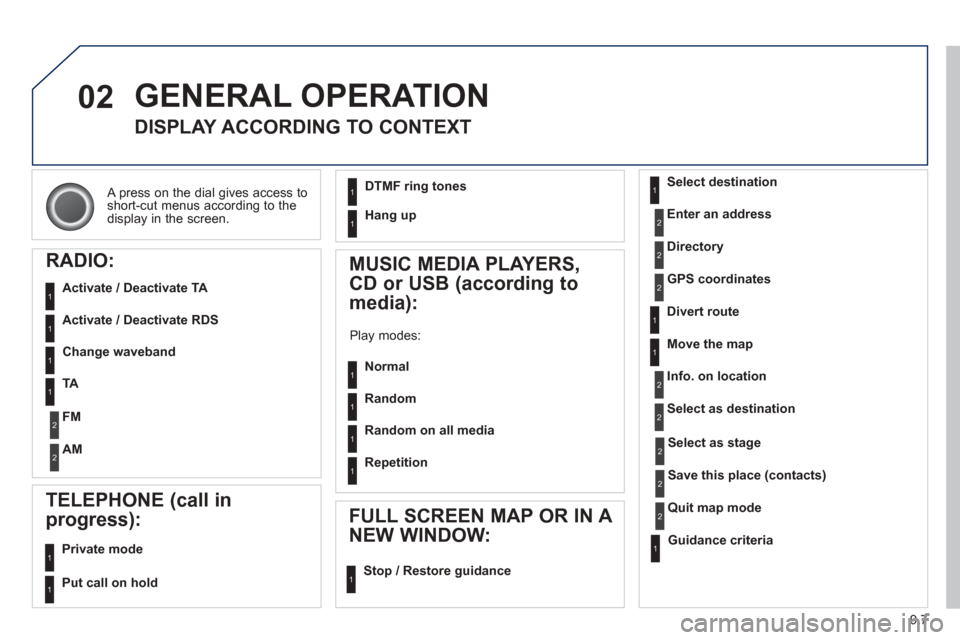
A press on the dial gives access to short-cut menus according to thedisplay in the screen.
GENERAL OPERATION
DISPLAY ACCORDING TO CONTEXT
RADIO:
Activate / Deactivate TA
Activate / Deactivate RDS
MUSIC MEDIA PLAYERS,
CD or USB
(according to
media):
Play modes:
Normal
Random
Random on all media
Repetition
TELEPHONE (call in
pro
gress):
Private mode
FULL SCREEN MAP OR IN A
NEW WINDOW:
Stop / Restore guidance Select destination
Enter an address
Directory
GPS coordinates
Divert route
Move the map
Info. on location
Select as destination
Select as sta
ge
Save this place (contacts)
Quit map mode
Guidance criteria
Put call on hold
DTMF ring tones
Hang up
1
1
1
1
1
1
1
1
2
2
2
2
2
1
2
2
2
1
1
1
1
1
1
Change waveband
F
M
AM
2
2
1
TA 1
Page 153 of 236
9.11
05
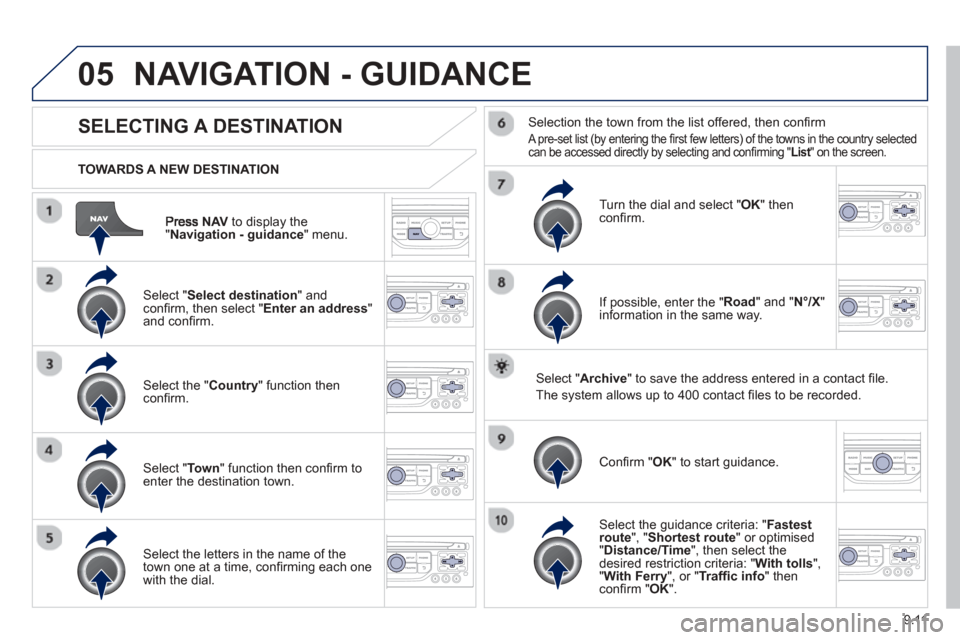
NAVto display the"Navigation - guidance " menu.
TOWARDS A NEW DESTINATION
NAVIGATION - GUIDANCE
SELECTING A DESTINATION
Select "Select destination " and confi
rm, then select " Enter an address"and confi rm.
Select the " Country " function then confi rm.
Select "Town " function then confi rm to enter the destination town.
Select the letters in the name of the
town one at a time, confi rming each one
with the dial.
Selection the town from the list offered, then confi rm
A pre-set list (by entering the fi rst few letters) of the towns in the country selectedcan be accessed directly by selecting and confi rming " List" on the screen. t
Turn the dial and select "OK" thenconfi rm.
If possible, enter the "
Road " and "N°/X"
information in the same way.
Select "Archive
" to save the address entered in a contact fi le.
The s
ystem allows up to 400 contact fi les to be recorded.
Confi rm " OK " to start guidance.
Select the guidance criteria: "Fastest
route", " Shortest route" or optimised "Distance/Time ", then select thedesired restriction criteria: "With tolls ","With Ferry", or "Traffi c info " thenconfi rm "OK".
Page 158 of 236
9.16
05NAVIGATION - GUIDANCE
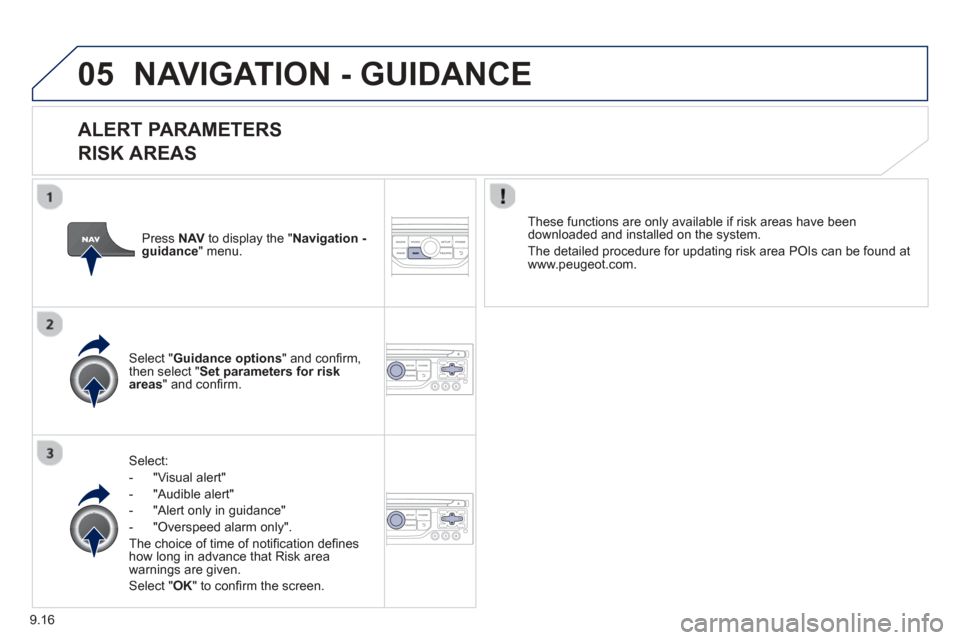
ALERT PARAMETERS
RISK AREAS
Select:
- "Vi
sual alert"
- "A
udible alert"
-
"Alert only in guidance"
- "
Overspeed alarm only".
Th
e choice of time of notifi cation defi nes how long in advance that Risk area
warnings are given.
Select " OK " to confi rm the screen.
Select " Guidance options " and confi rm,
then select "Set parameters for riskareas " and confi rm. These
functions are only available if risk areas have been
downloaded and installed on the system.
The detailed procedure for updatin
g risk area POIs can be found at
www.peugeot.com.
Press NAVto display the " Navigation - guidance" menu.
Page 161 of 236
9.19
05NAVIGATION - GUIDANCE
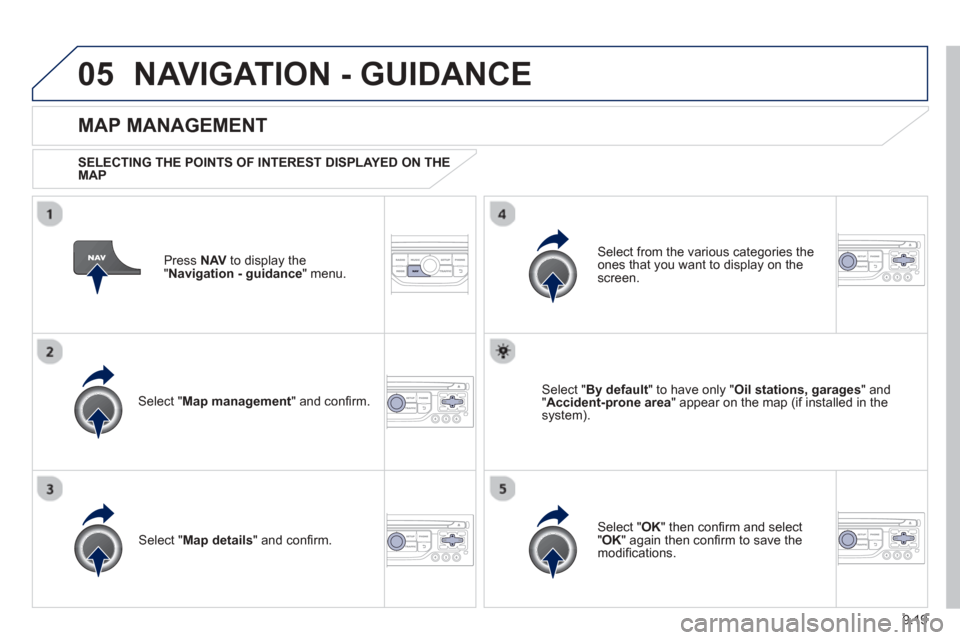
Press NAV to display the
"Navigation - guidance" menu.
MAP MANAGEMENT
SELECTING THE POINTS OF INTEREST DISPLAYED ON THE
MAP
Select " Map management " and confi rm.
Select from the various categories the
ones that you want to display on thescreen.
Select "Map details" and confi rm.
Select " By default" to have only "Oil stations, garages" and"Accident-prone area " appear on the map (if installed in the
system).
Select " OK " then confi rm and select "OK" again then confi rm to save the
modifi cations.
Page 175 of 236
9.33
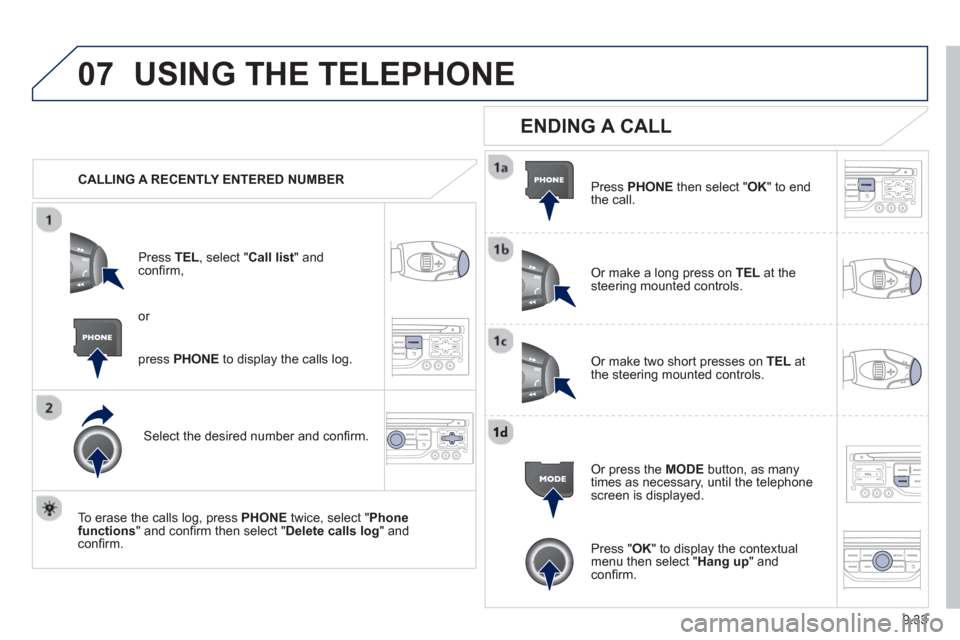
07USING THE TELEPHONE
CALLING A RECENTLY ENTERED NUMBERPr
ess TEL, select "Call list" andconfi rm,
Select the desired number and confi rm.
To erase the calls lo
g, press PHONE twice, select " Phone functions " and confi rm then select " Delete calls log" andconfi rm.
ENDING A CALL
Press PHONEthen select "OK" to end
the call.
Or make a long press on TELat the
steering mounted controls.
Or make two short presses on TELat
the steering mounted controls.
Or press the MODE button, as many
times as necessary, until the telephone
screen is displayed.
press PHONE to display the calls log.
or
Press "OK" to display the contextualmenu then select " Hang up" andconfi rm.
Page 176 of 236
9.34
07USING THE TELEPHONE
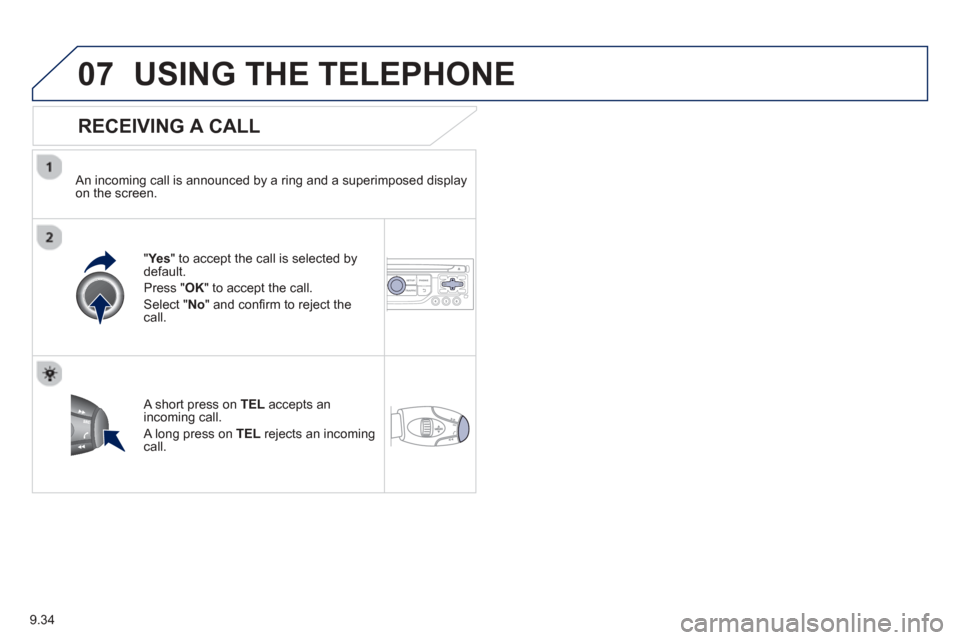
RECEIVING A CALL
An incoming call is announced by a ring and a superimposed displayon the screen.
"Yes " to accept the call is selected bydefault.
Pr
ess " OK" to accept the call.
Select " No" and confi rm to reject the call.
A short press on TELaccepts an incoming call.
A long press on TEL rejects an incomingcall.
Page 177 of 236
9.35
07
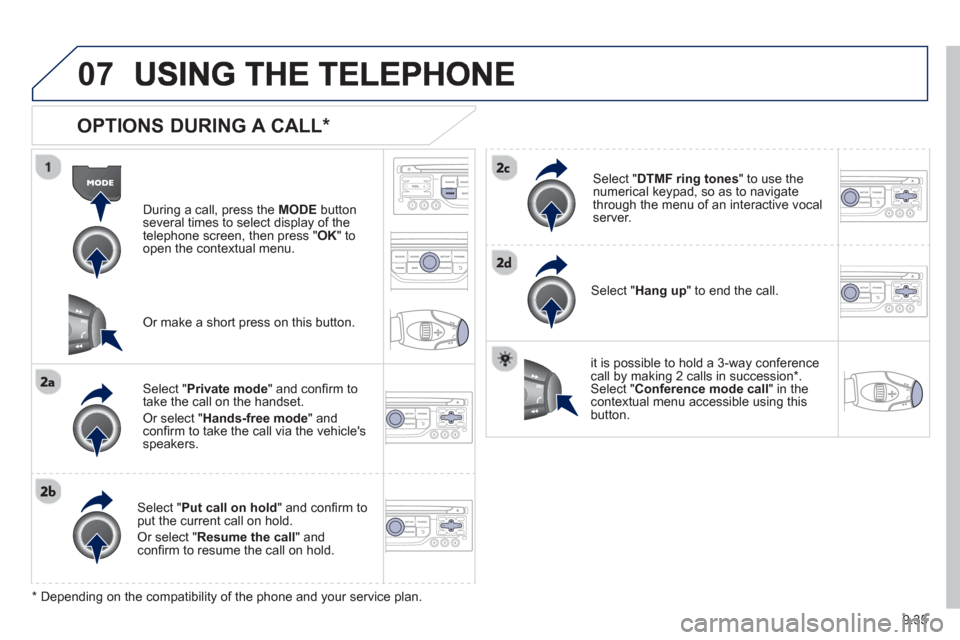
OPTIONS DURING A CALL *
During a call, press the MODE button
several times to select display of the
telephone screen, then press "
OK " to
open the contextual menu.
Select " Private mode " and confi rm totake the call on the handset.
Or select " Hands-free mode" andconfi rm to take the call via the vehicle's
speakers.
Select " Put call on hold " and confi rm to put the current call on hold.
Or select " Resume the call" andconfi rm to resume the call on hold.
Select " DTMF ring tones " to use thenumerical keypad, so as to navigate
through the menu of an interactive vocal server.
Select " Hang up " to end the call.
* Depending on the compatibility of the phone and your service plan. it is possible to hold a 3-wa
y conferencecall by making 2 calls in succession*. Select "Conferencemode call" in the contextual menu accessible using thisbutton.
Or make a short press on this button.
Page 190 of 236
9.48
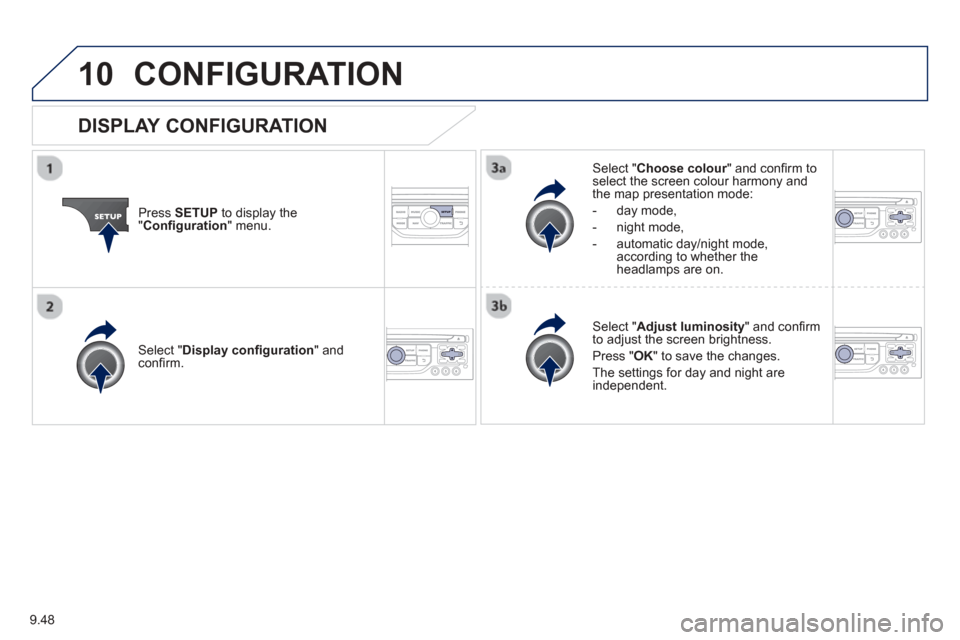
10CONFIGURATION
Press SETUP to display the"Confi guration " menu.
Select " Choose colour" and confi rm torselect the screen colour harmony and
the map presentation mode:
-
day mode,
- night mode,
- automatic da
y/night mode,according to whether the
headlamps are on.
Select " Adjust luminosity" and confi rm
to adjust the screen brightness.
Pr
ess " OK" to save the changes.
The settin
gs for day and night are independent.
Select " Display confi guration" andconfi rm.
DISPLAY CONFIGURATION
Page 191 of 236
9.49
10CONFIGURATION
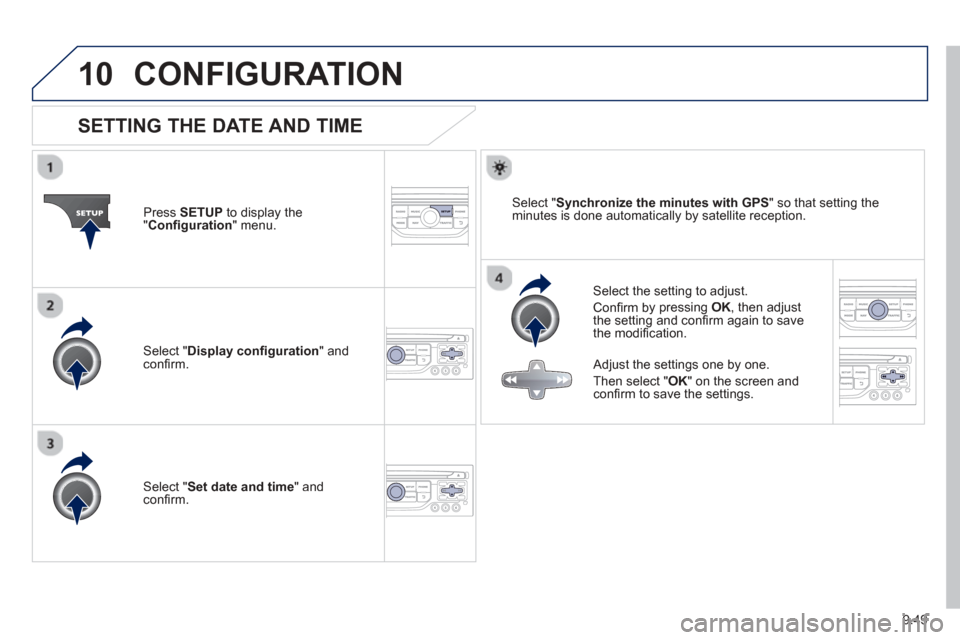
SETTING THE DATE AND TIME
Select the setting to adjust.
Confi rm b
y pressing OK, then adjust
the setting and confi rm again to save
the modifi cation.
Pr
ess
SETUP to display the"Confi guration " menu.
Adjust the settings one by one.
Th
en select " OK " on the screen and confi rm to save the settings.
Select " Synchronize the minutes with GPS " so that setting the
minutes is done automatically by satellite reception.
Select " Display confi guration " and confi rm.
Select " Set date and time" andconfi rm.
Page 193 of 236
9.51
11TRIP COMPUTER
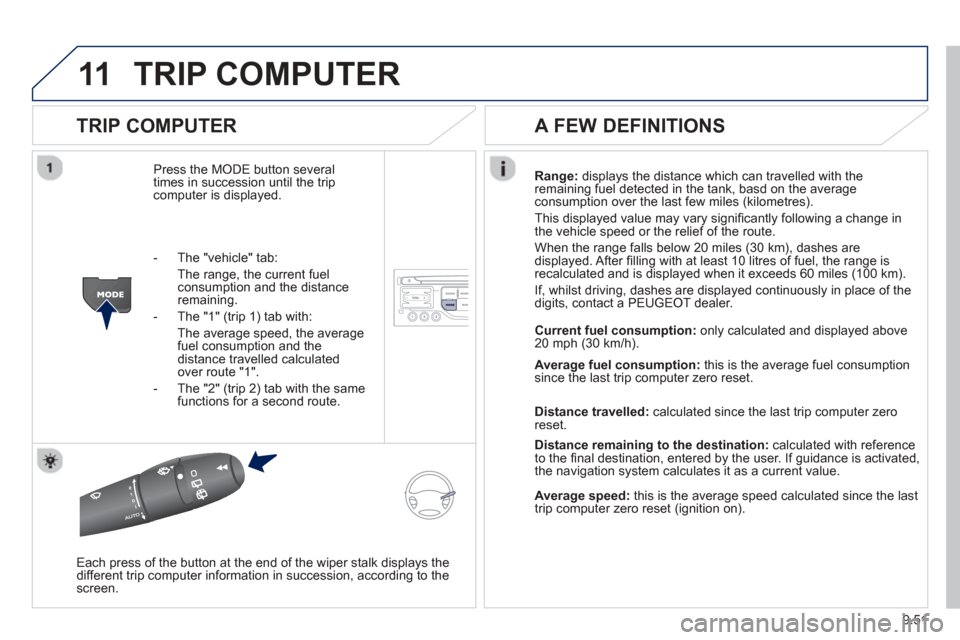
TRIP COMPUTER
Press the MODE button several
times in succession until the tripcomputer is displayed. Ran
ge: displays the distance which can travelled with the
remaining fuel detected in the tank, basd on the averageconsumption over the last few miles (kilometres).
This displa
yed value may vary signifi cantly following a change in
the vehicle speed or the relief of the route.
When the ran
ge falls below 20 miles (30 km), dashes are
displayed. After fi lling with at least 10 litres of fuel, the range is
recalculated and is displayed when it exceeds 60 miles (100 km).
I
f, whilst driving, dashes are displayed continuously in place of the
digits, contact a PEUGEOT dealer.
Each press o
f the button at the end of the wiper stalk displays the
different trip computer information in succession, according to the screen.
A FEW DEFINITIONS
- The "vehicle" tab:
The ran
ge, the current fuelconsumption and the distance remaining.
- The "1"
(trip 1) tab with:
The average speed, the average fuel consumption and the distance travelled calculatedover route "1".
- The "2"
(trip 2) tab with the same
functions for a second route. Current fuel consum
ption:only calculated and displayed above
20 mph (30 km/h).
Avera
ge fuel consumption: this is the average fuel consumption since the last trip computer zero reset.
Distance travelled:calculated since the last trip computer zero
reset.
Distance remaining to the destination:calculated with referenceto the fi nal destination, entered by the user. If guidance is activated,
the navigation system calculates it as a current value.
Average speed: this is the average speed calculated since the last
trip computer zero reset (ignition on).