screen Peugeot Partner 2013 Repair Manual
[x] Cancel search | Manufacturer: PEUGEOT, Model Year: 2013, Model line: Partner, Model: Peugeot Partner 2013Pages: 236, PDF Size: 9.04 MB
Page 194 of 236
9.52
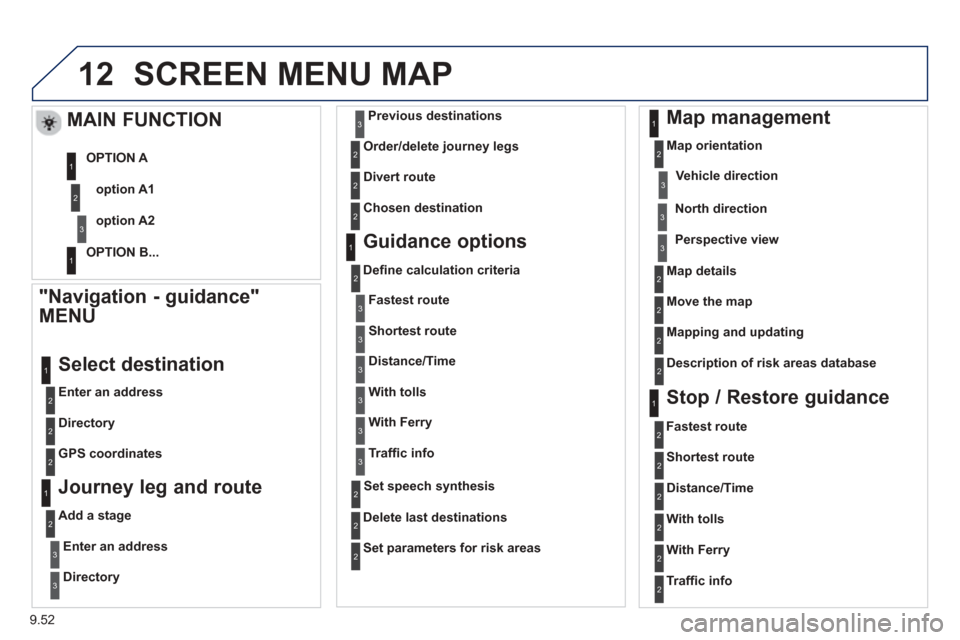
12SCREEN MENU MAP
"Navigation - guidance"
MENU
Enter an address
Select destination
Directory
GPS coordinates
Journey leg and route
Add a stage
Enter an address
Directory
Previous destinations
Order/delete
journey legs
Divert route
Chosen destination
Guidance options
Defi ne calculation criteria
Delete last destinations
Map management
Map orientation
MAIN FUNCTION
option A1
option A2
OPTION A
OPTION B...
Map details
Move the map
Mapping and updating
Description of risk areas database
Stop / Restore guidance
1
2
3
1
3
3
2
2
2
2
1
3
1
1
2
2
2
2
2
2
2
2
2
2
1
1
Set parameters for risk areas 2
Fastest route2
Shortest route
Distance/Time
With tolls
2
2
2
With Ferry2
Traffi c info2
Set speech synthesis
Fastest rout
e
Shortest route
3
3
2
Distance/Time
With tolls
3
3
With Ferry
Traffi
c info
3
3
3
3
3
North direction
Vehicle direction
Perspective view
Page 195 of 236

9.53
12 SCREEN MENU MAP
Select TMC station
Automatic TMC
Manual TMC
List of TMC stations
Display / Do not display
messages
"TRAFFIC" MENU
Geo
graphic filter
Retain all the messages
Retain the messages Around the vehicl
e
On the route
1
2
2
2
1
2
2
3
3
1
Dial
Director
y of contacts
Call
O
pen
Import
Phone MENU
1
2
2
2
1
2
2
2
2
1
2
3
3
3
2
2
2
1
1
1
3
3
3
2
3
2
2
3
List of the paired peripherals
Connec
t
Disconnect
Delete
Delete all
Contact mem. status
Phone functions
Ring options
Delete calls log
Bluetooth functions
Peripherals search
Rename radiotele
phone
Hang up
Display all phone contacts
Delete
Contacts management
New contact
Delete all contacts
Im
port all the entries
S
ynchronization options
Display telephone contacts
No s
ynchronization
Display SIM card contacts
2Cancel
2Sort by First name/Name
3Cancel
Page 196 of 236
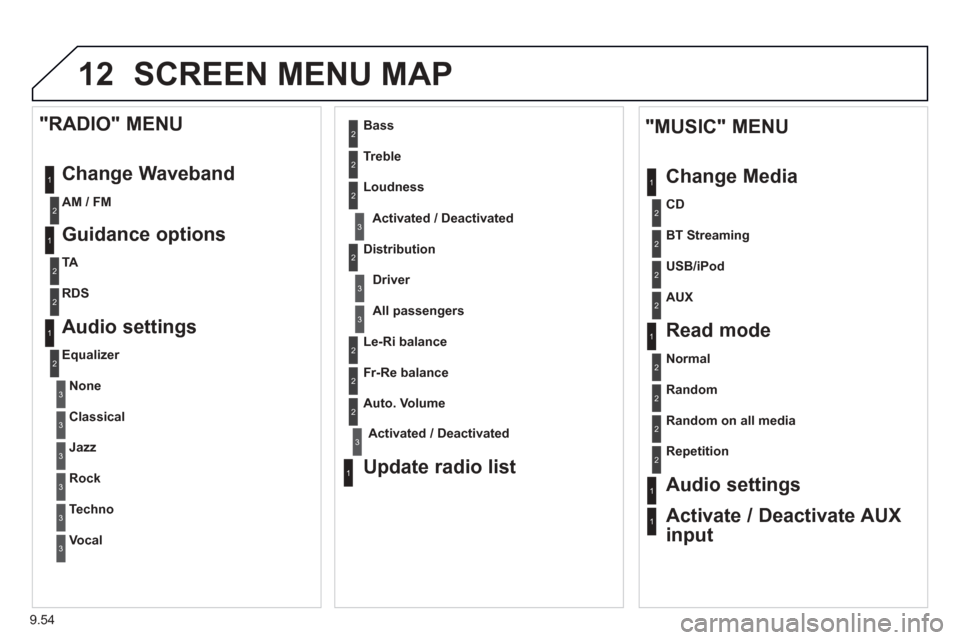
9.54
12 SCREEN MENU MAP
1
1
2
1
1
2
2
2
2
2
2
2
3
3
2
2
2
1
Random on all media
Repetition
Audio settings
Activate / Deactivate AUX
input
"MUSIC" MENU
Chan
ge Media
Read mode
Normal
Random
All passengers
Le-
Ri balance
Fr-Re balance
Auto. Volume
Update radio list
Bass
Treble
Loudness
Distribution
Driver
1
2
2
1
1
3
3
3
3
3
3
2 Equalizer
"RADIO" MENU
Chan
ge Waveband
Guidance o
ptions
TA
RDS
Audio settings
None
Classical
Jaz
z
Rock
Techno
Vocal
2
2
2
2
USB/iPod
AUX
CD
BT Streamin
g
2 AM / FM
3Activated / Deactivated
3Activated / Deactivated
Page 197 of 236
9.55
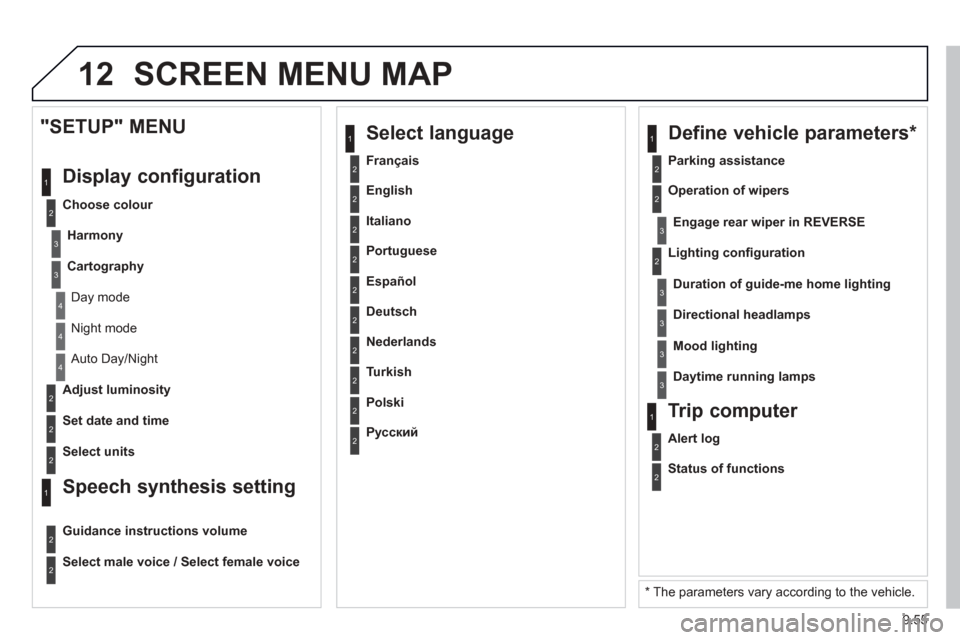
12 SCREEN MENU MAP
2
3
3
1
4
2
2
1
4
4
2
2
Night mode
Auto Day/Night
Ad
just luminosity
Set date and time
"SETUP" MENU
Displa
y configuration
Choose colour
Harmon
y
Cartography
Day mode
Speech synthesis setting
Guidance instructions volume
Select male voice / Select female voice
2 Select units
2
3
3
2 Lighting confi guration
Parkin
g assistance
Engage rear wiper in REVERSE
Duration of guide-me home lighting
1 Define vehicle parameters
*
2 Operation of wipers
3Directional headlamps
3Mood lighting
3Daytime running lamps
* The parameters vary according to the vehicle.
2Alert log
1Trip computer
2Status of functions
2 Français
1
Select language
2 English
2 Italiano
2 Portuguese
2 Español
2 Deutsch
2 Nederlands
2 Turkish
2 Polski
2
Русский
Page 201 of 236

9.59
FREQUENTLY ASKED QUESTIONS
QUESTIONANSWERSOLUTION
Some characters in themedia information are not
displayed correctly while
playing. The audio s
ystem does not display some types of characters.
Use standard characters to name tracks andfolders.
Pla
ying of streaming fi lesdoes not start. The peripheral device connected does not support automatic play. Start the playback from the device.
Th
e names of tracks and
the track length are not
displa
yed on the screen
when streaming audio. The Bluetooth pro
fi le does not allow the transfer of this information.
The qualit
y of receptionof the radio station listened to graduallydeteriorates or the stored stations do not function(no sound, 87.5 Mhz is
displayed...). The vehicle is too far from the transmitter used b
y the station listened
to or there is no transmitter in the geographical area through which the
vehicle is travelling.
Activate the "RDS" function by means of theshort-cut menu to enable the system to check
whether there is a more powerful transmitter in the
geographical area.
The environment
(hills, buildings, tunnels, basement car parks...) block reception, including in RDS mode. This phenomenon is normal and does not indicate
a fault with the audio system.
The aerial is absent or has been dama
ged (for example when goingthrough a car wash or into an underground car park). Have the aerial checked by a PEUGEOT dealer.
I
cannot fi nd some radiostations in the list of stations received. The station is not received or its name has changed in the list.
Some radio stations send other information in place of their name
(the
title of the song for example).
The s
ystem interprets this information as the name of the station.
The name of the radio station changes.
Page 205 of 236
9.63
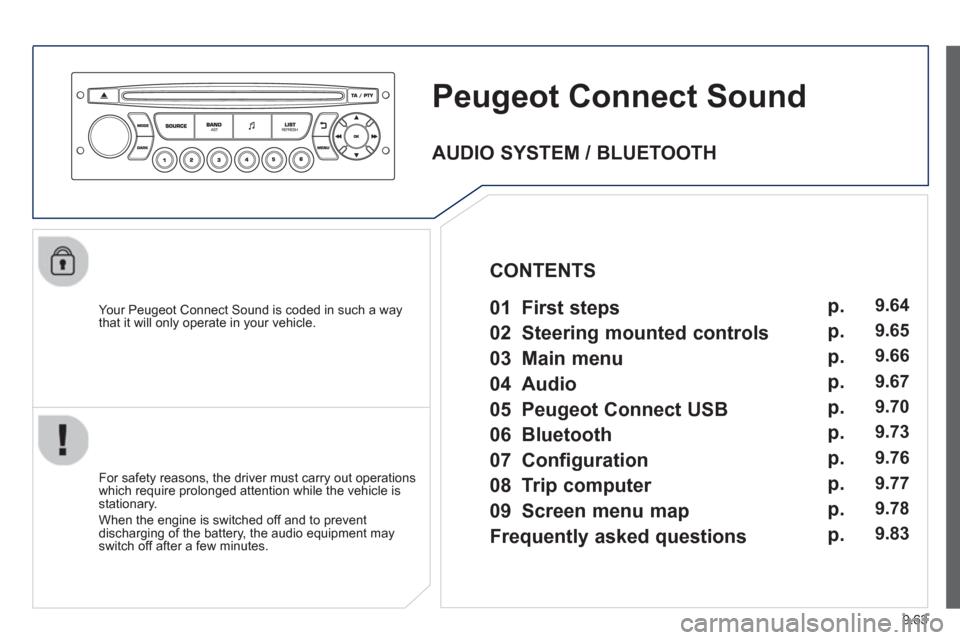
Peugeot Connect Sound
Your Peugeot Connect Sound is coded in such a way
that it will only operate in your vehicle.
For safet
y reasons, the driver must carry out operations
which require prolonged attention while the vehicle is stationary.
When the en
gine is switched off and to prevent
discharging of the battery, the audio equipment mayswitch off after a few minutes.
AUDIO SYSTEM / BLUETOOTH
01 First ste
ps
02 Steerin
g mounted controls
03 Main menu
04 Audio
05 Peu
geot Connect USB
06 Bluetooth
07 Confi
guration
08 Tri
p computer
CONTENTS
09 Screen menu ma
p
Frequentl
y asked questions
p.
p.
p.
p.
p.
p.
p.
p.
p.
p.
9.64
9.65
9.
66
9.67
9.70
9.73
9.76
9.77
9.78
9.83
Page 206 of 236
9.64
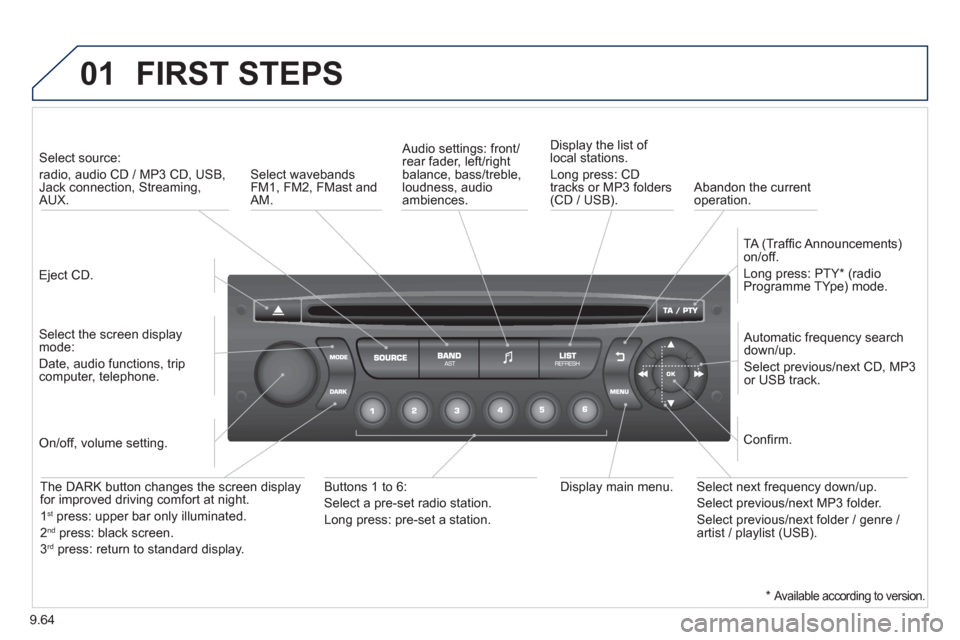
01 FIRST STEPS
Eject CD.
Select source:
radio, audio CD / MP3 CD, USB,Jack connection, Streaming,AUX.
Select the screen displaymode:
Date, audio functions, tripcomputer, telephone.
Automatic frequency search
down/up.
Select previous/next CD, MP3
or USB track.
Audio settings: front/rear fader, left/right
balance, bass/treble, loudness, audio ambiences. Displa
y the list of local stations.
Lon
g press: CD
tracks or MP3 folders(CD / USB).
TA
(Traffi c Announcements)
on/off.
Lon
g press: PTY * (radio
Programme TYpe) mode.
Display main menu. The DARK button changes the screen display
for improved driving comfort at night.
1st
press: upper bar only illuminated.
2ndpress: black screen.
3rdpress: return to standard display.
On/off, volume setting.
Buttons 1 to 6:
Select a pre-set radio station.
Lon
g press: pre-set a station.
Select next frequency down/up.
Select previous/next MP3 folder.
Select previous/next folder / genre /
artist / playlist (USB).
Confi rm.
Select wavebandsFM1, FM2, FMast and AM.
Abandon the current
operation.
*
Available according to version.
Page 208 of 236
9.66
03
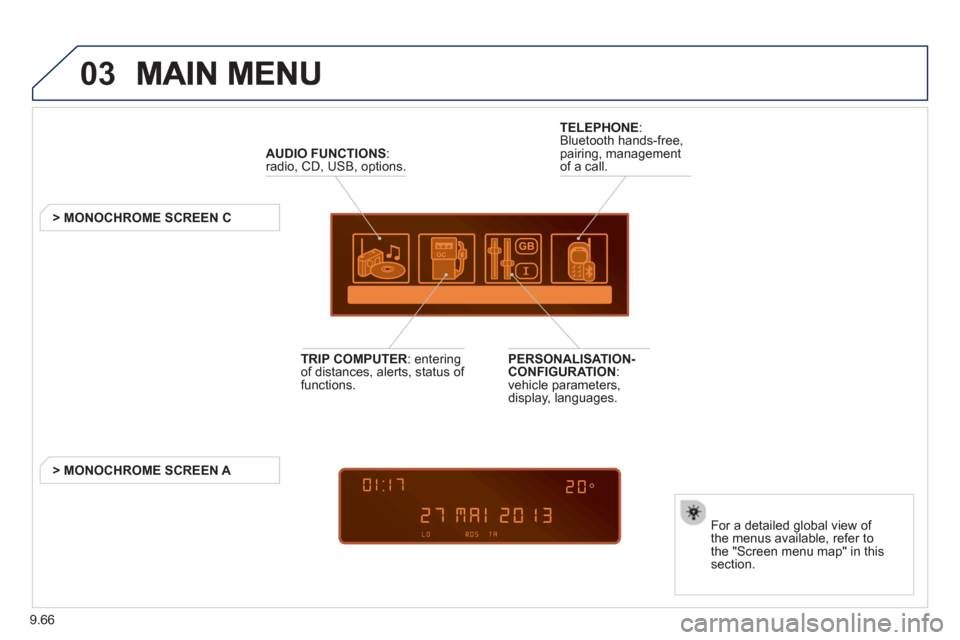
AUDIO FUNCTIONS :radio, CD, USB, options.
> MONOCHROME SCREEN C
For a detailed
global view of
the menus available, refer to
the "Screen menu map" in thissection.
TELEPHONE
:
Bluetooth hands-free,
pairing, managementof a call.
PERSONALISATION-
CONFIGURATION:
vehicle parameters,
display, languages.
TRIP COMPUTER
: enteringof distances, alerts, status of
functions.
> MONOCHROME
SCREEN A
Page 209 of 236
9.67
04 AUDIO
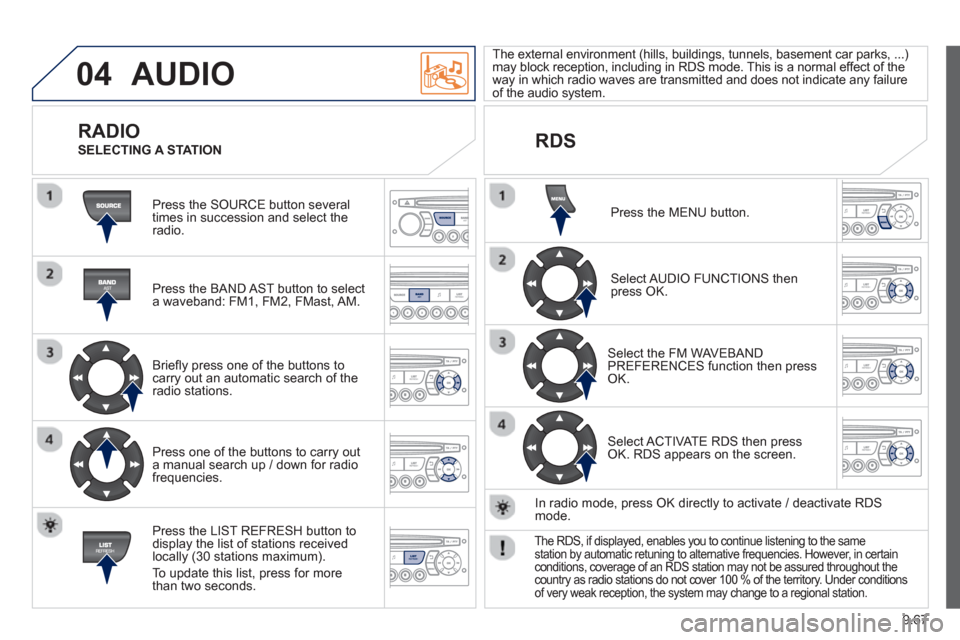
Press the SOURCE button several
times in succession and select theradio.
Press the BAND A
ST button to select
a waveband: FM1, FM2, FMast, AM.
Briefl
y press one of the buttons tocarry out an automatic search of theradio stations.
Press one o
f the buttons to carry out
a manual search up / down for radiofrequencies.
Press the LI
ST REFRESH button to
display the list of stations received
locally (30 stations maximum).
To update this list, press for more
t
han two seconds.
The external environment
(hills, buildings, tunnels, basement car parks, ...) may block reception, including in RDS mode. This is a normal effect of the
way in which radio waves are transmitted and does not indicate any failure of the audio system.
RDS RADIO
SELECTING A STATION
Press the MENU button.
Select AUDIO FUNCTIONS thenpress OK.
Select the FM WAVEBANDPREFERENCES function then pressOK.
Select ACTIVATE RDS then pressOK. RDS appears on the screen.
In radio mode, press
OK directly to activate / deactivate RDSmode.
The RDS, if displayed, enables you to continue listening to the samestation by automatic retuning to alternative frequencies. However, in certainconditions, coverage of an RDS station may not be assured throughout thecountry as radio stations do not cover 100 % of the territory. Under conditionsof very weak reception, the system may change to a regional station.
Page 215 of 236
9.73
06BLUETOOTH
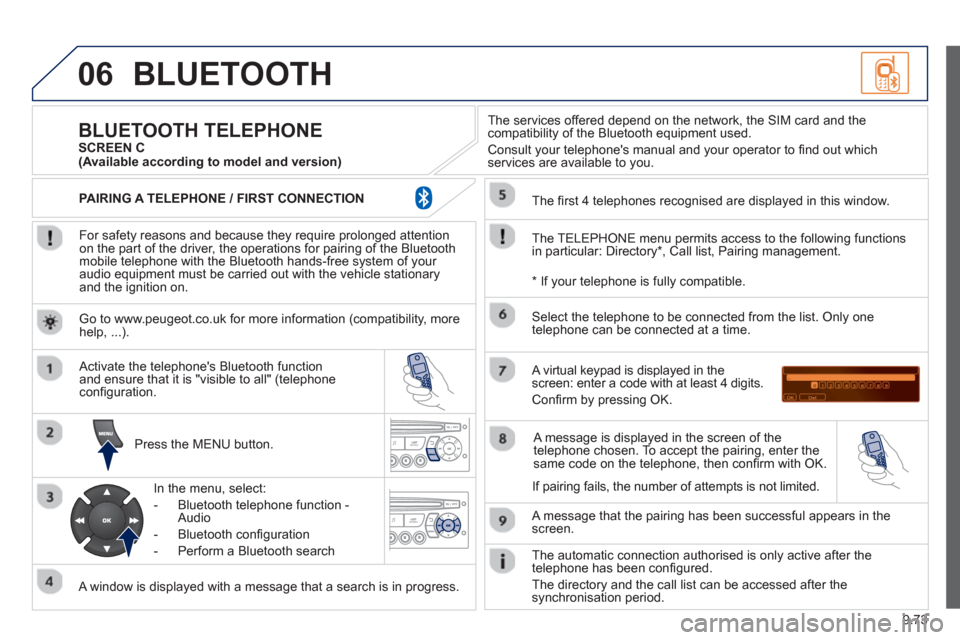
For safety reasons and because they require prolonged attentionon the part of the driver, the operations for pairing of the Bluetooth mobile telephone with the Bluetooth hands-free system of your
audio equipment must be carried out with the vehicle stationary
and the ignition on.
Pr
ess the MENU button.
A window is displayed with a message that a search is in progress.
Activate the telephone's Bluetooth
function
and ensure that it is "visible to all" (telephone confi guration.
In the menu, select:
- Bluetooth telephone
function -
Audio
- Bluetooth confi
guration
- P
erform a Bluetooth search
The services o
ffered depend on the network, the SIM card and thecompatibility of the Bluetooth equipment used.
Consult your telephone's manual and your operator to fi nd out which
services are available to you.
BLUETOOTH TELEPHONE SCREEN C
The TELEPH
ONE menu permits access to the following functions
in particular: Directory * , Call list, Pairing management.
The
fi rst 4 telephones recognised are displayed in this window.
A virtual ke
ypad is displayed in thescreen: enter a code with at least 4 digits.
Confi rm by pressing OK.
A messa
ge that the pairing has been successful appears in thescreen.
Select the telephone to be connected from the list.
Only one
telephone can be connected at a time.
A messa
ge is displayed in the screen of the
telephone chosen. To accept the pairing, enter the same code on the telephone, then confi rm with OK.
The automatic connection authorised is onl
y active after the
telephone has been confi gured.
The directory and the call list can be accessed a
fter thesynchronisation period.
(Available according to model and version)
*
If your telephone is fully compatible.
I
f pairing fails, the number of attempts is not limited. Go to www.peu
geot.co.uk for more information (compatibility, more help, ...).
PAIRING A TELEPHONE / FIR
ST CONNECTION