reset Peugeot Partner 2019 User Guide
[x] Cancel search | Manufacturer: PEUGEOT, Model Year: 2019, Model line: Partner, Model: Peugeot Partner 2019Pages: 312, PDF Size: 9.56 MB
Page 133 of 312
131
Special cases: STOP mode
not available
STOP mode is not activated in certain
temporary conditions (examples: battery
charge, engine temperature, braking
assistance, ambient temperature) to assure
correct operation of the system and mainly
when:
-
t
he vehicle is on a steep slope (rising or
falling),
-
t
he driver's door is open,
-
a s
liding side door is open,
-
t
he driver's seat belt is not fastened,
-
t
he vehicle has not exceeded 6 mph
(10
km/h) since the last engine start by the
driver,
-
t
he automatic electronic parking brake is
applied or being applied,
-
t
he engine is needed to maintain a
comfortable temperature in the passenger
compartment, In this case, this indicator lamp
flashes for a few seconds, then goes
of f.
Going into engine START
mode
With a manual gearbox
, the Stop
& Start warning lamp goes off on
the instrument panel and the engine
restarts automatically when you press
the clutch pedal fully down to the floor.
With an automatic gearbox , the Stop & Start
warning lamp on the instrument panel goes off
and the engine restarts automatically when:
-
y
ou release the brake pedal with the gear
selector in position D or M ,
-
y
ou are in position N with the brake pedal
released and you move the gear selector to
position D or M,
-
y
ou engage reverse.
-
d
emisting is active,
-
t
he ambient temperature is lower than about
0°C or higher than about 35°C.
This operation is perfectly normal.
Stop & Start time counter
(minutes/seconds or hours/minutes)
If your vehicle is fitted with Stop & Start, a time
counter calculates the time spent in STOP
mode during a journey.
It resets to zero every time the ignition is
switched on.
Special cases: START
mode triggered
automatically
START mode is activated automatically in
certain temporary conditions (examples:
battery charge, engine temperature, braking
assistance, air conditioning setting) to assure
correct operation of the system and mainly
when:
-
y
ou open the driver's door,
-
y
ou open a sliding side door,
-
y
ou unfasten the driver's seat belt,
-
t
he speed of the vehicle exceeds 2 mph
(3
km/h) (depending on the engine)In this case, this indicator lamp
flashes for a few seconds, then goes
of f.
This operation is perfectly normal.
6
Driving
Page 136 of 312
134
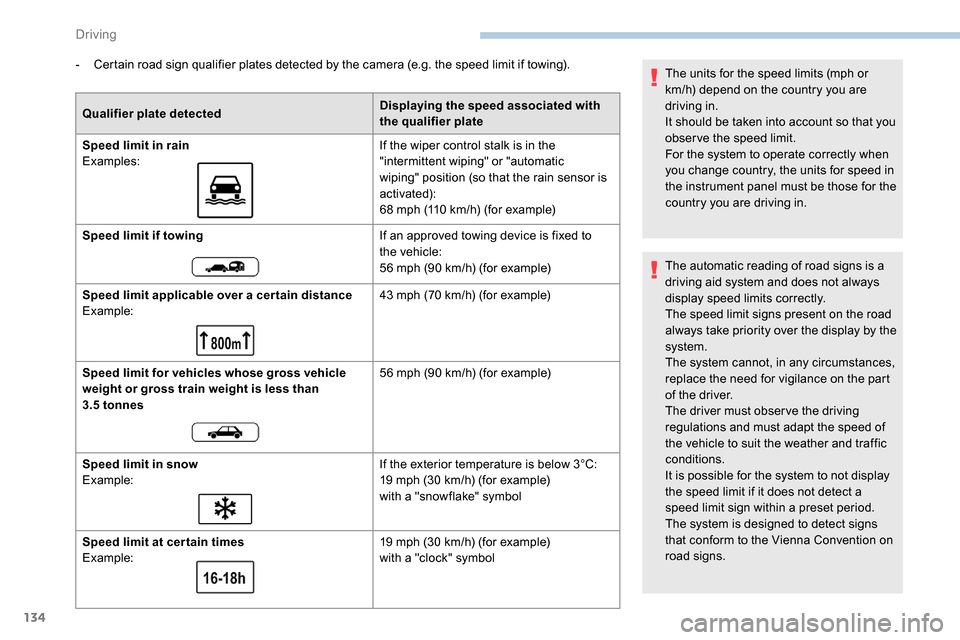
- Certain road sign qualifier plates detected by the camera (e.g. the speed limit if towing).Qualifier plate detected Displaying the speed associated with
the qualifier plate
Speed limit in rain
Examples: If the wiper control stalk is in the
"intermittent wiping" or "automatic
wiping" position (so that the rain sensor is
activated):
68
mph (110 km/h) (for example)
Speed limit if towing If an approved towing device is fixed to
the vehicle:
56
mph (90 km/h) (for example)
Speed limit applicable over a cer tain distance
Example: 43
mph (70 km/h) (for example)
Speed limit for vehicles whose gross vehicle
weight or gross train weight is less than
3.5 tonnes 56
mph (90 km/h) (for example)
Speed limit in snow
Example: If the exterior temperature is below 3°C:
19
mph (30 km/h) (for example)
with a "snowflake" symbol
Speed limit at cer tain times
Example: 19
mph (30 km/h) (for example)
with a "clock" symbol The units for the speed limits (mph or
km/h) depend on the country you are
driving in.
It should be taken into account so that you
obser ve the speed limit.
For the system to operate correctly when
you change country, the units for speed in
the instrument panel must be those for the
country you are driving in.
The automatic reading of road signs is a
driving aid system and does not always
display speed limits correctly.
The speed limit signs present on the road
always take priority over the display by the
system.
The system cannot, in any circumstances,
replace the need for vigilance on the part
of the driver.
The driver must observe the driving
regulations and must adapt the speed of
the vehicle to suit the weather and traffic
conditions.
It is possible for the system to not display
the speed limit if it does not detect a
speed limit sign within a preset period.
The system is designed to detect signs
that conform to the Vienna Convention on
road signs.
Driving
Page 161 of 312
159
Fatigue detection system
Take a break as soon as you feel tired or at
least every two hours.
These systems cannot in any circumstances
replace the need for vigilance on the part of
the driver who must remain in control of their
decisions. It is never the intention of these
systems to keep the driver awake or to prevent
the driver from falling asleep at the wheel.
It is the driver’s responsibility to stop if feeling
tired.
Activation/Deactivation
The function is activated or
deactivated via the vehicle
configuration menu.
The state of the system stays in the memory
when the ignition is switched off.
Driver Attention Warning
The system triggers an alert as soon
as it detects that the driver has not
taken a break after two hours of driving
at a speed above 40
mph (65 km/h).
This alert is issued via the display of a
message encouraging you to take a break,
accompanied by an audible signal.
If the driver does not follow this advice, the
alert is repeated hourly until the vehicle is
stopped.
The system resets itself if one of the following
conditions is met:
-
e
ngine running, the vehicle has been
stationary for more than 15
minutes,
-
t
he ignition has been switched off for a few
minutes,
-
t
he driver's seat belt is unfastened and their
door is opened.
As soon as the speed of the vehicle drops
below 40
mph (65 km/h), the system goes
into standby.
The driving time is counted again once the
speed is above 40
mph (65 km/h).
Driver Attention Alert
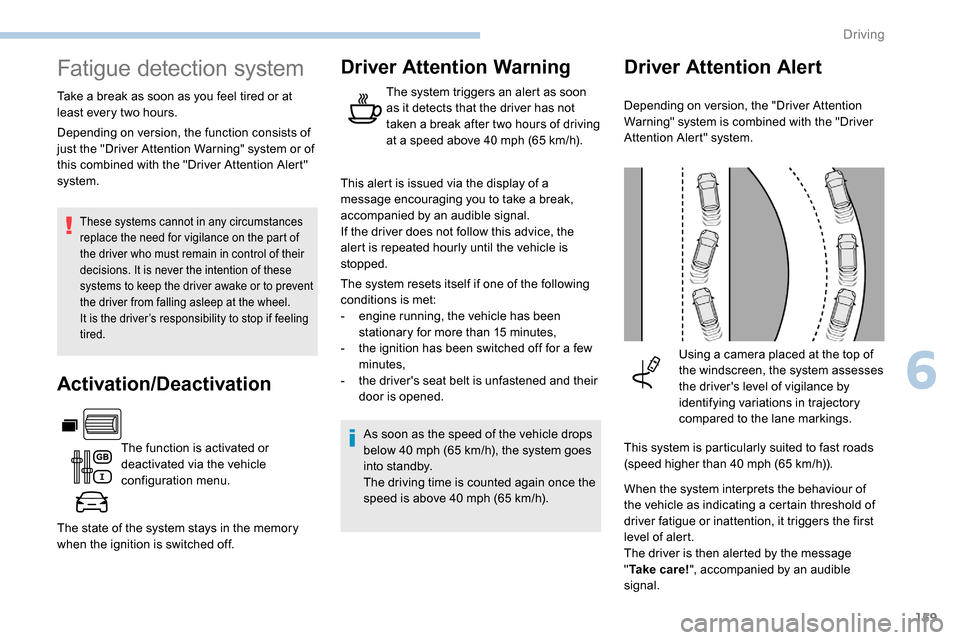
Depending on version, the "Driver Attention
Warning" system is combined with the "Driver
Attention Alert" system.Using a camera placed at the top of
the windscreen, the system assesses
the driver's level of vigilance by
identifying variations in trajectory
compared to the lane markings.
This system is particularly suited to fast roads
(speed higher than 40
mph (65 km/h)).
When the system interprets the behaviour of
the vehicle as indicating a certain threshold of
driver fatigue or inattention, it triggers the first
level of alert.
The driver is then alerted by the message
" Ta k e c a r e ! ", accompanied by an audible
signal.
Depending on version, the function consists of
just the "Driver Attention Warning" system or of
this combined with the "Driver Attention Alert"
system.
6
Driving
Page 208 of 312
206
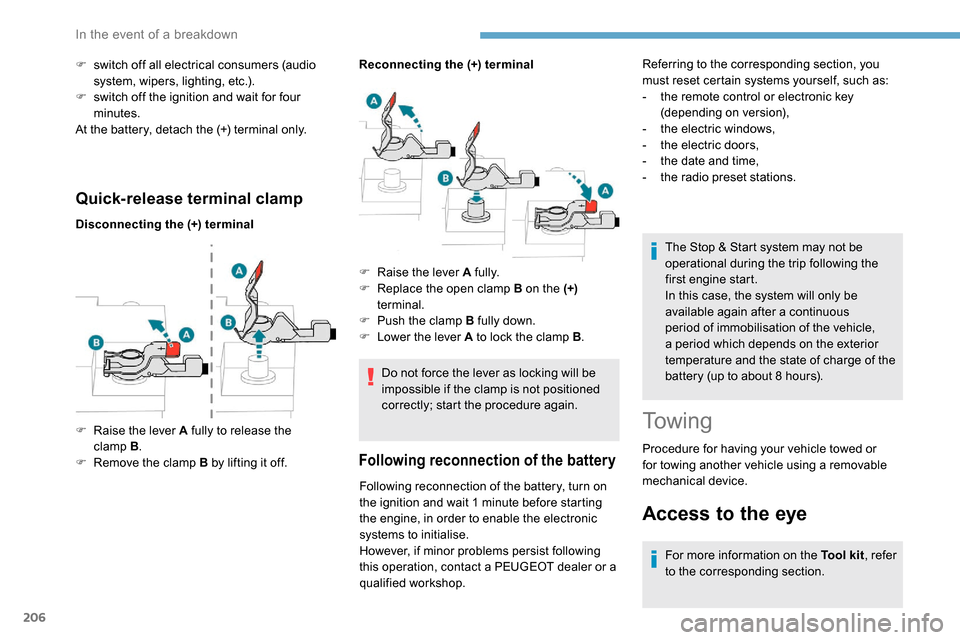
Quick-release terminal clamp
Disconnecting the (+) terminalReconnecting the (+) terminal
Do not force the lever as locking will be
impossible if the clamp is not positioned
correctly; start the procedure again.
Following reconnection of the battery
Following reconnection of the battery, turn on
the ignition and wait 1 minute before starting
the engine, in order to enable the electronic
systems to initialise.
However, if minor problems persist following
this operation, contact a PEUGEOT dealer or a
qualified workshop. The Stop & Start system may not be
operational during the trip following the
first engine start.
In this case, the system will only be
available again after a continuous
period of immobilisation of the vehicle,
a period which depends on the exterior
temperature and the state of charge of the
battery (up to about 8
hours).
F
s
witch off all electrical consumers (audio
system, wipers, lighting, etc.).
F
s
witch off the ignition and wait for four
minutes.
At the battery, detach the (+) terminal only.
F
Ra
ise the lever A fully to release the
clamp B .
F
R
emove the clamp B by lifting it off. F
Ra
ise the lever A fully.
F
R
eplace the open clamp B on the (+)
terminal.
F
P
ush the clamp B fully down.
F
L
ower the lever A to lock the clamp B
.Referring to the corresponding section, you
must reset certain systems yourself, such as:
-
t
he remote control or electronic key
(depending on version),
-
t
he electric windows,
-
t
he electric doors,
-
t
he date and time,
-
t
he radio preset stations.
To w i n g
Procedure for having your vehicle towed or
for towing another vehicle using a removable
mechanical device.
Access to the eye
For more information on the Tool kit
, refer
to the corresponding section.
In the event of a breakdown
Page 222 of 312
2
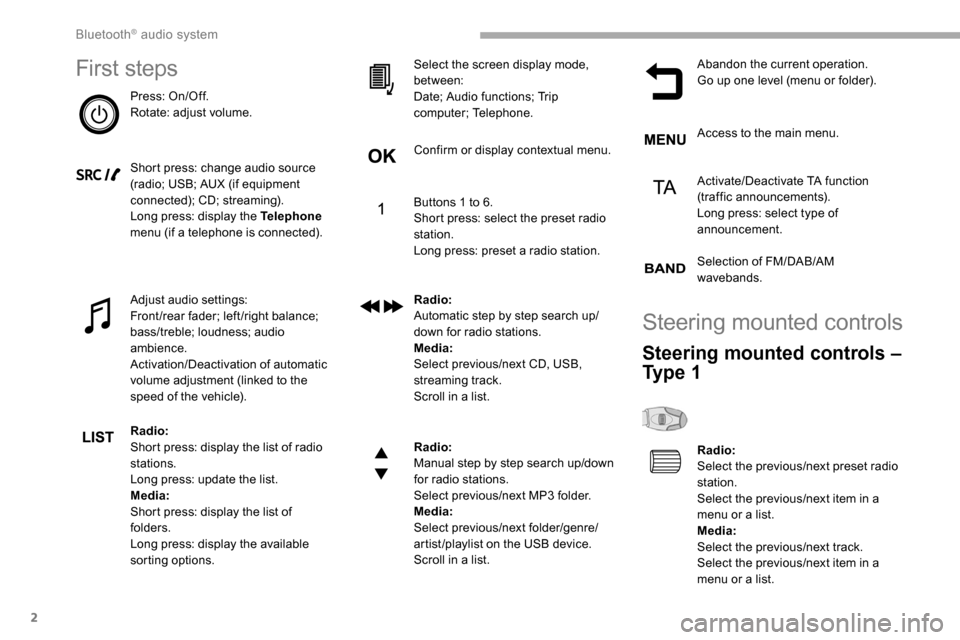
First steps
Press: On/Off.
Rotate: adjust volume.
Short press: change audio source
(radio; USB; AUX (if equipment
connected); CD; streaming).
Long press: display the Telephone
menu (if a telephone is connected).
Adjust audio settings:
Front/rear fader; left/right balance;
bass/treble; loudness; audio
ambience.
Activation/Deactivation of automatic
volume adjustment (linked to the
speed of the vehicle).
Radio:
Short press: display the list of radio
stations.
Long press: update the list.
Media:
Short press: display the list of
folders.
Long press: display the available
sorting options. Select the screen display mode,
between:
Date; Audio functions; Trip
computer; Telephone.
Confirm or display contextual menu.
Buttons 1 to 6.
Short press: select the preset radio
station.
Long press: preset a radio station.
Radio:
Automatic step by step search up/
down for radio stations.
Media:
Select previous/next CD, USB,
streaming track.
Scroll in a list.
Radio:
Manual step by step search up/down
for radio stations.
Select previous/next MP3 folder.
Media:
Select previous/next folder/genre/
artist/playlist on the USB device.
Scroll in a list.
Abandon the current operation.
Go up one level (menu or folder).
Access to the main menu.
Activate/Deactivate TA function
(traffic announcements).
Long press: select type of
announcement.
Selection of FM/DAB/AM
wavebands.
Steering mounted controls
Steering mounted controls –
Ty p e 1
Radio:
Select the previous/next preset radio
station.
Select the previous/next item in a
menu or a list.
Media:
Select the previous/next track.
Select the previous/next item in a
menu or a list.
Bluetooth® audio system
Page 224 of 312
4
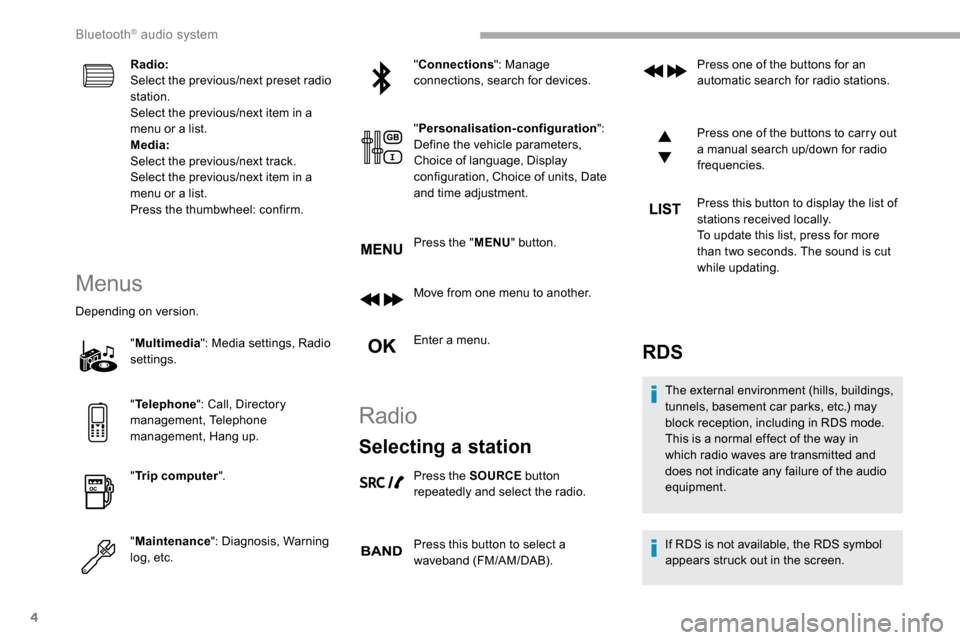
Radio:
Select the previous/next preset radio
station.
Select the previous/next item in a
menu or a list.
Media:
Select the previous/next track.
Select the previous/next item in a
menu or a list.
Press the thumbwheel: confirm.
Menus
Depending on version."Multimedia ": Media settings, Radio
settings.
" Telephone ": Call, Directory
management, Telephone
management, Hang up.
" Trip computer ".
" Maintenance ": Diagnosis, Warning
log, etc. "
Connections ": Manage
connections, search for devices.
" Personalisation-configuration ":
Define the vehicle parameters,
Choice of language, Display
configuration, Choice of units, Date
and time adjustment.
Press the " MENU" button.
Move from one menu to another.
Enter a menu.
Radio
Selecting a station
Press the SOURCE button
repeatedly and select the radio.
Press this button to select a
waveband (FM/AM/DAB). Press one of the buttons for an
automatic search for radio stations.
Press one of the buttons to carry out
a manual search up/down for radio
frequencies.
Press this button to display the list of
stations received locally.
To update this list, press for more
than two seconds. The sound is cut
while updating.
RDS
The external environment (hills, buildings,
tunnels, basement car parks, etc.) may
block reception, including in RDS mode.
This is a normal effect of the way in
which radio waves are transmitted and
does not indicate any failure of the audio
equipment.
If RDS is not available, the RDS symbol
appears struck out in the screen.
Bluetooth® audio system
Page 226 of 312
6
When the radio station is displayed
in the screen, press OK to display
the contextual menu.
Select " RadioText (TXT) display "
and confirm OK to save.
DAB (Digital Audio
Broadcasting) radio
Depending on version
If the current DAB radio station is not
available on FM, "DAB FM" is struck out. When changing region, an update of the
list of preset radio stations is advisable.
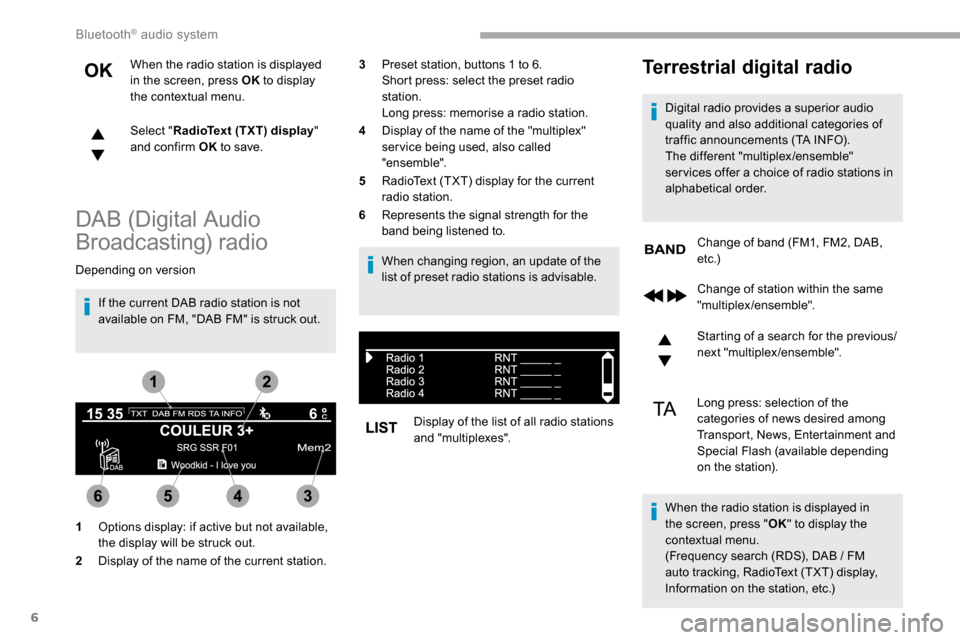
Display of the list of all radio stations
and "multiplexes".
Terrestrial digital radio
Digital radio provides a superior audio
quality and also additional categories of
traffic announcements (TA INFO).
The different "multiplex/ensemble"
ser vices offer a choice of radio stations in
alphabetical order.Change of band (FM1, FM2, DAB,
e t c .)
1 Options display: if active but not available,
the display will be struck out.
2 Display of the name of the current station. 3
Preset station, buttons 1 to 6.
Short press: select the preset radio
station.
Long press: memorise a radio station.
4 Display of the name of the "multiplex"
ser vice being used, also called
"ensemble".
5 RadioText (TXT) display for the current
radio station.
6 Represents the signal strength for the
band being listened to.
Change of station within the same
"multiplex/ensemble".
Starting of a search for the previous/
next "multiplex/ensemble".
Long press: selection of the
categories of news desired among
Transport, News, Entertainment and
Special Flash (available depending
on the station).
When the radio station is displayed in
the screen, press " OK" to display the
contextual menu.
(Frequency search (RDS), DAB
/ FM
auto tracking, RadioText (TXT) display,
Information on the station, etc.)
Bluetooth® audio system
Page 236 of 312
16
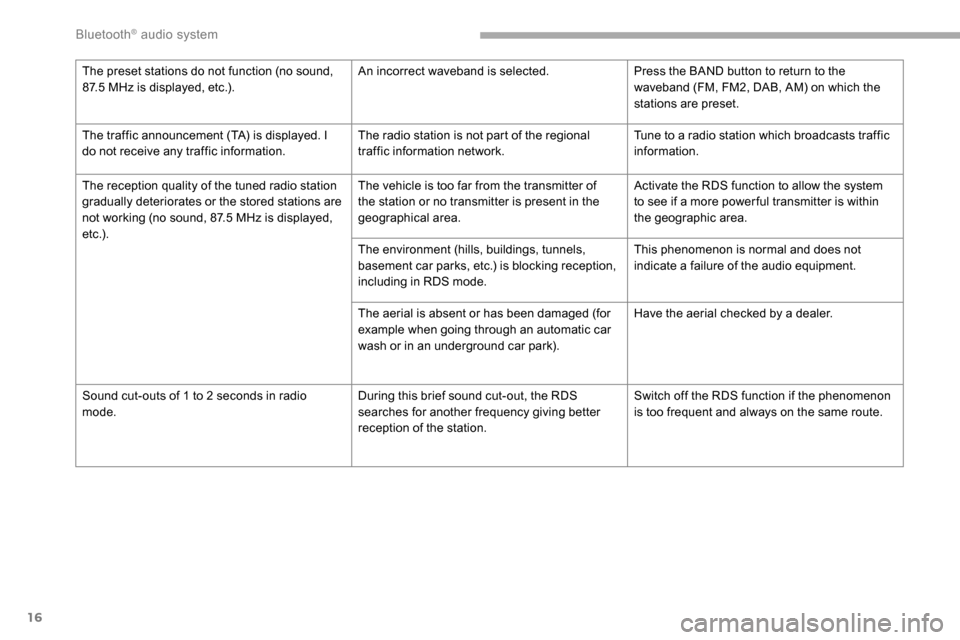
The preset stations do not function (no sound,
87.5 MHz is displayed, etc.). An incorrect waveband is selected.
Press the BAND button to return to the
waveband (FM, FM2, DAB, AM) on which the
stations are preset.
The traffic announcement (TA) is displayed. I
do not receive any traffic information. The radio station is not part of the regional
traffic information network.Tune to a radio station which broadcasts traffic
information.
The reception quality of the tuned radio station
gradually deteriorates or the stored stations are
not working (no sound, 87.5
MHz is displayed,
e t c .) . The vehicle is too far from the transmitter of
the station or no transmitter is present in the
geographical area.
Activate the RDS function to allow the system
to see if a more power ful transmitter is within
the geographic area.
The environment (hills, buildings, tunnels,
basement car parks, etc.) is blocking reception,
including in RDS mode. This phenomenon is normal and does not
indicate a failure of the audio equipment.
The aerial is absent or has been damaged (for
example when going through an automatic car
wash or in an underground car park). Have the aerial checked by a dealer.
Sound cut-outs of 1 to 2
seconds in radio
mode. During this brief sound cut-out, the RDS
searches for another frequency giving better
reception of the station.Switch off the RDS function if the phenomenon
is too frequent and always on the same route.
Bluetooth® audio system
Page 240 of 312
2
First steps
With the engine running, a press
mutes the sound.
With the ignition off, a press turns
the system on.
Increase or decrease the volume using
the wheel or the "plus" or "minus" buttons
(depending on the equipment).
Use the buttons on either side of or below the
touch screen for access to the menus, then
press the virtual buttons in the touch screen.
Depending on the model, use the "Source" or
"Menu" buttons on the left of the touch screen
for access to the menus, then press the virtual
buttons in the touch screen.
You can display the menus at any time by
pressing the screen briefly with three fingers.
All of the touch areas of the screen are white.
For pages with multiple tabs at the bottom of
the screen, you can switch between pages
either by tapping the tab for the desired page,
or by using a finger, sliding the pages to the left
or to the right.
Press in the grey zone to go back a level or
confirm. The touch screen is of the "capacitive"
type.
To clean the screen, use a soft, non-
abrasive cloth (e.g. spectacles cloth) with
no additional product.
Do not use sharp objects on the screen.
Do not touch the screen with wet hands.
Certain information is displayed permanently in
the upper banner of the touch screen:
-
R
epeat of the air conditioning information
(depending on version), and direct access to
the corresponding menu.
-
R
eminder of the Radio Media and
Telephone menu information.
-
R
eminder of the privacy information.
-
A
ccess to the Settings of the touch screen
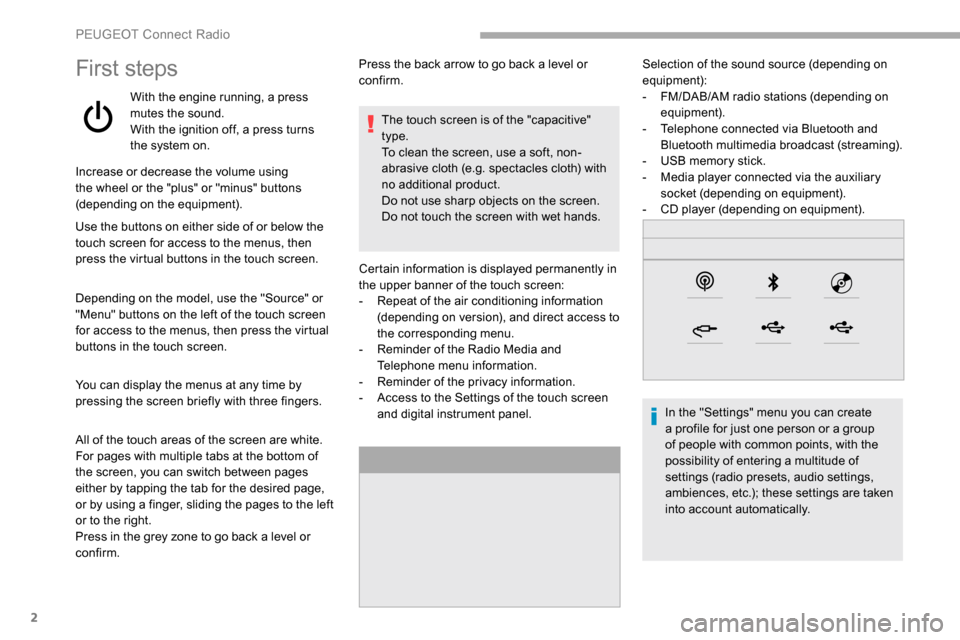
and digital instrument panel. Selection of the sound source (depending on
equipment):
-
F M/DAB/AM radio stations (depending on
equipment).
-
T
elephone connected via Bluetooth and
Bluetooth multimedia broadcast (streaming).
-
U
SB memory stick.
-
M
edia player connected via the auxiliary
socket (depending on equipment).
-
C
D player (depending on equipment).
In the "Settings" menu you can create
a profile for just one person or a group
of people with common points, with the
possibility of entering a multitude of
settings (radio presets, audio settings,
ambiences, etc.); these settings are taken
into account automatically.
Press the back arrow to go back a level or
confirm.
PEUGEOT Connect Radio
Page 241 of 312
3
In very hot conditions, the volume may
be limited to protect the system. It may go
into standby (screen and sound off) for at
least 5
minutes.
The return to normal takes place when
the temperature in the passenger
compartment has dropped.
Steering mounted controls
Steering mounted
controls – Type 1
Radio:
Select the previous/next preset radio
station.
Select the previous/next item in a
menu or a list.
Media:
Select the previous/next track.
Select the previous/next item in a
menu or a list. Radio:
Short press: display the list of radio
stations.
Long press: update the list.
Media:
Short press: display the list of
folders.
Long press: display the available
sorting options.
Change audio source (radio; USB;
AUX if equipment connected; CD;
streaming).
Confirm a selection.
Increase volume.
Decrease volume.
Mute/Restore sound by
simultaneously pressing the
increase and decrease volume
buttons.
Steering mounted
controls – Type 2
Voice commands
:
This control is located on the
steering wheel or at the end of the
lighting control stalk (depending on
equipment).
Short press, smartphone voice
commands via the system.
Increase volume.
Mute/Restore the sound (depending
on equipment).
Or
Mute by pressing the volume
increase and decrease buttons
simultaneously (depending on
equipment).
Restore the sound by pressing one
of the two volume buttons.
Decrease volume.
Media (short press): change the
multimedia source.
.
PEUGEOT Connect Radio