Media Peugeot Partner 2019 Owner's Guide
[x] Cancel search | Manufacturer: PEUGEOT, Model Year: 2019, Model line: Partner, Model: Peugeot Partner 2019Pages: 312, PDF Size: 9.56 MB
Page 178 of 312
176
ON
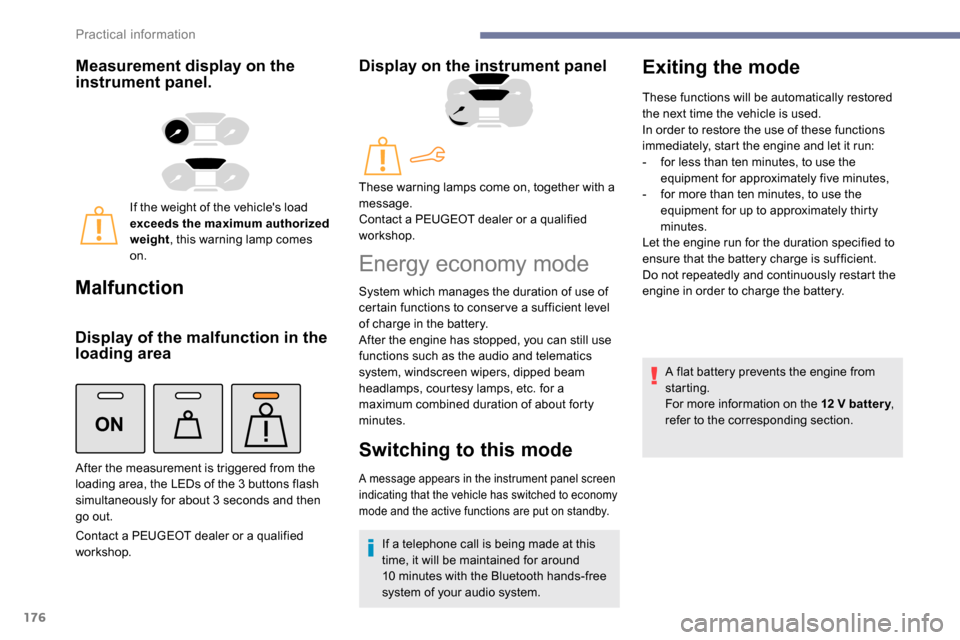
Measurement display on the
instrument panel.
If the weight of the vehicle's load
exceeds the maximum authorized
weight, this warning lamp comes
on.
Malfunction
Display of the malfunction in the
loading area
Contact a PEUGEOT dealer or a qualified
workshop.
Display on the instrument panel
After the measurement is triggered from the
loading area, the LEDs of the 3 buttons flash
simultaneously for about 3
seconds and then
go out. These warning lamps come on, together with a
message.
Contact a PEUGEOT dealer or a qualified
workshop.
Energy economy mode
System which manages the duration of use of
certain functions to conser ve a sufficient level
of charge in the battery.
After the engine has stopped, you can still use
functions such as the audio and telematics
system,
windscreen wipers, dipped beam
headlamps,
courtesy lamps, etc. for a
maximum combined duration of about forty
minutes.
Switching to this mode
A message appears in the instrument panel screen
indicating that the vehicle has switched to economy
mode and the active functions are put on standby.
If a telephone call is being made at this
time, it will be maintained for around
10
minutes with the Bluetooth hands-free
system of your audio system.
Exiting the mode
These functions will be automatically restored
the next time the vehicle is used.
In order to restore the use of these functions
immediately, start the engine and let it run:
-
f
or less than ten minutes, to use the
equipment for approximately five minutes,
-
f
or more than ten minutes, to use the
equipment for up to approximately thirty
minutes.
Let the engine run for the duration specified to
ensure that the battery charge is sufficient.
Do not repeatedly and continuously restart the
engine in order to charge the battery.
A flat battery prevents the engine from
starting.
For more information on the 12
V batter y,
refer to the corresponding section.
Practical information
Page 186 of 312
184
For more information on the Warning
and indicator lamps and the associated
alerts, or the Indicators , refer to the
corresponding sections.
Freezing of the AdBlue
®
AdBlue® freezes at temperatures below
around -11°C.
The SCR system includes a heater for the
AdBlue
® tank, allowing you to continue
driving in very cold conditions.
Supply of AdBlue®
It is recommended that the AdBlue® is
topped up as soon as the first alert is
issued indicating that the reser ve level has
been reached.
In order to ensure that the SCR system
operates correctly:
-
U
se only AdBlue
® fluid that meets the
ISO 22241 standard.
-
N
ever transfer AdBlue
® to another
container: it would lose its purity.
-
N
ever dilute AdBlue
® with water.
You can obtain AdBlue
® from a PEUGEOT
dealer or a qualified workshop.
You can also visit a ser vice station
equipped with AdBlue
® pumps specially
designed for private vehicles.
Never top up from an AdBlue
® dispenser
reserved for heavy goods vehicles.
Recommendations on
storage
AdBlue® freezes at about -11°C and
deteriorates above 25°C. It should be stored in
a cool place and protected from direct sunlight.
Under these conditions, the fluid can be kept
for at least a year.
If the additive has frozen, it can be used once it
has completely thawed out.
Never keep containers or bottles of
AdBlue
® in your vehicle.
Precautions in use
AdBlue® is a urea-based solution. This fluid is
non-flammable, colourless and odourless (kept in
a cool area).
In the event of contact with the skin, wash the
affected area with soap and running water. In
the event of contact with the eyes, immediately
rinse the eyes with large amounts of water or
with an eye wash solution for at least 15
minutes.
If a burning sensation or irritation persists, get
medical attention.
If swallowed, immediately rinse the mouth with
clean water and then drink plenty of water.
In certain conditions (high ambient temperature,
for example), the risk of ammonia being released
Once the AdBlue® tank is empty, a system
r
equired by regulations prevents starting
of the engine.
If the SCR system is faulty, the level of
emissions from your vehicle will no longer
meet the Euro 6 standard: your vehicle
becomes polluting.
In the event of a confirmed fault with the
SCR system, you must go to a PEUGEOT
dealer or a qualified workshop as soon
as possible: after travelling a distance
of 685
miles (1,100 km), a system will be
triggered automatically to prevent engine
starting.
In either case, a range indicator gives you
the distance you can travel before the
vehicle is immobilised.
Practical information
Page 187 of 312
185
cannot be discounted: do not inhale the fluid.
Ammonia vapour has an irritant effect on mucous
membranes (eyes, nose and throat).
Keep AdBlue® out of reach of children, in
its original container or bottle.
Procedure
Before starting the top up procedure, ensure
that the vehicle is parked on a flat and level
sur face.
In winter, check that the temperature of the
vehicle is above -11°C. If not, due to freezing,
the AdBlue
® cannot be poured into the tank.
Park your vehicle somewhere warmer for a few
hours before topping up.
In the event of an AdBlue
® breakdown,
confirmed by the message "Add AdBlue:
Starting impossible", you must top up with
at least 5
litres.
Never pour AdBlue
® into the Diesel fuel
tank. If any AdBlue
® is splashed, or if there are
any spillages on the side of the body, rinse
immediately with cold water or wipe with a
damp cloth.
If the fluid has crystallised, clean it off
using a sponge and hot water.
Access to the AdBlue® tank
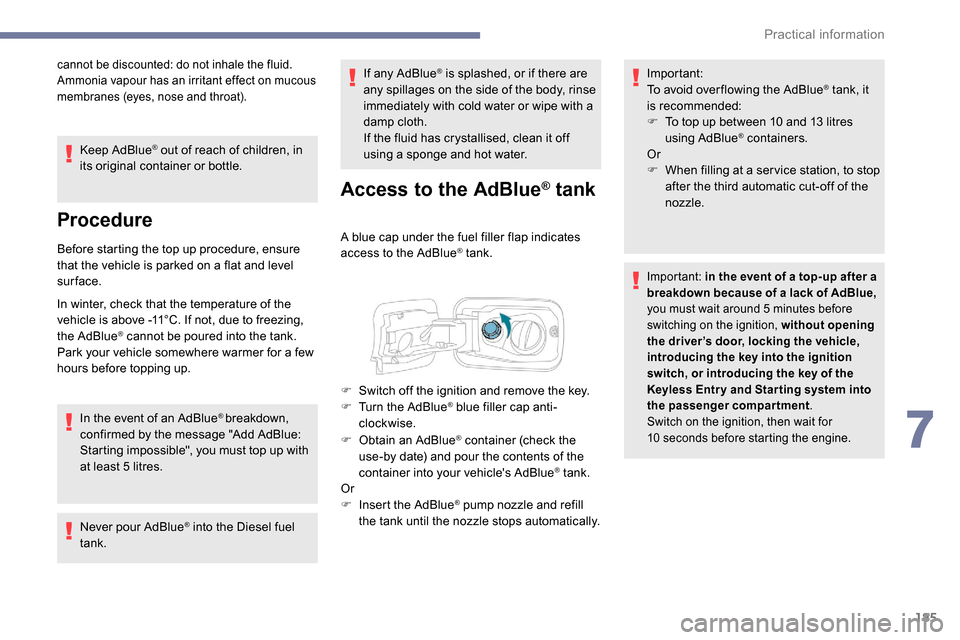
A blue cap under the fuel filler flap indicates
access to the AdBlue® tank.
F
O
btain an AdBlue
® container (check the
use-by date) and pour the contents of the
container into your vehicle's AdBlue
® tank.
Or
F
I
nsert the AdBlue
® pump nozzle and refill
the tank until the nozzle stops automatically. Important:
To avoid over flowing the AdBlue
® tank, it
i
s recommended:
F
T
o top up between 10 and 13
litres
using AdBlue
® containers.
Or
F
W
hen filling at a ser vice station, to stop
after the third automatic cut-off of the
nozzle.
Important: in the event of a top-up after a
breakdown because of a lack of AdBlue,
you must wait around 5
minutes before
switching on the ignition, without opening
the driver’s door, locking the vehicle,
introducing the key into the ignition
switch, or introducing the key of the
K
eyless Entr y and Star ting system into
the passenger compartment.
Switch on the ignition, then wait for
10
seconds before starting the engine.
F Switch off the ignition and remove the key.
F T urn the AdBlue® blue filler cap anti-
clockwise.
7
Practical information
Page 192 of 312
190
The speed limit sticker must be secured
to the interior of the vehicle in the driver's
field of vision, to remind you that a wheel
is in temporary use.F
S
witch on the ignition.
If a pressure of 2 bars is not reached
after about 7
minutes, this indicates
that the tyre is not repairable; contact a
PEUGEOT dealer or a qualified workshop
for assistance.
F
P
lace the switch in the "O" position.
F
D
isconnect the compressor's electric plug
from the vehicle's 12
V socket.
F
R
eplace the cap on the valve.
F
R
emove the kit.
F
R
emove and then store the bottle of sealant.Take care, the sealant product is harmful
if swallowed and causes irritation to the
eyes.
Keep this product out of the reach of
children.
The use-by date of the fluid is marked on
the bottle.
After use, do not discard the bottle in
standard waste, take it to a PEUGEOT
dealer or an authorised waste disposal
site.
Do not forget to obtain a new bottle of
sealant, available from a PEUGEOT
dealer or a qualified workshop.
The tyre inflation pressures are given on
this label. F
S
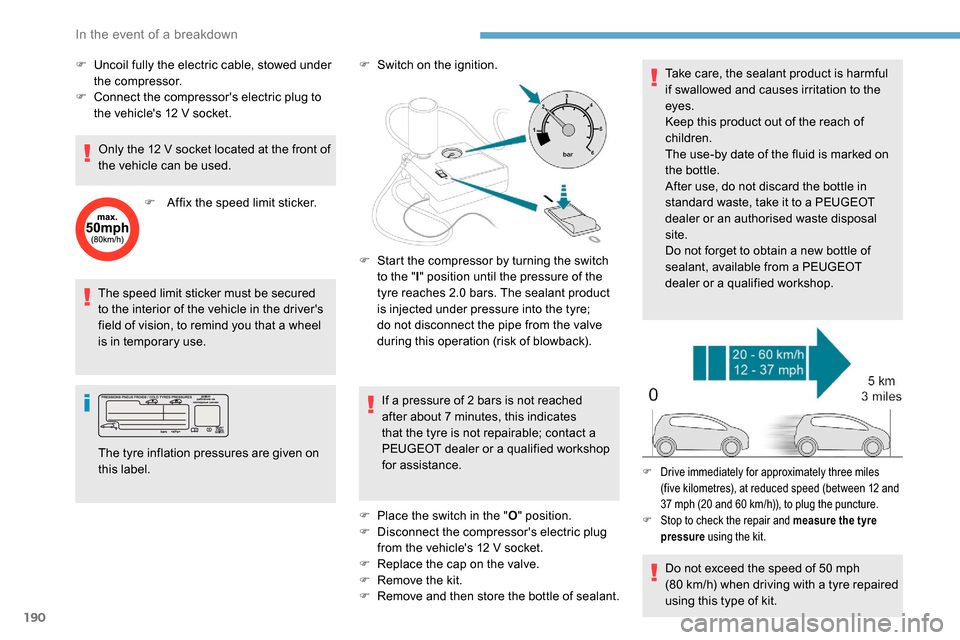
tart the compressor by turning the switch
to the " l" position until the pressure of the
tyre reaches 2.0 bars. The sealant product
is injected under pressure into the tyre;
do not disconnect the pipe from the valve
during this operation (risk of blowback).
Do not exceed the speed of 50
mph
(80
km/h) when driving with a tyre repaired
using this type of kit.
F Drive immediately for approximately three miles (five kilometres), at reduced speed (between 12 and
37
mph (20 and 60 km/h)), to plug the puncture.
F
S
top to check the repair and measure the tyre
pressure using the kit.
F Uncoil fully the electric cable, stowed under
the compressor.
F
C
onnect the compressor's electric plug to
the vehicle's 12
V socket.
Only the 12
V socket located at the front of
the vehicle can be used.
F
A
ffix the speed limit sticker.
In the event of a breakdown
Page 222 of 312
2
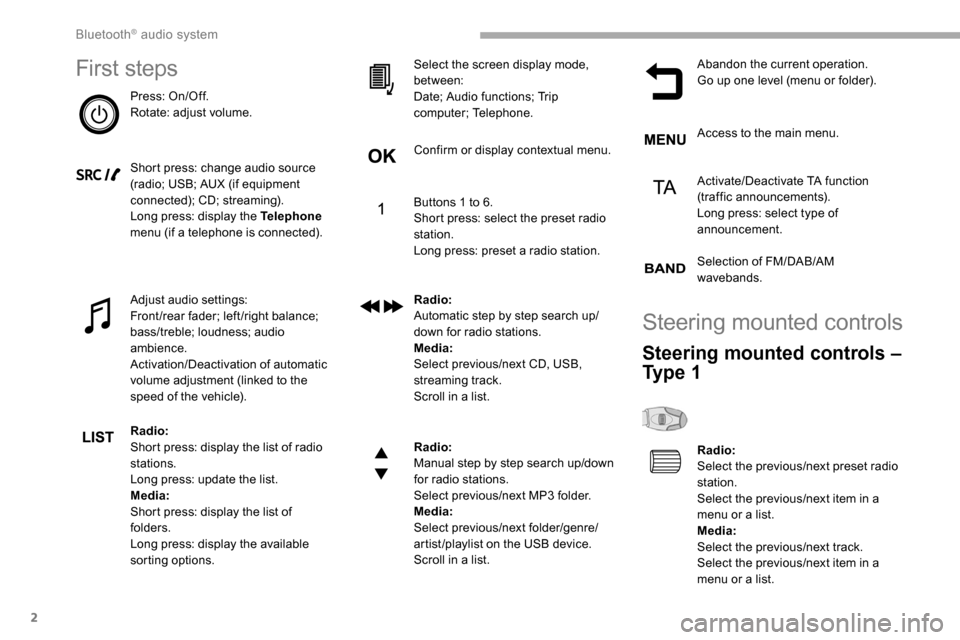
First steps
Press: On/Off.
Rotate: adjust volume.
Short press: change audio source
(radio; USB; AUX (if equipment
connected); CD; streaming).
Long press: display the Telephone
menu (if a telephone is connected).
Adjust audio settings:
Front/rear fader; left/right balance;
bass/treble; loudness; audio
ambience.
Activation/Deactivation of automatic
volume adjustment (linked to the
speed of the vehicle).
Radio:
Short press: display the list of radio
stations.
Long press: update the list.
Media:
Short press: display the list of
folders.
Long press: display the available
sorting options. Select the screen display mode,
between:
Date; Audio functions; Trip
computer; Telephone.
Confirm or display contextual menu.
Buttons 1 to 6.
Short press: select the preset radio
station.
Long press: preset a radio station.
Radio:
Automatic step by step search up/
down for radio stations.
Media:
Select previous/next CD, USB,
streaming track.
Scroll in a list.
Radio:
Manual step by step search up/down
for radio stations.
Select previous/next MP3 folder.
Media:
Select previous/next folder/genre/
artist/playlist on the USB device.
Scroll in a list.
Abandon the current operation.
Go up one level (menu or folder).
Access to the main menu.
Activate/Deactivate TA function
(traffic announcements).
Long press: select type of
announcement.
Selection of FM/DAB/AM
wavebands.
Steering mounted controls
Steering mounted controls –
Ty p e 1
Radio:
Select the previous/next preset radio
station.
Select the previous/next item in a
menu or a list.
Media:
Select the previous/next track.
Select the previous/next item in a
menu or a list.
Bluetooth® audio system
Page 223 of 312
3
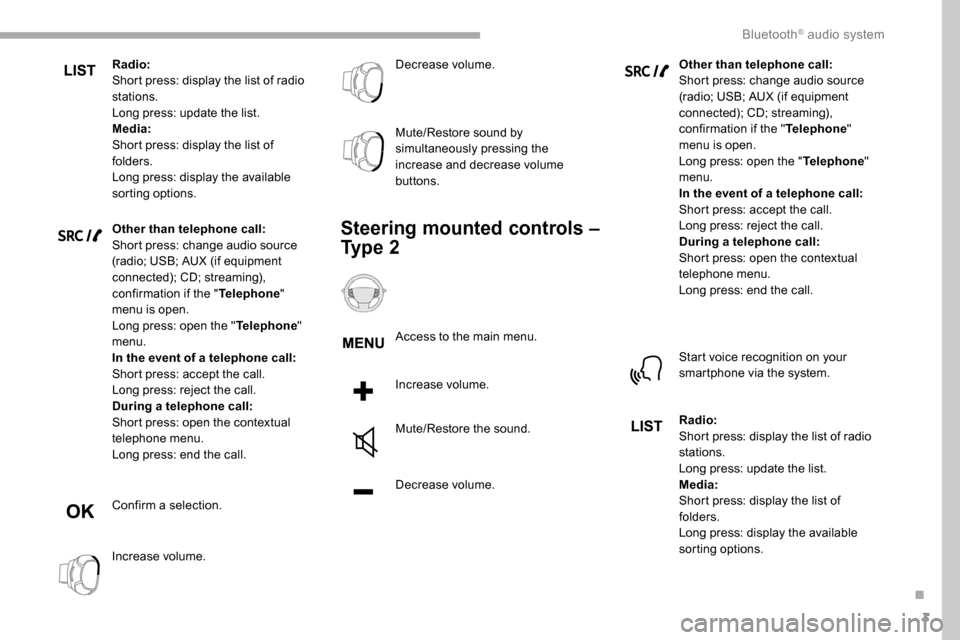
Radio:
Short press: display the list of radio
stations.
Long press: update the list.
Media:
Short press: display the list of
folders.
Long press: display the available
sorting options.
Other than telephone call:
Short press: change audio source
(radio; USB; AUX (if equipment
connected); CD; streaming),
confirmation if the "Telephone"
menu is open.
Long press: open the " Telephone"
menu.
In the event of a telephone call:
Short press: accept the call.
Long press: reject the call.
During a telephone call:
Short press: open the contextual
telephone menu.
Long press: end the call.
Confirm a selection.
Increase volume. Decrease volume.
Mute/Restore sound by
simultaneously pressing the
increase and decrease volume
buttons.
Steering mounted controls –
Ty p e 2
Access to the main menu.
Increase volume.
Mute/Restore the sound.
Decrease volume.
Other than telephone call:
Short press: change audio source
(radio; USB; AUX (if equipment
connected); CD; streaming),
confirmation if the "
Telephone"
menu is open.
Long press: open the " Telephone"
menu.
In the event of a telephone call:
Short press: accept the call.
Long press: reject the call.
During a telephone call:
Short press: open the contextual
telephone menu.
Long press: end the call.
Start voice recognition on your
smartphone via the system.
Radio:
Short press: display the list of radio
stations.
Long press: update the list.
Media:
Short press: display the list of
folders.
Long press: display the available
sorting options.
.
Bluetooth® audio system
Page 224 of 312
4
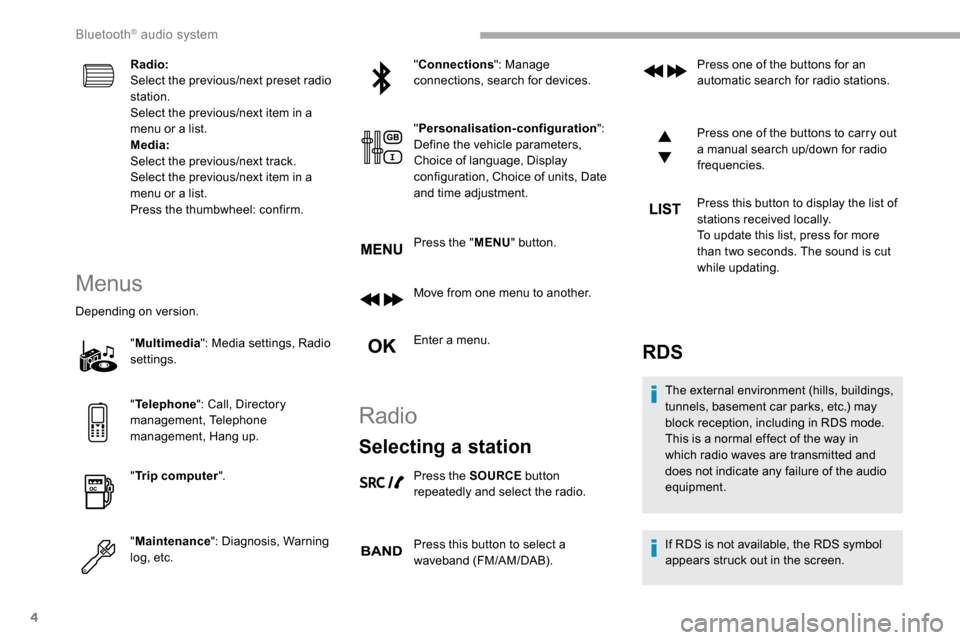
Radio:
Select the previous/next preset radio
station.
Select the previous/next item in a
menu or a list.
Media:
Select the previous/next track.
Select the previous/next item in a
menu or a list.
Press the thumbwheel: confirm.
Menus
Depending on version."Multimedia ": Media settings, Radio
settings.
" Telephone ": Call, Directory
management, Telephone
management, Hang up.
" Trip computer ".
" Maintenance ": Diagnosis, Warning
log, etc. "
Connections ": Manage
connections, search for devices.
" Personalisation-configuration ":
Define the vehicle parameters,
Choice of language, Display
configuration, Choice of units, Date
and time adjustment.
Press the " MENU" button.
Move from one menu to another.
Enter a menu.
Radio
Selecting a station
Press the SOURCE button
repeatedly and select the radio.
Press this button to select a
waveband (FM/AM/DAB). Press one of the buttons for an
automatic search for radio stations.
Press one of the buttons to carry out
a manual search up/down for radio
frequencies.
Press this button to display the list of
stations received locally.
To update this list, press for more
than two seconds. The sound is cut
while updating.
RDS
The external environment (hills, buildings,
tunnels, basement car parks, etc.) may
block reception, including in RDS mode.
This is a normal effect of the way in
which radio waves are transmitted and
does not indicate any failure of the audio
equipment.
If RDS is not available, the RDS symbol
appears struck out in the screen.
Bluetooth® audio system
Page 225 of 312
5
The RDS, if activated, enables you to continue
listening to the same station by automatic
retuning to alternative frequencies. However,
in certain conditions, coverage of an RDS
station may not be assured throughout the
entire country as radio stations do not cover
100% of the territory. This explains the loss of
reception of the station during a journey.
Short procedure
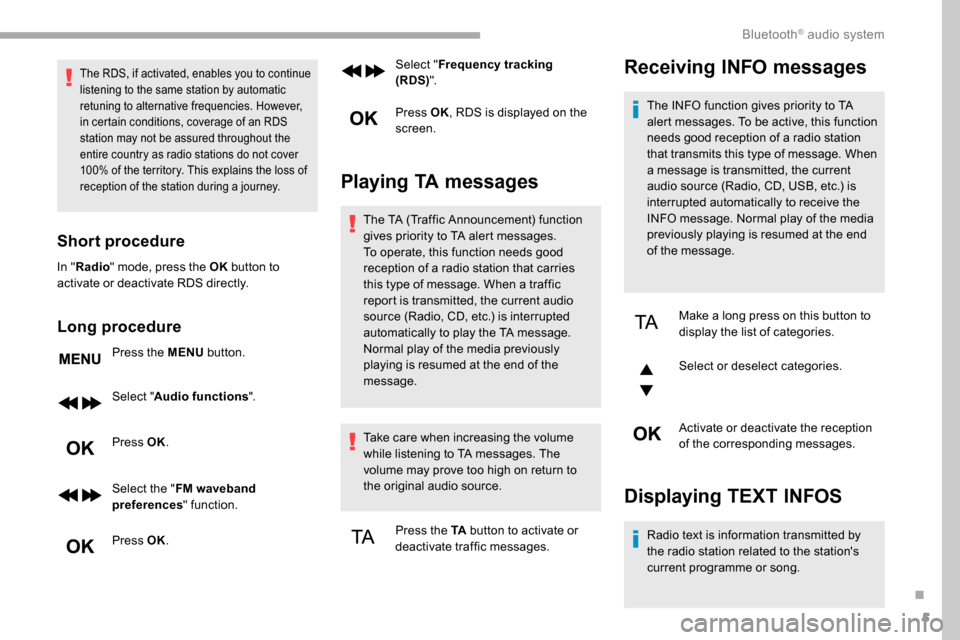
In "Radio " mode, press the OK button to
activate or deactivate RDS directly.
Long procedure
Press the MENU button.
Select " Audio functions ".
Press OK.
Select the " FM waveband
preferences " function.
Press OK. Select "
Frequency tracking
(RDS) ".
Press OK , RDS is displayed on the
screen.
Playing TA messages
The TA (Traffic Announcement) function
gives priority to TA alert messages.
To operate, this function needs good
reception of a radio station that carries
this type of message. When a traffic
report is transmitted, the current audio
source (Radio, CD, etc.) is interrupted
automatically to play the TA message.
Normal play of the media previously
playing is resumed at the end of the
message.
Take care when increasing the volume
while listening to TA messages. The
volume may prove too high on return to
the original audio source.
Press the TA button to activate or
deactivate traffic messages.
Receiving INFO messages
The INFO function gives priority to TA
alert messages. To be active, this function
needs good reception of a radio station
that transmits this type of message. When
a message is transmitted, the current
audio source (Radio, CD, USB, etc.) is
interrupted automatically to receive the
INFO message. Normal play of the media
previously playing is resumed at the end
of the message.
Make a long press on this button to
display the list of categories.
Select or deselect categories.
Activate or deactivate the reception
of the corresponding messages.
Displaying TEXT INFOS
Radio text is information transmitted by
the radio station related to the station's
current programme or song.
.
Bluetooth® audio system
Page 227 of 312
7
DAB/FM station tracking
"DAB" does not have 100% coverage of
the country.
When the digital signal is weak,
"DAB / FM auto tracking" allows you to
continue listening to the same station,
by automatically switching to the
corresponding analogue FM station (if it
ex i st s).
When the "DAB
/ FM auto tracking" is
active, the DAB station will be selected
automatically.
Press the MENU button.
Select " Multimedia " and confirm.
Select " DAB
/ FM auto tracking"
and confirm.
If "DAB
/ FM auto tracking" tracking is
enabled, there is a lag of a few seconds
when the system switches to the analogue
FM station sometimes with a change in
volume. If the "DAB" station you are listening to
is not available on FM ("
DAB/FM" option
struck out), or if "DAB / FM auto tracking"
is not on, the sound will be cut when the
digital signal is too weak.
Media
USB port
To protect the system, do not use a USB
hub. Any additional equipment connected to
the system must conform to the standard
of the product or standard IEC 60950 -1.
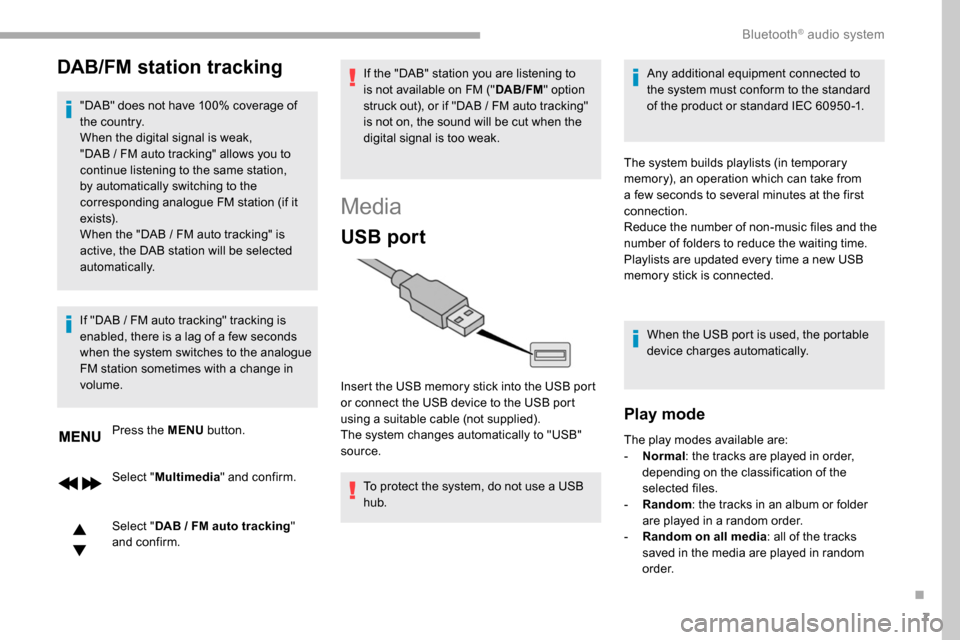
Insert the USB memory stick into the USB port
or connect the USB device to the USB port
using a suitable cable (not supplied).
The system changes automatically to "USB"
source. The system builds playlists (in temporary
memory), an operation which can take from
a few seconds to several minutes at the first
connection.
Reduce the number of non-music files and the
number of folders to reduce the waiting time.
Playlists are updated every time a new USB
memory stick is connected.
When the USB port is used, the portable
device charges automatically.
Play mode
The play modes available are:
- No rmal: the tracks are played in order,
depending on the classification of the
selected files.
-
Ra
ndom: the tracks in an album or folder
are played in a random order.
-
R
andom on all media: all of the tracks
saved in the media are played in random
o r d e r.
.
Bluetooth® audio system
Page 228 of 312
8
- Repeat: the tracks played are only those
from the current album or folder.
Press this button to display the
contextual menu for the Media
function.
Press this button to select the
chosen play mode.
Press this button to confirm.
The choice made is displayed at the top of the
screen.
Choosing a track to play
Press one of these buttons to go to
the previous/next track.
Press one of these buttons to go to
the previous/next folder.
File classification
Make a long press on this button to
display the different classifications. Select by "
Folder"/ "Artist "/ "Genre "/
" Playlist ".
Depending on availability and type
of device used.
Press OK to select the desired
classification, then press OK again
to confirm.
Playing files
Make a short press on this button to
display the chosen classification.
Navigate in the list using the left /
right and up/down buttons.
Confirm the selection by pressing
OK.
Press one of these buttons to go to
the previous/next track in the list.
Press and hold one of these buttons
for fast for ward or rewind.
Press one of these buttons to go to
the previous/next " Folder"/ "Artist "/
" Genre "/ "Playlist "* in the list.
Auxiliary socket (AUX)
(depending on model/depending on equipment)
*
D
epending on availability and the type of
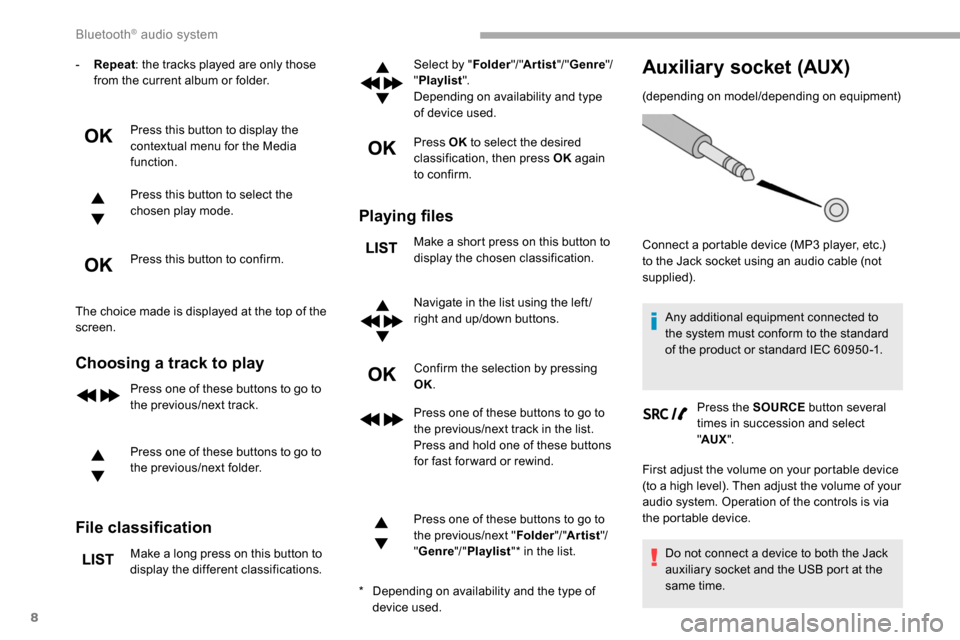
device used. Connect a portable device (MP3 player, etc.)
to the Jack socket using an audio cable (not
supplied).
Any additional equipment connected to
the system must conform to the standard
of the product or standard IEC 60950 -1.
Press the SOURCE button several
times in succession and select
" AUX ".
First adjust the volume on your portable device
(to a high level). Then adjust the volume of your
audio system. Operation of the controls is via
the portable device.
Do not connect a device to both the Jack
auxiliary socket and the USB port at the
same time.
Bluetooth® audio system