USB port PEUGEOT PARTNER TEPEE 2020 Owners Manual
[x] Cancel search | Manufacturer: PEUGEOT, Model Year: 2020, Model line: PARTNER TEPEE, Model: PEUGEOT PARTNER TEPEE 2020Pages: 216, PDF Size: 8.46 MB
Page 6 of 216
4
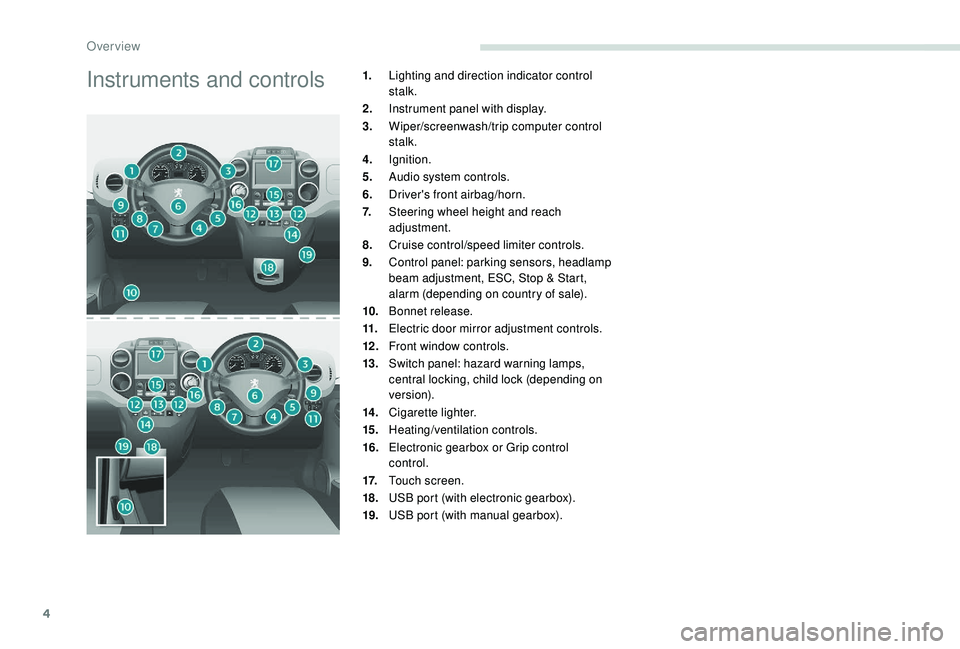
Instruments and controls1.Lighting and direction indicator control
stalk.
2. Instrument panel with display.
3. Wiper/screenwash/trip computer control
stalk.
4. Ignition.
5. Audio system controls.
6. Driver's front airbag/horn.
7. Steering wheel height and reach
adjustment.
8. Cruise control/speed limiter controls.
9. Control panel: parking sensors, headlamp
beam adjustment, ESC, Stop & Start,
alarm (depending on country of sale).
10. Bonnet release.
11. Electric door mirror adjustment controls.
12 . Front window controls.
13. Switch panel: hazard warning lamps,
central locking, child lock (depending on
ve r s i o n).
14 . Cigarette lighter.
15. Heating/ventilation controls.
16. Electronic gearbox or Grip control
control.
17. Touch screen.
18. USB port (with electronic gearbox).
19. USB port (with manual gearbox).
Over view
Page 63 of 216
61
The connection of an electrical device
not approved by PEUGEOT, such as a
USB charger, may adversely affect the
operation of vehicle electrical systems,
causing faults such as poor radio
reception or inter ference with displays in
the screens.
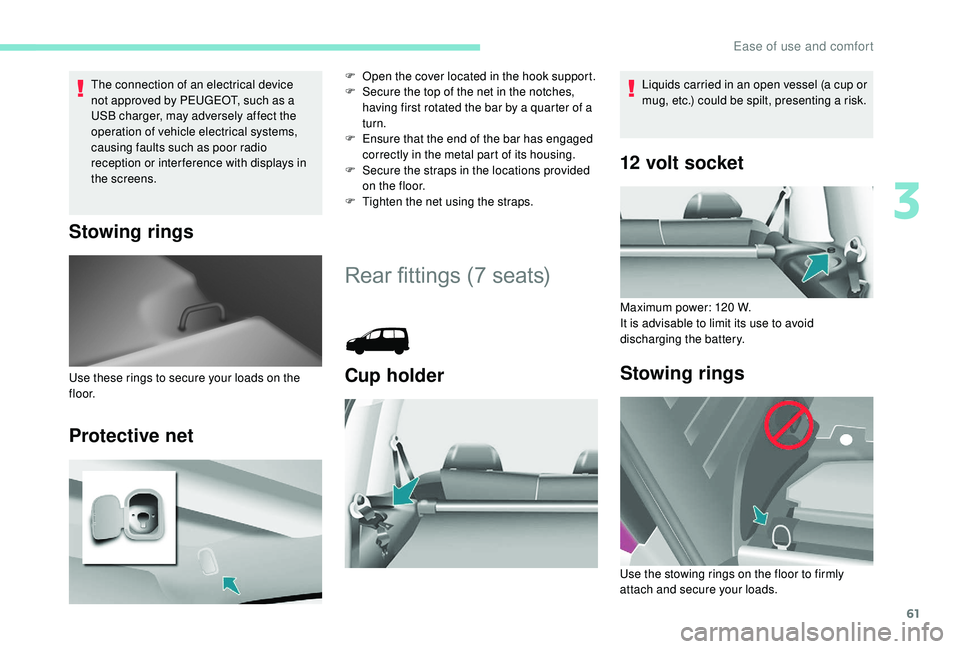
Stowing rings
Protective net
F Open the cover located in the hook support.
F S ecure the top of the net in the notches,
having first rotated the bar by a quarter of a
turn.
F
E
nsure that the end of the bar has engaged
correctly in the metal part of its housing.
F
S
ecure the straps in the locations provided
on the floor.
F
T
ighten the net using the straps.
Rear fittings (7 seats)
Cup holderUse these rings to secure your loads on the
f l o o r.
12 volt socket
Maximum power: 120 W.
I t is advisable to limit its use to avoid
discharging the battery.
Stowing rings
Liquids carried in an open vessel (a cup or
mug, etc.) could be spilt, presenting a risk.
Use the stowing rings on the floor to firmly
attach and secure your loads.
3
Ease of use and comfort
Page 185 of 216
9
Select "List" in the primary page.
or
Select " Radio list " on the
secondary page.
Select a radio station from the list offered.
DAB/FM station tracking
"DAB" does not cover 100% of the
te r r i to r y.
When the digital radio signal is poor,
the "DAB/FM station tracking" allows
you to continue listening to the same
station, by automatically switching to the
corresponding FM analogue station (if
there is one). Press Radio Media to display the
primary page.
Press the secondary page. Select "Settings ".
Select " Radio".
Select " Digital/FM tracking " then "Confirm ". If "DAB/FM station tracking" is activated
there is a delay of a few seconds when the
system switches to analogue radio "FM",
sometimes with a change in volume.
Once the digital signal quality is restored,
the system automatically changes back
to " DA B ".
If the "DAB" station being listened to is
not available on "FM" ("
DAB/FM" option
greyed out), or "DAB/FM station tracking"
is not activated, the sound will cut out
while the digital signal is too weak.
Media
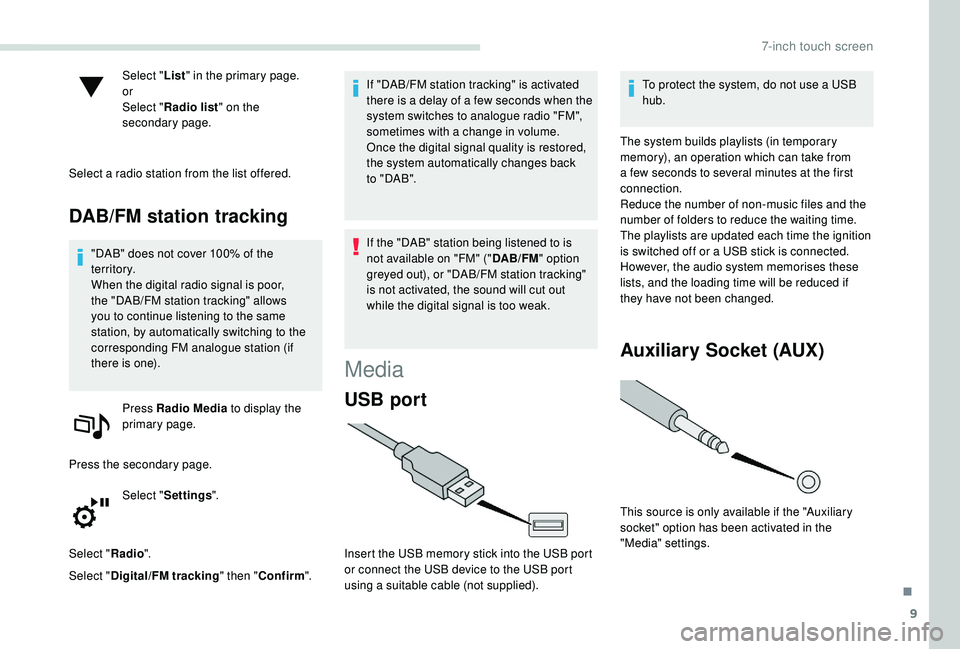
USB port
Insert the USB memory stick into the USB port
or connect the USB device to the USB port
using a suitable cable (not supplied). To protect the system, do not use a USB
hub.
The system builds playlists (in temporary
memory), an operation which can take from
a few seconds to several minutes at the first
connection.
Reduce the number of non-music files and the
number of folders to reduce the waiting time.
The playlists are updated each time the ignition
is switched off or a USB stick is connected.
However, the audio system memorises these
lists, and the loading time will be reduced if
they have not been changed.
Auxiliary Socket (AUX)
This source is only available if the "Auxiliary
socket" option has been activated in the
"Media" settings.
.
7-inch touch screen
Page 186 of 216
10
Connect the portable device (MP3 player, etc.)
to the jack socket using an audio cable (not
supplied).
First adjust the volume of your portable device
(to a high level). Then adjust the volume of your
audio system.
Operation of controls is via the portable device.
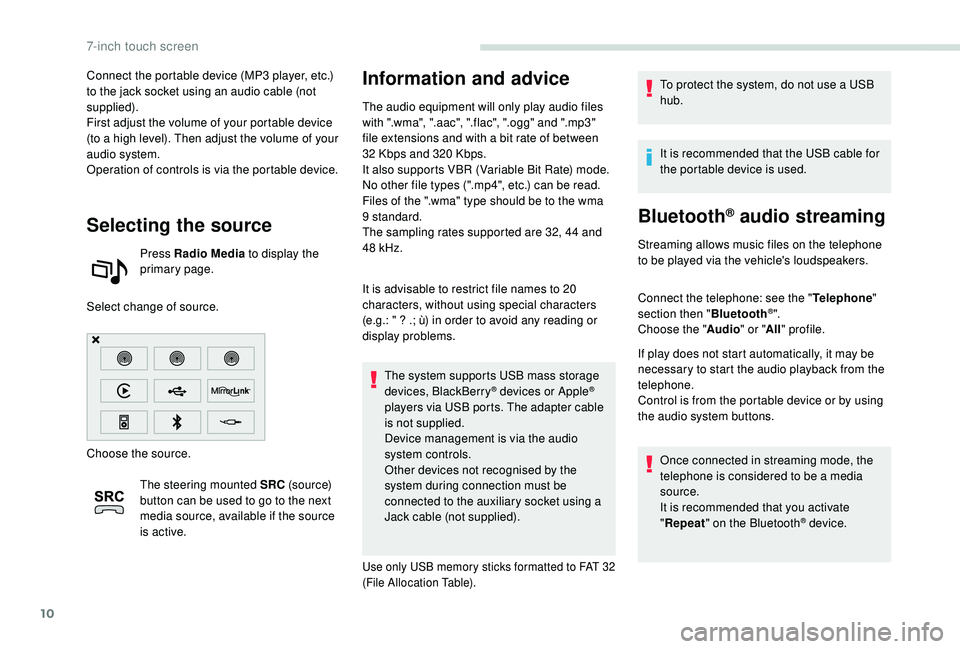
Selecting the source
Press Radio Media to display the
primary page.
Select change of source.
Choose the source. The steering mounted SRC (s o u r c e)
button can be used to go to the next
media source, available if the source
is active.
Information and advice
The audio equipment will only play audio files
with ".wma", ".aac", ".flac", ".ogg" and ".mp3"
file extensions and with a bit rate of between
32
Kbps and 320 Kbps.
It also supports VBR (Variable Bit Rate) mode.
No other file types (".mp4", etc.) can be read.
Files of the ".wma" type should be to the wma
9 standard.
The sampling rates supported are 32, 44 and
48
kHz.
It is advisable to restrict file names to 20
characters, without using special characters
(e.g.: " ? .; ù) in order to avoid any reading or
display problems. The system supports USB mass storage
devices, BlackBerry
® devices or Apple®
players via USB ports. The adapter cable
is not supplied.
Device management is via the audio
system controls.
Other devices not recognised by the
system during connection must be
connected to the auxiliary socket using a
Jack cable (not supplied).
Use only USB memory sticks formatted to FAT 32
(File Allocation Table).
To protect the system, do not use a USB
hub.
It is recommended that the USB cable for
the portable device is used.
Bluetooth® audio streaming
Streaming allows music files on the telephone
to be played via the vehicle's loudspeakers.
Connect the telephone: see the " Telephone"
section then " Bluetooth
®".
Choose the " Audio" or "All" profile.
If play does not start automatically, it may be
necessary to start the audio playback from the
telephone.
Control is from the portable device or by using
the audio system buttons.
Once connected in streaming mode, the
telephone is considered to be a media
source.
It is recommended that you activate
"Repeat " on the Bluetooth
® device.
7-inch touch screen
Page 187 of 216
11
Connecting Apple® players
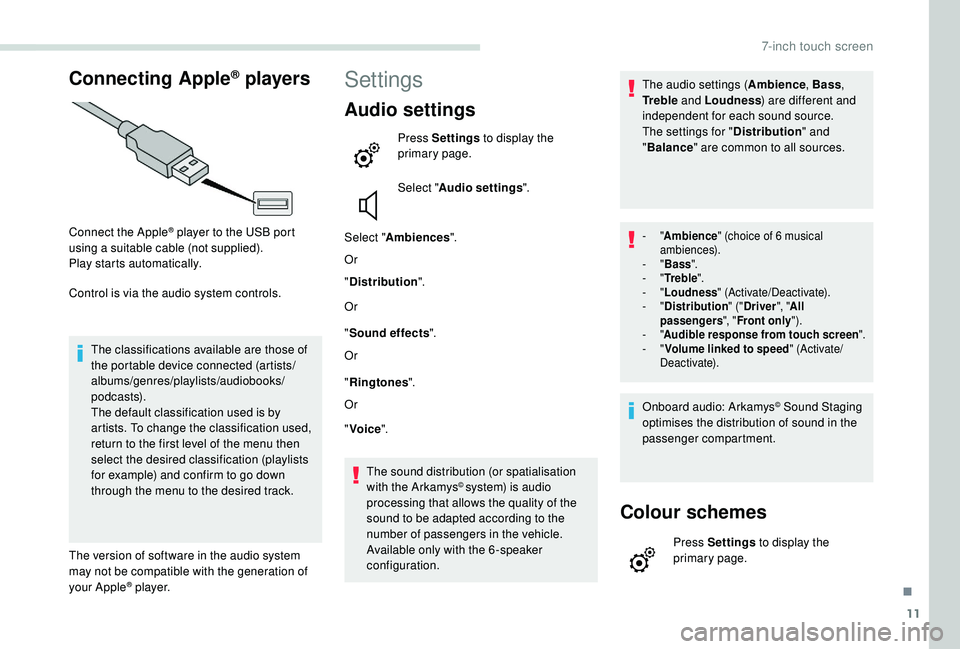
Connect the Apple® player to the USB port
using a suitable cable (not supplied).
Play starts automatically.
Control is via the audio system controls.
The classifications available are those of
the portable device connected (artists/
albums/genres/playlists/audiobooks/
podcasts).
The default classification used is by
artists. To change the classification used,
return to the first level of the menu then
select the desired classification (playlists
for example) and confirm to go down
through the menu to the desired track.
The version of software in the audio system
may not be compatible with the generation of
your Apple
® p l aye r.
Settings
Audio settings
Press Settings to display the
primary page.
Select " Audio settings ".
Select " Ambiences ".
Or
" Distribution ".
Or
" Sound effects ".
Or
" Ringtones ".
Or
" Voice ".
The sound distribution (or spatialisation
with the Arkamys
© system) is audio
processing that allows the quality of the
sound to be adapted according to the
number of passengers in the vehicle.
Available only with the 6 -speaker
configuration. The audio settings (
Ambience, Bass,
Tr e b l e and Loudness ) are different and
independent for each sound source.
The settings for " Distribution" and
" Balance " are common to all sources.
- "Ambience " (choice of 6 musical
ambiences).
-
"Bass ".
-
"Tr e b l e ".
-
"Loudness " (Activate/Deactivate).
-
"Distribution " ("Driver ", "All
passengers ", "Front only ").
-
"Audible response from touch screen ".
-
"Volume linked to speed " (Activate/
Deactivate).
Onboard audio: Arkamys© Sound Staging
optimises the distribution of sound in the
passenger compartment.
Colour schemes
Press Settings to display the
primary page.
.
7-inch touch screen
Page 189 of 216
13
The synchronisation of a smartphone
allows users to display the smartphone's
applications adapted to the
MirrorLink
TM technology on the vehicle
sc
reen.
The principles and standards
are constantly changing, for the
communication process between the
smartphone and the system to operate,
it is essential that the smartphone is
unlocked; update the operating system of
the smartphone as well as the date and
time of the smartphone and the system.
For the list of supported smartphones, go
to the brand's website in your country.
As a safety measure, some applications
can only be viewed with the vehicle
stationary; display is interrupted once the
vehicle is moving.
Please note:
-
i
f your smartphone is supported, to
make it "MirrorLink
TM" compatible,
some phone manufacturers
nevertheless invite you to first
download a dedicated application. When connecting a smartphone
to the system, it is recommended
that Bluetooth
® is started on the
smartphone.
Connect a USB cable. The
smartphone charges when
connected by a USB cable.
From the system, press " Connected
services " to display the primary
page.
Press "MirrorLink
TM" to start
the application of the system.
Start the application on the
smartphone (optional, depending
on the smartphone and operating
syste m).
During the procedure, several screen
pages relating to the association of
certain functions are displayed.
Accept to start and complete the
connection. If only one application has been downloaded to
the smartphone, it starts automatically.
Access to the different audio sources remains
accessible in the margin of the MirrorLink
TM
display, using touch buttons in the upper bar.
Access to the system’s menus is possible at
any time using the dedicated buttons.
Voice recognition
Press the end of the lighting control stalk to
start the voice recognition of your smartphone
via the system.
Voice recognition requires the use of a
compatible smartphone first connected to the
vehicle by Bluetooth.
CarPlay®
CarPlay® smartphone connection
As a safety measure and because it
requires sustained attention by the driver,
using a smartphone when driving is
prohibited.
All operations must be done with the
vehicle stationary .
Once the connection is established, a page
is displayed with the applications already
downloaded to your smartphone and adapted
to MirrorLink
TM technology.
.
7-inch touch screen
Page 190 of 216
14
The synchronisation of a smartphone
allows users to display the smartphone's
applications adapted to the
CarPlay
® technology on the vehicle
sc
reen.
As the processes and standards are
constantly changing, it is recommended
that you keep your smartphone's operating
system updated.
For the list of supported smartphones, go
to the brand's website in your country.
As a safety measure, some applications
can only be viewed with the vehicle
stationary; display is interrupted once the
vehicle is moving.
Connect a USB cable. The
smartphone charges when
connected by the USB cable.
On connecting the USB cable, the
" Telephone " function changes to
" CarPlay " in the menu carousel.
Press " CarPlay " to display the
CarPlay
® inter face. Or
Connect a USB cable. The
smartphone charges when
connected by the USB cable.
From the system, press " Connected
services " to display the primary
page.
Press " CarPlay " to display the
CarPlay
® inter face.
During the procedure, one or more screen
pages relating to the association of certain
functions are displayed on connection.
When the telephone menu is displayed, on
connecting the USB cable the display changes
automatically to CarPlay mode.
When another menu is displayed, on
connecting the USB cable a message is
displayed in the upper bar indicating activation
of CarPlay mode.
Press Open to display the CarPlay mode.
Voice recognition
Press the end of the lighting control stalk to
start thye voice recognition of your smartphone
via the system.
Telephone
Pairing a Bluetooth®
telephone
For reasons of safety and because
it requires sustained attention by the
driver, the pairing of a Bluetooth
® mobile
telephone with the hands-free system of
your audio system must be done with the
vehicle stationary .
Procedure (short) from the
telephone
In the Bluetooth® menu of your device, select
the system name in the list of devices detected.
Enter a code of at least 4 figures in the device
and confirm.
Enter this same code in the system,
select "OK" and confirm.
7-inch touch screen
Page 196 of 216
20
Media
QUESTIONRESPONSESOLUTION
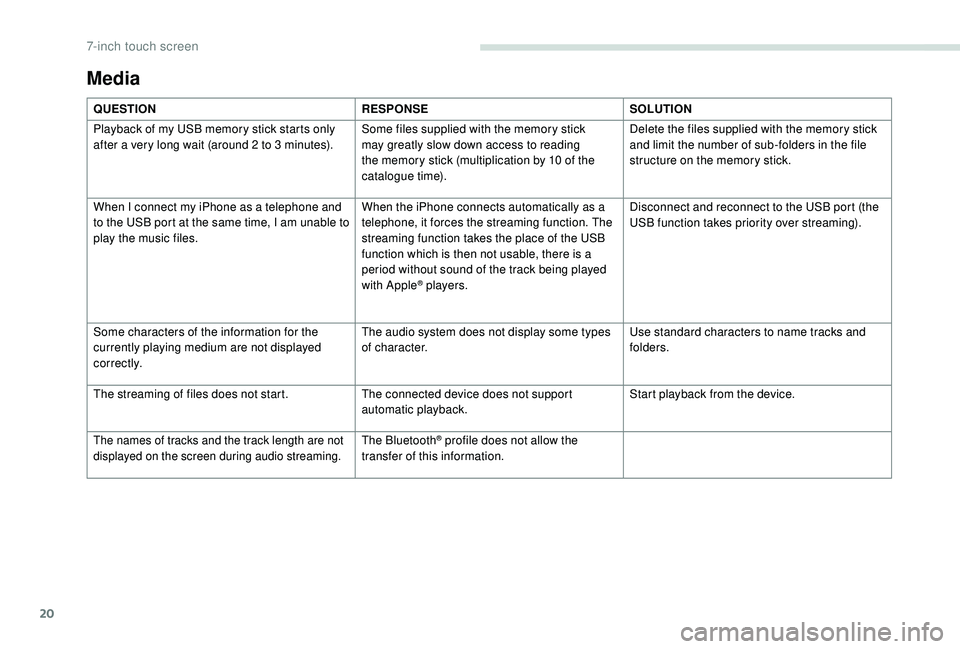
Playback of my USB memory stick starts only
after a very long wait (around 2 to 3
minutes).Some files supplied with the memory stick
may greatly slow down access to reading
the memory stick (multiplication by 10 of the
catalogue time). Delete the files supplied with the memory stick
and limit the number of sub-folders in the file
structure on the memory stick.
When I connect my iPhone as a telephone and
to the USB port at the same time, I am unable to
play the music files. When the iPhone connects automatically as a
telephone, it forces the streaming function. The
streaming function takes the place of the USB
function which is then not usable, there is a
period without sound of the track being played
with Apple
® players.Disconnect and reconnect to the USB port (the
USB function takes priority over streaming).
Some characters of the information for the
currently playing medium are not displayed
c o r r e c t l y. The audio system does not display some types
of character.
Use standard characters to name tracks and
folders.
The streaming of files does not start. The connected device does not support
automatic playback.Start playback from the device.
The names of tracks and the track length are not
displayed on the screen during audio streaming.The Bluetooth® profile does not allow the
transfer of this information.
7-inch touch screen
Page 202 of 216
4
Playing TA messages
The TA (Traffic Announcement) function
gives priority to TA alert messages.
To operate, this function needs good
reception of a radio station that carries
this type of message. When a traffic
report is transmitted, the current audio
source (Radio, CD, etc.) is interrupted
automatically to play the TA message.
Normal play of the medium previously
playing is resumed at the end of the
message.Press the TA button to activate or
deactivate traffic messages.
Media
USB port
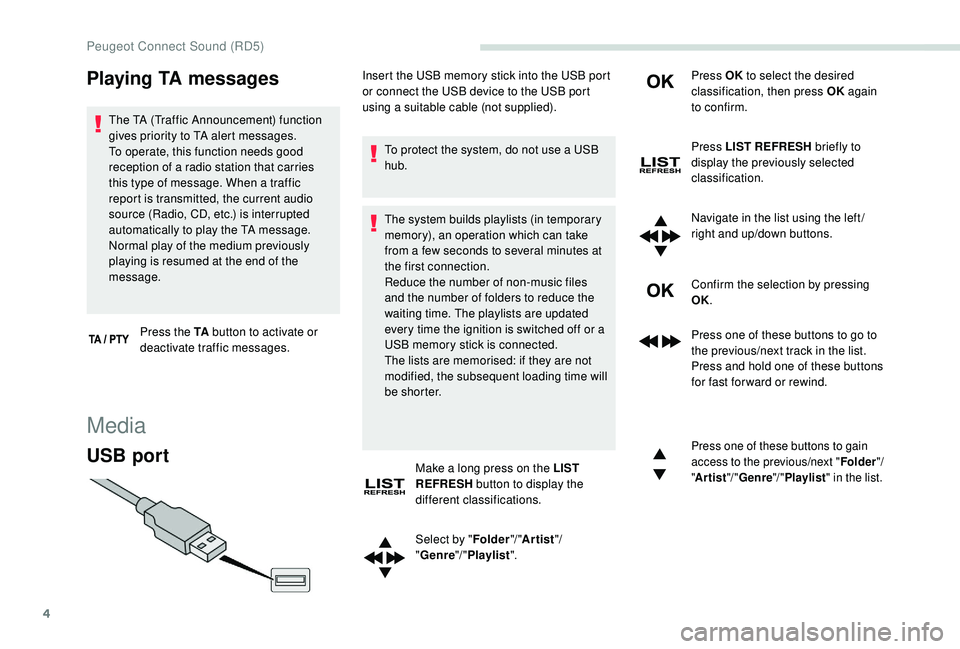
To protect the system, do not use a USB
hub.
The system builds playlists (in temporary
memory), an operation which can take
from a few seconds to several minutes at
the first connection.
Reduce the number of non-music files
and the number of folders to reduce the
waiting time. The playlists are updated
every time the ignition is switched off or a
USB memory stick is connected.
The lists are memorised: if they are not
modified, the subsequent loading time will
b e s h o r t e r.
Make a long press on the LIST
REFRESH button to display the
different classifications.
Select by " Folder"/ "Artist "/
" Genre "/ "Playlist ". Press OK
to select the desired
classification, then press OK again
to confirm.
Press LIST REFRESH briefly to
display the previously selected
classification.
Navigate in the list using the left /
right and up/down buttons.
Confirm the selection by pressing
OK.
Press one of these buttons to go to
the previous/next track in the list.
Press and hold one of these buttons
for fast for ward or rewind.
Press one of these buttons to gain
access to the previous/next " Folder"/
" Artist "/ "Genre "/ "Playlist " in the list.
Insert the USB memory stick into the USB port
or connect the USB device to the USB port
using a suitable cable (not supplied).
Peugeot Connect Sound (RD5)
Page 203 of 216
5
Auxiliary Socket (AUX)
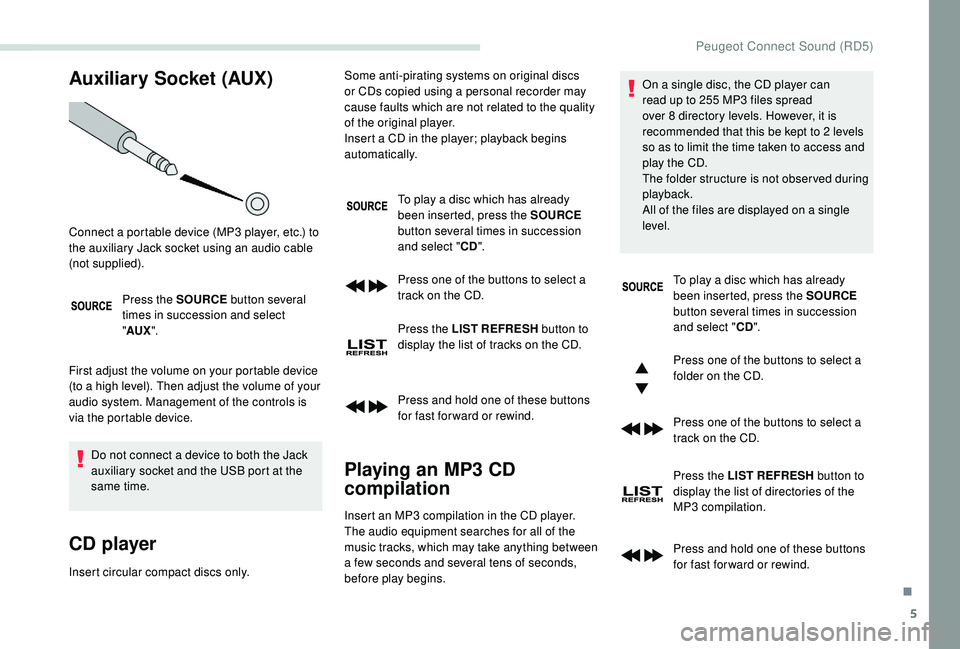
Press the SOURCE button several
times in succession and select
" AUX ".
First adjust the volume on your portable device
(to a high level). Then adjust the volume of your
audio system. Management of the controls is
via the portable device. Do not connect a device to both the Jack
auxiliary socket and the USB port at the
same time.
CD player
Insert circular compact discs only. To play a disc which has already
been inserted, press the SOURCE
button several times in succession
and select " CD".
Press one of the buttons to select a
track on the CD.
Press the LIST REFRESH button to
display the list of tracks on the CD.
Press and hold one of these buttons
for fast for ward or rewind.
Playing an MP3 CD
compilation
Connect a portable device (MP3 player, etc.) to
the auxiliary Jack socket using an audio cable
(not supplied). Some anti-pirating systems on original discs
or CDs copied using a personal recorder may
cause faults which are not related to the quality
of the original player.
Insert a CD in the player; playback begins
automatically.
Insert an MP3 compilation in the CD player.
The audio equipment searches for all of the
music tracks, which may take anything between
a few seconds and several tens of seconds,
before play begins. On a single disc, the CD player can
read up to 255 MP3 files spread
over 8 directory levels. However, it is
recommended that this be kept to 2 levels
so as to limit the time taken to access and
play the CD.
The folder structure is not obser ved during
playback.
All of the files are displayed on a single
level.
To play a disc which has already
been inserted, press the SOURCE
button several times in succession
and select " CD".
Press one of the buttons to select a
folder on the CD.
Press one of the buttons to select a
track on the CD.
Press the LIST REFRESH button to
display the list of directories of the
MP3 compilation.
Press and hold one of these buttons
for fast for ward or rewind.
.
Peugeot Connect Sound (RD5)