radio PONTIAC BONNEVILLE 2003 Owners Manual
[x] Cancel search | Manufacturer: PONTIAC, Model Year: 2003, Model line: BONNEVILLE, Model: PONTIAC BONNEVILLE 2003Pages: 418, PDF Size: 20.24 MB
Page 70 of 418
Remote Keyless Entry System
If equipped, the keyless entry system operates on a
radio frequency subject to Federal Communications
Commission (FCC) Rules and with Industry Canada.
This device complies with Part 15 of the FCC Rules.
Operation is subject to the following two conditions:
1. This device may not cause interference, and
2. This device must accept any interference received,
including interference that may cause undesired
operation of the device.
This device complies with RSS-210 of Industry Canada.
Operation is subject to the following two conditions:
1. This device may not cause interference, and
2. This device must accept any interference received,
including interference that may cause undesired
operation of the device. Changes
or modifications to this system by other than
an authorized service facility could void authorization to
use this equipment.
At times you may notice a decrease in range. This is
normal for any remote keyless entry system.
If the
transmitter does not work or
if you have to stand closer
to your vehicle for the transmitter to work, try this:
e
e
Check the distance. You may be too far from your
vehicle. You may need to stand closer during
rainy or snowy weather.
Check the location. Other vehicles or objects may
be blocking the signal. Take a few steps to the
left or right, hold the transmitter higher, and
try again.
Check to determine if battery replacement is
necessary. See
“Battery Replacement” under
Remote Keyless Entry System Operation on
page
2-6.
If you are still having trouble, see your dealer or a
q~Ia!ified technician for service.
2-5
Page 87 of 418
Testing the Alarm
1. From inside the vehicle, roll down the window.
2. Activate the system by locking the doors with the
power door lock switch while the door is open, or
with the remote keyless entry transmitter.
3. Get out of the vehicle, close the door and wait for
the SECURITY light to go out.
4. Then, reach in through the window, unlock the door
with the manual door lock and open the door. This
should set
off the alarm.
If the alarm does not sound when it should, check to
see
if the horn works. The horn fuse may be blown.
To replace the fuse, see
Fuses and Circuit Breakers on
page 5-92.
If the alarm does not sound, or the exterior lamps do
not flash, see your dealer.
Content Theft-Deterrent
If your vehicle has this option, it has a content
theft-deterrent alarm system.
A light located in your Twilight Sentinel@ cluster, above
the fog lamp button, will begin to flash
30 seconds
after the vehicle ignition is turned
off to let you know the
system has been armed.
While armed, the doors will not unlock with the power
door lock switch. Once armed,
the alarm will go
off if someone tries to
enter the vehicle without using the remote keyless entry
transmitter or a key, breaks a window, tries to damage
the vehicle or turns the ignition to
ON. If any of these do
occur, the horn will sound and the parking lamps will
flash for up to two minutes.
PASS-Key@ 111
Your PASS-Key@ Ill system operates on a radio
frequency subject to Federal Communications
Commission (FCC) Rules and with Industry Canada.
This device complies with Part
15 of the FCC Rules.
Operation is subject to the following two conditions:
(1)
this device may not cause harmful interference, and
(2) this device must accept any interference received,
including interference that may cause undesired
operation.
This device complies with RSS-210 of Industry Canada
Operation is subject to the following two conditions:
(1) this device may not cause interference, and (2) this
device must accept any interference received,
including interference that may cause undesired
operation of the device.
Changes
or modifications to this system by other than
an authorized service facility could void authorization to
use this equipment.
PASS-Key@
Ill uses a radio frequency transponder in
the key that matches
a decoder in your vehicle.
2-22
Page 91 of 418
OFF: This is the only position from which you can
remove the key. This position locks your ignition and
transaxle. It’s a theft-deterrent feature.
ACC (Accessory): In this position you can operate
your electrical accessories such as power windows,
sunroof (option), audio system and windshield wipers.
ON: This is the position the switch returns to after
you start your engine and release the switch. Even when
the engine is not running, you can use ON
to operate
your electrical accessories and to display some
instrument panel cluster warning lights. This is the
position for driving your vehicle.
START: This position starts the engine. When the
engine starts, release the key. The ignition switch will
return to
ON for normal driving.
Even
if the engine is not running, ACC and ON are
positions that allow you to operate your electrical
accessories.
Key Reminder Warning
If you leave your key in OFF you will hear a warning
tone when you open the driver’s door.
Retained Accessory Power (RAP)
After you turn the ignition off and remove the key, you
will still have power to such accessories as the
radio, sunroof (option) and power windows for up to
10 minutes. Power is turned off if you open a door.
Always leave your key in
OFF. If you leave your key in
any position other than
OFF, your battery will
discharge prematurely.
Starting Your Engine
Move your shift lever to PARK (P) or NEUTRAL (N).
Your engine won’t start in any other position - that’s a
safety feature. To restart when you’re already moving,
use NEUTRAL
(N) only.
Notice: Don’t try to shift to PARK (P) if your
vehicle
is moving. If you do, you could damage the
transaxle. Shift
to PARK (P) only when your
vehicle
is stopped.
1. With your foot off the accelerator pedal, turn your
ignition key to START. When the engine starts, let
go of the key. The idle speed will go down as
your engine gets warm.
2-26
Page 108 of 418
Programming the HomeLinkB
Transmitter
Do not use the HomeLink@ Transmitter with any garage
door opener that does not have the “stop and reverse”
feature. This includes any garage door opener model
manufactured before April
1, 1982.
Keep the original transmitter for use in other vehicles as
well as for future HomeLink@ programming. It is also
recommended that upon the sale of the vehicle,
the programmed HomeLink@ buttons should be erased
for security purposes. Refer to “Erasing HomeLink@
Buttons” or, for assistance, contact HomeLink@ on the
internet at: www.homelink.com or by calling
1 -800-355-351 5.
Be sure that people and objects are clear of the garage
door or gate operator you are programming. When
programming a garage door, it is advised to park outside
of the garage.
It is recommended that a new battery be installed in
your hand-held transmitter for quicker and more
accurate transmission of the radio frequency. Your vehicle’s engine should
be turned
off while
programming the transmitter. Follow these steps to
program up to three channels:
1. Press and hold down the two outside buttons,
releasing only when the indicator light begins to
flash, after
20 seconds. Do not hold down the
buttons for longer than
30 seconds and do not
repeat this step to program
a second and/or third
transmitter to the remaining two HomeLink@ buttons.
2. Position the end of your hand-held transmitter about
1 to 3 inches (3 to 8 cm) away from the HomeLink@
buttons while keeping the indicator light in view.
3. Simultaneously press and hold both the desired
button on HomeLink@ and the hand-held transmitter
button.
Do not release the buttons until Step 4
has been completed.
Some entry gates and garage door openers may
require you to substitute Step
3 with the procedure
noted in “Gate Operator and Canadian
Programming” later in this section.
4. The indicator light wiii tiasn siowiy at iirsi and iilerl
rapidly after HomeLink@ successfully receives the
frequency signal from the hand-held transmitter.
Release both buttons.
2-43
Page 109 of 418
5. Press and hold the newly-trained HomeLink@ button
and observe the indicator light.
If the indicator light stays on constantly,
programming is complete and your device should
activate when the HomeLink@ button is pressed and
released.
To program the remaining two HomeLink@ buttons,
begin with Step
2 under “Programming HomeLink@.”
Do not repeat Step 1 as this will erase all of the
programmed channels.
If the indicator light blinks rapidly for two seconds
and then turns to a constant light, continue with
Steps
6 through 8 following to complete the
programming
of a rolling-code equipped device
(most commonly, a garage door opener).
6. At the garage door opener receiver (motor-head
unit) in the garage, locate the “Learn” or “Smart”
button. This can usually be found where the hanging
antenna wire is attached to the motor-head unit.
7. Firmly press and release the “Learn” or “Smart”
button. The name and color
of the button may
vary by manufacturer.
You will have
30 seconds to start Step 8.
8. Return to the vehicle. Firmly press and hold the
programmed HomeLink@ button for two seconds,
then release. Repeat the press/hold/release
sequence a second time, and depending on the
2-44
brand of the garage door opener (or other rolling
code device), repeat this sequence
a third time
to complete the programming.
HomeLink@ should now activate your rolling code
equipped device.
To program the remaining two HomeLink@ buttons,
begin with Step
2 of “Programming HomeLink@.” Do not
repeat Step
1.
Gate Operator and Canadian
Programming
Canadian radio-frequency laws require transmitter
signals
to “time out” or quit after several seconds of
transmission. This may not be long enough for
HomeLink@ to pick up the signal during programming.
Similarly, some
U.S. gate operators are manufactured to
“time out” in the same manner.
If you live in Canada, or you are having difficulty
programming a gate operator by using the
“Programming HomeLink@’ procedures (regardless
of
where you live), replace Step 3 under “Programming
HomeLink@’ with the following:
Continue to press and hold the HomeLink@ button while
you press and release every two seconds (cycle)
your hand-held transmitter until the frequency signal has
been successfully accepted by HomeLink@. The
indicator light will flash slowly at first and then rapidly.
Proceed with Step
4 under “Programming HomeLink@“
to complete.
Page 117 of 418
Section 3 Instrument Panel
Systems Monitor ............................................ 3.55
Driver Information Center (DIC) ....................... 3.57
DIC Controls and Displays
............................. 3.57
DIC Warnings and Messages
........................ -3-60
Driver Identifier DIC Display
........................... 3.61
DIC Vehicle Personalization
............................ 3.62
Center (SIC) ................................................ 3.68
Electronic Compass
...................................... 3.68
Audio System(s) ............................................. 3.71
Setting the Time
........................................... 3.71
Secondary Information
Radio with CD .............................................. 3.72
Radio with Cassette and CD
.......................... 3.82
Trunk-Mounted
CD Changer ........................... 3-94
Theft-Deterrent Feature
.................................. 3.98
Audio Steering Wheel Controls
....................... 3.98
Understanding Radio Reception
...................... 3.99
Care
of Your Cassette Tape Player ............... 3-100
Care of Your
CDs ....................................... 3.100
Care of Your CD Player ............................... 3.101
Diversity Antenna System
............................. 3.101
XM Satellite Radio Antenna System ............... 3.101
Chime Level Adjustment
............................... 3.101
3-2
Page 136 of 418
Head-Up Display (HUD)
If the HUD image is too bright, or too high in
your field
of view, it may take you more time to
see things you need to see when it's dark
outside. Be sure to keep the HUD image dim
and placed low in your field of view.
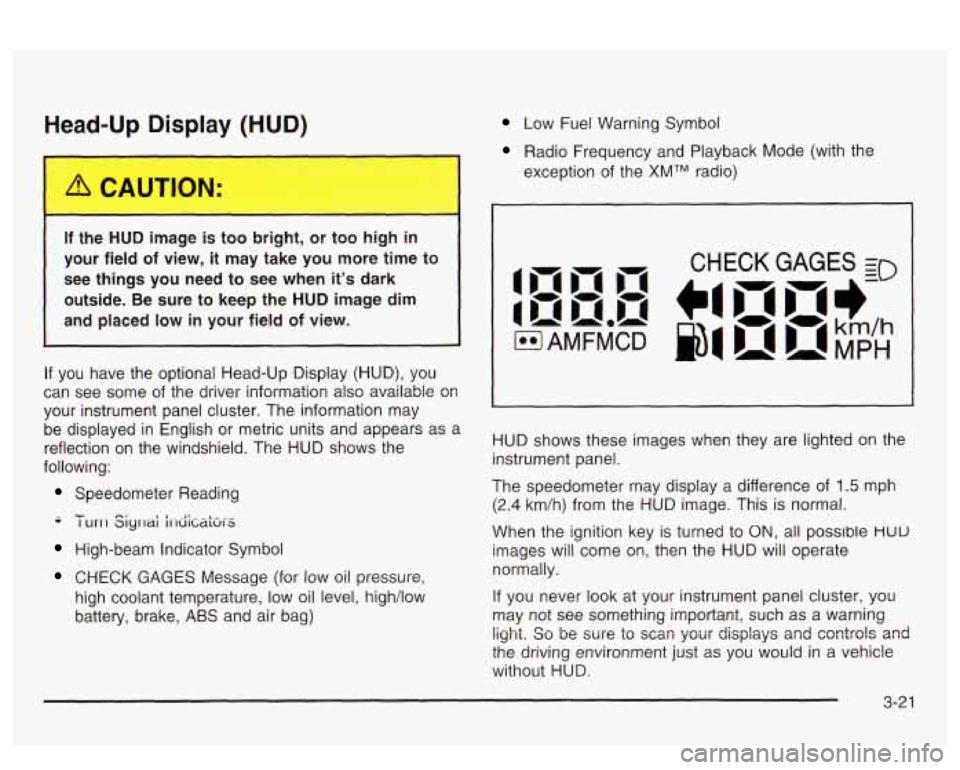
If you have the optional Head-Up Display (HUD), you
can see
some of the driver information also available 08
your instrument panel cluster. The information may
be displayed in English
or metric units and appears as a
reflection on the windshield. The HUD shows the
following:
Speedometer Reading
-- - I urrl Siyrlai i1-diCaki-S
High-beam Indicator Symbol
CHECK GAGES Message (for low oil pressure,
high coolant temperature, low oil level, high/low
battery, brake,
ABS and air bag)
Low Fuel Warning Symbol
Radio Frequency and Playback Mode (with the
exception of the
XMTM radio)
HUD shows these images when they are lighted on the
instrument panel.
The speedometer may display a difference of
1.5 mph
(2.4 km/h) from the HUD image. This is normal.
When the ignition key is turned to
ON, all possible HUU
images will come on, then the HUD will operate
normally.
If you never look at your instrument panel cluster, you
may not see something important, such as a warning
light. So be wre to scm your displays and csntrols and
the driving environment just as you would in a vehicle
without HUD.
Page 156 of 418
Battery Warning Light
If your vehicle has this
feature, this light will come
on briefly when you
start the vehicle, as a
check to show you
it is working; then it should
go out.
If it stays on, or comes on while you are driving, you
may have a problem with the electrical charging system.
Have
it checked right away. Eriving while this light is
on could drain your battery and result in a vehicle that
may stall.
If you must drive a short distance with the light on, be
certain to turn
off all your accessories, such as the radio
and climate control system.
Some instrument panel clusters with a voltmeter gage
do not have a battery warning light. They have a CHECK
GAGES warning to indicate a problem.
On vehicles with a DIC, a CHECK CHARGE SYSTEM
message will be displayed and a warning chime will
sound. See
DIC Warnings and Messages on page 3-60
for more information.
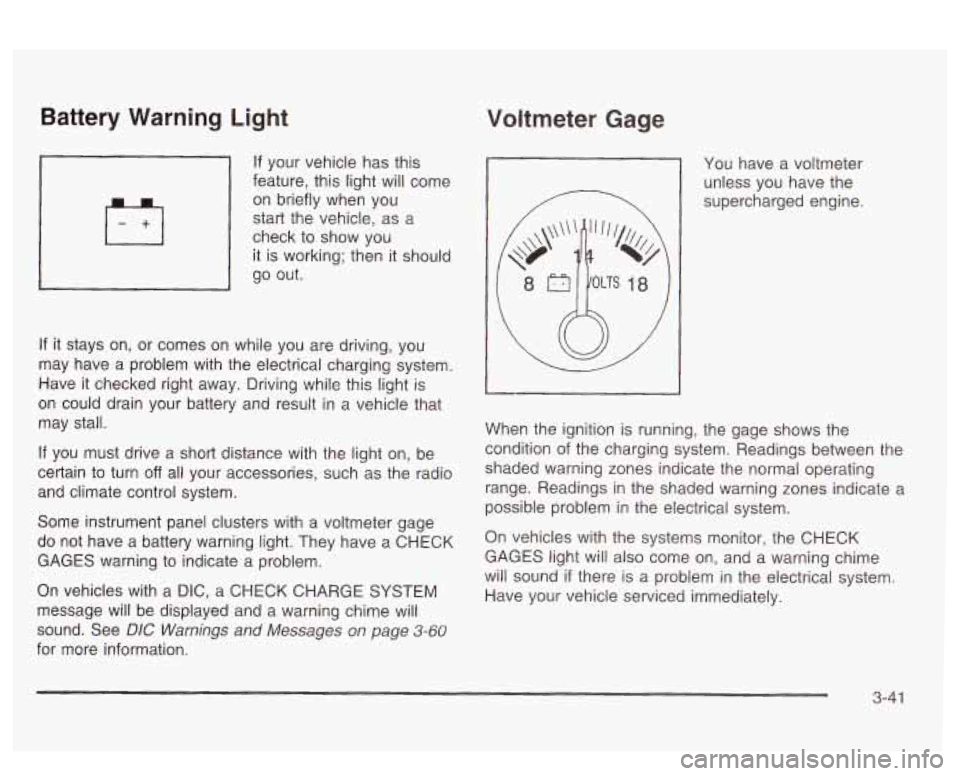
Voltmeter Gage
You have a voltmeter
unless you have the
supercharged engine.
When the ignition is running, the gage shows the
condition
of the charging system. Readings between the
shaded warning zones indicate the normal operating
range. Readings in the shaded warning zones indicate a
possible problem in the electrical system.
On vehicles with the systems monitor, the CHECK
GAGES light will also come on, and a warning chime
will sound
if there is a problem in the electrical system.
Have your vehicle serviced immediately.
3-41
Page 177 of 418
DIC Vehicle Personalization
The DIC can be used to program the following
personalization features available with your vehicle:
Automatic Door Locks
Window Lock Out
Security Feedback
Delayed Locking
Perimeter Lighting
Memory Seats
Outside Curb View Assist Mirror
Driver ID
The DIC is used to program the personal choices of two
drivers. The drivers are recognized as DRIVER
#1
and DRIVER #2. You will let the DIC know which driver
you are by using your remote keyless entry transmitter
or by pressing the appropriate memory seat control
button located on the driver’s door or by choosing the
driver with the
DIC. Each remote keyless entry
transmitter was preprogrammed to belong to DRIVER
#I
or DRIVER #2. Each transmitter may be programmed
differently for each driver. When you
press the button with the unlock symbol on
your transmitter, the DIC will automatically change driver
numbers and the vehicle will recall the personalization
settings that were last made to correspond to your
transmitter, including your radio and comfort control
settings. See
Climate Controls Personalization on
page
3-33.
If you unlock the vehicle using your door key instead of
your transmitter, the DIC will not change drivers and
will recall the information from the last transmitter use or
the last driver change using the memory seat controls.
If this happens and you were not the last driver of
the vehicle, simply press your correct driver number on
the memory seat controls or press the button with
the unlock symbol
on your transmitter or select the
personalization programming mode and choose
the correct driver number.
Use the following steps for personalization programming
instructions.
1. Turn the ignition on and keep the transaxle in
2. Press the MODE button to reach personalization
3. Press the SELECT button to enter personalization
PARK (P).
programming display. programming mode.
3-62
Page 186 of 418
Audio System(s)
Notice: Before you add any sound equipment to
your vehicle
- like a tape player, CB radio, mobile
telephone or two-way radio
- be sure you can
add what you want. If you can, it’s very important to
do
it properly. Added sound equipment may
interfere with the operation of your vehicle’s engine,
Delphi Electronics radio or other systems, and
even damage them. Your vehicle’s systems may interfere with the operation of sound equipment that
has been added improperly.
So, before adding sound equipment, check with
your dealer and be sure to check federal rules
covering mobile radio and telephone units.
Your audio system has been designed
to operate easily
and
to give years of listening pleasure. You will get
the most enjoyment out of it
if you acquaint yourself with
it first. Find out what your audio system can do and
how to operate all of its controls to be sure you’re getting
LI It: II IUS1 vu1 VI 11 IC UUVUl IUUU ”1 ‘y“ I””. .. .
into it.
I‘- - --* -. .+ -g +h -A-r-nmmA nnninonrinn +hat
,ant 3 -..-- ..-..-
Your vehicle has a feature called Retained Accessory
Power (RAP). With RAP, you can play your audio
system even after the ignition is turned
off. See
“Retained Accessory Power (RAP)” under lgnition
Positions on page 2-25.
Setting the Time
Press and hold HR or MIN for two seconds. Then press
and hold
HR until the correct hour appears on the
display. AM will also appear. Press and hold MIN until
the correct minute appears on the display. The time may
be
set with the ignition on or off.
To synchronize the time with an FM station broadcasting
Radio Data System
(RDS) Information, press and
hold HR and MIN at the same time until UPDATED and
the clock symbol appear on the display.
If the time is
not available from the station, NO UPDATE will appear
on the display instead.
3-71