display PORSCHE 911 TURBO 2014 6.G Repair Manual
[x] Cancel search | Manufacturer: PORSCHE, Model Year: 2014, Model line: 911 TURBO, Model: PORSCHE 911 TURBO 2014 6.GPages: 300, PDF Size: 10.61 MB
Page 117 of 300
Instrument Panel and Multi-Function Display 115
Chrono on multi-function display
All stopwatch displays are started and stopped in the “ Chrono” menu on the multi-function display.
For instructions on using the multi-function display:fPlease see the chapter “OPERATING THE MULTI-FUNCTION DISPLAY ON THE INSTRUMENT PANEL” on page 96.
Information
If you exit the “ Chrono” menu while the stopwatch is running, measurement will continue.
The stopwatch stops after the ignition is switched off. If the ignition is switched on again within approximately 4 minutes, the stopwatch will continue to run.
The only way to reset the stopwatch to zero is by selecting “ Reset” in the “Chrono” menu.
For information on resetting the stopwatch:fPlease see the chapter “RESETTING THE STOPWATCH TIME” on page 116.
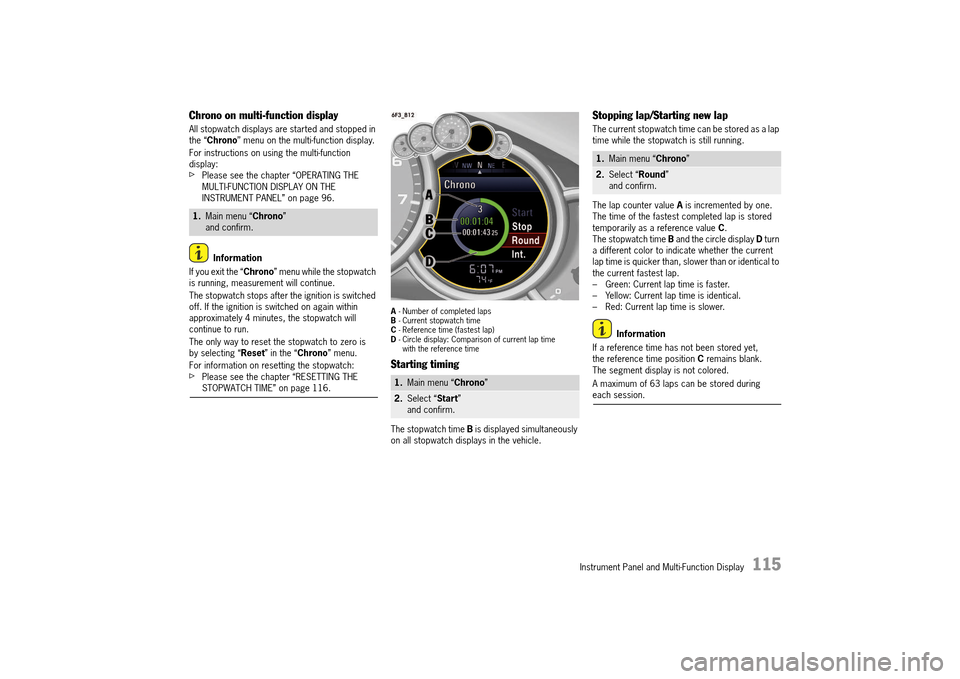
A - Number of completed laps B - Current stopwatch time C - Reference time (fastest lap) D - Circle display: Comparison of current lap time with the reference time
Starting timing
The stopwatch time B is displayed simultaneously on all stopwatch displays in the vehicle.
Stopping lap/Starting new lap
The current stopwatch time can be stored as a lap time while the stopwatch is still running.
The lap counter value A is incremented by one. The time of the fastest completed lap is stored temporarily as a reference value C. The stopwatch time B and the circle display D turn a different color to indicate whether the current lap time is quicker than, slower than or identical to the current fastest lap.– Green: Current lap time is faster.– Yellow: Current lap time is identical.– Red: Current lap time is slower.
Information
If a reference time has not been stored yet, the reference time position C remains blank. The segment display is not colored.
A maximum of 63 laps can be stored during each session.
1. Main menu “Chrono” and confirm.
1. Main menu “Chrono”
2.Select “Start” and confirm.
1. Main menu “Chrono”
2.Select “Round” and confirm.
14_991_Turbo_21.book Seite 115 Mittwoch, 9. April 2014 2:19 14
Page 118 of 300

116 Instrument Panel and Multi-Function Display
Storing intermediate time
You can store an intermediate time while the stopwatch is still running.
The intermediate time is displayed temporarily on the multi-function display. It is not stored.Timing continues in the background.
Stopping timing
You can stop the stopwatch at any time.
The stopwatch time B stops.
Continuing timing
You can resume timing again after stopping the stopwatch.
The stopwatch time B continues.
Resetting the stopwatch time
The stopwatch time can be reset to zero.
All stopwatch time displays are reset to zero.
G-Force Menu
In the “ G-Force” main menu, the current lateral and longitudinal acceleration forces are shown graphically in the form of a circular diagram. The maximum occurring longitudinal and lateral acceleration forces are displayed in the “ G-Force max ” sub-menu. The values can be reset via the menu item “ Reset”.
Performance Menu
Torque
In the “Performance” main menu, the current torque is displayed graphically as a function of engine speed.When “ Sport” or “Sport Plus” mode is activated, the additional on-demand torque (overboost function) appears as a white area in the curve.
For information on the overboost function:fPlease see the chapter “OVERBOOST FUNCTION” on page 188.
1. Main menu “Chrono”
2.Select “Int.” and confirm.
1. Main menu “Chrono”
2.Select “Stop” and confirm.
1. Main menu “Chrono” > “ Stop”
2.“Res.” and confirm.
1. Main menu “Chrono” > “ Stop”
2.Select “Reset” and confirm.
1. “G-Force” main menu
2.Confirm “G-Force max”.
3.“Reset” and confirm.
1. Main menu “Performance”
2.Select “Torque” and confirm.
14_991_Turbo_21.book Seite 116 Mittwoch, 9. April 2014 2:19 14
Page 119 of 300
Instrument Panel and Multi-Function Display 117
ACC Menu
For information on operating and display options for the adaptive cruise control:fPlease see the chapter “ADAPTIVE CRUISE CONTROL” on page 157.
Vehicle Settings on the
Multi-Function Display
Different settings can be adjusted in the multi-function display on the instrument panel depending on the vehicle equipment.
On vehicles with memory, the settings are stored on the car key or the person buttons in the driver’s door.
For information on the memory:fPlease see the chapter “STORING PERSONAL SETTINGS” on page 143.
Setting or operating the multi-function display when driving could distract you from paying attention to traffic. You could lose control of the vehicle. fCarry out any complicated operating or setting procedures only with the vehicle stationary and in park.
Selecting settings menu
Selecting setting options or activating vehicle functions
A symbol positioned in front of a setting option indicates whether the option is selected or a vehicle function is activated.
Selecting one of several options
Option is selected.
Option is not selected.
Activating and deactivating functions
Function is activated.
Function is deactivated.
Reset to factory settings
All settings made in the multi-function display can be reset to the factory settings:
Information
All personal settings that have already been stored will be lost as a result of resetting to factory settings.
Setting or operating the multi-function display when driving
WARNINGh
1. Main menu “Vehicle” > “ Settings” and confirm.
14_991_Turbo_21.book Seite 117 Mittwoch, 9. April 2014 2:19 14
Page 120 of 300
118 Instrument Panel and Multi-Function Display
Adapting appearance of multi-function display
The contents and appearance of the multi-function display can be adapted individually.
Selecting main menu display contents
Individual elements in the main menu can be hidden and shown as required.
The main menu items “ Vehicle” and “ACC” cannot be hidden.
Adapting display contents of audio main menu
In the audio main menu, you can display either a list of all radio stations currently within range or a list of all stored radio stations.
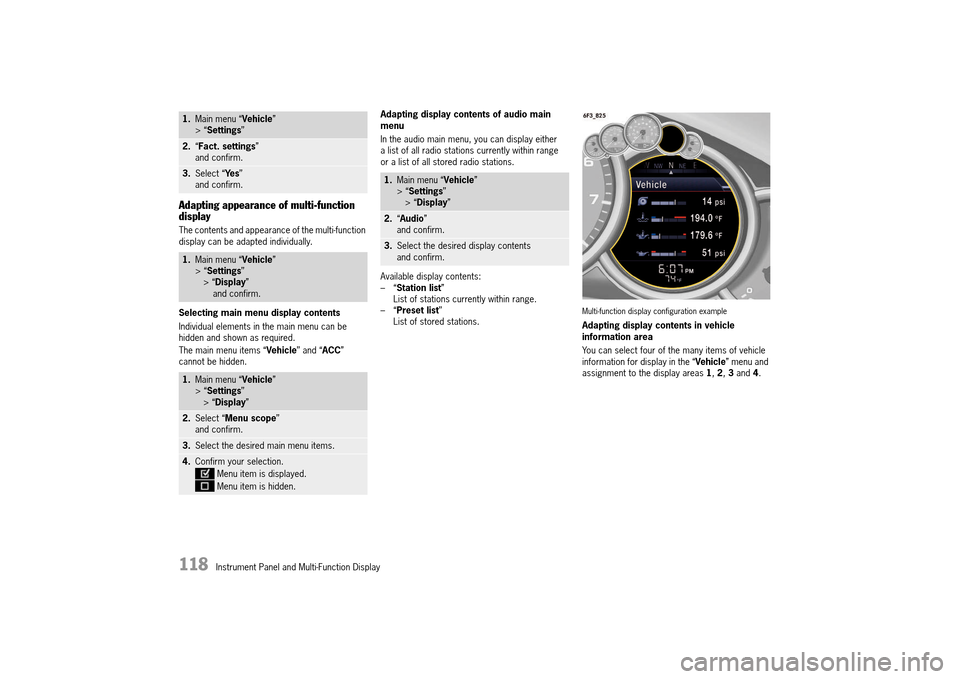
Available display contents: –“ Station list” List of stations currently within range.–“ Preset list” List of stored stations.Multi-function display configuration example
Adapting display contents in vehicle information area
You can select four of the many items of vehicle information for display in the “ Vehicle” menu and assignment to the display areas 1, 2, 3 and 4.
1.Main menu “Vehicle” > “ Settings”
2.“Fact. settings” and confirm.
3. Select “Ye s” and confirm.
1. Main menu “Vehicle” > “ Settings” > “ Display” and confirm.
1. Main menu “Vehicle” > “ Settings” > “ Display”
2.Select “Menu scope” and confirm.
3. Select the desired main menu items.
4.Confirm your selection.
Menu item is displayed.
Menu item is hidden.
1. Main menu “Vehicle” > “ Settings” > “ Display”
2.“Audio” and confirm.
3. Select the desired display contents and confirm.
14_991_Turbo_21.book Seite 118 Mittwoch, 9. April 2014 2:19 14
Page 121 of 300
Instrument Panel and Multi-Function Display 119
Available display contents: –“ Veh. voltage” –“ Oil pressure” –“ Oil temperature” –“ Boost pressure” –“ Coolant temp.” – Coolant temperature –“ Fuel Range” –“ Dst: Arrival” – Arrival time at destination –“ Int.: Arrival” – Arrival time at intermediate destination –“ Dst: Trip time” – Driving time to destination –“ Int.: Trip time” – Driving time to intermediate destination–“ Compass” –“ GPS height” –“ Time” –“ Date”. –“ Station/Track” – Current radio station/ music track–“ Phone info” – Network strength/network name–“ Blank line” – Line remains empty
Information
One item of information cannot be assigned to several areas or one area and the “Upper line”.
Adapting upper status area
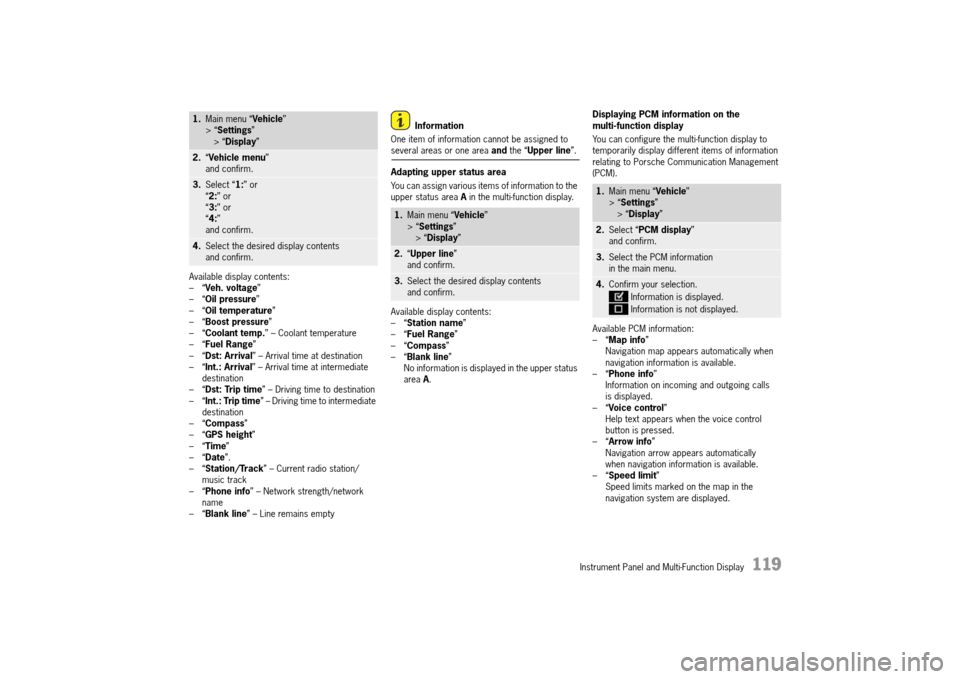
You can assign various items of information to the upper status area A in the multi-function display.
Available display contents: –“ Station name” –“ Fuel Range” –“ Compass” –“ Blank line” No information is displayed in the upper status area A.
Displaying PCM information on the multi-function display
You can configure the multi-function display to temporarily display different items of information relating to Porsche Communication Management (PCM).
Available PCM information: –“ Map info” Navigation map appears automatically when navigation information is available.–“ Phone info” Information on incoming and outgoing calls is displayed.–“ Voice control” Help text appears when the voice control button is pressed.–“ Arrow info” Navigation arrow appears automatically when navigation information is available.–“ Speed limit” Speed limits marked on the map in the navigation system are displayed.
1. Main menu “Vehicle” > “ Settings” > “ Display”
2.“Vehicle menu” and confirm.
3. Select “1:” or “ 2:” or “ 3:” or “ 4:” and confirm.
4. Select the desired display contents and confirm.
1. Main menu “Vehicle” > “ Settings” > “ Display”
2.“Upper line” and confirm.
3. Select the desired display contents and confirm.
1. Main menu “Vehicle” > “ Settings” > “ Display”
2.Select “PCM display” and confirm.
3. Select the PCM information in the main menu.
4. Confirm your selection.
Information is displayed.
Information is not displayed.
14_991_Turbo_21.book Seite 119 Mittwoch, 9. April 2014 2:19 14
Page 122 of 300
120 Instrument Panel and Multi-Function Display
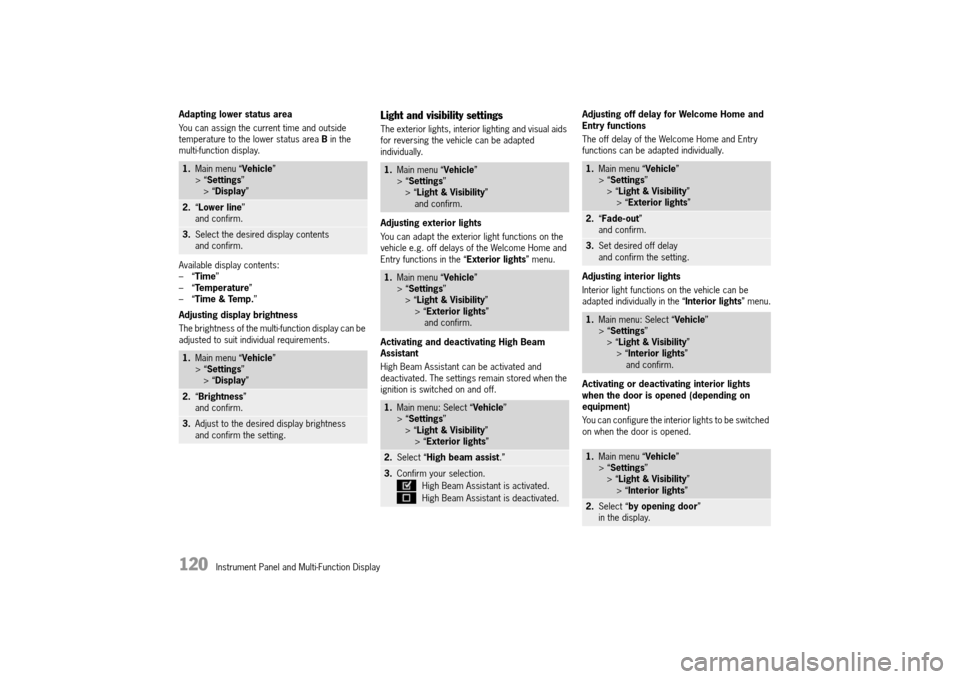
Adapting lower status area
You can assign the current time and outside temperature to the lower status area B in the multi-function display.
Available display contents: –“ Time” –“ Temperature” –“ Time & Temp.”
Adjusting display brightness
The brightness of the multi-function display can be adjusted to suit individual requirements.
Light and visibility settings
The exterior lights, interior lighting and visual aids for reversing the vehicle can be adapted individually.
Adjusting exterior lights
You can adapt the exterior light functions on the vehicle e.g. off delays of the Welcome Home and Entry functions in the “ Exterior lights” menu.
Activating and deactivating High Beam Assistant
High Beam Assistant can be activated and deactivated. The settings remain stored when the ignition is switched on and off.
Adjusting off delay for Welcome Home and Entry functions
The off delay of the Welcome Home and Entry functions can be adapted individually.
Adjusting interior lights
Interior light functions on the vehicle can be adapted individually in the “ Interior lights” menu.
Activating or deactivating interior lights when the door is opened (depending on equipment)
You can configure the interior lights to be switched on when the door is opened.
1. Main menu “Vehicle” > “ Settings” > “ Display”
2.“Lower line” and confirm.
3. Select the desired display contents and confirm.
1. Main menu “Vehicle” > “ Settings” > “ Display”
2.“Brightness” and confirm.
3. Adjust to the desired display brightness and confirm the setting.
1. Main menu “Vehicle” > “ Settings” > “ Light & Visibility” and confirm.
1. Main menu “Vehicle” > “ Settings” > “ Light & Visibility” > “ Exterior lights” and confirm.
1. Main menu: Select “Vehicle” > “ Settings” > “ Light & Visibility” > “ Exterior lights”
2.Select “High beam assist.”
3.Confirm your selection.
High Beam Assistant is activated.
High Beam Assistant is deactivated.
1. Main menu “Vehicle” > “ Settings” > “ Light & Visibility” > “ Exterior lights”
2.“Fade-out” and confirm.
3. Set desired off delay and confirm the setting.
1. Main menu: Select “Vehicle” > “ Settings” > “ Light & Visibility” > “ Interior lights” and confirm.
1. Main menu “Vehicle” > “ Settings” > “ Light & Visibility” > “ Interior lights”
2.Select “by opening door” in the display.
14_991_Turbo_21.book Seite 120 Mittwoch, 9. April 2014 2:19 14
Page 123 of 300
Instrument Panel and Multi-Function Display 121
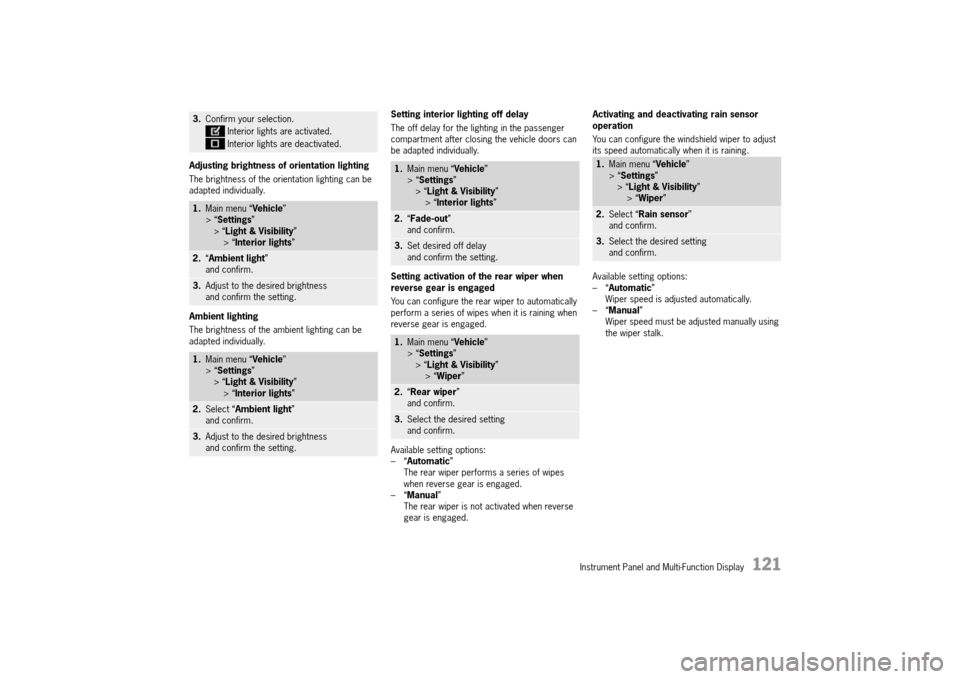
Adjusting brightness of orientation lighting
The brightness of the orientation lighting can be adapted individually.
Ambient lighting
The brightness of the ambient lighting can be adapted individually.
Setting interior lighting off delay
The off delay for the lighting in the passenger compartment after closing the vehicle doors can be adapted individually.
Setting activation of the rear wiper when reverse gear is engaged
You can configure the rear wiper to automatically perform a series of wipes when it is raining when reverse gear is engaged.
Available setting options: –“ Automatic” The rear wiper performs a series of wipes when reverse gear is engaged.–“ Manual” The rear wiper is not activated when reverse gear is engaged.
Activating and deactivating rain sensor operation
You can configure the windshield wiper to adjust its speed automatically when it is raining.
Available setting options: –“ Automatic” Wiper speed is adjusted automatically.–“ Manual” Wiper speed must be adjusted manually using the wiper stalk.
3. Confirm your selection.
Interior lights are activated.
Interior lights are deactivated.
1. Main menu “Vehicle” > “ Settings” > “ Light & Visibility” > “ Interior lights”
2.“Ambient light” and confirm.
3. Adjust to the desired brightness and confirm the setting.
1. Main menu “Vehicle” > “ Settings” > “ Light & Visibility” > “ Interior lights”
2.Select “Ambient light” and confirm.
3. Adjust to the desired brightness and confirm the setting.
1. Main menu “Vehicle” > “ Settings” > “ Light & Visibility” > “ Interior lights”
2.“Fade-out” and confirm.
3. Set desired off delay and confirm the setting.
1. Main menu “Vehicle” > “ Settings” > “ Light & Visibility” > “ Wiper”
2.“Rear wiper” and confirm.
3. Select the desired setting and confirm.
1. Main menu “Vehicle” > “ Settings” > “ Light & Visibility” > “ Wiper”
2.Select “Rain sensor” and confirm.
3. Select the desired setting and confirm.
14_991_Turbo_21.book Seite 121 Mittwoch, 9. April 2014 2:19 14
Page 124 of 300
122 Instrument Panel and Multi-Function Display
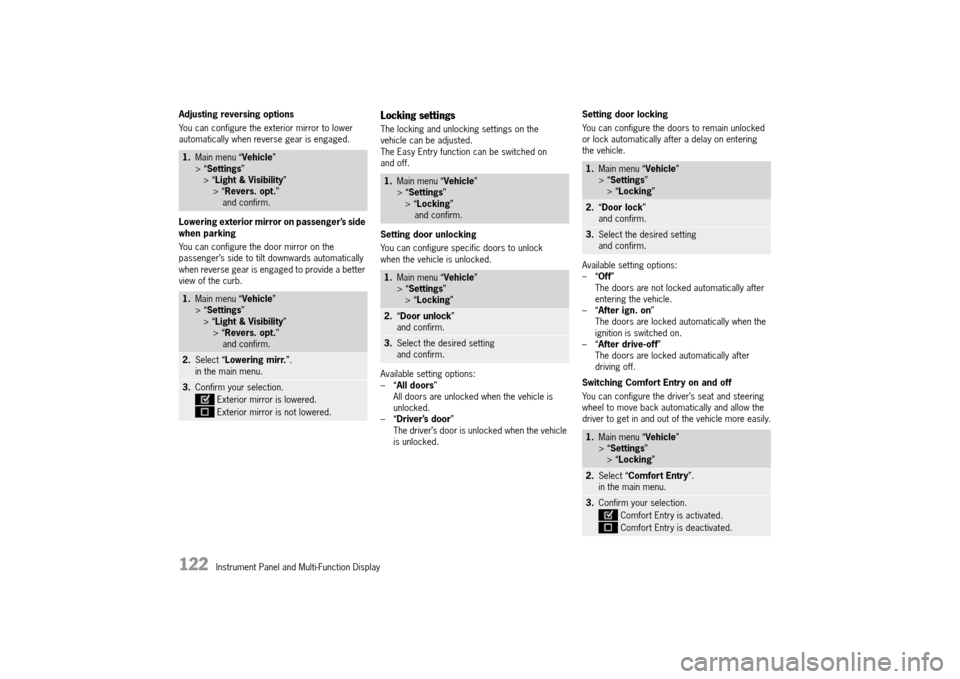
Adjusting reversing options
You can configure the exterior mirror to lower automatically when reverse gear is engaged.
Lowering exterior mirror on passenger’s side when parking
You can configure the door mirror on the passenger’s side to tilt downwards automatically when reverse gear is engaged to provide a better view of the curb.
Locking settings
The locking and unlocking settings on the vehicle can be adjusted.The Easy Entry function can be switched on and off.
Setting door unlocking
You can configure specific doors to unlock when the vehicle is unlocked.
Available setting options: –“ All doors” All doors are unlocked when the vehicle is unlocked.–“ Driver’s door” The driver’s door is unlocked when the vehicle is unlocked.
Setting door locking
You can configure the doors to remain unlocked or lock automatically after a delay on entering the vehicle.
Available setting options: –“ Off” The doors are not locked automatically after entering the vehicle.–“ After ign. on” The doors are locked automatically when the ignition is switched on.–“ After drive-off” The doors are locked automatically after driving off.
Switching Comfort Entry on and off
You can configure the driver’s seat and steering wheel to move back automatically and allow the driver to get in and out of the vehicle more easily.
1. Main menu “Vehicle” > “ Settings” > “ Light & Visibility” > “ Revers. opt.” and confirm.
1. Main menu “Vehicle” > “ Settings” > “ Light & Visibility” > “ Revers. opt.” and confirm.
2. Select “Lowering mirr.”. in the main menu.
3. Confirm your selection.
Exterior mirror is lowered.
Exterior mirror is not lowered.
1. Main menu “Vehicle” > “ Settings” > “ Locking” and confirm.
1. Main menu “Vehicle” > “ Settings” > “ Locking”
2.“Door unlock” and confirm.
3. Select the desired setting and confirm.
1. Main menu “Vehicle” > “ Settings” > “ Locking”
2.“Door lock” and confirm.
3. Select the desired setting and confirm.
1. Main menu “Vehicle” > “ Settings” > “ Locking”
2.Select “Comfort Entry”. in the main menu.
3. Confirm your selection.
Comfort Entry is activated.
Comfort Entry is deactivated.
14_991_Turbo_21.book Seite 122 Mittwoch, 9. April 2014 2:19 14
Page 125 of 300
Instrument Panel and Multi-Function Display 123
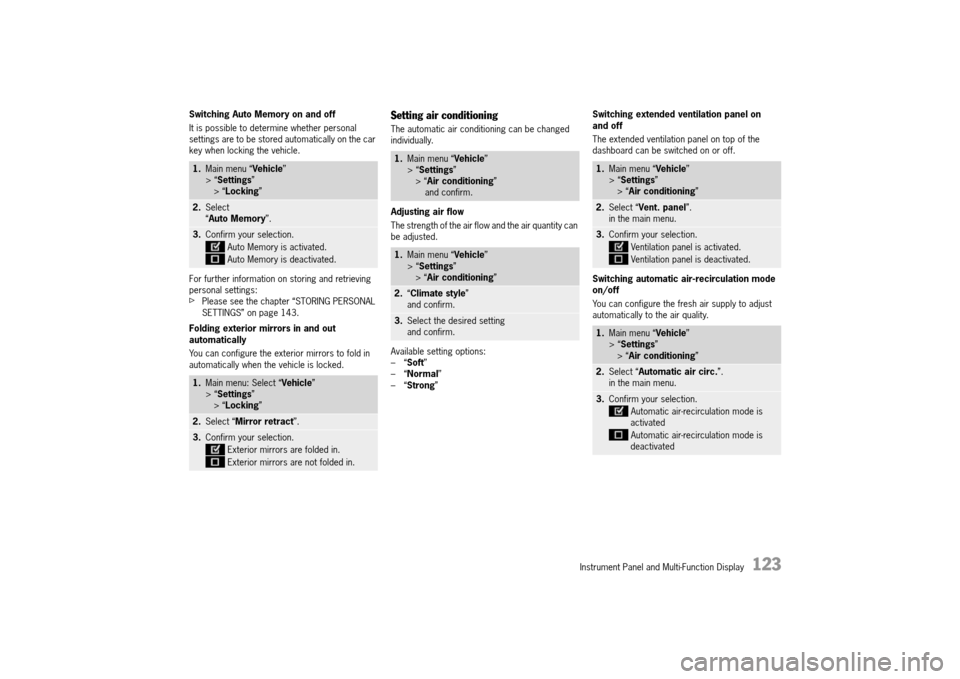
Switching Auto Memory on and off
It is possible to determine whether personal settings are to be stored automatically on the car key when locking the vehicle.
For further information on storing and retrieving personal settings:fPlease see the chapter “STORING PERSONAL SETTINGS” on page 143.
Folding exterior mirrors in and out automatically
You can configure the exterior mirrors to fold in automatically when the vehicle is locked.
Setting air conditioning
The automatic air conditioning can be changed individually.
Adjusting air flow
The strength of the air flow and the air quantity can be adjusted.
Available setting options: –“ Soft” –“ Normal” –“ Strong”
Switching extended ventilation panel on and off
The extended ventilation panel on top of the dashboard can be switched on or off.
Switching automatic air-recirculation mode on/off
You can configure the fresh air supply to adjust automatically to the air quality.
1. Main menu “Vehicle” > “ Settings” > “ Locking”
2.Select “ Auto Memory”.
3.Confirm your selection.
Auto Memory is activated.
Auto Memory is deactivated.
1. Main menu: Select “Vehicle” > “ Settings” > “ Locking”
2.Select “Mirror retract”.
3.Confirm your selection.
Exterior mirrors are folded in.
Exterior mirrors are not folded in.
1. Main menu “Vehicle” > “ Settings” > “ Air conditioning” and confirm.
1. Main menu “Vehicle” > “ Settings” > “ Air conditioning”
2.“Climate style” and confirm.
3. Select the desired setting and confirm.
1. Main menu “Vehicle” > “ Settings” > “ Air conditioning”
2.Select “Vent. panel”. in the main menu.
3. Confirm your selection.
Ventilation panel is activated.
Ventilation panel is deactivated.
1. Main menu “Vehicle” > “ Settings” > “ Air conditioning”
2.Select “Automatic air circ.”. in the main menu.
3. Confirm your selection.
Automatic air-recirculation mode is activated
Automatic air-recirculation mode is deactivated
14_991_Turbo_21.book Seite 123 Mittwoch, 9. April 2014 2:19 14
Page 126 of 300
124 Instrument Panel and Multi-Function Display
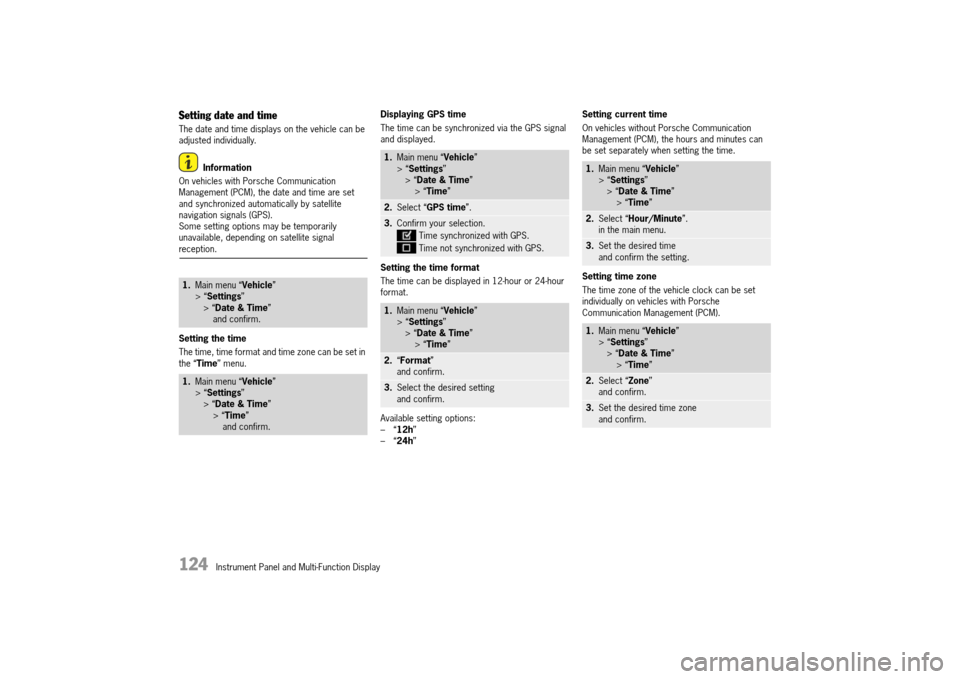
Setting date and time
The date and time displays on the vehicle can be adjusted individually.
Information
On vehicles with Porsche Communication Management (PCM), the date and time are set and synchronized automatically by satellite navigation signals (GPS).Some setting options may be temporarily unavailable, depending on satellite signal reception.
Setting the time
The time, time format and time zone can be set in the “ Time” menu.
Displaying GPS time
The time can be synchronized via the GPS signal and displayed.
Setting the time format
The time can be displayed in 12-hour or 24-hour format.
Available setting options: –“ 12h” –“ 24h”
Setting current time
On vehicles without Porsche Communication Management (PCM), the hours and minutes can be set separately when setting the time.
Setting time zone
The time zone of the vehicle clock can be set individually on vehicles with Porsche Communication Management (PCM).
1. Main menu “Vehicle” > “ Settings” > “ Date & Time” and confirm.
1. Main menu “Vehicle” > “ Settings” > “ Date & Time” > “ Time” and confirm.
1. Main menu “Vehicle” > “ Settings” > “ Date & Time” > “ Time”
2.Select “GPS time”.
3.Confirm your selection.
Time synchronized with GPS.
Time not synchronized with GPS.
1. Main menu “Vehicle” > “ Settings” > “ Date & Time” > “ Time”
2.“Format” and confirm.
3. Select the desired setting and confirm.
1. Main menu “Vehicle” > “ Settings” > “ Date & Time” > “ Time”
2.Select “Hour/Minute”. in the main menu.
3. Set the desired time and confirm the setting.
1. Main menu “Vehicle” > “ Settings” > “ Date & Time” > “ Time”
2.Select “Zone” and confirm.
3. Set the desired time zone and confirm.
14_991_Turbo_21.book Seite 124 Mittwoch, 9. April 2014 2:19 14