lights Ram 1500 2020 Workshop Manual
[x] Cancel search | Manufacturer: RAM, Model Year: 2020, Model line: 1500, Model: Ram 1500 2020Pages: 674, PDF Size: 32.69 MB
Page 567 of 674

MULTIMEDIA 565
Brakes — If Equipped
After pressing the Brakes button on the touchscreen, the following setting will be available:
Lights
After pressing the Lights button on the touchscreen, the following settings will be available:Setting Name
Selectable Options
Brake Service YesNo
NOTE:
Selecting the “Brake Service” feature will display a pop-up asking whether or not you would like to retract the park brakes
to all brake system service. Auto Park Brake OnOff
Setting Name Selectable Options
Headlight Off Delay 0 sec
30 sec
60 sec 90 sec
Headlight Illumination On Approach 0 sec
30 sec
60 sec 90 sec
NOTE:
When the “Headlight Illumination On Approach” feature is selected, it allows the adjustment of the amount of time the head -
lights remain on when the doors are unlocked with the key fob.
Headlights With Wipers — If Equipped On
Off
9
2020_DT_1500_OM_US.book Page 565
Page 568 of 674

566 MULTIMEDIA
Doors & Locks
After pressing the Doors & Locks button on the touchscreen, the following settings will be available:Auto Dim High Beams — If Equipped
OnOff
Flash Lights With Lock OnOff
NOTE:
When the “Flash Lights With Lock” feature is selected, the exterior lights flash when the doors are locked or unlocked with
the key fob. This feature may be selected with or without the sound horn on lock feature selected. Steering Directed Lights — If Equipped On
Off
NOTE:
When the “Steering Directed Lights” feature is selected, the headlights turn with the direction of the steering wheel. Setting Name
Selectable Options
Setting NameSelectable Options
Auto Door Locks — If Equipped On
Off
NOTE:
When the “Auto Door Locks” feature is selected, all doors lock automatically when the vehicle reaches a speed of 15 mph
(24 km/h).
2020_DT_1500_OM_US.book Page 566
Page 570 of 674

568 MULTIMEDIA
Power Side Steps — If Equipped
After pressing the Power Side Steps button on the touchscreen, the following settings will be available:Passive Entry — If Equipped
On Off
NOTE:
The “Passive Entry” feature allows you to lock and unlock the vehicle’s door(s) without having to push the key fob lock or
unlock buttons. It automatically unlocks the doors when the outside door handle is grabbed. Flash Lights With Lock On Off
NOTE:
When the “Flash Lights With Lock” feature is selected, the exterior lights flash when the doors are locked or unlocked with
the key fob. This feature may be selected with or without the “Sound Horn With Lock” feature selected. Setting Name
Selectable Options
Setting NameSelectable Options
Power Side Steps AutomaticStow
2020_DT_1500_OM_US.book Page 568
Page 572 of 674

570 MULTIMEDIA
Suspension — If Equipped
After pressing the Suspension button on the touchscreen, the following settings will be available:Setting Name Selectable Options
Sound Horn With Lower OnOff
Flash Lights With Lower OnOff
Auto Entry/Exit Suspension OnOff
NOTE:
When the “Auto Entry/Exit Suspension” feature is selected, the vehicle automatically lowers from ride height position when
vehicle shifted to park for easy entry/exit. Display Suspension Messages AllWarning Only
Automatic Aero Mode OnOff
NOTE:
When the “Automatic Aero Mode” feature is selected, the Ride Height will automatically be adjusted depending on the
vehicle speed. Tire Jack Mode OnOff
NOTE:
When this feature is selected, the air suspension system is disabled to prevent auto leveling of the suspension while the
vehicle is on a jack changing a tire. Transport Mode OnOff
NOTE:
When the “Transport Mode” feature is selected, the air suspension system is disabled to assist with flat bed towing.
2020_DT_1500_OM_US.book Page 570
Page 578 of 674
576 MULTIMEDIA
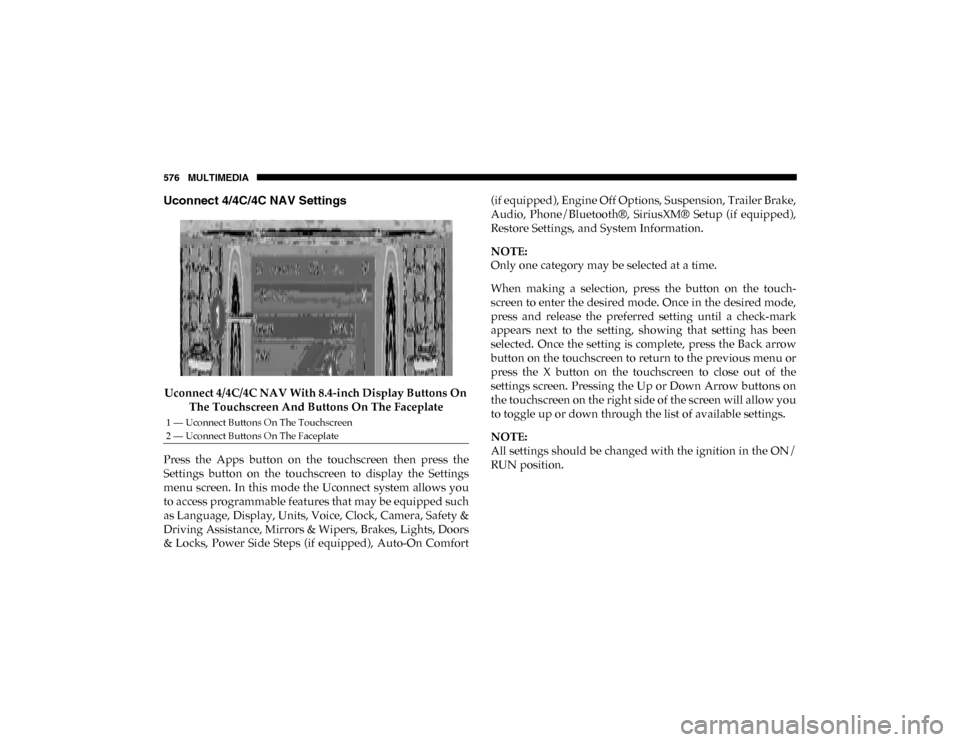
Uconnect 4/4C/4C NAV Settings
Uconnect 4/4C/4C NAV With 8.4-inch Display Buttons On The Touchscreen And Buttons On The Faceplate
Press the Apps button on the touchscreen then press the
Settings button on the touchscreen to display the Settings
menu screen. In this mode the Uconnect system allows you
to access programmable features that may be equipped such
as Language, Display, Units, Voice, Clock, Camera, Safety &
Driving Assistance, Mirrors & Wipers, Brakes, Lights, Doors
& Locks, Power Side Steps (if equipped), Auto-On Comfort (if equipped), Engine Off Options, Suspension, Trailer Brake,
Audio, Phone/Bluetooth®, SiriusXM® Setup (if equipped),
Restore Settings, and System Information.
NOTE:
Only one category may be selected at a time.
When making a selection, press the button on the touch
-
screen to enter the desired mode. Once in the desired mode,
press and release the preferred setting until a check-mark
appears next to the setting, showing that setting has been
selected. Once the setting is complete, press the Back arrow
button on the touchscreen to return to the previous menu or
press the X button on the touchscreen to close out of the
settings screen. Pressing the Up or Down Arrow buttons on
the touchscreen on the right side of the screen will allow you
to toggle up or down through the list of available settings.
NOTE:
All settings should be changed with the ignition in the ON/
RUN position.
1 — Uconnect Buttons On The Touchscreen
2 — Uconnect Buttons On The Faceplate
2020_DT_1500_OM_US.book Page 576
Page 579 of 674

MULTIMEDIA 577
Language
After pressing the Language button on the touchscreen, the following settings will be available:
Display
After pressing the Display button on the touchscreen, the following settings will be available:Setting Name
Selectable Options
Set Language EnglishFrançais Español
NOTE:
When the “Set Language” feature is selected, you may select one of multiple languages (English / Français / Español) for all
display nomenclature, including the trip functions and the navigation system (if equipped). Press the Set Language button
on the touchscreen, and then press the desired language button on the touchscreen until a check-mark appears next to the
language, showing that setting has been selected.
Setting Name Selectable Options
Display Mode AutoManual
NOTE:
When Day or Night is selected for the Display Mode, the usage of the Parade Mode feature will cause the radio to activate
the Display Brightness Day control even though the headlights are on. Display Brightness With Headlights ON –
+
NOTE:
To make changes to the "Display Brightness with Headlights ON" setting, the headlights must be on and the interior dimmer
switch must not be in the "party" or "parade" positions.
9
2020_DT_1500_OM_US.book Page 577
Page 580 of 674

578 MULTIMEDIA
Display Brightness With Headlights OFF –
+
NOTE:
To make changes to the "Display Brightness with Headlights OFF" setting, the headlights must be off and the interior dimmer
switch must not be in the "party" or "parade" positions. Set Theme — If Equipped Pre-configured Themes
Touchscreen Beep OnOff
Controls Screen Time-Out — If Equipped On
Off
Fuel Saver Display in Cluster — If Equipped On
Off
NOTE:
When selected, the system displays fuel saver mode in the instrument cluster. Navigation Next Turn Pop-ups
Displayed In Cluster — If Equipped On
Off
Phone Pop-ups Displayed in Cluster — If Equipped On
Off
Setting Name
Selectable Options
2020_DT_1500_OM_US.book Page 578
Page 584 of 674

582 MULTIMEDIA
Lane Sense Warning — If Equipped Early
MedLate
NOTE:
Sets what distance the steering wheel provides feedback for potential lane departures. Lane Sense Strength — If Equipped Low
MedHigh
ParkSense Sound Only Sound & Display
NOTE:
The Rear Park Assist system scans for objects behind the vehicle when the transmission gear selector is in REVERSE and the
vehicle speed is less than 7 mph (11 km/h). Front ParkSense Volume — If Equipped Low
MedHigh
Rear ParkSense Volume — If Equipped Low
MedHigh
Rear ParkSense Braking Assist — If Equipped On
Off
Power Side Steps — If Equipped Auto
Store
Blind Spot Alert — If Equipped Off
LightsLights & Chime
NOTE:
Brakes the vehicle while in reverse if potential rear collision is detected. Setting Name
Selectable Options
2020_DT_1500_OM_US.book Page 582
Page 586 of 674

584 MULTIMEDIA
Brakes
After pressing the Brakes button on the touchscreen, the following settings will be available:Rain Sensing Auto Wipers — If
Equipped On
Off
NOTE:
Automatically adjusts the wiper speed based on the amount of precipitation. Headlights with Wipers OnOff
Setting Name
Selectable Options
Setting NameSelectable Options
Brake Service YesNo
NOTE:
Selecting the “Brake Service” feature will display a pop-up asking whether or you would like to retract the park brakes to all
brake system service. Auto Park Brake OnOff
2020_DT_1500_OM_US.book Page 584
Page 587 of 674

MULTIMEDIA 585
Lights
After pressing the Lights button on the touchscreen, the following settings will be available:Setting Name Selectable Options
Headlight Off Delay –+
NOTE:
When the “Headlight Off Delay” feature is selected, the driver can choose to have the headlights remain on for 0, 30, 60, or
90 seconds when exiting the vehicle. Headlight Illumination On Approach –+
NOTE:
When the “Headlight Illumination On Approach” feature is selected, the headlights will activate and remain on for 0, 30, 60,
or 90 seconds when the doors are unlocked with the key fob. Headlights With Wipers — If Equipped On
Off
NOTE:
When the “Headlights With Wipers” feature is selected, and the headlight switch is in the AUTO position, the headlights
turn on approximately 10 seconds after the wipers are turned on. The headlights also turn off when the wipers are turned
off if they were turned on by this feature. Auto Dim High Beams — If Equipped OnOff
NOTE:
When the “Auto Dim High Beams” feature is selected, the high beam headlights deactivate automatically under certain
conditions.
9
2020_DT_1500_OM_US.book Page 585