engine RAM 1500 2021 Owners Manual
[x] Cancel search | Manufacturer: RAM, Model Year: 2021, Model line: 1500, Model: RAM 1500 2021Pages: 496, PDF Size: 20.89 MB
Page 250 of 496

248MULTIMEDIA
Seats & Comfort/Auto-On Comfort Systems — If Equipped
When Seats & Comfort/Auto-On Comfort Systems button is pressed on the touchscreen, the system displays the options related to the vehicle’s comfort
systems when remote start has been activated or the vehicle has been started.
Key Off Options/Engine Off Options
When the Key Off Options/Engine Off Options button is pressed on the touchscreen, the system displays the options related to vehicle shutoff. These
settings will only activate when the ignition is set to OFF.
Setting Name Description
Auto-On Driver Heated/Ventilated Seat & Heated Steering Wheel With
Vehicle Start This setting will activate the vehicle’s comfort systems and heated seats
(if equipped) or heated steering wheel (if equipped) when the vehicle is
remote started or ignition is started. The “Off” setting will not activate the
comfort systems. The “Remote Start” setting will only activate the
comfort systems when using Remote Start. The “All Start” setting will
activate the comfort systems whenever the vehicle is started.
Easy Exit Seats This setting will automatically move the driver seat rearward when the
engine is shut off. The available settings are “On” and “Off”.
Setting Name
Description
Easy Exit Seat This setting adjusts the seats to make exiting the vehicle easier.
Engine Off Power Delay This setting will keep certain electrical features running after the engine
is turned off. When any door is opened, the electronics will deactivate.
The available settings are “0 sec”, “45 sec”, “5 min”, and “10 min”.
21_DT_OM_EN_USC_t.book Page 248
Page 274 of 496

272MULTIMEDIA
without wires or a docking station. Ensure you
phone is turned on with Bluetooth® active and
has been paired to the Uconnect system. Up to
10 mobile phones or audio devices are allowed
to be linked to the system. Only one linked (or
paired) mobile phone and one audio device can
be used with the system at a time.
Phone Button
The Phone button on your steering wheel is
used to get into the Phone Mode and make
calls, show recent, incoming or outgoing calls,
view phonebook, etc. When you press the
button you will hear a BEEP. The BEEP is your
signal to give a command.
Voice Command Button
The Voice Command button on your steering
wheel is only used for “barge in” and when you
are already in a call or want to make another
call.
The button on your steering wheel is also used
to access the Voice Commands for the
Uconnect Voice Command features if your
vehicle is equipped.Phone Operation
Operation
Voice commands can be used to operate the
Uconnect Phone and to navigate its menu
structure. Voice commands are required after
most Uconnect Phone prompts. There are two
general methods for how Voice Command
works:
1. Say compound commands like “Call John
Smith mobile”.
2. Say the individual commands and allow the system to guide you to complete the task.
You will be prompted for a specific command
and then guided through the available options.
Prior to giving a voice command, one must
wait for the beep, which follows the “Listen”
prompt or another prompt.
For certain operations, compound
commands can be used. For example,
instead of saying “Call” and then “John
Smith” and then “mobile”, the following
compound command can be said: “Call John
Smith mobile.”
For each feature explanation in this section,
only the compound command form of the
voice command is given. You can also break
the commands into parts and say each part
of the command when you are asked for it.
For example, you can use the compound
command form voice command “Search for
John Smith,” or you can break the compound
command form into two voice commands:
“Search Contacts” and when asked, “John
Smith.” Please remember, the Uconnect
Phone works best when you talk in a normal
conversational tone, as if speaking to
someone sitting a few feet/meters away from
you.
Natural Speech
Your Uconnect Phone Voice system uses a
Natural Language Voice Recognition (VR)
engine.
Natural speech allows the user to speak
commands in phrases or complete sentences.
The system filters out certain non-word
utterances and sounds such as “ah” and “eh.”
The system handles fill-in words such as “I
would like to”.
21_DT_OM_EN_USC_t.book Page 272
Page 293 of 496
MULTIMEDIA291
An ignition cycle is required for some remote
commands, such as Remote Vehicle Start
and Remote Door Lock/Unlock if following a
Remote Horn & Lights activation.
Your Remote Door Lock/Unlock request will
not be processed if the vehicle is in motion,
the ignition key is on or during an emergency
call.
NOTE:
All other remote services should be performed
via your Owner’s Site or through the Uconnect
App on your compatible device.
Remote Vehicle Start
Description
The Remote Vehicle Start feature provides you
with the ability to start the engine on your
vehicle without the keys and from virtually any
distance. Once started, the preset climate
controls in your vehicle can warm up or cool
down the interior.
You can also send a command to turn off an
engine that has been started using Remote
Vehicle Start. After 15 minutes, if you have not
entered your vehicle with the key, the engine
will shut off automatically. This remote function requires your vehicle to be
equipped with a factory-installed Remote Start
system.
You can set up push notifications every time a
command is sent to activate or cancel Remote
Start.
Working Vehicle Conditions
The vehicle must be off or in ACC mode.
The vehicle has been started with the key fob
within the last 14 days.
The vehicle must be in PARK or at a standstill.
The vehicle’s security system has been
armed and not triggered since the last
vehicle start.
The doors, hood, and trunk/liftgate are
closed.
The vehicle’s check engine light must be off.
The vehicle must have at least a quarter tank
of fuel, along with oil and battery power.
The vehicle’s hazard lights must be off.
If equipped, the vehicle must have an auto
-
matic transmission.
The vehicle must be in an open area with cell
tower reception.
Your mobile device must have a cellular or
Wi-Fi connection.
If the Panic button has been pressed, the
vehicle must be started at least once after
alarming the system.
NOTE:
The SiriusXM Guardian™ Customer Care agents
are not authorized for Remote Vehicle Start
services. Contact the Uconnect Care Team for
assistance
Remote Horn & Lights
Description
It is easy to locate a vehicle in a dark, crowded
or noisy parking area by activating the horn and
lights. It may also help if you need to draw
attention to your vehicle for any reason.
If you want, you can set up push notifications
every time a command is sent to turn on the
horn and lights.
5
21_DT_OM_EN_USC_t.book Page 291
Page 302 of 496
300MULTIMEDIA
4. A prompt will appear to link your Uconnect
account. Press “Link Uconnect to Google”.
5. Press “Sign In” and enter the email address and password you created when you
activated Uconnect services.
6. Lastly, press “Authorize” to complete the linking process.
Now, you can ask Google Assistant to help you:
Remotely start the engine, or cancel a
remote start
Send a destination to their vehicle’s built-in
Uconnect Navigation system
Monitor vehicle vitals, such as tire press, fuel
level and oil life
And more!
Family Drive Alerts — If Equipped
Description
Family Drive Alerts help promote safer driving
and give you peace of mind when your loved
ones are out on the road. You can set boundary
limits, monitor driving speed, and pinpoint your
vehicle’s location any time, any place. Use the
Uconnect app to set alerts:
Boundary Alert
Receive a notification the moment your
vehicle is driven either out of or into a
geographic boundary that you set.
Curfew Alert
Receive a notification when your car is being
driven outside of the curfew time.
Speed Alert
Receive a notification whenever your car
exceeds a speed limit you set.
Valet Alert
Receive a notification if and when your
vehicle is driven outside a quarter-mile
radius of a valet drop-off zone.
SmartWatch Integration — If Equipped
Description
SmartWatch Integration puts the Uconnect app
right on your Apple® Watch or Android™ Wear.
To get started, follow these steps:
1. Download the Uconnect app from the App Store® or Google Play.
2. Log onto the app from your smartphone
using the username and password you
created when you first set up your account.
3. Make sure your watch and smartphone are connected through Bluetooth®.
4. The Uconnect app should appear on your SmartWatch.
Once the app is downloaded on your
SmartWatch, you can enjoy these features:
Lock or unlock your vehicle by tapping the
remote lock button in the app and entering
your security PIN.
Remote start or stop your vehicle.
View important vehicle stats, such as fuel
level, vehicle location, tire pressure warning,
and more.
For help, refer to the Uconnect YouTube
channel for SmartWatch Integration.
Uconnect Market
With Uconnect Market, you can enjoy seamless
and secure transactions from the comfort of
your vehicle. Make restaurant reservations,
place food orders, or pay for other goods and
services right from the vehicle’s touchscreen.
21_DT_OM_EN_USC_t.book Page 300
Page 304 of 496
302MULTIMEDIA
CONNECTED SERVICES REMOTE DOOR
L
OCK/UNLOCK FAQS
1.
How long does it take to unlock or lock the
door?
Depending on various conditions, it
can take up to three minutes or more for
the request to get to your vehicle.
2. Which is faster, my key fob or the Uconnect
App? Your key fob will lock/unlock the door
more quickly, however its range is limited
and your Uconnect App comes in handy for
these and other situations.
3. Will my vehicle be safe if I lose my device?
People sometimes lose their mobile
devices, which is why security measures
have been engineered into the Uconnect
App. Asking for your username, password
and SiriusXM Guardian™ Security PIN are
required for the activation of Remote
services through your mobile device. It is
your responsibility to protect your
passwords and PINs.
4. Why can’t all mobile devices use the
Uconnect App? The Uconnect App is
compatible with most devices with the
Apple® and Android™ operating systems. The capabilities of these devices allow us to
remotely command your vehicle. Other
operating systems may be supported in the
future.
5. Why is the Uconnect App running slow? The
Uconnect App relies on a mobile network
connection from your device to send
commands to your vehicle which must have
an operable LTE (voice/data) or 3G, 4G
(data), or 5G (data) network connection. If
either your device or your vehicle is in an
area with below average coverage, it may
take longer to log in and send commands.
CONNECTED SERVICES ROADSIDE
A
SSISTANCE FAQS
1.
What is the phone number for roadside
assistance call? The phone number is:
US: 1-800-521-2779
Canada: 1-800-363-4869
2. If I am subscribed to SiriusXM Guardian™,
does it cover towing or other expenses
incurred by using roadside assistance? No,
however your new vehicle may include
Roadside Assistance Call services.
CONNECTED SERVICES SEND & GO
FAQ
S
1.
How long does it take to send the route and
destination to my vehicle?
Depending on
various conditions, it can take up to three
minutes for the request to get through to
your vehicle.
2. Can I cancel a route I sent to my vehicle?
Yes, once you enter your vehicle, and start
the engine, the pop-up message stating that
you have a new route will appear. There is
an exit button on the pop-up that will cancel
the route if selected.
3. Can I select a different route than the most
recent one I sent to my vehicle? Yes, once
you enter the vehicle, and start the engine,
the pop-up message offers a “Locations”
option. Once “Locations” is selected, you
can choose from a list of recently sent
destinations.
21_DT_OM_EN_USC_t.book Page 302
Page 305 of 496
MULTIMEDIA303
CONNECTED SERVICES VEHICLE FINDER
FAQ
S
1.
Can someone else locate my vehicle?
Your
vehicle may be located by anyone who has
your PIN and access to your account. It is
your responsibility to guard your PIN
accordingly. See the Uconnect and
SiriusXM Guardian™ terms of service for
more information.
2. How long does it take to sound my horn and
flash the lights? Depending on various
conditions, it can take three minutes or
more for the request to get through to your
vehicle.
3. How do I turn off the horn and lights after I
turn them on? If you are close enough to the
vehicle, you can use the key fob to turn off
the horn and lights by pressing the red
Panic button.
CONNECTED SERVICES STOLEN VEHICLE
A
SSISTANCE FAQS
1.
Can someone locate my vehicle?
To
enhance your privacy, and the privacy of
others using your vehicle, a stolen vehicle police report is required for you to activate
this service. You must involve local law
enforcement to have SiriusXM Guardian™
locate your vehicle. We may also locate the
vehicle for other law enforcement or
government agencies, subject to a valid
court order telling SiriusXM Guardian™ to
do so. We will also provide the service for
FCA entities to locate a vehicle that you
have purchased through them.
2. How will I know if my vehicle is recovered?
After you provide the SiriusXM Guardian™
Customer Care agent with the stolen vehicle
report, the agent will work together with law
enforcement to try to locate your vehicle. If
your vehicle is recovered, you will be
contacted by law enforcement.
3. Can SiriusXM Guardian™ lower my
insurance rates? Some insurance providers
offer lower rates on vehicles equipped with
systems that can deter auto theft. When
shopping for insurance, be sure to inform
the insurance provider of your SiriusXM
Guardian™ services subscription to find out
if the insurance provider can offer you a
lower rate. NOTE:
Neither FCA nor SiriusXM® are insurance
companies, and SiriusXM Guardian™ is not an
insurance product. You are responsible for
obtaining insurance coverage for your vehicle
and yourself.
CONNECTED SERVICES REMOTE VEHICLE
S
TART FAQS
1.
How long does it take to remotely start my
vehicle?
Depending on various conditions,
it can take three minutes or more for the
request to get through to your vehicle.
2. Which is faster, my key fob or the Uconnect
App? Your key fob will remote start your
vehicle more quickly. However its range is
limited. For example, when you are leaving
the stadium after the game, you can use the
Uconnect App to remote start your vehicle
and have the inside of your vehicle
comfortable by the time you get to it.
3. Will my vehicle be safe if I lose my wireless
device? People sometimes lose their
wireless devices, which is why security
measures have been engineered into the
Uconnect App. Asking for your username,
5
21_DT_OM_EN_USC_t.book Page 303
Page 306 of 496
304MULTIMEDIA
password and SiriusXM Guardian™ Security
PIN help to ensure that nobody can start
your vehicle if they happen to find your
device.
4. Can someone drive off with my vehicle
using the App? No. Driving your vehicle still
requires the keys to be in the vehicle. The
Remote Start feature simply starts the
engine to warm up or cool down the interior
before you arrive.
5. Can I stop a vehicle that is being driven with
the cancel Remote Vehicle Start command?
No. If the vehicle is in motion, the cancel
Remote Vehicle Start button will not stop
the vehicle.
6. Why can’t all mobile devices use the
Uconnect App? The Uconnect App has been
designed to work on most devices with the
Apple® and Android™ operating systems.
The capabilities of these devices allow us to
remotely command your vehicle. Other
operating systems may be supported in the
future.CONNECTED SERVICES REMOTE HORN
& L
IGHTS FAQS
1.
How long does it take to sound my horn and
flash the lights?
Depending on various
conditions, it can take three minutes or
more for the request to get through to your
vehicle.
2. Which is faster, my key fob or the Uconnect
App? Your key fob will sound the horn and
flash the lights quicker; however its range is
limited.
3. How do I turn off the horn and lights after I
turn them on? If you are close enough to the
vehicle, you can use the key fob to turn off
the horn and lights by pressing the red
Panic button. Otherwise, Remote Horn &
Lights will continue for a maximum of three
minutes.
4. Why can’t all mobile devices use the
Uconnect App? The Uconnect App has been
designed to work on most devices with the
Apple® and Android™ operating systems.
The capabilities of these devices allow us to
remotely command your vehicle. Other
operating systems may be supported in the
future.
CONNECTED SERVICES ACCOUNT FAQS
1.
How do I register for my SiriusXM
Guardian™ account? There are three ways
that you can register your SiriusXM
Guardian™ Account:
Push the Assist button. A call will be
placed to an agent who can assist in
registering your new account.
Press the Activate Services icon in the
Apps menu. Select the button to speak
with an agent, who can assist in regis -
tering your new account.
Press the Activate Services icon in the
Apps menu. Enter your email on the
touchscreen and then follow the prompts
from the provided email. You will receive
an email with an activation link that will
be good for 72 hours. Once you click the
activation link, you will be prompted to fill
out your information and accept Terms
and Conditions. Then, you will be directed
to the SiriusXM Guardian™ home page to
complete your profile and demo the
remote services.
21_DT_OM_EN_USC_t.book Page 304
Page 314 of 496
312SAFETY
Electronic Brake Force Distribution (EBD)
EBD manages the distribution of the braking
torque between the front and rear axles by
limiting braking pressure to the rear axle. This is
done to prevent overslip of the rear wheels to
avoid vehicle instability, and to prevent the rear
axle from entering the Anti-Lock Brake System
(ABS) before the front axle.
Electronic Roll Mitigation (ERM)
The ERM system anticipates the potential for
wheel lift by monitoring the driver’s steering
wheel input and the speed of the vehicle. When
ERM determines that the rate of change of the
steering wheel angle and vehicle’s speed are
sufficient to potentially cause wheel lift, it then
applies the appropriate brake and may also
reduce engine power to lessen the chance that
wheel lift will occur. ERM can only reduce the
chance of wheel lift occurring during severe or
evasive driving maneuvers; it cannot prevent
wheel lift due to other factors, such as road
conditions, leaving the roadway, striking objects
or other vehicles.
Electronic Stability Control (ESC)
ESC enhances directional control and stability
of the vehicle under various driving conditions.
ESC corrects for oversteering or understeering
of the vehicle by applying the brake of the
appropriate wheel(s) to counteract the above
conditions. Engine power may also be reduced
to help the vehicle maintain the desired path.
Oversteer — when the vehicle is turning more
than appropriate for the steering wheel posi -
tion.
Understeer — when the vehicle is turning less
than appropriate for the steering wheel posi -
tion.
ESC uses sensors in the vehicle to determine
the vehicle path intended by the driver and
compares it to the actual path of the vehicle.
When the actual path does not match the
intended path, ESC applies the brake of the
appropriate wheel to assist in counteracting the
oversteer or understeer condition.
The ESC Activation/Malfunction Indicator Light
located in the instrument cluster will start to
flash as soon as the ESC system becomes
active. The ESC Activation/Malfunction
Indicator Light also flashes when the TCS is
active. If the ESC Activation/Malfunction
Indicator Light begins to flash during
acceleration, ease up on the accelerator and
apply as little throttle as possible. Be sure to
adapt your speed and driving to the prevailing
road conditions.
WARNING!
Many factors, such as vehicle loading, road
conditions and driving conditions, influence
the chance that wheel lift or rollover may
occur. ERM cannot prevent all wheel lift or roll
overs, especially those that involve leaving
the roadway or striking objects or other
vehicles. The capabilities of an
ERM-equipped vehicle must never be
exploited in a reckless or dangerous manner
which could jeopardize the user's safety or
the safety of others.
21_DT_OM_EN_USC_t.book Page 312
Page 316 of 496
314SAFETY
(Continued)
Full Off — If Equipped
This mode is intended for off-highway or
off-road use only and should not be used on any
public roadways. In this mode, TCS and ESC
features are turned off. To enter the “Full Off”
mode, push and hold the ESC OFF switch for five
seconds while the vehicle is stopped with the
engine running. After five seconds, a chime will
sound, the ESC OFF Indicator Light will
illuminate, and the “ESC OFF” message will
display in the instrument cluster. To turn ESC on
again, momentarily push the ESC OFF switch.NOTE:
System may switch from ESC “Full Off” to
“Partial Off” mode when vehicle exceeds a
predetermined speed. When the vehicle speed
slows below the predetermined speed the
system will return to ESC “Full Off”.
ESC modes may also be affected by drive
modes (if equipped).
ESC Activation/Malfunction Indicator Light
And ESC OFF Indicator Light
The ESC Activation/Malfunction
Indicator Light in the instrument
cluster will come on when the ignition
is placed in the ON/RUN mode. It
should go out with the engine running. If the
ESC Activation/Malfunction Indicator Light
comes on continuously with the engine running,
a malfunction has been detected in the ESC
system. If this light remains on after several
ignition cycles, and the vehicle has been driven
several miles (kilometers) at speeds greater
than 30 mph (48 km/h), see an authorized
dealer as soon as possible to have the problem
diagnosed and corrected.
WARNING!
When in “Partial Off” mode, the TCS func -
tionality of ESC, (except for the limited slip
feature described in the TCS section), has
been disabled and the “ESC OFF Indicator
Light” will be illuminated. When in “Partial
Off” mode, the engine power reduction
feature of TCS is disabled, and the
enhanced vehicle stability offered by the
ESC system is reduced.
Trailer Sway Control (TSC) is disabled when
the ESC system is in the “Partial Off” mode.
WARNING!
In the ESC “Full Off” mode, the engine
torque reduction and stability features are
disabled. Therefore, enhanced vehicle
stability offered by the ESC system is
unavailable. In an emergency evasive
maneuver, the ESC system will not engage
to assist in maintaining stability. ESC “Full
Off” mode is intended for off-highway or
off-road use only.
The Electronic Stability Control (ESC)
cannot prevent the natural laws of physics
from acting on the vehicle, nor can it
increase the traction afforded by prevailing
road conditions. ESC cannot prevent all
accidents, including those resulting from
excessive speed in turns, driving on very
slippery surfaces, or hydroplaning. ESC also
cannot prevent collisions.
WARNING! (Continued)
21_DT_OM_EN_USC_t.book Page 314
Page 320 of 496
318SAFETY
Ready Alert Braking (RAB)
RAB may reduce the time required to reach full
braking during emergency braking situations. It
anticipates when an emergency braking
situation may occur by monitoring how fast the
throttle is released by the driver. The Electronic
Brake Control System will prepare the brake
system for a panic stop.
Traction Control System (TCS)
TCS monitors the amount of wheel spin of each
of the driven wheels. If wheel spin is detected,
the TCS may apply brake pressure to the
spinning wheel(s) and/or reduce engine power
to provide enhanced acceleration and stability.
A feature of the TCS, Brake Limited Differential
(BLD), functions similarly to a limited slip
differential and controls the wheel spin across a
driven axle. If one wheel on a driven axle is
spinning faster than the other, the system will
apply the brake of the spinning wheel. This will
allow more engine torque to be applied to the
wheel that is not spinning. BLD may remain
enabled even if TCS and Electronic Stability
Control (ESC) are in reduced modes.
Trailer Sway Control (TSC)
TSC uses sensors in the vehicle to recognize an
excessively swaying trailer and will take the
appropriate actions to attempt to stop the sway.
NOTE:
TSC cannot stop all trailers from swaying.
Always use caution when towing a trailer and
follow the trailer tongue weight recommenda -
tions Ú page 214.
When TSC is functioning, the ESC Activation/
Malfunction Indicator Light will flash, the engine
power may be reduced and you may feel the
brakes being applied to individual wheels to
attempt to stop the trailer from swaying. TSC is
disabled when the ESC system is in the “Partial
Off” or “Full Off” modes.AUXILIARY DRIVING SYSTEMS
BLIND SPOT MONITORING (BSM) — IF
E
QUIPPED
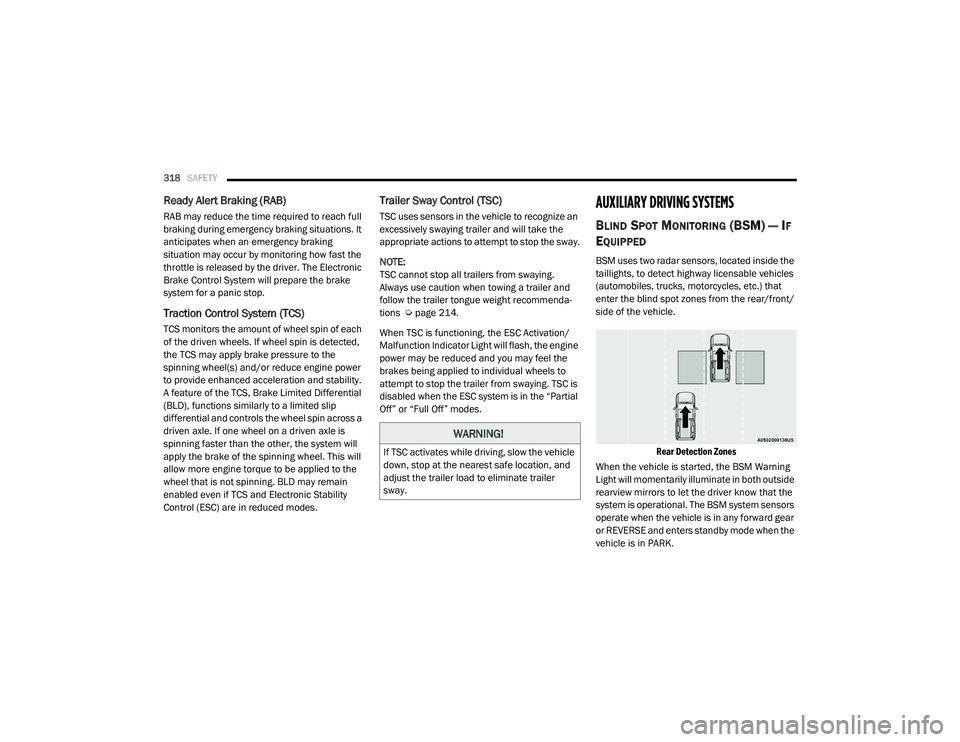
BSM uses two radar sensors, located inside the
taillights, to detect highway licensable vehicles
(automobiles, trucks, motorcycles, etc.) that
enter the blind spot zones from the rear/front/
side of the vehicle.
Rear Detection Zones
When the vehicle is started, the BSM Warning
Light will momentarily illuminate in both outside
rearview mirrors to let the driver know that the
system is operational. The BSM system sensors
operate when the vehicle is in any forward gear
or REVERSE and enters standby mode when the
vehicle is in PARK.
WARNING!
If TSC activates while driving, slow the vehicle
down, stop at the nearest safe location, and
adjust the trailer load to eliminate trailer
sway.
21_DT_OM_EN_USC_t.book Page 318