ignition RAM 1500 2021 Owners Manual
[x] Cancel search | Manufacturer: RAM, Model Year: 2021, Model line: 1500, Model: RAM 1500 2021Pages: 496, PDF Size: 20.89 MB
Page 233 of 496
STARTING AND OPERATING231
(Continued)
4. Properly secure the rear wheels to the dolly, following the dolly manufacturer's
instructions.
5. Turn the ignition OFF.
6. Install a suitable clamping device, designed for towing, to secure the front wheels in the
straight position.
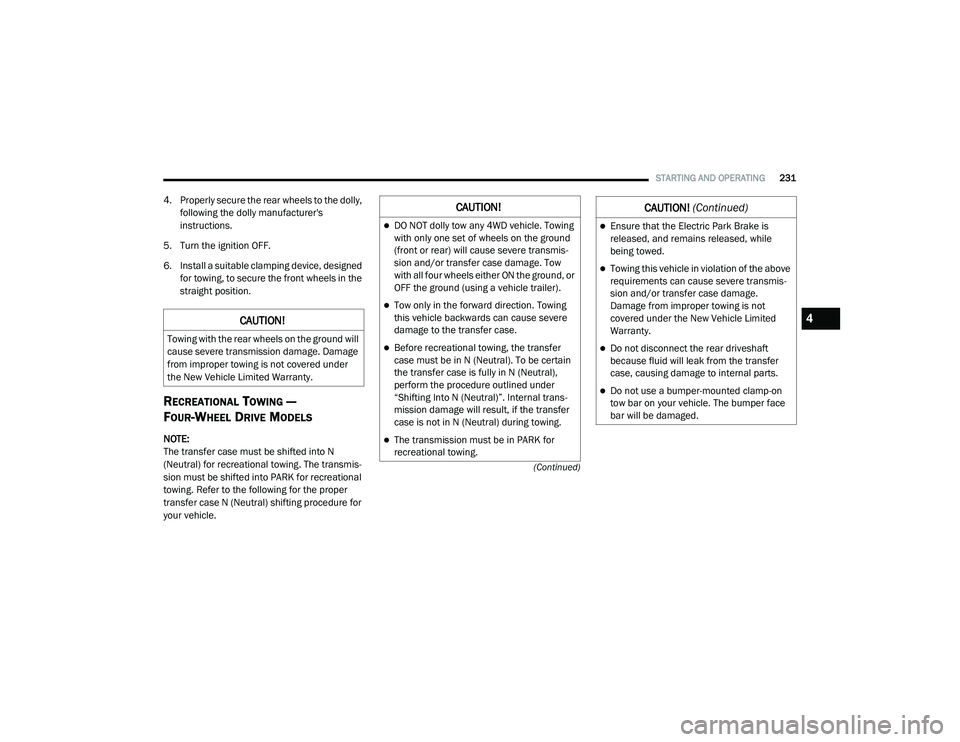
RECREATIONAL TOWING —
F
OUR-WHEEL DRIVE MODELS
NOTE:
The transfer case must be shifted into N
(Neutral) for recreational towing. The transmis -
sion must be shifted into PARK for recreational
towing. Refer to the following for the proper
transfer case N (Neutral) shifting procedure for
your vehicle.
CAUTION!
Towing with the rear wheels on the ground will
cause severe transmission damage. Damage
from improper towing is not covered under
the New Vehicle Limited Warranty.
CAUTION!
DO NOT dolly tow any 4WD vehicle. Towing
with only one set of wheels on the ground
(front or rear) will cause severe transmis -
sion and/or transfer case damage. Tow
with all four wheels either ON the ground, or
OFF the ground (using a vehicle trailer).
Tow only in the forward direction. Towing
this vehicle backwards can cause severe
damage to the transfer case.
Before recreational towing, the transfer
case must be in N (Neutral). To be certain
the transfer case is fully in N (Neutral),
perform the procedure outlined under
“Shifting Into N (Neutral)”. Internal trans -
mission damage will result, if the transfer
case is not in N (Neutral) during towing.
The transmission must be in PARK for
recreational towing.
Ensure that the Electric Park Brake is
released, and remains released, while
being towed.
Towing this vehicle in violation of the above
requirements can cause severe transmis -
sion and/or transfer case damage.
Damage from improper towing is not
covered under the New Vehicle Limited
Warranty.
Do not disconnect the rear driveshaft
because fluid will leak from the transfer
case, causing damage to internal parts.
Do not use a bumper-mounted clamp-on
tow bar on your vehicle. The bumper face
bar will be damaged.
CAUTION! (Continued)
4
21_DT_OM_EN_USC_t.book Page 231
Page 234 of 496
232STARTING AND OPERATING
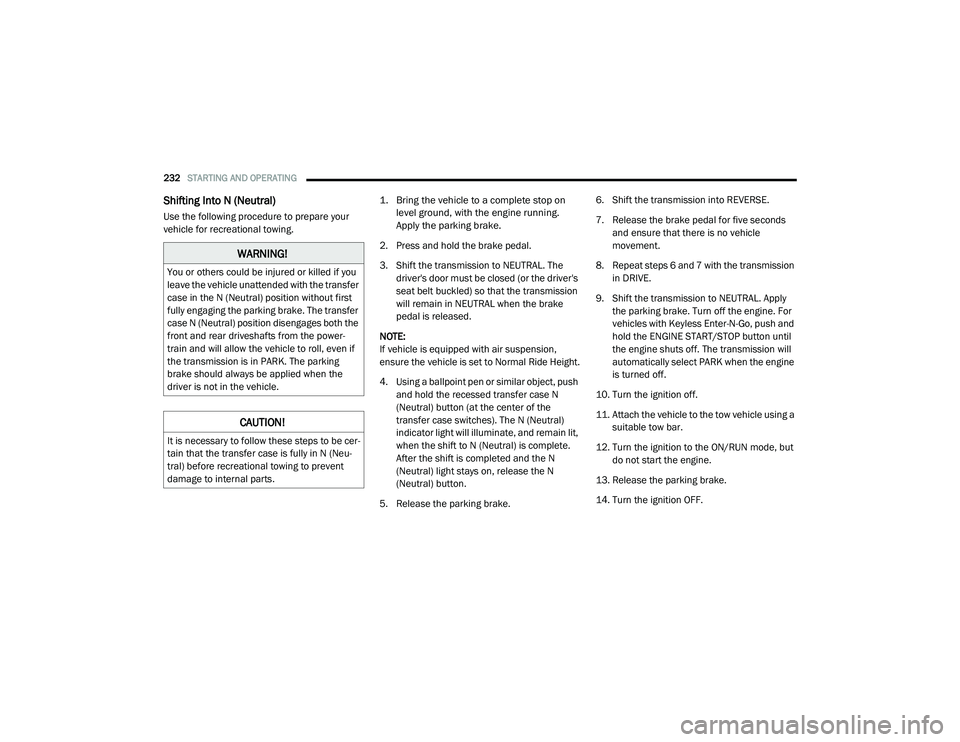
Shifting Into N (Neutral)
Use the following procedure to prepare your
vehicle for recreational towing.
1. Bring the vehicle to a complete stop on
level ground, with the engine running.
Apply the parking brake.
2. Press and hold the brake pedal.
3. Shift the transmission to NEUTRAL. The driver's door must be closed (or the driver's
seat belt buckled) so that the transmission
will remain in NEUTRAL when the brake
pedal is released.
NOTE:
If vehicle is equipped with air suspension,
ensure the vehicle is set to Normal Ride Height.
4. Using a ballpoint pen or similar object, push and hold the recessed transfer case N
(Neutral) button (at the center of the
transfer case switches). The N (Neutral)
indicator light will illuminate, and remain lit,
when the shift to N (Neutral) is complete.
After the shift is completed and the N
(Neutral) light stays on, release the N
(Neutral) button.
5. Release the parking brake. 6. Shift the transmission into REVERSE.
7. Release the brake pedal for five seconds
and ensure that there is no vehicle
movement.
8. Repeat steps 6 and 7 with the transmission in DRIVE.
9. Shift the transmission to NEUTRAL. Apply the parking brake. Turn off the engine. For
vehicles with Keyless Enter-N-Go, push and
hold the ENGINE START/STOP button until
the engine shuts off. The transmission will
automatically select PARK when the engine
is turned off.
10. Turn the ignition off.
11. Attach the vehicle to the tow vehicle using a suitable tow bar.
12. Turn the ignition to the ON/RUN mode, but do not start the engine.
13. Release the parking brake.
14. Turn the ignition OFF.
WARNING!
You or others could be injured or killed if you
leave the vehicle unattended with the transfer
case in the N (Neutral) position without first
fully engaging the parking brake. The transfer
case N (Neutral) position disengages both the
front and rear driveshafts from the power -
train and will allow the vehicle to roll, even if
the transmission is in PARK. The parking
brake should always be applied when the
driver is not in the vehicle.
CAUTION!
It is necessary to follow these steps to be cer -
tain that the transfer case is fully in N (Neu -
tral) before recreational towing to prevent
damage to internal parts.
21_DT_OM_EN_USC_t.book Page 232
Page 235 of 496
STARTING AND OPERATING233
NOTE:
Steps 2 and 3 are requirements that must be
met before pushing the N (Neutral) button,
and must continue to be met until the shift has
been completed. If any of these requirements
are not met before pushing the N (Neutral)
button or are no longer met during the shift,
the N (Neutral) indicator light will flash contin -
uously until all requirements are met or until
the N (Neutral) button is released.
The ignition must be in the ON/RUN mode for
a shift to take place and for the position indi -
cator lights to be operable. If the ignition is
not in the ON/RUN mode, the shift will not
take place and no position indicator lights will
be on or flashing.
A flashing N (Neutral) position indicator light
indicates that shift requirements have not
been met.
If the vehicle is equipped with air suspension,
the engine should be started and left running
for a minimum of 60 seconds (with all the
doors closed) at least once every 24 hours.
This process allows the air suspension to
adjust the vehicle’s ride height to compen -
sate for temperature effects.
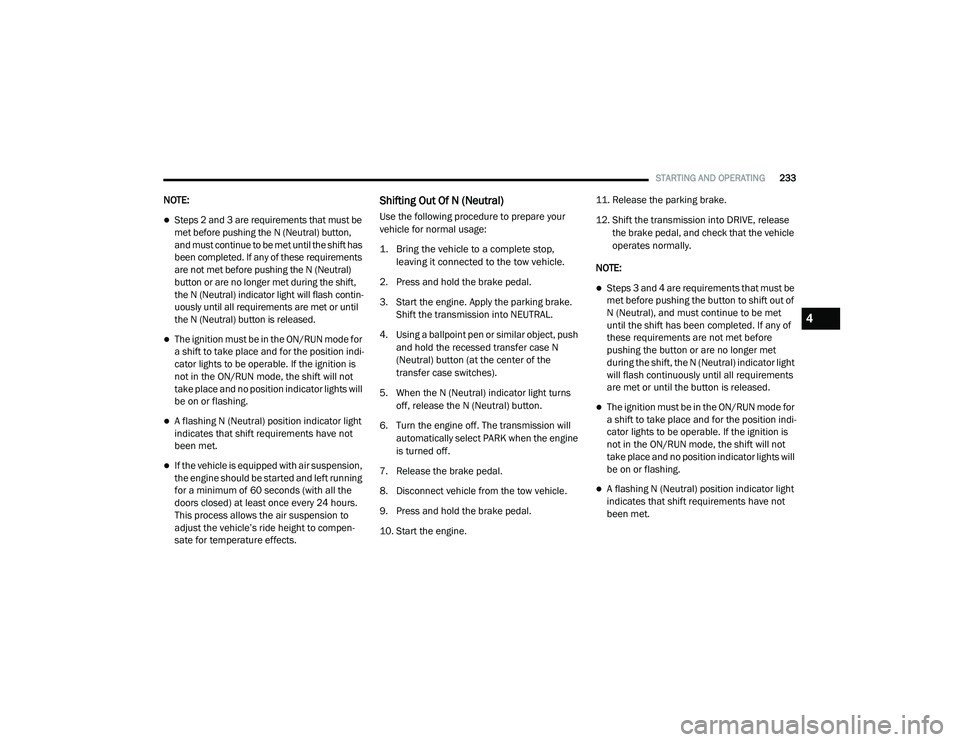
Shifting Out Of N (Neutral)
Use the following procedure to prepare your
vehicle for normal usage:
1. Bring the vehicle to a complete stop,
leaving it connected to the tow vehicle.
2. Press and hold the brake pedal.
3. Start the engine. Apply the parking brake. Shift the transmission into NEUTRAL.
4. Using a ballpoint pen or similar object, push and hold the recessed transfer case N
(Neutral) button (at the center of the
transfer case switches).
5. When the N (Neutral) indicator light turns off, release the N (Neutral) button.
6. Turn the engine off. The transmission will automatically select PARK when the engine
is turned off.
7. Release the brake pedal.
8. Disconnect vehicle from the tow vehicle.
9. Press and hold the brake pedal.
10. Start the engine. 11. Release the parking brake.
12. Shift the transmission into DRIVE, release
the brake pedal, and check that the vehicle
operates normally.
NOTE:
Steps 3 and 4 are requirements that must be
met before pushing the button to shift out of
N (Neutral), and must continue to be met
until the shift has been completed. If any of
these requirements are not met before
pushing the button or are no longer met
during the shift, the N (Neutral) indicator light
will flash continuously until all requirements
are met or until the button is released.
The ignition must be in the ON/RUN mode for
a shift to take place and for the position indi -
cator lights to be operable. If the ignition is
not in the ON/RUN mode, the shift will not
take place and no position indicator lights will
be on or flashing.
A flashing N (Neutral) position indicator light
indicates that shift requirements have not
been met.
4
21_DT_OM_EN_USC_t.book Page 233
Page 246 of 496
244MULTIMEDIA
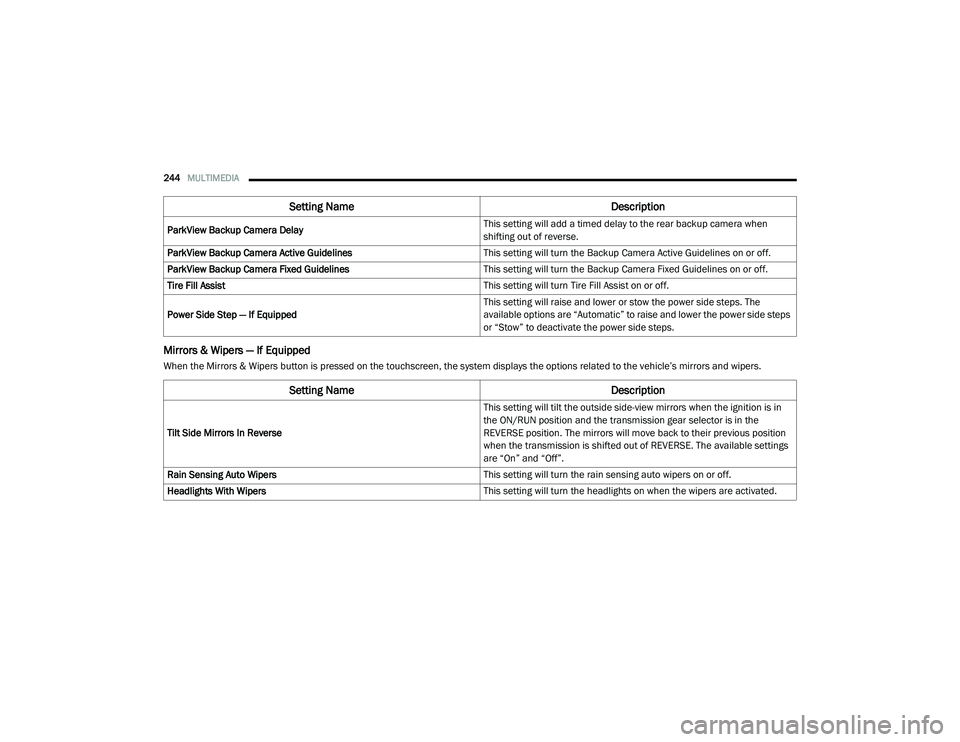
Mirrors & Wipers — If Equipped
When the Mirrors & Wipers button is pressed on the touchscreen, the system displays the options related to the vehicle’s mirrors and wipers.ParkView Backup Camera Delay
This setting will add a timed delay to the rear backup camera when
shifting out of reverse.
ParkView Backup Camera Active Guidelines This setting will turn the Backup Camera Active Guidelines on or off.
ParkView Backup Camera Fixed Guidelines This setting will turn the Backup Camera Fixed Guidelines on or off.
Tire Fill Assist This setting will turn Tire Fill Assist on or off.
Power Side Step — If Equipped This setting will raise and lower or stow the power side steps. The
available options are “Automatic” to raise and lower the power side steps
or “Stow” to deactivate the power side steps.
Setting Name
Description
Setting NameDescription
Tilt Side Mirrors In Reverse This setting will tilt the outside side-view mirrors when the ignition is in
the ON/RUN position and the transmission gear selector is in the
REVERSE position. The mirrors will move back to their previous position
when the transmission is shifted out of REVERSE. The available settings
are “On” and “Off”.
Rain Sensing Auto Wipers This setting will turn the rain sensing auto wipers on or off.
Headlights With Wipers This setting will turn the headlights on when the wipers are activated.
21_DT_OM_EN_USC_t.book Page 244
Page 250 of 496

248MULTIMEDIA
Seats & Comfort/Auto-On Comfort Systems — If Equipped
When Seats & Comfort/Auto-On Comfort Systems button is pressed on the touchscreen, the system displays the options related to the vehicle’s comfort
systems when remote start has been activated or the vehicle has been started.
Key Off Options/Engine Off Options
When the Key Off Options/Engine Off Options button is pressed on the touchscreen, the system displays the options related to vehicle shutoff. These
settings will only activate when the ignition is set to OFF.
Setting Name Description
Auto-On Driver Heated/Ventilated Seat & Heated Steering Wheel With
Vehicle Start This setting will activate the vehicle’s comfort systems and heated seats
(if equipped) or heated steering wheel (if equipped) when the vehicle is
remote started or ignition is started. The “Off” setting will not activate the
comfort systems. The “Remote Start” setting will only activate the
comfort systems when using Remote Start. The “All Start” setting will
activate the comfort systems whenever the vehicle is started.
Easy Exit Seats This setting will automatically move the driver seat rearward when the
engine is shut off. The available settings are “On” and “Off”.
Setting Name
Description
Easy Exit Seat This setting adjusts the seats to make exiting the vehicle easier.
Engine Off Power Delay This setting will keep certain electrical features running after the engine
is turned off. When any door is opened, the electronics will deactivate.
The available settings are “0 sec”, “45 sec”, “5 min”, and “10 min”.
21_DT_OM_EN_USC_t.book Page 248
Page 252 of 496
250MULTIMEDIA
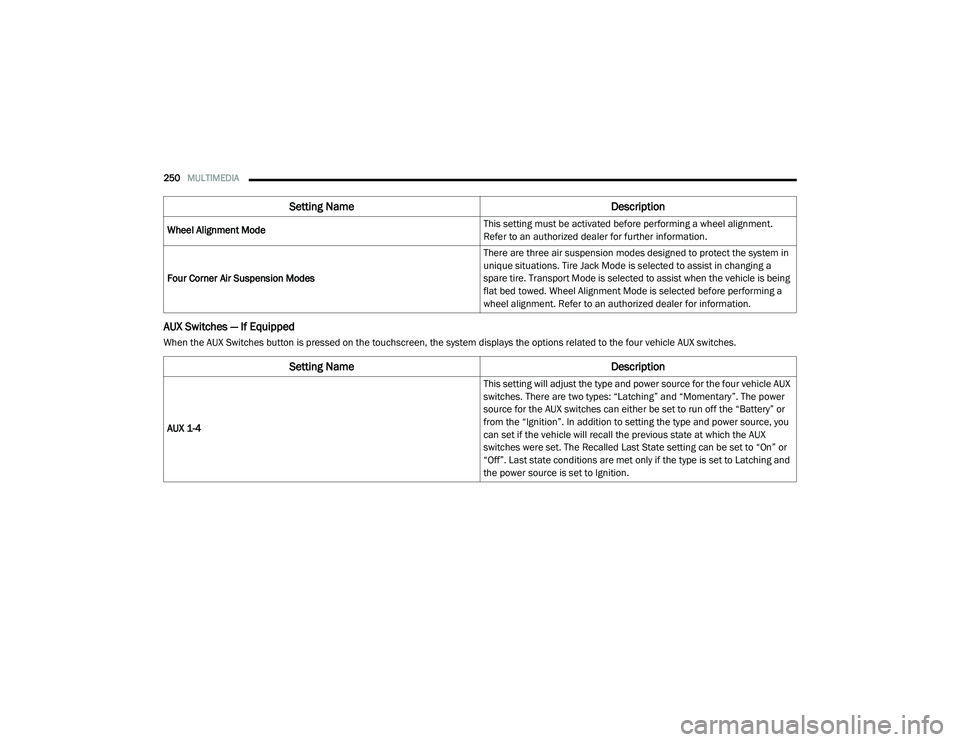
AUX Switches — If Equipped
When the AUX Switches button is pressed on the touchscreen, the system displays the options related to the four vehicle AUX switches.Wheel Alignment Mode
This setting must be activated before performing a wheel alignment.
Refer to an authorized dealer for further information.
Four Corner Air Suspension Modes There are three air suspension modes designed to protect the system in
unique situations. Tire Jack Mode is selected to assist in changing a
spare tire. Transport Mode is selected to assist when the vehicle is being
flat bed towed. Wheel Alignment Mode is selected before performing a
wheel alignment. Refer to an authorized dealer for information.
Setting Name
Description
Setting NameDescription
AUX 1-4 This setting will adjust the type and power source for the four vehicle AUX
switches. There are two types: “Latching” and “Momentary”. The power
source for the AUX switches can either be set to run off the “Battery” or
from the “Ignition”. In addition to setting the type and power source, you
can set if the vehicle will recall the previous state at which the AUX
switches were set. The Recalled Last State setting can be set to “On” or
“Off”. Last state conditions are met only if the type is set to Latching and
the power source is set to Ignition.
21_DT_OM_EN_USC_t.book Page 250
Page 270 of 496

268MULTIMEDIA
MEDIA MODE
Operating Media Mode
Uconnect 3 With 5-inch Display Operating Media Mode
Media Mode is entered by pushing the MEDIA
button located on the faceplate.
Audio Source Selection
Once in Media Mode, press the Source or
Source Select button on the touchscreen and the desired mode button on the touchscreen.
USB, AUX, and Bluetooth® are the Media
sources available. When available, you can
select the Browse button on the touchscreen to
be given these options:
Now Playing
Artists
Albums
Genres
Songs
Playlists
Folders
For the Uconnect 3 With 5-inch Display, Media
Mode is entered by pushing the Media button
located on the faceplate.
Types of Media Modes
USB Mode
Overview
USB Mode is entered by either inserting a USB
device into the USB Port, or by pressing the
Media button on the faceplate and then
selecting the USB button. On the Uconnect 3 with 5-inch Display, if you
insert a USB device with the ignition ON, the unit
will switch to USB Mode and begin to play. The
display will show the track number and index
time in minutes and seconds. Play will begin at
the start of track 1.
Bluetooth® Mode
Overview
Bluetooth® Streaming Audio or Bluetooth®
Mode is entered by pairing a Bluetooth®
device, containing music, to the Uconnect
system.
Before proceeding, the Bluetooth® device must
be paired to the Uconnect Phone to
communicate with the Uconnect system.
On the Uconnect 3 with 5-inch Display, push the
Media button located on the faceplate. Once in
Media Mode, press the Source button on the
touchscreen and select the Bluetooth® button
Ú
page 271.
To access Bluetooth® Mode, press the
Bluetooth® button on the left side of the
touchscreen or under the Source Select/Select
Source button (if equipped).
1 — Seek Down
2 — Seek Up
3 — Additional Functions
4 — Info
5 — Pause/Play
6 — Source
7 — Browse
21_DT_OM_EN_USC_t.book Page 268
Page 271 of 496

MULTIMEDIA269
AUX Mode
Overview
Auxiliary Mode (AUX) is entered by inserting an
AUX device using a cable with a 3.5 mm audio
jack into the AUX port or pushing the Media
button on the faceplate and then selecting the
Source button and then the AUX button.
To insert an Auxiliary device, gently insert the
Auxiliary device cable into the AUX Port. If you
insert an Auxiliary device with the ignition and
the radio on, the unit will switch to AUX Mode
and begin to play.
Controlling The Auxiliary Device
The control of the Auxiliary device (e.g.,
selecting playlists, play, fast forward, etc.)
cannot be provided by the radio; use the device
controls instead. Adjust the volume with the
Volume button, Volume/Mute rotary knob, or
the On/Off rotary knob, or with the volume of
the attached device.
NOTE:
The radio unit is acting as the amplifier for audio
output from the Auxiliary device. Therefore, if
the volume control on the Auxiliary device is set
too low, there will be insufficient audio signal for
the radio unit to play the music on the device. Seek Up
/ Seek Down
In USB Mode, press the Seek Up button on the
touchscreen for the next selection on the USB
device. Press and release the Seek Down
button on the touchscreen to return to the
beginning of the current selection, or to return
to the beginning of the previous selection if the
USB device is within the first three seconds of
the current selection.
In Bluetooth® Mode, press and release the
Seek Up button on the touchscreen for the next
selection on the Bluetooth® device. Press and
release the Seek Down button on the
touchscreen to return to the beginning of the
current selection, or return to the beginning of
the previous selection if the Bluetooth® device
is within the first second of the current
selection.
Browse
In USB Mode, press the Browse button on the
touchscreen to display the browse window. In
USB Mode, the left side of the browse window
displays a list of ways you can browse through
the contents of the USB device. If supported by
the device, you can browse by Folder, Artist,
Playlist, Album, Song, etc. Press the desired button on the touchscreen on the left side of the
screen. The center of the browse window shows
items and its sub-functions, which can be
scrolled through by pressing the Up and Down
buttons to the right. The Tune/Scroll knob can
also be used to scroll.
On the Uconnect 3 With 5-inch Display, rotate
the Browse button on the touchscreen to scroll
through and select a desired track on the
device. Press the Exit button on the
touchscreen if you wish to cancel the Browse
function.
Media Mode
In USB Mode, press the Media button on the
touchscreen to select the desired audio source:
USB.
In Bluetooth® Mode, press the Media button on
the touchscreen to select the desired audio
source: Bluetooth®.
In AUX Mode, press the Media button on the
touchscreen to select the desired audio source:
AUX.
5
21_DT_OM_EN_USC_t.book Page 269
Page 275 of 496

MULTIMEDIA273
The system handles multiple inputs in the same
phrase or sentence such as “make a phone
call” and “to Kelly Smith”. For multiple inputs in
the same phrase or sentence, the system
identifies the topic or context and provides the
associated follow-up prompt such as “Who do
you want to call?” in the case where a phone
call was requested but the specific name was
not recognized.
The system utilizes continuous dialog. When the
system requires more information from the
user, it will ask a question to which the user can
respond without pushing the Voice Command
button on the steering wheel.
Help Command
If you need assistance at any prompt, or if you
want to know your options at any prompt, say
“Help” following the beep.
To activate the Uconnect Phone from idle,
simply push the Phone button (if active) on your
steering wheel and say a command or say
“Help”. All Phone sessions begin with a push of
the VR button or Phone button on the radio
faceplate. Cancel Command
At any prompt, after the beep, you can say
“Cancel” and you will be returned to the main
menu.
You can also push the VR button or Phone
button on your steering wheel when the system
is listening for a command and be returned to
the main or previous menu.
Pair (Link) Uconnect Phone To A Mobile Phone
To begin using your Uconnect Phone, you must
pair your compatible Bluetooth®-enabled
mobile phone. Mobile phone pairing is the
process of establishing a wireless connection
between a cellular phone and the Uconnect
system.
To complete the pairing process, you will need
to reference your mobile phone’s manual.
Please visit UconnectPhone.com for complete
mobile phone compatibility information.
Uconnect 3 With 5-inch Display
NOTE:
You must have Bluetooth® enabled on your
phone to complete this procedure.
The vehicle must be in PARK or at a standstill.
Follow the steps below to pair your phone:
1. Place the ignition in the ACC or ON/RUN position.
2. Press the Phone button.
5
21_DT_OM_EN_USC_t.book Page 273
Page 281 of 496
MULTIMEDIA279
If two calls are in progress (one active and one
on hold), press the Swap Calls button on the
phone main screen. Only one call can be placed
on hold at a time.
You can also push the Phone button to toggle
between the active and held phone call.
Join Calls
When two calls are in progress (one active and
one on hold), press the Join/Merge Calls Call
button the Phone main screen to combine all
calls into a conference call.
Call Termination
To end a call in progress, momentarily press the
End Call button on the touchscreen or the
Phone End button on the steering wheel. Only
the active call(s) will be terminated and if there
is a call on hold, it will become the new active
call.
Redial
Push the VR button and after the “Listening”
prompt and the following beep, say “Redial.”
The Uconnect Phone will call the last number
that was dialed from your mobile phone. Call Continuation
Call continuation is the progression of a phone
call on the Uconnect Phone after the vehicle
ignition has been switched to OFF.
NOTE:
The call will remain within the vehicle audio
system until the phone becomes out of range
for the Bluetooth® connection. It is recom
-
mended to press the Transfer button on the
touchscreen when leaving the vehicle.
Advanced Phone Connectivity
Transfer Call To And From Mobile Phone
The Uconnect Phone allows ongoing calls to be
transferred from your mobile phone without
terminating the call. To transfer an ongoing call
from your connected mobile phone to the
Uconnect Phone or vice versa, press the
Transfer button on the Phone main screen.
Things You Should Know About Uconnect
Phone
Voice Command
For the best performance:
Always wait for the beep before speaking
Speak normally, without pausing, just as you
would speak to a person sitting a few feet/
meters away from you
Ensure that no one other than you is
speaking during a voice command period
Low-To-Medium Blower Setting
Low-To-Medium Vehicle Speed
Low Road Noise
Smooth Road Surface
Fully Closed Windows
Dry Weather Conditions
Even though the system is designed for many
languages and accents, the system may not
always work for some.
WARNING!
ALWAYS drive safely with your hands on the
wheel. You have full responsibility and
assume all risks related to the use of the
Uconnect features and applications in this
vehicle. Only use Uconnect when it is safe to
do so. Failure to do so may result in an
accident involving serious injury or death.
5
21_DT_OM_EN_USC_t.book Page 279